battery CADILLAC ESCALADE EXT 2010 3.G Owner's Manual
[x] Cancel search | Manufacturer: CADILLAC, Model Year: 2010, Model line: ESCALADE EXT, Model: CADILLAC ESCALADE EXT 2010 3.GPages: 580, PDF Size: 6.23 MB
Page 232 of 580

RIGHT REAR DOOR OPEN
This message displays and a chime sounds if the
passenger side rear door is not fully closed and the
vehicle is shifted out of P (Park). Stop and turn off the
vehicle, check the door for obstructions, and close the
door again. Check to see if the message still appears
on the DIC.
SERVICE AIR BAG
This message displays if there is a problem with the
airbag system. Have your dealer/retailer inspect the
system for problems. SeeAirbag Readiness Light
on
page 4‑28and Airbag Systemon page 2‑51for more
information.
SERVICE BATTERY CHARGING
SYSTEM
On some vehicles, this message displays if there is a
problem with the battery charging system. Under certain
conditions, the charging system light may also turn on
in the instrument panel cluster. See Charging System
Light
on page 4‑30. Driving with this problem could
drain the battery. Turn off all unnecessary accessories.
Have the electrical system checked as soon as
possible. See your dealer/retailer.
SERVICE BRAKE SYSTEM
This message displays along with the brake system
warning light if there is a problem with the brake
system. See Brake System Warning Light
on
page 4‑31. If this message appears, stop as soon as
possible and turn off the vehicle. Restart the vehicle
and check for the message on the DIC display. If the
message is still displayed or appears again when you
begin driving, the brake system needs service as soon
as possible. See your dealer/retailer.
SERVICE BRAKES SOON
This message displays if there is a problem with the
brake system. If this message appears, stop as soon as
possible and turn off the vehicle. Restart the vehicle
and check for the message on the DIC display. If the
message is still displayed or appears again when you
begin driving, the brake system needs service. See
your dealer/retailer.
SERVICE PARKING ASSIST
This message displays if there is a problem with the
Ultrasonic Rear Parking Assist (URPA) system. Do not
use this system to help you park. See Ultrasonic Rear
Parking Assist (URPA)
on page 3‑48for more
information. See your dealer/retailer for service.
4-52
Page 236 of 580
DIC Vehicle Customization
Your vehicle may have customization capabilities
that allow you to program certain features to one
preferred setting. Customization features can only be
programmed to one setting on the vehicle and cannot
be programmed to a preferred setting for two different
drivers.
All of the customization options may not be available on
your vehicle. Only the options available will be
displayed on the DIC.
The default settings for the customization features were
set when your vehicle left the factory, but may have
been changed from their default state since then.
The customization preferences are automatically
recalled.
To change customization preferences, use the following
procedure.
Entering the Feature Settings Menu
1. Turn the ignition on and place the vehicle inP (Park).
To avoid excessive drain on the battery, it is
recommended that the headlamps are turned off.
2. Press the customization button to scroll through the available customizable options.
Feature Settings Menu Items
The following are customization features that allow you
to program settings to the vehicle:
DISPLAY IN ENGLISH
This feature will only display if a language other than
English has been set. This feature allows you to change
the language in which the DIC messages appear to
English.
Press the customization button until the PRESS
VTO
DISPLAY IN ENGLISH screen appears on the DIC
display. Press the set/reset button once to display all
DIC messages in English.
DISPLAY LANGUAGE
This feature allows you to select the language in which
the DIC messages will appear.
Press the customization button until the DISPLAY
LANGUAGE screen appears on the DIC display. Press
the set/reset button once to access the settings for this
feature. Then press the customization button to scroll
through the following settings:
ENGLISH (default) : All messages will appear in
English.
DEUTSCH : All messages will appear in German.
ITALIANO : All messages will appear in Italian.
4-56
Page 258 of 580
Push the power button to turn on the headphones. An
indicator light located on the headphones comes on.
If the light comes on but, there is intermittent sound
and/or static on the headphones, or if the indicator light
does not come on, the batteries might need to be
replaced. See“Battery Replacement” later in this
section for more information. Switch the headphones
to Off when not in use.
The infrared transmitters are located at the rear of the
RSE overhead console. The headphones shut off
automatically to save the battery power if the RSE
system and the RSA are shut off or if the headphones
are out of range of the transmitters for more than
3 minutes. If you move too far forward or step out of the
vehicle, the headphones lose the audio signal.
The headphones may automatically turn off after
four hours of continuous use.
To adjust the volume on the headphones, use the
volume control located on the right side.
For optimal audio performance, the headphones must
be worn correctly. Headphones should be worn with
headband over the top of the head for best audio
reception. The symbol L (Left) appears on the upper left
side, above the ear pad and should be positioned on
the left ear. The symbol R (Right) appears on the upper
right side, above the ear pad and should be positioned
on the right ear. Notice:
Do not store the headphones in heat or
direct sunlight. This could damage the headphones
and repairs will not be covered by the warranty.
Storage in extreme cold can weaken the batteries.
Keep the headphones stored in a cool, dry place.
If the foam ear pads attached to the headphones
become worn or damaged, the pads can be replaced
separately from the headphone set. See your dealer/
retailer for more information.
Battery Replacement
To change the batteries on the headphones:
1. Turn the screw to loosen the battery door located on the left side of the headphones. Slide the
battery door open.
2. Replace the two batteries in the compartment. Make sure that they are installed correctly, using
the diagram on the inside of the battery
compartment.
3. Replace the battery door and tighten the door screw.
If the headphones are to be stored for a long period of
time, remove the batteries and keep them in a cool, dry
place.
4-78
Page 259 of 580
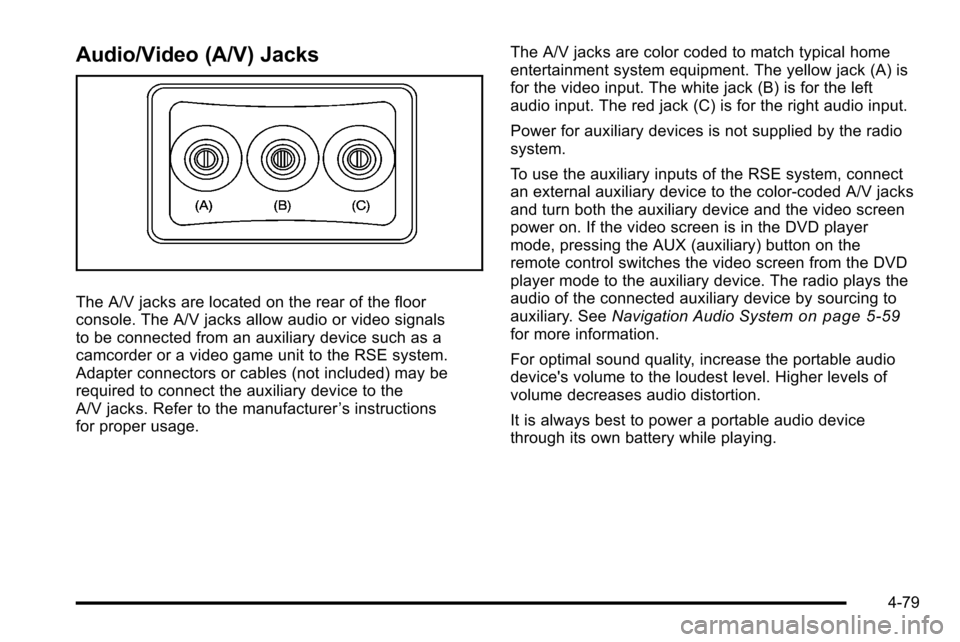
Audio/Video (A/V) Jacks
The A/V jacks are located on the rear of the floor
console. The A/V jacks allow audio or video signals
to be connected from an auxiliary device such as a
camcorder or a video game unit to the RSE system.
Adapter connectors or cables (not included) may be
required to connect the auxiliary device to the
A/V jacks. Refer to the manufacturer’s instructions
for proper usage. The A/V jacks are color coded to match typical home
entertainment system equipment. The yellow jack (A) is
for the video input. The white jack (B) is for the left
audio input. The red jack (C) is for the right audio input.
Power for auxiliary devices is not supplied by the radio
system.
To use the auxiliary inputs of the RSE system, connect
an external auxiliary device to the color-coded A/V jacks
and turn both the auxiliary device and the video screen
power on. If the video screen is in the DVD player
mode, pressing the AUX (auxiliary) button on the
remote control switches the video screen from the DVD
player mode to the auxiliary device. The radio plays the
audio of the connected auxiliary device by sourcing to
auxiliary. See
Navigation Audio Systemon page 5‑59for more information.
For optimal sound quality, increase the portable audio
device's volume to the loudest level. Higher levels of
volume decreases audio distortion.
It is always best to power a portable audio device
through its own battery while playing.
4-79
Page 261 of 580
The overhead console contains the IR transmitters for
the wireless headphones and the IR receivers for the
remote control. They are located at the rear of the
console.
Notice:Avoid directly touching the video screen, as
damage may occur. See “Cleaning the Video
Screen” later in this section for more information.
Remote Control
To use the remote control, aim it at the transmitter
window at the rear of the overhead console and press
the desired button. Direct sunlight or very bright light
can affect the ability of the RSE transmitter to receive
signals from the remote control. If the remote control
does not seem to be working, the batteries may need to
be replaced. See “Battery Replacement” later in this
section. Objects blocking the line of sight can also affect
the function of the remote control.
If a CD or DVD is in the Radio DVD slot, the remote
control power button can be used to turn on the video
screen display and start the disc. The radio can also
turn on the video screen display. See Navigation Audio
System
on page 5‑59for more information. Notice:
Storing the remote control in a hot area or
in direct sunlight can damage it, and the repairs will
not be covered by the warranty. Storage in extreme
cold can weaken the batteries. Keep the remote
control stored in a cool, dry place.
If the remote control becomes lost or damaged, a new
universal remote control can be purchased. If this
happens, make sure the universal remote control uses
a code set of Toshiba
®.
Remote Control Buttons
O(Power): Press to turn the video screen on and off.
P(Illumination): Press to turn the remote control
backlight on. The backlight automatically times out after
7 to 10 seconds if no other button is pressed while the
backlight is on.
v(Title): Press to return the DVD to the main menu of
the DVD. This function can vary for each disc.
y(Main Menu): Press to access the DVD menu. The
DVD menu is different on every DVD. Use the
navigation arrows to move the cursor around the DVD
menu. After making a selection press the enter button.
This button only operates when using a DVD.
4-81
Page 263 of 580
{(Subtitles):Press to turn ON/OFF subtitles and to
move through subtitle options when a DVD is playing.
The format and content of this function varies for
each disc.
AUX (Auxiliary) : Press to switch the system between
the DVD player and an auxiliary source.
If your vehicle has a third row video screen, the AUX
button controls the source display on the second row
video screen, and the third row video screen as
described in the table below:
Aux ButtonPress Second Row
Screen Third Row
Screen
Default State
(No Press) DVD Media DVD Media
First Press Aux Video
Source Aux Video
Source
Second Press DVD Media Aux Video
Source
Third Press Aux Video
Source DVD Media
Fourth Press Return to Default
State Return to Default
State
d(Camera): Press to change camera angles on DVDs
that have this feature when a DVD is playing. The
format and content of this function varies for each disc.
1 through 0 (Numeric Keypad) : The numeric keypad
provides the capability of direct chapter or track number
selection.
\(Clear): Press within three seconds after entering a
numeric selection, to clear all numeric inputs.
}10 (Double Digit Entries): Press to select chapter or
track numbers greater than 9. Press this button before
entering the number.
Battery Replacement
To change the remote control batteries:
1. Slide the rear cover back on the remote control.
2. Replace the two batteries in the compartment. Make sure that they are installed correctly, using
the diagram on the inside of the battery
compartment.
3. Replace the battery cover.
If the remote control is to be stored for a long period of
time, remove the batteries and keep them in a cool, dry
place.
4-83
Page 270 of 580
AM
The range for most AM stations is greater than for FM,
especially at night. The longer range can cause station
frequencies to interfere with each other. For better radio
reception, most AM radio stations boost the power
levels during the day, and then reduce these levels
during the night. Static can also occur when things like
storms and power lines interfere with radio reception.
When this happens, try reducing the treble on the radio.
FM Stereo
FM signals only reach about 10 to 40 miles (16 to 65 km).
Although the radio has a built-in electronic circuit that
automatically works to reduce interference, some static
can occur, especially around tall buildings or hills,
causing the sound to fade in and out.
XM™Satellite Radio Service
XM Satellite Radio Service gives digital radio reception
from coast-to-coast in the 48 contiguous United States,
and in Canada. Just as with FM, tall buildings or hills
can interfere with satellite radio signals, causing the
sound to fade in and out. In addition, traveling or
standing under heavy foliage, bridges, garages,
or tunnels may cause loss of the XM signal for a period
of time.
Cellular Phone Usage
Cellular phone usage may cause interference with the
vehicle's radio. This interference may occur when
making or receiving phone calls, charging the phone's
battery, or simply having the phone on. This
interference causes an increased level of static while
listening to the radio. If static is received while listening
to the radio, unplug the cellular phone and turn it off.
Fixed Mast Antenna
The fixed mast antenna can withstand most car washes
without being damaged as long as it is securely
attached to the base. If the mast becomes slightly bent,
straighten it out by hand. If the mast is badly bent,
replace it.
Occasionally check to make sure the antenna is
tightened to its base. If tightening is required, tighten by
hand until fully seated plus one quarter turn.
XM™Satellite Radio Antenna
System
The XM Satellite Radio antenna is located on the roof of
the vehicle. Keep the antenna clear of obstructions for
clear radio reception.
If the vehicle has a sunroof, the performance of the
XM system may be affected if the sunroof is open.
4-90
Page 327 of 580

Notice:Do not apply after-market glass tinting to
the vehicle's windows. Glass tinting interferes with
the system's ability to receive GPS signals and
causes the system to malfunction. The window
might have to be replaced to correct the problem.
This would not be covered by the warranty.
For more information if the GPS is not functioning
properly, see If the System Needs Service
on
page 5‑58and Problems with Route Guidanceon
page 5‑58.
Vehicle Positioning
At times, the position of the vehicle on the map may be
inaccurate due to one or more of the following reasons:
.Road system has changed.
.Vehicle is driving on slippery road surfaces such as
in sand, gravel, and/or snow.
.Vehicle is traveling on winding roads.
.Vehicle is on a long straight road.
.Vehicle is approaching a tall building or a large
vehicle.
.Surface streets run parallel to a freeway.
.Vehicle has just been transferred by a vehicle
carrier or a ferry.
.Current position calibration is set incorrectly.
.Vehicle is traveling at high speed.
.Vehicle changes directions more than once,
or when the vehicle is turning on a turn table
in a parking lot.
.Vehicle is entering and/or exiting a parking lot
or a garage.
.GPS signal is not received.
.Roof carrier is installed on the vehicle.
.Vehicle is being driven with tire chains.
.Tires are replaced.
.Tire pressure for the tires is incorrect.
.Tires are worn.
.First time the map DVD is inserted.
.Battery is disconnected for several days.
.Vehicle is driving in heavy traffic where driving is at
low speeds, and the vehicle is stopped and started
repeatedly.
See your dealer/retailer if other problems occur.
5-57
Page 351 of 580
DVD Messages
If Disc Read Error appears on the display and/or the
DVD comes out, it could be for one of the following
reasons:
.If a disc was inserted with an invalid or unknown
format.
.If the disc is not from a correct region.
.If the map DVD disc was installed into the DVD
audio/video slot. See“Installing the Map DVD”
under Maps
on page 5‑14for more information.
.It is very hot. When the temperature returns to
normal, the DVD should play.
.You are driving on a very rough road. When the
road becomes smoother, the DVD should play.
.The DVD is dirty, scratched, wet, or upside down.
.The air is very humid. If so, wait about an hour and
try again.
.There may have been a problem while burning
the DVD.
.The label may be caught in the DVD player.
If the DVD is not playing correctly, for any other reason,
try a known good DVD.
If any error occurs repeatedly or if an error cannot be
corrected, contact your dealer/retailer.
Connecting a USB Storage Device
or iPod®
The USB Port, located in the center console, can be
used to control an iPod®or a USB storage device.
To avoid connection problems, extension cords are not
recommended. Use only the cable that came with the
device.
To connect a USB storage device, connect the device to
the USB port located in the center console.
To connect an iPod
®, connect one end of the USB cable
that came with the iPod to the iPod’ s dock connector
and connect the other end to the USB port. If the
vehicle is on and the USB connection works, “OK to
disconnect” and a GM logo may appear on the iPod and
iPod appears on the radio's display. The iPod music
appears on the radio’s display and begins playing.
The iPod charges while it is connected to the vehicle if
the vehicle is in the ACC/ACCESSORY or ON/RUN
position. When the vehicle is turned off, the iPod
automatically powers off and will not charge or draw
power from the vehicle's battery.
5-81
Page 389 of 580
{WARNING:
Snow can trap engine exhaust under the vehicle.
This may cause exhaust gases to get inside.
Engine exhaust contains carbon monoxide (CO)
which cannot be seen or smelled. It can cause
unconsciousness and even death.
If the vehicle is stuck in the snow:
.Clear away snow from around the base of
your vehicle, especially any that is blocking
the exhaust pipe.
.Check again from time to time to be sure
snow does not collect there.
.Open a window about 5 cm (two inches) on
the side of the vehicle that is away from the
wind to bring in fresh air.
.Fully open the air outlets on or under the
instrument panel.
.Adjust the Climate Control system to a setting
that circulates the air inside the vehicle and
set the fan speed to the highest setting.
See Climate Control System in the Index.(Continued)
WARNING: (Continued)
For more information about carbon monoxide, see
Engine Exhaust on page 3‑44.
Snow can trap exhaust gases under your vehicle.
This can cause deadly CO (carbon monoxide) gas
to get inside. CO could overcome you and kill you.
You cannot see it or smell it, so you might not
know it is in your vehicle. Clear away snow from
around the base of your vehicle, especially any
that is blocking the exhaust.
Run the engine for short periods only as needed to
keep warm, but be careful.
To save fuel, run the engine for only short periods as
needed to warm the vehicle and then shut the engine
off and close the window most of the way to save heat.
Repeat this until help arrives but only when you feel
really uncomfortable from the cold. Moving about to
keep warm also helps.
If it takes some time for help to arrive, now and then
when you run the engine, push the accelerator pedal
slightly so the engine runs faster than the idle speed.
This keeps the battery charged to restart the vehicle
and to signal for help with the headlamps. Do this as
little as possible to save fuel.
6-29