CD player CADILLAC ESCALADE EXT 2012 3.G User Guide
[x] Cancel search | Manufacturer: CADILLAC, Model Year: 2012, Model line: ESCALADE EXT, Model: CADILLAC ESCALADE EXT 2012 3.GPages: 494, PDF Size: 7.71 MB
Page 204 of 494

Black plate (24,1)Cadillac Escalade EXT Owner Manual - 2012
7-24 Infotainment System
w(Tuning Knob):
1. Turn counterclockwise one notch to go to the start of the current
chapter/track, turn it again to go
to the previous chapter/track.
2. Turn clockwise to go to the next chapter/track.
Care of Your CDs and DVDs
Sound quality can be reduced due
to disc quality, recording method,
quality of the music recorded, and
how the disc has been handled.
Handle discs carefully and store
them in their original cases or other
protective cases away from direct
sunlight and dust. If the bottom
surface of a disc is damaged, the
disc may not play properly or at all.
Do not touch the bottom surface of
a disc while handling it; this could
damage the surface. Pick up discs
by grasping the outer edges or the
edge of the hole and the outer edge. If the bottom surface of a disc is
dirty, take a soft lint free cloth,
or dampen a clean soft cloth in a
mild neutral detergent solution
mixed with water, and clean it. Wipe
the disc from the center to the
outer edge.
Notice:
If a label is added to a CD
or DVD, or more than one CD or
DVD is inserted into the slot at a
time, or an attempt is made to
play scratched or damaged CDs
or DVDs, the player could be
damaged. While using the CD or
DVD player, use only CDs or
DVDs in good condition without
any label, load one CD or DVD at
a time, and keep the player and
the loading slot free of foreign
materials, liquids, and debris.
Do not add any label to a CD or
DVD, it could get caught in the
player. If a CD or DVD is recorded
on a personal computer and a
description label is needed, try
labeling the top of the recorded CD
or DVD with a soft marker.
CD/DVD Messages
If Disc Read Error appears on the
display and/or the CD/DVD comes
out, it could be for one of the
following reasons:
.If a CD was inserted with an
invalid or unknown format.
.If a DVD is not from a correct
region.
.It is very hot. When the
temperature returns to normal,
the CD should play.
.You are driving on a very rough
road. When the road becomes
smoother, the CD/DVD
should play.
.The CD/DVD is dirty, scratched,
wet, or upside down.
.The air is very humid. If so, wait
about an hour and try again.
Page 205 of 494

Black plate (25,1)Cadillac Escalade EXT Owner Manual - 2012
Infotainment System 7-25
.There may have been a problem
while burning the CD/DVD.
.The label may be caught in the
CD/DVD player.
If the CD/DVD is not playing
correctly, for any other reason, try a
known good CD/DVD.
If any error occurs repeatedly or if
an error cannot be corrected,
contact your dealer.
Connecting a USB Storage
Device or iPod®
The USB Port, located on the
instrument panel and in the center
console, can be used to control an
iPod or a USB storage device.
To avoid connection problems,
extension cords are not
recommended. Use only the cable
that came with the device. To connect a USB storage device,
connect the device to the USB port
located on the instrument panel and
in the center console.
To connect an iPod, connect one
end of the USB cable that came
with the iPod to the iPod’s dock
connector and connect the other
end to the USB port. If the vehicle is
on and the USB connection works,
“OK to disconnect”
and a GM logo
may appear on the iPod and iPod
appears on the radio's display. The
iPod music appears on the radio’s
display and begins playing.
The iPod charges while it is
connected to the vehicle if the
vehicle is in the ACC/ACCESSORY
or ON/RUN position. When the
vehicle is turned off, the iPod
automatically powers off and will not
charge or draw power from the
vehicle's battery. USB Supported File and Folder
Structure
The guidelines that must be met
while using USB supported files and
folders are:
.Up to 700 folders.
.Up to 8 folders in depth.
.Up to 65,535 files.
.Folder and file names up to
64 bytes.
.Files with an .mp3 or .wma file
extension.
.AAC files stored on an iPod.
.FAT16
.FAT32
Page 208 of 494
Black plate (28,1)Cadillac Escalade EXT Owner Manual - 2012
7-28 Infotainment System
Empty Directory or Folder
If a root directory or a folder exists
somewhere in the file structure that
contains only folders/subfolders and
no compressed files directly
beneath them, the player advances
to the next folder in the file structure
that contains compressed audio
files and the empty folder is not
displayed or numbered.
No Folder
When the CD contains only
compressed files, the files are
located under the root folder. The
next and previous folder functions
will have no function on a CD that
was recorded without folders or
playlists. When displaying the name
of the folder the radio will display No
Folder.
Order of Play
Play begins from the first track
under the root directory. When all
tracks from the root directory have
been played, play continues from
files according to their numericallisting. After playing the last track
from the last folder, play begins
again at the first track of the first
folder or root directory.
When play enters a new folder, the
display does not automatically show
the new folder name. The new track
name appears on the display.
File System and Naming
The song name that displays is the
song name that is contained in the
ID3 tag. If the song name is not
present in the ID3 tag, then the
radio displays the file name without
the extension (such as .mp3) as the
track name.
Track names longer than
32 characters or four pages are
shortened. The display does not
show parts of words on the last
page of text and the extension of
the filename does not display.
Playing an MP3
While playing a CD, the navigation
system is available.
When you insert a CD, the CD tab
displays. If a DSP setting is
selected for the CD, it will be
activated each time you play a CD.
If you turn off the ignition or radio
with a CD in the player, it stays in
the player. When you turn on the
ignition or radio, the CD starts
playing where it stopped, if it was
the last selected audio source.
As each new track starts to play, the
track number appears on the
display.
If an error appears on the display,
see
“CD/DVD Messages” in this
section.
If viewing a map screen, press the
CD screen button. The display splits
between the audio screen and the
map screen. If you do not want to
view a split screen or you are not on
a map screen, press AUDIO, then
press AUDIO again, repeatedly until
CD is selected or press the CD
screen button.
Page 209 of 494

Black plate (29,1)Cadillac Escalade EXT Owner Manual - 2012
Infotainment System 7-29
j/r(Pause/Play):Press to pause
the CD. This button will then change
to the play button. Press the play
button to play the CD.
Random:
1. Press to hear the tracks in random, rather than sequential,
order.
2. Press Random again to turn off random play.
r(Rewind):
1. Press and hold to rewind quickly through a track selection. You
will hear sound at a reduced
volume.
2. Release to stop rewinding. The display will show the elapsed
time of the track.
[(Forward):
1. Press and hold to fast forward quickly through a track selection.
You will hear sound at a reduced
volume.
2. Release to stop fast forwarding. The display shows the elapsed
time of the track.
q r(Folder/Artist/Album):
1. Select the left or right arrow to go to the previous or next folder,
artist, or album on the disc.
2. Press the middle screen button, with the folder, artist, or album
name, to sort the MP3 by folder, artist, or album. It may take a
few minutes for the system to
sort the MP3.
y/©or¨/z(Seek/Scan):
1. To seek tracks, press the up arrow to go to the next track.
2. Press the down arrow to go to the start of the current track,
if more than eight seconds have
played.
3. If either arrow is pressed more than once, the player continues
moving backward or forward
through the CD. The sound
mutes while seeking.
w(Tuning Knob):
1. Turn counterclockwise one notch to go to the start of the current
track, turn it again to go to the
previous track.
2. Turn clockwise to go to the next track.
Page 210 of 494
Black plate (30,1)Cadillac Escalade EXT Owner Manual - 2012
7-30 Infotainment System
When playing an MP3 the rear seat
operator can power on the RSE
video screen and use the remote
control to navigate through the MP3.
Auxiliary Devices
Using the Auxiliary Input Jack
The navigation system has an
auxiliary input jack located on the
faceplate and in the center console.
This is not an audio output; do not
plug the headphone set into the
front auxiliary input jack. An external
audio device such as an iPod,
laptop computer, MP3 player, CD
player, or cassette tape player, etc.
can be connected to the auxiliary
input jack for use as another audio
source.
Drivers are encouraged to set up
any auxiliary device while the
vehicle is in P (Park). SeeDefensive
Driving on page 9‑3 for more
information on driver distraction. To use a portable audio player,
connect a 1/8 in (3.5 mm) cable to
the radio's front auxiliary input jack.
When a device is connected, press
AUDIO, then press AUDIO again
until AUX is selected or press the
AUX screen button to begin playing
audio from the device over the
vehicle speakers.
For optimal sound quality, increase
the portable audio device's volume
to the loudest level.
It is always best to power the
portable audio device through its
own battery while playing.
The vehicle may have a rear
entertainment system (RSE) with a
second and third row screen. The
RSE has audio adapters to allow
you to connect auxiliary devices.
The audio can be heard through the
speakers or through the wireless or
wired headphones. See the Rear
Seat Infotainment user guide for
more information.Drivers are encouraged to set up
any auxiliary device while the
vehicle is in P (Park). See
Defensive Driving on page 9‑3
for
more information on driver
distraction.
To switch the RSE system to use an
auxiliary device:
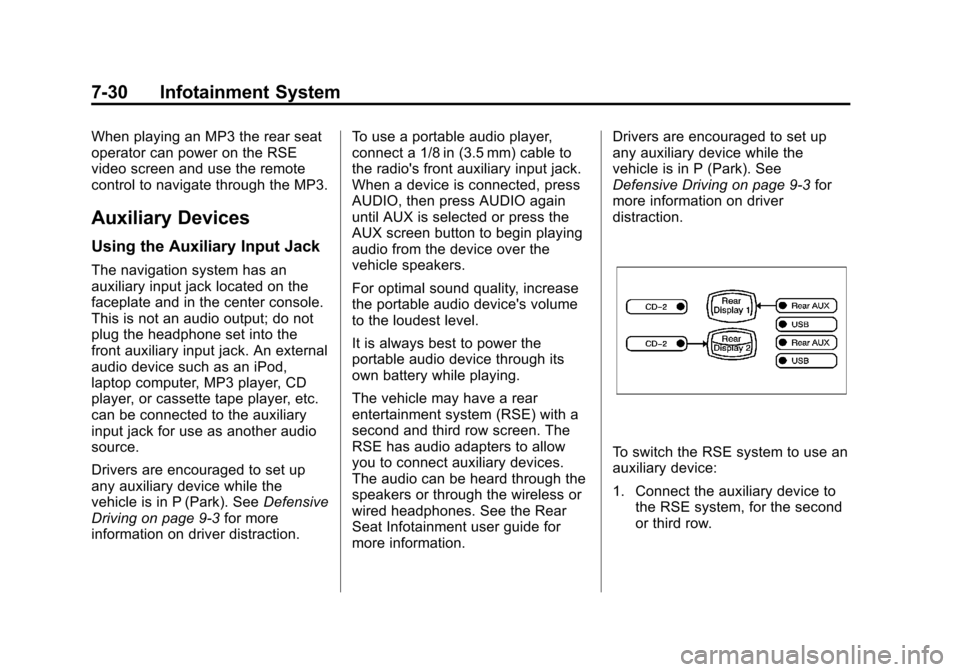
1. Connect the auxiliary device to the RSE system, for the second
or third row.
Page 211 of 494

Black plate (31,1)Cadillac Escalade EXT Owner Manual - 2012
Infotainment System 7-31
2. Press AUDIO then press AUDIOagain, repeatedly until AUX
(auxiliary) is selected or press
the AUX screen button. An
auxiliary device must be
connected for the AUX screen
button to appear as an option to
select.
3. For the second row display select the Rear AUX screen
button next to Rear Display
1 and for the third row display
select the Rear AUX screen
button next to Rear Display 2.
Each screen works
independently of the other. The
second row screen can watch a
DVD while the third row screen
can use the auxiliary device.
The rear seat passengers can also
use the remote control to change
the functions of the RSE. See the
Rear Seat Infotainment user guide
for more information.Rear Seat
Infotainment
Rear Seat Entertainment
(RSE) System
The vehicle may have an DVD Rear
Seat Entertainment (RSE) system.
The RSE system works with the
vehicle's audio system. The DVD
player is part of the front radio. The
RSE system includes a radio with a
DVD player, a video display screen,
audio/video jacks, two wireless
headphones, and a remote control.
See CD/DVD Player on page 7‑18
for more information on the vehicle's
DVD system.
Before Driving
The RSE is designed for rear seat
passengers only. The driver cannot
safely view the video screen while
driving and should not try to do so.
In severe or extreme weather
conditions, the RSE system might
not work until the temperature is
within the operating range. The
operating range for the RSE system
is above −20°C (−4°F) or below
60°C (140°F). If the temperature of
the vehicle is outside this range,
heat or cool the vehicle until the
temperature is within the operating
range of the RSE system.
Page 214 of 494
Black plate (34,1)Cadillac Escalade EXT Owner Manual - 2012
7-34 Infotainment System
connectors or cables (not included)
may be required to connect the
auxiliary device to the A/V jacks.
Refer to the manufacturer’s
instructions for proper usage.
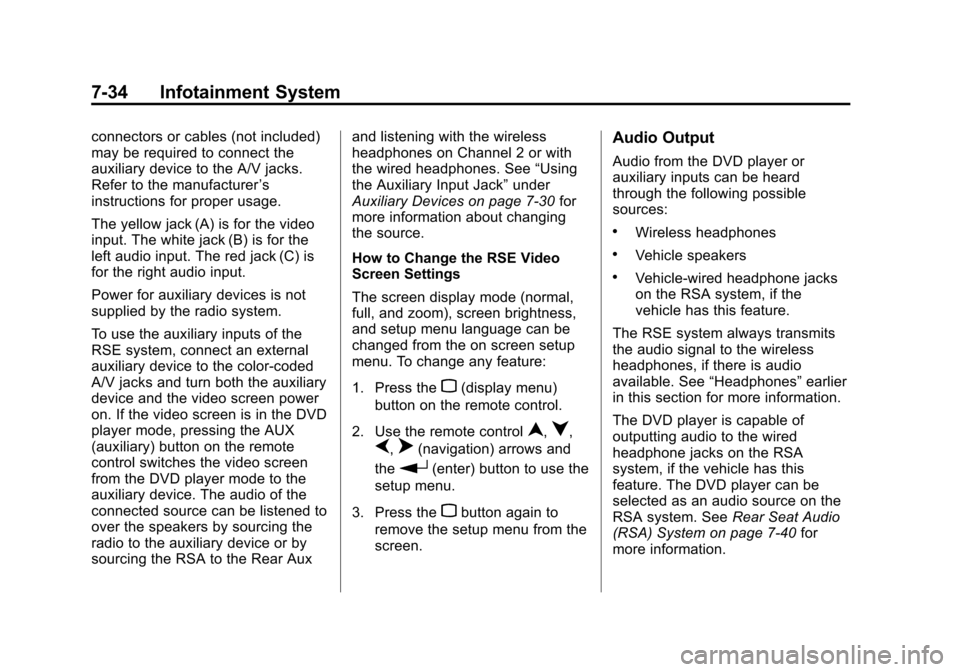
The yellow jack (A) is for the video
input. The white jack (B) is for the
left audio input. The red jack (C) is
for the right audio input.
Power for auxiliary devices is not
supplied by the radio system.
To use the auxiliary inputs of the
RSE system, connect an external
auxiliary device to the color-coded
A/V jacks and turn both the auxiliary
device and the video screen power
on. If the video screen is in the DVD
player mode, pressing the AUX
(auxiliary) button on the remote
control switches the video screen
from the DVD player mode to the
auxiliary device. The audio of the
connected source can be listened to
over the speakers by sourcing the
radio to the auxiliary device or by
sourcing the RSA to the Rear Aux and listening with the wireless
headphones on Channel 2 or with
the wired headphones. See
“Using
the Auxiliary Input Jack” under
Auxiliary Devices on page 7‑30 for
more information about changing
the source.
How to Change the RSE Video
Screen Settings
The screen display mode (normal,
full, and zoom), screen brightness,
and setup menu language can be
changed from the on screen setup
menu. To change any feature:
1. Press the
z(display menu)
button on the remote control.
2. Use the remote control
n,q,
p,o(navigation) arrows and
the
r(enter) button to use the
setup menu.
3. Press the
zbutton again to
remove the setup menu from the
screen.
Audio Output
Audio from the DVD player or
auxiliary inputs can be heard
through the following possible
sources:
.Wireless headphones
.Vehicle speakers
.Vehicle‐wired headphone jacks
on the RSA system, if the
vehicle has this feature.
The RSE system always transmits
the audio signal to the wireless
headphones, if there is audio
available. See “Headphones” earlier
in this section for more information.
The DVD player is capable of
outputting audio to the wired
headphone jacks on the RSA
system, if the vehicle has this
feature. The DVD player can be
selected as an audio source on the
RSA system. See Rear Seat Audio
(RSA) System on page 7‑40 for
more information.
Page 216 of 494
Black plate (36,1)Cadillac Escalade EXT Owner Manual - 2012
7-36 Infotainment System
Objects blocking the line of sight
could also affect the function of the
remote control.
If a CD or DVD is in the Radio DVD
slot, the remote control
O(power)
button can be used to turn on the
video screen display and start the
disc. The radio can also turn on the
video screen display. See CD/DVD
Player on page 7‑18 for more
information.
Notice: Storing the remote
control in a hot area or in direct
sunlight can damage it, and the
repairs will not be covered by the
warranty. Storage in extreme cold
can weaken the batteries. Keep
the remote control stored in a
cool, dry place.
If the remote control becomes lost
or damaged, a new universal
remote control can be purchased.
If this happens, make sure the
universal remote control uses a
code set of Toshiba
®. Remote Control Buttons
O(Power):
Press to turn the video
screen on and off.
P(Illumination): Press to turn the
remote control backlight on. The
backlight automatically times out
after 7 to 10 seconds if no other
button is pressed while the backlight
is on.
v(Title): Press to return the DVD
to the main menu of the DVD. This
function could vary for each disc.
y(Main Menu): Press to access
the DVD or MP3 menu. The DVD
menu is different on every DVD.
Use the navigation arrows to move
the cursor around the DVD menu.
After making a selection press the
enter button. This button only
operates when using a DVD or
MP3 disc.
n,q,p,o(Menu Navigation
Arrows): Use the arrow buttons to
navigate through a menu.
r(Enter): Press to select the
choice that is highlighted in
any menu.
z(Display Menu): Press to adjust
the brightness, screen display mode
(normal, full, or zoom), and display
the language menu. This function
could vary for each disc.
q(Return): Press to exit the
current active menu and return to
the previous menu. This button
operates only when the display
menu or a DVD menu is active.
c(Stop): Press to stop playing,
fast reversing, or fast forwarding a
DVD. Press this button twice to
return to the beginning of the DVD.
s(Play/Pause): Press to start
playing a DVD. Press this button
while a DVD is playing to pause it.
Press it again to continue playing
the DVD.
While the DVD is playing, the DVD
can be played slowly by pressing
the play/pause button then pressing
the fast forward button. The DVD
Page 217 of 494

Black plate (37,1)Cadillac Escalade EXT Owner Manual - 2012
Infotainment System 7-37
continues playing in a slow play
mode. Also, reverse can be played
slowly by pressing the play/pause
button and then pressing the fast
reverse button. To cancel slow play
mode, press the play/pause button.
t(Previous Track/Chapter):
Press to return to the start of the
current track or chapter. Press this
button again to go to the previous
track or chapter. This button might
not work when the DVD is playing
the copyright information or the
previews.
u(Next Track/Chapter): Press to
go to the beginning of the next
chapter or track. This button might
not work while the DVD is playing
the copyright information or the
previews.
r(Fast Reverse): Press to
quickly reverse the DVD or CD. To
stop fast reversing a DVD video,
press the play/pause button. To stop
fast reversing a DVD audio or CD, release the fast reverse button. This
button might not work when the
DVD is playing the copyright
information or the previews.
[(Fast Forward):
Press to fast
forward the DVD or CD. To stop fast
forwarding a DVD video, press the
play/pause button. To stop fast
forwarding a DVD audio or CD,
release the fast forward button. This
button might not work while the
DVD is playing the copyright
information or the previews.
e(Audio): Press to change audio
tracks on DVDs that have this
feature when the DVD is playing.
The format and content of this
function vary for each disc.
{(Subtitles): Press to turn on or
off subtitles and to move through
subtitle options when a DVD is
playing. The format and content of
this function vary for each disc. AUX (Auxiliary):
Press to switch
the system between the DVD player
and an auxiliary source. When the
front auxiliary or USB port is the
source, the remote control does not
control this source. The rear seat
audio controls must be used.
2(Camera): Press to change
camera angles on DVDs that have
this feature while a DVD is playing.
The format and content of this
function vary for each disc.
1 through 0 (Numeric Keypad):
The numeric keypad provides the
capability of direct chapter or track
number selection.
\(Clear): Press within
three seconds after entering a
numeric selection, to clear all
numerical inputs.
}10 (Double Digit Entries): Press
to select chapter or track numbers
greater than nine. Press this button
before entering the number.
Page 219 of 494

Black plate (39,1)Cadillac Escalade EXT Owner Manual - 2012
Infotainment System 7-39
Tips and Troubleshooting Chart (cont'd)
ProblemRecommended Action
After stopping the player, and
pushing Play, sometimes the DVD
starts where it left off and
sometimes at the beginning. If the stop button was pressed one
time, the DVD player resumes
playing where the DVD was
stopped. If the stop button was
pressed two times, the DVD player
begins to play from the beginning of
the DVD.
The auxiliary source is running, but
there is no picture or sound. Check that the RSE video screen is
in the auxiliary source mode.
Check the auxiliary input
connections at both devices.
Sometimes the wireless headphone
audio cuts out or buzzes. Check for obstructions, low
batteries, reception range, and
interference from cellular telephone
towers, or use a cellular telephone
in the vehicle.
Check that the headphones are on
correctly using the L (left) and
R (right) on the headphones.
The remote and/or the headphones
are lost. See your dealer for assistance.
The DVD is playing, but there is no
picture or sound. Check that the RSE video screen is
sourced to the DVD player.
DVD Display Error Messages
The DVD display error message
depends on the radio that is in the
vehicle. The video screen can
display one of the following:
Disc Load/Eject Error:
Displays
when there are disc load or eject
problems.
Disc Format Error: Displays if the
disc is inserted with the disc label
wrong side up, or if the disc is
damaged.
Disc Region Error: Displays if the
disc is not from a correct region.
No Disc Inserted: Displays if no
disc is present when
Zor DVD
AUX is pressed on the radio.