key CADILLAC ESCALADE EXT 2012 3.G Workshop Manual
[x] Cancel search | Manufacturer: CADILLAC, Model Year: 2012, Model line: ESCALADE EXT, Model: CADILLAC ESCALADE EXT 2012 3.GPages: 494, PDF Size: 7.71 MB
Page 203 of 494
Black plate (23,1)Cadillac Escalade EXT Owner Manual - 2012
Infotainment System 7-23
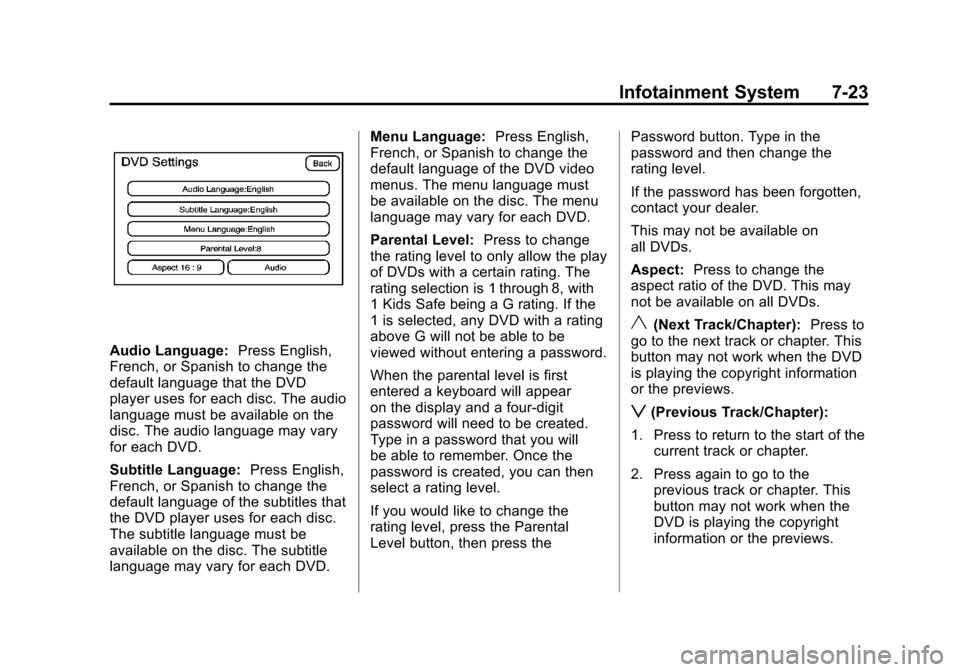
Audio Language:Press English,
French, or Spanish to change the
default language that the DVD
player uses for each disc. The audio
language must be available on the
disc. The audio language may vary
for each DVD.
Subtitle Language: Press English,
French, or Spanish to change the
default language of the subtitles that
the DVD player uses for each disc.
The subtitle language must be
available on the disc. The subtitle
language may vary for each DVD. Menu Language:
Press English,
French, or Spanish to change the
default language of the DVD video
menus. The menu language must
be available on the disc. The menu
language may vary for each DVD.
Parental Level: Press to change
the rating level to only allow the play
of DVDs with a certain rating. The
rating selection is 1 through 8, with
1 Kids Safe being a G rating. If the
1 is selected, any DVD with a rating
above G will not be able to be
viewed without entering a password.
When the parental level is first
entered a keyboard will appear
on the display and a four-digit
password will need to be created.
Type in a password that you will
be able to remember. Once the
password is created, you can then
select a rating level.
If you would like to change the
rating level, press the Parental
Level button, then press the Password button. Type in the
password and then change the
rating level.
If the password has been forgotten,
contact your dealer.
This may not be available on
all DVDs.
Aspect:
Press to change the
aspect ratio of the DVD. This may
not be available on all DVDs.
y(Next Track/Chapter): Press to
go to the next track or chapter. This
button may not work when the DVD
is playing the copyright information
or the previews.
z(Previous Track/Chapter):
1. Press to return to the start of the current track or chapter.
2. Press again to go to the previous track or chapter. This
button may not work when the
DVD is playing the copyright
information or the previews.
Page 217 of 494

Black plate (37,1)Cadillac Escalade EXT Owner Manual - 2012
Infotainment System 7-37
continues playing in a slow play
mode. Also, reverse can be played
slowly by pressing the play/pause
button and then pressing the fast
reverse button. To cancel slow play
mode, press the play/pause button.
t(Previous Track/Chapter):
Press to return to the start of the
current track or chapter. Press this
button again to go to the previous
track or chapter. This button might
not work when the DVD is playing
the copyright information or the
previews.
u(Next Track/Chapter): Press to
go to the beginning of the next
chapter or track. This button might
not work while the DVD is playing
the copyright information or the
previews.
r(Fast Reverse): Press to
quickly reverse the DVD or CD. To
stop fast reversing a DVD video,
press the play/pause button. To stop
fast reversing a DVD audio or CD, release the fast reverse button. This
button might not work when the
DVD is playing the copyright
information or the previews.
[(Fast Forward):
Press to fast
forward the DVD or CD. To stop fast
forwarding a DVD video, press the
play/pause button. To stop fast
forwarding a DVD audio or CD,
release the fast forward button. This
button might not work while the
DVD is playing the copyright
information or the previews.
e(Audio): Press to change audio
tracks on DVDs that have this
feature when the DVD is playing.
The format and content of this
function vary for each disc.
{(Subtitles): Press to turn on or
off subtitles and to move through
subtitle options when a DVD is
playing. The format and content of
this function vary for each disc. AUX (Auxiliary):
Press to switch
the system between the DVD player
and an auxiliary source. When the
front auxiliary or USB port is the
source, the remote control does not
control this source. The rear seat
audio controls must be used.
2(Camera): Press to change
camera angles on DVDs that have
this feature while a DVD is playing.
The format and content of this
function vary for each disc.
1 through 0 (Numeric Keypad):
The numeric keypad provides the
capability of direct chapter or track
number selection.
\(Clear): Press within
three seconds after entering a
numeric selection, to clear all
numerical inputs.
}10 (Double Digit Entries): Press
to select chapter or track numbers
greater than nine. Press this button
before entering the number.
Page 223 of 494

Black plate (43,1)Cadillac Escalade EXT Owner Manual - 2012
Infotainment System 7-43
NAV (Navigation):Press to view
the vehicle's current position on the
map screen. Each press of this
button cycles through Full Map
and the tab that displays the
current audio source (AM, FM, XM
(if equipped), CD, etc.). Full Map
displays the screen in full map view.
Selecting the audio tab splits the
screen between the map screen
and the current audio source
screen menu.
RPT (Repeat): Press to repeat the
last voice guidance prompt.
DEST (Destination): Press to
access the Destination Entry
screen. From this screen, you can
select from several options to plan a
route by entering destination points.
CONFIG (Configure): Press to
adjust several of the system's
features and preferences.Touch-Sensitive Screen
Buttons
Touch-sensitive screen buttons are
located on the screen. When a
screen button has been selected, a
beep sounds. Screen buttons are
highlighted when a feature is
available.
Alpha-Numeric Keyboard
Letters of the alphabet, symbols,
punctuation, and numbers, when
available, displays on the navigation
screen as an alpha or numeric
keyboard. The alpha keyboard
displays when the system requires
entry of a city or street name.
All characters are touch-sensitive
screen buttons. Press a character to
select it.
A-Y (Accent Alphabet): Select to
enter letters with accent symbols.
This button may toggle to A-Z. A-Z (Alphabet):
Select to enter
letters from the alphabet. This
button may toggle to A-Y.
0-9 (Numbers): Select to enter
numbers.
U(Space): Select to enter a
space between characters or the
words of a name.
Backspace: Select if an incorrect
character has been entered.
To make name entries easier,
the system only highlights the
characters that can follow the last
one entered. For example, if a Z is
entered, a T may not be available
for selection.
If a name does not display after
entry, it may need to be entered
differently or the map DVD disc may
not contain that information. See
Maps on page 7‑44 for more
information.
Page 231 of 494
Black plate (51,1)Cadillac Escalade EXT Owner Manual - 2012
Infotainment System 7-51
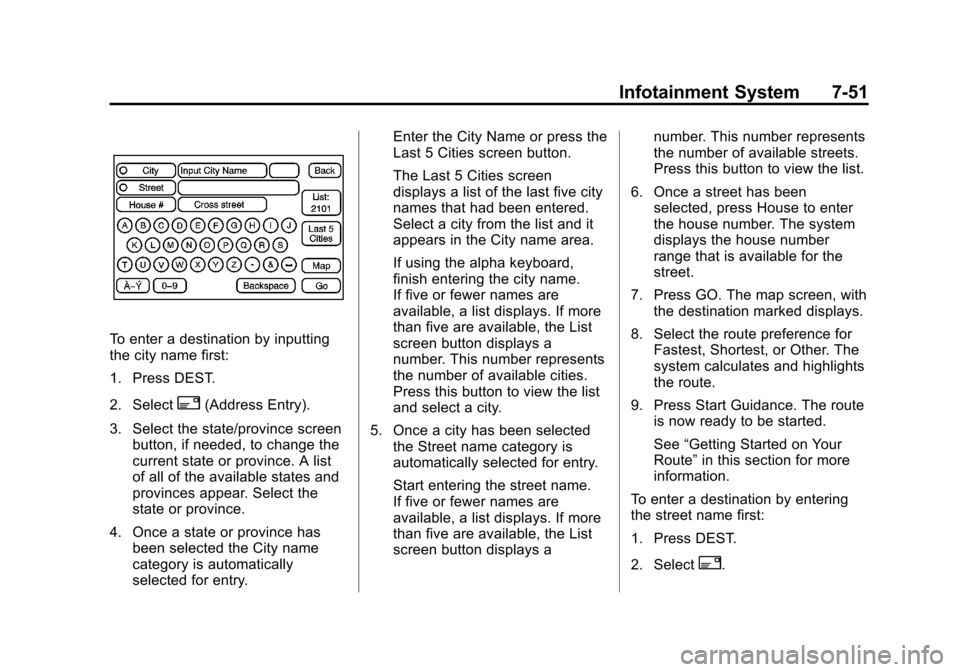
To enter a destination by inputting
the city name first:
1. Press DEST.
2. Select
2(Address Entry).
3. Select the state/province screen button, if needed, to change the
current state or province. A list
of all of the available states and
provinces appear. Select the
state or province.
4. Once a state or province has been selected the City name
category is automatically
selected for entry. Enter the City Name or press the
Last 5 Cities screen button.
The Last 5 Cities screen
displays a list of the last five city
names that had been entered.
Select a city from the list and it
appears in the City name area.
If using the alpha keyboard,
finish entering the city name.
If five or fewer names are
available, a list displays. If more
than five are available, the List
screen button displays a
number. This number represents
the number of available cities.
Press this button to view the list
and select a city.
5. Once a city has been selected the Street name category is
automatically selected for entry.
Start entering the street name.
If five or fewer names are
available, a list displays. If more
than five are available, the List
screen button displays a number. This number represents
the number of available streets.
Press this button to view the list.
6. Once a street has been selected, press House to enter
the house number. The system
displays the house number
range that is available for the
street.
7. Press GO. The map screen, with the destination marked displays.
8. Select the route preference for Fastest, Shortest, or Other. The
system calculates and highlights
the route.
9. Press Start Guidance. The route is now ready to be started.
See “Getting Started on Your
Route” in this section for more
information.
To enter a destination by entering
the street name first:
1. Press DEST.
2. Select
2.
Page 232 of 494

Black plate (52,1)Cadillac Escalade EXT Owner Manual - 2012
7-52 Infotainment System
3. Select the state/province screenbutton, if needed, to change the
current state or province. A list
of all of the available states and
provinces appear. Select the
state or province.
4. Select Street and start entering the street name or press the
Last 5 Streets screen button.
If the street name is common,
the city might need to be entered
first.
The Last 5 Streets screen
displays a list of the last five
street names that had been
entered. Select a street from the
list and it appears in the Street
name area.
If using the alpha keyboard,
finish entering the street name.
If five or fewer names are
available, a list displays. If more
than five are available, the
List screen button displays a
number. This number represents the number of available streets.
Press this button to view the list
and select a street.
5. Once a street has been selected, select House to enter
the house number. The system
displays the house number
range that is available for the
street.
6. Once the house number is selected, the city name
automatically populates. If there
is more than one city available
for selection, a list of cities
display. Select the city.
7. Press GO. The map screen, with the destination marked displays.
8. Select the route preference for Fastest, Shortest, or Other. The
system calculates and highlights
the route.
9. Press Start Guidance. The route is now ready to be started.
See “Getting Started on Your
Route” in this section for more
information. To enter a destination by entering a
cross street:
1. Press DEST.
2. Press
2.
3. Select the state/province screen button, if needed, to change the
current state or province. A list
of all of the available states and
provinces appear. Select the
state or province.
4. Select Street and start entering the street name or press the
Last 5 Streets screen button.
If the street name is common,
the city might need to be entered
first.
The Last 5 Streets screen
displays a list of the last five
street names that had been
entered. Select a street from the
list and it appears in the Street
name area.
If using the alpha keyboard,
finish entering the street name.
If five or fewer names are
Page 233 of 494
Black plate (53,1)Cadillac Escalade EXT Owner Manual - 2012
Infotainment System 7-53
available, a list displays. If more
than five are available, the List
screen button displays a
number. This number represents
the number of available streets.
Press this button to view the list
and select a street.
5. Once a street has been selected, select Cross Street
and start entering the cross
street name. If five or fewer
names are available, a list
displays. If more than five are
available, the List screen button
displays a number. This number
represents the number of
available streets. Press this
button to view the list and select
a street.
6. Press GO. The map screen, with the destination marked displays.
7. Select the route preference for Fastest, Shortest, or Other. The
system calculates and highlights
the route.
8. Press Start Guidance. The route is now ready to be started. See
“Getting Started on Your
Route” in this section for more
information.
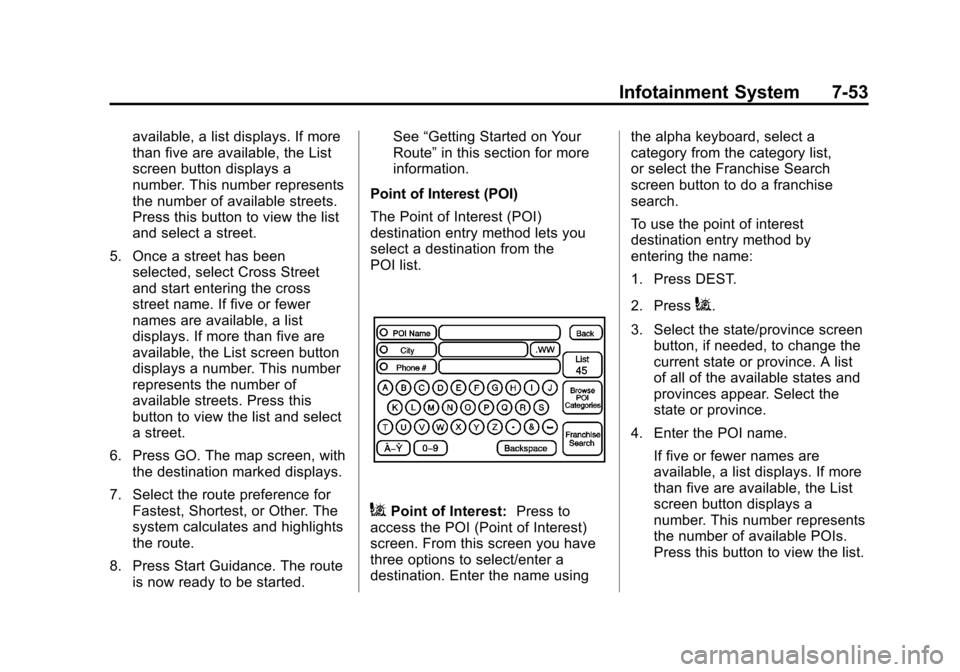
Point of Interest (POI)
The Point of Interest (POI)
destination entry method lets you
select a destination from the
POI list.
iPoint of Interest: Press to
access the POI (Point of Interest)
screen. From this screen you have
three options to select/enter a
destination. Enter the name using the alpha keyboard, select a
category from the category list,
or select the Franchise Search
screen button to do a franchise
search.
To use the point of interest
destination entry method by
entering the name:
1. Press DEST.
2. Press
i.
3. Select the state/province screen button, if needed, to change the
current state or province. A list
of all of the available states and
provinces appear. Select the
state or province.
4. Enter the POI name. If five or fewer names are
available, a list displays. If more
than five are available, the List
screen button displays a
number. This number represents
the number of available POIs.
Press this button to view the list.
Page 243 of 494

Black plate (63,1)Cadillac Escalade EXT Owner Manual - 2012
Infotainment System 7-63
.Press the Add to Address Book
screen button when available on
POI information screens,
Destination Entry screens,
or POI screens. The system
automatically saves this
information in the address book.
See “Nav” under Configure Menu on
page 7‑64 for information on editing
address book entries.
Adding or Changing Preset
Destinations
This feature allows additions or
changes one of five preset
destinations. When a destination
has been added as a preset
destination, it is available to select
from the Destination Entry screen.
See “Preset Destination” previously
for information on how to select a
preset destination as a final
destination. To store the current vehicle position
as a preset destination:
1. Press Mark from the map screen
to add the current vehicle
position to the address book.
The Address Book screen
appears.
2. Press Name. An alpha-keyboard displays. Enter the name. Press
OK then press Back to return to
the address book information
screen.
3. Press and hold one of the buttons at the bottom of the
screen until the name appears in
that preset destination screen
button. It is now available to
select from the Destination Entry
screen. To store an address book entry as a
preset destination:
1. Press CONFIG.
2. Press the Nav screen button.
3. Press Edit/View.
4. Select the address book entry to
be stored as the preset
destination. Press Name to add
a name, if needed.
5. Press and hold one of the buttons at the bottom of the
screen until the name appears in
that preset destination screen
button. It is now available to
select from the Destination Entry
screen.
Page 245 of 494

Black plate (65,1)Cadillac Escalade EXT Owner Manual - 2012
Infotainment System 7-65
Volume:Press + or −to increase
or to decrease the volume of the
voice prompts. The system will
respond with the adjusted voice
level.
Voice Guidance: Press On or Off
to turn voice instructions on and off
while traveling on a planned route.
Route Preference
Press the Route Preference screen
button to change route options
when the system calculates a route.
Allow Major Roads: This feature
allows the system to use major
roads when calculating a planned
route.
Allow Toll Roads: This feature
allows the system to use toll roads
when calculating a planned route.
Allow Ferrys: This feature allows
the system to use ferries when
calculating a planned route. Allow Time and Seasonal
Restricted Roads:
This feature
allows the system to use time
restricted and seasonal roads when
calculating a planned route.
Edit Address Book —How to Add
To add an address to the address
book, see “Adding Destinations to
the Address Book” under
Destination on page 7‑50.
Edit Address Book —Edit/View
To edit the name of an
address book:
1. Press CONFIG.
2. Press the Nav screen button.
3. Press Edit/View Address Book.
4. Select the Address book entry.
5. Press the Name screen button and use the alpha keyboard to
edit or add the name.
6. Press OK to save your changes, then press Back to return to the
Address Book information
screen.
To add or change the phone number
of an address book entry:
1. Press CONFIG.
2. Press the Nav screen button.
3. Press Edit/View Address Book.
4. Select the address book entry to change.
Page 246 of 494

Black plate (66,1)Cadillac Escalade EXT Owner Manual - 2012
7-66 Infotainment System
5. Press the Phone # screen buttonand use the numeric keyboard to
input or change the phone
number.
6. Press OK to save your changes, then press Back to return to the
Address Book information
screen.
To change the map icon of an
address book entry:
1. Press CONFIG.
2. Press the Nav screen button.
3. Press Edit/View Address Book.
4. Select the address book entry to change.
5. Press the Icon screen button.
6. Select an icon from the list.
To add a voice tag to an address
book entry:
1. Press CONFIG.
2. Press the Nav screen button.
3. Press Edit/View Address Book.
4. Press Add Voice Tag. 5. The system will ask for you to
state the name. You will have
four seconds to state the name.
The system will respond back
with the name and prompt you to
repeat the name for
confirmation.
To delete an address book entry:
1. Press CONFIG.
2. Press the Nav screen button.
3. Press Edit/View Address Book.
4. Select the address book entry to delete.
5. Press Delete to delete the address book entry.
6. A confirmation pop-up will display. Press OK to delete;
press Cancel to cancel the
operation.
To delete the entire address book:
1. Press CONFIG.
2. Press the Nav screen button.
3. Press Edit/View Address Book. 4. A list of all the address book
entries will display. Press and
hold Clear All.
5. A confirmation pop-up will display. Press OK to delete;
press Cancel to cancel the
operation.
Map Database Information
Use the Map Database Information/
Remove Map Data screen button to
view the coverage areas of the map
database or to replace the map
database.
Page 262 of 494
Black plate (82,1)Cadillac Escalade EXT Owner Manual - 2012
7-82 Infotainment System
.Pair cell phone(s) to the vehicle.
The system may not work with
all cell phones. See“Pairing”in
this section for more information.
.If the cell phone has voice
dialing capability, learn to use
that feature to access the
address book or contact list. See
“Voice Pass-Thru” in this section
for more information.
.See “Storing and Deleting Phone
Numbers” in this section for
more information.
{WARNING
When using a cell phone, it can
be distracting to look too long or
too often at the screen of the
phone or the infotainment
(navigation) system. Taking your
eyes off the road too long or too
often could cause a crash
resulting in injury or death.
Focus your attention on driving. A Bluetooth system can use a
Bluetooth‐capable cell phone with a
Hands‐Free Profile to make and
receive phone calls. The system
can be used while the key is in the
ON/RUN or ACC/ACCESSORY
position. The range of the Bluetooth
system can be up to 9.1 m (30 ft).
Not all phones support all functions,
and not all phones work with the
in-vehicle Bluetooth system. See
www.gm.com/bluetooth for more
information on compatible phones.
Voice Recognition
The Bluetooth system uses voice
recognition to interpret voice
commands to dial phone numbers
and name tags.
For additional information, say
“Help”
while you are in a voice
recognition menu.
Noise: Keep interior noise levels to
a minimum. The system may not
recognize voice commands if there
is too much background noise. When to Speak:
A short tone
sounds after the system responds
indicating when it is waiting for a
voice command. Wait until the tone
and then speak.
How to Speak: Speak clearly in a
calm and natural voice.
Audio System
When using the in‐vehicle Bluetooth
system, sound comes through the
vehicle's front audio system
speakers and overrides the audio
system. Use the audio system
volume knob, during a call, to
change the volume level. The
adjusted volume level remains in
memory for later calls. To prevent
missed calls, a minimum volume
level is used if the volume is turned
down too low.
Bluetooth Controls
Use the buttons located on the
steering wheel to operate the
in‐vehicle Bluetooth system. See
Steering Wheel Controls on
page 5‑2 for more information.