reset CADILLAC SEVILLE 2003 5.G User Guide
[x] Cancel search | Manufacturer: CADILLAC, Model Year: 2003, Model line: SEVILLE, Model: CADILLAC SEVILLE 2003 5.GPages: 408, PDF Size: 2.72 MB
Page 168 of 408

DIC Warnings and Messages
These messages will appear if there is a problem
sensed in one of your vehicle's systems. Vehicles that
are ®rst sold in Canada will have a number after
each message. This number helps to identify the
problem. You must then press INFO or INFO RESET to
clear the display screen for further use. However, be
sure to take any message that appears on the display
screen seriously and remember that pressing the
INFO or INFO RESET button will only make the
message disappear, not the problem.
DIC messages can also be displayed in French,
German, Spanish and Japanese. Contact your dealer to
have the language display adjusted for your vehicle.
BATTERY NOT CHARGING ± 7:This message
will appear if the battery is not being charged. Have the
electrical system checked by your dealership at your
earliest convenience.
BATTERY SAVER ACTIVE ± 27:This message is
displayed when the vehicle has detected that the battery
voltage is dropping beyond a reasonable point. The
battery saver system will start reducing certain features
of the vehicle that you may not be able to notice. At
the point that features are disabled, this message
is displayed. It means that the vehicle is trying to save
the charge in the battery. Turn off unnecessary
accessories to allow the battery to recharge.BATTERY VOLTAGE HIGH ± 8:This message shows
that the electrical charging system is overcharging
(more than 16 volts). To avoid being stranded, have the
electrical system checked by your dealership. You
can reduce the charging overload by using the
accessories. Turn on the lamps and radio, set the
climate control on AUTO and the fan speed on HI, and
turn the rear window defogger on. You can monitor
battery voltage on the DIC by pressing the INFO button.
The normal range is 11.5 to 15.5 volts when the
engine is running.
BATTERY VOLTAGE LOW ± 6:This message will
appear when the electrical system is charging less than
10 volts or if the battery has been drained. If this
message appears immediately after starting, it is
possible that the generator can still recharge the battery.
The battery should recharge while driving but may
take a few hours to do so. Consider using an auxiliary
charger (be sure to follow the manufacturer's
instructions) to boost the battery after returning home or
to a ®nal destination. If this message appears while
driving or after starting your vehicle and stays on, have
it checked immediately to determine the cause of
this problem. To help the generator recharge the battery
quickly, you can reduce the load on the electrical
system by turning off the accessories. You can monitor
battery voltage on the DIC by pressing the INFO
button. The normal range is 11.5 to 15.5 volts.
3-56
Page 169 of 408

CHANGE ENGINE OIL ± 82:This means that the life
of the engine oil has expired and it should be changed
within 200 miles. After an oil change, the Oil Life
Indicator must be reset. See
Oil Life Indicator on
page 3-77. SeeEngine Oil on page 5-13.
CHANGE TRANS FLUID ± 47:This message will
appear when it is time to change the transaxle ¯uid. See
Part A: Scheduled Maintenance Services on page 6-4for the proper ¯uid and change intervals.
CHECK BRAKE FLUID ± 37:This message will
display if the ignition is in ON to inform the driver that
the brake ¯uid level is low. Have the brake system
serviced by a technician as soon as possible. See
Brake
System Warning and Parking Brake Indicator Light on
page 3-43
.
CHECK COOLANT LEVEL ± 2:This message will
appear when there is a low level of engine coolant. Have
the cooling system serviced by a technician as soon
as possible. See
Engine Coolant on page 5-25.CHECK FUEL GAGE ± 50:This message will appear
when the fuel supply is less than 5 gallons (18.9 L)
and the display is turned off. A single chime will also
sound when this message is displayed.
CHECK GAS CAP ± 61:This message will appear if
the gas cap has not been fully tightened. You should
recheck your gas cap to ensure that it's on properly.
CHECK OIL LEVEL ± 36:For correct operation of the
low oil sensing system, your vehicle should be on a
level surface. A false CHECK OIL LEVEL message may
appear if the vehicle is parked on a grade. The oil
level sensing system does not check for actual oil level
if the engine has been off for a short period of time,
and the oil level is never checked while the engine is
running. If the CHECK OIL LEVEL message appears,
and your vehicle has been parked on level ground
with the engine off for at least 30 minutes, the oil level
should be checked by observing the oil dipstick. Prior to
checking the oil level, be sure the engine has been
off for a few minutes and your vehicle is on a level
surface. Then check the dipstick and add oil if
necessary. See
Engine Oil on page 5-13.
3-57
Page 173 of 408

SERVICE ELECTRICAL SYS ± 106:This message will
display if an electrical problem has occurred within
the Powertrain Control Module (PCM) or the ignition
switch. Have your vehicle serviced by your dealership.
SERVICE FUEL SYSTEM ± 101:The Powertrain
Control Module (PCM) has detected a problem within
the fuel system when this message appears. Have your
vehicle serviced by your dealership.
SERVICE IDLE CONTROL ± 107:A problem with the
idle control has occurred when this message displays.
Have your vehicle serviced by your dealership.
SERVICE STABILITY SYS ± 54:If you ever see the
SERVICE STABILITY SYS message, it means
there may be a problem with your stability enhancement
system. If you see this message, try to reset the
system (stop, turn off the engine, then start the engine
again). If the SERVICE STABILITY SYS message
still comes on, it means there is a problem. You should
see your dealer for service. Reduce your speed and
drive accordingly. A single chime will also sound when
this message is displayed.
SERVICE STEERING ± 127:This message is displayed
when a problem has been detected in the magnetic
speed variable assist steering system. If message
comes on, service is required.SERVICE SUSPENSION SYS ± 84:This message is
displayed to indicate that the suspension system is
not operating properly. To correct this problem, have
your vehicle serviced at your dealership.
SERVICE THEFT SYSTEM ± 34:This message means
there is a problem with the PASS-Key
žIII system. A
fault has been detected in the system which means that
the system is disabled and is not protecting the
vehicle. The vehicle usually restarts, however, you may
want to take your vehicle to your dealer before turning
off the engine.
SERVICE TPM SYSTEM ± 51:When this message is
displayed, the Tire Pressure Monitor (TPM) system
is not working properly. See your dealer for service.
SERVICE TRANSMISSION ± 100:See your dealer
for repair.
SERVICE VEHICLE SOON ± 3:This message is
displayed when a non-emissions related powertrain
malfunction occurs. Have your vehicle serviced by
a technician as soon as possible.
SPEED LIMIT TO 90 ± 113:A failure in the suspension
control system has occurred when this message
appears. The Powertrain Control Module (PCM)
determines the speed to which your vehicle is limited.
Have your vehicle serviced if this message appears.
3-61
Page 176 of 408

DIC Vehicle Personalization
Your vehicle is equipped with personalization capabilities
that allows you to program certain features to a
preferred setting for up to two people. The number of
programmable features varies depending upon
which model of the vehicle is purchased. On all vehicles,
features such as climate control settings, radio preset
settings, exterior lighting at unlock, remote lock and
unlock con®rmation, and automatic door locks
have already been programmed for your convenience.
Some vehicles are equipped with additional features that
can be programmed including the seat position,
steering column position (if equipped) and outside mirror
position. The navigation screen preferences (if
equipped) will remain at the last set position.
If your vehicle is equipped with the ability to program
additional personalization features, the driver's
preferences are recalled by pressing the unlock button
on the remote keyless entry transmitter or by pressing
the appropriate memory button, 1 or 2, located on
the driver's door. Certain features can be programmed
not to recall until the key is placed in the ignition.
To change feature preferences you must use one of the
following procedures.
Entering Feature Programming
To enter feature programming mode, do the following:
1. Turn the ignition to ON, making sure the vehicle is in
PARK (P).
2. If your vehicle has memory settings, press the
appropriate memory button, 1 or 2, located on
the driver's door panel. The DIC display will show
either 1 or 2 depending on which button was
selected. Make sure the number on the DIC display
matches the number on the back of your key fob.
3. Press the INFO button until FEATURE
PROGRAMMING appears on the DIC display.
4. Press the ON/OFF button to enter FEATURE
PROGRAMMING.
3-64
Page 188 of 408

Before your vehicle was shipped from the factory, it was
programmed to Mode 1. The mode to which the
vehicle was programmed may have been changed since
it left the factory. To determine the mode to which the
vehicle is programmed or to program the vehicle to
a different mode, do the following:
1. Enter FEATURE PROGRAMMING following the
instructions listed previously.
2. Press the down arrow on the INFO button until
TIRE PRESSURE DISPLAY appears on the DIC
display.
3. To turn on the feature, press the ON/OFF button
until ON appears on the DIC display. To turn it off,
press the ON/OFF button until OFF appears on
the display.
The mode you selected is now set. You can either exit
the programming mode by following the instructions
later in this section or program the next feature available
on your vehicle.Driver's Name Set/Recall
If your vehicle has the optional memory package, you
will have this feature. This feature allows individual
driver's names to be displayed in the DIC when
the ignition is turned to ON. This feature only works
when the remote keyless entry transmitter is used
to unlock the vehicle or when buttons 1 or 2 on the
driver's door are pressed. See your dealer for assistance
in programming this feature.
Exiting Feature Programming
To exit FEATURE PROGRAMMING, press the INFO
RESET or INFO button.
3-76
Page 189 of 408

Trip Computer
Oil Life Indicator
This feature lets you know when to change the engine
oil. It's based on the engine oil temperatures and
your driving patterns.To see the display, press the INFO button several times
until ENGINE OIL LIFE appears. If you see 99%
ENGINE OIL LIFE, 99 percent of your current oil life
remains.
The DIC may display a CHANGE ENGINE OIL
message. For more information, see
Scheduled
Maintenance on page 6-4. If you see CHANGE ENGINE
OIL, it means the oil life is gone and you should
change the oil right away. The system doesn't check
how much oil you have, so you'll still have to check for
that. To see how, see
Engine Oil on page 5-13.
When the oil is changed, you'll need to reset the system.
See
Engine Oil on page 5-13. Always keep a written
record of the mileage and date when you changed
your oil.
3-77
Page 192 of 408

Finding a Station
BAND:Press this button to select weather, FM1, FM2,
AM, or XM1, XM2 (USA only, if equipped).
¦TUNE SEEK¥:This button can be pressed to two
positions. Press this button to the ®rst position to
manually tune to the next or to the previous stations. If
this button is held at the ®rst position for a few
seconds, the radio will continue tuning until this button
is released.
Press this button to the second position and release it
to seek to the next or to the previous radio station.
The radio will seek only to stations that are in the
selected band and only to those with a strong signal.
SCAN:Press this button for less than two seconds
to scan radio stations. The radio will go to a station, play
for ®ve seconds, then go on to the next station. Press
this button again to stop scanning.
To scan preset stations, press and hold SCAN for more
than two seconds until you hear a beep. The radio
will go to the ®rst preset station stored on your
pushbuttons, play for ®ve seconds, then go on to the
next preset station. Press SCAN again to stop scanning
presets.
The radio will scan only to the stations that are in the
selected band and only to those with a strong signal.
Setting Preset Stations
The six numbered pushbuttons let you return to your
favorite stations. You can set up to 36 stations (six
weather, six FM1, six FM2, six AM, six XM1 and
six XM2 (USA only, if equipped), by performing the
following steps:
1. Turn the radio on.
2. Press BAND to select weather, FM1, FM2, AM, or
XM1, XM2.
3. Tune in the desired station.
4. Press and hold one of the six numbered
pushbuttons for more than two seconds until you
hear a beep.
5. Repeat the steps for each pushbutton. Whenever
you press that numbered pushbutton for less than
two seconds, the station you set will return.
When battery power is removed and later applied, you
will not have to reset your radio presets because
the radio remembers them.
3-80
Page 193 of 408

Setting the Tone (Bass/Treble)
TONE:Press and release this button until the desired
tone control (bass, treble or midrange) appears on
the display. The radio keeps separate tone settings for
each band, preset and source.
-LEVEL +:After selecting the desired tone control,
press the plus or minus symbol on this button to select
the desired level.
To save the tone settings for your presets, press and
hold the numbered pushbutton for the desired preset for
more than two seconds until you hear a beep.
Adjusting the Speakers (Balance/Fade)
M
(Speaker):Press and release this button until the
desired control (balance or fade) appears on the display.
-LEVEL +:After selecting the desired control, press
the plus or minus symbol on this button to select
the desired level.
PTY (Program Type):This button is inoperable on this
radio, except if your radio is equipped with XMŸ
Satellite Radio Service.
Finding a PTY Station (XMŸ Only)
To select and ®nd a desired PTY perform the following:
1. Press PTY. PTY will be displayed on the screen.
2. Select a category by pressing-LEVEL +.
3. Once the desired category is displayed, press
TUNE/SEEK to select the category and take
you to the category's ®rst station.
4. If you want to go to another station within that
category, press TUNE/SEEK once to display
the category, then press TUNE/SEEK again to go
to another station.
5. If PTY times out and is no longer on the display, go
back to Step 1.
SCAN:You can also scan through the channels within
a category by performing the following:
1. Press PTY. PTY will be displayed on the screen.
2. Select a category by pressing-LEVEL +.
3. Once the desired category is displayed, press
SCAN, and the radio will begin scanning within
your chosen category.
4. Press SCAN again to stop at a particular section.
3-81
Page 194 of 408
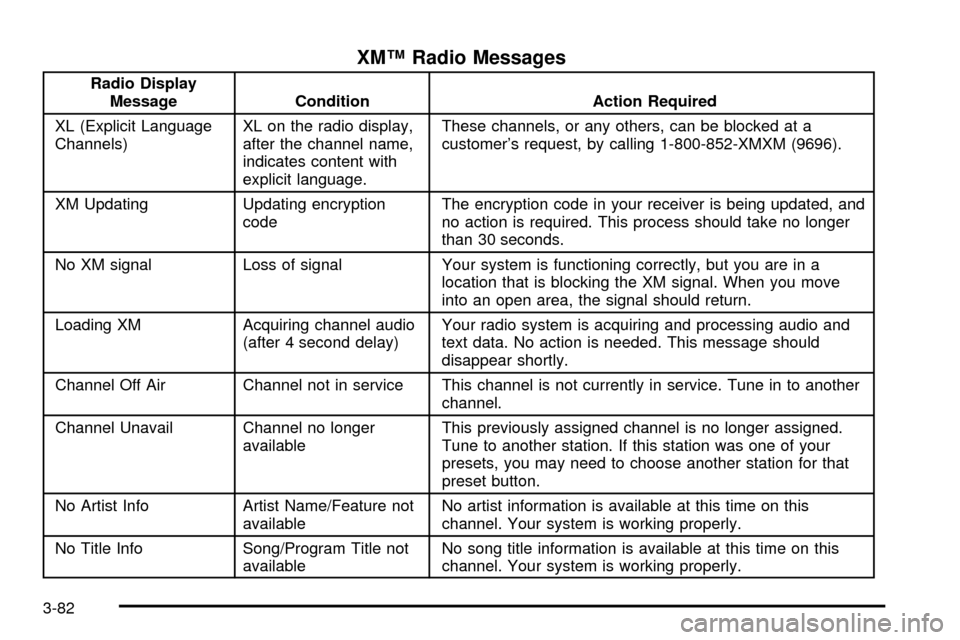
XMŸ Radio Messages
Radio Display
Message Condition Action Required
XL (Explicit Language
Channels)XL on the radio display,
after the channel name,
indicates content with
explicit language.These channels, or any others, can be blocked at a
customer's request, by calling 1-800-852-XMXM (9696).
XM Updating Updating encryption
codeThe encryption code in your receiver is being updated, and
no action is required. This process should take no longer
than 30 seconds.
No XM signal Loss of signal Your system is functioning correctly, but you are in a
location that is blocking the XM signal. When you move
into an open area, the signal should return.
Loading XM Acquiring channel audio
(after 4 second delay)Your radio system is acquiring and processing audio and
text data. No action is needed. This message should
disappear shortly.
Channel Off Air Channel not in service This channel is not currently in service. Tune in to another
channel.
Channel Unavail Channel no longer
availableThis previously assigned channel is no longer assigned.
Tune to another station. If this station was one of your
presets, you may need to choose another station for that
preset button.
No Artist Info Artist Name/Feature not
availableNo artist information is available at this time on this
channel. Your system is working properly.
No Title Info Song/Program Title not
availableNo song title information is available at this time on this
channel. Your system is working properly.
3-82
Page 201 of 408

Finding a Station
BAND:Press this button to select weather, FM1, FM2,
AM, or XM1, XM2 (USA only, if equipped).
¦TUNE SEEK¥:This button can be pressed to two
positions. Press this button to the ®rst position to
manually tune to the next or to the previous stations. If
this button is held at the ®rst position for a few
seconds, the radio will continue tuning until this button
is released.
Press this button to the second position and release it
to seek to the next or to the previous radio station.
The radio will seek only to stations that are in the
selected band and only to those with a strong signal.
SCAN:Press this button for less than two seconds
to scan radio stations. The radio will go to a station, play
for ®ve seconds, then go on to the next station. Press
this button again to stop scanning.
To scan preset stations, press and hold SCAN for more
than two seconds until you hear a beep. The radio
will go to the ®rst preset station stored on your
pushbuttons, play for ®ve seconds, then go on to the
next preset station. Press SCAN again to stop scanning
presets.
The radio will scan only to the stations that are in the
selected band and only to those with a strong signal.
Setting Preset Stations
The six numbered pushbuttons let you return to your
favorite stations and associated tone and DSP settings.
The RDS PTY mode must be off to use this mode.
You can set up to 36 stations (six weather, six FM1,
six FM2, six AM, six XM1 and six XM2 (USA only,
if equipped), by performing the following steps:
1. Turn the radio on.
2. Press BAND to select weather, FM1, FM2, AM, or
XM1, XM2.
3. Tune in the desired station.
4. Press and hold one of the six numbered
pushbuttons for more than two seconds. Whenever
you press that numbered pushbutton for less
than two seconds, the station you set will return.
5. Repeat the steps for each pushbutton.
When battery power is removed and later applied, you
will not have to reset your radio presets because
the radio remembers them.
3-89