radio CADILLAC SRX 2004 1.G Owner's Guide
[x] Cancel search | Manufacturer: CADILLAC, Model Year: 2004, Model line: SRX, Model: CADILLAC SRX 2004 1.GPages: 468, PDF Size: 2.92 MB
Page 237 of 468
Pressing the enter button when this menu appears on
the display will switch the RSE setting between all
speaker and rear video. All speaker will not be available
if the front passenger has turned on the parental
control.
All Speaker:The radio and the RSE unit will share
control of what is heard through the vehicle
speakers. All audio and video sources are available
for selection with the SRCE button when in all
speaker.
Rear Video:The RSE unit will only control what is
seen on the rear display and what is heard through
the headphones.
o(Stop):Press this button to stop playing a DVD.
Press this button twice to return to the beginning of
the DVD.
s(Play/Pause):Press this button to turn the
DVD player on, to start play of a DVD or CD, and to
switch between play and pause of a DVD or CD.
y(Menu):Press this button to access the DVD menu.
This button only operates with a DVD.
If your vehicle is equipped with the TV option, the menu
button will display a TV specic menu.
z(Display Menu):Press this button to modify the
video screen display characteristics.
n,q,p,o(Menu Navigation):Use the arrow
keys to navigate through a menu.
r(Enter):Press this button to select items within
a menu.
If your vehicle is equipped with the navigation system,
after pressing the SRCE button, the enter button
can select all speaker or rear video. See the SRCE
button previously for more information.
Audio/Video Jack:See “Stereo RCA Jacks” earlier in
this section for more information.
X(Headphone Jack):These jacks allow you to listen
to the RSE through wired headphones (not included).
O(Headphone Volume):Turn the left knob to
increase the volume of the headphone connected to the
left headphone jack. Turn the right knob to increase
the volume of the headphone connected to the
right headphone jack.
3-115
Page 245 of 468
DVD Distortion
There may be an experience with audio distortion in the
wireless headphones when operating cellular phones,
scanners, CB radios, Global Positioning Systems
(GPS)*, two-way radios, mobile fax, or walkie talkies.
It may be necessary to turn off the DVD player
when operating one of these devices in or near the
vehicle.
* Excludes the OnStar
®System.
Cleaning the DVD Player
When cleaning the outside DVD faceplate and buttons,
use only a clean cloth dampened with clean water.
Cleaning the Video Screen
Pour some isopropyl or rubbing alcohol on a clean cloth
and gently wipe the video screen. Do not spray
directly onto the screen and do not press too hard or
too long on the video screen.
Theft-Deterrent Feature
THEFTLOCK®is designed to discourage theft of your
vehicle’s radio. The feature works automatically by
learning a portion of the Vehicle Identication Number
(VIN). If the radio is moved to a different vehicle,
it will not operate. If the radio is removed from your
vehicle, the original VIN in the radio can be used to trace
the radio back to your vehicle.
With THEFTLOCK
®activated, the radio will not operate
if stolen.
3-123
Page 246 of 468

Audio Steering Wheel Controls
Some audio controls can be adjusted at the steering
wheel. They include the following:
>(Mute):Press this button to silence the system.
Press this button again, or any other radio button, to turn
the sound on.
SRCE (Source):Press this button to switch between
FM1, FM2, AM, or XM1 or XM2 (if equipped), radio,
or CD.
g(OnStar/Voice Recognition):If your vehicle has
the Radio with CD or Radio with Six-Disc CD audio
system, press this button to interact with the OnStar
®
system. See the OnStar®manual provided with
your vehicle for more information.
If your vehicle has the navigation system, press this
button to initiate voice recognition. See “Voice
Recognition” in the Navigation System manual for more
information. You may be able to interact with the
OnStar
®system using this button. See the OnStar®
manual provided with your vehicle for more information.
1–6 (Preset Stations):Press this button to play
stations that are programmed on the radio preset
pushbuttons. The radio will only seek preset stations
with a strong signal that are in the selected band.
When a CD is playing, press this button to go to the
next track.
When a CD is playing in the six-disc CD changer, press
this button to go to the next available CD, if multiple
CDs are loaded.
+
u— (Volume):Press this button to increase or to
decrease the volume.
3-124
Page 247 of 468

+tu— (Seek):Press either arrow to go to the
next or the previous radio station and stay there.
The radio will only seek stations with a strong signal
that are in the selected band.
When a CD is playing, press the minus sign to go to the
start of the current track, if more than 10 seconds
have played. Press the plus sign to go to the next track.
If either the minus or the plus button are pressed
more than once, the player will continue moving
backward or forward through the CD.
Press and hold the SEEK plus or minus button, until
you hear a beep. The CD will fast forward or fast reverse
through the CD. Press either button again to play the
passage.
If you have the navigation system, some of the audio
steering wheel controls work when a DVD is playing in
the navigation radio. See the Navigation System
manual for more information.Radio Reception
AM
The range for most AM stations is greater than for FM,
especially at night. The longer range can cause
station frequencies to interfere with each other.
Static can occur on AM stations caused by things like
storms and power lines. Try reducing the treble to
reduce this noise.
FM Stereo
FM stereo will give the best sound, but FM signals will
reach only about 10 to 40 miles (16 to 65 km).
Tall buildings or hills can interfere with FM signals,
causing the sound to fade in and out.
XM™ Satellite Radio Service
XM™ Satellite Radio Service gives digital radio
reception from coast to coast. Just as with FM, tall
buildings or hills can interfere with satellite radio signals,
causing the sound to fade in and out. The radio may
display NO XM SIGNAL to indicate interference.
3-125
Page 248 of 468
Cellular Phone Usage
Cellular phone usage may cause interference with your
vehicle’s radio. This interference may occur when
making or receiving phone calls, charging the phone’s
battery, or simply having the phone on. This interference
is an increased level of static while listening to the
radio. If static is received while listening to the radio,
unplug the cellular phone and turn it off.
Care of Your CDs and DVDs
Handle discs carefully. Store them in their original cases
or other protective cases and away from direct sunlight
and dust. If the surface of a disc is soiled, dampen
a clean, soft cloth in a mild, neutral detergent solution
and clean it, wiping from the center to the edge.
Be sure never to touch the side without writing when
handling discs. Pick up discs by grasping the outer
edges or the edge of the hole and the outer edge.
Care of Your CD and DVD Player
The use of CD lens cleaners for CDs is not advised, due
to the risk of contaminating the lens of the CD optics
with lubricants internal to the CD mechanism.
Diversity Antenna System
The AM-FM antenna is integrated with the rear quarter
glass windows, located in the rear of the vehicle on
the driver and passenger sides. Make sure that
the inside surface of the rear windows are not scratched
and that the grid lines on the glass are not damaged.
If the inside surface is damaged, it could interfere
with radio reception.
Notice:Do not apply aftermarket glass tinting with
metallic lm. The metallic lm in some tinting
materials will interfere with or distort the incoming
radio reception. Any damage caused to your
backglass antenna due to metallic tinting materials
will not be covered by your warranty.
3-126
Page 249 of 468
Notice:Do not try to clear frost or other material
from the inside of the front windshield and rear
window with a razor blade or anything else that is
sharp. This may damage the rear window defogger
grid and affect your radio’s ability to pickup
stations clearly. The repairs wouldn’t be covered by
your warranty.
If static is heard on the radio, when the rear window
defogger is turned on, it could mean that a defogger grid
line has been damaged. If this is true, the grid line
must be repaired.
If adding an aftermarket cellular telephone to your
vehicle, and the antenna needs to be attached to the
glass, make sure that the grid lines for the AM-FM
antennas are not damaged. Make sure the cellular
telephone antenna does not touch a grid line.XM™ Satellite Radio Antenna
System
The XM™ Satellite Radio antenna is located on the roof
of your vehicle. Keep this antenna clear of snow and
ice build up for clear radio reception.
The performance of the XM™ system may be affected if
the sunroof is open.
Loading items onto the roof of your vehicle can interfere
with the performance of the XM™ system. Make sure
that the XM™ satellite antenna is not obstructed.
3-127
Page 353 of 468
Notice:Ignoring these steps could result in costly
damage to your vehicle that would not be covered
by your warranty.
Trying to start your vehicle by pushing or pulling it
will not work, and it could damage your vehicle.
1. Check the other vehicle. It must have a 12-volt
battery with a negative ground system.
Notice:If the other vehicle’s system is not a 12-volt
system with a negative ground, both vehicles can
be damaged. Only use vehicles with 12-volt systems
with negative grounds to jump start your vehicle.
2. Get the vehicles close enough so the jumper cables
can reach, but be sure the vehicles aren’t touching
each other. If they are, it could cause a ground
connection you don’t want. You wouldn’t be able to
start your vehicle and the bad grounding could
damage the electrical systems.To avoid the possibility of the vehicles rolling, set
the parking brake rmly on both vehicles involved in
the jump start procedure. Put an automatic
transmission in PARK (P) or a manual transmission
in NEUTRAL before setting the parking brake.
Notice:If you leave your radio or other accessories
on during the jump starting procedure, they could
be damaged. The repairs would not be covered
by your warranty. Always turn off your radio and
other accessories when jump starting your vehicle.
3. Turn off the ignition on both vehicles. Unplug
unnecessary accessories plugged into the cigarette
lighter or in the accessory power outlets. Turn off
the radio and all lamps that aren’t needed. This will
avoid sparks and help save both batteries. And it
could save your radio!
5-45
Page 377 of 468
Tire Pressure Monitor System
Your vehicle may have this feature. The Tire Pressure
Monitor (TPM) system uses radio and sensor technology
to check tire pressure levels. If your vehicle has this
feature, sensors are mounted on each tire and wheel
assembly, except for the compact spare tire and wheel.
Tire pressure readings are sent to a receiver located
in the vehicle.
When a low tire pressure condition is detected, the TPM
system will display the Check Tire Pressure warning
message on the Driver Information Center (DIC) and, at
the same time, illuminate the low tire pressure warning
symbol, on the instrument panel cluster. For additional
information and details about the DIC operation and
displays seeSystem Controls on page 3-51and
DIC Warnings and Messages on page 3-64.
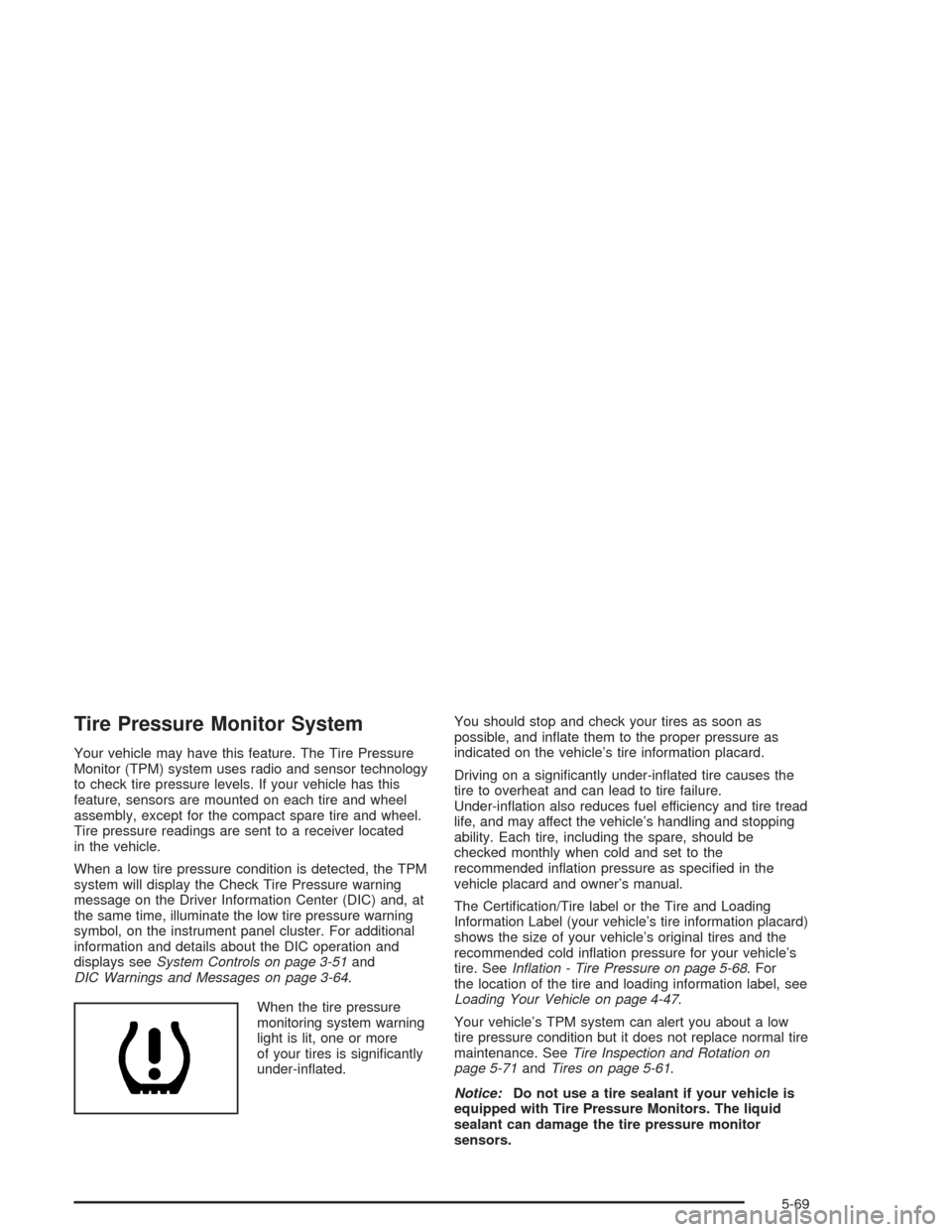
When the tire pressure
monitoring system warning
light is lit, one or more
of your tires is signicantly
under-inated.You should stop and check your tires as soon as
possible, and inate them to the proper pressure as
indicated on the vehicle’s tire information placard.
Driving on a signicantly under-inated tire causes the
tire to overheat and can lead to tire failure.
Under-ination also reduces fuel efficiency and tire tread
life, and may affect the vehicle’s handling and stopping
ability. Each tire, including the spare, should be
checked monthly when cold and set to the
recommended ination pressure as specied in the
vehicle placard and owner’s manual.
The Certication/Tire label or the Tire and Loading
Information Label (your vehicle’s tire information placard)
shows the size of your vehicle’s original tires and the
recommended cold ination pressure for your vehicle’s
tire. SeeInation - Tire Pressure on page 5-68. For
the location of the tire and loading information label, see
Loading Your Vehicle on page 4-47.
Your vehicle’s TPM system can alert you about a low
tire pressure condition but it does not replace normal tire
maintenance. SeeTire Inspection and Rotation on
page 5-71andTires on page 5-61.
Notice:Do not use a tire sealant if your vehicle is
equipped with Tire Pressure Monitors. The liquid
sealant can damage the tire pressure monitor
sensors.
5-69
Page 404 of 468
Cleaning Glass Surfaces
Glass should be cleaned often. GM Glass Cleaner or a
liquid household glass cleaner will remove normal
tobacco smoke and dust lms on interior glass. See
Vehicle Care/Appearance Materials on page 5-100.
Notice:If you use abrasive cleaners when cleaning
glass surfaces on your vehicle, you could scratch
the glass and/or cause damage to the rear window
defogger and the integrated radio antenna. When
cleaning the glass on your vehicle, use only a soft
cloth and glass cleaner.
Care of Safety Belts
Keep belts clean and dry.
{CAUTION:
Do not bleach or dye safety belts. If you do, it
may severely weaken them. In a crash, they
might not be able to provide adequate
protection. Clean safety belts only with mild
soap and lukewarm water.
Weatherstrips
Silicone grease on weatherstrips will make them last
longer, seal better, and not stick or squeak. Apply
silicone grease with a clean cloth. SeeRecommended
Fluids and Lubricants on page 6-13.
5-96
Page 411 of 468
Fuses and Circuit Breakers
The wiring circuits in your vehicle are protected from
short circuits by a combination of fuses and circuit
breakers. This greatly reduces the chance of res
caused by electrical problems.
Look at the silver-colored band inside the fuse. If the
band is broken or melted, replace the fuse. Be sure you
replace a bad fuse with a new one of the identical
size and rating. If a fuse blows, see your dealer
for service immediately.
If you ever have a problem on the road and don’t have
a spare fuse, you can “borrow” one that has the
same amperage. Pick some feature of your vehicle that
you can get along without – like the radio or cigarette
lighter – and use its fuse, if it is the correct amperage.
Replace it as soon as you can.
The fuses are located in three fuse blocks, one located
in the engine compartment on the passenger’s side
and the other two under the rear seat.
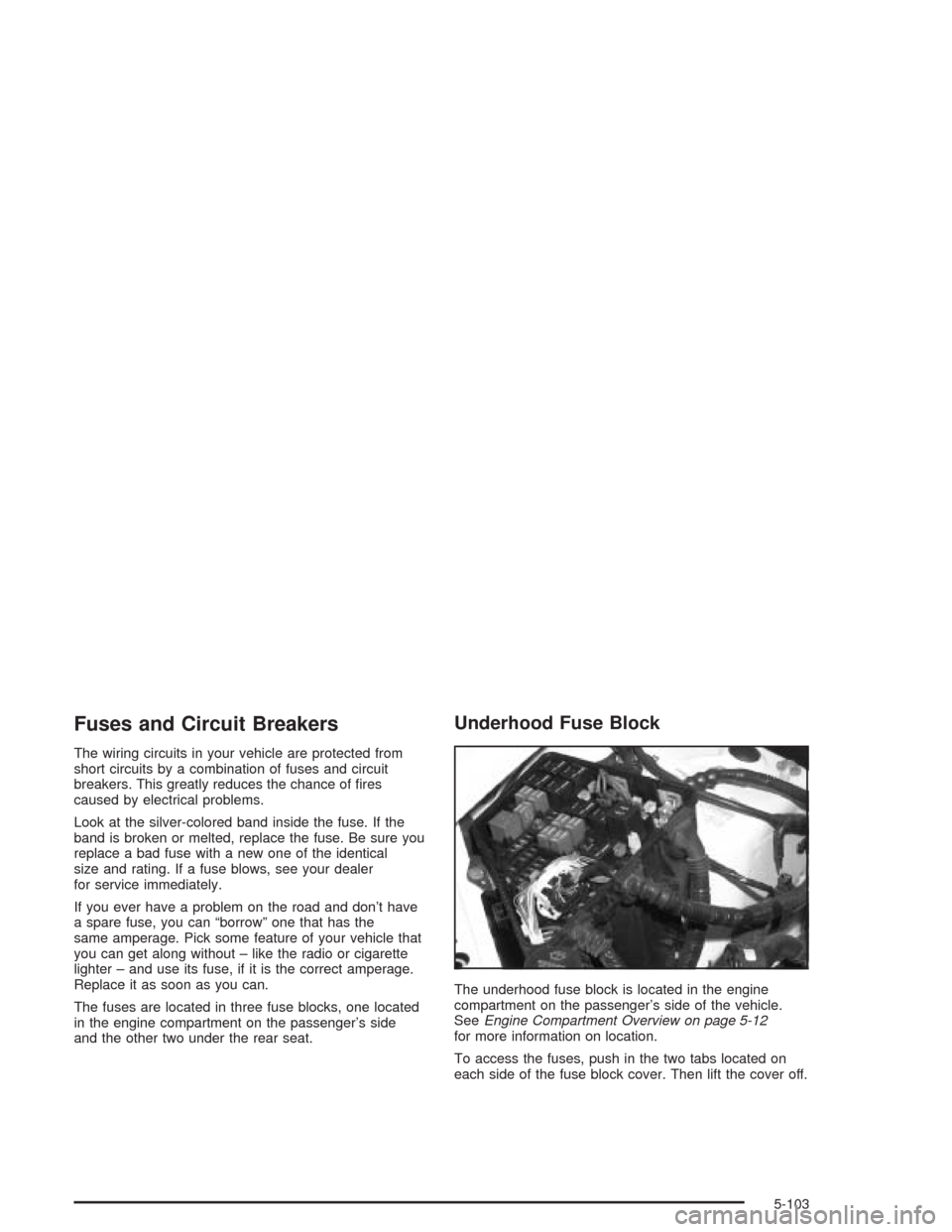
Underhood Fuse Block
The underhood fuse block is located in the engine
compartment on the passenger’s side of the vehicle.
SeeEngine Compartment Overview on page 5-12
for more information on location.
To access the fuses, push in the two tabs located on
each side of the fuse block cover. Then lift the cover off.
5-103