radio CADILLAC SRX 2005 1.G Owners Manual
[x] Cancel search | Manufacturer: CADILLAC, Model Year: 2005, Model line: SRX, Model: CADILLAC SRX 2005 1.GPages: 442, PDF Size: 2.52 MB
Page 71 of 442
Remote Keyless Entry System
Your keyless entry system operates on a radio
frequency subject to Federal Communications
Commission (FCC) Rules and with Industry Canada.
This device complies with Part 15 of the FCC Rules.
Operation is subject to the following two conditions:
1. This device may not cause interference.
2. This device must accept any interference received,
including interference that may cause undesired
operation of the device.
This device complies with RSS-210 of Industry Canada.
Operation is subject to the following two conditions:
1. This device may not cause interference.
2. This device must accept any interference received,
including interference that may cause undesired
operation of the device.
Changes or modications to this system by other than
an authorized service facility could void authorization to
use this equipment.At times you may notice a decrease in range. This is
normal for any remote keyless entry system. If the
transmitter does not work or if you have to stand closer
to your vehicle for the transmitter to work, try this:
Check the distance. You may be too far from your
vehicle. You may need to stand closer during
rainy or snowy weather.
Check the location. Other vehicles or objects may
be blocking the signal. Take a few steps to the
left or right, hold the transmitter higher, and
try again.
Check to determine if battery replacement is
necessary. See “Battery Replacement” under
Remote Keyless Entry System Operation on
page 2-6.
If you are still having trouble, see your dealer or a
qualied technician for service.
2-5
Page 87 of 442
Ignition Positions
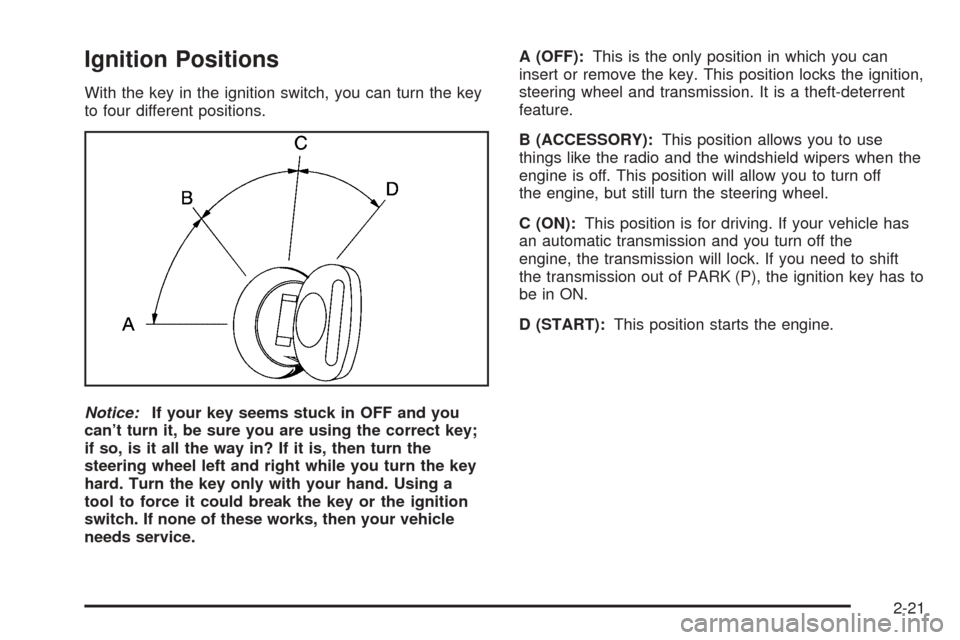
With the key in the ignition switch, you can turn the key
to four different positions.
Notice:If your key seems stuck in OFF and you
can’t turn it, be sure you are using the correct key;
if so, is it all the way in? If it is, then turn the
steering wheel left and right while you turn the key
hard. Turn the key only with your hand. Using a
tool to force it could break the key or the ignition
switch. If none of these works, then your vehicle
needs service.A (OFF):This is the only position in which you can
insert or remove the key. This position locks the ignition,
steering wheel and transmission. It is a theft-deterrent
feature.
B (ACCESSORY):This position allows you to use
things like the radio and the windshield wipers when the
engine is off. This position will allow you to turn off
the engine, but still turn the steering wheel.
C (ON):This position is for driving. If your vehicle has
an automatic transmission and you turn off the
engine, the transmission will lock. If you need to shift
the transmission out of PARK (P), the ignition key has to
be in ON.
D (START):This position starts the engine.
2-21
Page 88 of 442
Steering Column Ignition Lock Release
If your vehicle has a dead battery or a battery with
low voltage, you can still release the ignition lock and
remove the key. Use the following procedure to release
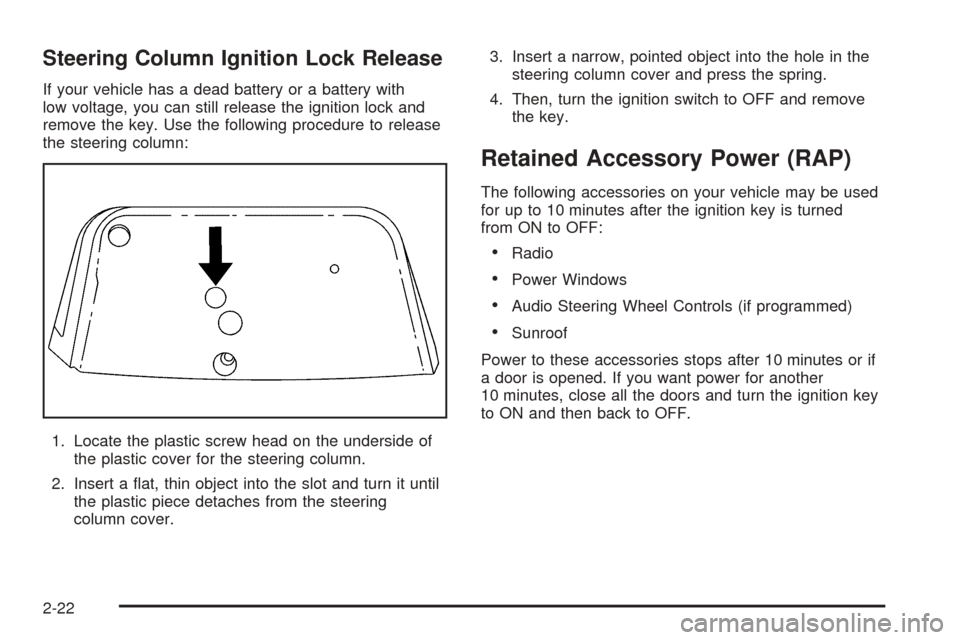
the steering column:
1. Locate the plastic screw head on the underside of
the plastic cover for the steering column.
2. Insert a at, thin object into the slot and turn it until
the plastic piece detaches from the steering
column cover.3. Insert a narrow, pointed object into the hole in the
steering column cover and press the spring.
4. Then, turn the ignition switch to OFF and remove
the key.
Retained Accessory Power (RAP)
The following accessories on your vehicle may be used
for up to 10 minutes after the ignition key is turned
from ON to OFF:
Radio
Power Windows
Audio Steering Wheel Controls (if programmed)
Sunroof
Power to these accessories stops after 10 minutes or if
a door is opened. If you want power for another
10 minutes, close all the doors and turn the ignition key
to ON and then back to OFF.
2-22
Page 109 of 442

HomeLink®Wireless Control
System Operation
Do not use the HomeLink®Transmitter with any garage
door opener that does not have the “stop and reverse”
feature. This includes any garage door opener model
manufactured before April 1, 1982. If you have a newer
garage door opener with rolling codes, please be
sure to follow Steps 6 through 8 to complete the
programming of your HomeLink
®Transmitter.
Read the instructions completely before attempting to
program the HomeLink
®Transmitter. Because of
the steps involved, it may be helpful to have another
person available to assist you in programming the
transmitter.Keep the original transmitter for use in other vehicles as
well as for future HomeLink
®programming. It is also
recommended that upon the sale of the vehicle,
the programmed HomeLink
®buttons should be erased
for security purposes. Refer to “Erasing HomeLink®
Buttons” or, for assistance, contact HomeLink®on the
Internet at: www.homelink.com or by calling
1-800-355-3515.
Be sure that people and objects are clear of the garage
door or gate operator you are programming. When
programming a garage door, it is advised to park outside
of the garage.
It is recommended that a new battery be installed in
your hand-held transmitter for quicker and more
accurate transmission of the radio frequency.
2-43
Page 111 of 442

6. Locate in the garage, the garage door opener
receiver (motor-head unit). Locate the “Learn”
or “Smart” button. This can usually be found where
the hanging antenna wire is attached to the
motor-head unit.
7. Firmly press and release the “Learn” or “Smart”
button. The name and color of the button may
vary by manufacturer.
You will have 30 seconds to start Step 8.
8. Return to the vehicle. Firmly press and hold the
programmed HomeLink
®button for two seconds,
then release. Repeat the press/hold/release
sequence a second time, and depending on the
brand of the garage door opener (or other rolling
code device), repeat this sequence a third time
to complete the programming.
HomeLink
®should now activate your rolling-code
equipped device.
To program the remaining two HomeLink
®buttons,
begin with Step 2 of “Programming HomeLink®.” You do
not want to repeat Step 1, as this will erase all
previous programming.
Gate Operator and Canadian
Programming
Canadian radio-frequency laws require transmitter
signals to “time out” or quit after several seconds of
transmission. This may not be long enough for
HomeLink
®to pick up the signal during programming.
Similarly, some U.S. gate operators are manufactured to
“time out” in the same manner.
If you live in Canada, or you are having difficulty
programming a gate operator by using the
“Programming HomeLink
®” procedures (regardless of
where you live), replace Step 3 under “Programming
HomeLink
®” with the following:
Continue to press and hold the HomeLink
®button while
you press and release every two seconds (cycle)
your hand-held transmitter until the frequency signal has
been successfully accepted by HomeLink
®. The
indicator light will ash slowly at rst and then rapidly.
Proceed with Step 4 under “Programming HomeLink
®”
to complete.
2-45
Page 122 of 442
Security Light...............................................3-46
Fog Lamp Light............................................3-46
Lights On Reminder......................................3-46
Cruise Control Light......................................3-46
Highbeam On Light.......................................3-47
Fuel Gage...................................................3-47
Driver Information Center (DIC).......................3-48
System Controls...........................................3-48
Status of Vehicle Systems.............................3-49
DIC Main Menu............................................3-53
DIC Warnings and Messages.........................3-57
DIC Vehicle Personalization............................3-66Audio System(s).............................................3-80
Setting the Time...........................................3-80
Radio with CD..............................................3-81
Navigation/Radio System...............................3-98
Rear Seat Entertainment System....................3-98
Theft-Deterrent Feature................................3-111
Audio Steering Wheel Controls......................3-111
Radio Reception.........................................3-113
Care of Your CDs and DVDs........................3-113
Care of the CD and DVD Player...................3-113
Diversity Antenna System.............................3-114
XM™ Satellite Radio Antenna System............3-114
Section 3 Instrument Panel
3-2
Page 143 of 442
Accessory Power Outlets
Your vehicle is equipped with accessory power outlets.
The outlets can be used to plug in electrical equipment
such as a cellular telephone, CB radio, etc.
Your vehicle has one outlet in front of the center
console, one in the rear of the center console, one in
the rear compartment, and there may be an additional
outlet in the rear of the center console.
Your vehicle may have a small cap that must be
removed to access the accessory power outlet. If it
does, when not using the outlet be sure to cover it with
the protective cap.
Notice:Leaving electrical equipment on for
extended periods will drain the battery. Always turn
off electrical equipment when not in use and do
not plug in equipment that exceeds the maximum
amperage rating.
Power outlets can be set to work all the time or shut off
10 minutes after the vehicle is turned off. To change
your setting, see your dealer for a fuse adjustment.Certain accessory power plugs may not be compatible
to the accessory power outlet and could result in
blown vehicle or adapter fuses. If you experience a
problem, see your dealer for additional information on
the accessory power outlets.
Notice:Adding any electrical equipment to your
vehicle may damage it or keep other components
from working as they should. The repairs would not
be covered by your warranty. Do not use equipment
exceeding maximum amperage rating. Check
with your dealer before adding electrical equipment.
Follow the proper installation instructions that are
included with any electrical equipment you install.
Notice:Improper use of the power outlet can cause
damage not covered by your warranty. Do not
hang any type of accessory or accessory bracket
from the plug because the power outlets are
designed for accessory power plugs only.
3-23
Page 174 of 442
DIC Main Menu Item Descriptions
e
BASS - MID (Midrange) - TREBLE:This menu
item allows you to adjust the levels for the bass,
midrange, treble, balance, and fade features of the
audio system. For more information, see “Setting the
Tone (Bass/Treble)” and “Adjusting the Speakers
(Balance/Fade)” underRadio with CD on page 3-81.
eEQ (Equalizer):This menu item allows you
to choose among ve preset equalizations for the audio
system. See “Audio Equalizer” underRadio with CD
on page 3-81for more information.
DSP (Digital Signal Processing):This menu item
allows you to select the DSP type that you want on the
audio system. You may choose Normal, Talk,
Spacious, Rear Seat or Driver Seat. Press the
TUNE/SEL knob to scroll through these choices. Once
the desired choice is displayed, turn the knob to set
your DSP choice and continue scrolling through
the main menu.
See “Using DSP” underRadio with CD on page 3-81for
more information.DVD (Digital Versatile Disc):This menu item allows
you to turn the DVD on and off. Press the TUNE/SEL
knob once to turn DVD on and off. When DVD is on, an
X will be in the box next to DVD on the menu. The X
disappears when DVD is off.
SeeRear Seat Entertainment System on page 3-98for
more information.
AVC (Automatic Volume Compensation):This menu
item allows you to turn the AVC feature on and off.
Press the TUNE/SEL knob once to turn AVC on and off.
When AVC is on, an X will be in the box next to AVC
on the menu. The X disappears when AVC is off.
See “AVC (Automatic Volume Compensation)” under
Radio with CD on page 3-81for more information.
H/A (Home/Away Preset Stations):This menu item
allows you to switch back and forth between your home
and away preset radio stations. Press the TUNE/SEL
knob to switch between home and away.
See “Setting Preset Stations” underRadio with CD on
page 3-81for more information.
3-54
Page 175 of 442
AUTOSTORE:This menu item allows you to
automatically store radio stations with the strongest
signals as presets. See “Setting Preset Stations”Radio
with CD on page 3-81for more information.
CAT (Category):This menu item allows you to select
radio stations based on preset categories. To turn
the CAT feature on, press the TUNE/SEL knob once.
When CAT is on, an X will be in the box next to CAT on
the menu. The X disappears when CAT is off.
SeeRadio with CD on page 3-81for more information.
TA (Traffic Announcement):This menu item allows
you to turn the TA feature on and off. To turn the
TA feature on, press the TUNE/SEL knob once. When
TA is on, an X will be in the box next to TA on the
menu. The X disappears when TA is off.
See “RDS Messages” underRadio with CD on
page 3-81for more information.
RDS (Radio Data System) MSG (Message):This
menu item allows you to view an RDS radio station
message broadcast by a radio station. To view
the message, press the TUNE/SEL knob once. The
message will appear on the screen.
See “RDS Messages” underRadio with CD on
page 3-81for more information.AF (Alternate Frequency):This menu item allows you
to turn the AF feature on and off. To turn on AF,
press the TUNE/SEL knob once. When AF is on, an X
will be in the box next to AF on the menu. The X
disappears when AF is off.
See “Radio Data System (RDS)” underRadio with CD
on page 3-81for more information.
SEEK LOCAL/DISTANT:This feature instructs the
audio system to seek only local radio stations with the
strongest signal or to seek all radio stations with a strong
signal in a large area. Use LOCAL when you are in
urban areas where there are several strong radio station
signals and you want to limit the number of stations to
those with the strongest signals only. Use DISTANT
when you are in rural areas where there are fewer radio
station signals available.
To switch between LOCAL and DISTANT, press the
TUNE/SEL knob. Your choice will be set when you press
BACK and return to the main menu.
3-55
Page 176 of 442

9(English/Metric Units):Use this menu item to
adjust the measurement units.
You can choose between ENGLISH UNITS and
METRIC UNITS. To switch between the two, press the
TUNE/SEL knob. Once your choice is displayed,
turn the knob to set your choice and continue scrolling
through the main menu.
The measurement units that you choose will be reected
on all the vehicle system displays, not just the DIC
information. For example, the climate control panel will
display degrees Celsius if you choose METRIC UNITS.
TCS (Traction Control System):You can enable or
disable the traction control system using this menu item.
Press the TUNE/SEL knob to switch between on
and off.
You can also turn the traction control system off using
the traction control button located near the shift lever.
When you disable the traction control system, the
Traction Suspended message will appear on the DIC
and the traction control system warning light on the
instrument panel cluster will come on. SeeDIC
Warnings and Messages on page 3-57andTraction
Control System (TCS) Warning Light on page 3-40for
more information.8(Clock):Use this menu item to set the time on the
vehicle’s clock.
SeeSetting the Time on page 3-80for more information.
8/4(Clock/Information Display):Use this menu
item to toggle between the clock display and the XM™
Information (Song, Artist, Title), if available.
SeeRadio with CD on page 3-81for more information.
SETUP:When you select this menu item, the
following submenu is available:
Personalization
Language
Congure Display Keys
To change the language displayed on the radio, select
LANGUAGE by pressing the TUNE/SEL knob. Turn the
TUNE/SEL knob to scroll through the available languages
and press the knob to make your selection.
If you accidentally select a language that you did not
want, ENGLISH is always at the top of the language list.
For more information on the other items in the SETUP
menu, seeDIC Vehicle Personalization on page 3-66.
3-56