change time CADILLAC SRX 2006 1.G User Guide
[x] Cancel search | Manufacturer: CADILLAC, Model Year: 2006, Model line: SRX, Model: CADILLAC SRX 2006 1.GPages: 456, PDF Size: 2.55 MB
Page 181 of 456
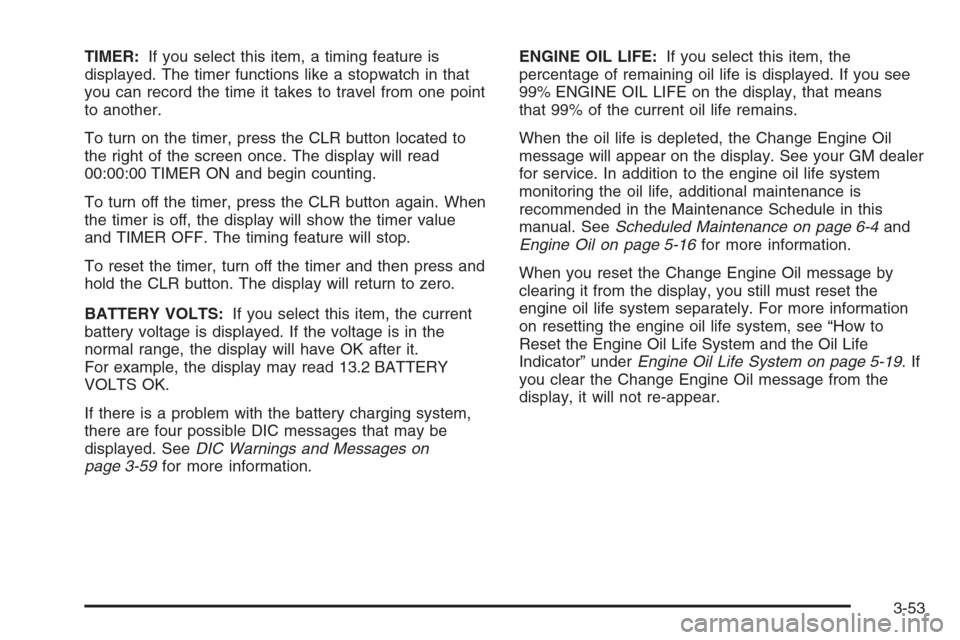
TIMER:If you select this item, a timing feature is
displayed. The timer functions like a stopwatch in that
you can record the time it takes to travel from one point
to another.
To turn on the timer, press the CLR button located to
the right of the screen once. The display will read
00:00:00 TIMER ON and begin counting.
To turn off the timer, press the CLR button again. When
the timer is off, the display will show the timer value
and TIMER OFF. The timing feature will stop.
To reset the timer, turn off the timer and then press and
hold the CLR button. The display will return to zero.
BATTERY VOLTS:If you select this item, the current
battery voltage is displayed. If the voltage is in the
normal range, the display will have OK after it.
For example, the display may read 13.2 BATTERY
VOLTS OK.
If there is a problem with the battery charging system,
there are four possible DIC messages that may be
displayed. SeeDIC Warnings and Messages on
page 3-59for more information.ENGINE OIL LIFE:If you select this item, the
percentage of remaining oil life is displayed. If you see
99% ENGINE OIL LIFE on the display, that means
that 99% of the current oil life remains.
When the oil life is depleted, the Change Engine Oil
message will appear on the display. See your GM dealer
for service. In addition to the engine oil life system
monitoring the oil life, additional maintenance is
recommended in the Maintenance Schedule in this
manual. SeeScheduled Maintenance on page 6-4and
Engine Oil on page 5-16for more information.
When you reset the Change Engine Oil message by
clearing it from the display, you still must reset the
engine oil life system separately. For more information
on resetting the engine oil life system, see “How to
Reset the Engine Oil Life System and the Oil Life
Indicator” underEngine Oil Life System on page 5-19.If
you clear the Change Engine Oil message from the
display, it will not re-appear.
3-53
Page 186 of 456
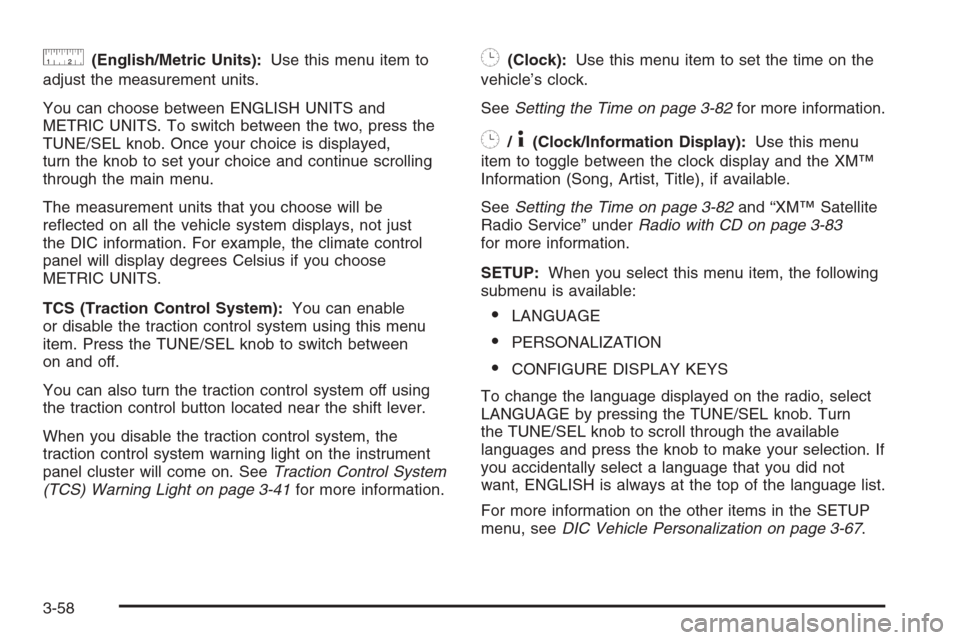
9(English/Metric Units):Use this menu item to
adjust the measurement units.
You can choose between ENGLISH UNITS and
METRIC UNITS. To switch between the two, press the
TUNE/SEL knob. Once your choice is displayed,
turn the knob to set your choice and continue scrolling
through the main menu.
The measurement units that you choose will be
reected on all the vehicle system displays, not just
the DIC information. For example, the climate control
panel will display degrees Celsius if you choose
METRIC UNITS.
TCS (Traction Control System):You can enable
or disable the traction control system using this menu
item. Press the TUNE/SEL knob to switch between
on and off.
You can also turn the traction control system off using
the traction control button located near the shift lever.
When you disable the traction control system, the
traction control system warning light on the instrument
panel cluster will come on. SeeTraction Control System
(TCS) Warning Light on page 3-41for more information.8(Clock):Use this menu item to set the time on the
vehicle’s clock.
SeeSetting the Time on page 3-82for more information.
8/4(Clock/Information Display):Use this menu
item to toggle between the clock display and the XM™
Information (Song, Artist, Title), if available.
SeeSetting the Time on page 3-82and “XM™ Satellite
Radio Service” underRadio with CD on page 3-83
for more information.
SETUP:When you select this menu item, the following
submenu is available:
LANGUAGE
PERSONALIZATION
CONFIGURE DISPLAY KEYS
To change the language displayed on the radio, select
LANGUAGE by pressing the TUNE/SEL knob. Turn
the TUNE/SEL knob to scroll through the available
languages and press the knob to make your selection. If
you accidentally select a language that you did not
want, ENGLISH is always at the top of the language list.
For more information on the other items in the SETUP
menu, seeDIC Vehicle Personalization on page 3-67.
3-58
Page 200 of 456
To program the vehicle to a different mode, use the
following procedure:
1. Enter the personalization portion of the SETUP
menu following the instructions listed previously.
2. Turn the TUNE/SEL knob until AUTO EXIT SEAT is
highlighted.
3. Press the TUNE/SEL knob to switch back and forth
between on and off.
When the mode is turned on, a check mark will
appear in the box next to the feature name.
The mode you selected is now set. You can either exit
the programming mode by following the instructions
later in this section or program the next feature available
on your vehicle.Twilight Delay
This feature allows you to set the amount of time you
want the exterior lamps to remain on after you exit
the vehicle.
Programmable Modes
Mode 1:0:00 seconds
Mode 2:0:15 seconds
Mode 3:0:30 seconds
Mode 4:1:00 minute
Mode 5:1:30 minutes
Mode 6:2:00 minutes
Mode 7:2:30 minutes
Mode 8:3:00 minutes
Before your vehicle was shipped from the factory, it was
programmed to Mode 1. The mode to which the
vehicle was programmed may have been changed since
the vehicle left the factory.
3-72
Page 201 of 456

To determine the mode to which the vehicle is
programmed or to program the vehicle to a different
mode, use the following procedure:
1. Enter the personalization portion of the SETUP
menu following the instructions listed previously.
2. Turn the TUNE/SEL knob until TWILIGHT DELAY
is highlighted.
3. Press the TUNE/SEL knob to scroll through and
select the available delay settings.
If you choose Mode 1, the exterior lamps will not
illuminate when you exit the vehicle. Only one mode
can be selected at a time.
The mode you selected is now set. You can either exit
the programming mode by following the instructions
later in this section or program the next feature available
on your vehicle.
Lights Flash at Unlock
This feature ashes the exterior lamps when the remote
keyless entry transmitter is used to unlock the vehicle.
The lamps will ash for approximately 20 seconds
unless a door is opened, the ignition is turned to
ACCESSORY, ON, or START, or the remote keyless
entry transmitter is used to lock the vehicle.Programmable Modes
Mode 1:ON
Mode 2:OFF
Before your vehicle was shipped from the factory, it was
programmed to Mode 1. The mode to which the
vehicle was programmed may have been changed since
it left the factory.
To program the vehicle to a different mode, use the
following procedure:
1. Enter the personalization portion of the SETUP
menu following the instructions listed previously.
2. Turn the TUNE/SEL knob until LIGHTS FLASH AT
UNLOCK is highlighted.
3. Press the TUNE/SEL knob to switch back and forth
between on and off.
When the mode is turned on, a check mark will
appear next to the feature name.
The mode you selected is now set. You can either exit
the programming mode by following the instructions
later in this section or program the next feature available
on your vehicle.
3-73
Page 208 of 456
To program the vehicle to a different mode, use the
following procedure:
1. Enter the personalization portion of the SETUP
menu following the instructions listed previously.
2. Turn the TUNE/SEL knob until MIRROR TO CURB
IN REV is highlighted.
3. Press the TUNE/SEL knob to switch back and forth
between on and off.
When the mode is turned on, a check mark will
appear next to the feature name.
The mode you selected is now set. You can either exit
the programming mode by following the instructions
later in this section or program the next feature available
on your vehicle.
Enhanced Chime Volume
This feature allows you to adjust the volume level of the
vehicle’s warning chimes. The chime volume cannot
be turned off, only adjusted.
Programmable Modes
Mode 1:NORMAL
Mode 2:LOUDBefore your vehicle was shipped from the factory, it
was programmed to Mode 1. The mode to which
the vehicle was programmed may have been changed
since it left the factory.
To program the vehicle to a different mode, use the
following procedure:
1. Enter the personalization portion of the SETUP
menu following the instructions listed previously.
2. Turn the TUNE/SEL knob until ENHANCED CHIME
VOLUME is highlighted.
3. Press the TUNE/SEL knob to switch back and forth
between the normal and loud settings.
The mode you selected is now set. You can either exit
the programming mode by following the instructions
later in this section or program the next feature available
on your vehicle.Exiting the Personalization Menu
To exit the personalization portion of the SETUP menu,
press the CLR button once you have nished making
your selections. You will return to the main audio screen.
If a 15 second time period has elapsed with no
selection made, the SETUP menu will be exited
automatically.
3-80
Page 212 of 456
XM™ Satellite Radio Service
XM™ is a satellite radio service that is based in the
48 contiguous United States and in Canada (if
available). XM™ offers over 100 coast to coast channels
including music, news, sports, talk, and children’s
programming. XM™ provides digital quality audio and
text information, including song title and artist name.
A service fee is required in order to receive the XM™
service. For more information, contact XM™ at
www.xmradio.com or call 1-800-852-XMXM (9696).
CLOCK/INFO DISP (Clock/Information
Display):Press the CLOCK/INFO DISP button to
switch between the clock display, the XM™ screen, and
the XM™ information display.Press this button while in XM™ mode to retrieve
three different categories of information related to the
current song or channel: Artist, Song Title, and
Category. To view this information, perform the
following:
1. Press the TUNE/SEL knob to enter the main menu.
2. Turn the TUNE/SEL knob until CLOCK/INFO
DISP appears on the display.
3. Press the TUNE/SEL knob to select CLOCK/INFO
DISP. The display will change to show the additional
XM™ information.
4. To return to the original display, press the CLR
button or wait for the display to time out.
If the CLOCK/INFO DISP is congured into one of the
congurable keys, pressing the key will switch the
display between the radio station frequency and the
time. See “Congurable Radio Display Keys” later in this
section for more information.
3-84
Page 213 of 456
Playing the Radio
PWR (Power):Press this knob to turn the system on
and off.
VOL (Volume):Turn this knob to increase or to
decrease the volume.
AVC (Automatic Volume Compensation):Available
only with the premium Bose
®audio system. AVC,
which utilizes Bose AudioPilot®noise compensation
technology, continuously adjusts the audio system
equalization, to compensate for background noise, so
that your music always sounds the same at the set
volume level. This feature is most effective at lower radio
volume settings where background noise can affect
how well you hear the music being played through your
vehicle’s audio system. At higher volume settings,
where the music is much louder than the background
noise, there may be little or no adjustments by AVC. To
turn AVC on and off, perform the following steps:
1. Press the TUNE/SEL knob to enter the main menu.
2. Turn the TUNE/SEL knob until AUTO VOLUME
COMP. appears on the display.
3. Press the TUNE/SEL knob to turn AVC on or off.
An X will appear in the box when AVC is selected on.
4. Press the CLR button to exit the display. To return
to the original display, repeatedly press the CLR
button or wait for the display to time out.SOURCE:Press this button to select a source, either
radio or CD. The CD must be loaded to select the
source and to play. CD will appear on the display if a
CD is loaded. If a CD is not loaded the display will
not change from the radio source.
Finding a Station
BAND:Press this button to select FM1, FM2, AM, or
XM1 or XM2 (if equipped).
QSEEKR:Press the up or the down arrow to go to
the next or to the previous station and stay there.
SEEK will appear on the display. The sound will mute
while seeking.
The radio will only seek stations with a strong signal
that are in the selected band.
QSCANR:Press the SCAN button to enter scan
mode. SCAN will appear on the display. Press the
up arrow to scan to the next station. The radio will go to
a station, play for 5 seconds, then go on to the next
station. Press this button again to stop scanning.
3-85
Page 224 of 456
F3 RDM (Random):Press this rm key to listen to the
tracks in random, rather than sequential, order.
RANDOM will appear on the display. Press RDM again
to turn off random play. RANDOM will disappear
from the display.
F4 RPT (Repeat):Press this rm key to hear a track
over again. REPEAT will appear on the display.
Press RPT again to turn off repeat play. REPEAT will
disappear from the display.
F6 DISP (Display):Press this rm key to display the
time of the track. Press this rm key again to remove the
time of the track from the display.
QSEEKR:Press the up or the down arrow to go to
the next or to the previous track on the CD.
QSCANR:Press this button to listen to each track
for 10 seconds. The CD will go to a track, play for
10 seconds, then go on to the next track. Press this
button again to stop scanning.
X(Eject):Press this button to stop a CD when it is
playing or to eject a CD when it is not playing. Eject may
be activated with the ignition and the radio off.
Using the Six-Disc CD Changer
The CD player can play the smaller 3 inch (8 cm)
single CDs with an adapter ring. Full-size CDs and the
smaller CDs are loaded in the same manner.
If playing a CD-R, the sound quality may be reduced
due to CD-R quality, the method of recording, the quality
of the music that has been recorded, and the way the
CD-R has been handled. There may be an increase
in skipping, difficulty in nding tracks, and/or difficulty in
loading and ejecting. If these problems occur, check
the bottom surface of the CD. If the surface of the CD is
damaged, such as cracked, broken, or scratched, the
CD will not play properly. If the surface of the CD
is soiled, seeCare of Your CDs and DVDs on
page 3-115for more information.
If there is no apparent damage, try a known good CD.
Do not add any label to a CD, it could get caught in the
CD player. If a CD is recorded on a personal computer
and a description label is needed, try labeling the top of
the recorded CD with a marking pen instead.
3-96
Page 228 of 456
8. Turn the TUNE/SEL knob to nd the feature that
you would like to store to the key.
9. Press the TUNE/SEL knob when you have found
the feature to be stored. The display will update,
by showing the symbol of the feature that you
selected next to the congurable key.
10. Repeat the previous steps for each congurable key.
Once a feature is programmed to a key, the feature will
not appear on the display when programming the
remaining congurable keys. The congurable keys can
be changed at any time.
Navigation/Radio System
Your vehicle may have a navigation radio system.
The navigation system has built-in features intended to
minimize driver distraction. Technology alone, no
matter how advanced, can never replace your own
judgment. See the Navigation System manual for some
tips to help you reduce distractions while driving.
Rear Seat Entertainment System
Your vehicle may have the DVD Rear Seat
Entertainment (RSE) system. The RSE system includes
a DVD player, a video display screen, two sets of
wireless headphones, and a remote control.
RSE is available in a base and an uplevel version. The
uplevel version is provided with the navigation radio
(if equipped). The uplevel RSE system offers the rear
seat passengers to have shared control of FM1,
FM2, AM, weather, CDC, and XM™ Satellite Radio
Service (if equipped).
Before You Drive
The RSE system is for rear seat passengers only.
The driver cannot safely view the video screen while
driving and should not try to do so.
Headphones
The RSE system includes two sets of wireless
headphones.
Each set of headphones has an ON/OFF control. An
indicator light will illuminate on the headphones
when they are on. If the light does not illuminate, the
batteries may need to be replaced. See “Battery
Replacement” later in this section for more information.
To turn the headphones OFF activate the ON/OFF
control.
3-100
Page 229 of 456
Each set of headphones has a volume knob. To adjust
the volume, adjust this knob.
The transmitters are located above the video display
screen. The headphones will shut off to save battery
power if they lose the signal from the system after about
four minutes. The signal may be lost if the system is
turned off or if the headphones are out of range of the
signal transmitters.
Notice:Do not store the headphones in heat or
direct sunlight. This could damage the headphones
and repairs will not be covered by your warranty.
Keep the headphones stored in a cool, dry place.
Battery Replacement
To change the batteries, do the following:
1. Loosen the screw on the battery compartment door
located on the left side of the headphone earpiece.
2. Replace the two AAA batteries in the compartment.
Make sure that they are installed correctly, using
the diagram on the inside of the battery
compartment.
3. Tighten the screws to close the compartment door.
If the headphones are to be stored for a long period
of time, remove the batteries and keep them in a cool,
dry place.
Stereo RCA Jacks
The RCA jacks are located on the front of the DVD
player faceplate. These jacks allow audio and video
signals to be connected from an auxiliary device such as
a camcorder or a video game unit to the RSE system.
The left jack is for left audio input, the right jack is
for right audio input, and the center jack is used
for video input. The system requires standard RCA
cables, not included, to connect the auxiliary device to
the RCA jacks. Refer to the manufacturer’s instructions
for proper usage.
To use the auxiliary audio and video inputs, connect
an external auxiliary device such as a camcorder to
the RCA jacks and turn on both the auxiliary device
power and the power on the front of the RSE player.
To have use of these jacks, select AUX using the
MODE button on the DVD player faceplate or the
remote control.
3-101