ESP CADILLAC SRX 2012 2.G User Guide
[x] Cancel search | Manufacturer: CADILLAC, Model Year: 2012, Model line: SRX, Model: CADILLAC SRX 2012 2.GPages: 502, PDF Size: 6.23 MB
Page 238 of 502
Black plate (48,1)Cadillac SRX Owner Manual (Include Mex) - 2012
7-48 Infotainment System
Bluetooth Controls
Use the buttons located on the
infotainment system and the
steering wheel to operate the
Bluetooth system.
Steering Wheel Controls
b/g(Push To Talk) :Press to
answer incoming calls, confirm
system information, and start voice
recognition.
0/c(End Call/Mute): Press to
end a call, reject a call, or cancel an
operation.
Infotainment System Controls
If equipped, the infotainment system
allows certain controls to be
selected on the infotainment display.
For information about how to
navigate the menu system using the
infotainment controls, see Operation
on page 7‑7.
PHONE: Press to enter the Phone
main menu.
Voice Recognition
The voice recognition system uses
commands to control the system
and dial phone numbers.
Noise: The system may not
recognize voice commands if there
is too much background noise.
When to Speak: A tone sounds to
indicate that the system is ready for
a voice command. Wait for the tone
and then speak.
How to Speak: Speak clearly in a
calm and natural voice.
Audio System
When using the Bluetooth system,
sound comes through the vehicle's
front audio system speakers and
overrides the audio system. Use the
VOL/
Oknob during a call to
change the volume level. The
adjusted volume level remains in
memory for later calls. The system
maintains a minimum volume level.
Other Information
The Bluetooth®word mark and
logos are owned by the Bluetooth®
SIG, Inc. and any use of such marks
by General Motors is under license.
Other trademarks and trade names
are those of their respective owners.
See Radio Frequency Statement on
page 13‑21 for information
regarding Part 15 of the Federal
Communications Commission (FCC)
rules and Industry Canada
Standards RSS-GEN/210/220/310.
Page 239 of 502
Black plate (49,1)Cadillac SRX Owner Manual (Include Mex) - 2012
Infotainment System 7-49
Bluetooth
(Infotainment Controls)
For information about how to
navigate the menu system using the
infotainment controls, seeOperation
on page 7‑7.
Pairing
A Bluetooth‐enabled cell phone
must be paired to the Bluetooth
system and then connected to the
vehicle before it can be used. See
your cell phone manufacturer's user
guide for Bluetooth functions before
pairing the cell phone. If a Bluetooth
phone is not connected, calls will be
made using OnStar Hands‐Free
Calling, if available. See OnStar
Overview on page 14‑1 for more
information.
Pairing Information
.A Bluetooth phone with MP3
capability cannot be paired to
the vehicle as a phone and an
MP3 player at the same time.
.Up to five cell phones can be
paired to the Bluetooth system.
.The pairing process is disabled
when the vehicle is moving.
.Pairing only needs to be
completed once, unless the
pairing information on the cell
phone changes or the cell phone
is deleted from the system.
.Only one paired cell phone can
be connected to the Bluetooth
system at a time.
.If multiple paired cell phones are
within range of the system, the
system connects to the first
available paired cell phone in the
order that they were first paired
to the system. To link to a
different paired phone, see
“Linking to a Different Phone”
later in this section.
Pairing a Phone
1. Press the CONFIG button.
2. Select Phone Settings.
3. Select Bluetooth. 4. Select Pair Device (Phone).
A four‐digit Personal
Identification Number (PIN)
appears on the display.
The PIN is used is Step 6.
5. Start the pairing process on the cell phone to be paired to the
vehicle. See the cell phone
manufacturer's user guide for
information on this process.
6. Locate the device named “Your
Vehicle” in the list on the cell
phone. Follow the instructions
on the cell phone to enter the
PIN provided in Step 4. After the
PIN is successfully entered, the
system prompts you to provide a
name for the paired cell phone.
This name will be used to
indicate which phones are
paired and connected to the
vehicle. The system responds
with “
successfully paired” after the
pairing process is complete.
7. Repeat Steps 1 through 6 to pair additional phones.
Page 244 of 502
Black plate (54,1)Cadillac SRX Owner Manual (Include Mex) - 2012
7-54 Infotainment System
Pairing a Phone
1. Press
b/g. The system
responds “Ready,”followed by
a tone.
2. Say “Bluetooth.” This command
can be skipped.
3. Say “Pair.”The system responds
with instructions and a four‐digit
Personal Identification Number
(PIN). The PIN is used in Step 5.
4. Start the pairing process on the cell phone that you want to pair.
For help with this process, see
your cell phone manufacturer's
user guide.
5. Locate the device named “Your
Vehicle” in the list on the cell
phone. Follow the instructions
on the cell phone to enter the
PIN provided in Step 3. After the
PIN is successfully entered, the
system prompts you to provide a
name for the paired cell phone. This name will be used to
indicate which phones are
paired and connected to the
vehicle. The system responds
with
“
successfully paired” after the
pairing process is complete.
6. Repeat Steps 1 through 5 to pair additional phones.
Listing All Paired and Connected
Phones
The system can list all cell phones
paired to it. If a paired cell phone is
also connected to the vehicle, the
system responds with “is connected”
after that phone name.
1. Press
b/g. The system
responds “Ready,”followed by
a tone.
2. Say “Bluetooth.”
3. Say “List.” Deleting a Paired Phone
If the phone name you want to
delete is unknown, see
“Listing All
Paired and Connected Phones.”
1. Press
b/g. The system
responds “Ready,”followed by
a tone.
2. Say “Bluetooth.”
3. Say “Delete.” The system asks
for which phone to delete.
4. Say the name of the phone you want to delete.
Connecting to a Different Phone
To connect to a different cell phone,
the Bluetooth system looks for the
next available cell phone in the
order in which all the available cell
phones were paired. Depending on
which cell phone you want to
connect to, you may have to use
this command several times.
1. Press
b/g. The system
responds “Ready,”followed by
a tone.
Page 245 of 502
Black plate (55,1)Cadillac SRX Owner Manual (Include Mex) - 2012
Infotainment System 7-55
2. Say“Bluetooth.”
3. Say “Change phone.”
.If another cell phone is
found, the response will be
“
connected.”
.If another cell phone is not
found, the original phone
remains connected.
Storing and Deleting Phone
Numbers
The system can store up to 30
phone numbers as name tags in the
Hands‐Free Directory that is shared
between the Bluetooth and OnStar
systems.
The following commands are used
to delete and store phone numbers.
Store:This command will store a
phone number, or a group of
numbers as a name tag.
Digit Store: This command allows
a phone number to be stored as a
name tag by entering the digits one
at a time. Delete:
This command is used to
delete individual name tags.
Delete All Name Tags: This
command deletes all stored name
tags in the Hands‐Free Calling
Directory and the Destinations
Directory.
Using the “Store”Command
1. Press
b/g. The system
responds “Ready,”followed by
a tone.
2. Say “Store.”
3. Say the phone number or group of numbers you want to store all
at once with no pauses, then
follow the directions given by the
system to save a name tag for
this number.
Using the “Digit Store” Command
If an unwanted number is
recognized by the system, say
“Clear” at any time to clear the last
number. To hear all of the numbers
recognized by the system, say
“Verify”
at any time.
1. Press
b/g. The system
responds “Ready,”followed by
a tone.
2. Say “Digit Store.”
3. Say each digit, one at a time, that you want to store. After
each digit is entered, the system
repeats back the digit it heard
followed by a tone. After the last
digit has been entered, say
“Store,” and then follow the
directions given by the system to
save a name tag for this number.
Using the “Delete”Command
1. Press
b/g. The system
responds “Ready,”followed by
a tone.
2. Say “Delete.”
3. Say the name tag you want to delete.
Page 246 of 502
Black plate (56,1)Cadillac SRX Owner Manual (Include Mex) - 2012
7-56 Infotainment System
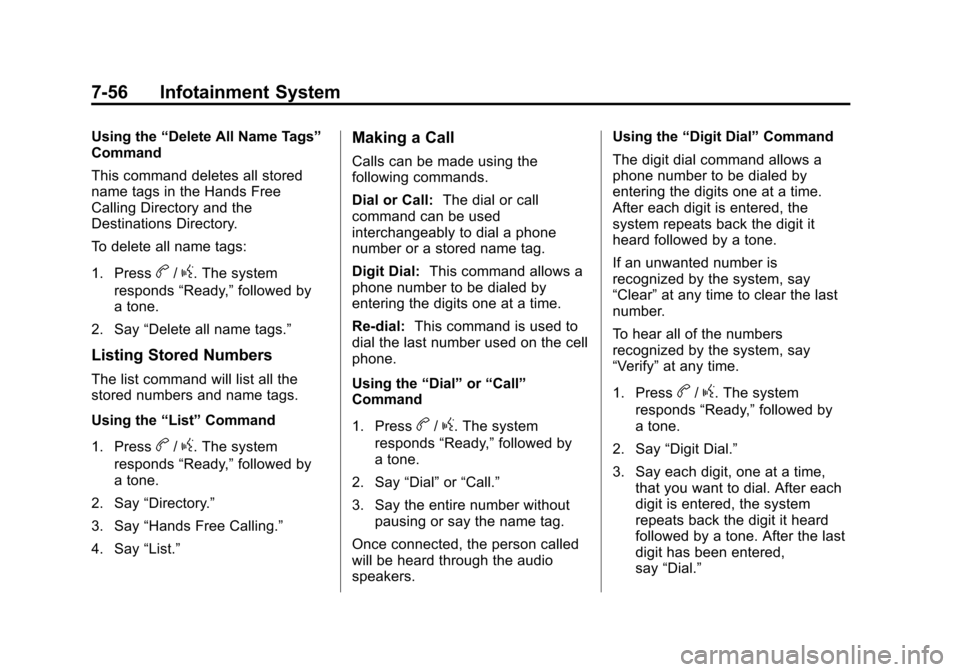
Using the“Delete All Name Tags”
Command
This command deletes all stored
name tags in the Hands Free
Calling Directory and the
Destinations Directory.
To delete all name tags:
1. Press
b/g. The system
responds “Ready,”followed by
a tone.
2. Say “Delete all name tags.”
Listing Stored Numbers
The list command will list all the
stored numbers and name tags.
Using the “List”Command
1. Press
b/g. The system
responds “Ready,”followed by
a tone.
2. Say “Directory.”
3. Say “Hands Free Calling.”
4. Say “List.”
Making a Call
Calls can be made using the
following commands.
Dial or Call: The dial or call
command can be used
interchangeably to dial a phone
number or a stored name tag.
Digit Dial: This command allows a
phone number to be dialed by
entering the digits one at a time.
Re‐dial: This command is used to
dial the last number used on the cell
phone.
Using the “Dial”or“Call”
Command
1. Press
b/g. The system
responds “Ready,”followed by
a tone.
2. Say “Dial”or“Call.”
3. Say the entire number without pausing or say the name tag.
Once connected, the person called
will be heard through the audio
speakers. Using the
“Digit Dial” Command
The digit dial command allows a
phone number to be dialed by
entering the digits one at a time.
After each digit is entered, the
system repeats back the digit it
heard followed by a tone.
If an unwanted number is
recognized by the system, say
“Clear” at any time to clear the last
number.
To hear all of the numbers
recognized by the system, say
“Verify” at any time.
1. Press
b/g. The system
responds “Ready,”followed by
a tone.
2. Say “Digit Dial.”
3. Say each digit, one at a time, that you want to dial. After each
digit is entered, the system
repeats back the digit it heard
followed by a tone. After the last
digit has been entered,
say “Dial.”
Page 247 of 502
Black plate (57,1)Cadillac SRX Owner Manual (Include Mex) - 2012
Infotainment System 7-57
Once connected, the person called
will be heard through the audio
speakers.
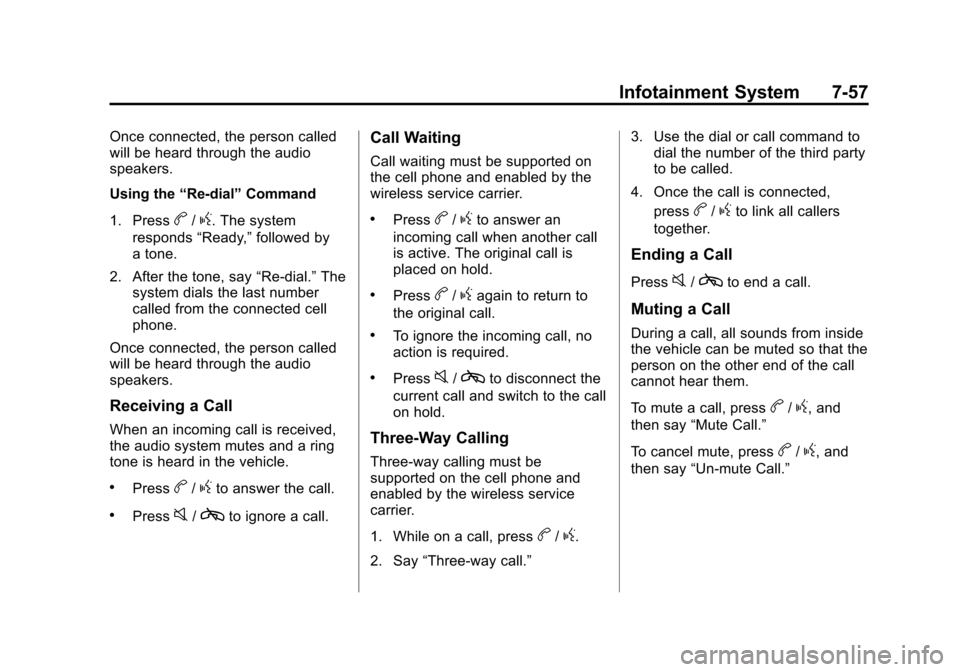
Using the“Re‐dial”Command
1. Press
b/g. The system
responds “Ready,”followed by
a tone.
2. After the tone, say “Re‐dial.”The
system dials the last number
called from the connected cell
phone.
Once connected, the person called
will be heard through the audio
speakers.
Receiving a Call
When an incoming call is received,
the audio system mutes and a ring
tone is heard in the vehicle.
.Pressb/gto answer the call.
.Press0/cto ignore a call.
Call Waiting
Call waiting must be supported on
the cell phone and enabled by the
wireless service carrier.
.Pressb/gto answer an
incoming call when another call
is active. The original call is
placed on hold.
.Pressb/gagain to return to
the original call.
.To ignore the incoming call, no
action is required.
.Press0/cto disconnect the
current call and switch to the call
on hold.
Three‐Way Calling
Three‐way calling must be
supported on the cell phone and
enabled by the wireless service
carrier.
1. While on a call, press
b/g.
2. Say “Three‐way call.” 3. Use the dial or call command to
dial the number of the third party
to be called.
4. Once the call is connected, press
b/gto link all callers
together.
Ending a Call
Press0/cto end a call.
Muting a Call
During a call, all sounds from inside
the vehicle can be muted so that the
person on the other end of the call
cannot hear them.
To mute a call, press
b/g, and
then say “Mute Call.”
To cancel mute, press
b/g, and
then say “Un‐mute Call.”
Page 248 of 502
Black plate (58,1)Cadillac SRX Owner Manual (Include Mex) - 2012
7-58 Infotainment System
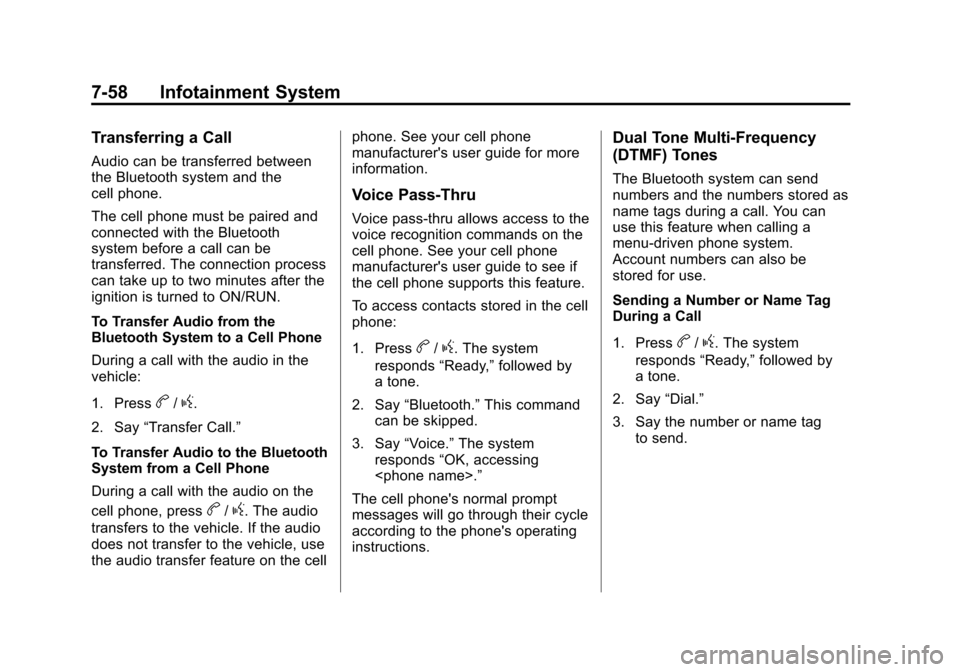
Transferring a Call
Audio can be transferred between
the Bluetooth system and the
cell phone.
The cell phone must be paired and
connected with the Bluetooth
system before a call can be
transferred. The connection process
can take up to two minutes after the
ignition is turned to ON/RUN.
To Transfer Audio from the
Bluetooth System to a Cell Phone
During a call with the audio in the
vehicle:
1. Press
b/g.
2. Say “Transfer Call.”
To Transfer Audio to the Bluetooth
System from a Cell Phone
During a call with the audio on the
cell phone, press
b/g. The audio
transfers to the vehicle. If the audio
does not transfer to the vehicle, use
the audio transfer feature on the cell phone. See your cell phone
manufacturer's user guide for more
information.
Voice Pass-Thru
Voice pass‐thru allows access to the
voice recognition commands on the
cell phone. See your cell phone
manufacturer's user guide to see if
the cell phone supports this feature.
To access contacts stored in the cell
phone:
1. Press
b/g. The system
responds “Ready,”followed by
a tone.
2. Say “Bluetooth.” This command
can be skipped.
3. Say “Voice.” The system
responds “OK, accessing
The cell phone's normal prompt
messages will go through their cycle
according to the phone's operating
instructions.
Dual Tone Multi-Frequency
(DTMF) Tones
The Bluetooth system can send
numbers and the numbers stored as
name tags during a call. You can
use this feature when calling a
menu‐driven phone system.
Account numbers can also be
stored for use.
Sending a Number or Name Tag
During a Call
1. Press
b/g. The system
responds “Ready,”followed by
a tone.
2. Say “Dial.”
3. Say the number or name tag to send.
Page 249 of 502
Black plate (59,1)Cadillac SRX Owner Manual (Include Mex) - 2012
Infotainment System 7-59
Clearing the System
Unless information is deleted out of
the in‐vehicle Bluetooth system, it
will be retained indefinitely. This
includes all saved name tags in the
phone book and phone pairing
information. For information on how
to delete this information, see the
previous sections on“Deleting a
Paired Phone” and“Deleting
Name Tags.”
Bluetooth
(UHP Mexico Only)
General Information
Vehicles with a Universal
Hands‐free Phone (UHP) system
can use a Bluetooth
®capable
mobile phone with a Hands-Free
Profile to make and receive phone
calls. The infotainment system and
voice control are used to control the
system. The system can be used
while the ignition is in ON/RUN or
ACC/ACCESSORY. The range of the UHP system can
be up to 10 m (33 ft). Not all phones
support all functions and not all
phones work with the UHP system.
Other Information
The Bluetooth word mark and logos
are owned by the Bluetooth®SIG,
Inc. and any use of such marks by
General Motors is under license.
Other trademarks and trade names
are those of their respective owners.
UHP Controls
Use the buttons located on the
infotainment system and the
steering wheel to operate the UHP
system.
Steering Wheel Controls
Steering wheel controls can be
used to:
.Answer incoming calls
.Confirm system information
.Start voice recognition
.End a call
.Reject a call
.Cancel an operation
.Make outgoing calls using the
call list
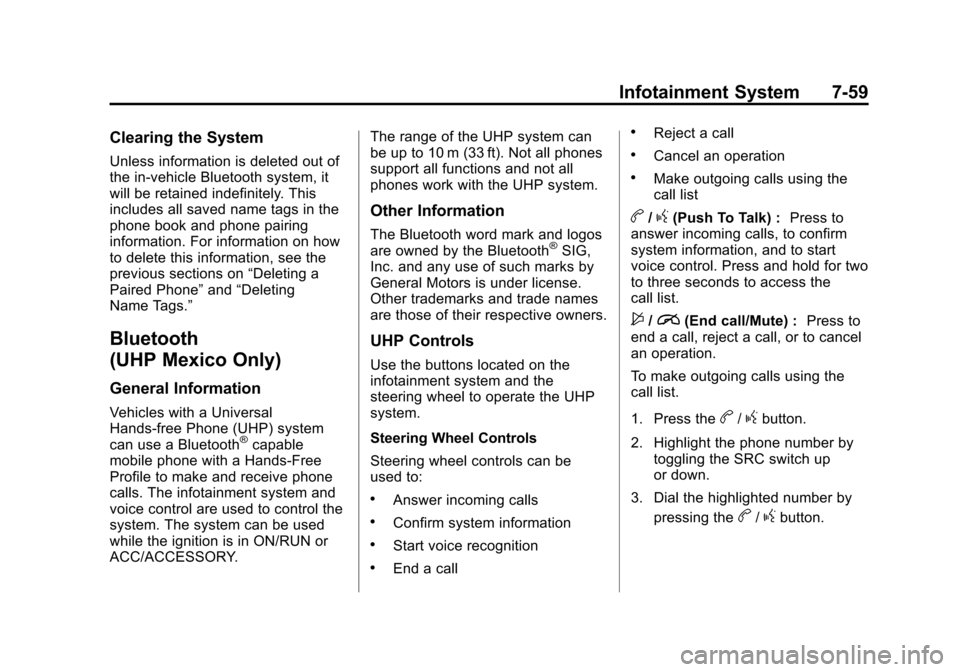
b/g(Push To Talk) : Press to
answer incoming calls, to confirm
system information, and to start
voice control. Press and hold for two
to three seconds to access the
call list.
$/i(End call/Mute) : Press to
end a call, reject a call, or to cancel
an operation.
To make outgoing calls using the
call list.
1. Press the
b/gbutton.
2. Highlight the phone number by toggling the SRC switch up
or down.
3. Dial the highlighted number by pressing the
b/gbutton.
Page 255 of 502
Black plate (65,1)Cadillac SRX Owner Manual (Include Mex) - 2012
Infotainment System 7-65
Apart from this, the voice control
acknowledges important commands
and will ask if necessary.
In order that calls are made inside
the vehicle do not lead to
unintentional triggering of the mobile
phone, the voice control does not
start until it has been activated.
Activating the Voice Control
For vehicles without a navigation
system, press the
b/gbutton on
the steering wheel to activate the
voice control of the UHP system.
For vehicles with a navigation
system, press the
b/gbutton on
the steering wheel to activate the
voice control of the UHP system
The system responds with a tone.
After the tone, say ”Phone.“
For the duration of the dialogue any
audio source that is active is muted
and any traffic news fade-in is
cancelled. Adjusting the Volume for Voice
Output
Turn the volume knob of the
Infotainment system or press
the + / - buttons on the
steering wheel.
Canceling Dialogue
There are various possibilities of
deactivating the voice control and
cancelling the dialogue:
.Press the$/ibutton on the
steering wheel controls.
.Enter the command “Cancel.”
.Do not enter a command for
some time.
.The command is unrecognized
after three tries. Main Menu Commands
The UHP system has a set of main
menu commands that are available
when voice control is first started.
After the voice control is activated,
a short tone indicates that the voice
control system is waiting for a
command.
Available commands:
.“Dial”
.“Call”
.“Re-dial”
.“Save”
.“Delete”
.“Directory”
.“Pair”
.“Select device”
.“Voice feedback”
.“Help”
.“Cancel”
Page 261 of 502
Black plate (71,1)Cadillac SRX Owner Manual (Include Mex) - 2012
Infotainment System 7-71
“Made for iPod”means that an
electronic accessory has been
designed to connect specifically to
iPod and has been certified
by the developer to meet Apple
performance standards. Apple is not
responsible for the operation of this
device or its compliance with safety
and regulatory standards.
iPod, iPod classic, iPod nano, and
iPod touch are trademarks of
Apple Inc., registered in the
U.S. and other countries.Fees and Taxes —Subscription fee,
taxes, one time activation fee, and
other fees may apply. Subscription
fee is consumer only. All fees and
programming subject to change.
Subscriptions subject to Customer
Agreement available at
www.xmradio.com. XM™ service
only available in the 48 contiguous
United States and Canada*.
*Canada —Some deterioration of
service may occur in extreme
northern latitudes. This is beyond
the control of XM™ Satellite Radio.
Explicit Language Notice —
Channels with frequent explicit
language are indicated with an
“XL” preceding the channel name. Channel blocking is available for
XM Satellite Radio receivers by
notifying XM at:
.USA Customers
—Visit
www.xmradio.com or
call 1-800-xmradio
(1-800-967-2346).
.Canadian Customers —Visit
www.xmradio.ca or
call 1-877-438-9677.
It is prohibited to copy, decompile,
disassemble, reverse engineer,
hack, manipulate, or otherwise
make available any technology or
software incorporated in receivers
compatible with the XM™ Satellite
Radio System or that support the
XM website, the Online Service or
any of its content. Furthermore, the
AMBER voice compression software
included in this product is protected
by intellectual property rights
including patent rights, copyrights,
and trade secrets of Digital Voice
Systems, Inc.