ESP CADILLAC SRX 2012 2.G Owners Manual
[x] Cancel search | Manufacturer: CADILLAC, Model Year: 2012, Model line: SRX, Model: CADILLAC SRX 2012 2.GPages: 502, PDF Size: 6.23 MB
Page 22 of 502
Black plate (16,1)Cadillac SRX Owner Manual (Include Mex) - 2012
1-16 In Brief
Vehicle Features
Radio(s)
VOL/O:Press to turn the system
on and off. Turn to increase or
decrease the volume.
RADIO/BAND: Press to choose
between FM, AM, or XM™,
if equipped.
TUNE or TUNE/INFO : Turn to
select radio stations.
Press the TUNE or TUNE/INFO
button to show available information
about the current station or track.
gSEEK: Press to seek the
previous station or track.
lSEEK: Press to seek the next
station or track.
/BACK or BACK/: Press to exit
or move backwards in a menu.
Buttons 1 ‐6: Press to save and
select favorite stations. For more information about these
and other radio features, see
Operation on page 7‑7.
Storing a Favorite Station
Stations from all bands can be
stored in the favorite lists in any
order. Up to six stations can be
stored in each favorite page and the
number of available favorite pages
can be set.
To store the station to a position in
the list, press the corresponding
numeric button 1-6 until the station
can be heard again.
For more information, see
“Storing a
Station as a Favorite” inAM-FM
Radio on page 7‑11.
Setting the Clock
The vehicle has a digital and an
analog clock.
For detailed instructions on setting
either clock, see Clock (Analog
Clock) on page 5‑7 orClock (Digital
Clock) on page 5‑7. Turning the Digital Clock On or Off
1. Press the CONFIG button.
2. Select Time and Date Settings.
3. Select Clock Displayed.
4. Press the MENU/SELECT
button to turn the clock on or off.
Setting the Time and Date
1. Press the CONFIG button.
2. Select Time and Date Settings.
3. Select Set Time or Set Date.
4. Turn the MENU/SELECT knob to adjust the highlighted value.
5. Press the MENU/SELECT knob to select the next value.
6. To save the time or date and return to the Time and Date
Settings menu, press the
BACK button at any time or
press the MENU/SELECT knob
after adjusting the minutes
or year.
Page 28 of 502
Black plate (22,1)Cadillac SRX Owner Manual (Include Mex) - 2012
1-22 In Brief
StabiliTrak®System
The StabiliTrak system assists with
directional control of the vehicle in
difficult driving conditions. The
system is on when the vehicle is
started.
.To turn off both Traction Control
and StabiliTrak, press and hold
guntilgandiilluminate and
the appropriate DIC message
displays. See Vehicle Messages
on page 5‑32.
.Pressgagain to turn on both
systems.
For more information, see
StabiliTrak
®System on page 9‑35.
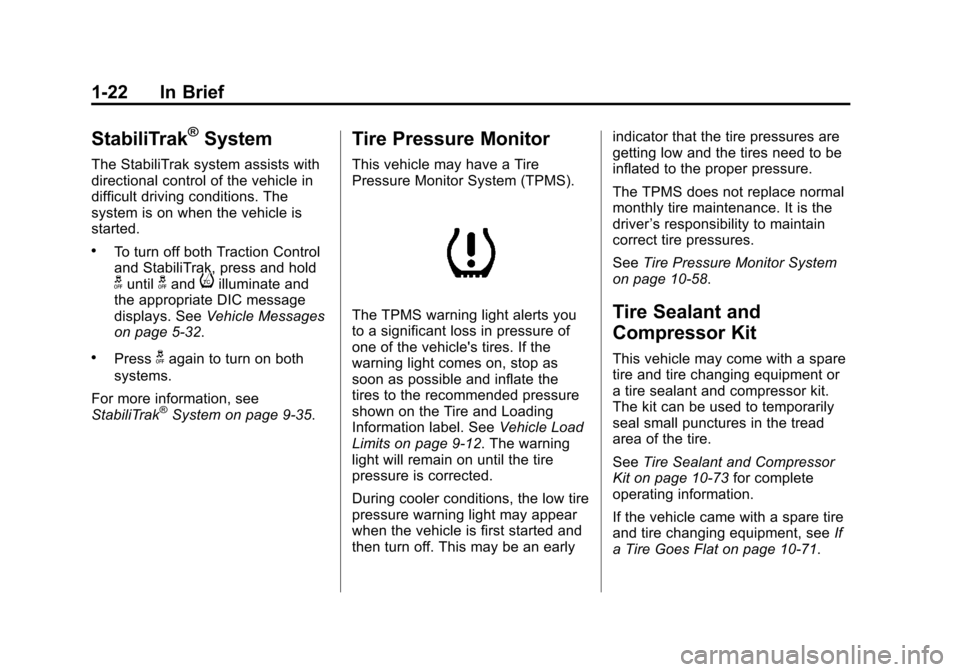
Tire Pressure Monitor
This vehicle may have a Tire
Pressure Monitor System (TPMS).
The TPMS warning light alerts you
to a significant loss in pressure of
one of the vehicle's tires. If the
warning light comes on, stop as
soon as possible and inflate the
tires to the recommended pressure
shown on the Tire and Loading
Information label. See Vehicle Load
Limits on page 9‑12. The warning
light will remain on until the tire
pressure is corrected.
During cooler conditions, the low tire
pressure warning light may appear
when the vehicle is first started and
then turn off. This may be an early indicator that the tire pressures are
getting low and the tires need to be
inflated to the proper pressure.
The TPMS does not replace normal
monthly tire maintenance. It is the
driver
’s responsibility to maintain
correct tire pressures.
See Tire Pressure Monitor System
on page 10‑58.Tire Sealant and
Compressor Kit
This vehicle may come with a spare
tire and tire changing equipment or
a tire sealant and compressor kit.
The kit can be used to temporarily
seal small punctures in the tread
area of the tire.
See Tire Sealant and Compressor
Kit on page 10‑73 for complete
operating information.
If the vehicle came with a spare tire
and tire changing equipment, see If
a Tire Goes Flat on page 10‑71.
Page 41 of 502
Black plate (11,1)Cadillac SRX Owner Manual (Include Mex) - 2012
Keys, Doors, and Windows 2-11
Conditions in Which Remote Start
Will Not Work
The remote start will not operate if
any of the following occur:
.The ignition is in any mode other
than OFF.
.The transmitter is in the vehicle.
.The hood is not closed.
.The hazard warning flashers
are on.
.There is an emission control
system malfunction.
.The engine coolant temperature
is too high.
.The oil pressure is low.
.Two remote vehicle starts have
already been used.
.The vehicle is not in P (Park).
Door Locks
{WARNING
Unlocked doors can be
dangerous.
.Passengers, especially
children, can easily open the
doors and fall out of a moving
vehicle. The chance of being
thrown out of the vehicle in a
crash is increased if the
doors are not locked. So, all
passengers should wear
safety belts properly and the
doors should be locked
whenever the vehicle is
driven.
.Young children who get into
unlocked vehicles may be
unable to get out. A child can
be overcome by extreme heat
and can suffer permanent
injuries or even death from
heat stroke. Always lock the
vehicle whenever leaving it.(Continued)
WARNING (Continued)
.Outsiders can easily enter
through an unlocked door
when slowing or stopping the
vehicle. Lock the doors to
help prevent this from
happening.
To lock or unlock the doors from
the outside, press
QorKon the
Remote Keyless Entry (RKE)
transmitter. See Remote Keyless
Entry (RKE) System Operation on
page 2‑3.
To unlock a door from the inside,
pull once on the door handle to
unlock it, and a second time to
open it.
Page 53 of 502
Black plate (23,1)Cadillac SRX Owner Manual (Include Mex) - 2012
Keys, Doors, and Windows 2-23
Windows
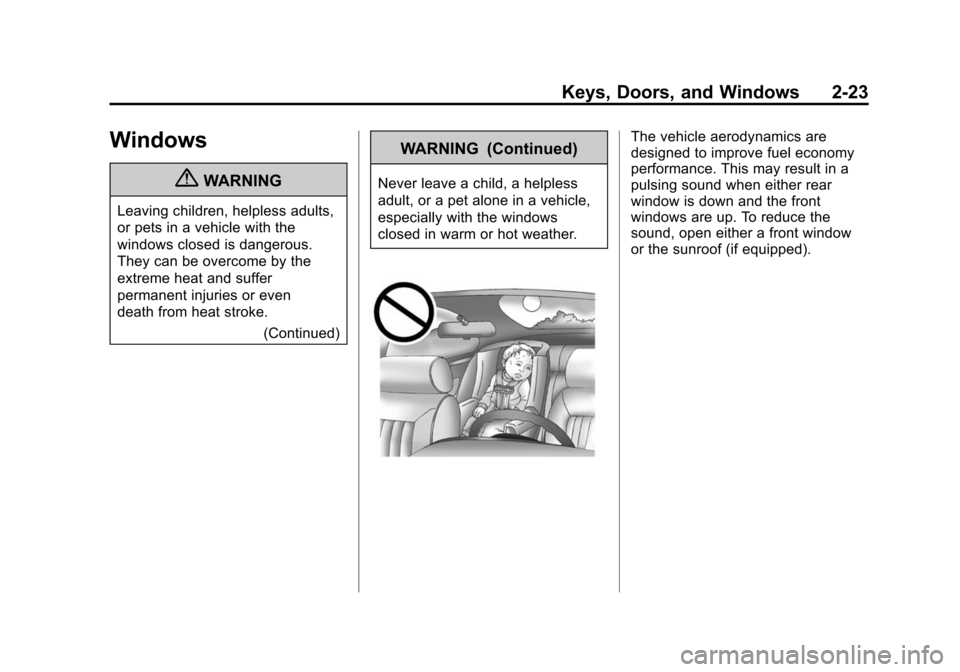
{WARNING
Leaving children, helpless adults,
or pets in a vehicle with the
windows closed is dangerous.
They can be overcome by the
extreme heat and suffer
permanent injuries or even
death from heat stroke.(Continued)
WARNING (Continued)
Never leave a child, a helpless
adult, or a pet alone in a vehicle,
especially with the windows
closed in warm or hot weather.
The vehicle aerodynamics are
designed to improve fuel economy
performance. This may result in a
pulsing sound when either rear
window is down and the front
windows are up. To reduce the
sound, open either a front window
or the sunroof (if equipped).
Page 68 of 502
Black plate (10,1)Cadillac SRX Owner Manual (Include Mex) - 2012
3-10 Seats and Restraints
Heated and Ventilated
Front Seats
{WARNING
If you cannot feel temperature
change or pain to the skin, the
seat heater may cause burns
even at low temperatures. To
reduce the risk of burns, people
with such a condition should use
care when using the seat heater,
especially for long periods of
time. Do not place anything on
the seat that insulates against
heat, such as a blanket, cushion,
cover, or similar item. This may
cause the seat heater to
overheat. An overheated seat
heater may cause a burn or may
damage the seat.
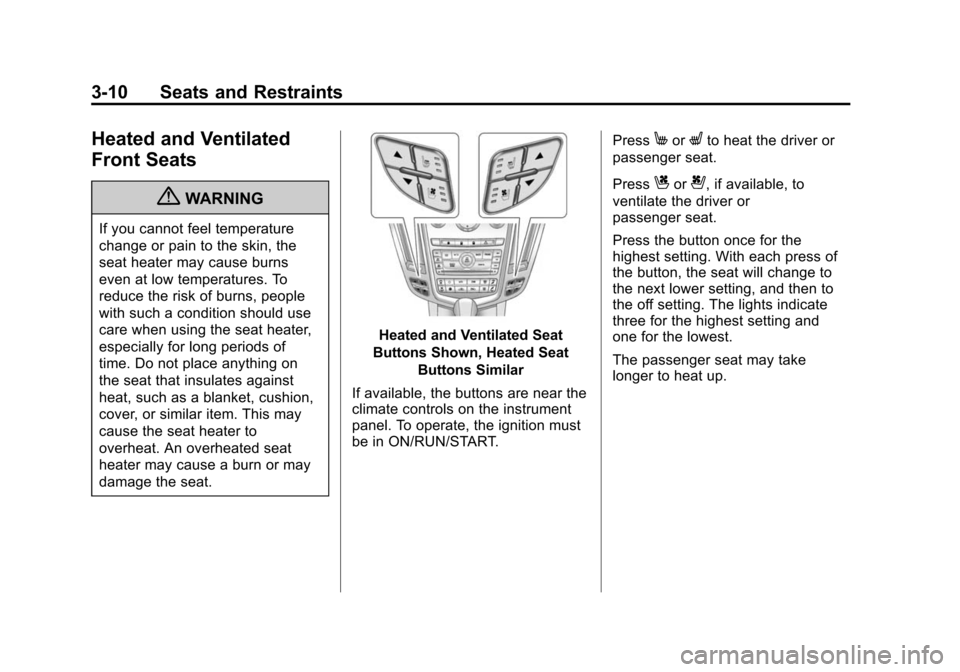
Heated and Ventilated Seat
Buttons Shown, Heated Seat Buttons Similar
If available, the buttons are near the
climate controls on the instrument
panel. To operate, the ignition must
be in ON/RUN/START. Press
MorLto heat the driver or
passenger seat.
Press
Cor{, if available, to
ventilate the driver or
passenger seat.
Press the button once for the
highest setting. With each press of
the button, the seat will change to
the next lower setting, and then to
the off setting. The lights indicate
three for the highest setting and
one for the lowest.
The passenger seat may take
longer to heat up.
Page 146 of 502
Black plate (16,1)Cadillac SRX Owner Manual (Include Mex) - 2012
5-16 Instruments and Controls
If the Vehicle Information is
selected, a full page screen displays
at start-up the three safety belt
symbols.
Once the passenger safety belt is
buckled, the corresponding safety
belt symbol in the DIC turns green.
There are no seat position sensors
in the seat, nor a safety belt
reminder sensor pad. If a safety belt
is not initially buckled, the cluster
continues to show the gray safety
belt icon.
While the vehicle is moving, if a
second row passenger who was
previously buckled becomes
unbuckled, a full screen warning
displays with the corresponding
safety belt indicator flashing red.
A chime may sound.
Acknowledge warning messages by
pressing any of the DIC buttons.Airbag Readiness Light
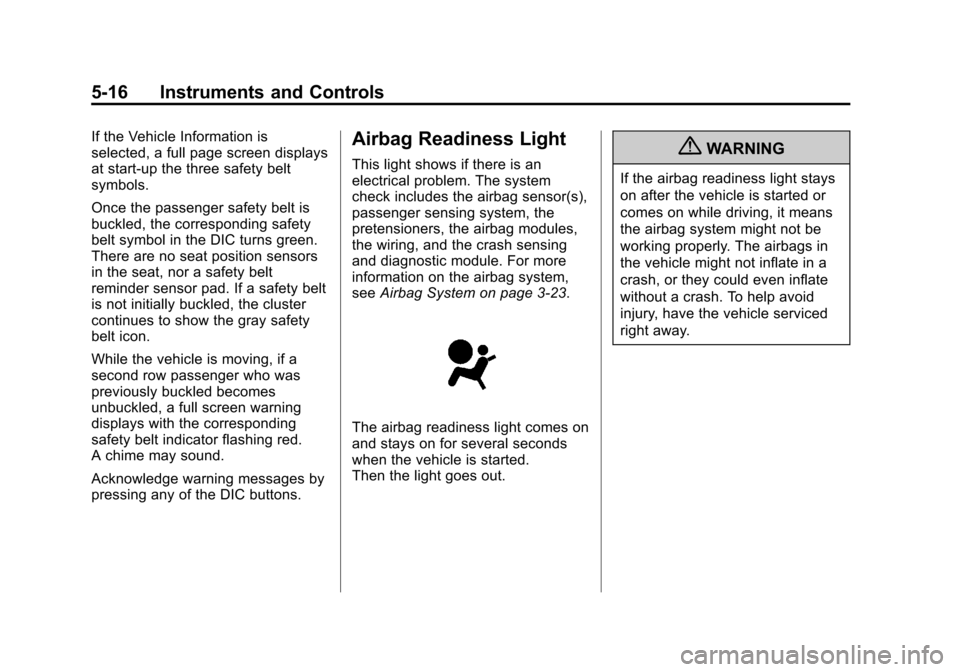
This light shows if there is an
electrical problem. The system
check includes the airbag sensor(s),
passenger sensing system, the
pretensioners, the airbag modules,
the wiring, and the crash sensing
and diagnostic module. For more
information on the airbag system,
seeAirbag System on page 3‑23.
The airbag readiness light comes on
and stays on for several seconds
when the vehicle is started.
Then the light goes out.
{WARNING
If the airbag readiness light stays
on after the vehicle is started or
comes on while driving, it means
the airbag system might not be
working properly. The airbags in
the vehicle might not inflate in a
crash, or they could even inflate
without a crash. To help avoid
injury, have the vehicle serviced
right away.
Page 203 of 502
Black plate (13,1)Cadillac SRX Owner Manual (Include Mex) - 2012
Infotainment System 7-13
Station Lists
1. Turn the MENU/SELECT knob.
2. Select AM or FM Station List. Allreceivable stations in the current
reception area are displayed. If a
station list has not been created,
an automatic station search
is done.
3. Select the station.
Category Lists
Most stations that broadcast an
RDS program type code specify the
type of programming transmitted.
Some stations change the program
type code depending on the
content. The system stores the
RDS stations sorted by program
type in the FM category list.
To search for a programming type
determined by station:
1. Turn the MENU/SELECT knob.
2. Select FM category list. A list of all programing types available
displays. 3. Select the programming type.
A list of stations that transmit
programming of the selected
type displays.
4. Select the station. The category lists are updated
when the station lists are
updated.
Updating Station & Category Lists
If stations stored in the station list
can no longer be received:
1. Turn the MENU/SELECT knob.
2. Select Update AM or FM Station List, if the stations stored in the
station list are no longer
received. A station search will be
completed and the first station in
the updated list will play.
To cancel the station search, press
the MENU/SELECT knob.Storing a Station as a Favorite
Stations from all bands can be
stored in any order in the favorite
pages.
Up to six stations can be stored in
each favorite page and the number
of available favorite pages can
be set.
Storing Stations
To store the station to a position in
the list, press the corresponding
button 1 to 6 until a beep is heard.
Retrieving Stations
Press the FAV button to open a
favorite page or to switch to another
favorite page. Briefly press one of
the 1 to 6 buttons to retrieve
the station.
Page 206 of 502
Black plate (16,1)Cadillac SRX Owner Manual (Include Mex) - 2012
7-16 Infotainment System
To select a channel using the menu:
1. Turn the MENU/Select knob andselect Channel List.
2. Select the desired channel.
Selecting a Channel Using the
Menu System
1. Turn the MENU/SELECT knob.
2. Select XM Category List.
3. Select the category.
4. Select the channel.
Storing an XM Channel as a
Favorite
Channels from all bands can be
stored in any order in the favorite
pages.
Up to six channels can be stored in
each favorite page and the number
of available favorite pages can
be set. Storing a Channel as a Favorite
To store the channel to a position
in the list, press and hold the
corresponding 1 to 6 button until
the channel can be heard again.
Retrieving Channels
Press the FAV button to open a
favorite page or to change to
another favorite page. Briefly press
one of the 1 to 6 buttons to retrieve
the channel.
Time Shifting (Radio with CD/
DVD and MEM)
The radio with the MEM time shift
feature can rewind 20 minutes of
XM content. While listening to the
radio, the content from the current
channel is always being buffered.
Press
kto pause the radio. The
radio displays the time shift status
bar. The status bar shows the
amount of content stored in the
buffer and the current pause point. To resume playback from the
current pause point, press
kagain.
The radio is no longer live, but
played from the time shift buffer.
A status bar displays below the
channel number.
Press and hold
gSEEK or
lSEEK to fast forward or rewind
through the time shift buffer. Hold
lSEEK until the end of the
recorded buffer resumes live
playback.
Press and release
gSEEK or
lSEEK to go to the next or
previous song in the time shift
buffer.
When the channel is changed, the
buffer is cleared and automatically
restarted for the current channel.
Content from a previously tuned
station is no longer available.
The time shift feature is not
available while recording or with
other sources of playback.
Page 208 of 502
Black plate (18,1)Cadillac SRX Owner Manual (Include Mex) - 2012
7-18 Infotainment System
Unknown:If this message is
received when tuned to channel 0,
there could be a receiver fault.
Consult with your dealer.
Check Antenna: If this message
does not clear within a short period
of time, the receiver could have a
fault. Consult with your dealer.
XM Not Available: If this message
does not clear within a short period
of time, the receiver could have a
fault. Consult with your dealer.
Radio Reception
Frequency interference and static
can occur during normal radio
reception if items such as cell phone
chargers, vehicle convenience
accessories, and external electronic
devices are plugged into the
accessory power outlet. If there is
interference or static, unplug the
item from the accessory power
outlet.
FM
FM signals only reach about 16 to
65 km (10 to 40 mi). Although the
radio has a built-in electronic circuit
that automatically works to reduce
interference, some static can occur,
especially around tall buildings or
hills, causing the sound to fade in
and out.
AM
The range for most AM stations is
greater than for FM, especially at
night. The longer range can cause
station frequencies to interfere with
each other. Static can occur when
things like storms and power lines
interfere with radio reception. When
this happens, try reducing the treble
on the radio.
XM™ Satellite Radio Service
XM Satellite Radio Service gives
digital radio reception from coast to
coast in the 48 contiguous United
States, and in Canada. Just as
with FM, tall buildings or hills can interfere with satellite radio signals,
causing the sound to fade in and
out. In addition, traveling or standing
under heavy foliage, bridges,
garages, or tunnels may cause loss
of the XM signal for a period of time.
Cellular Phone Usage
Cellular phone usage can cause
interference with the vehicle's radio.
Multi-Band Antenna
The multi-band antenna is on the
roof of the vehicle. The antenna is
used for the AM‐FM radio, OnStar,
the XM Satellite Radio Service
System, and GPS (Global
Positioning System), if the vehicle
has these features. Keep the
antenna clear of obstructions for
clear reception.
Page 223 of 502
Black plate (33,1)Cadillac SRX Owner Manual (Include Mex) - 2012
Infotainment System 7-33
Controlling a Bluetooth®
Device
Bluetooth devices that support
AVRCP (Audio/Video Remote
Control Profile) version 1.0 may
be able to be controlled by the
infotainment system.
Press and release
gSEEK /
lSEEK to skip tracks.
Other Information
The Bluetooth®word mark and
logos are owned by the Bluetooth®
SIG, Inc. and any use of such marks
by General Motors is under license.
Other trademarks and trade names
are those of their respective owners.
See Radio Frequency Statement on
page 13‑21 for FCC information.
Auxiliary Devices
(Radio with CD/DVD
and MEM)
The optional AUX input allows
portable devices to be connected
using the 3.5 mm (1/8 in) input jack
or the USB port.
Portable devices are controlled by
using the menu system described in
Operation on page 7‑7.
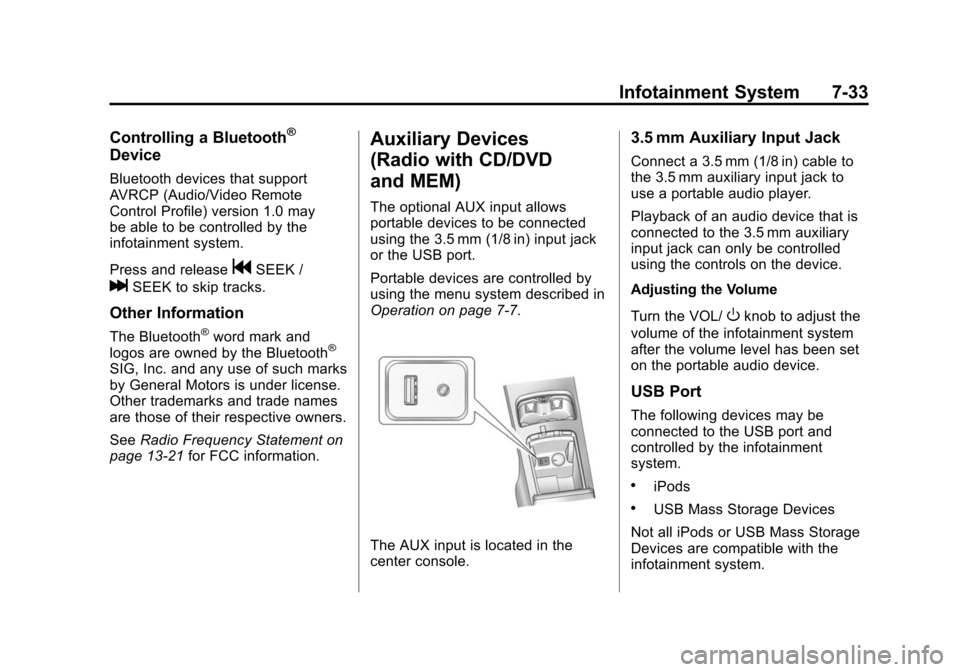
The AUX input is located in the
center console.
3.5 mm Auxiliary Input Jack
Connect a 3.5 mm (1/8 in) cable to
the 3.5 mm auxiliary input jack to
use a portable audio player.
Playback of an audio device that is
connected to the 3.5 mm auxiliary
input jack can only be controlled
using the controls on the device.
Adjusting the Volume
Turn the VOL/
Oknob to adjust the
volume of the infotainment system
after the volume level has been set
on the portable audio device.
USB Port
The following devices may be
connected to the USB port and
controlled by the infotainment
system.
.iPods
.USB Mass Storage Devices
Not all iPods or USB Mass Storage
Devices are compatible with the
infotainment system.