change CADILLAC SRX 2012 2.G Workshop Manual
[x] Cancel search | Manufacturer: CADILLAC, Model Year: 2012, Model line: SRX, Model: CADILLAC SRX 2012 2.GPages: 502, PDF Size: 6.23 MB
Page 245 of 502
Black plate (55,1)Cadillac SRX Owner Manual (Include Mex) - 2012
Infotainment System 7-55
2. Say“Bluetooth.”
3. Say “Change phone.”
.If another cell phone is
found, the response will be
“
connected.”
.If another cell phone is not
found, the original phone
remains connected.
Storing and Deleting Phone
Numbers
The system can store up to 30
phone numbers as name tags in the
Hands‐Free Directory that is shared
between the Bluetooth and OnStar
systems.
The following commands are used
to delete and store phone numbers.
Store:This command will store a
phone number, or a group of
numbers as a name tag.
Digit Store: This command allows
a phone number to be stored as a
name tag by entering the digits one
at a time. Delete:
This command is used to
delete individual name tags.
Delete All Name Tags: This
command deletes all stored name
tags in the Hands‐Free Calling
Directory and the Destinations
Directory.
Using the “Store”Command
1. Press
b/g. The system
responds “Ready,”followed by
a tone.
2. Say “Store.”
3. Say the phone number or group of numbers you want to store all
at once with no pauses, then
follow the directions given by the
system to save a name tag for
this number.
Using the “Digit Store” Command
If an unwanted number is
recognized by the system, say
“Clear” at any time to clear the last
number. To hear all of the numbers
recognized by the system, say
“Verify”
at any time.
1. Press
b/g. The system
responds “Ready,”followed by
a tone.
2. Say “Digit Store.”
3. Say each digit, one at a time, that you want to store. After
each digit is entered, the system
repeats back the digit it heard
followed by a tone. After the last
digit has been entered, say
“Store,” and then follow the
directions given by the system to
save a name tag for this number.
Using the “Delete”Command
1. Press
b/g. The system
responds “Ready,”followed by
a tone.
2. Say “Delete.”
3. Say the name tag you want to delete.
Page 246 of 502
Black plate (56,1)Cadillac SRX Owner Manual (Include Mex) - 2012
7-56 Infotainment System
Using the“Delete All Name Tags”
Command
This command deletes all stored
name tags in the Hands Free
Calling Directory and the
Destinations Directory.
To delete all name tags:
1. Press
b/g. The system
responds “Ready,”followed by
a tone.
2. Say “Delete all name tags.”
Listing Stored Numbers
The list command will list all the
stored numbers and name tags.
Using the “List”Command
1. Press
b/g. The system
responds “Ready,”followed by
a tone.
2. Say “Directory.”
3. Say “Hands Free Calling.”
4. Say “List.”
Making a Call
Calls can be made using the
following commands.
Dial or Call: The dial or call
command can be used
interchangeably to dial a phone
number or a stored name tag.
Digit Dial: This command allows a
phone number to be dialed by
entering the digits one at a time.
Re‐dial: This command is used to
dial the last number used on the cell
phone.
Using the “Dial”or“Call”
Command
1. Press
b/g. The system
responds “Ready,”followed by
a tone.
2. Say “Dial”or“Call.”
3. Say the entire number without pausing or say the name tag.
Once connected, the person called
will be heard through the audio
speakers. Using the
“Digit Dial” Command
The digit dial command allows a
phone number to be dialed by
entering the digits one at a time.
After each digit is entered, the
system repeats back the digit it
heard followed by a tone.
If an unwanted number is
recognized by the system, say
“Clear” at any time to clear the last
number.
To hear all of the numbers
recognized by the system, say
“Verify” at any time.
1. Press
b/g. The system
responds “Ready,”followed by
a tone.
2. Say “Digit Dial.”
3. Say each digit, one at a time, that you want to dial. After each
digit is entered, the system
repeats back the digit it heard
followed by a tone. After the last
digit has been entered,
say “Dial.”
Page 250 of 502
Black plate (60,1)Cadillac SRX Owner Manual (Include Mex) - 2012
7-60 Infotainment System
Infotainment System Controls
For information about how to
navigate the menu system using the
navigation system controls, see the
separate Navigation System
Manual.
PHONE:Press to enter the Phone
main menu.
Voice Control
The voice control system uses
commands to control the system
and dial phone numbers.
Noise: The system may not
recognize voice commands if there
is too much background noise.
When to Speak: A tone sounds to
indicate that the system is ready for
a voice command. Wait for the tone
and then speak.
How to Speak: Speak clearly in a
calm and natural voice. Audio System
When using the UHP system, sound
comes through the vehicle's front
audio system speakers and
overrides the audio system. Use the
VOL/
Oknob during a call to
change the volume level. The
adjusted volume level remains in
memory for later calls. The system
maintains a minimum volume level.
Turning Bluetooth On or Off
1. Press the CONFIG button.
2. Select Phone Settings, or touch Phone on a navigation radio.
3. Select Bluetooth.
4. Select Activation.
Changing Bluetooth Code
The default Bluetooth code should
work with most mobile phones.
If you are having difficulty pairing
your mobile phone, you can change
the code at any time. 1. Press the CONFIG button.
2. Select Phone Settings, or touch
Phone on a navigation radio.
3. Select Bluetooth.
4. Select Change Bluetooth Code.
5. Enter a new four-digit code, then select OK.
Ring Tone
There are three different ring tones
available for the UHP system.
To change the ring tone:
1. Press the CONFIG button.
2. Select Phone Settings, or touch Phone on a navigation radio.
3. Select Ring Tones.
4. Select Ring Tone 1, 2, or 3.
Default Settings
Selecting this option will reset the
ring tones and the Bluetooth code.
Page 251 of 502
Black plate (61,1)Cadillac SRX Owner Manual (Include Mex) - 2012
Infotainment System 7-61
Pairing
A Bluetooth enabled mobile phone
must be paired to the UHP system
first and then connected to the
vehicle before it can be used. See
the mobile phone manufacturer's
user guide for Bluetooth functions
before pairing the mobile phone.
Pairing Information:
.Up to five mobile phones can be
paired to the UHP system
.The pairing process is disabled
when the vehicle is moving
.The UHP system connects with
the first available paired mobile
phone in the order the phone
was paired
.Only one paired mobile phone
can be connected to the UHP
system at a time
.Pairing should only need to be
completed once, unless changes
to the pairing information have
been made or the mobile phone
is deleted
Using UHP with Infotainment
Controls
Pairing a Phone
If your mobile phone has simple
pairing or auto discovery features,
they need to be turned off before
the mobile phone can be paired to
the UHP system. Reference the
mobile phone manufacturer's user
guide for information on these
features.
1. Press the CONFIG button.
2. Select Phone Settings, or touchPhone on a navigation radio.
3. Select Bluetooth.
4. Select Pair Device or Add new Hands‐free (HF) device on a
navigation radio. A four-digit
number appears on the display
and the UHP system goes into
discovery mode.
5. Start the pairing process on the mobile phone that will be paired
to the vehicle. Reference the mobile phone
manufacturer's user guide for
information on this process.
Locate the device named UHP
followed by a four‐digit number
in the list on the mobile phone
and follow the instructions on the
mobile phone and enter the
four-digit code provided by the
system if necessary, then follow
the instructions on the
infotainment display screen.
6. Repeat Steps 1 through 5 to pair additional mobile phones.
Viewing All Paired and Connected
Phones
To view all available mobile phones
that are paired to the UHP system:
1. Press the CONFIG button.
2. Select Phone Settings, or touch Phone on a navigation radio.
3. Select Bluetooth.
4. Select Device List.
5. Repeat Steps 1 through 4 to pair additional mobile phones.
Page 261 of 502
Black plate (71,1)Cadillac SRX Owner Manual (Include Mex) - 2012
Infotainment System 7-71
“Made for iPod”means that an
electronic accessory has been
designed to connect specifically to
iPod and has been certified
by the developer to meet Apple
performance standards. Apple is not
responsible for the operation of this
device or its compliance with safety
and regulatory standards.
iPod, iPod classic, iPod nano, and
iPod touch are trademarks of
Apple Inc., registered in the
U.S. and other countries.Fees and Taxes —Subscription fee,
taxes, one time activation fee, and
other fees may apply. Subscription
fee is consumer only. All fees and
programming subject to change.
Subscriptions subject to Customer
Agreement available at
www.xmradio.com. XM™ service
only available in the 48 contiguous
United States and Canada*.
*Canada —Some deterioration of
service may occur in extreme
northern latitudes. This is beyond
the control of XM™ Satellite Radio.
Explicit Language Notice —
Channels with frequent explicit
language are indicated with an
“XL” preceding the channel name. Channel blocking is available for
XM Satellite Radio receivers by
notifying XM at:
.USA Customers
—Visit
www.xmradio.com or
call 1-800-xmradio
(1-800-967-2346).
.Canadian Customers —Visit
www.xmradio.ca or
call 1-877-438-9677.
It is prohibited to copy, decompile,
disassemble, reverse engineer,
hack, manipulate, or otherwise
make available any technology or
software incorporated in receivers
compatible with the XM™ Satellite
Radio System or that support the
XM website, the Online Service or
any of its content. Furthermore, the
AMBER voice compression software
included in this product is protected
by intellectual property rights
including patent rights, copyrights,
and trade secrets of Digital Voice
Systems, Inc.
Page 264 of 502
Black plate (74,1)Cadillac SRX Owner Manual (Include Mex) - 2012
7-74 Infotainment System
Under no circumstances will
Gracenote become liable for any
payment to you for any information
that you provide. You agree that
Gracenote, Inc. may enforce its
rights under this Agreement against
you directly in its own name.
The Gracenote service uses a
unique identifier to track queries for
statistical purposes.
The purpose of a randomly
assigned numeric identifier is to
allow the Gracenote service to
count queries without knowing
anything about who you are. For
more information, see the web page
for the Gracenote Privacy Policy for
the Gracenote service.The Gracenote Software and each
item of Gracenote Data are licensed
to you
“AS IS.” Gracenote makes no
representations or warranties,
express or implied, regarding the
accuracy of any Gracenote Data
from in the Gracenote Servers.
Gracenote reserves the right to
delete data from the Gracenote
Servers or to change data
categories for any cause that
Gracenote deems sufficient.
No warranty is made that the
Gracenote Software or Gracenote
Servers are error-free or that
functioning of Gracenote Software
or Gracenote Servers will be
uninterrupted. Gracenote is not obligated to
provide you with new enhanced or
additional data types or categories
that Gracenote may provide in the
future and is free to discontinue its
services at any time.
Gracenote disclaims all warranties
express or implied, including, but
not limited to, implied warranties of
merchantability, fitness for a
particular purpose, title, and
non-infringement. Gracenote does
not warrant the results that will be
obtained by your use of the
gracenote software or any
gracenote server. In no case will
gracenote be liable for any
consequential or incidental
damages or for any lost profits
or lost revenues.
© Gracenote, Inc. 2010
Page 266 of 502
Black plate (2,1)Cadillac SRX Owner Manual (Include Mex) - 2012
8-2 Climate Controls
Automatic Operation
The system automatically controls
the fan speed, air delivery, air
conditioning and recirculation in
order to heat or cool the vehicle to
the desired temperature.
When the indicator light is on, the
system is in full automatic operation.
If the air delivery mode or fan
setting is manually adjusted, the
auto indicator turns off and displays
will show the selected settings.
To place the system in automatic
mode do the following:
1. Press AUTO.
2. Set the temperature. Allow thesystem time to stabilize. Then
adjust the temperature as
needed for best comfort.
English units can be changed to
metric units through the Driver
Information Center (DIC). See
Vehicle Personalization on
page 5‑40.Q/R(Driver and Passenger
Temperature Controls): The
temperature can be adjusted
separately for the driver and the
passenger. Press to increase or
decrease the temperature.
ZONE: Press to link all climate
zone settings to the driver settings.
The ZONE indicator light turns off.
When the passenger settings are
adjusted, the ZONE indicator light
is on.
Manual Operation
O(Power): Press to turn the
climate control system on or off.
h i(Fan Control): Press to
increase or decrease the fan speed.
Pressing either button cancels
automatic operation and the system
goes into manual mode. Press
AUTO to return to automatic
operation.
H G(Air Delivery Mode Control):
Press to change the direction of the
airflow. The current mode appears
in the display screen.
Changing the mode cancels the
automatic operation and the system
goes into manual mode. Press
AUTO to return to automatic
operation.
To change the current mode, select
one of the following:
Y(Vent): Air is directed to the
instrument panel outlets.
\(Bi-Level): Air is divided
between the instrument panel
outlets and the floor outlets.
C(Tri‐Level): Air is divided
between the windshield, instrument
panel, and floor outlets.
[(Floor): Air is directed to the
floor outlets.
-(Defog): Clears the windows of
fog or moisture. Air is directed to the
windshield and floor outlets.
Page 270 of 502
Black plate (6,1)Cadillac SRX Owner Manual (Include Mex) - 2012
8-6 Climate Controls
Automatic Operation
AUTO:Press
Nuntil the AUTO
setting is selected to control the rear
temperature, air delivery, and fan
speed automatically.
Manual Operation
h i(Fan Control): Press these
buttons on the rear seat audio
control panel to increase or
decrease the airflow. Pressing
h
when the system is off will turn the
system on. The air delivery mode
remains in its previous setting. −/+ (Temperature Control):
Press these buttons to adjust the
temperature of the air flowing into
the passenger area. Press + for
warmer air and press
−for
cooler air.
N(Air Delivery Mode Control):
Press the mode button to change
the direction of the airflow. Multiple
presses will cycle through the
delivery selections.
Air Vents
Move the sliding knob on the air
outlets up and down or left and right
to direct the airflow. Use the
thumbwheels near the air outlets to
open or close off the airflow.
Operation Tips
.Clear away any ice, snow,
or leaves from air inlets at the
base of the windshield that could
block the flow of air into the
vehicle.
.Keep the path under the front
seats clear of objects to help
circulate the air inside the
vehicle more effectively.
.Use of non‐GM approved hood
deflectors can adversely affect
the performance of the system.
Check with your dealer before
adding equipment to the outside
of the vehicle.
Page 278 of 502
Black plate (6,1)Cadillac SRX Owner Manual (Include Mex) - 2012
9-6 Driving and Operating
Defensive drivers avoid most skids
by taking reasonable care suited to
existing conditions, and by not
overdriving those conditions.
But skids are always possible.
If the vehicle starts to slide, follow
these suggestions:
.Ease your foot off the
accelerator pedal and quickly
steer the way you want the
vehicle to go. The vehicle may
straighten out. Be ready for a
second skid if it occurs.
.Slow down and adjust your
driving according to weather
conditions. Stopping distance
can be longer and vehicle
control can be affected whentraction is reduced by water,
snow, ice, gravel, or other
material on the road. Learn to
recognize warning clues
—such
as enough water, ice, or packed
snow on the road to make a
mirrored surface —and slow
down when you have any doubt.
.Try to avoid sudden steering,
acceleration, or braking,
including reducing vehicle
speed by shifting to a lower
gear. Any sudden changes could
cause the tires to slide.
Remember: Antilock brakes help
avoid only the braking skid.
Driving on Wet Roads
Rain and wet roads can reduce
vehicle traction and affect your
ability to stop and accelerate.
Always drive slower in these types
of driving conditions and avoid
driving through large puddles and
deep‐standing or flowing water.
{WARNING
Wet brakes can cause crashes.
They might not work as well in a
quick stop and could cause
pulling to one side. You could
lose control of the vehicle. (Continued)
Page 284 of 502
Black plate (12,1)Cadillac SRX Owner Manual (Include Mex) - 2012
9-12 Driving and Operating
Vehicle Load Limits
It is very important to know how
much weight the vehicle can
carry. This weight is called the
vehicle capacity weight and
includes the weight of all
occupants, cargo and all
nonfactory‐installed options.
Two labels on the vehicle
show how much weight it may
properly carry, the Tire and
Loading Information label and
the Certification label.
{WARNING
Do not load the vehicle any
heavier than the Gross
Vehicle Weight Rating
(GVWR), or either the
maximum front or rear Gross
Axle Weight Rating (GAWR).
(Continued)
WARNING (Continued)
This can cause systems to
break and change the way the
vehicle handles. This could
cause loss of control and a
crash. Overloading can also
shorten the life of the vehicle.
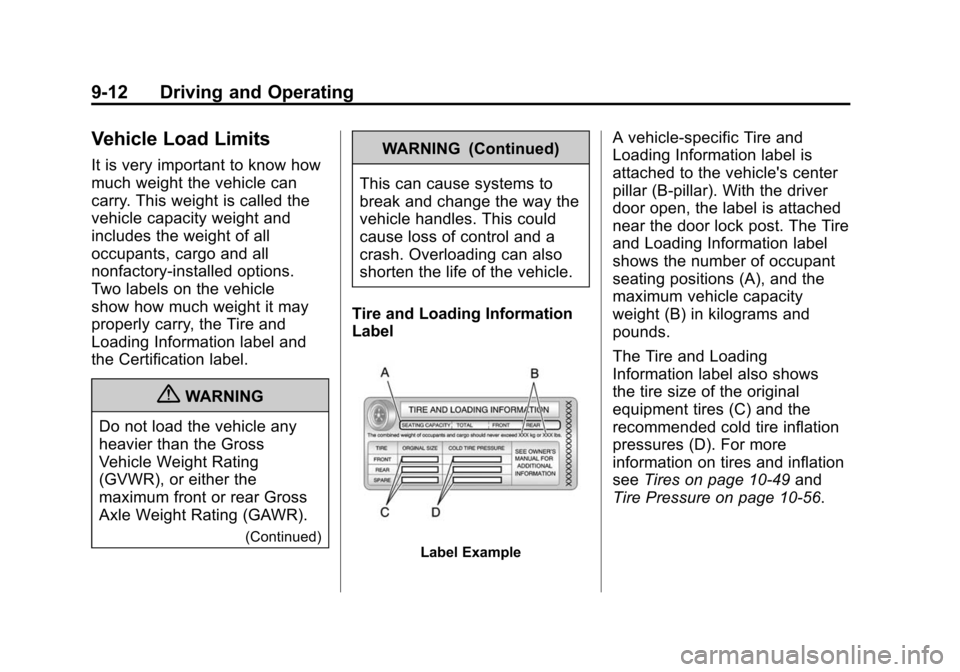
Tire and Loading Information
Label
Label Example
A vehicle-specific Tire and
Loading Information label is
attached to the vehicle's center
pillar (B-pillar). With the driver
door open, the label is attached
near the door lock post. The Tire
and Loading Information label
shows the number of occupant
seating positions (A), and the
maximum vehicle capacity
weight (B) in kilograms and
pounds.
The Tire and Loading
Information label also shows
the tire size of the original
equipment tires (C) and the
recommended cold tire inflation
pressures (D). For more
information on tires and inflation
see Tires on page 10‑49 and
Tire Pressure on page 10‑56.