change time CADILLAC STS 2008 1.G Owner's Manual
[x] Cancel search | Manufacturer: CADILLAC, Model Year: 2008, Model line: STS, Model: CADILLAC STS 2008 1.GPages: 500, PDF Size: 5.81 MB
Page 248 of 500
STABILITY COMPETITIVE MODE
If your All-Wheel Drive (AWD) vehicle has the
Active Steering with Enhanced StabiliTrak®option,
this message displays when the Competitive Mode
for stability control has been turned on using the
TC (traction control) button. SeeEnhanced StabiliTrak
®
on page 4-9. When the Enhanced StabiliTrak®
Competitive Mode has been activated, traction control
operates in competitive mode and cannot be turned
off. Also, the Active Steering and the Magnetic
Ride Control systems operate in the Performance
Mode. For more information, see “Active Steering
and Magnetic Ride Control” in the Index in the
Navigation manual.
STABILITY SECURE MODE
If your All-Wheel Drive (AWD) vehicle has the
Active Steering with Enhanced StabiliTrak®option,
this message displays when the stability control system
is in the secure mode. Stability Secure Mode is set
automatically when certain system faults or vehicle
conditions are detected. When the Stability Secure
Mode is activated, the stability control system will
not respond to driver requests to change the stability
mode until the next ignition cycle or until the vehicle
condition or fault is returned to normal. SeeEnhanced
StabiliTrak
®on page 4-9.
STABILITY SYS (System) ACTIVE
This message displays any time the StabiliTrak®system
or Enhanced StabiliTrak®system is actively assisting
with directional control of the vehicle. Slippery road
conditions may exist when this message is displayed,
so adjust your driving accordingly. This message
may stay on for a few seconds after StabiliTrak
®
stops assisting with directional control of the vehicle.
SeeStabiliTrak®System on page 4-8orEnhanced
StabiliTrak®on page 4-9for more information.
STABILITY SYS (System) NOT READY
This message displays if the StabiliTrak®system is
not ready. Two conditions may cause this message
to display:
The vehicle needs to be driven in a straight line
until the sensors are centered. Once the sensors
are centered, the StabiliTrak
®system is ready and
the STABILITY SYS READY message displays.
The system needs to warm up. This may occur
when rst starting your vehicle and driving away
during cold winter weather. This is normal. To
acknowledge this message, press the reset button.
The StabiliTrak
®performance is affected until the
STABILITY SYS READY message is displayed in the
DIC. SeeStabiliTrak
®System on page 4-8for more
information.
3-94
Page 256 of 500
To set this feature to LOCAL or DISTANT, perform the
following steps:
1. Press the
wknob to enter the main menu.
2. Turn this knob until SEEK LOCAL or SEEK
DISTANT displays.
3. Press the same knob to select either LOCAL
or DISTANT.
4. Press the BACK (F6) button to exit the display. To
return to the original display, repeatedly press the
BACK (F6) button or wait for the display to time out.
To search for stations, press either
©¨seek arrow.
If the system is set to LOCAL, SEEK displays and
seeks to stations only with strong signals. If the system
is set to DISTANT, D-SEEK displays and seeks to
stations with weak and strong signals.
This feature does not function with the XM™ radio
stations.
4(Information):Press this button while in XM mode
to retrieve three different categories of information
related to the current song or channel: Artist, Song Title,
Category or PTY. To view this information, perform
the following:
1. Press the
wknob to enter the main menu.
2. Turn this knob until INFO displays.
3. Press the same knob to select INFO. The display
changes to show the additional XM™ information.4. Press the BACK (F6) button to exit the display. To
return to the original display, repeatedly press the
BACK (F6) button or wait for the display to time out.
Setting Preset Stations
Up to 30 stations (six FM1, six FM2, and six AM,
six XM1 and six XM2 (if equipped)), can be programmed
on the six numbered pushbuttons, by performing the
following steps:
1. Turn the radio on.
2. Press BAND to select FM1, FM2, or AM, or XM1
or XM2.
3. Tune in the desired station.
4. Press and hold one of the six numbered pushbuttons
for two seconds until a beep sounds. The set preset
station number displays above the set pushbutton.
When that numbered pushbutton is pressed for less
than two seconds, the station that was set, returns.
5. Repeat the steps for each pushbutton.
To set the preset stations with an equalization
setting, DSP setting, or a PTY (program type) setting,
see each of these features later in this section.
When a preset station is selected, once one of these
additional settings is selected, the preset station
remembers each setting and it remains active, until
the setting is selected off for that preset station.
3-102
Page 262 of 500
F3 RDM (Random):Press to listen to the tracks in
random, rather than sequential, order. RANDOM
displays. Press again to turn off random play.
RANDOM disappears from the display.
F4 RPT (Repeat):Press to hear a track over again.
REPEAT displays. Press again to turn off repeat
play. REPEAT disappears from the display.
F6 DISP (Display):Press to display the time of the
track. Press again to remove the time of the track from
the display.
©¨(Seek):Press the left arrow to go to the previous
or press the right arrow button to go to the next track
on the CD.
©¨(Scan):Press the arrows to listen to each track
for 10 seconds. The CD goes to a track, plays for
10 seconds, then goes to the next track. Press the
arrows again to stop scanning.
SRCE (Source):Press to select a source, either radio or
CD. The CD must be loaded to select the source and to
play. CD displays if a CD is loaded. If a CD is not loaded,
the display does not change from the radio source.
Z(Eject):Press to stop a CD when it is playing
or to eject a CD when it is not playing. Eject can
be activated with the ignition and the radio off.
Using the Six-Disc CD Changer
M
(Load):Press to load CDs into the CD player.
This CD player holds up to six CDs.
To insert one CD, do the following:
1. The ignition and the radio can be on or off.
2. Press and release the load button.
Please Wait displays.
3. Load the CD, when INSERT displays, insert
a CD partway into the slot, label side up.
The player pulls the CD in.
When a CD is inserted, CD displays and the number of
the CD and the track number displays if the radio is on.
If the radio is on, the CD begins to play automatically.
To insert multiple CDs, do the following:
1. The ignition and the radio can be on or off.
2. Press and hold the load button for two seconds.
Please Wait displays and a beep sounds.
3. Load the CD, when INSERT displays, insert
a CD partway into the slot, label side up.
The player pulls the CD in.
Do not load a CD until INSERT displays. The CD
player takes up to six CDs. If you want to load less
than six CDs, load the desired amount. The CD
player times out when it does not receive any more
CDs and the last CD loaded begins to play.
3-108
Page 266 of 500
Once a feature is programmed to a key, the feature
does not display when programming the remaining
congurable keys. The congurable keys can be
changed at any time.
Using an MP3
MP3 CD-R Disc
MP3 Format
If you burn your own MP3 disc on a personal computer:
Make sure the MP3 les are recorded on a
CD-R disc.
Do not mix standard audio and MP3 les on one disc.
Make sure playlists have a .mp3 or .wpl extension,
other le extensions might not work.
Files can be recorded with a variety of xed or
variable bit rates. Song title, artist name, and album
are available for display by the radio when recorded
using ID3 tags version 1 and 2.
Create a folder structure that makes it easy to nd
songs while driving. Organize songs by albums using
one folder for each album. Each folder or album
should contain 18 songs or less.
Make sure to nalize the disc when burning an MP3
disc, using multiple sessions. It is usually better to
burn the disc all at once.
The player is able to read and play a maximum of
50 folders, 50 playlists, 10 sessions, and 255 les.
Long le names, folder names, or playlist names
might use more disc memory space than necessary.
To conserve space on the disc, minimize the length
of the le, folder, or playlist names. You can also play
an MP3 CD that was recorded using no le folders.
The system can support up to 11 folders in depth,
though, keep the depth of the folders to a minimum
in order to keep down the complexity and confusion
in trying to locate a particular folder during playback.
If a CD contains more than the maximum of 50 folders,
50 playlists, 10 sessions, and 255 les the player
lets you access and navigate up to the maximum,
but all items over the maximum are ignored.
3-112
Page 269 of 500
Press and release this pushbutton until NORMAL
displays to turn off random play.
F4 RPT (Repeat):To repeat the current track, press
and release this pushbutton until RPT TRCK displays.
To repeat the tracks in the current folder, press and
release this pushbutton until RPT FLDR displays.
Press and release this pushbutton until NORMAL
displays to turn off repeated play.
F6 DISP (Display):Press this pushbutton to switch
between the elapsed time of the track and the MP3
playback information.
©¨(Seek):Press the left seek arrow to go to the
start of the previous track. Press the right seek arrow to
go to the start of the next track. Pressing either seek
arrow for more than two seconds searches the previous
or next tracks at two tracks per second. Release the
seek arrows to stop searching and to play the track.
©¨(Scan):Press the scan arrows to scan the
tracks in each folder. The radio goes to the next track,
plays for 10 seconds, then goes to the next track.
Press the scan arrows again to stop scanning.
w(Tune):Turning this knob fast tracks reverse or
advance through the tracks in all folders or playlists.
The track number and le name displays for each track.
Turning this knob while in random fast tracks reverse
or advances the tracks in sequential order.
4(Information):Press this button, while an MP3 CD
is loaded, to view the Title, Artist, Album, or Folder
names. To view this information, perform the following:
1. Press the
wknob to enter the main menu.
2. Turn this knob until INFO displays.
3. Press the same knob to select INFO. The display
changes to show the additional MP3 information.
4. Press one of the following pushbuttons to view that
specic information.
F1 TTLE (Title):Displays the title name.
F2 ATST (Artist):Displays the artist name.
F3 ALBM (Album):Displays the album name.
F4 FLDR (Folder):Displays the folder name.
5. Press the BACK (F6) button to exit the display. To
return to the original display, repeatedly press the
BACK (F6) button or wait for the display to time out.
3-115
Page 273 of 500
ASEEK LOCAL/DISTANT:This feature instructs the
audio system to seek only local radio stations with
the strongest signal or to seek all radio stations with
a strong signal in a large area. Use LOCAL while
in urban areas where there are several strong radio
station signals and you want to limit the number
of stations to those with the strongest signals only.
Use DISTANT while in rural areas where there are
fewer radio station signals available.
See “Local/Distant Selection” underRadio(s) (MP3)
on page 3-100for more information.
8SET CLOCK:Use this menu item to set the time.
SeeSetting the Time on page 3-99for more information.
BSET DATE:Use this menu item to set the date.
SeeSetting the Time on page 3-99for more information.
4(Information):This menu item is used to display
XM™ satellite radio service and CD MP3 playback
information. See “
4(Information)” underRadio(s) (MP3)
on page 3-100for more information.LANG (Language):To change the language displayed
on the radio, select LANGUAGE by pressing the
wknob. Turn thewknob to scroll through the
following available languages:
ENGLISH
GERMAN
FRENCH
SPANISH
JAPANESE
To make your selection, press the
wknob.
If you accidentally select a language that you did not
want, ENGLISH is always at the top of the language list.
SETUP:When you select this menu item, the following
submenu is available:
PERSONAL SETTINGS MENU
DRIVER SELECTION
DRIVER EXIT SETTINGS
CONFIGURE DISPLAY KEYS
3-119
Page 283 of 500
Antilock Brake System (ABS)
Your vehicle has the Antilock Brake System (ABS), an
advanced electronic braking system that will help
prevent a braking skid.
When you start the engine and begin to drive away,
ABS will check itself. You might hear a momentary
motor or clicking noise while this test is going on, and
you might even notice that the brake pedal moves
a little. This is normal.
If there is a problem with
ABS, this warning light will
stay on. SeeAntilock
Brake System Warning
Light on page 3-65.
Let us say the road is wet and you are driving safely.
Suddenly, an animal jumps out in front of you. You slam
on the brakes and continue braking. Here is what
happens with ABS:
A computer senses that wheels are slowing down. If
one of the wheels is about to stop rolling, the computer
will separately work the brakes at each wheel.ABS can change the brake pressure faster than any
driver could. The computer is programmed to make the
most of available tire and road conditions. This can
help you steer around the obstacle while braking hard.
As you brake, the computer keeps receiving updates
on wheel speed and controls braking pressure
accordingly.
Remember: ABS does not change the time you need to
get your foot up to the brake pedal or always decrease
stopping distance. If you get too close to the vehicle in
front of you, you will not have time to apply the brakes if
that vehicle suddenly slows or stops. Always leave
enough room up ahead to stop, even though you
have ABS.
Using ABS
Do not pump the brakes. Just hold the brake pedal
down rmly and let antilock work for you. You might hear
the antilock pump or motor operate, and feel the
brake pedal pulsate, but this is normal.
4-5
Page 291 of 500
All-Wheel Drive (AWD) System
If your vehicle has this feature, engine power is sent to
all four wheels all the time. This is like four-wheel
drive, but it is fully automatic.
Steering
Power Steering
If you lose power steering assist because the engine
stops or the system is not functioning, you can steer but
it will take much more effort.
Speed Variable Assist Steering
Your vehicle has a steering system that continuously
adjusts the effort you feel when steering at all vehicle
speeds. It provides ease when parking, yet a rm, solid
feel at highway speeds.
Active Steering
All-wheel-drive vehicles with the Active Steering with
Enhanced StabiliTrak®option have an electronically
controlled active steering system. The active steering
system uses the steering actuator to automatically adjust
the front road wheel turning angle based on vehicle
speed and how much you turn the steering wheel. Thissystem reduces steering effort at low speeds, improves
steering feel at moderate speeds, and reduces
steering sensitivity at higher speeds.
During some operating conditions, the active steering
might deactivate to protect the system from damage.
You might notice that the center position of the steering
wheel is changed. Unless there is a SERVICE
STEERING SYS message, the system will return to
normal operation as soon as the condition ceases,
usually within a very short period of time.
At low speeds, the active steering system requires less
movement of the steering wheel to change vehicle
direction than the normal power steering system. Adjust
your driving accordingly.
When certain steering faults are present, the active
steering deactivates and vehicle speed might be limited.
The SERVICE STEERING SYS and SPEED LIMITED
TO XXX messages will be displayed. SeeDIC Warnings
and Messages on page 3-80. The normal power
steering system is still operational. You might notice that
the center position of the steering wheel is changed
and that more steering effort at low speeds and
less steering effort at high speeds is required. You can
continue to drive your vehicle with normal power
steering but you should have your dealer/retailer inspect
the steering system as soon as possible in order to
have the problem corrected and the steering wheel
position centered.
4-13
Page 292 of 500
When stability control activates, the system
automatically adjusts the front road wheel steering
angle, modies the suspension stiffness, and selectively
applies braking pressure at any one of the vehicle’s
brakes to help maintain directional control of the vehicle.
Adjustments to the steering will not be felt in the
steering wheel. SeeEnhanced StabiliTrak
®on page 4-9.
It is recommended that the battery not be disconnected
when the steering wheel is turned from the center
position. If this occurs, the center position of the steering
wheel could be temporarily changed a small amount.
You can continue to operate your vehicle and, after
a short time, the center position of the steering wheel
will return to normal.
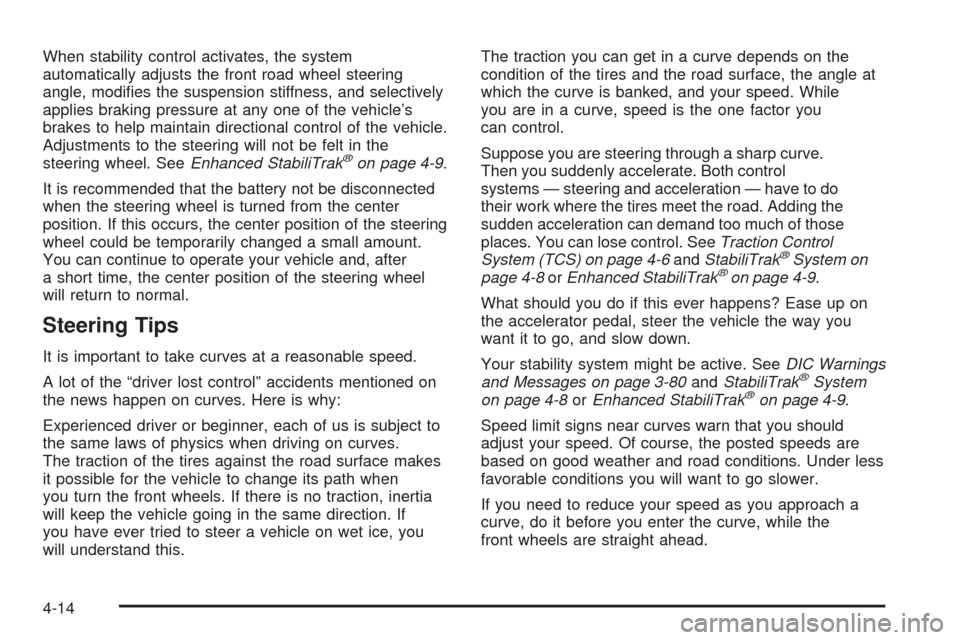
Steering Tips
It is important to take curves at a reasonable speed.
A lot of the “driver lost control” accidents mentioned on
the news happen on curves. Here is why:
Experienced driver or beginner, each of us is subject to
the same laws of physics when driving on curves.
The traction of the tires against the road surface makes
it possible for the vehicle to change its path when
you turn the front wheels. If there is no traction, inertia
will keep the vehicle going in the same direction. If
you have ever tried to steer a vehicle on wet ice, you
will understand this.The traction you can get in a curve depends on the
condition of the tires and the road surface, the angle at
which the curve is banked, and your speed. While
you are in a curve, speed is the one factor you
can control.
Suppose you are steering through a sharp curve.
Then you suddenly accelerate. Both control
systems — steering and acceleration — have to do
their work where the tires meet the road. Adding the
sudden acceleration can demand too much of those
places. You can lose control. SeeTraction Control
System (TCS) on page 4-6andStabiliTrak
®System on
page 4-8orEnhanced StabiliTrak®on page 4-9.
What should you do if this ever happens? Ease up on
the accelerator pedal, steer the vehicle the way you
want it to go, and slow down.
Your stability system might be active. SeeDIC Warnings
and Messages on page 3-80andStabiliTrak
®System
on page 4-8orEnhanced StabiliTrak®on page 4-9.
Speed limit signs near curves warn that you should
adjust your speed. Of course, the posted speeds are
based on good weather and road conditions. Under less
favorable conditions you will want to go slower.
If you need to reduce your speed as you approach a
curve, do it before you enter the curve, while the
front wheels are straight ahead.
4-14
Page 293 of 500
Try to adjust your speed so you can drive through the
curve. Maintain a reasonable, steady speed. Wait
to accelerate until you are out of the curve, and then
accelerate gently into the straightaway.
To help you steer in the direction you want to go, during
certain sharp or sudden cornering maneuvers, gear
selection is controlled. This will maximize the available
drive wheel torque and minimize the transmission
response time and shift activity. During this kind of
maneuver, the transmission shifts automatically
as vehicle speed changes.
Adding non-dealer/non-retailer accessories can affect
your vehicle’s performance. SeeAccessories and
Modifications on page 5-3.
Steering in Emergencies
There are times when steering can be more effective
than braking. For example, you come over a hill and nd
a truck stopped in your lane, or a car suddenly pulls out
from nowhere, or a child darts out from between parked
cars and stops right in front of you. You can avoid these
problems by braking — if you can stop in time. But
sometimes you cannot; there is not room. That is the time
for evasive action — steering around the problem.
Your vehicle can perform very well in emergencies like
these. First apply the brakes. SeeBraking on
page 4-4. It is better to remove as much speed as youcan from a possible collision. Then steer around the
problem, to the left or right depending on the space
available.
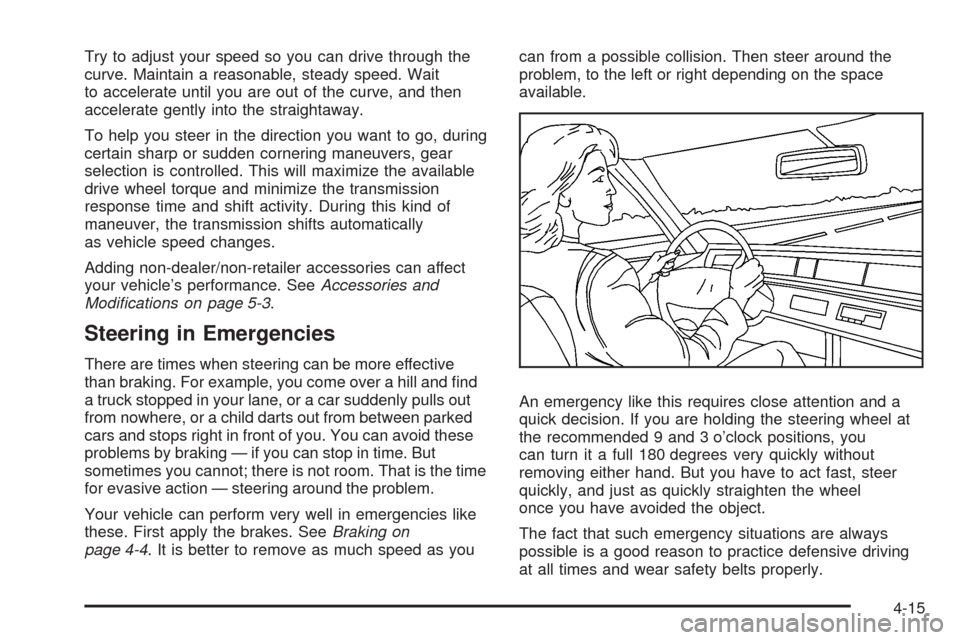
An emergency like this requires close attention and a
quick decision. If you are holding the steering wheel at
the recommended 9 and 3 o’clock positions, you
can turn it a full 180 degrees very quickly without
removing either hand. But you have to act fast, steer
quickly, and just as quickly straighten the wheel
once you have avoided the object.
The fact that such emergency situations are always
possible is a good reason to practice defensive driving
at all times and wear safety belts properly.
4-15