change time CADILLAC STS 2008 1.G User Guide
[x] Cancel search | Manufacturer: CADILLAC, Model Year: 2008, Model line: STS, Model: CADILLAC STS 2008 1.GPages: 500, PDF Size: 5.81 MB
Page 179 of 500
Selecting the Follow Distance (GAP)
When the system detects a slower moving vehicle, it will
adjust your vehicle’s speed and maintain the following
distance (gap) selected.
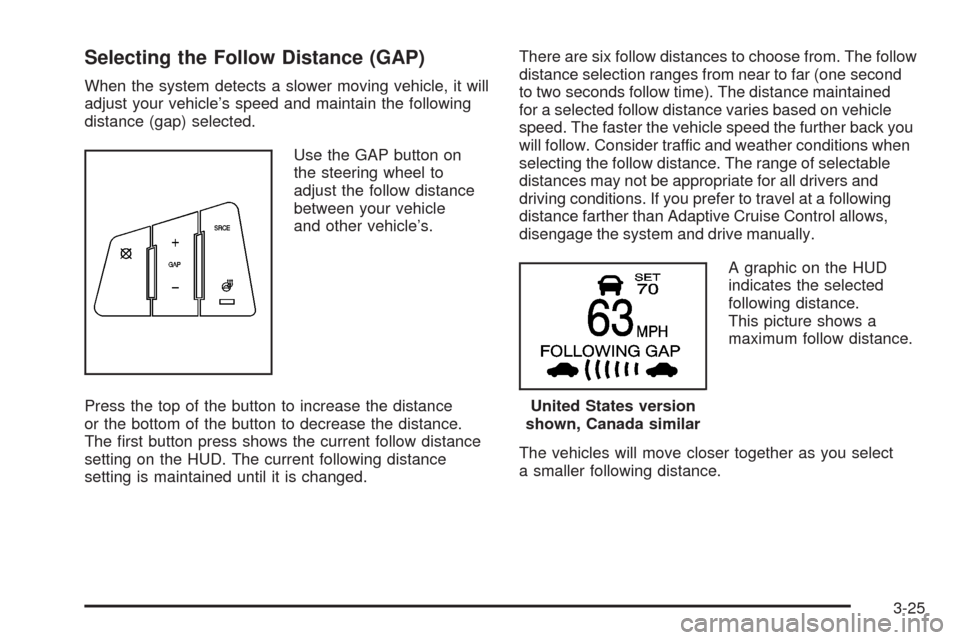
Use the GAP button on
the steering wheel to
adjust the follow distance
between your vehicle
and other vehicle’s.
Press the top of the button to increase the distance
or the bottom of the button to decrease the distance.
The rst button press shows the current follow distance
setting on the HUD. The current following distance
setting is maintained until it is changed.There are six follow distances to choose from. The follow
distance selection ranges from near to far (one second
to two seconds follow time). The distance maintained
for a selected follow distance varies based on vehicle
speed. The faster the vehicle speed the further back you
will follow. Consider traffic and weather conditions when
selecting the follow distance. The range of selectable
distances may not be appropriate for all drivers and
driving conditions. If you prefer to travel at a following
distance farther than Adaptive Cruise Control allows,
disengage the system and drive manually.
A graphic on the HUD
indicates the selected
following distance.
This picture shows a
maximum follow distance.
The vehicles will move closer together as you select
a smaller following distance.
United States version
shown, Canada similar
3-25
Page 191 of 500
Wiper Activated Headlamps
This feature activates the headlamps and parking lamps
after the windshield wipers have been in use for
about six seconds. For this feature to work, automatic
lighting must be enabled. SeeHeadlamps on page 3-33
for additional information.
When the ignition is turned off, the wiper-activated
headlamps will immediately turn off. They will also turn
off if the windshield wiper control is turned off.
Headlamps on Reminder
A warning chime will sound if the exterior lamp control
is left on in either the headlamp or parking lamp position
and the driver’s door is opened with the ignition off.
SeeLights On Reminder on page 3-72for additional
information.
Daytime Running Lamps (DRL)
Daytime Running Lamps (DRL) can make it easier for
others to see the front of your vehicle during the day.
DRL can be helpful in many different driving conditions,
but they can be especially helpful in the short periods
after dawn and before sunset. Fully functional daytime
running lamps are required on all vehicles rst sold
in Canada.
The DRL system will make the turn signal lamps
come on when the following conditions are met:
It is still daylight and the ignition is on,
the automatic lights are enabled, and
the transmission is not in PARK (P).
When DRL are on, only the front turn signal lamps will
be on. No other exterior lamps will be on when the DRL
are being used. The instrument panel will not be lit.
When the automatic lights are enabled and it is dark
enough outside, the DRL will turn off and the low-beam
headlamps will turn on. When it is bright enough
outside, the low-beam headlamps will go off, and the
DRL will turn back on. If the vehicle is started in a
dark garage, the automatic headlamp system will
come on immediately. Once the vehicle leaves the
garage, it will take about one minute for the automatic
headlamp system to change to DRL if it is light outside.
3-37
Page 194 of 500
If you start your vehicle in a dark garage, the automatic
headlamp system will come on immediately. Once you
leave the garage, it will take about one minute for the
automatic headlamp system to change to DRL if it is
light outside. During that delay, the instrument panel
cluster might not be as bright as usual. Make sure the
instrument panel brightness control is in full bright
position. SeeInstrument Panel Brightness on page 3-41
for more information.
You can idle the vehicle with the lamps off, even when
it is dark outside. First set the parking brake while
the ignition is in OFF/ACCESSORY. Then start the
vehicle. The lamps will stay off until the parking brake
is released.
Twilight Sentinel
®also provides exterior illumination
as you leave the vehicle. If Twilight Sentinel®has
turned on the lamps when you turn off the ignition,
the lamps will remain on until:
The exterior lamp switch is moved from off to
the parking lamp position.
A delay time that you select has elapsed.SeeVehicle Personalization on page 2-60to select
the delay time that you want. You can also select
no delay time.
If the ignition is turned off with the exterior lamp switch
in the parking lamp or headlamp position, the Twilight
Sentinel
®delay will not occur. The lamps will turn off
as soon as the switch is turned off.
As with any vehicle, the regular headlamp system
should be turned on when needed.
Exterior Lighting Battery Saver
If the parking lamps or headlamps have been left on,
the exterior lamps will turn off about 10 minutes after
the ignition is turned off. This protects against draining
the battery in case you have accidentally left the
headlamps or parking lamps on. The battery saver
does not work if the headlamps are turned on after
the ignition is turned off.
If you need to leave the lamps on for more than
10 minutes, use the exterior lamp control to turn
the lamps back on.
3-40
Page 203 of 500
AUTO (Automatic):When this button is pressed and
the temperature is set, the system automatically controls
the inside temperature, the air delivery mode, the air
conditioning compressor, and the fan speed. AUTO will
appear on the display next to the fan, mode indicators,
and recirculation indicator if the vehicle has a air
quality sensor.
1. Press the AUTO button.
2. Adjust the temperature to a comfortable setting,
generally, between 70°F (21°C) and 80°F (27°C).
Choosing the coldest or warmest temperature setting
will not cause the system to heat or cool any faster.
If the system is set at the warmest temperature
setting, the system will try to continuously heat the
vehicle and will not adjust the system down as the
vehicle warms up.
In cold weather, the system can start at reduced
fan speeds to avoid blowing cold air into the vehicle
until warmer air is available. The system starts
out blowing air at the oor, but can automatically
change modes as the vehicle warms up to maintain
the chosen temperature setting. The length of
time needed for warm up depends on the outside
temperature and the length of time that has elapsed
since the vehicle was last driven.
3. Wait for the system to regulate. This may take
from 10 to 30 minutes. Then adjust the temperature,
if necessary.You can switch from English to metric units through the
Driver Information Center (DIC). SeeDIC Operation
and Displays on page 3-74.
The air-conditioning system removes moisture from the
air, so some water might drip underneath the vehicle
while idling or after turning off the engine. This is normal.
Manual Operation
yNz(Mode):Pressing the mode switch and
changing the mode cancels automatic operation and
allows the operator to manually select the air delivery
location. Press AUTO to return to automatic operation.
The outboard air outlets always receive airow
regardless of the mode selected. SeeOutlet Adjustment
on page 3-54to change this airow from the outboard
outlets.
To change the current mode, select one of the following:
Y(Vent):This mode directs air to the instrument
panel outlets.
\(Bi-Level):This mode splits the air between
the instrument panel outlets and the oor outlets.
In automatic operation, cooler air is directed to the
upper outlets and warmer air to the oor outlets.
[(Floor):This mode directs most of the air to the
oor outlets with some air directed to the outboard
outlets, and a little air directed to the windshield and
side windows.
3-49
Page 205 of 500
Under some conditions, the air quality sensor system
does not operate. In cold weather, the system might
not be active (even if AUTO is displayed) because
of concerns of fogging your windows, which may occur
by activating recirculation mode. Also, the air quality
sensor system does not remain in recirculation mode
for extended periods of time that could cause stuffy
or very dry conditions in the vehicle. Following a poorly
running vehicle for an extended period of time may
not keep recirculation active indenitely.
The air quality sensor does not activate due to organic
odors, like skunk, and may not activate on many
chemical-related odors. If you wish to limit these types
of odors, manually select recirculation. Your vehicle
could also have a charcoal lter that can limit many
odors from being pulled into your vehicle. This
lter needs to be changed periodically. SeeScheduled
Maintenance on page 6-4. The air quality sensor
system does not protect against carbon monoxide (CO),
which you cannot see or smell. SeeEngine Exhaust
on page 2-38.
O(Power Driver’s Temperature):Press the power
button located on the driver’s side of the climate
control panel to turn the entire climate control system
on or off. Turn the knob to increase or decrease
the temperature inside the vehicle.
O(Power Passenger’s Temperature):Press the
power button located on the passenger’s side of
the climate control panel to turn the passenger’s climate
control system on if they wish to have a different
setting than the driver. Turn the knob to increase or
decrease the temperature for the front passenger.
Turning the passenger’s side power button off will not
shut off the climate control system for the passenger.
The system is set to the same setting as the driver.
{(Ventilated Seat):Press this button, to turn
on the driver or passenger’s side ventilated seat,
if the vehicle has this feature. SeeHeated and
Ventilated Seats on page 1-3.
J(Heated Seat):Press this button, to turn on the
driver or passenger’s side heated seat and seatback,
if the vehicle has this feature. SeeHeated and
Ventilated Seats on page 1-3.
^(Air Conditioning):Press this button to manually
turn off the air conditioning compressor. Press AUTO
to return to automatic operation. To limit fogging on
the windshield, the air conditioning compressor
cannot be off while in the defrost mode.
3-51
Page 228 of 500
Driver Information Center (DIC)
The Driver Information Center (DIC) gives you the
status of many of your vehicle’s systems. The DIC is
also used to display warning/status messages. All
messages will appear in the DIC display located at the
bottom of the instrument panel cluster, below the
tachometer and speedometer. The DIC buttons are
located on the instrument panel, to the left of the
steering wheel.
The DIC comes on when the ignition is on. After a short
delay, the DIC will display the current driver and the
information that was last displayed before the engine
was turned off.
The top line of the DIC display shows the vehicle
system information and the warning/status messages.
The bottom line of the DIC display shows either the
odometer, the trip odometer A or the trip odometer B
information on the left side. Only one odometer
can appear at a time. See “Trip Information” underDIC
Operation and Displays on page 3-74for information
on changing the display to show the odometer or
trip odometer information. The bottom line of the DIC
display also shows the outside temperature on the right
side and the shift lever position indicator in the center.
SeeAutomatic Transmission Operation on page 2-32
for more information on the shift lever positions.When the sport mode is active, an S will appear next
to the shift position indicator on the center of the
DIC display. When the manual mode is active, an M
will appear on the DIC display. When the normal mode
is active, only the shift position indicator will appear.
While the Driver Shift Control (DSC) feature is active,
the DIC will change to show the selected gear.
See “Driver Shift Control (DSC)” underAutomatic
Transmission Operation on page 2-32for more
information.
If a problem is detected, a warning message will appear
on the display. Be sure to take any message that
appears on the display seriously and remember that
clearing the message will only make the message
disappear, not correct the problem.
DIC Operation and Displays
The Driver Information Center (DIC) has different modes
which can be accessed by pressing the four DIC buttons
located on the instrument panel, to the left of the
steering wheel.
3-74
Page 229 of 500
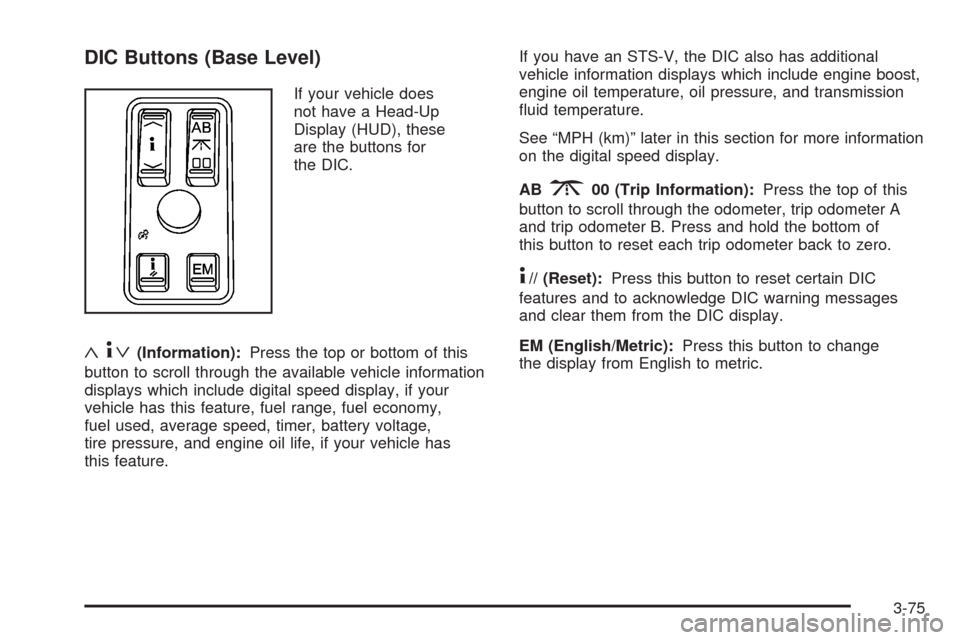
DIC Buttons (Base Level)
If your vehicle does
not have a Head-Up
Display (HUD), these
are the buttons for
the DIC.
«4ª(Information):Press the top or bottom of this
button to scroll through the available vehicle information
displays which include digital speed display, if your
vehicle has this feature, fuel range, fuel economy,
fuel used, average speed, timer, battery voltage,
tire pressure, and engine oil life, if your vehicle has
this feature.If you have an STS-V, the DIC also has additional
vehicle information displays which include engine boost,
engine oil temperature, oil pressure, and transmission
uid temperature.
See “MPH (km)” later in this section for more information
on the digital speed display.
AB
300 (Trip Information):Press the top of this
button to scroll through the odometer, trip odometer A
and trip odometer B. Press and hold the bottom of
this button to reset each trip odometer back to zero.
4// (Reset):Press this button to reset certain DIC
features and to acknowledge DIC warning messages
and clear them from the DIC display.
EM (English/Metric):Press this button to change
the display from English to metric.
3-75
Page 230 of 500
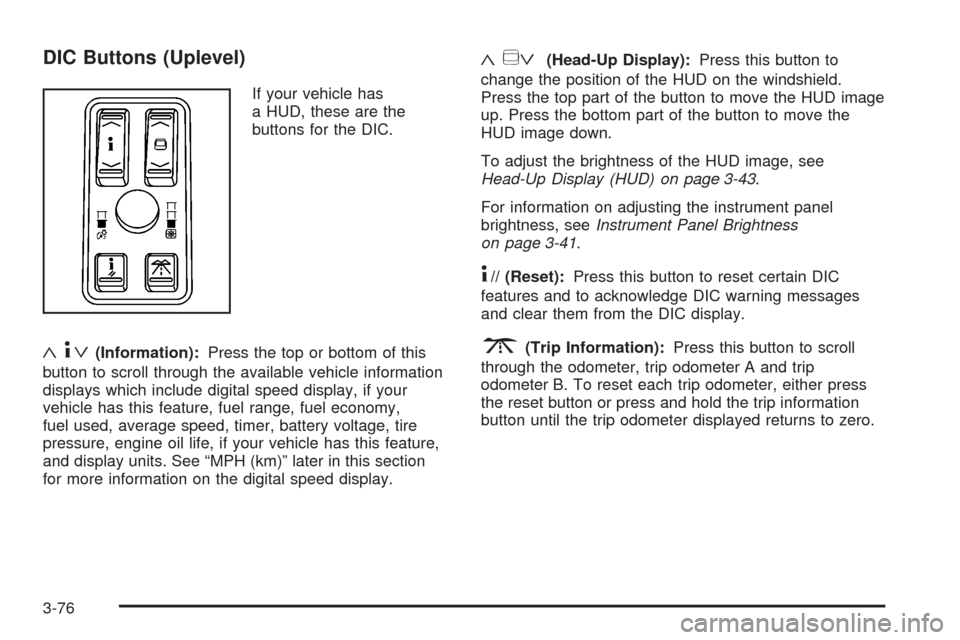
DIC Buttons (Uplevel)
If your vehicle has
a HUD, these are the
buttons for the DIC.
«4ª(Information):Press the top or bottom of this
button to scroll through the available vehicle information
displays which include digital speed display, if your
vehicle has this feature, fuel range, fuel economy,
fuel used, average speed, timer, battery voltage, tire
pressure, engine oil life, if your vehicle has this feature,
and display units. See “MPH (km)” later in this section
for more information on the digital speed display.
«~ª(Head-Up Display):Press this button to
change the position of the HUD on the windshield.
Press the top part of the button to move the HUD image
up. Press the bottom part of the button to move the
HUD image down.
To adjust the brightness of the HUD image, see
Head-Up Display (HUD) on page 3-43.
For information on adjusting the instrument panel
brightness, seeInstrument Panel Brightness
on page 3-41.
4// (Reset):Press this button to reset certain DIC
features and to acknowledge DIC warning messages
and clear them from the DIC display.
3(Trip Information):Press this button to scroll
through the odometer, trip odometer A and trip
odometer B. To reset each trip odometer, either press
the reset button or press and hold the trip information
button until the trip odometer displayed returns to zero.
3-76
Page 231 of 500
Information Display Menu Items
The following display menu items can be displayed
by pressing the information button.
MPH (km/h)
If your vehicle has this display, it shows the vehicle’s
speed digitally in either miles per hour (mph) or
kilometers per hour (km/h).
MILES RANGE (km RANGE)
This display shows the approximate number of
remaining miles (mi) or kilometers (km) you can drive
without relling the fuel tank. This estimate is based
on the current driving conditions and will change if
the driving conditions change. For example, if you are
driving in traffic making frequent stops, the display
may read one number, but if you enter the freeway,
the number may change even though you still have the
same amount of fuel in the fuel tank. This is because
different driving conditions produce different fuel
economies. Generally, freeway driving produces better
fuel economy than city driving.
Once the range drops below about 40 miles (64 km)
remaining, the display will show LOW RANGE.
If your vehicle is low on fuel, the Fuel Level Low
message will be displayed. See “Fuel Level Low”
underDIC Warnings and Messages on page 3-80
for more information.
MPG AVG (L/100 km AVG)
This display shows the approximate average miles per
gallon (mpg) or liters per 100 kilometers (L/100 km).
This number is calculated based on the number of
mpg (L/100 km) recorded since the last time this display
was reset. To reset MPG AVG, press the reset button.
The display will return to zero.
MPG INST (L/100 km INST)
This display shows the current fuel economy. This
number reects only the fuel economy that the vehicle
has right now and will change frequently as driving
conditions change. Unlike average fuel economy,
this display cannot be reset.
GAL FUEL USED (L FUEL USED)
This display shows the number of gallons (gal) or
liters (L) of fuel used since the last reset of this display.
To reset GAL FUEL USED, press the reset button.
The display will return to zero.
AVG MPH (AVG km/h)
This display shows the average speed of the vehicle
in miles per hour (mph) or kilometers per hour (km/h).
This average is calculated based on the various vehicle
speeds recorded since the last reset of this display.
To reset AVG MPH, press the reset button.
The display will return to zero.
3-77
Page 234 of 500
Trip Information Display Menu Items
The following display menu items can be displayed
by pressing the trip Information button.
Odometer
Press the trip information button until the odometer
appears on the DIC display. The odometer shows the
total distance the vehicle has been driven in either
miles (mi) or kilometers (km).
Trip Odometer
Press the trip information button until trip odometer A or B
appears on the DIC display. The trip odometer shows
the current distance traveled since the last reset for each
trip odometer in either miles (mi) or kilometers (km).
Both odometers can be used at the same time.
For base level vehicles, each trip odometer can be
reset to zero separately by pressing and holding
the bottom of the trip information button while the
desired trip odometer is displayed. For uplevel vehicles,
reset each trip odometer by pressing the reset
button or by pressing and holding the trip information
button while the desired trip odometer is displayed.
DIC Warnings and Messages
Messages are displayed on the DIC to notify the driver
that the status of the vehicle has changed and that
some action may be needed by the driver to correct
the condition. Multiple messages may appear one after
another.
The text messages are the same for both the base
audio and Navigation systems unless otherwise
indicated.
Some messages may not require immediate action,
but you can press the reset button to acknowledge that
you received the messages and to clear them from
the display.
Some messages cannot be cleared from the DIC
display because they are more urgent. These messages
require action before they can be cleared. Take any
messages that appear on the display seriously
and remember that clearing the messages will only
make the messages disappear, not correct the problem.
The following are the possible messages that can be
displayed and some information about them.
3-80