reset CADILLAC STS 2009 1.G Owner's Manual
[x] Cancel search | Manufacturer: CADILLAC, Model Year: 2009, Model line: STS, Model: CADILLAC STS 2009 1.GPages: 514, PDF Size: 2.73 MB
Page 244 of 514
SERVICE RADAR CRUISE
This message displays when the Adaptive Cruise
Control system is disabled and needs service.
See your dealer/retailer.
SERVICE SIDE BLIND ZONE ALERT
SYSTEM
If your vehicle has the Side Blind Zone Alert (SBZA)
system and this message displays, both SBZA displays
will remain on indicating there is a problem with the SBZA
system. If these displays remain on after continued
driving, the system needs service. See your dealer/
retailer. See the Index in the Navigation manual for
more information.
SERVICE STABILITY SYS (System)
Your vehicle has a vehicle stability enhancement system
called StabiliTrak®. All-Wheel Drive (AWD) vehicle
with the Active Steering with Enhanced StabiliTrak
option have a stability enhancement system called
Enhanced StabiliTrak.This message displays if there has been a problem
detected with the stability system.
If this message comes on while driving, pull off the road
as soon as possible and stop carefully. Try resetting
the system by turning the ignition off then back on. If this
message still stays on or comes back on again while
driving, your vehicle needs service. Have the stability
system inspected by your dealer/retailer as soon
as possible. SeeStabiliTrak
®System on page 4-6or
Enhanced StabiliTrak®on page 4-6for more information.
For vehicles with the Active Steering with Enhanced
StabiliTrak option, in some cases when the SERVICE
STABILITY SYS message is displayed, a larger degree
of steering wheel input at low vehicle speeds and a
smaller degree of steering wheel input at higher vehicle
speeds may be required.
3-90
Page 247 of 514

STABILITY COMPETITIVE MODE
If your All-Wheel Drive (AWD) vehicle has the Active
Steering with Enhanced StabiliTrak option, this message
displays when the Competitive Mode for stability control
has been turned on using the TC (traction control) button.
SeeEnhanced StabiliTrak
®on page 4-6for more
information. When the Enhanced StabiliTrak Competitive
Mode has been activated, traction control operates in
competitive mode and cannot be turned off. Also, the
Active Steering and the Magnetic Ride Control systems
operate in the Performance Mode. For more information,
see “Active Steering and Magnetic Ride Control” in the
Index in the Navigation manual.
STABILITY SECURE MODE
If your All-Wheel Drive (AWD) vehicle has the Active
Steering with Enhanced StabiliTrak option, this message
displays when the stability control system is in the
secure mode. Stability Secure Mode is set automatically
when certain system faults or vehicle conditions are
detected. When the Stability Secure Mode is activated,
the stability control system will not respond to driver
requests to change the stability mode until the next
ignition cycle or until the vehicle condition or fault
is returned to normal. SeeEnhanced StabiliTrak
®
on page 4-6for more information.
STABILITY SYS (System) ACTIVE
This message displays any time the StabiliTrak system
or Enhanced StabiliTrak system is actively assisting
with directional control of the vehicle. Slippery road
conditions may exist when this message is displayed,
so adjust your driving accordingly. This message
may stay on for a few seconds after StabiliTrak
stops assisting with directional control of the vehicle.
SeeStabiliTrak
®System on page 4-6orEnhanced
StabiliTrak®on page 4-6for more information.
STABILITY SYS (System) NOT READY
This message displays if the StabiliTrak system is
not ready. Two conditions may cause this message
to display:
The vehicle needs to be driven in a straight line
until the sensors are centered. Once the sensors
are centered, the StabiliTrak system is ready
and the STABILITY SYS READY message displays.
The system needs to warm up. This may occur
when rst starting your vehicle and driving away
during cold winter weather. This is normal.
To acknowledge this message, press the
reset button.
The StabiliTrak performance is affected until the
STABILITY SYS READY message is displayed in the
DIC. SeeStabiliTrak
®System on page 4-6for more
information.
3-93
Page 250 of 514
TRUNK OPEN
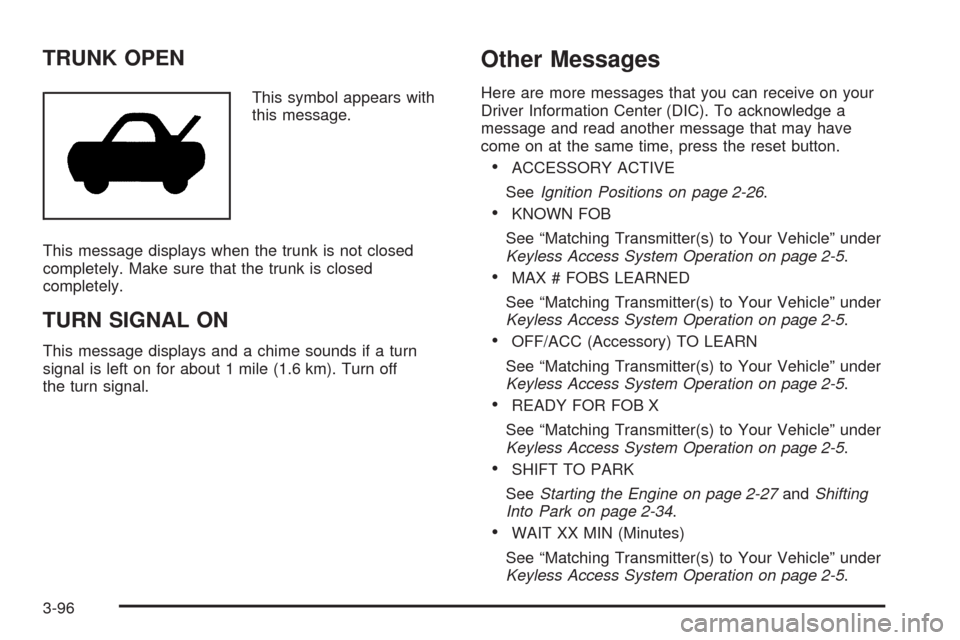
This symbol appears with
this message.
This message displays when the trunk is not closed
completely. Make sure that the trunk is closed
completely.
TURN SIGNAL ON
This message displays and a chime sounds if a turn
signal is left on for about 1 mile (1.6 km). Turn off
the turn signal.
Other Messages
Here are more messages that you can receive on your
Driver Information Center (DIC). To acknowledge a
message and read another message that may have
come on at the same time, press the reset button.
ACCESSORY ACTIVE
SeeIgnition Positions on page 2-26.
KNOWN FOB
See “Matching Transmitter(s) to Your Vehicle” under
Keyless Access System Operation on page 2-5.
MAX # FOBS LEARNED
See “Matching Transmitter(s) to Your Vehicle” under
Keyless Access System Operation on page 2-5.
OFF/ACC (Accessory) TO LEARN
See “Matching Transmitter(s) to Your Vehicle” under
Keyless Access System Operation on page 2-5.
READY FOR FOB X
See “Matching Transmitter(s) to Your Vehicle” under
Keyless Access System Operation on page 2-5.
SHIFT TO PARK
SeeStarting the Engine on page 2-27andShifting
Into Park on page 2-34.
WAIT XX MIN (Minutes)
See “Matching Transmitter(s) to Your Vehicle” under
Keyless Access System Operation on page 2-5.
3-96
Page 251 of 514
Audio System(s)
Determine which radio the vehicle has and read the
following pages to become familiar with its features.
{CAUTION:
Taking your eyes off the road for extended periods
could cause a crash resulting in injury or death to
you or others. Do not give extended attention to
entertainment tasks while driving.
This system provides access to many audio and non
audio listings.To minimize taking your eyes off the road while driving,
do the following while the vehicle is parked:
Become familiar with the operation and controls of
the audio system.
Set up the tone, speaker adjustments, and preset
radio stations.
For more information, seeDefensive Driving on
page 4-2.
Notice:Contact your dealer/retailer before adding
any equipment.
Adding audio or communication equipment could
interfere with the operation of the vehicle’s engine,
radio, or other systems, and could damage them.
Follow federal rules covering mobile radio and
telephone equipment.
The vehicle has Retained Accessory Power (RAP).
With RAP, the audio system can be played even after
the ignition is turned off. SeeRetained Accessory
Power (RAP) on page 2-27for more information.
3-97
Page 253 of 514
Radio Data System (RDS)
The audio system has RDS features that are available
for use only on FM stations that broadcast RDS
information.
With RDS:
Stations can be selected based on programming
Stations with traffic announcements can be selected
Announcements concerning local and national
emergencies can be received.
Messages display from radio stations.
RDS relies on receiving specic information from radio
stations and only works when the information is available.
In rare cases, a radio station could broadcast incorrect
information that causes the radio features to work
improperly. Contact the radio station if this happens.
When the radio is tuned to an RDS station, the station
name or call letters display instead of the frequency.
RDS stations can also provide the time of day, a
program type (PTY) for current programming, and
the name of the program being broadcast.
Finding a Station
BAND:Press to select FM1, FM2, AM, or XM1 or XM2.
w(Tune):Turn to select radio stations.
©¨(Seek):Press to go to the previous or next
station and stay there. The radio only seeks stations
with a strong signal in the selected band, and the sound
mutes while seeking.
©¨(Scan):Press to scan stations or preset
stations. The radio only scans stations with a strong
signal in the selected band.
To scan stations:
1. Press and release
©or¨, SCAN displays.
The radio goes to a station, plays for ve seconds,
then goes to the next station.
2. Press and release
©or¨again to stop scanning.
To scan preset stations:
1. Press and hold
©or¨for more than
two seconds until a beep sounds and PSCAN
displays. The radio goes to the rst preset station,
plays for ve seconds, then goes to the next preset
station.
2. Press and release
©or¨to stop scanning.
3-99
Page 254 of 514
ALOCAL/DISTANT Selection:The radio can be set
to search for local stations or stations that are further
away for a larger selection.
To select between LOCAL or DISTANT:
1. Press
wto enter the main menu.
2. Turn
wuntil SEEK LOCAL or SEEK DISTANT
displays.
3. Press
wto select either LOCAL or DISTANT.
4. Press F6 to exit the display. To return to the original
display, repeatedly press F6 or wait for the display
to time out.
To search for stations, press
©or¨. If the system
is set to LOCAL, SEEK displays and seeks to stations
only with strong signals. If the system is set to DISTANT,
D-SEEK displays and seeks to stations with weak and
strong signals.
This feature does not function with the XM™ radio
stations.
4(Information):Press while in XM mode to retrieve
three different categories of information related to the
current song or channel: Artist, Song Title, Category or
PTY. To view this information:
1. Press
wto enter the main menu.
2. Turn
wuntil INFO displays.
3. Press
wto select INFO. The display changes
to show the additional XM information.
4. Press F6 to exit the display. To return to the
original display, repeatedly press F6 or wait for
the display to time out.
Setting Preset Stations
Up to 30 stations (six FM1, six FM2, six AM, six XM1
and six XM2), can be programmed on the six numbered
pushbuttons.
To program preset stations:
1. Tune to a station and select the equalization, DSP,
or PTY (program type) setting if desired.
2. Press and hold one of the six numbered
pushbuttons for two seconds until a beep sounds.
The set preset station number displays above the set
pushbutton. If the numbered pushbutton is pressed
for less then two seconds, the radio tunes to the
station set to that pushbutton.
3. Repeat the steps for each pushbutton.
3-100
Page 255 of 514
AUTOSTORE PRESETS:When Autostore is used, the
radio automatically searches the selected band and
stores the six radio stations with the strongest signal.
The stations are stored by signal strength, not sequential
order. This feature does not function with XM radio
stations.
To program autostore presets:
1. Press
wto enter the main menu.
2. Turn
wuntil AUTOSTORE PRESETS displays.
3. Press
wto select AUTOSTORE PRESETS.
The radio begins searching and AUTOSTORE
displays.
4. Press F6 to exit the display. To return to the
original display, repeatedly press F6 or wait for
the display to time out.
The radio presets do not have to be reset when the
vehicle is started, or when the battery power is removed.PRESETS HOME/AWAY:This feature stores two
different kinds of station presets. HOME can be used
for local stations and AWAY for stations outside of
the local broadcasting area. This feature does not
function with the XM radio stations.
To set preset stations for home and away:
1. Press
wto enter the main menu.
2. Turn
wuntil PRESETS HOME/AWAY displays.
3. Press
wto select HOME or AWAY.
4. Press F6 to exit the display. To return to the
original display, repeatedly press F6 or wait for
the display to time out.
5. Follow the steps for programming presets or
autostore presets.
3-101
Page 259 of 514
Activating Program Type (PTY)
Stations (RDS and XM™)
PTY lets the radio search for stations with specic
types of music. When this feature is turned on, the
PTYs display above the pushbuttons in place of the
programmed preset stations. Not all stations support
PTYs and the radio may not go to all of the stations with
that music type when pressing the pushbutton.
The selectable PTYs are:
CNTRY (Country)
CLASS (Classical)
EASY
JAZZ
POP
TALK
To turn PTY on or off:
1. Press
wto enter the main menu.
2. Turn
wuntil PROGRAM TYPE MODE displays.3. Press
wto select ON or OFF. An X appears in
the box when ON is selected.
4. Press F6 to exit the display. To return to the
original display, repeatedly press F6 or wait for
the display to time out.
AF (Alternate Frequency):Alternate frequency lets
the radio switch to a stronger station with the same
program type.
This feature does not function with XM radio stations.
To turn AF on or off:
1. Press
wto enter the main menu.
2. Turn
wuntil ALTERNATE FREQ. displays.
3. Press
wto select AF OFF, AF ON, or AF REG.
An X appears in the box when ON is selected.
4. Press F6 to exit the display. To return to the
original display, repeatedly press F6 or wait for
the display to time out.
3-105
Page 260 of 514
Radio Message
THEFTLOCK:Displays when the THEFTLOCK®
system has been activated. Take the vehicle to your
dealer/retailer for service.
XM Satellite Radio Service
XM is a satellite radio service that is based in the
48 contiguous United States and 10 Canadian provinces.
XM Satellite Radio has a wide variety of programming
and commercial-free music, coast-to-coast, and in
digital-quality sound. During your trial or when you
subscribe, you will get unlimited access to XM Radio
Online for when you are not in the vehicle. A service
fee is required to receive the XM service. For more
information, contact XM at xmradio.com or call
1-800-929-2100 in the U.S. and xmradio.ca or
call 1-877-438-9677 in Canada.
Radio Messages for XM Only
SeeXM Radio Messages on page 3-114XM Radio
Messages later in this section for further detail.
Using the Single CD Player
Load a CD partway into the slot, label side up.
The player pulls it in. The CD player can play the
smaller 3 inch (8 cm) single CDs with an adapter ring.
Full-size CDs and the smaller CDs are loaded in
the same manner.
The CD begins playing after it is loaded if the
ignition and the radio are on.
The CD starts to play where it was last stopped if it
was the last selected audio source when the radio
is turned on.
The CD stays in the player when the ignition or
radio is turned off.
A CD can be loaded with the radio off, but it does
not start playing until the radio is turned on.
When a CD is loaded, CD displays and the CD
functions display above the pushbuttons in place of the
programmed preset stations. The track number displays
as each new track starts to play.
F1
{(Reverse):Press and hold to reverse quickly
within a track. Release to resume playback. The elapsed
time of the track displays.
F2
|(Forward):Press and hold to advance quickly
within a track. Release to resume playback. The elapsed
time of the track displays.
3-106
Page 269 of 514
Channel Unavail:This previously assigned channel
is no longer assigned. Tune to another station.
If this station was one of the presets, choose another
station for that preset button.
No Artist Info:No artist information is available at this
time on this channel. The system is working properly.
No Title Info:No song title information is available
at this time on this channel. The system is working
properly.
No CAT Info:No category information is available
at this time on this channel. The system is working
properly.
No Information:No text or informational messages are
available at this time on this channel. The system is
working properly.
CAT Not Found:There are no channels available for
the selected category. The system is working properly.XM Theftlocked:The XM™ receiver in your vehicle
could have previously been in another vehicle.
For security purposes, XM™ receivers cannot be
swapped between vehicles. If this message is received
after having your vehicle serviced, check with your
dealer/retailer.
XM Radio ID:If tuned to channel 0, this message
alternates with the XM™ Radio 8 digit radio ID label.
This label is needed to activate the service.
Unknown:If this message is received when tuned to
channel 0, there could be a receiver fault. Consult
with your dealer/retailer.
Check XM Receivr:If this message does not clear
within a short period of time, the receiver could have a
fault. Consult with your dealer/retailer.
XM Not Available:If this message does not clear
within a short period of time, the receiver could have
a fault. Consult with your dealer/retailer.
3-115