buttons CADILLAC STS 2011 1.G Owner's Manual
[x] Cancel search | Manufacturer: CADILLAC, Model Year: 2011, Model line: STS, Model: CADILLAC STS 2011 1.GPages: 528, PDF Size: 4.96 MB
Page 255 of 528
Black plate (69,1)Cadillac STS Owner Manual - 2011
Driver Information Center (DIC)
The Driver Information Center (DIC) gives you the
status of many of your vehicle's systems. The DIC is
also used to display warning/status messages. All
messages will appear in the DIC display located at
the bottom of the instrument panel cluster, below the
tachometer and speedometer. The DIC buttons are
located on the instrument panel, to the left of the
steering wheel.
The DIC comes on when the ignition is on. After a short
delay, the DIC will display the current driver and the
information that was last displayed before the engine
was turned off.
The top line of the DIC display shows the vehicle
system information and the warning/status messages.
The bottom line of the DIC display shows either the
odometer, the trip odometer A or the trip odometer B
information on the left side. Only one odometer can
appear at a time. See“Trip Information”underDIC
Operation and Displays
on page 4‑70for information on changing the display to show the odometer or trip
odometer information. The bottom line of the DIC
display also shows the outside temperature on the
right side and the shift lever position indicator in the
center. See
Automatic Transmission Operation
on
page 3‑30for more information on the shift lever
positions.
When the sport mode is active, an S will appear next
to the shift position indicator on the center of the DIC
display. When the manual mode is active, an M will
appear on the DIC display. When the normal mode is
active, only the shift position indicator will appear. While
the Driver Shift Control (DSC) feature is active, the DIC
will change to show the selected gear. See “Driver Shift
Control (DSC)” underAutomatic Transmission
Operation
on page 3‑30for more information.
If a problem is detected, a warning message will appear
on the display. Be sure to take any message that
appears on the display seriously and remember that
clearing the message will only make the message
disappear, not correct the problem.
4-69
Page 256 of 528
Black plate (70,1)Cadillac STS Owner Manual - 2011
DIC Operation and Displays
The Driver Information Center (DIC) has different
modes which can be accessed by pressing the four
DIC buttons located on the instrument panel, to the
left of the steering wheel.
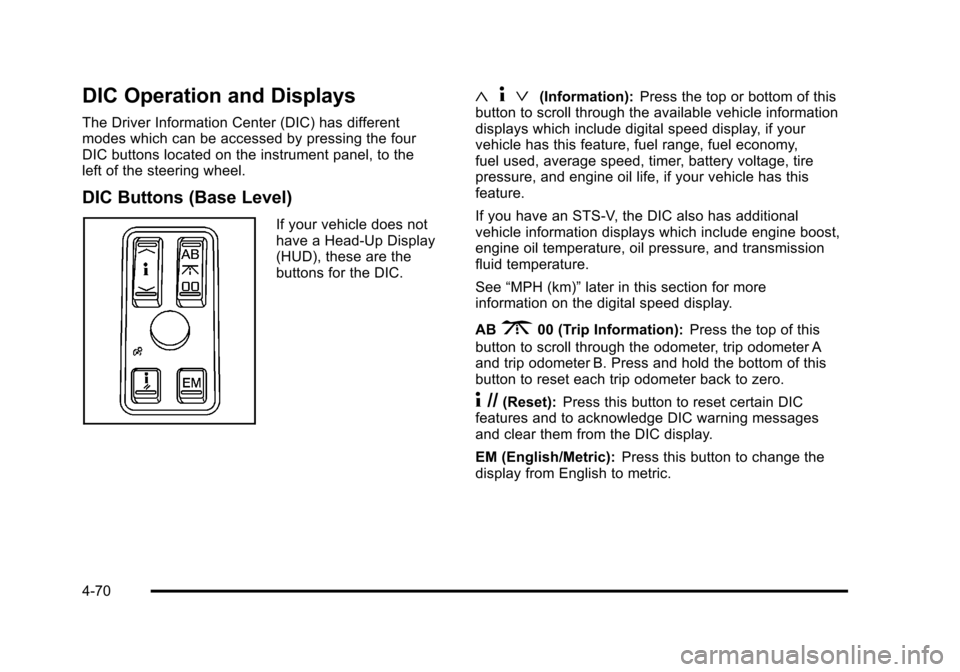
DIC Buttons (Base Level)
If your vehicle does not
have a Head-Up Display
(HUD), these are the
buttons for the DIC.
«4ª(Information): Press the top or bottom of this
button to scroll through the available vehicle information
displays which include digital speed display, if your
vehicle has this feature, fuel range, fuel economy,
fuel used, average speed, timer, battery voltage, tire
pressure, and engine oil life, if your vehicle has this
feature.
If you have an STS-V, the DIC also has additional
vehicle information displays which include engine boost,
engine oil temperature, oil pressure, and transmission
fluid temperature.
See “MPH (km)” later in this section for more
information on the digital speed display.
AB
300 (Trip Information): Press the top of this
button to scroll through the odometer, trip odometer A
and trip odometer B. Press and hold the bottom of this
button to reset each trip odometer back to zero.
4 //(Reset): Press this button to reset certain DIC
features and to acknowledge DIC warning messages
and clear them from the DIC display.
EM (English/Metric): Press this button to change the
display from English to metric.
4-70
Page 257 of 528
Black plate (71,1)Cadillac STS Owner Manual - 2011
DIC Buttons (Uplevel)
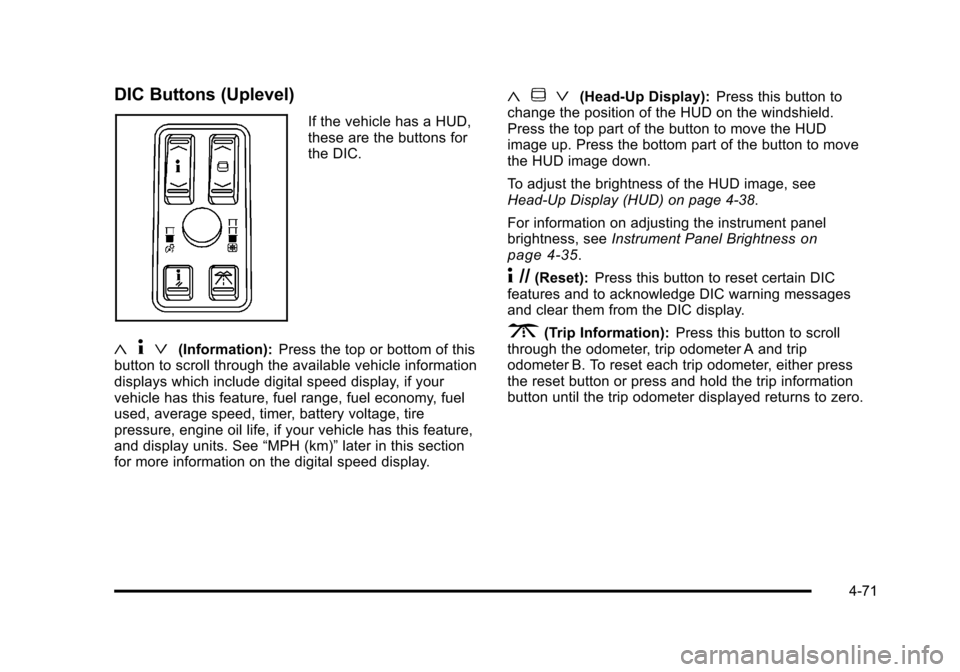
If the vehicle has a HUD,
these are the buttons for
the DIC.
«4ª(Information): Press the top or bottom of this
button to scroll through the available vehicle information
displays which include digital speed display, if your
vehicle has this feature, fuel range, fuel economy, fuel
used, average speed, timer, battery voltage, tire
pressure, engine oil life, if your vehicle has this feature,
and display units. See “MPH (km)”later in this section
for more information on the digital speed display.
« ~ ª(Head-Up Display): Press this button to
change the position of the HUD on the windshield.
Press the top part of the button to move the HUD
image up. Press the bottom part of the button to move
the HUD image down.
To adjust the brightness of the HUD image, see
Head-Up Display (HUD) on page 4‑38.
For information on adjusting the instrument panel
brightness, see Instrument Panel Brightness
on
page 4‑35.
4 //(Reset): Press this button to reset certain DIC
features and to acknowledge DIC warning messages
and clear them from the DIC display.
3(Trip Information): Press this button to scroll
through the odometer, trip odometer A and trip
odometer B. To reset each trip odometer, either press
the reset button or press and hold the trip information
button until the trip odometer displayed returns to zero.
4-71
Page 269 of 528
Black plate (83,1)Cadillac STS Owner Manual - 2011
NO FOBS DETECTED
This message displays if the vehicle does not detect the
presence of a keyless access transmitter when you
have attempted to start the vehicle or a vehicle door
has just closed. The following conditions may cause this
message to appear:
.Driver-added equipment plugged into the
accessory power outlet on the center console
is causing interference. Examples of these
devices are cell phones and cell phone chargers,
two-way radios, power inverters, or similar items.
Try moving the keyless access transmitter away
from these devices when starting the vehicle. In
addition, PDA devices and remote garage and
gate openers may also generate Electromagnetic
Interference (EMI) that may interfere with the
keyless access transmitter. Do not carry the
keyless access transmitter in the same pocket
or bag as these devices.
.The vehicle is experiencing Electromagnetic
Interference (EMI). Some locations, such as
airports, automatic toll booths, and some gas
stations, have EMI fields which may interfere
with the keyless access transmitter.
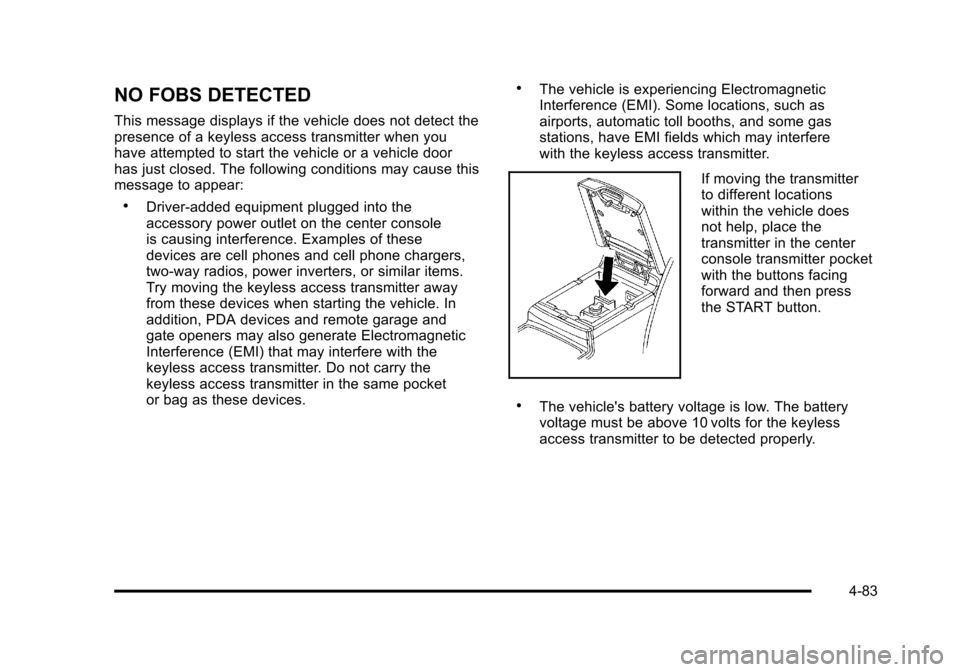
If moving the transmitter
to different locations
within the vehicle does
not help, place the
transmitter in the center
console transmitter pocket
with the buttons facing
forward and then press
the START button.
.The vehicle's battery voltage is low. The battery
voltage must be above 10 volts for the keyless
access transmitter to be detected properly.
4-83
Page 284 of 528
Black plate (98,1)Cadillac STS Owner Manual - 2011
Setting Preset Stations
Up to 30 stations (six FM1, six FM2, six AM, six XM1 and
six XM2), can be programmed on the six numbered
pushbuttons.
To program preset stations:1. Tune to a station and select the equalization, DSP, or PTY (program type) setting if desired.
2. Press and hold one of the six numbered pushbuttons for two seconds until a beep sounds.
The set preset station number displays above the
set pushbutton. If the numbered pushbutton is
pressed for less then two seconds, the radio tunes
to the station set to that pushbutton.
3. Repeat the steps for each pushbutton.
AUTOSTORE PRESETS: When Autostore is used, the
radio automatically searches the selected band and
stores the six radio stations with the strongest signal.
The stations are stored by signal strength, not
sequential order. This feature does not function with
XM radio stations.
To program autostore presets:
1. Press
wto enter the main menu.
2. Turn
wuntil AUTOSTORE PRESETS displays. 3. Press
wto select AUTOSTORE PRESETS. The
radio begins searching and AUTOSTORE displays.
4. Press F6 to exit the display. To return to the original display, repeatedly press F6 or wait for the
display to time out.
The radio presets do not have to be reset when the
vehicle is started, or when the battery power is
removed.
PRESETS HOME/AWAY: This feature stores two
different kinds of station presets. HOME can be used for
local stations and AWAY for stations outside of the local
broadcasting area. This feature does not function with
the XM radio stations.
To set preset stations for home and away:
1. Press
wto enter the main menu.
2. Turn
wuntil PRESETS HOME/AWAY displays.
3. Press
wto select HOME or AWAY.
4. Press F6 to exit the display. To return to the original display, repeatedly press F6 or wait for the
display to time out.
5. Follow the steps for programming presets or autostore presets.
4-98
Page 288 of 528
Black plate (102,1)Cadillac STS Owner Manual - 2011
Activating Program Type (PTY) Stations
(RDS and XM™)
PTY lets the radio search for stations with specific
types of music. When this feature is turned on, the
PTYs display above the pushbuttons in place of the
programmed preset stations. Not all stations support
PTYs and the radio may not go to all of the stations
with that music type when pressing the pushbutton.
The selectable PTYs are:
.CNTRY (Country)
.CLASS (Classical)
.EASY
.JAZZ
.POP
.TALK
To turn PTY on or off:
1. Press
wto enter the main menu.
2. Turn
wuntil PROGRAM TYPE MODE displays. 3. Press
wto select ON or OFF. An X appears in
the box when ON is selected.
4. Press F6 to exit the display. To return to the original display, repeatedly press F6 or wait for
the display to time out.
AF (Alternate Frequency): Alternate frequency lets
the radio switch to a stronger station with the same
program type.
This feature does not function with XM radio stations.
To turn AF on or off:
1. Press
wto enter the main menu.
2. Turn
wuntil ALTERNATE FREQ. displays.
3. Press
wto select AF OFF, AF ON, or AF REG.
An X appears in the box when ON is selected.
4. Press F6 to exit the display. To return to the original display, repeatedly press F6 or wait for
the display to time out.
4-102
Page 289 of 528
Black plate (103,1)Cadillac STS Owner Manual - 2011
Radio Message
THEFTLOCK:Displays when the THEFTLOCK®
system has been activated. Take the vehicle to your
dealer for service.
XM Satellite Radio Service
XM is a satellite radio service that is based in the
48 contiguous United States and 10 Canadian
provinces. XM Satellite Radio has a wide variety
of programming and commercial-free music,
coast-to-coast, and in digital-quality sound. A service
fee is required to receive the XM service. If XM
Service needs to be reactivated, the radio will display
“No Subscription Please Renew” on channel XM1. For
more information, contact XM at www.xmradio.com or
call 1-800-929-2100 in the U.S. and www.xmradio.ca
or call 1-877-438-9677 in Canada.
Radio Messages for XM Only
See XM Radio Messageson page 4‑112later in this
section for further detail.
Using the Single CD Player
Load a CD partway into the slot, label side up. The
player pulls it in. The CD player can play the smaller
3 inch (8 cm) single CDs with an adapter ring. Full-size
CDs and the smaller CDs are loaded in the same
manner.
.The CD begins playing after it is loaded if the
ignition and the radio are on.
.The CD starts to play where it was last stopped if it
was the last selected audio source when the radio
is turned on.
.The CD stays in the player when the ignition or
radio is turned off.
.A CD can be loaded with the radio off, but it does
not start playing until the radio is turned on.
When a CD is loaded, CD displays and the CD
functions display above the pushbuttons in place of the
programmed preset stations. The track number displays
as each new track starts to play.
F1
{(Reverse): Press and hold to reverse quickly
within a track. Release to resume playback. The
elapsed time of the track displays.
F2
|(Forward): Press and hold to advance quickly
within a track. Release to resume playback. The
elapsed time of the track displays.
4-103
Page 297 of 528

Black plate (111,1)Cadillac STS Owner Manual - 2011
F4 RPT (Repeat):Single tracks or folders can be
repeated.
.To repeat the current track, press and release
F4 RPT until RPT TRCK displays.
.To repeat the tracks in the current folder, press and
release F4 RPT until RPT FLDR displays.
.To turn repeat off, press and release F4 RPT until
NORMAL displays.
F6 DISP (Display): Press to switch between the
elapsed time of the track and the MP3 playback
information.
© ¨(Seek): Press and release to go to the start of the
previous track or the start of the next track. Press and
hold for more than two seconds to search the previous
or next tracks at two tracks per second. Release to stop
searching and to play the track.
© ¨(Scan): Press to scan the tracks in each folder. The
radio goes to the next track, plays for 10 seconds, then
goes to the next track. Press again to stop scanning.
w(Tune): Turn to fast track reverse or advance
advance through the tracks in all folders or playlists.
The track number and file name displays for each track.
Turning
wwhile in random will fast track reverse or
advance the tracks in sequential order.
4(Information): Press to view the Title, Artist, Album,
or Folder names. To view this information:
1. Press
wto enter the main menu.
2. Turn
wuntil INFO displays.
3. Press
wto select INFO. The display changes to
show the additional MP3 information.
4. Press one of the following pushbuttons to view that specific information.
.F1 TTLE (Title): Displays the title name.
.F2 ATST (Artist): Displays the artist name.
.F3 ALBM (Album): Displays the album name.
.F4 FLDR (Folder):Displays the folder name.
5. Press F6 to exit the display. To return to the original display, repeatedly press F6 or wait for the
display to time out.
4-111
Page 300 of 528
Black plate (114,1)Cadillac STS Owner Manual - 2011
Bluetooth Controls
Use the buttons located on the steering wheel to
operate the Bluetooth system. SeeAudio Steering
Wheel Controls
on page 4‑124for more information.
b g(Push to Talk) : Press to answer incoming calls,
to confirm system information, and to start voice
recognition.
Pairing
A Bluetooth cell phone must be paired to the Bluetooth
system and then connected to the vehicle before it can
be used. See your cell phone manufacturer's user guide
for Bluetooth functions before pairing the cell phone. If a Bluetooth phone is not connected, calls will be made
using OnStar
®Hands‐Free Calling, if available. Refer
to the OnStar Owner's Guide for more information.
Pairing Information
.Up to five cell phones can be paired to the
Bluetooth system.
.The pairing process is disabled when the vehicle is
moving.
.Pairing only needs to be completed once, unless
the pairing information on the cell phone changes
or the cell phone is deleted from the system.
.Only one paired cell phone can be connected to
the Bluetooth system at a time.
.If multiple paired cell phones are within range
of the system, the system connects to the first
available paired cell phone in the order that they
were first paired to the system. To connect to a
different paired phone, see “Connecting to a
Different Phone” later in this section.
Pairing a Phone
1. Press and holdbgfor two seconds.
2. Say “Bluetooth.”
3. Say “Pair.”The system responds with instructions
and a four‐digit Personal Identification Number
(PIN). The PIN is used in Step 5.
4. Start the pairing process on the cell phone that you want to pair. For help with this process, see your
cell phone manufacturer's user guide.
5. Locate the device named “Your Vehicle”in the list
on the cell phone. Follow the instructions on the
cell phone to enter the PIN number that was
provided in Step 3. After the PIN is successfully
entered, the system prompts you to provide a
name for the paired cell phone. This name will be
used to indicate which phones are paired and
connected to the vehicle. See “Listing All Paired
and Connected Phones” later in this section for
more information.
6. Repeat Steps 1 through 5 to pair additional phones.
4-114
Page 414 of 528

Black plate (64,1)Cadillac STS Owner Manual - 2011
TPMS Sensor Matching Process
Each TPMS sensor has a unique identification code.
Any time you replace one or more of the TPMS sensors
or rotate your vehicle's tires, the identification codes will
need to be matched to the new tire/wheel position. The
sensors are matched to the tire/wheel positions in the
following order: driver side front tire, passenger side
front tire, passenger side rear tire, and driver side rear
tire using a TPMS diagnostic tool. See your dealer for
service.
The TPMS sensors may also be matched to each tire/
wheel position by increasing or decreasing the tire's air
pressure. When increasing the tire's pressure, do not
exceed the maximum inflation pressure indicated on the
tire's sidewall. If using this method to match TPMS
sensors, the complete procedure outlined below must
be performed within 15 minutes of the vehicle being
stationary.
To decrease air-pressure out of a tire you can use the
pointed end of the valve cap, a pencil-style air pressure
gauge, or a key.
You will have one minute to match the first tire/wheel
position, and five minutes overall, to match all four
tire/wheel positions. If it takes longer than one minute to
match the first tire and wheel, or more than five minutes
to match all four tire/wheel positions, the matching
process stops and you will need to start over.The TPM matching process is outlined below:
1. Set the parking brake.
2. Press the push-button ignition switch to Acc.
3. Using the keyless access transmitter, lock and unlock the vehicle's doors.
4. Press the lock and unlock buttons, at the same time, on the keyless access transmitter. The horn
sounds twice, indicating that the TPMS is ready,
and the sensor matching process can begin.
5. Start with the driver side front tire.
6. Remove the valve cap from the valve stem. Activate the TPMS sensor by increasing or
decreasing the tire's air pressure for five seconds,
or until a horn chirp sounds. The horn chirp, which
may take up to 30 seconds to sound, confirms that
the sensor identification code has been matched to
this tire position.
7. Proceed to the passenger side front tire, and repeat the procedure in Step 6.
8. Proceed to the passenger side rear tire, and repeat the procedure in Step 6.
9. Proceed to the driver side rear tire, and repeat the procedure in Step 6.
6-64