navigation system CADILLAC XLR 2008 1.G User Guide
[x] Cancel search | Manufacturer: CADILLAC, Model Year: 2008, Model line: XLR, Model: CADILLAC XLR 2008 1.GPages: 470, PDF Size: 8.39 MB
Page 214 of 470
You should always be alert and obey traffic and roadway
laws and instructions, regardless of the guidance from
the navigation system. The navigation system uses
street map information that does not include all traffic
restrictions or the latest road changes, it may suggest
using a road that is now closed for construction or a
turn that is prohibited by signs at the intersection.
The system uses limited information, you must always
evaluate whether following the system’s directions
is safe and legal for the current conditions.
When getting started you may set the navigation system
to your preference or delete information you may
have entered using various options. To do so, reference
the following topics:
To adjust screen appearance, language, clock,
English/metric measurements, or other options,
see “Main Audio Menu” underNavigation Audio
System on page 4-54.
To adjust voice guidance volume or other navigation
settings, seeSetup Menu on page 4-13.
Deleting Personal Information
This navigation system can record and store
destinations. At times, such as when you are disposing
of your vehicle, you may want to delete these
destinations. Refer to the following sections to delete
the destination information that has been stored.
See “Deleting Single Memory Points”, “Deleting All
Memory Points”, “Preset Dests.” (Destinations), “Home”
and “Previous Dest.” (Destination) underEdit Memory
Point on page 4-20for deleting stored destinations.
Storing Radio Station Presets
To set preset radio stations, do the following:
1. Press the PWR/VOL knob to turn the system on.
2. Press the audio source screen button (AM, FM1,
FM2, etc.) and select the desired band (AM, FM1,
FM2, XM1, or XM2 (if equipped), or WX (weather)
(if equipped)).
3. Use the TUNE/SEEK arrows to tune to the
desired station.
4. Press and hold one of the six preset screen buttons,
at the bottom of the screen, until you hear a beep or
see the station displayed on the selected preset
button.
5. Repeat the steps for each preset.
See “Preset Station Menu” underNavigation Audio
System on page 4-54for more information.
4-6
Page 215 of 470
Setting the Time
To set the time, do the following:
1. Press the PWR/VOL knob to turn the system on.
2. Press the
e/z(Audio/Adjust) hard key.
3. Press the
8clock symbol screen button.
4. Select the 12H or 24H screen button to display the
time in standard or military time.
5. Press and hold the HOUR and MIN. (minute) arrow
buttons to increase or to decrease the time.
6. Select the appropriate time zone screen button.
7. Select the Daylight Saving Time screen button,
if necessary.
The radio will use the GPS satellite to set the time.
The vehicle needs to be in an open area to receive the
signal. See “Clock Adjust Menu” underNavigation
Audio System on page 4-54for more information.
Setting the Search Area, Entering an
Address and Point of Interest, Storing a
Home Destination, and Using Your
Home or Previous Destinations
Before entering an Address, Point of Interest, Home, or
Preset Destination, select the appropriate region that
contains the nal destination. Your vehicle must
be stopped to perform this operation.
Setting the Search Area
To set the search area, do the following:
1. If the radio is already on with a map disc inserted,
skip to Step 5.
2. Press the PWR/VOL knob to turn the system on.
3. Insert the DVD map disc. See “Regional Maps”
underMaps on page 4-39for more information.
4. A notice may appear. Touch the I AGREE screen
button to proceed.
5. Press the ROUTE hard key.
6. Press the Enter Destination screen button.
7. Press the Change screen button.
8. Select the appropriate region numbered screen
button that contains your nal destination.
The system will return to the Destination menu. See
Enter Destination on page 4-28for more information.
4-7
Page 219 of 470
Features and Controls
Using the Navigation System
This section presents basic information you will need to
know to operate the navigation system.
Use the keys located on each side of the navigation
screen, as well as the available touch-sensitive screen
buttons, to operate the system. SeeNavigation
System Overview on page 4-2for more information on
location.
Once the vehicle is moving, various functions will be
disabled to reduce driver distraction.
Hard Keys
The following hard keys are located to the left of the
navigation screen:
BAND:Press the BAND key to access the band screen
and switch between AM, FM1, FM2, XM1, XM2, and
WX, if equipped. See “Finding a Station” under
Navigation Audio System on page 4-54.CD:Press the CD key to play a CD. The CD screen
will be displayed. SeeSix-Disc CD Changer on
page 4-67orCD/DVD Player on page 4-70.
DVD:Press the DVD key to play a DVD. The DVD
screen will be displayed. SeeCD/DVD Player on
page 4-70.
yTUNE/SEEKz:Press the TUNE/SEEK up or
down arrows to go to the next or previous radio station
and stay there. See “Finding a Station” under
Navigation Audio System on page 4-54.
e/z:Press the audio/adjust key to view the main
audio menu. See “Main Audio Menu” underNavigation
Audio System on page 4-54.
PWR-VOL (Power/Volume Knob):Press the
power/volume knob to turn the audio and navigation
systems on and off. Turn the knob to increase or
decrease the volume to the audio system.
The following hard keys are located to the right of the
navigation screen:
RPT:Press the repeat key to repeat the current voice
guidance navigation prompt.
4-11
Page 220 of 470
MAP:Press the MAP key to view the map screen
showing current vehicle position.
The map screen can also display the following
information:
North or Heading Up symbol. SeeSymbols on
page 4-44.
Map scale. SeeMaps on page 4-39.
Distance to destination.
GPS symbol if GPS signal is not being received.
SeeGlobal Positioning System (GPS) on page 4-50.
Options you have selected for reaching your current
destination.
Driver Information.
Radio band and presets.
ROUTE:Press the ROUTE key to display the PLAN
ROUTE menu. SeePlan Route on page 4-19.
MENU:Press the MENU key to display the SETUP
MENU. SeeSetup Menu on page 4-13.
TILT
X:Press the TILT key to open the navigation
system faceplate for loading or removing the map DVD,
a video DVD, or an audio CD. This key can only be
used while the vehicle is in PARK (P).
Alpha-Numeric Keypad
Letters of the alphabet, symbols, punctuation, and
numbers, when available to you, will be displayed on
the navigation screen as an alpha or numeric keypad.
The alpha keypad will be displayed when the system
needs you to input a city or street name. You can also
touch Char at the bottom of the alpha keypad to
access the numeric keypad when inputting a house
address, punctuation mark, or other character.
Touch A - Z to return to the alpha keypad.
All characters are touch-sensitive screen buttons.
Touch a character to select it.
Select the space symbol to enter a space between
characters or the words of a name.
V:Select the backspace symbol if you have selected
an incorrect character.
To make your name selections easier, the system will
only allow you to select a character which can follow the
last one entered. For example, if you enter Z, you
would not be allowed to follow it with T. The system will
highlight the available characters and darken the
unavailable characters.
4-12
Page 222 of 470
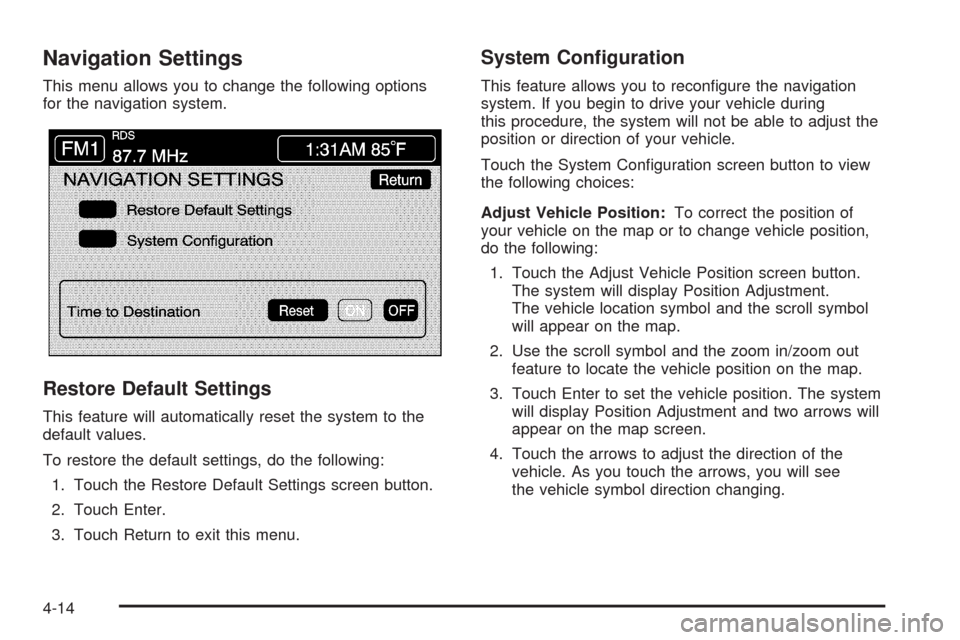
Navigation Settings
This menu allows you to change the following options
for the navigation system.
Restore Default Settings
This feature will automatically reset the system to the
default values.
To restore the default settings, do the following:
1. Touch the Restore Default Settings screen button.
2. Touch Enter.
3. Touch Return to exit this menu.
System Conguration
This feature allows you to recongure the navigation
system. If you begin to drive your vehicle during
this procedure, the system will not be able to adjust the
position or direction of your vehicle.
Touch the System Conguration screen button to view
the following choices:
Adjust Vehicle Position:To correct the position of
your vehicle on the map or to change vehicle position,
do the following:
1. Touch the Adjust Vehicle Position screen button.
The system will display Position Adjustment.
The vehicle location symbol and the scroll symbol
will appear on the map.
2. Use the scroll symbol and the zoom in/zoom out
feature to locate the vehicle position on the map.
3. Touch Enter to set the vehicle position. The system
will display Position Adjustment and two arrows will
appear on the map screen.
4. Touch the arrows to adjust the direction of the
vehicle. As you touch the arrows, you will see
the vehicle symbol direction changing.
4-14
Page 223 of 470
5. When you have set the vehicle to the correct
direction, touch Enter. Relocation Complete
will be displayed.
6. Touch Return to exit this menu.
Calibrate Vehicle Speed Signal:If there are tire
pressure differences or if a spare tire is installed, the
navigation system will automatically recalibrate the
system. You may also choose to calibrate it yourself by
doing the following:
1. Touch Start to begin calibration.
2. Touch Return to exit this menu.
Time to Destination
This feature allows you to view the estimated time to
travel from your current position to the destination, and
to reset the average speed to factory default settings.
Estimated travel time is based on calculated route
information and the vehicle’s average speed. Touch ON
to turn this feature on, OFF to turn this feature off, or
Reset to restore vehicle speed default settings. With this
feature on, the estimated travel time to destination will
display along with the distance to destination.
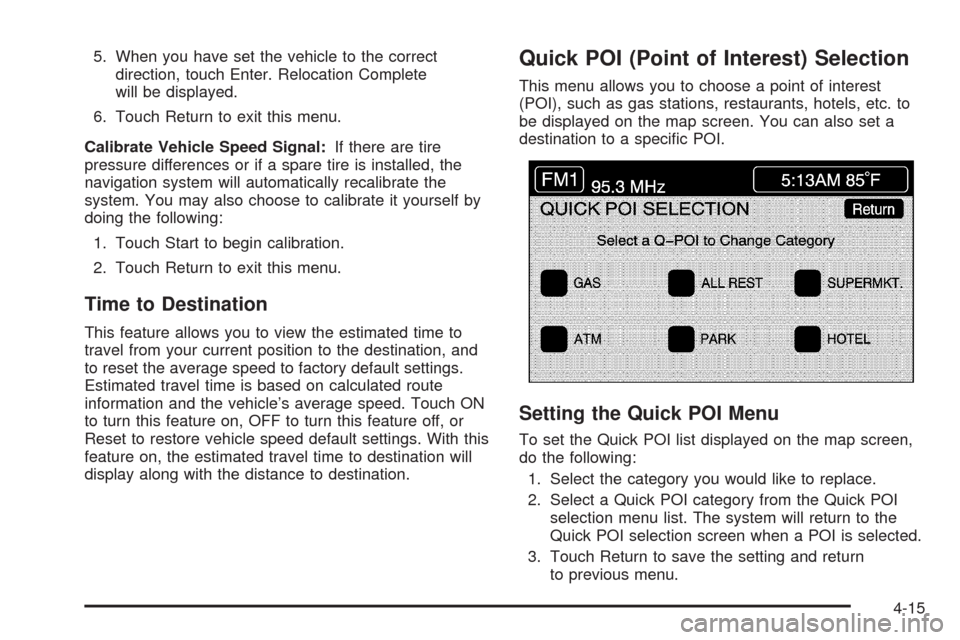
Quick POI (Point of Interest) Selection
This menu allows you to choose a point of interest
(POI), such as gas stations, restaurants, hotels, etc. to
be displayed on the map screen. You can also set a
destination to a specic POI.
Setting the Quick POI Menu
To set the Quick POI list displayed on the map screen,
do the following:
1. Select the category you would like to replace.
2. Select a Quick POI category from the Quick POI
selection menu list. The system will return to the
Quick POI selection screen when a POI is selected.
3. Touch Return to save the setting and return
to previous menu.
4-15
Page 238 of 470

Address
This destination entry method allows you to input an
address by providing the system with a house number,
street name, and city. Select Street to begin entering
the desired address.
To use this destination entry method, do the following:
1. Enter the street name using the alpha keypad.
See “Alpha-Numeric Keypad” underUsing the
Navigation System on page 4-11for more
information.Do not include name extensions such as N. or Drive.
For example, the street name N. Civic Center Drive
should be entered as Civic Center. As information is
entered, the system will automatically search for
available names, and List will become available.
2. Touch List to view name choices or continue to
spell the street name to further reduce the number
of available items. Select a street name.
3. If the street name you entered exists in more than
one city on the DVD database, a list of cities will
appear. You can select a city from the list, or enter
the city name by selecting City. As you begin to
enter the city name, you can select the desired city
from the list which will appear, or continue to
spell the city name to further reduce the number of
available items.
4. Once the city name has been selected, enter the
house number using the numeric keypad.
The system will list the house number range that is
available for the street.
5. When you have nished entering all of the address
information, touch Enter to plan your route.
4-30
Page 246 of 470
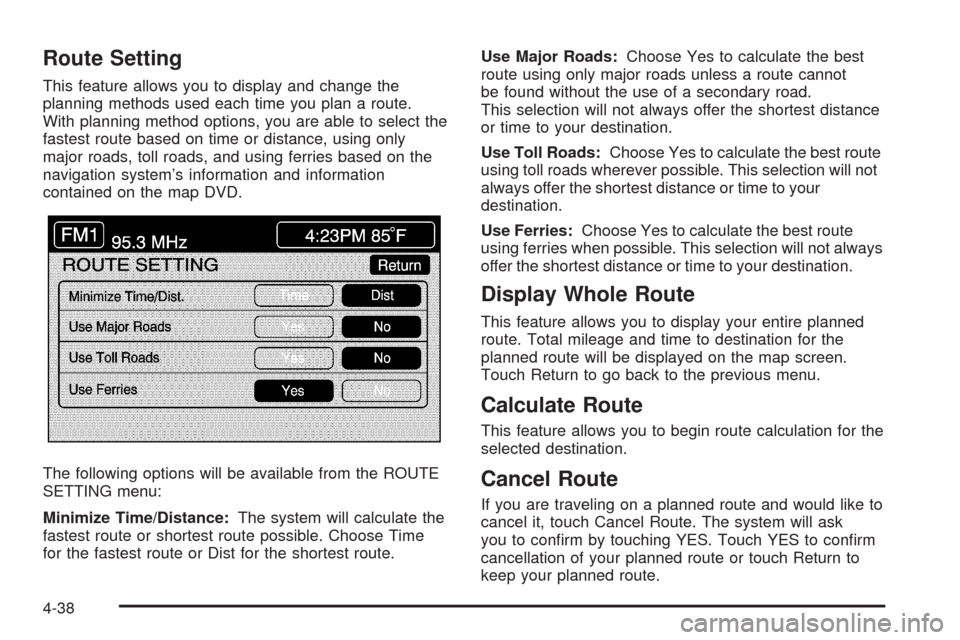
Route Setting
This feature allows you to display and change the
planning methods used each time you plan a route.
With planning method options, you are able to select the
fastest route based on time or distance, using only
major roads, toll roads, and using ferries based on the
navigation system’s information and information
contained on the map DVD.
The following options will be available from the ROUTE
SETTING menu:
Minimize Time/Distance:The system will calculate the
fastest route or shortest route possible. Choose Time
for the fastest route or Dist for the shortest route.Use Major Roads:Choose Yes to calculate the best
route using only major roads unless a route cannot
be found without the use of a secondary road.
This selection will not always offer the shortest distance
or time to your destination.
Use Toll Roads:Choose Yes to calculate the best route
using toll roads wherever possible. This selection will not
always offer the shortest distance or time to your
destination.
Use Ferries:Choose Yes to calculate the best route
using ferries when possible. This selection will not always
offer the shortest distance or time to your destination.
Display Whole Route
This feature allows you to display your entire planned
route. Total mileage and time to destination for the
planned route will be displayed on the map screen.
Touch Return to go back to the previous menu.
Calculate Route
This feature allows you to begin route calculation for the
selected destination.
Cancel Route
If you are traveling on a planned route and would like to
cancel it, touch Cancel Route. The system will ask
you to conrm by touching YES. Touch YES to conrm
cancellation of your planned route or touch Return to
keep your planned route.
4-38
Page 248 of 470
Detailed Areas
Road network attributes are contained in the map
database for detailed areas. Attributes include
information such as street names, street address, turn
restrictions, etc. A detailed area will include all major
highways, service roads, and residential roads.
The detailed areas include points of interest (POI)
such as: restaurants, airports, banks, hospitals, police
stations, gas stations, tourist attractions, historical
monuments, etc. The map database may not include
data for newly constructed areas or map database
corrections that are completed after the production of
the disc. The navigation system will provide full route
guidance in the detailed map areas.
Limited Guidance Areas
Any area that is not classied as detailed is a limited
guidance area. Limited guidance streets will be
displayed on the map display but route guidance may
not be given on these streets. Some POI categories,
such as the city center POI category, and some street
addresses are included in the limited guidance areas.
The navigation system will inform you by voice prompts
when you are traveling into a limited guidance area
where route guidance will not be available. The street
maps and the directional arrow displayed on the
navigation system can then be used to determine the
remaining route to your destination.
Installing the DVD Map Disc
Your dealer/retailer may have installed the map DVD.
If the map DVD was not installed, do the following
to load it:
1. Turn the ignition on.
2. With the vehicle in PARK (P), press and hold the
TILT key until a beep is heard. The system’s
faceplate will open.
3. If already loaded, the map DVD or a CD will eject
from the slot.
4. Load the map DVD into the slot by inserting it
partway. The system will pull it in.
5. Press and release the TILT key to close the
faceplate.
Notice:Shifting out of PARK (P) with the system’s
faceplate open will cause the faceplate to close
automatically. This could cause damage to a
CD, DVD or the system if it is partially loaded. Before
shifting out of PARK (P), make sure that the DVD
or CD is loaded properly. The vehicle must be
shifted back into PARK (P) to close the faceplate.
4-40
Page 249 of 470
Once the map DVD is inserted correctly, you will have
the following two choices:
LANGUAGE
I AGREE
You can change the language at this time.
See “Language” underNavigation Audio System on
page 4-54for more information on choosing a language.
Once a language has been selected, touch I AGREE
to plan a route. The map will appear showing your
current vehicle position.
DVD Map Disc Messages
If an error appears on the display and/or the map disc
comes out, it could be for one of the following reasons:
If the map disc was installed into the CD slot.
See “Installing the DVD Map Disc” previously.
It is very hot, when the temperature returns to
normal, the map disc should play.
You are driving on a very rough road. When
the road becomes smoother, the map disc
should play.
The map disc is dirty, scratched, wet, or
upside down.
If any error occurs repeatedly or if an error cannot be
corrected, contact your dealer/retailer.
Ejecting the DVD Map Disc
When the DVD map disc is not loaded, you will not be
able to use the navigation portion of the system.
1. Turn the ignition on.
2. With the vehicle in PARK (P), press and hold the
TILT key until a beep is heard. The system’s
faceplate will open.
3. The map DVD will eject from the slot. Pull the
disc out.
4. Press and release the TILT key to close the
faceplate.
Notice:Shifting out of PARK (P) with the system’s
faceplate open will cause the faceplate to close
automatically. This could cause damage to a
CD, DVD or the system if it is partially loaded. Before
shifting out of PARK (P), make sure that the DVD
or CD is loaded properly. The vehicle must be
shifted back into PARK (P) to close the faceplate.
4-41