steering CADILLAC XLR 2009 1.G Owner's Manual
[x] Cancel search | Manufacturer: CADILLAC, Model Year: 2009, Model line: XLR, Model: CADILLAC XLR 2009 1.GPages: 462, PDF Size: 3.72 MB
Page 138 of 462
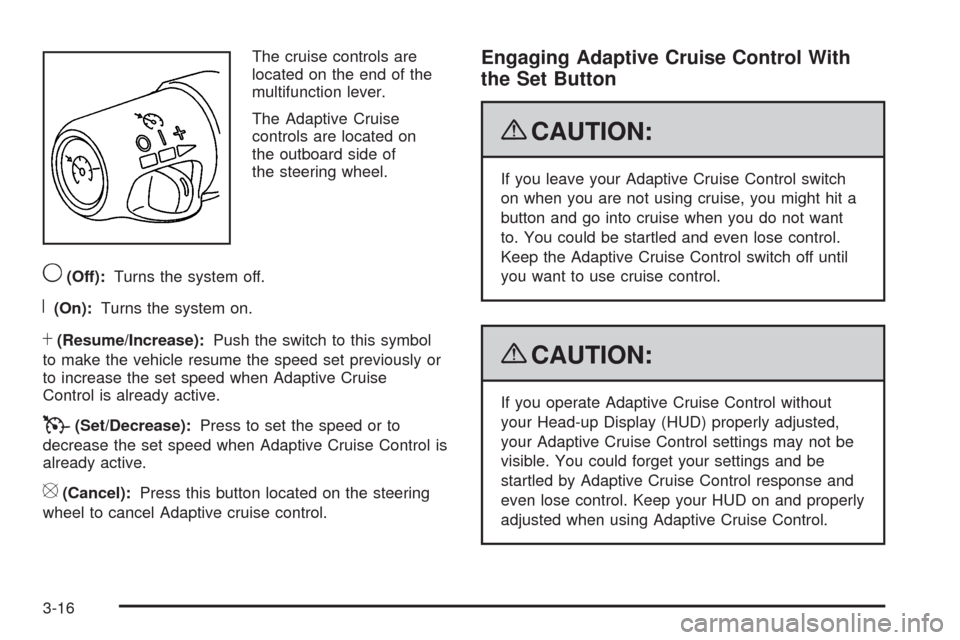
The cruise controls are
located on the end of the
multifunction lever.
The Adaptive Cruise
controls are located on
the outboard side of
the steering wheel.
9(Off):Turns the system off.
R(On):Turns the system on.
S(Resume/Increase):Push the switch to this symbol
to make the vehicle resume the speed set previously or
to increase the set speed when Adaptive Cruise
Control is already active.
T(Set/Decrease):Press to set the speed or to
decrease the set speed when Adaptive Cruise Control is
already active.
[(Cancel):Press this button located on the steering
wheel to cancel Adaptive cruise control.
Engaging Adaptive Cruise Control With
the Set Button
{CAUTION:
If you leave your Adaptive Cruise Control switch
on when you are not using cruise, you might hit a
button and go into cruise when you do not want
to. You could be startled and even lose control.
Keep the Adaptive Cruise Control switch off until
you want to use cruise control.
{CAUTION:
If you operate Adaptive Cruise Control without
your Head-up Display (HUD) properly adjusted,
your Adaptive Cruise Control settings may not be
visible. You could forget your settings and be
startled by Adaptive Cruise Control response and
even lose control. Keep your HUD on and properly
adjusted when using Adaptive Cruise Control.
3-16
Page 141 of 462
Selecting the Follow Distance (GAP)
When the system detects a slower moving vehicle, it will
adjust your vehicle’s speed and maintain the following
distance (gap) selected.
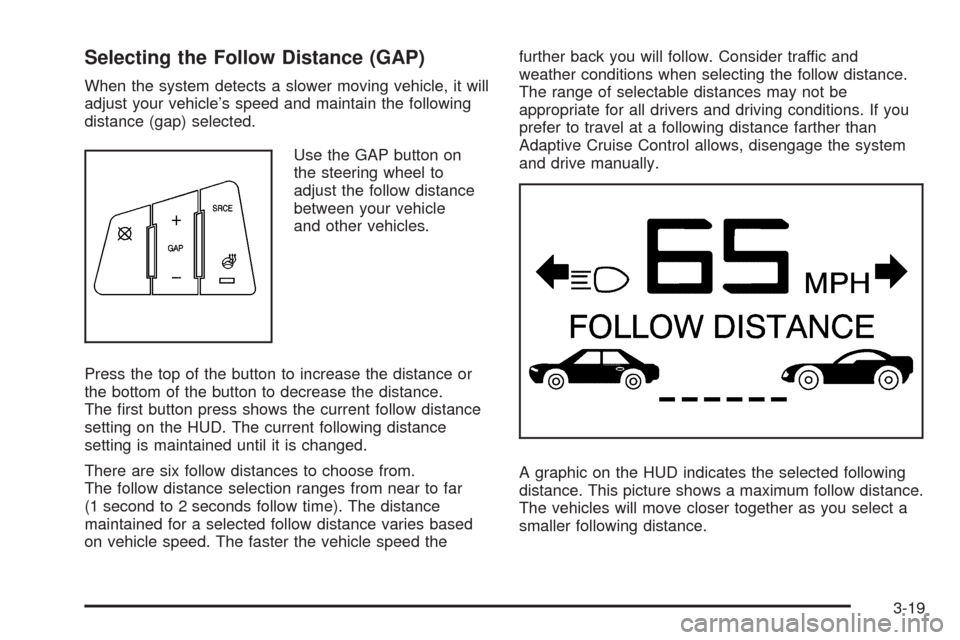
Use the GAP button on
the steering wheel to
adjust the follow distance
between your vehicle
and other vehicles.
Press the top of the button to increase the distance or
the bottom of the button to decrease the distance.
The rst button press shows the current follow distance
setting on the HUD. The current following distance
setting is maintained until it is changed.
There are six follow distances to choose from.
The follow distance selection ranges from near to far
(1 second to 2 seconds follow time). The distance
maintained for a selected follow distance varies based
on vehicle speed. The faster the vehicle speed thefurther back you will follow. Consider traffic and
weather conditions when selecting the follow distance.
The range of selectable distances may not be
appropriate for all drivers and driving conditions. If you
prefer to travel at a following distance farther than
Adaptive Cruise Control allows, disengage the system
and drive manually.
A graphic on the HUD indicates the selected following
distance. This picture shows a maximum follow distance.
The vehicles will move closer together as you select a
smaller following distance.
3-19
Page 148 of 462
Exterior Lamps
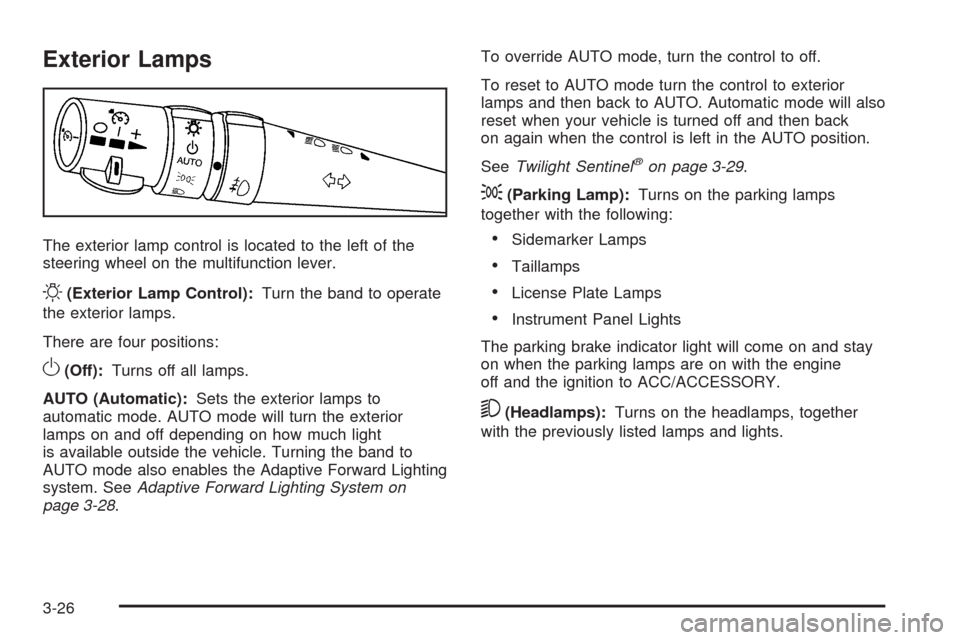
The exterior lamp control is located to the left of the
steering wheel on the multifunction lever.
O(Exterior Lamp Control):Turn the band to operate
the exterior lamps.
There are four positions:
O(Off):Turns off all lamps.
AUTO (Automatic):Sets the exterior lamps to
automatic mode. AUTO mode will turn the exterior
lamps on and off depending on how much light
is available outside the vehicle. Turning the band to
AUTO mode also enables the Adaptive Forward Lighting
system. SeeAdaptive Forward Lighting System on
page 3-28.To override AUTO mode, turn the control to off.
To reset to AUTO mode turn the control to exterior
lamps and then back to AUTO. Automatic mode will also
reset when your vehicle is turned off and then back
on again when the control is left in the AUTO position.
SeeTwilight Sentinel
®on page 3-29.
;(Parking Lamp):Turns on the parking lamps
together with the following:
Sidemarker Lamps
Taillamps
License Plate Lamps
Instrument Panel Lights
The parking brake indicator light will come on and stay
on when the parking lamps are on with the engine
off and the ignition to ACC/ACCESSORY.
5(Headlamps):Turns on the headlamps, together
with the previously listed lamps and lights.
3-26
Page 152 of 462

Exterior Lighting Battery Saver
If the manual parking lamps or headlamps have been
left on, the exterior lamps will turn off as soon as
the ignition is turned off or Retained Accessory Power
(RAP) is active. This protects against draining the
battery in case you have accidentally left the headlamps
or parking lamps on. The battery saver does not work
if the headlamps are turned on after the ignition switch is
turned to off.
If you need to leave the lamps on, use the exterior lamp
control to turn the lamps back on.
Instrument Panel Brightness
The button for this feature is located on the instrument
panel to the left of the steering column.
+
!- (Brightness):Press to change the brightness of
the instrument panel lights.
Press the DIMMER button until PANEL DIMMING
appears on the Driver Information Center (DIC). Then
use the brightness button to adjust the instrument panel
brightness. Press the top or bottom of the button to
brighten or dim the lights. SeeHead-Up Display (HUD)
on page 3-31for more information.Be sure not to have the brightness turned all the way
down with the lamps on during the day. The DIC
may not be visible.
Courtesy Lamps
When any door or the trunk lid is opened, the interior
lamps will go on unless it is bright outside.
Press the interior lamp button on the right side of the
instrument panel, to turn the courtesy lamps on or off.
Entry/Exit Lighting
With entry lighting, the interior lamps will come on when
entering the vehicle. The interior lamps will come on
for about 20 seconds when the engine is turned off.
You can turn exit and entry lighting off by quickly turning
the courtesy lamps on and off.
Reading Lamps
The inside rearview mirror includes two reading lamps.
The lamps will go on when a door is opened. When
the doors are closed, each lamp can be turned on
individually by pressing the button for that lamp.
3-30
Page 154 of 462

Continue to scan the displays, controls and driving
environment just as you would in a vehicle without HUD.
Check the instrument panel cluster, to be sure you do
not miss something important, such as a warning
light. Under important warning conditions, the CHECK
GAGES message will display in the HUD. View the
Driver Information Center (DIC) for more information.The HUD controls are
located to the left of the
steering wheel.
+
!- (Brightness):Use to adjust the brightness of the
HUD and the instrument panel cluster.
DIMMER:Use to select the HUD or the instrument
panel cluster to adjust the brightness.
HUD:Use to adjust the vertical position of the HUD
display.
3-32
Page 179 of 462
The Driver Information Center (DIC) can be used to
show more detailed fuel information. The DIC,
can also display:
AVERAGE XX.X MPG (Average Miles Per
Gallon):The fuel economy calculated for the
last 20 gallons (76 L) of fuel used, or since the
display was last reset.
INST XX.X MPG (Instantaneous Miles Per
Gallon):The fuel economy calculated for current
driving conditions.
RANGE XXX MI:The approximate distance that
can be driven before refueling.
SeeDIC Operation and Displays on page 3-57for
more information.
Driver Information Center (DIC)
This display gives you the status of many of the
vehicle’s systems. The DIC is also used to display
driver personalization features and warning/status
messages. All messages will appear in the DIC display,
located at the bottom of the instrument panel cluster.
DIC Operation and Displays
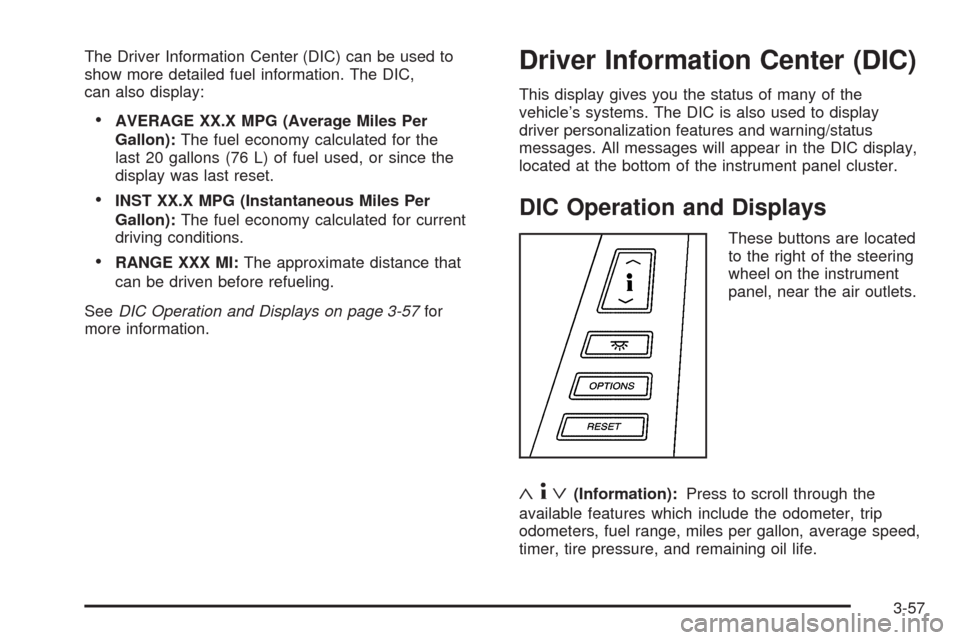
These buttons are located
to the right of the steering
wheel on the instrument
panel, near the air outlets.
«4ª(Information):Press to scroll through the
available features which include the odometer, trip
odometers, fuel range, miles per gallon, average speed,
timer, tire pressure, and remaining oil life.
3-57
Page 190 of 462
SERVICE RIDE CONTROL
This message displays when there is a problem with
the Magnetic Ride Control System. Have the vehicle
serviced by your dealer/retailer.
SERVICE TRACTION SYS (System)
This message displays when there is a problem with
the Traction Control System (TCS). Have the vehicle
serviced by your dealer/retailer.
SERVICE STABILITRAK
If this message displays, it means there may be a
problem with the stability enhancement system. If you
see this message, try to reset the system. Stop, turn off
the engine, then start the engine again. If this message
still comes on, it means there is a problem. You should
see your dealer/retailer for service. Reduce your
speed and drive accordingly. A single chime also
sounds when this message is displayed.
SERVICE TRANSMISSION
This message displays when there is a problem with
the transmission. Have the vehicle serviced by
your dealer/retailer.
SERVICE VEHICLE SOON
This message displays when a non-emissions related
powertrain malfunction occurs. Have the vehicle
serviced by your dealer/retailer as soon as possible.
SHIFT TO PARK
This message displays if the vehicle is not in P (Park)
when the engine is being turned off. The vehicle will be
in accessory mode. Once the shift lever is moved to
P (Park), the vehicle will turn off.
STABILITRAK ACTIVE
You may see this message on the DIC. It means that
an advanced, computer-controlled system has come on
to help the vehicle continue to go in the direction in
which you are steering. This stability enhancement
system activates when the computer senses that the
vehicle is just starting to spin, as it might if you hit
a patch of ice or other slippery spot on the road.
When the system is on, you may hear a noise or
feel a vibration in the brake pedal. This is normal.
When this message is on, continue to steer in the
direction you want to go. The system is designed to help
you in bad weather or other difficult driving situations by
making the most of whatever road conditions will permit.
If this message comes on, you will know that something
has caused the vehicle to start to spin, so consider
slowing down. A single chime also sounds when this
message is displayed.
3-68
Page 194 of 462
DIC Vehicle Personalization
The vehicle has personalization capabilities that allow
you to program certain features to a preferred setting for
up to two drivers. The back of the keyless access
transmitters are labelled 1 or 2.
The current driver preferences are recalled when one of
the following occurs:
The lock or unlock button on the keyless access
transmitter, programmed as 1 or 2, is pressed.
The appropriate memory button, 1 or 2, located on
the driver seat is pressed. SeeMemory Seat,
Mirrors and Steering Wheel on page 1-3for more
information.
A valid keyless access transmitter is detected upon
opening the driver door.
If more than one valid keyless access transmitter is
detected upon opening the driver door, the driver
preferences for the lowest driver number will be recalled.
If a keyless access transmitter is programmed as
#3 or #4, the personalization system will not recognize
the transmitter. The Driver Information Center (DIC)
will not display a current driver number and the features
that are normally programmed through the DIC will
be set to the default states. Also, if the OPTIONS button
is pressed, the DIC does not display the menus used
to set personalizations, but instead displays OPTIONS
UNAVAILABLE for a few seconds.
Feature Programming
To change feature preferences, make sure the vehicle
is running and in P (Park). To avoid excessive drain
on the battery, it is recommended that the headlamps
are turned off. Press the OPTIONS button and the Driver
Information Center (DIC) will display the current driver
for a few seconds, then display the rst personalization
menu item. You can now use the OPTIONS button
to change the setting of the displayed feature. Press the
top or bottom of the information button to scroll up or
down the list of features. When you get to a feature you
want to change, press the OPTIONS button again.
When you are nished, press the RESET button to exit
the personalization menu. If no button is pressed within
45 seconds, the DIC will exit the personalization menu.
The following are DIC options that will be available in the
personalization menu.
Auto Recall
This feature allows the steering column, outside mirrors
and the driver seat to automatically move to the
current driver’s set position when the engine starts.
The DIC will display AUTO RECALL OFF or AUTO
RECALL ON. Press the OPTIONS button to change
the setting.
3-72
Page 195 of 462

Auto Exit Recall
This feature allows the steering column and driver seat
to automatically move to the current driver’s exit
position when one of the following occurs:
The vehicle is turned off or in RAP or accessory
mode and the driver’s door is opened.
The vehicle is turned off or in RAP and the unlock
button on the keyless access transmitter is
pressed.
The DIC will display AUTO EXIT RECALL OFF or
AUTO EXIT RECALL ON. Press the OPTIONS button
to change the setting.
Approach Lights
This feature activates the parking lamps, front fog lamps
and back-up lamps during low light periods when the
unlock button on the keyless access transmitter is
pressed, both doors are closed and the vehicle is off or
in RAP. The lamps remain on for 20 seconds or until
a door is opened, the lock button on the keyless access
transmitter is pressed or the vehicle is no longer off
or in RAP.
The DIC will display APPROACH LIGHTS OFF or
APPROACH LIGHTS ON. Press the OPTIONS button
to change the setting.
Exit Lights
This feature activates the parking lamps and front fog
lamps for 15, 30 or 90 seconds. This will occur when the
vehicle is off or in RAP and the headlamps are on
due to the automatic headlamp system. The parking
lamps and front fog lamps will remain on until the driver
selected time period expires, the exterior lamp control
is activated or the vehicle is no longer off or in RAP.
The DIC will display EXIT LIGHTS OFF, EXIT
LIGHTS - 15 SEC, EXIT LIGHTS - 30 SEC, or EXIT
LIGHTS - 90 SEC. Press the OPTIONS button to
change the setting.
Flash at Unlock
This feature activates the front and rear turn signals for
two short ashes when the unlock or trunk button on
the keyless access transmitter is pressed. This will only
occur when the vehicle is off.
The DIC will display NO FLASH AT UNLOCK or
FLASH AT UNLOCK. Press the OPTIONS button to
change the setting.
3-73
Page 200 of 462
Bluetooth Controls
Use the buttons located on the steering wheel to operate
the in-vehicle Bluetooth system. SeeAudio Steering
Wheel Controls on page 3-88for more information.
bg(Push To Talk):Press to answer incoming calls,
to conrm system information, and to start speech
recognition.
cª(Phone On Hook):Press to end a call, reject a
call, or to cancel an operation.
Pairing
A Bluetooth enabled cell phone must be paired to the
in-vehicle Bluetooth system rst and then connected to
the vehicle before it can be used. See the cell phone
manufacturers user guide for Bluetooth functions before
pairing the cell phone. If a Bluetooth phone is not
connected, calls will be made using OnStar
®Hands-Free
Calling, if available. Refer to the OnStar owner’s guide
for more information.Pairing Information:
Up to ve cell phones can be paired to the in-vehicle
Bluetooth system.
The pairing process is disabled when the vehicle
is moving.
The in-vehicle Bluetooth system automatically links
with the rst available paired cell phone in the
order the phone was paired.
Only one paired cell phone can be connected to the
in-vehicle Bluetooth system at a time.
Pairing should only need to be completed once,
unless changes to the pairing information have
been made or the phone is deleted.
To link to a different paired phone, see Linking to a
Different Phone later in this section.
3-78