reset CADILLAC XT4 2023 User Guide
[x] Cancel search | Manufacturer: CADILLAC, Model Year: 2023, Model line: XT4, Model: CADILLAC XT4 2023Pages: 476, PDF Size: 5.37 MB
Page 161 of 476
Cadillac XT4 Owner Manual (GMNA-Localizing-U.S./Canada/Mexico-
16412876) - 2023 - CRC - 3/25/22
160 Infotainment System
go to the next or previous
track when listening to a
media source.
SorT:Press to move
between the interactive
displays in the instrument
cluster. Press
Sto go back to
the previous menu.
yorz: Use the thumbwheel
to scroll to the previous or
next selection.
V: Press the thumbwheel to
open a menu or select a menu
item. Press and hold to reset
certain displays.
x+ orx− :Press to increase or
decrease the volume.
Using the System
Audio
Touch the Audio icon to
display the active audio source
page. Examples of available
sources may include AM, FM,
SXM (if equipped), MyMedia,
USB, and Bluetooth.
Phone
Touch the Phone icon to
display the Phone main page.
See Bluetooth (Pairing and
Using a Phone) 0196 or
Bluetooth (Overview) 0195.
Nav
If equipped, touch the Nav
icon to display the navigation
map. See Using the Navigation
System 0173.
Wi-Fi Hotspot
Touch the Wi-Fi Hotspot icon
to display the Wi-Fi Hotspot
information. See Settings
0203.
Climate
Touch the Climate icon to
display the Climate main page.
See Dual Automatic Climate
Control System 0221.
Users
If equipped, touch the Users
icon to sign in or create a new
user profile, and follow the
on-screen instructions.
Only four user profiles can be
active at one time in the
vehicle. It may be necessary to
remove a profile from the
menu before creating or
signing into an existing profile.
The removed profile can be
logged into at a later time.
Settings
Touch the Settings icon to
display the Settings menu. See
Settings 0203.
Apple CarPlay
Touch the Apple CarPlay icon
to activate Apple CarPlay if
equipped after a supported
device is connected. See
Apple CarPlay and Android
Auto 0201.
Page 167 of 476
Cadillac XT4 Owner Manual (GMNA-Localizing-U.S./Canada/Mexico-
16412876) - 2023 - CRC - 3/25/22
166 Infotainment System
that category. Touching a
station or channel from the list
tunes the radio to that station
or channel.
Storing Radio Station
Presets
Favorites are stored in the
area at the top of the display.
AM, FM, SXM (if equipped),
and HD Radio Stations (if
equipped) :Press and hold a
preset to store the current
station as a favorite. Touch a
saved favorite to recall a
favorite station.
Favorites can also be stored
by touching
Hin a station or
channel list. This will highlight
indicating that it is now saved
as a favorite.
The number of favorites
displayed is automatically
adjusted by default, but can be
manually adjusted in Settings
in the System tab under
Favorites and then Set
Number of Audio Favorites.
It can also be adjusted in Settings in the Apps tab under
Audio and then Set Number of
Audio Favorites.
HD Radio Technology
If equipped, HD Radio is a free
service with features such as
digital quality sound, more
stations available on a single
frequency such as HD2 and
HD3, and display information
such as artist and song title.
From the Now Playing display,
touch the HD Radio icon to
turn HD on or off.
Station Access
To access HD Radio stations:
1. Tune the radio to the station. If HD Radio is
turned on and the station
is broadcasting in HD
Radio, the radio will
automatically tune to the
HD version of the current
channel (HD1) after several
seconds. The radio will also
display icons representing
additional channels (HD2, ...HD8), that may be
available. When the radio
successfully tunes to a HD
station, the HD logo will
display and digital audio
will play.
2. Touch the display arrows to tune to the previous or
next HD Radio station.
There may be a delay before
the station starts playing.
The HD Radio station number
is indicated next to the
HD logo.
HD Radio stations can be
saved as favorites.
For a list of all stations, see
www.hdradio.com.
HD Radio Troubleshooting
Digital Audio Delay : Wait for
the signal to process. This can
take several seconds.
Volume Change, Audio Skip,
Echo, Digital Audio Lost :
Station signal strength may be
weak, the station is out of
Page 185 of 476
Cadillac XT4 Owner Manual (GMNA-Localizing-U.S./Canada/Mexico-
16412876) - 2023 - CRC - 3/25/22
184 Infotainment System
Recenter Position Icon
Touch the Recenter Position
arrow in the middle of the map
view to reset the map to the
current location.
Last Parked Location
The Last Parked Location is
the last location the vehicle
engine was turned off. That
location is displayed in the first
row of the Recents list.
Touching the last Parked
Location shows the Address
Details view to either save the
address or drive to it. The Last
Parked Location can be
deleted by entering the Edit
display. Once the Last Parked
Location is deleted, it no
longer appears in the Recents
list, unless the vehicle is
started at that location again.
Show POI Icons
To see the POI categories,
touch Options, then touch
Show on Map. Up to eight
categories of icons can be
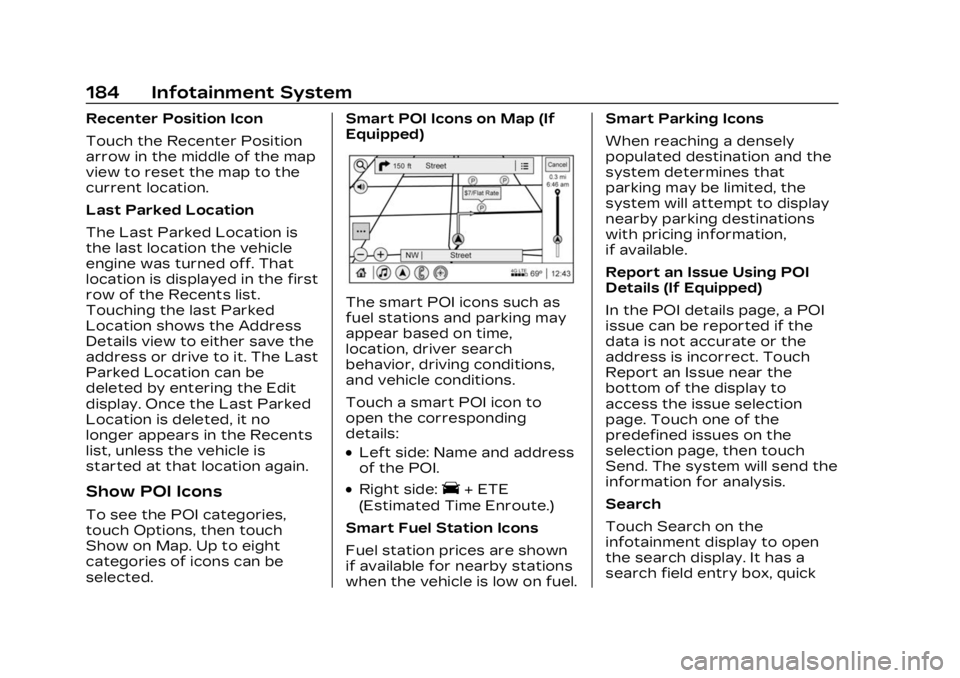
selected.Smart POI Icons on Map (If
Equipped)
The smart POI icons such as
fuel stations and parking may
appear based on time,
location, driver search
behavior, driving conditions,
and vehicle conditions.
Touch a smart POI icon to
open the corresponding
details:
.Left side: Name and address
of the POI.
.Right side:E+ ETE
(Estimated Time Enroute.)
Smart Fuel Station Icons
Fuel station prices are shown
if available for nearby stations
when the vehicle is low on fuel. Smart Parking Icons
When reaching a densely
populated destination and the
system determines that
parking may be limited, the
system will attempt to display
nearby parking destinations
with pricing information,
if available.
Report an Issue Using POI
Details (If Equipped)
In the POI details page, a POI
issue can be reported if the
data is not accurate or the
address is incorrect. Touch
Report an Issue near the
bottom of the display to
access the issue selection
page. Touch one of the
predefined issues on the
selection page, then touch
Send. The system will send the
information for analysis.
Search
Touch Search on the
infotainment display to open
the search display. It has a
search field entry box, quick
Page 198 of 476
Cadillac XT4 Owner Manual (GMNA-Localizing-U.S./Canada/Mexico-
16412876) - 2023 - CRC - 3/25/22
Infotainment System 197
Pairing a Phone1. Make sure Bluetooth has been enabled on the cell
phone before the pairing
process is started.
2. Touch the Phone icon on the Home Page or the
phone icon on the shortcut
tray near the bottom of
the display.
3. Touch Phones at the top of the infotainment display.
There is also a Connect
Phones option in the
middle of the Phone
display which will shortcut
to the Phone List menu.
4. Touch Add Phone.
5. Select the vehicle name shown on the infotainment
display from your cell
phone’s Bluetooth
Settings list.
6. Follow the instructions on the cell phone to confirm
the six-digit code showing
on the infotainment display
and touch Pair. The code
on the cell phone and infotainment display will
need to be acknowledged
for a successful pair.
7. Start the pairing process on the cell phone to be
paired to the vehicle. See
the cell phone
manufacturer's user guide
for information on this
process. Once the cell
phone is paired, it will show
under Connected.
8. If the vehicle name does not appear on your cell
phone, there are a few
ways to start the pairing
process over:
.Turn the cell phone off
and then back on.
.Go back to the beginning
of the Phone menus on
the infotainment display
and restart the pairing
process.
.Reset the cell phone, but
this step should be done
as a last effort. 9. If the cell phone prompts
to accept connection or
allow phone book
download, touch Always
Accept and Allow. The
phone book may not be
available if not accepted.
10. Repeat Steps 1−8 to pair additional cell phones.
First to Connect Paired
Phones
If multiple paired cell phones
are within range of the
system, the system connects
to the paired cell phone that is
set as First to Connect. To
enable a paired cell phone as
the First to Connect phone: 1. Make sure the cell phone is turned on.
2. Touch Settings, then touch System.
3. Touch Phones to access all paired and all connected
cell phones and mobile
devices.
Page 206 of 476
Cadillac XT4 Owner Manual (GMNA-Localizing-U.S./Canada/Mexico-
16412876) - 2023 - CRC - 3/25/22
Infotainment System 205
Downloading Over-the-Air
vehicle software updates
requires Internet connectivity,
which can be accessed
through the vehicle’s built-in
4G LTE connection,
if equipped and active.
If required, data plans are
provided by a third party.
Optionally, a secure Wi-Fi
hotspot such as a compatible
mobile device hotspot, home
hotspot, or public hotspot can
be used. Applicable data rates
may apply.
To connect the infotainment
system to a secured mobile
device hotspot, home hotspot,
or public hotspot, touch
Settings on the Home Page,
select the System tab,
followed by Wi-Fi Networks.
Select the appropriate Wi-Fi
network, and follow the
on-screen prompts. Download
speeds may vary.
On most compatible mobile
devices, activation of the Wi-Fi
hotspot is in the Settingsmenu under Mobile Network
Sharing, Personal Hotspot,
Mobile Hotspot, or similar.
Availability of Over-the-Air
software updates varies by
vehicle and country. Features
are subject to change. For
more information on this
feature, see Online Account
0
438.
Preferences
Allows the infotainment
system to disable or enable
the download of new updates
in the background.
About
Shows the infotainment
system software information.
Running Applications
Shows a complete list of
applications that are currently
running on the infotainment
system. Return to Factory Settings
Allows resetting the
infotainment system settings
in the vehicle.
Apps
The menu may contain the
following:
Android Auto
Allows interacting directly with
a mobile device on the
infotainment display. See
Apple CarPlay and Android
Auto
0201.
Apple CarPlay
This feature allows you to
interact directly with your
mobile device on the
infotainment display. See
Apple CarPlay and Android
Auto 0201.
Apps
Shows app settings and
information.
Page 212 of 476
Cadillac XT4 Owner Manual (GMNA-Localizing-U.S./Canada/Mexico-
16412876) - 2023 - CRC - 3/25/22
Infotainment System 211
The Report Card data is
collected from the time Teen
Driver is activated or the last
time the Report Card was
reset. The following items may
be recorded:
.Distance Driven–the total
distance driven.
.Maximum Speed –the
maximum vehicle speed
detected.
.Overspeed Warnings –the
number of times the speed
warning setting was
exceeded.
.Wide Open Throttle –the
number of times the
accelerator pedal was
pressed nearly all the
way down.
.Forward Collision Alerts (if
equipped) –the number of
times the driver was notified
when approaching a vehicle
ahead too quickly and at
potential risk for a crash.
.Forward Automatic Braking,
also called Automatic
Emergency Braking (if equipped)
–the number of
times the vehicle detected
that a forward collision was
imminent and applied the
brakes.
.Reverse Automatic Braking
(if equipped) –the number of
times the vehicle detected
that a rearward collision was
imminent and applied the
brakes.
.Traction Control –the
number of times the
Traction Control System
activated to reduce wheel
spin or loss of traction.
.Stability Control –the
number of events which
required the use of
electronic stability control.
.Antilock Braking System
Active –The number of
Antilock Brake System
activations.
.Tailgating Alerts (if
equipped)– the number of
times the driver was alerted
for following a vehicle ahead
too closely. Report Card Data
Cumulative Data is saved for
all trips until the Report Card
is reset or until the maximum
count is exceeded. If the
maximum count is exceeded
for a Report Card line item,
that item will no longer be
updated in the Report Card
until it is reset. Each item will
report a maximum of
1,000 counts. The distance
driven will report a maximum
of 64 374 km (40,000 mi).
To delete Report Card data,
do one of the following:
.From the Report Card
display, touch Reset.
.Touch Clear PIN and All
Teen Driver Keys from the
Teen Driver menu. This will
also unregister any Teen
Driver keys and delete
the PIN.
Forgotten PIN
See your dealer to reset
the PIN.
Page 257 of 476

Cadillac XT4 Owner Manual (GMNA-Localizing-U.S./Canada/Mexico-
16412876) - 2023 - CRC - 3/25/22
256 Driving and Operating
If the vehicle is left parked and
running with the remote key
outside the vehicle, it will
continue to run for up to
15 minutes.
If the vehicle is left parked and
running with the remote key
inside the vehicle, it will
continue to run for up to
30 minutes.
The vehicle could turn off
sooner if it is parked on a hill,
due to lack of available fuel.
The timer will reset if the
vehicle is taken out of P (Park)
while it is running.
Engine Exhaust{
Warning
Engine exhaust contains
carbon monoxide (CO),
which cannot be seen or
smelled. Exposure to CO can
cause unconsciousness and
even death. (Continued)
Warning (Continued)
Exhaust may enter the
vehicle if:
.The vehicle idles in areas
with poor ventilation
(parking garages, tunnels,
deep snow that may block
underbody airflow or tail
pipes).
.The exhaust smells or
sounds strange or
different.
.The exhaust system leaks
due to corrosion or
damage.
.The vehicle exhaust
system has been modified,
damaged, or improperly
repaired.
.There are holes or
openings in the vehicle
body from damage or
aftermarket modifications
that are not completely
sealed.(Continued)
Warning (Continued)
If unusual fumes are
detected or if it is suspected
that exhaust is coming into
the vehicle:
.Drive it only with the
windows completely down.
.Have the vehicle repaired
immediately.
Never park the vehicle with
the engine running in an
enclosed area such as a
garage or a building that has
no fresh air ventilation.
Running the Vehicle
While Parked
It is better not to park with the
engine running.
If the vehicle is left with the
engine running, follow the
proper steps to be sure the
vehicle will not move. See
Shifting Into Park 0254 and
Engine Exhaust 0256.
Page 336 of 476

Cadillac XT4 Owner Manual (GMNA-Localizing-U.S./Canada/Mexico-
16412876) - 2023 - CRC - 3/25/22
Vehicle Care 335
bodies of water. Recycle it by
taking it to a place that
collects used oil.
Engine Oil Life
System
When to Change
Engine Oil
This vehicle has a computer
system that indicates when to
change the engine oil and
filter. This is based on a
combination of factors which
include engine revolutions,
engine temperature, and miles
driven. Based on driving
conditions, the mileage at
which an oil change is
indicated can vary
considerably. For the oil life
system to work properly, the
system must be reset every
time the oil is changed.
When the system has
calculated that oil life has been
diminished, it indicates that an
oil change is necessary.
A CHANGE ENGINE OILSOON message comes on.
Change the oil as soon as
possible within the next
1 000 km (600 mi). It is
possible that, if driving under
the best conditions, the oil life
system may indicate that an oil
change is not necessary for up
to a year. The engine oil and
filter must be changed at least
once a year and at this time
the system must be reset.
Your dealer has trained
service people who will
perform this work and reset
the system. It is also important
to check the oil regularly over
the course of an oil drain
interval and keep it at the
proper level.
If the system is ever reset
accidentally, the oil must be
changed at 5 000 km
(3,000 mi) since the last oil
change. Remember to reset
the oil life system whenever
the oil is changed.
How to Reset the Engine
Oil Life System
Reset the system whenever
the engine oil is changed so
that the system can calculate
the next engine oil change. To
reset the system:
1. Using the DIC controls on the right side of the
steering wheel, display
REMAINING OIL LIFE on
the DIC. See Driver
Information Center (DIC)
0136. When remaining oil
life is low, the CHANGE
ENGINE OIL SOON
message will appear on the
display.
2. Press
Von the DIC
controls and hold down for
a few seconds to clear the
CHANGE ENGINE OIL
SOON message and reset
the oil life at 100%.
Be careful not to reset the
oil life display accidentally
at any time other than
after the oil is changed.
Page 337 of 476

Cadillac XT4 Owner Manual (GMNA-Localizing-U.S./Canada/Mexico-
16412876) - 2023 - CRC - 3/25/22
336 Vehicle Care
It cannot be reset
accurately until the next oil
change.
The system is reset when the
CHANGE ENGINE OIL SOON
message is off.
If the CHANGE ENGINE OIL
SOON message comes back
on when the vehicle is started,
the engine oil life system has
not been reset. Repeat the
procedure.
Automatic
Transmission Fluid
A transmission fluid leak is the
only reason for fluid loss. If a
leak occurs, take the vehicle to
your dealer and have it
repaired as soon as possible.
Caution
Use of the incorrect
automatic transmission fluid
may damage the vehicle, and
the damage may not be
covered by the vehicle (Continued)
Caution (Continued)
warranty. Always use the
correct automatic
transmission fluid. See
Recommended Fluids and
Lubricants0429.
See your dealer to have the
fluid and filter changed at the
intervals listed in the
Maintenance Schedule 0425.
Engine Air Filter Life
System
If equipped, this feature
provides the engine air filter's
remaining life and best timing
for a change. The timing to
change an engine air filter
depends on driving and
environmental conditions.
When to Change Engine
Air Filter
When the Driver Information
Center (DIC) displays a
message to replace the engine
air filter at the next oil change,
follow this timing.
When the DIC displays a
message to replace the engine
air filter soon, replace the
engine air filter at the earliest
convenience. The system must
be reset after the engine air
filter is changed.
If the DIC displays a message
to check the engine air filter
system, see your dealer.
How to Reset Engine Air
Filter Life System
To reset:
1. Place the vehicle in P (Park).
2. Display the Air Filter Life on the DIC. See Driver
Information Center (DIC)
0136.
Page 338 of 476

Cadillac XT4 Owner Manual (GMNA-Localizing-U.S./Canada/Mexico-
16412876) - 2023 - CRC - 3/25/22
Vehicle Care 337
3. PressTon the steering
wheel to move to the
Reset/Disable display area.
Select Reset then press
V.
4. Press
Vto confirm to
reset.
Engine Air Cleaner/
Filter
The engine air cleaner/filter is
in the engine compartment on
the passenger side of the
vehicle. See Engine
Compartment Overview 0331.
When to Inspect the
Engine Air Cleaner/Filter
.For intervals on changing
and inspecting the engine air
filter, see Maintenance
Schedule 0425.
.If equipped with Engine Air
Filter Life System, see
Engine Air Filter Life System
0336.
.If driving in very dusty areas,
follow the engine air filter
inspecting and changing
intervals, see Maintenance
Schedule 0425.
How to Inspect/Replace
the Engine Air Cleaner/
Filter
Do not start the engine or
have the engine running with
the engine air cleaner/filter
housing open. Before
removing the engine air
cleaner/filter, make sure that
the engine air cleaner/filter
housing and nearby
components are free of dirt
and debris. Remove the engine
air cleaner/filter. Lightly tap
and shake the engine air
cleaner/filter (away from the
vehicle), to release dust and
dirt. Inspect the engine air
cleaner/filter for damage, and
replace if damaged. Do not
clean the engine air cleaner/
filter or components with
water or compressed air. To inspect or replace the
engine air cleaner/filter:
1. Remove the six screws on
top of the engine air
cleaner/filter housing.
2. Lift the air cleaner/filter cover housing away from
the engine.
3. Pull out the filter.
{Warning
If part replacement is
necessary, the part must be
replaced with one of the
same part number or with an (Continued)