instrument panel displays CADILLAC XT5 2018 Owner's Manual
[x] Cancel search | Manufacturer: CADILLAC, Model Year: 2018, Model line: XT5, Model: CADILLAC XT5 2018Pages: 380, PDF Size: 6.21 MB
Page 145 of 380
Cadillac XT5 Owner Manual (GMNA-Localizing-U.S./Canada/Mexico-
11349110) - 2018 - CRC - 9/28/17
144 INSTRUMENTS AND CONTROLS
Tire Pressure :Shows the
approximate pressures of all four tires.
Tire pressure is displayed in either
kilopascal (kPa) or in pounds per
square inch (psi). If the pressure is
low, the value for that tire is shown in
amber. See Tire Pressure Monitor
System 0288 and Tire Pressure
Monitor Operation 0289.
Blank Page : Allows for no
information to be displayed in the
cluster info display areas.
Head-Up Display (HUD)
{Warning
If the HUD image is too bright or
too high in your field of view, it
may take you more time to see
things you need to see when it is
dark outside. Be sure to keep the
HUD image dim and placed low in
your field of view.
If equipped with HUD, some
information concerning the operation
of the vehicle is projected onto the windshield. The image is projected
through the HUD lens on top of the
instrument panel. The information
appears as an image focused out
toward the front of the vehicle.
Caution
If you try to use the HUD image as
a parking aid, you may misjudge
the distance and damage your
vehicle. Do not use the HUD image
as a parking aid.
The HUD information can be
displayed in various languages in
some vehicles. The speedometer
reading and other numerical values
can be displayed in either English or
metric units.
The language selection is changed
through the radio and the units of
measurement is changed through the
instrument cluster. See Vehicle
Personalization 0148 and “Cluster
Application Displays ”under
Instrument Cluster (Uplevel Cluster)
0 125 orInstrument Cluster (Base Level
Cluster) 0123.
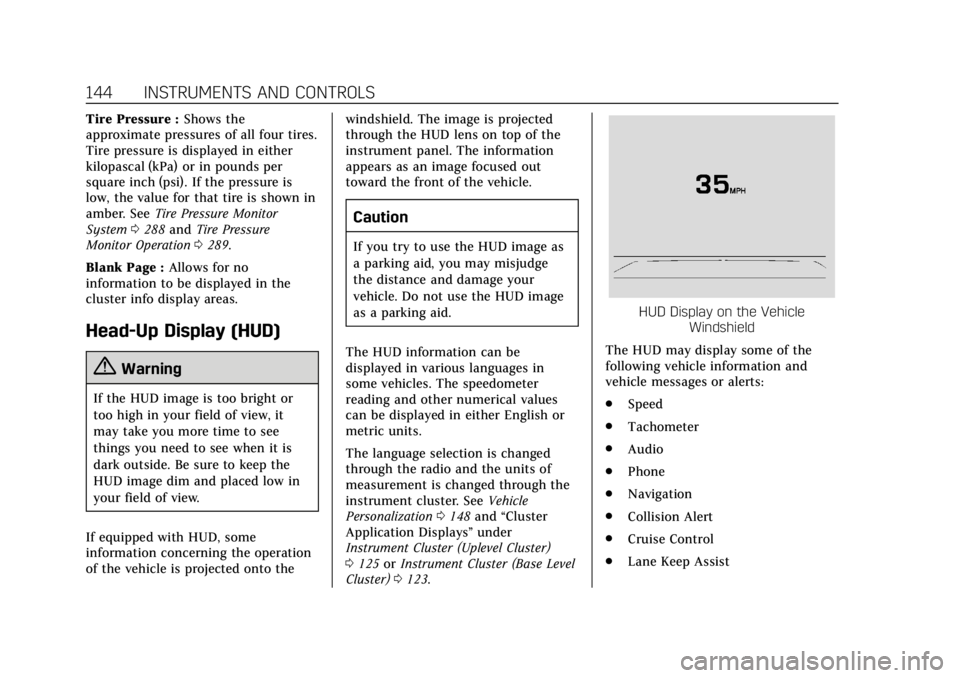
HUD Display on the Vehicle
Windshield
The HUD may display some of the
following vehicle information and
vehicle messages or alerts:
. Speed
. Tachometer
. Audio
. Phone
. Navigation
. Collision Alert
. Cruise Control
. Lane Keep Assist
Page 165 of 380
Cadillac XT5 Owner Manual (GMNA-Localizing-U.S./Canada/Mexico-
11349110) - 2018 - CRC - 9/28/17
164 LIGHTING
The turn and lane-change signal can
be turned off manually by moving the
lever back to its original position.
If after signaling a turn or lane
change, the arrow flashes rapidly or
does not come on, a signal bulb may
be burned out.
Replace any burned out bulbs. If a
bulb is not burned out, check the fuse.
SeeFuses and Circuit Breakers 0272.
Cornering Lamps
If equipped with cornering lamps, they
automatically come on when all of the
following occur:
.
The low-beam headlamps are on.
. The turn signals are activated or
the steering wheel is at a
calibrated angle.
. The vehicle speed is below the
calibrated speed.
Interior Lighting
Instrument Panel
Illumination Control
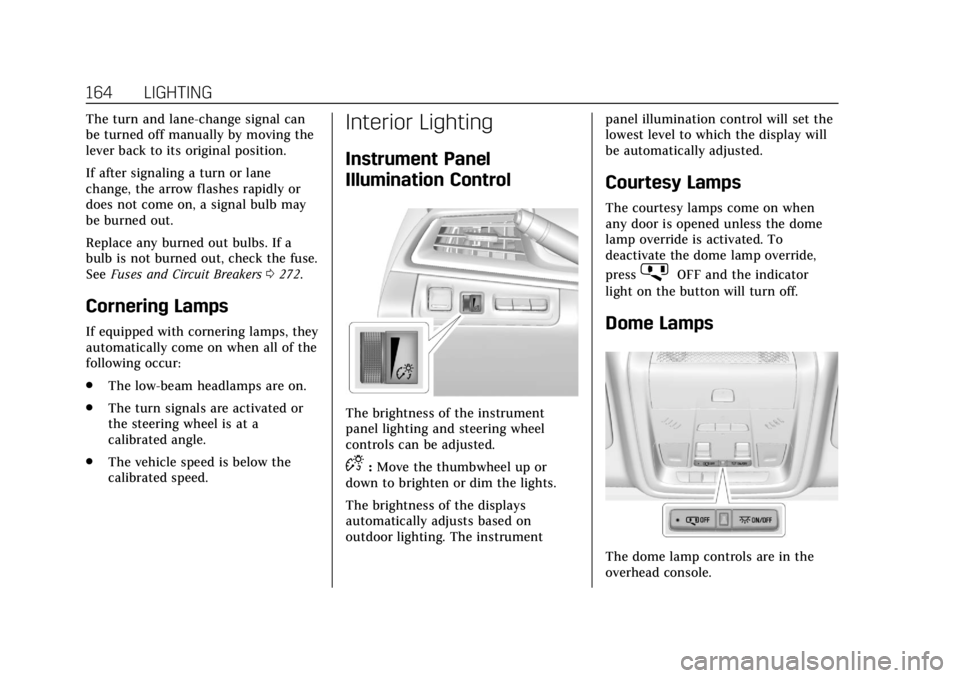
The brightness of the instrument
panel lighting and steering wheel
controls can be adjusted.
D:Move the thumbwheel up or
down to brighten or dim the lights.
The brightness of the displays
automatically adjusts based on
outdoor lighting. The instrument panel illumination control will set the
lowest level to which the display will
be automatically adjusted.
Courtesy Lamps
The courtesy lamps come on when
any door is opened unless the dome
lamp override is activated. To
deactivate the dome lamp override,
press
jOFF and the indicator
light on the button will turn off.
Dome Lamps
The dome lamp controls are in the
overhead console.
Page 171 of 380
Cadillac XT5 Owner Manual (GMNA-Localizing-U.S./Canada/Mexico-
11349110) - 2018 - CRC - 9/28/17
170 CLIMATE CONTROLS
not come on. Press@to select
recirculation; press it again to select
outside air.
English units can be changed to
metric units through the instrument
cluster. See “Cluster Application
Displays” underInstrument Cluster
(Uplevel Cluster) 0125 orInstrument
Cluster (Base Level Cluster) 0123.
OFF : Press to turn the fan on or off.
The front and rear climate displays
turn off when the fan is turned off
and the system will stop air from
flowing into the cabin. If on is
selected, or any other buttons are
pressed, the climate control system
will turn on and operate at the
current setting. The temperature
control and air delivery mode can still
be adjusted.
w/x: The temperature can be
adjusted separately for the driver and
the passenger. Press to increase or
decrease the temperature. Press and
hold to rapidly increase or decrease
the temperature. The driver and passenger
temperatures can also be adjusted by
touching the buttons on the climate
control display.
SYNC :
Touch SYNC on the climate
control display to link all climate zone
settings to the driver settings. Adjust
the driver side temperature control to
change the linked temperature. When
the front or rear passenger settings
are adjusted, the SYNC indicator light
turns off when the temperatures are
unlinked.
Rear : If equipped, touch Rear on the
front climate control display to open
the rear climate control display. The
rear climate control settings can now
be adjusted from the front passenger
area. See Rear Climate Control System
0 173.
Manual Operation
Q 9 R:Press the fan controls on the
center stack or the climate control
display to increase or decrease the fan
speed. Press and hold the controls to
adjust speed more quickly. The fan
speed setting displays. Pressing either
button cancels automatic fan control and the fan can be controlled
manually. Press AUTO to return to
automatic operation. To turn off the
fan and climate control system, press
and hold the fan down control on the
center stack or the climate control
display until it goes off.
Air Delivery Mode Control :
When
the climate information is displayed,
touch the desired air delivery mode on
the climate control display to change
the direction of the airf low. The
selected air delivery mode button is
lit. Touching any of the air delivery
buttons cancels automatic air delivery
control and the direction of the
airf low can be controlled manually.
Press AUTO to return to automatic
operation.
To change the current mode, select
one of the following:Y: Air is directed to the instrument
panel outlets.
\: Air is divided between the
instrument panel outlets and the floor
outlets.
[: Air is directed to the floor
outlets.
Page 214 of 380
Cadillac XT5 Owner Manual (GMNA-Localizing-U.S./Canada/Mexico-
11349110) - 2018 - CRC - 9/28/17
DRIVING AND OPERATING 213
ACC can also be set while the vehicle
is stopped if ACC is on and the brake
pedal is applied.
The ACC indicator displays on the
instrument cluster and Head-Up
Display (HUD), if equipped. When ACC
is turned on, the indicator will be lit
white. When ACC is engaged, the
indicator will turn green.
Be mindful of speed limits,
surrounding traffic speeds, and
weather conditions when selecting the
set speed.
Resuming a Set Speed
If the ACC is set at a desired speed
and then the brakes are applied, ACC
is disengaged without erasing the set
speed from memory.To begin using ACC again, press RES+
up briefly. The vehicle returns to the
previous set speed.
.
If the vehicle is moving, it returns
to the previous set speed.
. If the vehicle is stopped with the
brake pedal applied, press RES+
and release the brake pedal. ACC
will hold the vehicle until RES+ or
the accelerator pedal is pressed.
A green ACC indicator and the set
speed display on the instrument
cluster. The vehicle ahead indicator
may be flashing if a vehicle ahead was
present and moved. See “Approaching
and Following a Vehicle ”later in this
section.
Once ACC has resumed, if there is no
vehicle ahead, if the vehicle ahead is
beyond the selected following gap,
or if the vehicle has exited a sharp
curve, then the vehicle speed will
increase to the set speed. Increasing Speed While ACC is at a
Set Speed
If ACC is already activated, do one of
the following:
.
Use the accelerator to get to the
higher speed. Press SET– . Release
the control and the accelerator
pedal. The vehicle will now cruise
at the higher speed.
When the accelerator pedal is
pressed, ACC will not brake
because it is overridden. The ACC
indicator will turn blue on the
instrument panel and heads up
display, if equipped. See Vehicle
Messages 0147.
. Press and hold RES+ until the
desired set speed appears on the
display, then release it.
. To increase vehicle speed in small
increments, press RES+ to the first
detent. For each press, the vehicle
goes 1 km/h (1 mph) faster.
. To increase vehicle speed in larger
increments, press RES+ to the
second detent. For each press, the
Page 326 of 380
Cadillac XT5 Owner Manual (GMNA-Localizing-U.S./Canada/Mexico-
11349110) - 2018 - CRC - 9/28/17
VEHICLE CARE 325
.For solid soils, remove as much as
possible prior to vacuuming.
To clean: 1. Saturate a clean, lint-free colorfast cloth with water.
Microfiber cloth is recommended
to prevent lint transfer to the
fabric or carpet.
2. Remove excess moisture by gently wringing until water does
not drip from the cleaning cloth.
3. Start on the outside edge of the soil and gently rub toward the
center. Fold the cleaning cloth to
a clean area frequently to
prevent forcing the soil in to the
fabric.
4. Continue gently rubbing the soiled area until there is no
longer any color transfer from
the soil to the cleaning cloth.
5. If the soil is not completely removed, use a mild soap
solution followed only by plain
water. If the soil is not completely removed,
it may be necessary to use a
commercial upholstery cleaner or spot
lifter. Test a small hidden area for
colorfastness before using a
commercial upholstery cleaner or spot
lifter. If ring formation occurs, clean
the entire fabric or carpet.
After cleaning, use a paper towel to
blot excess moisture.
Cleaning High Gloss Surfaces
and Vehicle Information and
Radio Displays
Use a microfiber cloth on high gloss
surfaces or vehicle displays. First, use
a soft bristle brush to remove dirt that
can scratch the surface. Then gently
clean by rubbing with a microfiber
cloth. Never use window cleaners or
solvents. Periodically hand wash the
microfiber cloth separately, using mild
soap. Do not use bleach or fabric
softener. Rinse thoroughly and air dry
before next use.
Caution
Do not attach a device with a
suction cup to the display. This may
cause damage and would not be
covered by the vehicle warranty.
Instrument Panel, Leather, Vinyl,
Other Plastic Surfaces, Low
Gloss Paint Surfaces, and
Natural Open Pore Wood
Surfaces
Use a soft microfiber cloth dampened
with water to remove dust and loose
dirt. For a more thorough cleaning,
use a soft microfiber cloth dampened
with a mild soap solution.
Caution
Soaking or saturating leather,
especially perforated leather, as well
as other interior surfaces, may
cause permanent damage. Wipe
excess moisture from these surfaces
after cleaning and allow them to
(Continued)