AUTO STOP CADILLAC XT5 2023 User Guide
[x] Cancel search | Manufacturer: CADILLAC, Model Year: 2023, Model line: XT5, Model: CADILLAC XT5 2023Pages: 482, PDF Size: 7.1 MB
Page 120 of 482
Cadillac XT5 Owner Manual (GMNA-Localizing-U.S./Canada/Mexico-
16406251) - 2023 - CRC - 3/25/22
Instruments and Controls 119
Warning (Continued)
to consult with your doctor
before using the wireless
charging system.
The vehicle must be on, in
accessory mode, or Retained
Accessory Power (RAP) must
be active. The wireless
charging feature may not
correctly indicate charging
when the vehicle is in RAP,
during a Bluetooth phone call,
or when phone projection (e.g.
Apple CarPlay / Android Auto)
is active. See Retained
Accessory Power (RAP) 0258.
The operating temperature is
−40 °C (−40 °F) to 85 °C
(185 °F) for the charging
system and 0 °C (32 °F) to
35 °C (95 °F) for the phone.
A charging stopped alert may
be displayed on the
infotainment screen, if the
wireless charger or
smartphone are outside of
normal operating temperature.
Charging will automatically resume when a normal
operating temperature is
reached.
{Warning
Remove all objects from the
charger before charging
your compatible
smartphone. Objects, such
as coins, keys, rings, paper
clips, or cards, between the
smartphone and charger
may become very hot.
On the rare occasion that
the charging system does
not detect an object, and
the object gets wedged
between the smartphone
and charger, remove the
smartphone and allow the
object to cool before
removing it from the
charger, to prevent burns.
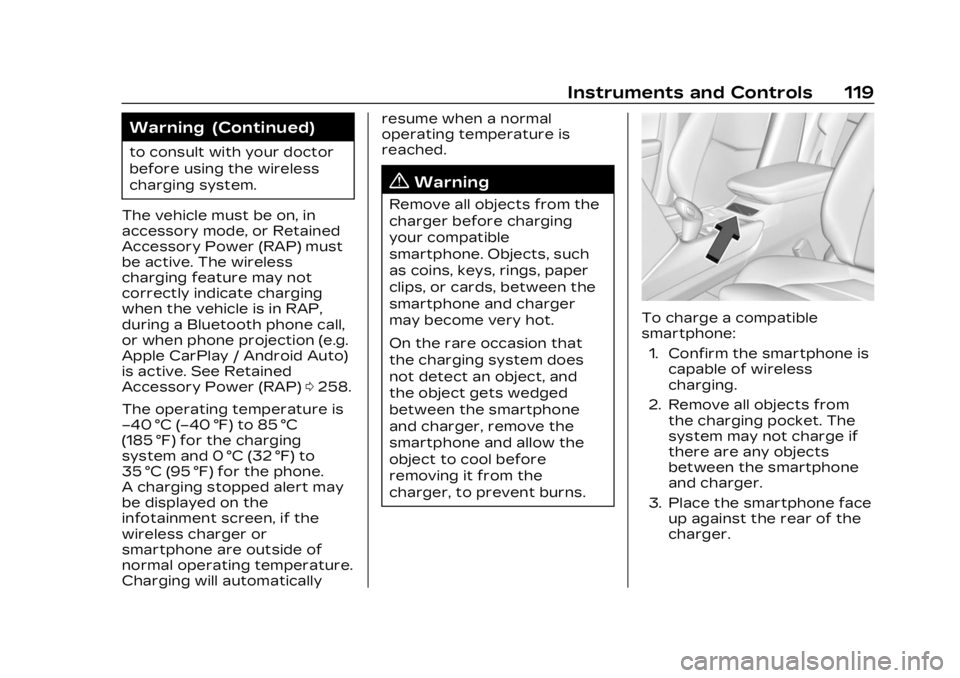
To charge a compatible
smartphone:
1. Confirm the smartphone is capable of wireless
charging.
2. Remove all objects from the charging pocket. The
system may not charge if
there are any objects
between the smartphone
and charger.
3. Place the smartphone face up against the rear of the
charger.
Page 121 of 482
Cadillac XT5 Owner Manual (GMNA-Localizing-U.S./Canada/Mexico-
16406251) - 2023 - CRC - 3/25/22
120 Instruments and Controls
To maximize the charge
rate, ensure the
smartphone is fully seated
and centered in the holder
with nothing under it.
A thick smartphone case
may prevent the charger
from working, or reduce
the charging performance.
See your dealer for
additional information.
4. A green
]will appear on
the infotainment display,
next to the phone icon.
This indicates that the
smartphone is detected.
5. If a smartphone is placed on the charger and
]
turns off or turns yellow,
remove the smartphone
and any objects from the
pocket. Turn the
smartphone 180 degrees
and wait a few seconds
before placing/aligning it
on the pocket again.
6. If a smartphone is placed on the charger and
]
turns red, the charger and/ or the smartphone is
overheated. Remove the
smartphone and any
objects from the charger in
order to cool the system.
The smartphone may become
warm during charging. This is
normal. In warmer
temperatures, the speed of
charging may be reduced.
For vehicles with wireless
phone projection, the
smartphone may overheat
during wireless charging. The
smartphone may slow down,
stop charging, or shut down to
protect the battery. The
phone may need to be
removed from its case to
prevent overheating. The
]
may flash while the phone is
cooling down enough for
wireless charging to
automatically resume. This is
normal. Individual phone
performance may vary. Software Acknowledgements
Certain Wireless Charging
Module product from LG
Electronics, Inc. ("LGE")
contains the open source
software detailed below. Refer
to the indicated open source
licenses (as are included
following this notice) for the
terms and conditions of
their use.
OSS Notice Information
To obtain the source code
that is contained in this
product, please visit
https://opensource.lge.com. In
addition to the source code, all
referred license terms,
warranty disclaimers and
copyright notices are available
for download. LG Electronics
will also provide open source
code to you on CD-ROM for a
charge covering the cost of
performing such distribution
(such as the cost of media,
shipping, and handling) upon
email request to
[email protected]. This
Page 126 of 482

Cadillac XT5 Owner Manual (GMNA-Localizing-U.S./Canada/Mexico-
16406251) - 2023 - CRC - 3/25/22
Instruments and Controls 125
HUD Rotation (Uplevel): Press
SEL while Adjust Rotation is
highlighted to enter Adjust
Mode. Scroll to adjust the
angle of the HUD display.
Press the SEL to confirm and
save the setting. This feature
may only be available in
P (Park).
Speed Sign: If equipped, press
SEL while Speed Sign is
highlighted to turn it on or off.
Software Information :
Displays open source software
information.
Speedometer
The speedometer shows the
vehicle speed in either
kilometers per hour (km/h) or
miles per hour (mph).
Odometer
The odometer shows how far
the vehicle has been driven, in
either kilometers or miles.
Trip Odometer
The trip odometer shows how
far the vehicle has been driven
since the trip odometer was
last reset.
The trip odometer is accessed
and reset through the Driver
Information Center (DIC). See
Driver Information Center
(DIC)0139.
Tachometer
The tachometer displays the
engine speed in revolutions
per minute (rpm).
For vehicles with the Stop/
Start system, when the
ignition is on, the tachometer
indicates the vehicle status.
When pointing to AUTO STOP,
the engine is off but the
vehicle is on and can move.
The engine could auto start at
any time. When the indicator
points to OFF, the vehicle
is off. When the engine is on, the
tachometer will indicate the
rpm. The tachometer may vary
by several hundred rpm,
during Auto Stop mode, when
the engine is shutting off and
restarting.
Fuel Gauge
When the ignition is on, the
fuel gauge indicates the
approximate amount of fuel
left in the tank.
There is an arrow near the
fuel gauge pointing to the side
of the vehicle the fuel door
is on.
Page 148 of 482
Cadillac XT5 Owner Manual (GMNA-Localizing-U.S./Canada/Mexico-
16406251) - 2023 - CRC - 3/25/22
Instruments and Controls 147
Under certain operating
conditions, propulsion will be
disabled. Try restarting after
the ignition has been off for
30 seconds.
Vehicle Speed
Messages
SPEED LIMITED TO XXX
KM/H (MPH)
This message shows that the
vehicle speed has been limited
to the speed displayed. The
limited speed is a protection
for various propulsion and
vehicle systems, such as
lubrication, thermal, brakes,
suspension, Teen Driver if
equipped, or tires.
Universal Remote
System
See Radio Frequency
Statement0452.
Universal Remote
System Programming
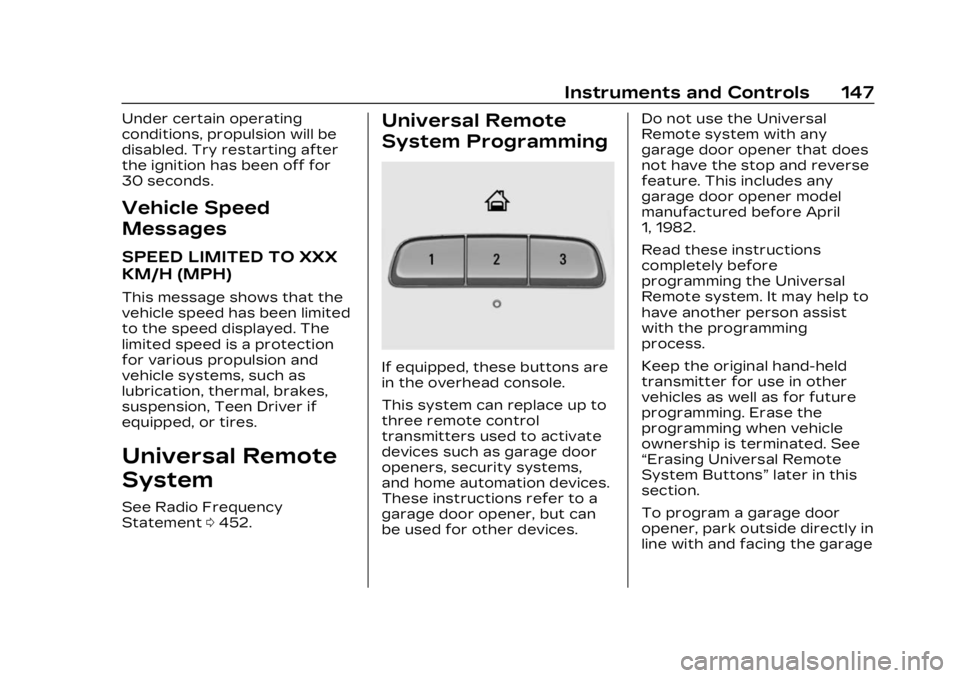
If equipped, these buttons are
in the overhead console.
This system can replace up to
three remote control
transmitters used to activate
devices such as garage door
openers, security systems,
and home automation devices.
These instructions refer to a
garage door opener, but can
be used for other devices. Do not use the Universal
Remote system with any
garage door opener that does
not have the stop and reverse
feature. This includes any
garage door opener model
manufactured before April
1, 1982.
Read these instructions
completely before
programming the Universal
Remote system. It may help to
have another person assist
with the programming
process.
Keep the original hand-held
transmitter for use in other
vehicles as well as for future
programming. Erase the
programming when vehicle
ownership is terminated. See
“Erasing Universal Remote
System Buttons”
later in this
section.
To program a garage door
opener, park outside directly in
line with and facing the garage
Page 181 of 482
Cadillac XT5 Owner Manual (GMNA-Localizing-U.S./Canada/Mexico-
16406251) - 2023 - CRC - 3/25/22
180 Infotainment System
profile is created, the current
location icon can be
customized.
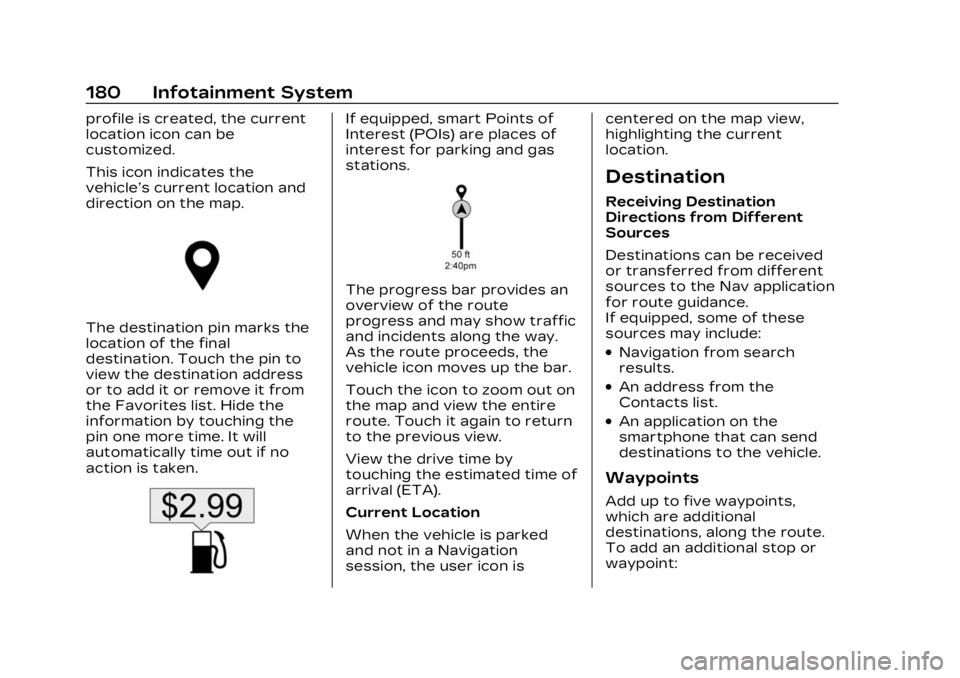
This icon indicates the
vehicle’s current location and
direction on the map.
The destination pin marks the
location of the final
destination. Touch the pin to
view the destination address
or to add it or remove it from
the Favorites list. Hide the
information by touching the
pin one more time. It will
automatically time out if no
action is taken.
If equipped, smart Points of
Interest (POIs) are places of
interest for parking and gas
stations.
The progress bar provides an
overview of the route
progress and may show traffic
and incidents along the way.
As the route proceeds, the
vehicle icon moves up the bar.
Touch the icon to zoom out on
the map and view the entire
route. Touch it again to return
to the previous view.
View the drive time by
touching the estimated time of
arrival (ETA).
Current Location
When the vehicle is parked
and not in a Navigation
session, the user icon iscentered on the map view,
highlighting the current
location.
Destination
Receiving Destination
Directions from Different
Sources
Destinations can be received
or transferred from different
sources to the Nav application
for route guidance.
If equipped, some of these
sources may include:
.Navigation from search
results.
.An address from the
Contacts list.
.An application on the
smartphone that can send
destinations to the vehicle.
Waypoints
Add up to five waypoints,
which are additional
destinations, along the route.
To add an additional stop or
waypoint:
Page 182 of 482
Cadillac XT5 Owner Manual (GMNA-Localizing-U.S./Canada/Mexico-
16406251) - 2023 - CRC - 3/25/22
Infotainment System 181
1. From active guidance,touch
}.
2. Search for the destination using One-Box, Voice
search, or the Quick
Category icons.
3. Choose search results Along Route, Nearby,
or Near Destination.
4. Choose the desired waypoint and touch Add to
Trip or replace the current
destination by touching
New Destination.
Route options are not
available for waypoints.
Arriving at a Waypoint
When approaching a waypoint,
the system will display a
Destination Arrival view. To
continue on to the next
destination touch the Drive to
message on the infotainment
display.
If the vehicle passes the
waypoint or gets out of the
current route, the system will automatically reroute back to
this waypoint. At the same
time, it will show a Drive to
icon along with the next
waypoint address so the
current waypoint can be
skipped and guidance can
resume to the next waypoint
or destination.
Editing a Waypoint
When waypoints are added
during active guidance, the
system allows a stop to be
deleted or the order to be
changed. To edit a waypoint:
1. Touch
A.
2. Touch Edit Destinations.
.Modify destination order
by touching and holding
the arrow until it is
highlighted. Drag to
move the waypoint up or
down the list.
.Delete a waypoint by
touching
Y. A pop-up will
appear to confirm
waypoint removal. Once
the request is confirmed, the system will remove
the address from the
destinations list. Touch
zon the top right corner
so the system can
recalculate the route.
If there is only one
address in the
destinations list, the
system will disable the
move and delete
functions. The system
will not allow the final
destination to be
deleted.
Map Information
Road network attributes are
contained in the map database
for map information.
Attributes include information
such as street names, street
addresses, and turn
restrictions. A detailed area
includes all major highways,
service roads, and residential
roads. The detailed areas
include Places of Interest
(POIs) such as restaurants,
airports, banks, hospitals,
Page 188 of 482
Cadillac XT5 Owner Manual (GMNA-Localizing-U.S./Canada/Mexico-
16406251) - 2023 - CRC - 3/25/22
Infotainment System 187
category icon shortcuts,
recents icon, favorites icon,
and keyboard.
Auto Complete
Enter a partial location in the
field entry box on the search
display. Auto complete will
attempt to complete the
destination based on what is
being entered. Touch the
suggested item to search.
Search While in Motion with
No Front Seat Passenger
Present
The search display will not
allow changes or text input
with the keyboard when the
vehicle is in motion. As a
result, a display showing three
rows of the most commonly
used categories appears.
Touching the search box will
activate speech recognition.Search While in Motion with
Front Seat Passenger
Present
If the system detects that the
front seat passenger is
present with both driver and
passenger seat belts buckled,
touching the search icon will
display an alert message that
allows the passenger to
search for a destination as if
the vehicle were stopped.
Connected Navigation
Connected Navigation is a
subscription service that
enables certain capabilities
within the navigation system,
such as Traffic, Smart Search/
Routing, and Predictive
Navigation capabilities. The
system will show an alert
when the subscription is
expiring and will ask to renew
the plan.
Global Positioning
System (GPS)
If equipped, the position of the
vehicle is determined by using
satellite signals, various
vehicle signals, and map data.
At times, other interference
such as the satellite condition,
road configuration, condition
of the vehicle, and/or other
circumstances can affect the
navigation system's ability to
determine the accurate
position of the vehicle.
The GPS shows the current
position of the vehicle using
signals sent by GPS satellites.
When the vehicle is not
receiving signals from the
satellites, a symbol appears in
the status bar.
This system might not be
available or interference can
occur if any of the following
are true:
.Signals are obstructed by
tall buildings, trees, large
trucks, or a tunnel.
Page 189 of 482

Cadillac XT5 Owner Manual (GMNA-Localizing-U.S./Canada/Mexico-
16406251) - 2023 - CRC - 3/25/22
188 Infotainment System
.Satellites are being repaired
or improved.
For more information if the
GPS is not functioning
properly, see Problems with
Route Guidance 0188 and
If the System Needs Service
0 189.
Vehicle Positioning
At times, the position of the
vehicle on the map could be
inaccurate due to one or more
of the following reasons:
.The road system has
changed.
.The vehicle is driving on
slippery road surfaces such
as sand, gravel, or snow.
.The vehicle is traveling on
winding roads or long,
straight roads.
.The vehicle is approaching a
tall building or a large
vehicle.
.The surface streets run
parallel to a freeway.
.The vehicle has been
transferred by a vehicle
carrier or a ferry.
.The current position
calibration is set incorrectly.
.The vehicle is traveling at
high speed.
.The vehicle changes
directions more than once,
or the vehicle is turning on a
turn table in a parking lot.
.The vehicle is entering and/
or exiting a parking lot,
garage, or a lot with a roof.
.The GPS signal is not
received.
.A roof carrier is installed on
the vehicle.
.Tire chains are installed on
the vehicle.
.The tires are replaced
or worn.
.The tire pressure for the
tires is incorrect.
.This is the first navigation
use after the map data is
updated.
.The 12-volt battery has been
disconnected for
several days.
.The vehicle is driving in
heavy traffic where driving is
at low speeds, and the
vehicle is stopped and
started repeatedly.
Problems with Route
Guidance
Inappropriate route guidance
can occur under one or more
of the following conditions:
.The turn was not made on
the road indicated.
.Route guidance might not be
available when using
automatic rerouting for the
next right or left turn.
.The route might not be
changed when using
automatic rerouting.
.There is no route guidance
when turning at an
intersection.
.Plural names of places might
be announced occasionally.
Page 192 of 482
Cadillac XT5 Owner Manual (GMNA-Localizing-U.S./Canada/Mexico-
16406251) - 2023 - CRC - 3/25/22
Infotainment System 191
Once voice recognition is
started, both the infotainment
display and instrument cluster
show the selections and visual
dialog content. These displays
can be turned on or off in the
Tutorial Mode under Settings
0205.
There are three voice prompt
modes supported:
.Informative verbal prompts:
This type of prompt will
provide more information
regarding the supported
actions.
.Short prompts: This type of
prompt will provide simple
instructions about what can
be stated.
.Auto informative prompts:
This type of prompt plays
during the first few speech
sessions, then automatically
switches to the short
prompt after some
experience has been gained
through using the system. If a command is not spoken,
the voice recognition system
says a help prompt.
Prompts and Infotainment
Displays
While a voice recognition
session is active, there may be
corresponding options
showing on the displays.
A selection can be made by
manually touching the option,
or by speaking the number for
the option to select. Manual
interaction in the voice
recognition session is
permitted. Interaction during a
voice session may be
completed entirely using voice
commands while some manual
commands may expedite a
task. If a selection is made
using a manual control, the
voice recognition dialog will
progress in the same way as if
the selection were made using
a voice command. Once the
system completes the task,
or the session is terminated,
the voice recognition dialog
stops.
An example of this type of
manual intervention is
touching an entry of a
displayed number list instead
of speaking the number
associated with the entry
desired.
Canceling Voice
Recognition
.Touch or say
“Cancel”or
“Exit” to terminate the voice
recognition session and
show the display where
voice recognition was
initiated.
.Pression the steering
wheel controls to terminate
the voice recognition
session and show the display
where voice recognition was
initiated.
Natural Language Commands
Most languages do not
support natural language
commands in sentence form.
Page 211 of 482
Cadillac XT5 Owner Manual (GMNA-Localizing-U.S./Canada/Mexico-
16406251) - 2023 - CRC - 3/25/22
210 Infotainment System
To access:1. Touch Settings on the Home Page, then touch
Vehicle, and then Teen
Driver.
2. Create a Personal Identification Number (PIN)
by choosing a four-digit
PIN. Re-enter the PIN to
confirm. To change the
PIN, touch Change PIN.
The PIN is required to:
.Set up/Add or remove keys.
.Change Teen Driver
settings.
.Change or clear the Teen
Driver PIN.
.Access or delete Report
Card data.
Set up/Add keys to activate
Teen Driver and assign
restrictions to the key:
Any vehicle key can be
registered, up to a maximum
of eight keys. Label the key to
tell it apart from the
other keys. For a pushbutton start
system:
1. Start the vehicle.
2. For automatic transmissions, the vehicle
must be in P (Park). For
manual transmissions, the
vehicle must be stopped
with the parking brake set.
3. From the Settings menu, touch Vehicle and then
Teen Driver.
4. Enter the PIN.
5. Place the remote key you wish to register in the
transmitter pocket. The
key does not need to be
the one that started the
vehicle. See Remote Key
Operation 09 for
transmitter pocket
location. 6. From the Teen Driver
menu, touch Setup Keys or
Add/Remove Teen
Driver Keys.
.If the remote key has
not previously been
registered, the option to
add the key displays.
Touch Add and a
confirmation message
displays. Teen Driver
restrictions will be
applied whenever this
remote key is used to
operate the vehicle.
.If the remote key has
already been registered,
the option to remove
the key displays.
If Remove is touched,
the remote key is no
longer registered.
A confirmation message
displays, and Teen
Driver restrictions will
not be applied if this
remote key is used to
operate the vehicle.