change time CADILLAC XT6 2022 Owner's Manual
[x] Cancel search | Manufacturer: CADILLAC, Model Year: 2022, Model line: XT6, Model: CADILLAC XT6 2022Pages: 447, PDF Size: 7.21 MB
Page 181 of 447

Cadillac XT6 Owner Manual (GMNA-Localizing-U.S./Canada-15218998) -
2022 - CRC - 10/22/21
180 INFOTAINMENT SYSTEM
devices work with the Bluetooth
system. See my.cadillac.com for more
information about compatible mobile
devices.
Controls
Use the controls on the center stack
and the steering wheel to operate the
Bluetooth system.
Steering Wheel Controls
g:Press to answer incoming calls
and start voice recognition on your
connected Bluetooth mobile device.
i: Press to end a call, decline a call,
or cancel an operation. Press to mute
or unmute the infotainment system
when not on a call.
Infotainment System Controls
For information about how to navigate
the menu system using the
infotainment controls, see Using the
System 0149.
Audio System
When using the Bluetooth mobile
device system, sound comes through
the vehicle's front audio system
speakers and overrides the audio system. The volume level while on a
mobile device call can be adjusted by
pressing the steering wheel controls or
the volume control on the center
stack. The adjusted volume level
remains in memory for later calls. The
volume cannot be lowered beyond a
certain level.
Bluetooth (Pairing and
Using a Phone)
Pairing
A Bluetooth-enabled mobile device
must be paired to the Bluetooth
system and then connected to the
vehicle before it can be used. See the
mobile device manufacturer's user
guide for Bluetooth functions before
pairing the device.
Pairing Information
.If no mobile device has been
connected, the Phone main page on
the infotainment display will show
the Connect Phone option. Touch
this option to connect. Another way
to connect is to touch the Phones
tab at the top right of the display
and then touch Add Phone.
.A Bluetooth smartphone with music
capability can be paired to the
vehicle as a smartphone and a
music player at the same time.
.Up to 10 devices can be paired to
the Bluetooth system.
.The pairing process is disabled
when the vehicle is moving.
.Pairing only needs to be completed
once, unless the pairing information
on the cell phone changes or the
cell phone is deleted from the
system.
.If multiple paired cell phones are
within range of the system, the
system connects to the paired cell
phone that is set to First to
Connect. If there is no cell phone
set to First to Connect, it will link to
the cell phone which was used last.
To link to a different paired cell
phone, see
“Linking to a Different
Phone ”later in this section.
Pairing a Phone 1. Make sure Bluetooth has been enabled on the cell phone before
the pairing process is started.
Page 186 of 447
Cadillac XT6 Owner Manual (GMNA-Localizing-U.S./Canada-15218998) -
2022 - CRC - 10/22/21
INFOTAINMENT SYSTEM 185
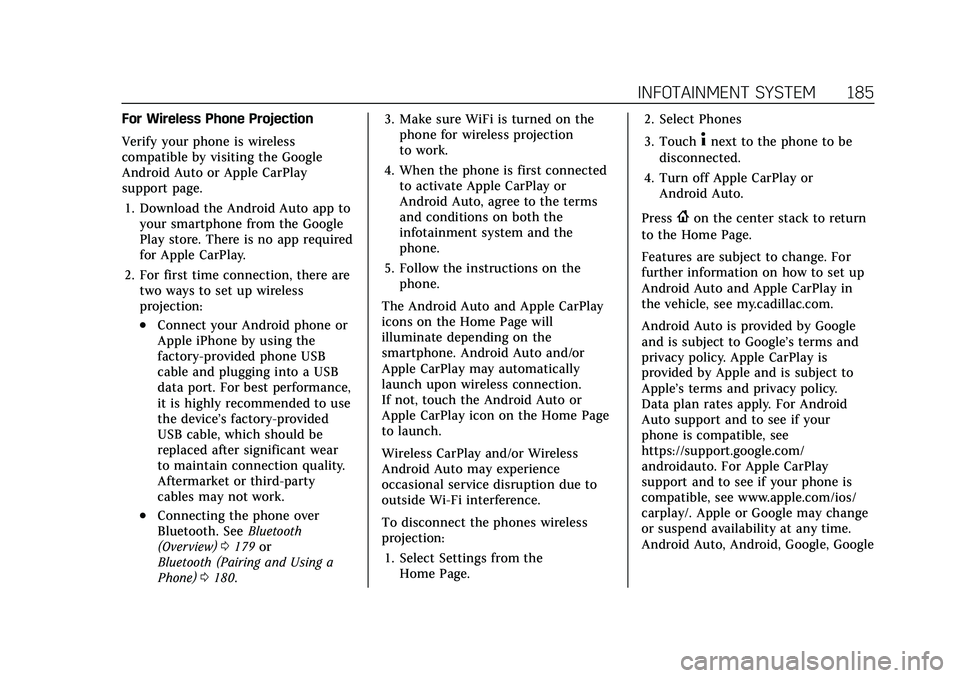
For Wireless Phone Projection
Verify your phone is wireless
compatible by visiting the Google
Android Auto or Apple CarPlay
support page.1. Download the Android Auto app to your smartphone from the Google
Play store. There is no app required
for Apple CarPlay.
2. For first time connection, there are two ways to set up wireless
projection:
.Connect your Android phone or
Apple iPhone by using the
factory-provided phone USB
cable and plugging into a USB
data port. For best performance,
it is highly recommended to use
the device’s factory-provided
USB cable, which should be
replaced after significant wear
to maintain connection quality.
Aftermarket or third-party
cables may not work.
.Connecting the phone over
Bluetooth. See Bluetooth
(Overview) 0179 or
Bluetooth (Pairing and Using a
Phone) 0180. 3. Make sure WiFi is turned on the
phone for wireless projection
to work.
4. When the phone is first connected to activate Apple CarPlay or
Android Auto, agree to the terms
and conditions on both the
infotainment system and the
phone.
5. Follow the instructions on the phone.
The Android Auto and Apple CarPlay
icons on the Home Page will
illuminate depending on the
smartphone. Android Auto and/or
Apple CarPlay may automatically
launch upon wireless connection.
If not, touch the Android Auto or
Apple CarPlay icon on the Home Page
to launch.
Wireless CarPlay and/or Wireless
Android Auto may experience
occasional service disruption due to
outside Wi-Fi interference.
To disconnect the phones wireless
projection: 1. Select Settings from the Home Page. 2. Select Phones
3. Touch
4next to the phone to be
disconnected.
4. Turn off Apple CarPlay or Android Auto.
Press
{on the center stack to return
to the Home Page.
Features are subject to change. For
further information on how to set up
Android Auto and Apple CarPlay in
the vehicle, see my.cadillac.com.
Android Auto is provided by Google
and is subject to Google’s terms and
privacy policy. Apple CarPlay is
provided by Apple and is subject to
Apple’s terms and privacy policy.
Data plan rates apply. For Android
Auto support and to see if your
phone is compatible, see
https://support.google.com/
androidauto. For Apple CarPlay
support and to see if your phone is
compatible, see www.apple.com/ios/
carplay/. Apple or Google may change
or suspend availability at any time.
Android Auto, Android, Google, Google
Page 187 of 447
Cadillac XT6 Owner Manual (GMNA-Localizing-U.S./Canada-15218998) -
2022 - CRC - 10/22/21
186 INFOTAINMENT SYSTEM
Play, and other marks are trademarks
of Google Inc.; Apple CarPlay is a
trademark of Apple Inc.
Press
{on the center stack to exit
Android Auto or Apple CarPlay. To
enter back into Android Auto or Apple
CarPlay, press and hold
{on the
center stack.
Apple CarPlay and Android Auto can
be disabled from the infotainment
system. To do this, touch Home,
Settings, and then touch the Apps tab
along the top of the display. Use the
On/Off toggled to turn off Apple
CarPlay or Android Auto.
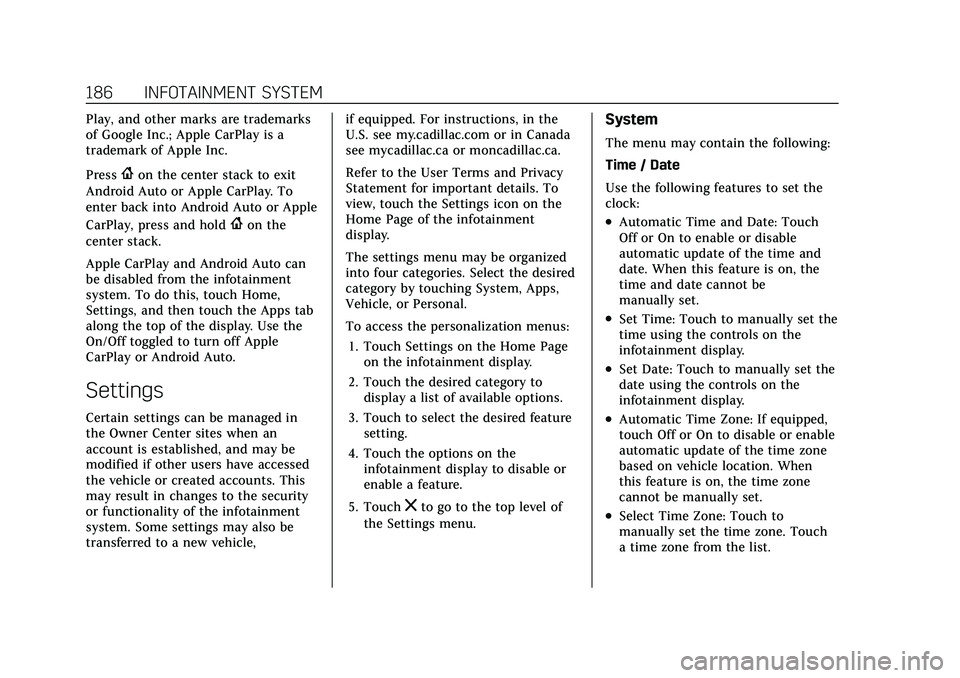
Settings
Certain settings can be managed in
the Owner Center sites when an
account is established, and may be
modified if other users have accessed
the vehicle or created accounts. This
may result in changes to the security
or functionality of the infotainment
system. Some settings may also be
transferred to a new vehicle, if equipped. For instructions, in the
U.S. see my.cadillac.com or in Canada
see mycadillac.ca or moncadillac.ca.
Refer to the User Terms and Privacy
Statement for important details. To
view, touch the Settings icon on the
Home Page of the infotainment
display.
The settings menu may be organized
into four categories. Select the desired
category by touching System, Apps,
Vehicle, or Personal.
To access the personalization menus:
1. Touch Settings on the Home Page on the infotainment display.
2. Touch the desired category to display a list of available options.
3. Touch to select the desired feature setting.
4. Touch the options on the infotainment display to disable or
enable a feature.
5. Touch
zto go to the top level of
the Settings menu.
System
The menu may contain the following:
Time / Date
Use the following features to set the
clock:
.Automatic Time and Date: Touch
Off or On to enable or disable
automatic update of the time and
date. When this feature is on, the
time and date cannot be
manually set.
.Set Time: Touch to manually set the
time using the controls on the
infotainment display.
.Set Date: Touch to manually set the
date using the controls on the
infotainment display.
.Automatic Time Zone: If equipped,
touch Off or On to disable or enable
automatic update of the time zone
based on vehicle location. When
this feature is on, the time zone
cannot be manually set.
.Select Time Zone: Touch to
manually set the time zone. Touch
a time zone from the list.
Page 198 of 447
Cadillac XT6 Owner Manual (GMNA-Localizing-U.S./Canada-15218998) -
2022 - CRC - 10/22/21
INFOTAINMENT SYSTEM 197
Trademarks and License
Agreements
FCC Information
SeeRadio Frequency Statement 0421.
"Made for iPod," and "Made for
iPhone," mean that an electronic
accessory has been designed to
connect specifically to iPod or iPhone,
respectively, and has been certified by
the developer to meet Apple
performance standards. Apple is not
responsible for the operation of this
device or its compliance with safety
and regulatory standards. Please note
that the use of this accessory with
iPod or iPhone may affect wireless
performance. iPhone, iPod, iPod
classic, iPod nano, iPod shuffle, and
iPod touch are trademarks of Apple
Inc., registered in the U.S. and other
countries.
If you decide to continue service after
your trial, your selected subscription
plan will automatically renew
thereafter. You will be charged at
then-current rates. Fees and taxes
apply. Please see the SiriusXM
Customer Agreement at siriusxm.com
for complete terms and how to cancel,
which includes calling SiriusXM at
1-866-635-2349. All fees and
programming are subject to change.
Fees and Taxes: Subscription fee,
taxes, one time activation fee, and
other fees may apply. Subscription fee
is consumer only. All fees and
programming subject to change.
Subscriptions subject to Customer
Agreement available at
www.siriusxm.com. SiriusXM service is
only available in the 48 contiguous
United States and Canada. In Canada: Some deterioration of
service may occur in extreme northern
latitudes. This is beyond the control of
SiriusXM Satellite Radio.
Explicit Language Notice: Channels
with frequent explicit language are
indicated with an
“XL”preceding the
channel name. Channel blocking is
available for SiriusXM Satellite Radio
receivers by notifying SiriusXM:
.USA Customers —See
www.siriusxm.com or call
1-888-601–6296.
.Canada Customers —See
www.siriusxm.ca or call
1-877-438-9677.
It is prohibited to copy, decompile,
disassemble, reverse engineer, hack,
manipulate, or otherwise make
available any technology or software
incorporated in receivers compatible
with the SiriusXM Satellite Radio
System or that support the SiriusXM
website, the Online Service or any of
its content. Furthermore, the AMBER
voice compression software included
in this product is protected by
Page 201 of 447

Cadillac XT6 Owner Manual (GMNA-Localizing-U.S./Canada-15218998) -
2022 - CRC - 10/22/21
200 INFOTAINMENT SYSTEM
any Gracenote Data. Gracenote
reserves the right to delete data from
the Gracenote Servers or to change
data categories for any cause that
Gracenote deems sufficient. No
warranty is made that the Gracenote
Software or Gracenote Servers are
error-free or that functioning of
Gracenote Software or Gracenote
Servers will be uninterrupted.
Gracenote is not obligated to provide
you with new enhanced or additional
data types or categories that
Gracenote may provide in the future
and is free to discontinue its services
at any time.
GRACENOTE DISCLAIMS ALL
WARRANTIES EXPRESS OR IMPLIED,
INCLUDING, BUT NOT LIMITED TO,
IMPLIED WARRANTIES OF
MERCHANTABILITY, FITNESS FOR A
PARTICULAR PURPOSE, TITLE, AND
NON-INFRINGEMENT. GRACENOTE
DOES NOT WARRANT THE RESULTS
THAT WILL BE OBTAINED BY YOUR
USE OF THE GRACENOTE
SOFTWARE OR ANY GRACENOTE
SERVER. IN NO CASE WILL
GRACENOTE BE LIABLE FOR ANYCONSEQUENTIAL OR INCIDENTAL
DAMAGES OR FOR ANY LOST
PROFITS OR LOST REVENUES.
© 2014. Gracenote, Inc. All Rights
Reserved.
MPEG4–
AVC (H.264)
THIS PRODUCT IS LICENSED UNDER
THE AVC PATENT PORTFOLIO
LICENSE FOR THE PERSONAL AND
NON-COMMERCIAL USE OF A
CONSUMER TO (i) ENCODE VIDEO IN
COMPLIANCE WITH THE AVC
STANDARD (“AVC VIDEO”) AND/OR
(ii) DECODE AVC VIDEO THAT WAS
ENCODED BY A CONSUMER
ENGAGED IN A PERSONAL AND
NON-COMMERCIAL ACTIVITY AND/
OR WAS OBTAINED FROM A VIDEO
PROVIDER LICENSED TO PROVIDE
AVC VIDEO. NO LICENSE IS
GRANTED OR SHALL BE IMPLIED
FOR ANY OTHER USE. ADDITIONAL
INFORMATION MAY BE OBTAINED
FROM MPEG LA, LLC. SEE
HTTPS://WWW.MPEGLA.COM. VC-1
THIS PRODUCT IS LICENSED UNDER
THE VC-1 PATENT PORTFOLIO
LICENSE FOR THE PERSONAL AND
NON-COMMERCIAL USE OF A
CONSUMER TO (i) ENCODE VIDEO IN
COMPLIANCE WITH THE VC-1
STANDARD (“VC-1 VIDEO”) AND/OR
(ii) DECODE VC-1 VIDEO THAT WAS
ENCODED BY A CONSUMER
ENGAGED IN A PERSONAL AND
NON-COMMERCIAL ACTIVITY AND/
OR WAS OBTAINED FROM A VIDEO
PROVIDER LICENSED TO PROVIDE
VC-1 VIDEO. NO LICENSE IS
GRANTED OR SHALL BE IMPLIED
FOR ANY OTHER USE. ADDITIONAL
INFORMATION MAY BE OBTAINED
FROM MPEG LA, LLC. SEE
HTTPS://WWW.MPEGLA.COM.
MPEG4–
Visual
USE OF THIS PRODUCT IN ANY
MANNER THAT COMPLIES WITH
THE MPEG-4 VISUAL STANDARD IS
PROHIBITED, EXCEPT FOR USE BY A
CONSUMER ENGAGING IN
PERSONAL AND NON-COMMERCIAL
ACTIVITIES.
Page 217 of 447

Cadillac XT6 Owner Manual (GMNA-Localizing-U.S./Canada-15218998) -
2022 - CRC - 10/22/21
216 DRIVING AND OPERATING
Lane Change Alert (LCA) . . . . . . . . 296
Lane Keep Assist (LKA) . . . . . . . . . . 298
Surround Vision Recorder . . . . . . . 299
Fuel
Top Tier Fuel . . . . . . . . . . . . . . . . . . . . . 301
Recommended Fuel (2.0L L4Turbo Engine) . . . . . . . . . . . . . . . . . . . 301
Recommended Fuel (3.6L V6 Engine) . . . . . . . . . . . . . . . . . . . . . . 302
Prohibited Fuels . . . . . . . . . . . . . . . . . . 302
Fuels in Foreign Countries . . . . . . . 302
Fuel Additives . . . . . . . . . . . . . . . . . . . . 302
Filling the Tank . . . . . . . . . . . . . . . . . . 303
Filling a Portable Fuel Container . . . . . . . . . . . . . . . . . . . . . . . . 304
Trailer Towing
General Towing Information . . . . 305
Driving Characteristics andTowing Tips . . . . . . . . . . . . . . . . . . . . . 305
Trailer Towing . . . . . . . . . . . . . . . . . . . . 308
Towing Equipment . . . . . . . . . . . . . . . 312
Trailer Sway Control (TSC) . . . . . . 315
Conversions and Add-Ons
Add-On Electrical Equipment . . . 316
Driving Information
Driving for Better Fuel
Economy
Driving habits can affect fuel mileage.
Here are some driving tips to get the
best fuel economy possible.
.Set the climate controls to the
desired temperature after the engine
is started, or turn them off when
not required.
.On AWD vehicles, use Tour Mode
when conditions permit.
.Avoid fast starts and accelerate
smoothly.
.Brake gradually and avoid abrupt
stops.
.Avoid idling the engine for long
periods of time.
.When road and weather conditions
are appropriate, use cruise control.
.Always follow posted speed limits or
drive more slowly when conditions
require.
.Keep vehicle tires properly inflated.
.Combine several trips into a
single trip.
.Replace the vehicle's tires with the
same TPC Spec number molded into
the tire's sidewall near the size.
.Follow recommended scheduled
maintenance.
Distracted Driving
Distraction comes in many forms and
can take your focus from the task of
driving. Exercise good judgment and
do not let other activities divert your
attention away from the road. Many
local governments have enacted laws
regarding driver distraction. Become
familiar with the local laws in
your area.
To avoid distracted driving, keep your
eyes on the road, keep your hands on
the steering wheel, and focus your
attention on driving.
.Do not use a phone in demanding
driving situations. Use a hands-free
method to place or receive
necessary phone calls.
.Watch the road. Do not read, take
notes, or look up information on
phones or other electronic devices.
.Designate a front seat passenger to
handle potential distractions.
Page 227 of 447

Cadillac XT6 Owner Manual (GMNA-Localizing-U.S./Canada-15218998) -
2022 - CRC - 10/22/21
226 DRIVING AND OPERATING
To save fuel, run the engine for short
periods to warm the vehicle and then
shut the engine off and partially close
the window. Moving about to keep
warm also helps.
If it takes time for help to arrive,
when running the engine, push the
accelerator pedal slightly so the
engine runs faster than the idle speed.
This keeps the battery charged to
restart the vehicle and to signal for
help with the headlamps. Do this as
little as possible, to save fuel.
If the Vehicle Is Stuck
Slowly and cautiously spin the wheels
to free the vehicle when stuck in sand,
mud, ice, or snow.
If stuck too severely for the traction
system to free the vehicle, turn the
traction system off and use the
rocking method. SeeTraction Control/
Electronic Stability Control 0247.
{Warning
If the vehicle's tires spin at high
speed, they can explode, and you or
others could be injured. The vehicle
can overheat, causing an engine
compartment fire or other damage.
Spin the wheels as little as possible
and avoid going above 56 km/h
(35 mph).
Rocking the Vehicle to Get it Out
Turn the steering wheel left and right
to clear the area around the front
wheels. Turn off any traction system.
Shift back and forth between
R (Reverse) and a low forward gear,
spinning the wheels as little as
possible. To prevent transmission
wear, wait until the wheels stop
spinning before shifting gears. Release
the accelerator pedal while shifting,
and press lightly on the accelerator
pedal when the transmission is in
gear. Slowly spinning the wheels in
the forward and reverse directions
causes a rocking motion that could
free the vehicle. If that does not get
the vehicle out after a few tries, it might need to be towed out. If the
vehicle does need to be towed out, see
Towing the Vehicle
0381.
Vehicle Load Limits
It is very important to know how
much weight the vehicle can carry.
This weight is called the vehicle
capacity weight and includes the
weight of all occupants, cargo, and
all nonfactory-installed options.
Two labels on the vehicle may
show how much weight it may
properly carry, the Tire and
Loading Information label and the
Certification/Tire label.
{Warning
Do not load the vehicle any
heavier than the Gross Vehicle
Weight Rating (GVWR),
or either the maximum front or
rear Gross Axle Weight Rating
(GAWR). This can cause
systems to break and change
the way the vehicle handles.
(Continued)
Page 245 of 447

Cadillac XT6 Owner Manual (GMNA-Localizing-U.S./Canada-15218998) -
2022 - CRC - 10/22/21
244 DRIVING AND OPERATING
It will only automatically shift to the
next lower gear if the engine rpm is
much too low.
Drive Systems
All-Wheel Drive
Vehicles with this feature can operate
in All-Wheel Drive (AWD) Mode. See
Driver Mode Control0248.
Press MODE to activate AWD. AWD is
active in both AWD and Sport Modes.
The AWD system delivers power to all
four wheels and the system adjusts as
needed to improve traction. The AWD Mode will stay selected
until the mode is changed. If the
vehicle is placed in Sport Mode, see
Driver Mode Control
0248.
Sport Mode is canceled with each
ignition cycle. See Driver Mode Control
0 248.
When operated in Tour Mode, the
vehicle will deliver power to the front
wheels only and may provide better
fuel economy.
If Tour Mode is selected see Driver
Mode Control 0248.
Brakes
Electric Brake Boost
Vehicles equipped with electric brake
boost have hydraulic brake circuits
that are electronically controlled when
the brake pedal is applied during
normal operation. The system
performs routine tests and turns off
within a few minutes after the vehicle
is turned off. Noise may be heard
during this time. If the brake pedal is
pressed during the tests or when the electric brake boost system is off, a
noticeable change in pedal force and
travel may be felt. This is normal.
Antilock Brake
System (ABS)
The Antilock Brake System (ABS)
helps prevent a braking skid and
maintain steering while braking hard.
ABS performs a system check when
the vehicle is first driven.
A momentary motor or clicking noise
may be heard while this test is going
on, and the brake pedal may move
slightly. This is normal.
If there is a problem with ABS, this
warning light stays on. See
Antilock
Brake System (ABS) Warning Light
0 118.
Page 246 of 447

Cadillac XT6 Owner Manual (GMNA-Localizing-U.S./Canada-15218998) -
2022 - CRC - 10/22/21
DRIVING AND OPERATING 245
ABS does not change the time needed
to get a foot on the brake pedal and
does not always decrease stopping
distance. If you get too close to the
vehicle ahead, there will not be
enough time to apply the brakes if
that vehicle suddenly slows or stops.
Always leave enough room ahead to
stop, even with ABS.
Using ABS
Do not pump the brakes. Just hold the
brake pedal down firmly. Hearing or
feeling ABS operate is normal.
Braking in Emergencies
ABS allows steering and braking at the
same time. In many emergencies,
steering can help even more than
braking.
Electric Parking Brake
The Electric Parking Brake (EPB) can
always be applied, even if the vehicle
is off. In case of insufficient electrical
power, the EPB cannot be applied or
released. To prevent draining the
battery, avoid unnecessary repeated
cycles of the EPB.
The system has a red parking brake
status light and an amber service
parking brake warning light. See
Electric Parking Brake Light0118 and
Service Electric Parking Brake Light
0 118. There are also parking
brake-related Driver Information
Center (DIC) messages. Before leaving the vehicle, check the
red parking brake status light to
ensure that the parking brake is
applied.
EPB Apply
To apply the EPB:
1. Be sure the vehicle is at a complete stop.
2. Press the EPB switch momentarily.
The red parking brake status light will
flash and then stay on once the EPB is
fully applied. If the red parking brake
status light flashes continuously, then
the EPB is only partially applied or
there is a problem with the EPB.
A DIC message will display. Release
the EPB and try to apply it again.
If the light does not come on, or keeps
flashing, have the vehicle serviced. Do
not drive the vehicle if the red parking
brake status light is flashing. See your
dealer.
If the amber service parking brake
warning light is on, press the EPB
switch. Continue to hold the switch
until the red parking brake status light
Page 254 of 447

Cadillac XT6 Owner Manual (GMNA-Localizing-U.S./Canada-15218998) -
2022 - CRC - 10/22/21
DRIVING AND OPERATING 253
Disabling the TCS or StabiliTrak/ESC
system will disengage and prevent
engagement of ACC.
ACC can reduce the need for you to
frequently brake and accelerate,
especially when used on expressways,
freeways, and interstate highways.
When used on other roads, you may
need to take over the control of
braking or acceleration more often.
{Warning
ACC has limited braking ability and
may not have time to slow the
vehicle down enough to avoid a
collision with another vehicle you
are following. This can occur when
vehicles suddenly slow or stop
ahead, or enter your lane. Also see
“Alerting the Driver”in this section.
Complete attention is always
required while driving and you
should be ready to take action and
apply the brakes. See Defensive
Driving 0217.
{Warning
ACC will not detect or brake for
children, pedestrians, animals,
or other objects.
Do not use ACC when:
.On winding and hilly roads or
when the sensors are blocked by
snow, ice, or dirt. The system
may not detect a vehicle ahead.
Keep the entire front of the
vehicle clean.
.Visibility is poor due to rain,
snow, fog, dirt, insect residue,
or dust; when other foreign
objects obscure the camera and/
or radar; or when the vehicle in
front or oncoming traffic causes
additional environmental
obstructions, such as road spray.
ACC performance is limited
under these conditions.
.On slippery roads where fast
changes in tire traction can
cause excessive wheel slip.
.Towing a trailer
5:Press to turn the system on or off.
The indicator turns white on the
instrument cluster when ACC is
turned on.
RES+ : Press briefly to resume the
previous set speed or to increase
vehicle speed if ACC is already
activated. To increase speed by about
1 km/h (1 mph), press RES+ to the first
detent. To increase speed to the next
5 km/h (5 mph) mark on the
speedometer, press RES+ to the
second detent.
SET– :Press briefly to set the speed
and activate ACC or to decrease
vehicle speed if ACC is already
activated. To decrease speed by about