wheel CADILLAC XT6 2023 Owner's Manual
[x] Cancel search | Manufacturer: CADILLAC, Model Year: 2023, Model line: XT6, Model: CADILLAC XT6 2023Pages: 507, PDF Size: 6.49 MB
Page 147 of 507

Cadillac XT6 Owner Manual (GMNA-Localizing-U.S./Canada-16405819) -
2023 - CRC - 3/22/22
146 Instruments and Controls
When the remaining oil life is
low, the CHANGE ENGINE OIL
SOON message will appear on
the display. The oil should be
changed as soon as possible.
See Engine Oil0370. In
addition to the engine oil life
system monitoring the oil life,
additional maintenance is
recommended. See
Maintenance Schedule 0454.
The Oil Life display must be
reset after each oil change.
It will not reset itself. Do not
reset the Oil Life display
accidentally at any time other
than when the oil has just
been changed. It cannot be
reset accurately until the next
oil change. To reset, see
Engine Oil Life System 0373.
Tire Pressure : Shows the
approximate pressures of all
four tires. Tire pressure is
displayed in either
kilopascal (kPa) or in pounds
per square inch (psi). If the
pressure is low, the value for
that tire is shown in amber. See Tire Pressure Monitor
System
0411 and
Tire Pressure Monitor
Operation 0412.
Air Filter Life : Shows an
estimate of the engine air
filter’s remaining useful life
and the state of the system.
Engine Air Filter Life 95%
means 95% of the current air
filter life remains. Messages
will display based on the
engine air filter life and the
state of the system. When the
REPLACE AT NEXT OIL
CHANGE message displays,
the engine air filter should be
replaced at the time of the
next oil change. When the
REPLACE NOW message
displays, the engine air filter
should be replaced as soon as
possible.
The Air Filter Life display must
be reset after the engine air
filter replacement. To reset,
see Engine Air Filter Life
System 0374. Fuel Economy :
Displays
average fuel economy, the
best fuel economy over the
selected distance, and a bar
graph showing instantaneous
fuel economy.
If the vehicle is equipped with
an Active Fuel Management
indicator, the engine operating
mode may be shown in the
corner of this display.
Average Speed : Displays the
average vehicle speed of the
vehicle in kilometers per
hour (km/h) or miles per
hour (mph). This average is
based on the various vehicle
speeds recorded since the last
reset. Reset the average
speed by pressing the
thumbwheel while this display
is active to show a
confirmation window to select
yes or no.
Timer : This display can be
used as a timer. To start the
timer, press the thumbwheel
while this display is active. The
display will show the amount
Page 148 of 507
Cadillac XT6 Owner Manual (GMNA-Localizing-U.S./Canada-16405819) -
2023 - CRC - 3/22/22
Instruments and Controls 147
of time that has passed since
the timer was last reset. To
stop the timer, press the
thumbwheel briefly while this
display is active and the timer
is running.
Press the thumbwheel while
this display is active to reset
the timer.
Follow Distance/Gap
Setting :When Adaptive
Cruise Control (ACC) is not
engaged, the current follow
time to the vehicle ahead is
displayed as a time value on
this page. When ACC has been
engaged, the display switches
to the gap setting page. This
page shows the current gap
setting along with the vehicle
ahead indicator.
Driver Assistance :
If equipped, shows information
for Lane Keep Assist (LKA)
and Forward Collision
Alert (FCA).
Battery Voltage : Shows the
current battery voltage. Coolant Temperature :
Shows the engine coolant
temperature in either degrees
Celsius (°C) or degrees
Fahrenheit (°F).
Oil Temperature :
Shows the
engine oil temperature in
either degrees Celsius (°C) or
degrees Fahrenheit (°F).
Engine Boost : If equipped,
displays engine manifold
pressure relative to ambient
air pressure. It will display
boost pressure generated by
the turbocharging system.
Transmission Fluid
Temperature : Shows the
temperature of the automatic
transmission fluid in either
degrees Celsius (°C) or
degrees Fahrenheit (°F).
Off Road : Displays vehicle
pitch and roll information, road
wheel angle, and four-wheel
drive (4WD) status. Info Page Options :
Scroll to
choose which info pages
appear on the DIC. Press the
thumbwheel to select or
deselect.
Blank Page : Allows for no
information to be displayed in
the cluster info display areas.
Head-Up
Display (HUD)
{Warning
If the HUD image is too
bright or too high in your
field of view, it may take you
more time to see things you
need to see when it is dark
outside. Be sure to keep the
HUD image dim and placed
low in your field of view.
If equipped with HUD, some
information concerning the
operation of the vehicle is
projected onto the windshield.
The image is projected
through the HUD lens on top
of the instrument panel. The
Page 149 of 507

Cadillac XT6 Owner Manual (GMNA-Localizing-U.S./Canada-16405819) -
2023 - CRC - 3/22/22
148 Instruments and Controls
information appears as an
image focused out toward the
front of the vehicle.
Caution
If you try to use the HUD
image as a parking aid, you
may misjudge the distance
and damage your vehicle. Do
not use the HUD image as a
parking aid.
The HUD information can be
displayed in various languages.
The speedometer reading and
other numerical values can be
displayed in either English or
metric units.
The language selection is
changed through the radio
and the units of measurement
are changed through the
instrument cluster. See
Settings 0210 and “Options”
under Instrument Cluster
0 127.
HUD Display on the
Windshield
The HUD may display some of
the following vehicle
information and vehicle
messages or alerts:
.Speed
.Audio
.Phone
.Navigation
.Performance
.Driver Assistance Features
.Vehicle Messages Some vehicle messages or
alerts displayed in the HUD
may be cleared by using the
steering wheel controls. See
Vehicle Messages
0151.
The HUD control is to the left
of the steering wheel.
To adjust the HUD image:
1. Adjust the driver seat.
2. Start the engine.
3. Use the following settings to adjust the HUD.
$:Press or lift to center the
HUD image. The HUD image
can only be adjusted up and
down, not side to side.
!: Press to select the
display view. Each press will
change the display view.
Page 150 of 507

Cadillac XT6 Owner Manual (GMNA-Localizing-U.S./Canada-16405819) -
2023 - CRC - 3/22/22
Instruments and Controls 149
D:Lift and hold to brighten
the display. Press and hold to
dim the display. Continue to
hold to turn the display off.
The HUD image will
automatically dim and brighten
to compensate for outside
lighting.
The HUD image can
temporarily light up depending
on the angle and position of
sunlight on the HUD display.
This is normal.
Polarized sunglasses could
make the HUD image harder
to see.
Head-Up Display (HUD)
Rotation Option
This feature allows the angle
of the HUD image to be
adjusted.
Press the center of the
thumbwheel while Adjust
Rotation is highlighted to
enter Adjust Mode. Scroll to
adjust the angle of the HUD
display. Press the thumbwheel
to confirm and save the setting. This feature may only
be available in P (Park). See
Instrument Cluster
0127.
HUD Views
There are four views in the
HUD. Some vehicle information
and vehicle messages or alerts
may be displayed in any view.
Metric
English
Speed View : This displays
digital speed in English or
metric units, speed limit, and
indicators such as vehicle
ahead, Lane Departure Warning/Lane Keep Assist,
and Adaptive Cruise Control
and set speed. Some
information only appears on
vehicles that have these
features, and when they are
active.
The speed limit sign can be
disabled in the HUD settings
under Options in the Cluster
Menu. See Instrument Cluster
0
127.
Metric
English
Page 151 of 507
Cadillac XT6 Owner Manual (GMNA-Localizing-U.S./Canada-16405819) -
2023 - CRC - 3/22/22
150 Instruments and Controls
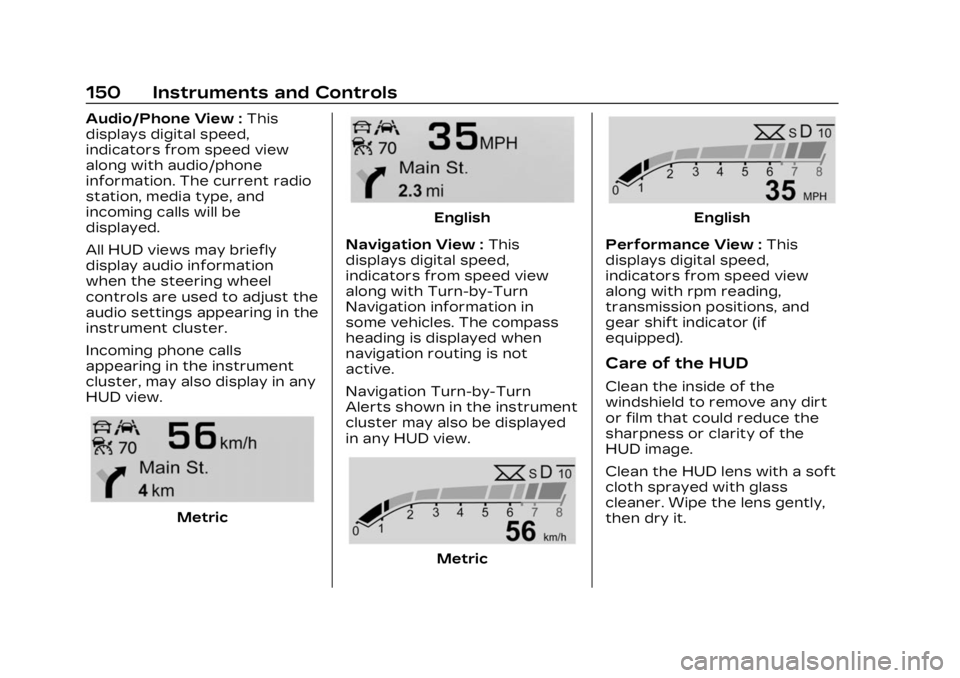
Audio/Phone View :This
displays digital speed,
indicators from speed view
along with audio/phone
information. The current radio
station, media type, and
incoming calls will be
displayed.
All HUD views may briefly
display audio information
when the steering wheel
controls are used to adjust the
audio settings appearing in the
instrument cluster.
Incoming phone calls
appearing in the instrument
cluster, may also display in any
HUD view.
Metric
English
Navigation View : This
displays digital speed,
indicators from speed view
along with Turn-by-Turn
Navigation information in
some vehicles. The compass
heading is displayed when
navigation routing is not
active.
Navigation Turn-by-Turn
Alerts shown in the instrument
cluster may also be displayed
in any HUD view.
Metric
English
Performance View : This
displays digital speed,
indicators from speed view
along with rpm reading,
transmission positions, and
gear shift indicator (if
equipped).
Care of the HUD
Clean the inside of the
windshield to remove any dirt
or film that could reduce the
sharpness or clarity of the
HUD image.
Clean the HUD lens with a soft
cloth sprayed with glass
cleaner. Wipe the lens gently,
then dry it.
Page 162 of 507
Cadillac XT6 Owner Manual (GMNA-Localizing-U.S./Canada-16405819) -
2023 - CRC - 3/22/22
Lighting 161
If after signaling a turn or lane
change, the arrow flashes
rapidly or does not come on, a
signal bulb may be burned out.
Cornering Lamps
Cornering lamps automatically
come on when all of the
following occur:
.The low-beam headlamps
are on.
.The turn signals are
activated or the steering
wheel is turned 50 degrees
in either directon.
.The vehicle speed is below
40 km/h (25 mph).
Interior Lighting
Instrument Panel
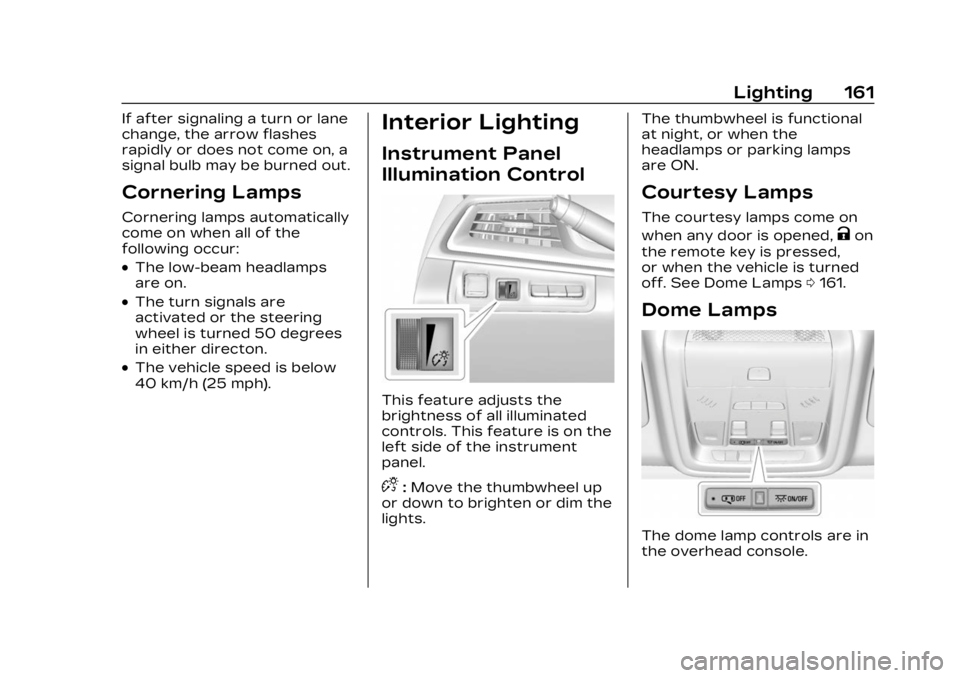
Illumination Control
This feature adjusts the
brightness of all illuminated
controls. This feature is on the
left side of the instrument
panel.
D:Move the thumbwheel up
or down to brighten or dim the
lights. The thumbwheel is functional
at night, or when the
headlamps or parking lamps
are ON.
Courtesy Lamps
The courtesy lamps come on
when any door is opened,
Kon
the remote key is pressed,
or when the vehicle is turned
off. See Dome Lamps 0161.
Dome Lamps
The dome lamp controls are in
the overhead console.
Page 165 of 507
Cadillac XT6 Owner Manual (GMNA-Localizing-U.S./Canada-16405819) -
2023 - CRC - 3/22/22
164 Infotainment System
Infotainment
System
Introduction
Introduction . . . . . . . . . . . . . . . . . 164
Overview . . . . . . . . . . . . . . . . . . . . . 165
Steering WheelControls . . . . . . . . . . . . . . . . . . . . . 167
Using the System . . . . . . . . . . 168
Software Updates . . . . . . . . . . 171
Radio
AM-FM Radio . . . . . . . . . . . . . . . . 171
Radio Data System (RDS) . . . . . . . . . . . . . . 174
Satellite Radio . . . . . . . . . . . . . . . 174
Radio Reception . . . . . . . . . . . . 175
Multi-Band Antenna . . . . . . . 175
Audio Players
Avoiding Untrusted Media Devices . . . . . . . . . . . . . . . . . . . . . . 176
USB Port . . . . . . . . . . . . . . . . . . . . . 176
Bluetooth Audio . . . . . . . . . . . . 179
Navigation
Using the Navigation System . . . . . . . . . . . . . . . . . . . . . . 180
Maps . . . . . . . . . . . . . . . . . . . . . . . . . . . 184
Navigation Symbols . . . . . . . 184 Destination . . . . . . . . . . . . . . . . . . . 185
Global Positioning
System (GPS) . . . . . . . . . . . . . . 192
Vehicle Positioning . . . . . . . . 193
Problems with Route Guidance . . . . . . . . . . . . . . . . . . . . 193
If the System Needs Service . . . . . . . . . . . . . . . . . . . . . . 194
Map Data Updates . . . . . . . . 194
Database Coverage Explanations . . . . . . . . . . . . . . . 194
Voice Recognition
Voice Recognition . . . . . . . . . 195
Phone
Bluetooth (Overview) . . . . . 202
Bluetooth (Pairing andUsing a Phone) . . . . . . . . . . . 203
Apple CarPlay and Android Auto . . . . . . . . . . . . . . 208
Settings
Settings . . . . . . . . . . . . . . . . . . . . . . 210
Teen Driver . . . . . . . . . . . . . . . . . . 214
Trademarks and License
Agreements
Trademarks and LicenseAgreements . . . . . . . . . . . . . . . . 219
Introduction
Read the following pages to
become familiar with the
features.
{Warning
Taking your eyes off the
road for too long or too
often while using any
infotainment feature can
cause a crash. You or others
could be injured or killed. Do
not give extended attention
to infotainment tasks while
driving. Limit your glances at
the vehicle displays and
focus your attention on
driving. Use voice commands
whenever possible.
The infotainment system has
built-in features intended to
help avoid distraction by
disabling some features when
driving. These features may
gray out when they are
unavailable. Many infotainment
Page 166 of 507
Cadillac XT6 Owner Manual (GMNA-Localizing-U.S./Canada-16405819) -
2023 - CRC - 3/22/22
Infotainment System 165
features are also available
through the instrument cluster
and steering wheel controls.
Before driving:
.Become familiar with the
operation, center stack
controls, steering wheel
controls, and infotainment
display.
.Set up the audio by
presetting favorite stations,
setting the tone, and
adjusting the speakers.
.Set up phone numbers in
advance so they can be
called easily by pressing a
single control or by using a
single voice command.
See Distracted Driving 0240.
Active Noise
Cancellation (ANC)
If equipped, ANC reduces
engine noise in the vehicle’s
interior. ANC requires the
factory-installed audio system,
radio, speakers, amplifier (if
equipped), induction system,
and exhaust system to work properly. Deactivation is
required by your dealer if
related aftermarket equipment
is installed.
Overview
Infotainment System
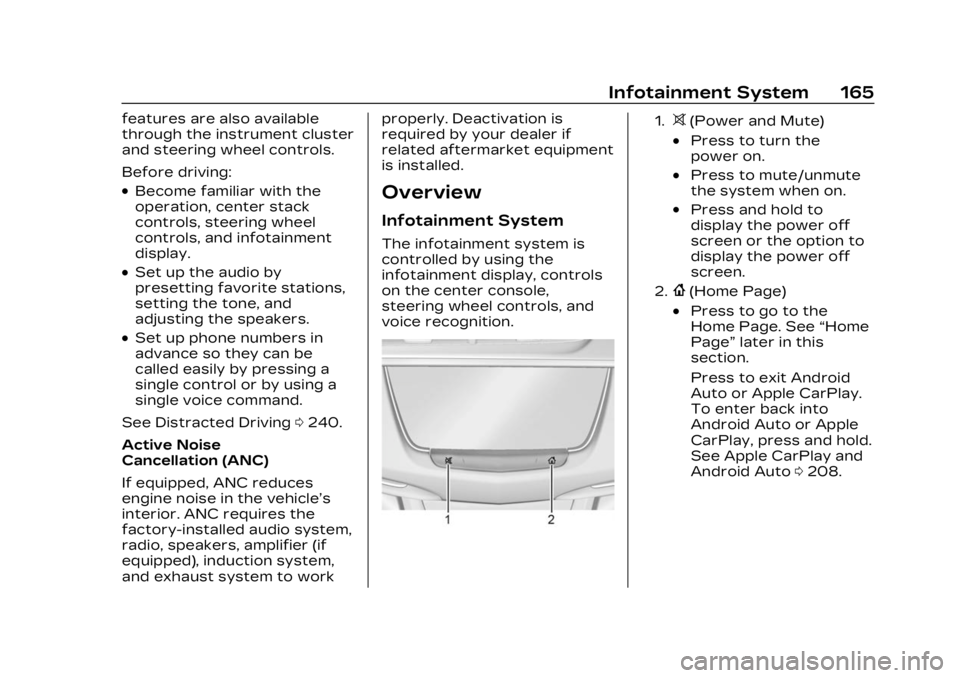
The infotainment system is
controlled by using the
infotainment display, controls
on the center console,
steering wheel controls, and
voice recognition.
1.>(Power and Mute)
.Press to turn the
power on.
.Press to mute/unmute
the system when on.
.Press and hold to
display the power off
screen or the option to
display the power off
screen.
2.{(Home Page)
.Press to go to the
Home Page. See
“Home
Page” later in this
section.
Press to exit Android
Auto or Apple CarPlay.
To enter back into
Android Auto or Apple
CarPlay, press and hold.
See Apple CarPlay and
Android Auto 0208.
Page 168 of 507
Cadillac XT6 Owner Manual (GMNA-Localizing-U.S./Canada-16405819) -
2023 - CRC - 3/22/22
Infotainment System 167
.Move right/left or up/
down to change the
highlighted area on the
display screen.
7.6(Phone) or{
(Home Page)
.Press6to access the
phone menu or press
{
to access the Home
Page. See “Home Page”
later in this section.
8.0(Back)
.Press to return to the
previous display in
a menu.
Home Page
The Home Page is where
vehicle application icons are
accessed. Some applications
are disabled when the vehicle
is moving.
Swipe left or right across the
display to access the pages of
icons. Managing Home Page Icons
1. Touch and hold any of the Home Page icons to enter
edit mode.
2. Continue holding the icon and drag it to the desired
position.
3. Release your finger to drop the icon in the
desired position.
4. To move an application to another page, drag the
icon to the edge of the
display toward the
desired page.
5. Continue dragging and dropping application icons
as desired.
Steering Wheel
Controls
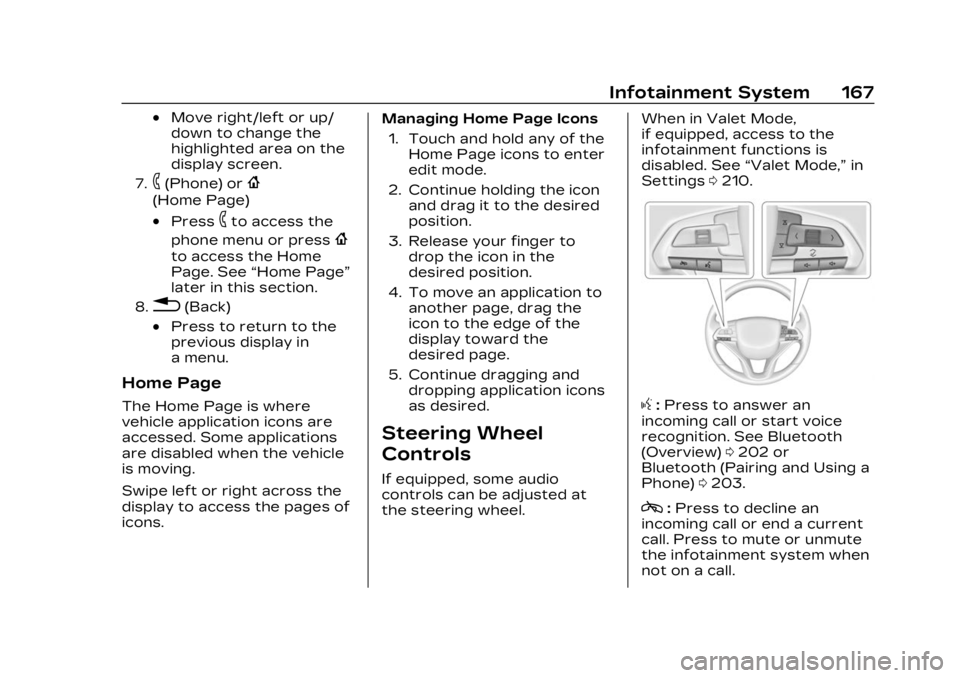
If equipped, some audio
controls can be adjusted at
the steering wheel. When in Valet Mode,
if equipped, access to the
infotainment functions is
disabled. See
“Valet Mode,” in
Settings 0210.
g:Press to answer an
incoming call or start voice
recognition. See Bluetooth
(Overview) 0202 or
Bluetooth (Pairing and Using a
Phone) 0203.
c:Press to decline an
incoming call or end a current
call. Press to mute or unmute
the infotainment system when
not on a call.
Page 169 of 507
Cadillac XT6 Owner Manual (GMNA-Localizing-U.S./Canada-16405819) -
2023 - CRC - 3/22/22
168 Infotainment System
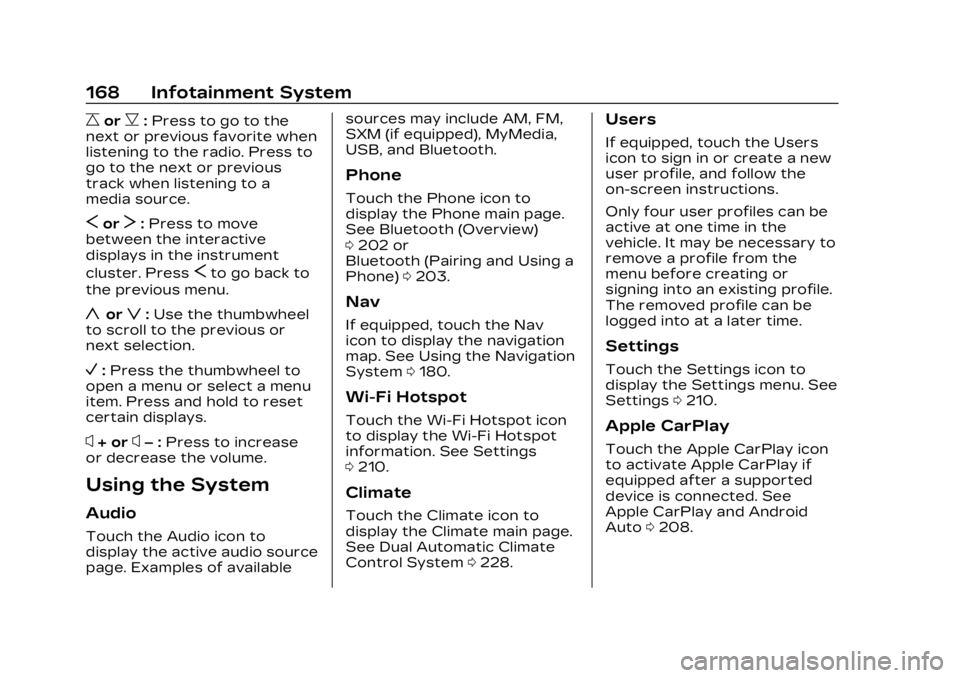
CorB:Press to go to the
next or previous favorite when
listening to the radio. Press to
go to the next or previous
track when listening to a
media source.
SorT: Press to move
between the interactive
displays in the instrument
cluster. Press
Sto go back to
the previous menu.
yorz: Use the thumbwheel
to scroll to the previous or
next selection.
V: Press the thumbwheel to
open a menu or select a menu
item. Press and hold to reset
certain displays.
x+ orx– :Press to increase
or decrease the volume.
Using the System
Audio
Touch the Audio icon to
display the active audio source
page. Examples of available sources may include AM, FM,
SXM (if equipped), MyMedia,
USB, and Bluetooth.
Phone
Touch the Phone icon to
display the Phone main page.
See Bluetooth (Overview)
0
202 or
Bluetooth (Pairing and Using a
Phone) 0203.
Nav
If equipped, touch the Nav
icon to display the navigation
map. See Using the Navigation
System 0180.
Wi-Fi Hotspot
Touch the Wi-Fi Hotspot icon
to display the Wi-Fi Hotspot
information. See Settings
0210.
Climate
Touch the Climate icon to
display the Climate main page.
See Dual Automatic Climate
Control System 0228.
Users
If equipped, touch the Users
icon to sign in or create a new
user profile, and follow the
on-screen instructions.
Only four user profiles can be
active at one time in the
vehicle. It may be necessary to
remove a profile from the
menu before creating or
signing into an existing profile.
The removed profile can be
logged into at a later time.
Settings
Touch the Settings icon to
display the Settings menu. See
Settings 0210.
Apple CarPlay
Touch the Apple CarPlay icon
to activate Apple CarPlay if
equipped after a supported
device is connected. See
Apple CarPlay and Android
Auto 0208.