phone CADILLAC XTS 2017 1.G Owners Manual
[x] Cancel search | Manufacturer: CADILLAC, Model Year: 2017, Model line: XTS, Model: CADILLAC XTS 2017 1.GPages: 314, PDF Size: 3.71 MB
Page 8 of 314

Cadillac XTS Owner Manual (GMNA-Localizing-MidEast-10292881) - 2017 -
crc - 7/1/16
IN BRIEF 7
1.Air Vents 0165.
2. Electric Parking Brake 0186.
Instrument Panel Illumination
Control 0155.
Head-Up Display (HUD) 0131 (If
Equipped).
3. Exterior Lamp Controls 0151.
Turn Signal Lever. See Turn and
Lane-Change Signals 0154.
4. Instrument Cluster 0112.
Driver Information Center (DIC)
Display. See Driver Information
Center (DIC) 0128.
5. Windshield Wiper/Washer 0105.
6. Hazard Warning Flashers 0154.
Lane Departure Warning
(LDW) 0211.
Traction Control/Electronic
Stability Control 0188.
7. Infotainment 0158.
8. Glove Box Button. See Glove
Box 0100.
Parking Assist Button. See
Assistance Systems for Parking or
Backing 0202. 9.
Dual Automatic Climate Control
System 0159.
Heated and Ventilated Front Seats
0 58 (If Equipped).
10. Instrument Panel Storage 099 (If
Equipped).
Wireless Charging Pad (If
Equipped) (Out of View). See
Wireless Charging 0108.
11. Shift Lever. See Automatic
Transmission 0183.
12. ENGINE START/STOP Button. SeeIgnition Positions 0177.
13. Steering Wheel Controls 0104.
14. Horn 0104.
15. Steering Wheel Adjustment 0104.
16. Cruise Control 0191.
Adaptive Cruise Control 0194 (If
Equipped).
Forward Collision Alert (FCA)
System 0206 (If Equipped).
Phone Button. See “Steering
Wheel Controls ”in the
infotainment manual. Heated Steering Wheel
0104 (If
Equipped).
17. Data Link Connector (DLC) (Out of View). See Malfunction
Indicator Lamp (Check Engine
Light) 0120.
18. Hood Release. See Hood0223.
19. Instrument Panel Storage 099.
Page 20 of 314
Cadillac XTS Owner Manual (GMNA-Localizing-MidEast-10292881) - 2017 -
crc - 7/1/16
IN BRIEF 19
Vehicle Features
Infotainment System
See the infotainment manual for
information on the radio, audio
players, phone, and navigation system.
It also includes information on
settings.
Steering Wheel Controls
The infotainment system can be
operated by using the steering wheel
controls. See "Steering Wheel
Controls" in the infotainment manual.
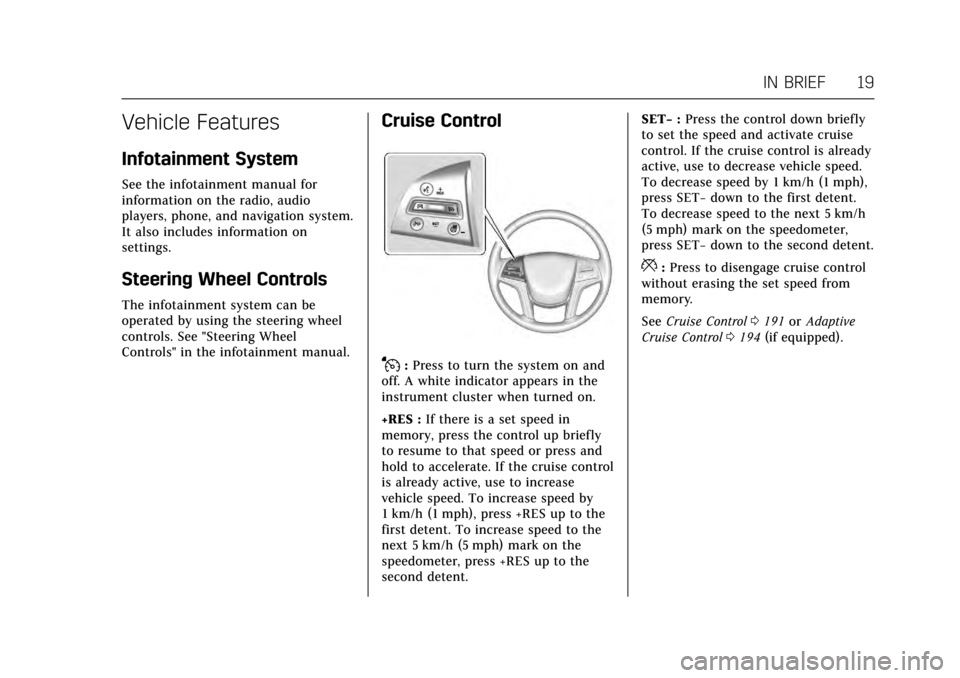
Cruise Control
J:Press to turn the system on and
off. A white indicator appears in the
instrument cluster when turned on.
+RES : If there is a set speed in
memory, press the control up briefly
to resume to that speed or press and
hold to accelerate. If the cruise control
is already active, use to increase
vehicle speed. To increase speed by
1 km/h (1 mph), press +RES up to the
first detent. To increase speed to the
next 5 km/h (5 mph) mark on the
speedometer, press +RES up to the
second detent. SET−
:Press the control down briefly
to set the speed and activate cruise
control. If the cruise control is already
active, use to decrease vehicle speed.
To decrease speed by 1 km/h (1 mph),
press SET− down to the first detent.
To decrease speed to the next 5 km/h
(5 mph) mark on the speedometer,
press SET− down to the second detent.
*:Press to disengage cruise control
without erasing the set speed from
memory.
See Cruise Control 0191 orAdaptive
Cruise Control 0194 (if equipped).
Page 23 of 314
Cadillac XTS Owner Manual (GMNA-Localizing-MidEast-10292881) - 2017 -
crc - 7/1/16
22 IN BRIEF
Power Outlets
Power Outlets 12 Volt Direct
Current
The accessory power outlet can be
used to plug in electrical equipment,
such as a cell phone or MP3 player.
The vehicle has one accessory power
outlet inside the center console.
Lift the cover to access the accessory
power outlet.
SeePower Outlets 0107.
Sunroof
For vehicles equipped with a sunroof,
the ignition must be in ON/RUN or
ACC/ACCESSORY, or in Retained
Accessory Power (RAP) to operate the
sunroof and power sunshade. See
Ignition Positions 0177 and Retained
Accessory Power (RAP) 0180.
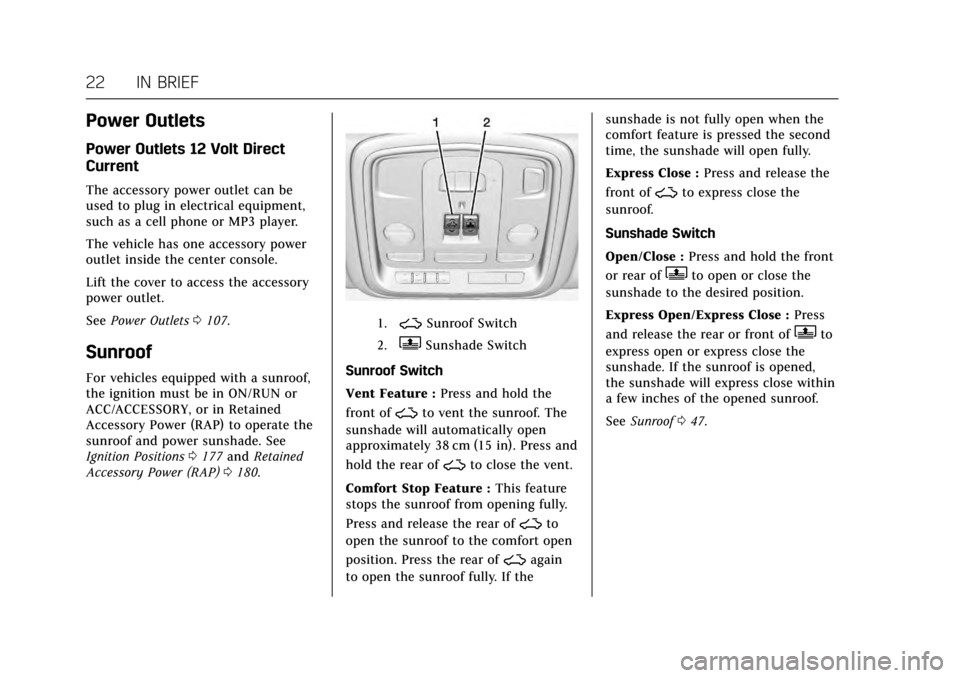
1.~Sunroof Switch
2.QSunshade Switch
Sunroof Switch
Vent Feature : Press and hold the
front of
~to vent the sunroof. The
sunshade will automatically open
approximately 38 cm (15 in). Press and
hold the rear of
~to close the vent.
Comfort Stop Feature : This feature
stops the sunroof from opening fully.
Press and release the rear of
~to
open the sunroof to the comfort open
position. Press the rear of
~again
to open the sunroof fully. If the sunshade is not fully open when the
comfort feature is pressed the second
time, the sunshade will open fully.
Express Close :
Press and release the
front of
~to express close the
sunroof.
Sunshade Switch
Open/Close : Press and hold the front
or rear of
Qto open or close the
sunshade to the desired position.
Express Open/Express Close : Press
and release the rear or front of
Qto
express open or express close the
sunshade. If the sunroof is opened,
the sunshade will express close within
a few inches of the opened sunroof.
See Sunroof 047.
Page 108 of 314
Cadillac XTS Owner Manual (GMNA-Localizing-MidEast-10292881) - 2017 -
crc - 7/1/16
INSTRUMENTS AND CONTROLS 107
Setting the Clock
Time
To set the time:1. From the Home Page, touch the SETTINGS screen button, then
touch Time and Date.
2. Touch Set Time, then touch + or −to increase or decrease hours
or minutes, and change AM
or PM.
3. Touch 12-24 Hr for a 12 or 24 hour clock.
4. Touch
[Back to go back to the
previous menu.
Date
To set the date: 1. Touch the SETTINGS screen button, then touch Time
and Date.
2. Touch Set Date, then touch + or −to increase or decrease month,
day, or year.
3. Touch
[Back to go back to the
previous menu. Auto Set
When on, the time and date will
automatically update.
To set auto set:
1. Touch the SETTINGS screen button, then touch Time
and Date.
2. Touch Set Time or Set Date.
3. Touch Auto Set, then select On-Cell Network or Off-Manual
to manually set the time
and date.
4. Touch
[Back to go back to the
previous menu.
If auto set is on, the time displayed on
the clock may not update immediately
when driving into a new time zone.
Clock Display
When on, the digital clock will display
on the infotainment screen.
To set the clock display: 1. Touch the SETTINGS screen button, then touch Time
and Date. 2. Touch Clock Display, then select
Off or On.
3. Touch
[Back to go back to the
previous menu.
Power Outlets
Power Outlets 12 Volt Direct
Current
The accessory power outlet can be
used to plug in electrical equipment,
such as a cell phone or MP3 player.
The vehicle has one accessory power
outlet inside the center console.
Lift the cover to access the accessory
power outlet.
Certain accessory power plugs may
not be compatible with the accessory
power outlet and could overload
vehicle or adapter fuses. If a problem
is experienced, see your dealer.
When adding electrical equipment, be
sure to follow the proper installation
instructions included with the
equipment. See Add-On Electrical
Equipment 0220.
Page 109 of 314
Cadillac XTS Owner Manual (GMNA-Localizing-MidEast-10292881) - 2017 -
crc - 7/1/16
108 INSTRUMENTS AND CONTROLS
Caution
Hanging heavy equipment from the
power outlet can cause damage not
covered by the vehicle warranty.
The power outlets are designed for
accessory power plugs only, such as
cell phone charge cords.
Always unplug electrical equipment
when not in use and do not plug in
equipment that exceeds the maximum
20 amps rating.
Power Outlet 220/230 Volt
Alternating Current
If equipped with this power outlet on
the rear of the center console. It can
be used to plug in electrical
equipment that uses a maximum limit
of 150 watts.
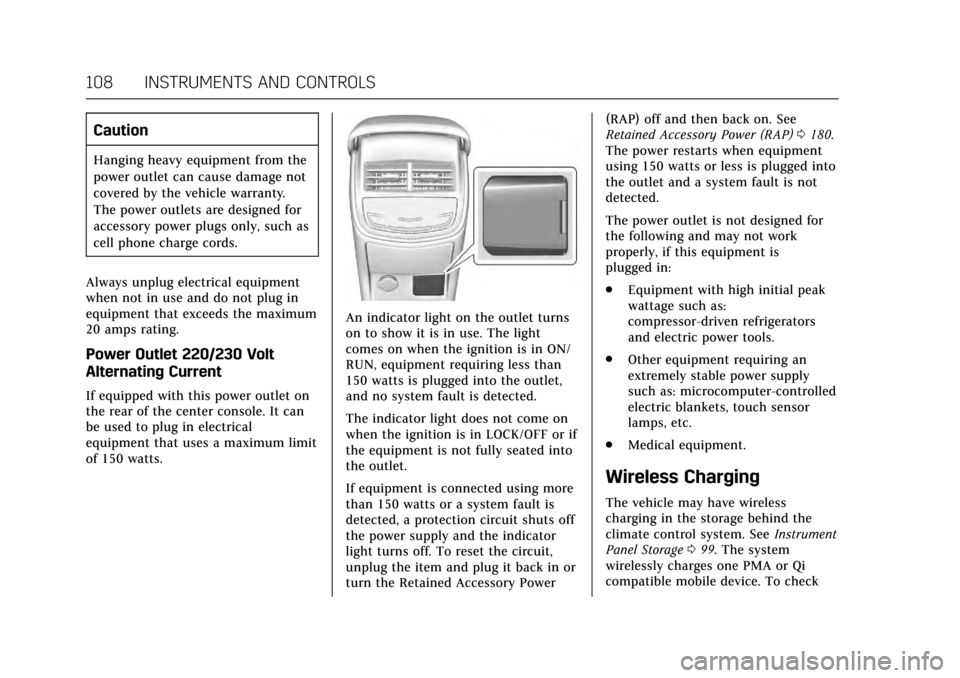
An indicator light on the outlet turns
on to show it is in use. The light
comes on when the ignition is in ON/
RUN, equipment requiring less than
150 watts is plugged into the outlet,
and no system fault is detected.
The indicator light does not come on
when the ignition is in LOCK/OFF or if
the equipment is not fully seated into
the outlet.
If equipment is connected using more
than 150 watts or a system fault is
detected, a protection circuit shuts off
the power supply and the indicator
light turns off. To reset the circuit,
unplug the item and plug it back in or
turn the Retained Accessory Power (RAP) off and then back on. See
Retained Accessory Power (RAP)
0180.
The power restarts when equipment
using 150 watts or less is plugged into
the outlet and a system fault is not
detected.
The power outlet is not designed for
the following and may not work
properly, if this equipment is
plugged in:
. Equipment with high initial peak
wattage such as:
compressor-driven refrigerators
and electric power tools.
. Other equipment requiring an
extremely stable power supply
such as: microcomputer-controlled
electric blankets, touch sensor
lamps, etc.
. Medical equipment.
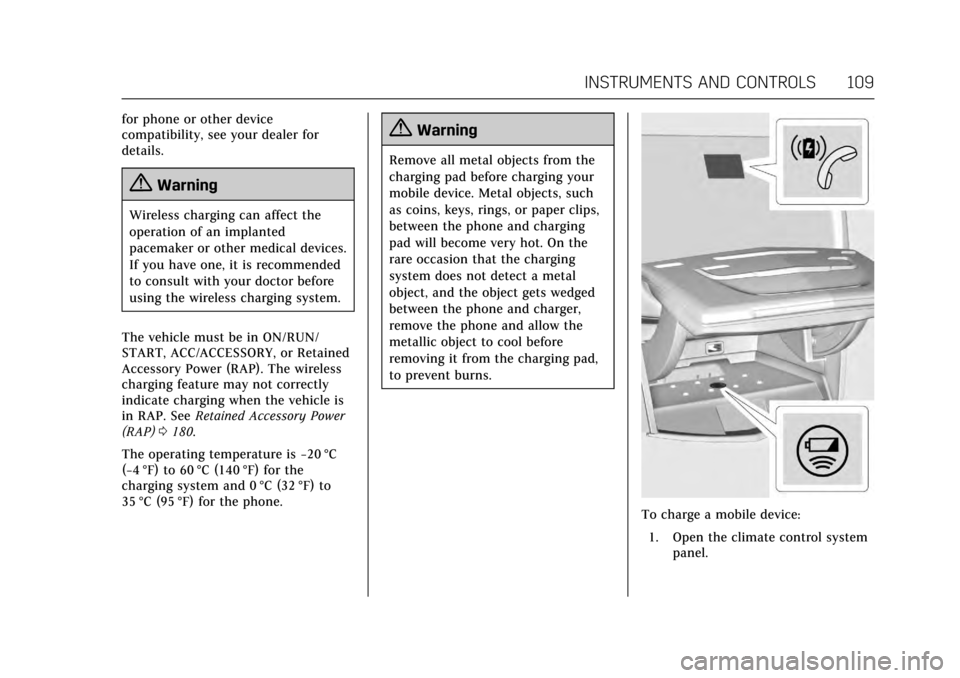
Wireless Charging
The vehicle may have wireless
charging in the storage behind the
climate control system. See Instrument
Panel Storage 099. The system
wirelessly charges one PMA or Qi
compatible mobile device. To check
Page 110 of 314
Cadillac XTS Owner Manual (GMNA-Localizing-MidEast-10292881) - 2017 -
crc - 7/1/16
INSTRUMENTS AND CONTROLS 109
for phone or other device
compatibility, see your dealer for
details.
{Warning
Wireless charging can affect the
operation of an implanted
pacemaker or other medical devices.
If you have one, it is recommended
to consult with your doctor before
using the wireless charging system.
The vehicle must be in ON/RUN/
START, ACC/ACCESSORY, or Retained
Accessory Power (RAP). The wireless
charging feature may not correctly
indicate charging when the vehicle is
in RAP. See Retained Accessory Power
(RAP) 0180.
The operating temperature is −20 °C
(−4 °F) to 60 °C (140 °F) for the
charging system and 0 °C (32 °F) to
35 °C (95 °F) for the phone.
{Warning
Remove all metal objects from the
charging pad before charging your
mobile device. Metal objects, such
as coins, keys, rings, or paper clips,
between the phone and charging
pad will become very hot. On the
rare occasion that the charging
system does not detect a metal
object, and the object gets wedged
between the phone and charger,
remove the phone and allow the
metallic object to cool before
removing it from the charging pad,
to prevent burns.
To charge a mobile device:
1. Open the climate control system panel.
Page 111 of 314
Cadillac XTS Owner Manual (GMNA-Localizing-MidEast-10292881) - 2017 -
crc - 7/1/16
110 INSTRUMENTS AND CONTROLS
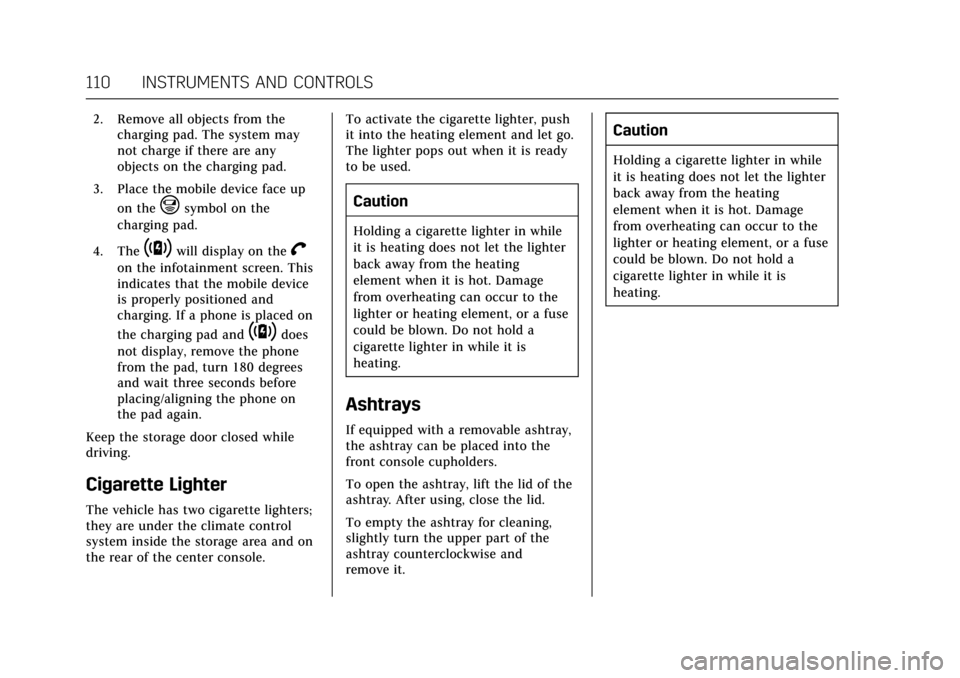
2. Remove all objects from thecharging pad. The system may
not charge if there are any
objects on the charging pad.
3. Place the mobile device face up on the
@symbol on the
charging pad.
4. The
~will display on theV
on the infotainment screen. This
indicates that the mobile device
is properly positioned and
charging. If a phone is placed on
the charging pad and
~does
not display, remove the phone
from the pad, turn 180 degrees
and wait three seconds before
placing/aligning the phone on
the pad again.
Keep the storage door closed while
driving.
Cigarette Lighter
The vehicle has two cigarette lighters;
they are under the climate control
system inside the storage area and on
the rear of the center console. To activate the cigarette lighter, push
it into the heating element and let go.
The lighter pops out when it is ready
to be used.
Caution
Holding a cigarette lighter in while
it is heating does not let the lighter
back away from the heating
element when it is hot. Damage
from overheating can occur to the
lighter or heating element, or a fuse
could be blown. Do not hold a
cigarette lighter in while it is
heating.
Ashtrays
If equipped with a removable ashtray,
the ashtray can be placed into the
front console cupholders.
To open the ashtray, lift the lid of the
ashtray. After using, close the lid.
To empty the ashtray for cleaning,
slightly turn the upper part of the
ashtray counterclockwise and
remove it.
Caution
Holding a cigarette lighter in while
it is heating does not let the lighter
back away from the heating
element when it is hot. Damage
from overheating can occur to the
lighter or heating element, or a fuse
could be blown. Do not hold a
cigarette lighter in while it is
heating.
Page 115 of 314
Cadillac XTS Owner Manual (GMNA-Localizing-MidEast-10292881) - 2017 -
crc - 7/1/16
114 INSTRUMENTS AND CONTROLS
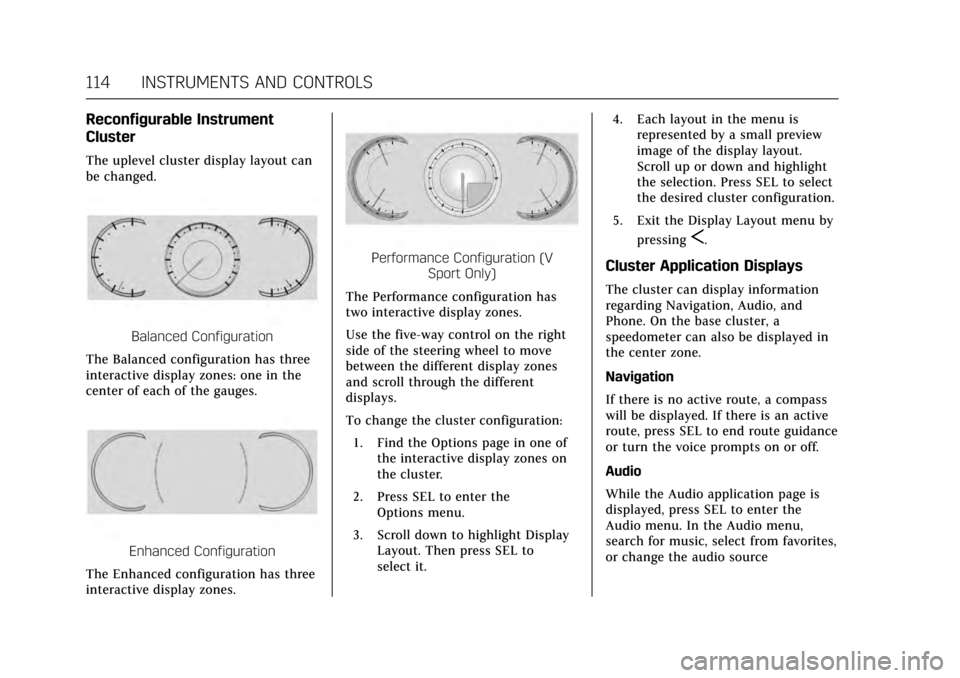
Reconfigurable Instrument
Cluster
The uplevel cluster display layout can
be changed.
Balanced Configuration
The Balanced configuration has three
interactive display zones: one in the
center of each of the gauges.
Enhanced Configuration
The Enhanced configuration has three
interactive display zones.
Performance Configuration (V Sport Only)
The Performance configuration has
two interactive display zones.
Use the five-way control on the right
side of the steering wheel to move
between the different display zones
and scroll through the different
displays.
To change the cluster configuration:
1. Find the Options page in one of the interactive display zones on
the cluster.
2. Press SEL to enter the Options menu.
3. Scroll down to highlight Display Layout. Then press SEL to
select it. 4. Each layout in the menu is
represented by a small preview
image of the display layout.
Scroll up or down and highlight
the selection. Press SEL to select
the desired cluster configuration.
5. Exit the Display Layout menu by pressing
S.
Cluster Application Displays
The cluster can display information
regarding Navigation, Audio, and
Phone. On the base cluster, a
speedometer can also be displayed in
the center zone.
Navigation
If there is no active route, a compass
will be displayed. If there is an active
route, press SEL to end route guidance
or turn the voice prompts on or off.
Audio
While the Audio application page is
displayed, press SEL to enter the
Audio menu. In the Audio menu,
search for music, select from favorites,
or change the audio source
Page 116 of 314
Cadillac XTS Owner Manual (GMNA-Localizing-MidEast-10292881) - 2017 -
crc - 7/1/16
INSTRUMENTS AND CONTROLS 115
Phone
While the Phone application page is
displayed, press SEL to enter the
Phone menu. In the Phone menu,
if there is no active phone call, view
recent calls, select from favorites,
or scroll through contacts. If there is
an active call, mute the phone or
switch to handset operation.
Cluster Options Menu
To enter the cluster Options menu:1. Use the five-way control on the right side of the steering wheel
to find the Options page in one
of the interactive display zones
on the cluster.
2. Press SEL on the center of the five-way control to enter the
Options menu.
Units : Press SEL while Units is
highlighted to enter the Unit menu.
Choose English or metric units by
pressing SEL while the desired item is
highlighted. A checkmark will be
displayed next to the selected item. Info Pages :
Press SEL while Info
Pages is highlighted to select the
items to be displayed in the DIC info
displays. See Driver Information Center
(DIC) 0128.
Display Layout : Press SEL while
Display Layout is highlighted to
change the configuration of the
uplevel cluster. See “Reconfigurable
Instrument Cluster” earlier in this
section.
Head-up Display (HUD) Rotation :
This feature allows for adjusting the
angle of the HUD image. Press SEL on
the steering wheel controls while
Head-up Display Rotation is
highlighted to enter Adjust Mode.
Press
yorzto adjust the angle of
the HUD display. Press
SorTto
highlight OK, then press SEL to save
the setting. Cancel can also be
selected to cancel the setting. The
vehicle must be in P (Park).
Fav Button Options : Press SEL while
Fav Button Options is highlighted to
select between FAV Primary and SEEK
Primary. This selection allows for
configuration of the
CandB
steering wheel controls. When FAV
Primary is selected, pressing
Cand
Bwill go to the next or previous
favorite and pressing and holding
C
andBwill seek. When SEEK Primary
is selected, pressing
CandBwill
seek and pressing and holding
Cand
Bwill go to the next or previous
favorite.
Open Source Software : Press SEL
while Open Source Software is
highlighted to display open source
software information.
Speedometer
The speedometer shows the vehicle's
speed in kilometers per hour (km/h)
or miles per hour (mph).
This vehicle is equipped with an
overspeed warning device. When the
vehicle's speed reaches 120 km/h
(75 mph), a chime will sound.
A message also displays in the Driver
Information Center (DIC). See Vehicle
Speed Messages 0143.
Page 133 of 314
Cadillac XTS Owner Manual (GMNA-Localizing-MidEast-10292881) - 2017 -
crc - 7/1/16
132 INSTRUMENTS AND CONTROLS
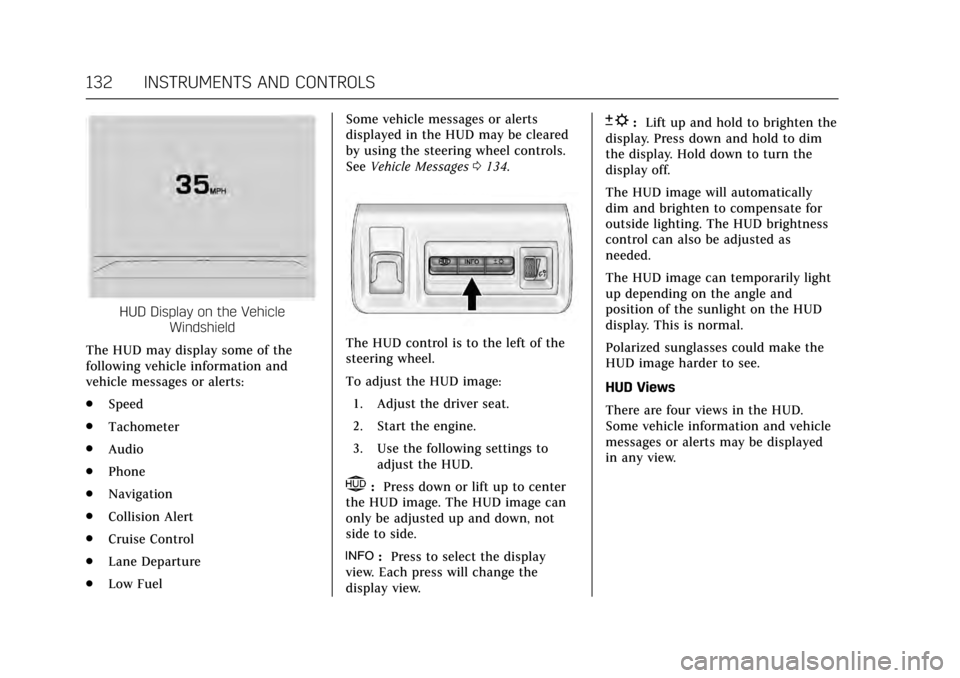
HUD Display on the VehicleWindshield
The HUD may display some of the
following vehicle information and
vehicle messages or alerts:
. Speed
. Tachometer
. Audio
. Phone
. Navigation
. Collision Alert
. Cruise Control
. Lane Departure
. Low Fuel Some vehicle messages or alerts
displayed in the HUD may be cleared
by using the steering wheel controls.
See
Vehicle Messages 0134.
The HUD control is to the left of the
steering wheel.
To adjust the HUD image:
1. Adjust the driver seat.
2. Start the engine.
3. Use the following settings to adjust the HUD.
$:Press down or lift up to center
the HUD image. The HUD image can
only be adjusted up and down, not
side to side.
!: Press to select the display
view. Each press will change the
display view.
D: Lift up and hold to brighten the
display. Press down and hold to dim
the display. Hold down to turn the
display off.
The HUD image will automatically
dim and brighten to compensate for
outside lighting. The HUD brightness
control can also be adjusted as
needed.
The HUD image can temporarily light
up depending on the angle and
position of the sunlight on the HUD
display. This is normal.
Polarized sunglasses could make the
HUD image harder to see.
HUD Views
There are four views in the HUD.
Some vehicle information and vehicle
messages or alerts may be displayed
in any view.