ECU CADILLAC XTS 2018 Service Manual
[x] Cancel search | Manufacturer: CADILLAC, Model Year: 2018, Model line: XTS, Model: CADILLAC XTS 2018Pages: 370, PDF Size: 6.45 MB
Page 300 of 370
Cadillac XTS Owner Manual (GMNA-Localizing-U.S./Canada-11354412) -
2018 - crc - 11/16/17
VEHICLE CARE 299
17. Lower the jack all the way andremove the jack from under the
vehicle.
18. Tighten the wheel nuts firmly with the wheel wrench.
Storing a Flat or Spare Tire and
Tools
{Warning
Storing a jack, a tire, or other
equipment in the passenger
compartment of the vehicle could
cause injury. In a sudden stop or
collision, loose equipment could
strike someone. Store all these in
the proper place.
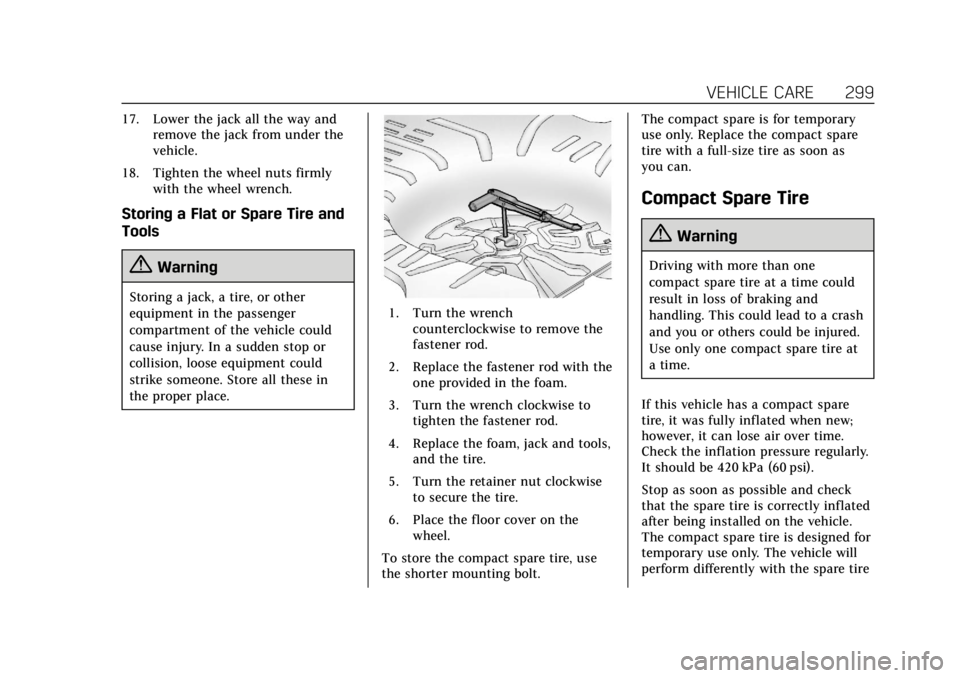
1. Turn the wrenchcounterclockwise to remove the
fastener rod.
2. Replace the fastener rod with the one provided in the foam.
3. Turn the wrench clockwise to tighten the fastener rod.
4. Replace the foam, jack and tools, and the tire.
5. Turn the retainer nut clockwise to secure the tire.
6. Place the floor cover on the wheel.
To store the compact spare tire, use
the shorter mounting bolt. The compact spare is for temporary
use only. Replace the compact spare
tire with a full-size tire as soon as
you can.
Compact Spare Tire
{Warning
Driving with more than one
compact spare tire at a time could
result in loss of braking and
handling. This could lead to a crash
and you or others could be injured.
Use only one compact spare tire at
a time.
If this vehicle has a compact spare
tire, it was fully inflated when new;
however, it can lose air over time.
Check the inflation pressure regularly.
It should be 420 kPa (60 psi).
Stop as soon as possible and check
that the spare tire is correctly inflated
after being installed on the vehicle.
The compact spare tire is designed for
temporary use only. The vehicle will
perform differently with the spare tire
Page 305 of 370
Cadillac XTS Owner Manual (GMNA-Localizing-U.S./Canada-11354412) -
2018 - crc - 11/16/17
304 VEHICLE CARE
Towing the Vehicle
Caution
Incorrectly towing a disabled
vehicle may cause damage. The
damage would not be covered by
the vehicle warranty.
Do not lash or hook to suspension
components. Use the proper straps
around the tires to secure the
vehicle.
Have the vehicle towed on a wheel lift
tow truck or flatbed car carrier. If a
wheel lift tow truck is used, the drive
wheels cannot contact the road while
the vehicle is being towed. A wheel
dolly must be used to lift all drive
wheels off the ground.
Front Attachment Points
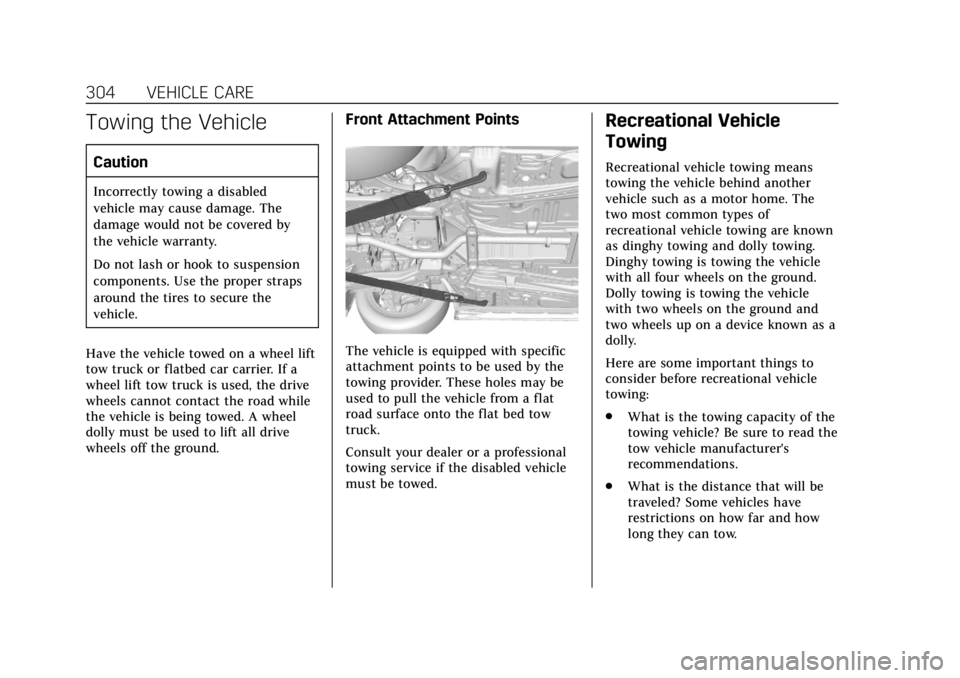
The vehicle is equipped with specific
attachment points to be used by the
towing provider. These holes may be
used to pull the vehicle from a flat
road surface onto the flat bed tow
truck.
Consult your dealer or a professional
towing service if the disabled vehicle
must be towed.
Recreational Vehicle
Towing
Recreational vehicle towing means
towing the vehicle behind another
vehicle such as a motor home. The
two most common types of
recreational vehicle towing are known
as dinghy towing and dolly towing.
Dinghy towing is towing the vehicle
with all four wheels on the ground.
Dolly towing is towing the vehicle
with two wheels on the ground and
two wheels up on a device known as a
dolly.
Here are some important things to
consider before recreational vehicle
towing:
. What is the towing capacity of the
towing vehicle? Be sure to read the
tow vehicle manufacturer's
recommendations.
. What is the distance that will be
traveled? Some vehicles have
restrictions on how far and how
long they can tow.
Page 307 of 370
Cadillac XTS Owner Manual (GMNA-Localizing-U.S./Canada-11354412) -
2018 - crc - 11/16/17
306 VEHICLE CARE
2. Drive the front wheels onto thedolly.
3. Shift the transmission to P (Park).
4. Firmly set the parking brake.
5. Use an adequate clamping device designed for towing to ensure
that the front wheels are locked
into the straight-ahead position.
6. Secure the vehicle to the dolly following the manufacturer
instructions.
7. Release the parking brake only after the vehicle being towed is
firmly attached to the towing
vehicle.
8. Turn the ignition to off.Dolly Towing from the Front
(All-Wheel Drive)
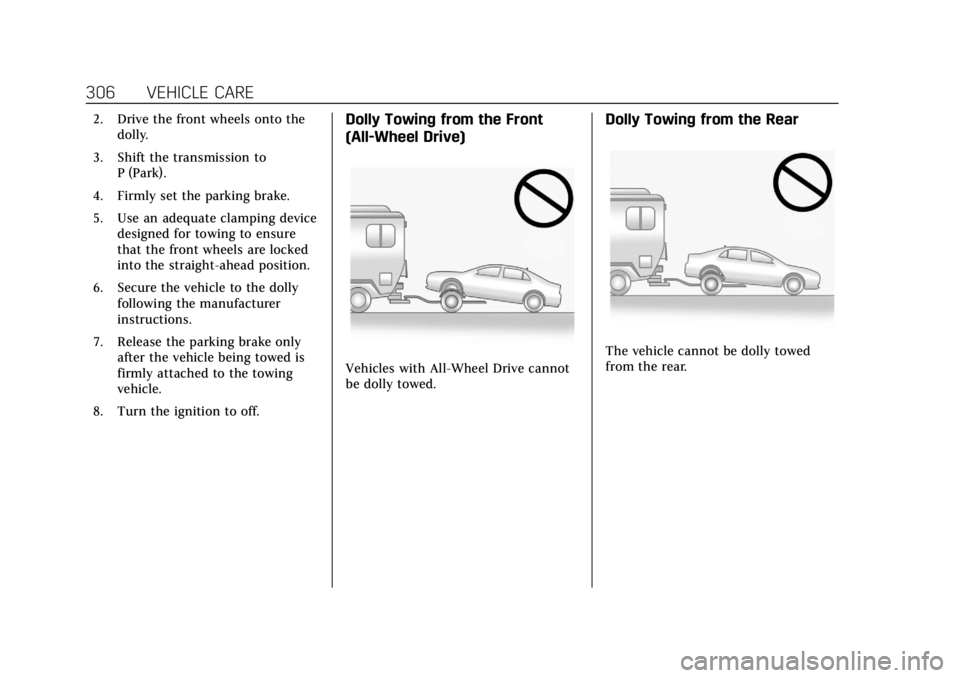
Vehicles with All-Wheel Drive cannot
be dolly towed.
Dolly Towing from the Rear
The vehicle cannot be dolly towed
from the rear.
Page 315 of 370
Cadillac XTS Owner Manual (GMNA-Localizing-U.S./Canada-11354412) -
2018 - crc - 11/16/17
314 VEHICLE CARE
{Warning
Do not bleach or dye seat belt
webbing. It may severely weaken
the webbing. In a crash, they might
not be able to provide adequate
protection. Clean and rinse seat belt
webbing only with mild soap and
lukewarm water. Allow the webbing
to dry.
Floor Mats
{Warning
If a floor mat is the wrong size or is
not properly installed, it can
interfere with the pedals.
Interference with the pedals can
cause unintended acceleration and/
or increased stopping distance
which can cause a crash and injury.
Make sure the floor mat does not
interfere with the pedals.Use the following guidelines for
proper floor mat usage.
.
The original equipment floor mats
were designed for your vehicle.
If the floor mats need replacing, it
is recommended that GM certified
floor mats be purchased. Non-GM
floor mats may not fit properly
and may interfere with the pedals.
Always check that the floor mats
do not interfere with the pedals.
. Do not use a floor mat if the
vehicle is not equipped with a
floor mat retainer on the driver
side floor.
. Use the floor mat with the correct
side up. Do not turn it over.
. Do not place anything on top of
the driver side floor mat.
. Use only a single floor mat on the
driver side.
. Do not place one floor mat on top
of another.
The floor mats are held in place by
button-type retainers.
Removing and Replacing the
Floor Mats
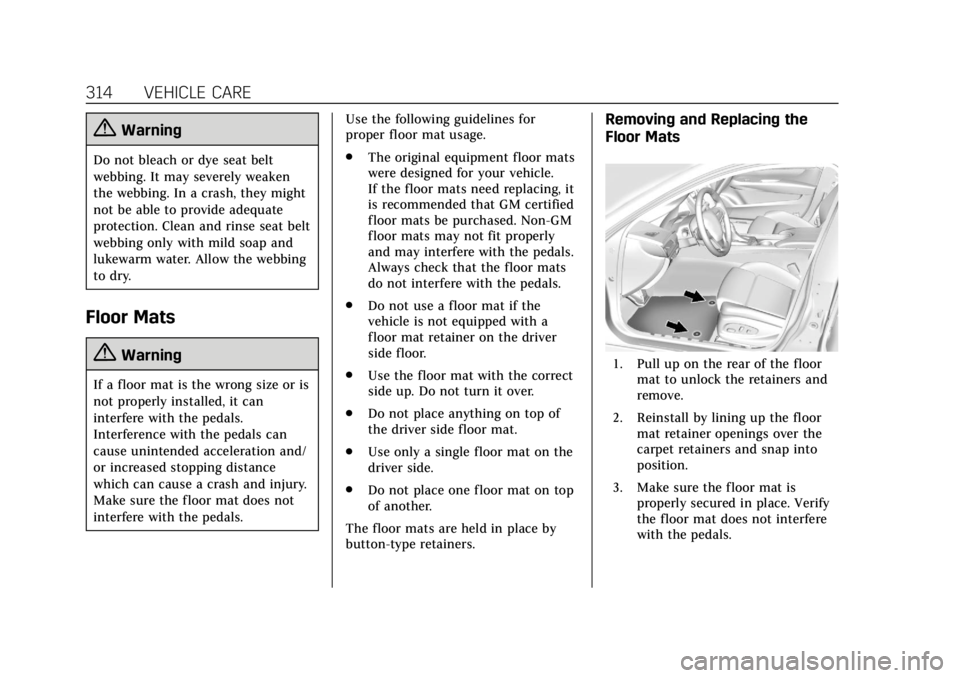
1. Pull up on the rear of the floor mat to unlock the retainers and
remove.
2. Reinstall by lining up the floor mat retainer openings over the
carpet retainers and snap into
position.
3. Make sure the floor mat is properly secured in place. Verify
the floor mat does not interfere
with the pedals.
Page 339 of 370
Cadillac XTS Owner Manual (GMNA-Localizing-U.S./Canada-11354412) -
2018 - crc - 11/16/17
338 CUSTOMER INFORMATION
General Motors of Canada also has a
Mobility program. See www.gm.ca or
call 1-800-GM-DRIVE (800-463-7483)
for details. TTY users call
1-800-263-3830.
Roadside Service
U.S.: 1-800-224-1400.
Canada: 1-800-882-1112.
Text Telephone (TTY) Users (U.S.
Only): 1-888-889-2438.
Service is available 24 hours a day,
365 days a year.
Calling for Service
When calling Roadside Service, have
the following information ready:
.Your name, home address, and
home telephone number
. Telephone number of your
location
. Location of the vehicle
. Model, year, color, and license
plate number of the vehicle .
Odometer reading, Vehicle
Identification Number (VIN), and
delivery date of the vehicle
. Description of the problem
Coverage
Services are provided for the duration
of the vehicle’s powertrain warranty.
In the U.S., anyone driving the vehicle
is covered. In Canada, a person driving
the vehicle without permission from
the owner is not covered.
Roadside Service is not a part of the
New Vehicle Limited Warranty.
General Motors North America and
Cadillac reserve the right to make any
changes or discontinue the Roadside
Service program at any time without
notification.
General Motors North America and
Cadillac reserve the right to limit
services or payment to an owner or
driver if they decide the claims are
made too often, or the same type of
claim is made many times.
Cadillac Owner Privileges ™
.
Emergency Fuel Delivery:
Delivery of enough fuel for the
vehicle to get to the nearest
service station.
. Lock-Out Service: Service to
unlock the vehicle if you are
locked out. A remote unlock may
be available if you have OnStar.
For security reasons, the driver
must present identification before
this service is given.
. Emergency Tow from a Public
Road or Highway: Tow to the
nearest Cadillac dealer for
warranty service, or if the vehicle
was in a crash and cannot be
driven. Assistance is not given
when the vehicle is stuck in the
sand, mud, or snow.
. Flat Tire Change: Service to
change a flat tire with a spare tire.
The spare tire, if equipped, must
be in good condition and properly
inflated. It is your responsibility
for the repair or replacement of
the tire if it is not covered by the
warranty.
Page 348 of 370
Cadillac XTS Owner Manual (GMNA-Localizing-U.S./Canada-11354412) -
2018 - crc - 11/16/17
ONSTAR 347
OnStar
OnStar Overview
OnStar Overview . . . . . . . . . . . . . . . . . . 347
OnStar Services
Emergency . . . . . . . . . . . . . . . . . . . . . . . . 348
Security . . . . . . . . . . . . . . . . . . . . . . . . . . . 349
Navigation . . . . . . . . . . . . . . . . . . . . . . . . 349
Connections . . . . . . . . . . . . . . . . . . . . . . 350
Diagnostics . . . . . . . . . . . . . . . . . . . . . . . 352
OnStar Additional Information
OnStar AdditionalInformation . . . . . . . . . . . . . . . . . . . . . 353
OnStar Overview
=Voice Command Button
QBlue OnStar Button
>Red Emergency Button
This vehicle may be equipped with a
comprehensive, in-vehicle system that
can connect to an OnStar Advisor for
Emergency, Security, Navigation,
Connections, and Diagnostics Services.
OnStar services may require a paid
service plan and data plan. OnStar
requires the vehicle battery and
electrical system, cellular service, and
GPS satellite signals to be available
and operating. OnStar acts as a link to
existing emergency service providers.
OnStar may collect information about
you and your vehicle, including
location information. See OnStar User
Terms, Privacy Statement, and
Software Terms for more details including system limitations at
www.onstar.com (U.S.) or
www.onstar.ca (Canada).
The OnStar system status light is next
to the OnStar buttons. If the status
light is:
.
Solid Green: System is ready.
. Flashing Green: On a call.
. Red: Indicates a problem.
. Off: System is active. PressQ
twice to speak with an OnStar
Advisor.
Press
Qor call 1-888-4ONSTAR
(1-888-466-7827) to speak to an
Advisor.
Functionality of the Voice Command
button may vary by vehicle and
region.
Press
=to:
. Open the OnStar app on the
infotainment display. See the
infotainment manual for
information on how to use the
OnStar app.
Or
Page 350 of 370
Cadillac XTS Owner Manual (GMNA-Localizing-U.S./Canada-11354412) -
2018 - crc - 11/16/17
ONSTAR 349
Security
If equipped, OnStar provides these
services:
.With Stolen Vehicle Assistance,
OnStar Advisors can use GPS to
pinpoint the vehicle and help
authorities quickly recover it.
. With Remote Ignition Block,
if equipped, OnStar can block the
engine from being restarted.
. With Stolen Vehicle Slowdown,
if equipped, OnStar can work with
law enforcement to gradually slow
the vehicle down.
Theft Alarm Notification
If equipped, if the doors are locked
and the vehicle alarm sounds, a
notification by text, e-mail, or phone
call will be sent. If the vehicle is
stolen, an OnStar Advisor can work
with authorities to recover the vehicle.
Navigation
OnStar navigation requires a specific
OnStar service plan. Press
Qto receive Turn-by-Turn
directions or have them sent to the
vehicle’s navigation screen,
if equipped.
Turn-by-Turn Navigation
1. PressQto connect to an
Advisor.
2. Request directions to be downloaded to the vehicle.
3. Follow the voice-guided commands.
Using Voice Commands During a
Planned Route
Functionality of the Voice Command
button may vary by vehicle and
region. For some vehicles, press
=to
open the OnStar app on the
infotainment display. For other
vehicles press
=as follows.
Cancel Route
1. Press
=. System responds:
“OnStar ready,” then a tone. 2. Say
“Cancel route.” System
responds: “Do you want to cancel
directions?”
3. Say “Yes.”System responds: “OK,
request completed, thank you,
goodbye.”
Route Preview
1. Press
=. System responds:
“OnStar ready,” then a tone.
2. Say “Route preview.” System
responds with the next three
maneuvers.
Repeat
1. Press
=. System responds:
“OnStar ready,” then a tone.
2. Say “Repeat.” System responds
with the last direction given,
then responds with “OnStar
ready,” then a tone.
Get My Destination
1. Press
=. System responds:
“OnStar ready,” then a tone.
Page 351 of 370
Cadillac XTS Owner Manual (GMNA-Localizing-U.S./Canada-11354412) -
2018 - crc - 11/16/17
350 ONSTAR
2. Say“Get my destination.” System
responds with the address and
distance to the destination, then
responds with “OnStar ready,”
then a tone.
Send Destination to Vehicle
Directions can be sent to the vehicle’s
navigation screen, if equipped.
Press
Q, then ask the Advisor to
download directions to the vehicle’s
navigation system, if equipped. After
the call ends, the navigation screen
will provide prompts to begin driving
directions. Routes that are sent to the
navigation screen can only be
canceled through the navigation
system.
See www.onstar.com (U.S.) or
www.onstar.ca (Canada).
Connections
The following OnStar services help
with staying connected.
For coverage maps, see
www.onstar.com (U.S.) or
www.onstar.ca (Canada). Ensuring Security
.
Change the default passwords for
the Wi-Fi hotspot and myCadillac
mobile app. Make these passwords
different from each other and use
a combination of letters, numbers,
and symbols to increase the
security.
. Change the default name of the
SSID (Service Set Identifier). This
is your network’s name that is
visible to other wireless devices.
Choose a unique name and avoid
family names or vehicle
descriptions.
OnStar Wi-Fi Hotspot (If Equipped)
The vehicle may have a built-in Wi-Fi
hotspot that provides access to the
Internet and web content at 4G LTE
speed. Up to seven mobile devices can
be connected. A data plan is required.
Use the in-vehicle controls only when
it is safe to do so. 1. To retrieve Wi-Fi hotspot information, press
=to open
the OnStar app on the
infotainment display, then select Wi-Fi Hotspot. On some vehicles,
touch Wi-Fi or Wi-Fi Settings on
the screen.
2. The Wi-Fi settings will display the Wi-Fi hotspot name (SSID),
password, and on some vehicles,
the connection type (no Internet
connection, 3G, 4G, 4G LTE), and
signal quality (poor, good,
excellent).
3. To change the SSID or password, press
Qor call 1-888-4ONSTAR
to connect with an Advisor. On
some vehicles, the SSID and
password can be changed in the
Wi-Fi Hotspot menu.
After initial set-up, your vehicle’s
Wi-Fi hotspot will connect
automatically to your mobile devices.
Manage data usage by turning Wi-Fi
on or off on your mobile device, by
using the myCadillac mobile app,
or by contacting an OnStar Advisor.
On some vehicles, Wi-Fi can also be
managed from the Wi-Fi
Hotspot menu.
Page 356 of 370
Cadillac XTS Owner Manual (GMNA-Localizing-U.S./Canada-11354412) -
2018 - crc - 11/16/17
ONSTAR 355
However, OnStar could have
difficulty identifying the exact
location.
. In emergency situations, OnStar
can use the last stored GPS
location to send to emergency
responders.
A temporary loss of GPS can cause
loss of the ability to send a
Turn-by-Turn Navigation route. The
Advisor may give a verbal route or
may ask for a call back after the
vehicle is driven into an open area.
Cellular and GPS Antennas
Cellular reception is required for
OnStar to send remote signals to the
vehicle. Do not place items over or
near the antenna to prevent blocking
cellular and GPS signal reception.
Unable to Connect to OnStar
Message
If there is limited cellular coverage or
the cellular network has reached
maximum capacity, this message may
come on. Press
Qto try the call again
or try again after driving a few miles
into another cellular area.
Vehicle and Power Issues
OnStar services require a vehicle
electrical system, wireless service, and
GPS satellite technologies to be
available and operating for features to
function properly. These systems may
not operate if the battery is
discharged or disconnected.
Add-on Electrical Equipment
The OnStar system is integrated into
the electrical architecture of the
vehicle. Do not add any electrical
equipment. See Add-On Electrical
Equipment 0230. Added electrical
equipment may interfere with the
operation of the OnStar system and
cause it to not operate.
Vehicle Software Updates
OnStar or GM may remotely deliver
software updates or changes to the
vehicle without further notice or
consent. These updates or changes
may enhance or maintain safety,
security, or the operation of the
vehicle or the vehicle systems.
Software updates or changes may
affect or erase data or settings that are stored in the vehicle, such as
OnStar Hands-Free Calling name tags,
saved navigation destinations,
or pre-set radio stations. Neither
OnStar nor GM is responsible for any
affected or erased data or settings.
These updates or changes may also
collect personal information. Such
collection is described in the OnStar
privacy statement or separately
disclosed at the time of installation.
These updates or changes may also
cause a system to automatically
communicate with GM servers to
collect information about vehicle
system status, identify whether
updates or changes are available,
or deliver updates or changes. An
active OnStar agreement constitutes
consent to these software updates or
changes and agreement that either
OnStar or GM may remotely deliver
them to the vehicle.
Privacy
The complete OnStar Privacy
Statement may be found at
www.onstar.com (U.S.),
or www.onstar.ca (Canada). We
recommend that you review it. If you
Page 358 of 370
Cadillac XTS Owner Manual (GMNA-Localizing-U.S./Canada-11354412) -
2018 - crc - 11/16/17
ONSTAR 357
Christian Spieler, Cosmin Truta,
Antoine Verheijen, Paul von Behren,
Rich Wales, Mike White.
This software is provided“as is,”
without warranty of any kind, express
or implied. In no event shall Info-ZIP
or its contributors be held liable for
any direct, indirect, incidental, special
or consequential damages arising out
of the use of or inability to use this
software.
Permission is granted to anyone to
use this software for any purpose,
including commercial applications,
and to alter it and redistribute it
freely, subject to the following
restrictions:
1. Redistributions of source code must retain the above copyright
notice, definition, disclaimer, and
this list of conditions.
2. Redistributions in binary form (compiled executables) must
reproduce the above copyright
notice, definition, disclaimer, and
this list of conditions in
documentation and/or other
materials provided with the distribution. The sole exception
to this condition is redistribution
of a standard UnZipSFX binary
(including SFXWiz) as part of a
self-extracting archive; that is
permitted without inclusion of
this license, as long as the
normal SFX banner has not been
removed from the binary or
disabled.
3. Altered versions–including, but not limited to, ports to new
operating systems, existing ports
with new graphical interfaces,
and dynamic, shared, or static
library versions–must be plainly
marked as such and must not be
misrepresented as being the
original source. Such altered
versions also must not be
misrepresented as being Info-ZIP
releases–including, but not
limited to, labeling of the altered
versions with the names
“Info-ZIP” (or any variation
thereof, including, but not
limited to, different
capitalizations), “Pocket UnZip,”
“WiZ” or“MacZip ”without the
explicit permission of Info-ZIP. Such altered versions are further
prohibited from
misrepresentative use of the
Zip-Bugs or Info-ZIP e-mail
addresses or of the
Info-ZIP URL(s).
4. Info-ZIP retains the right to use the names “Info-ZIP,” “Zip,”
“UnZip,” “UnZipSFX,” “WiZ,”
“Pocket UnZip,” “Pocket Zip,” and
“MacZip ”for its own source and
binary releases.