lock CHEVROLET AVALANCHE 2007 2.G Owners Manual
[x] Cancel search | Manufacturer: CHEVROLET, Model Year: 2007, Model line: AVALANCHE, Model: CHEVROLET AVALANCHE 2007 2.GPages: 618, PDF Size: 3.25 MB
Page 318 of 618
Using the Auxiliary Input Jack(s)
The radio system has an auxiliary input jack
located on the lower right side of the faceplate.
This is not an audio output; do not plug the
headphone set into the front auxiliary input jack.
However, an external audio device such as
an iPod, laptop computer, MP3 player, CD player,
or cassette tape player, etc. can be connected
to the auxiliary input jack for use as another
source for audio listening.
Drivers are encouraged to set up any auxiliary
device while the vehicle is in PARK (P). See
Defensive Driving on page 352for more
information on driver distraction.
To use a portable audio player, connect a
1/8 inch (3.5 mm) cable to the radio’s front
auxiliary input jack. While a device is connected,
the radio automatically begins playing audio
from the device over the vehicle speakers.
To listen to a device through the rear auxiliary
input over the speakers, cycle the DVD/CD Aux
button on the radio faceplate until “Rear Aux Input”
displays on the radio. The RSA or DVD Screen
must be on in order for the radio to source to
rear auxiliary.
O(Power/Volume):Turn this knob clockwise or
counterclockwise to increase or decrease the
volume of the portable player. Additional volume
adjustments might be needed from the portable
device if the volume is not loud or soft enough.
BAND:Press this button to listen to the radio when
a portable audio device is playing. The portable
audio device continues playing, so you might want
to stop it or power it off.
DVD/CD AUX (CD/Auxiliary):Press this button
to cycle through DVD, CD, or Auxiliary when
listening to the radio. The DVD/CD text label and
a message showing track or chapter number
displays when a disc is in either slot. Press
this button again and the system automatically
searches for an auxiliary input device, such as a
portable audio player. If a portable audio player
is not connected, “No Aux Input Device” displays.
If a disc is in both the DVD slot and the CD
slot the DVD/CD AUX button cycles between
the two sources and not indicate “No Aux Input
Device”. If a front auxiliary device is connected,
the DVD/CD AUX button cycles through all
available options, such as: DVD slot, CD slot,
Front Auxiliary, and Rear Auxiliary (if available).
318
Page 332 of 618
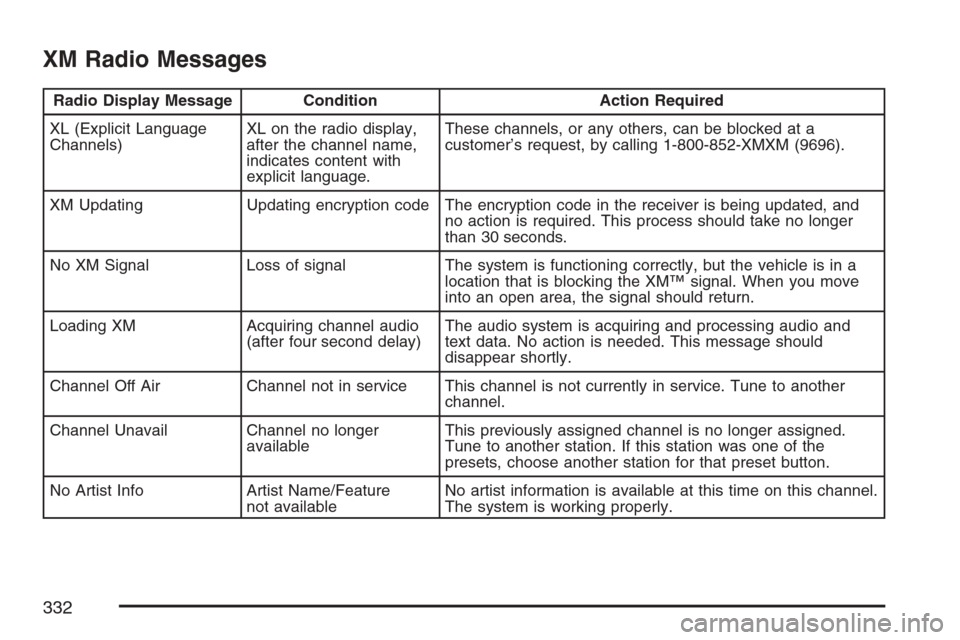
XM Radio Messages
Radio Display Message Condition Action Required
XL (Explicit Language
Channels)XL on the radio display,
after the channel name,
indicates content with
explicit language.These channels, or any others, can be blocked at a
customer’s request, by calling 1-800-852-XMXM (9696).
XM Updating Updating encryption code The encryption code in the receiver is being updated, and
no action is required. This process should take no longer
than 30 seconds.
No XM Signal Loss of signal The system is functioning correctly, but the vehicle is in a
location that is blocking the XM™ signal. When you move
into an open area, the signal should return.
Loading XM Acquiring channel audio
(after four second delay)The audio system is acquiring and processing audio and
text data. No action is needed. This message should
disappear shortly.
Channel Off Air Channel not in service This channel is not currently in service. Tune to another
channel.
Channel Unavail Channel no longer
availableThis previously assigned channel is no longer assigned.
Tune to another station. If this station was one of the
presets, choose another station for that preset button.
No Artist Info Artist Name/Feature
not availableNo artist information is available at this time on this channel.
The system is working properly.
332
Page 333 of 618
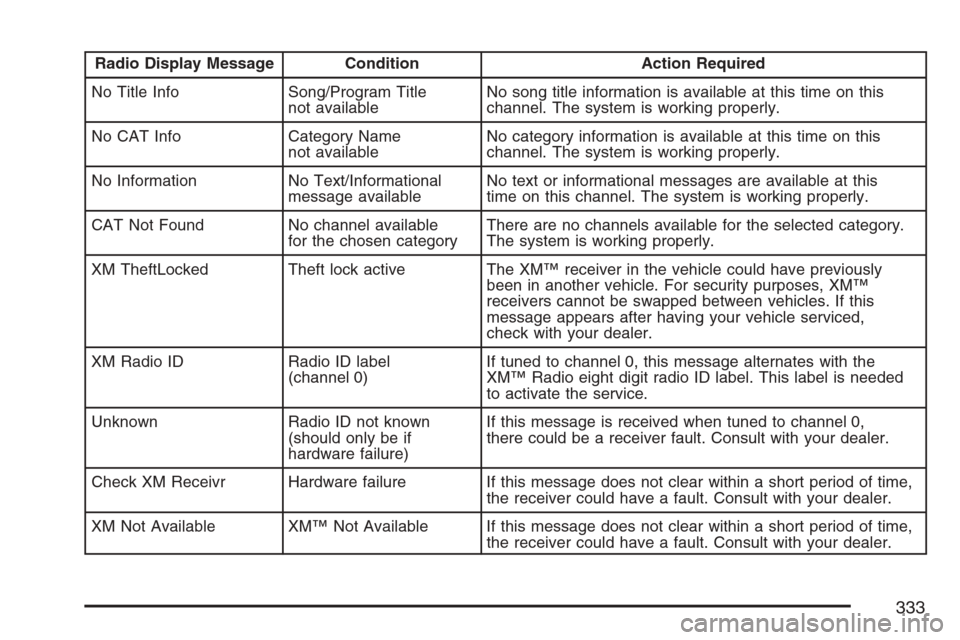
Radio Display Message Condition Action Required
No Title Info Song/Program Title
not availableNo song title information is available at this time on this
channel. The system is working properly.
No CAT Info Category Name
not availableNo category information is available at this time on this
channel. The system is working properly.
No Information No Text/Informational
message availableNo text or informational messages are available at this
time on this channel. The system is working properly.
CAT Not Found No channel available
for the chosen categoryThere are no channels available for the selected category.
The system is working properly.
XM TheftLocked Theft lock active The XM™ receiver in the vehicle could have previously
been in another vehicle. For security purposes, XM™
receivers cannot be swapped between vehicles. If this
message appears after having your vehicle serviced,
check with your dealer.
XM Radio ID Radio ID label
(channel 0)If tuned to channel 0, this message alternates with the
XM™ Radio eight digit radio ID label. This label is needed
to activate the service.
Unknown Radio ID not known
(should only be if
hardware failure)If this message is received when tuned to channel 0,
there could be a receiver fault. Consult with your dealer.
Check XM Receivr Hardware failure If this message does not clear within a short period of time,
the receiver could have a fault. Consult with your dealer.
XM Not Available XM™ Not Available If this message does not clear within a short period of time,
the receiver could have a fault. Consult with your dealer.
333
Page 335 of 618
To enable Parental Control, press and hold the
radio power button for more than two seconds.
If on, the radio, video screen, and RSA turns off.
If a DVD and/or CD is playing, it stops. While
Parental Control is on, either a padlock icon or
a text message comes on, depending on the
radio. When the radio is turned back on, the
RSE system remains in Parental Control.
To turn off Parental Control, press and hold the
radio power button for more than two seconds.
The video screen and RSA returns to the
state they were in before Parental Control was
turned on and if the padlock icon is on the
display, it disappears.
Parental Control is also turned off by inserting
or ejecting a disc, by pressing the play icon
on the radio DVD display menu, or when the
ignition is turned off.Headphones
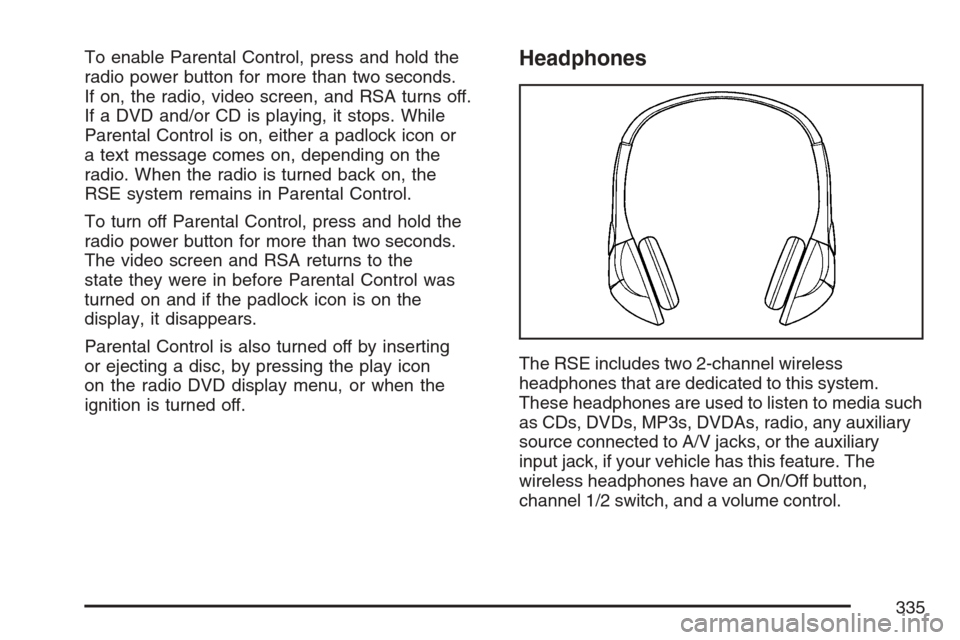
The RSE includes two 2-channel wireless
headphones that are dedicated to this system.
These headphones are used to listen to media such
as CDs, DVDs, MP3s, DVDAs, radio, any auxiliary
source connected to A/V jacks, or the auxiliary
input jack, if your vehicle has this feature. The
wireless headphones have an On/Off button,
channel 1/2 switch, and a volume control.
335
Page 339 of 618
Video Screen
The video screen is located in the RSE overhead
console.
To use the video screen, do the following:
1. Push the release button located on the
RSE overhead console.
2. Turn the screen to the desired position.
When the video screen is not in use, push it up
into its locked position.
If a DVD is playing and the screen is raised to
its locked position, the screen remains on, this is
normal, and the DVD continues to play through
the previous audio source. Use the remote
control power button or eject the disc to turn
off the screen.
The RSE overhead console contains the infrared
receivers for the wireless headphones and the
infrared receivers for the remote control. They
are located at the rear of the console.
Notice:Avoid directly touching the video
screen, as damage may occur. See “Cleaning
the Video Screen” later in this section for
more information.
Remote Control
To use the remote control, aim it at the transmitter
window at the rear of the RSE overhead console
and press the desired button. Direct sunlight
or very bright light could affect the ability of the
RSE transmitter to receive signals from the remote
control. If the remote control does not seem to
be working, the batteries might need to be
replaced. See “Battery Replacement” later in this
section. Objects blocking the line of sight could
also affect the function of the remote control.
If a CD or DVD is in the Radio DVD slot,
the remote control power button can be used to
turn on the video screen display and start the
disc. The radio can also turn on the video screen
display. SeeRadio with CD and DVD (MP3)
on page 301for more information.
Notice:Storing the remote control in a hot
area or in direct sunlight can damage it,
and the repairs will not be covered by your
warranty. Keep the remote control stored
in a cool, dry place.
339
Page 347 of 618
Theft-Deterrent Feature
THEFTLOCK®is designed to discourage theft
of your vehicle’s radio. The feature works
automatically by learning a portion of the
Vehicle Identication Number (VIN). If the radio
is moved to a different vehicle, it does not operate
and LOCKED displays.
Audio Steering Wheel Controls
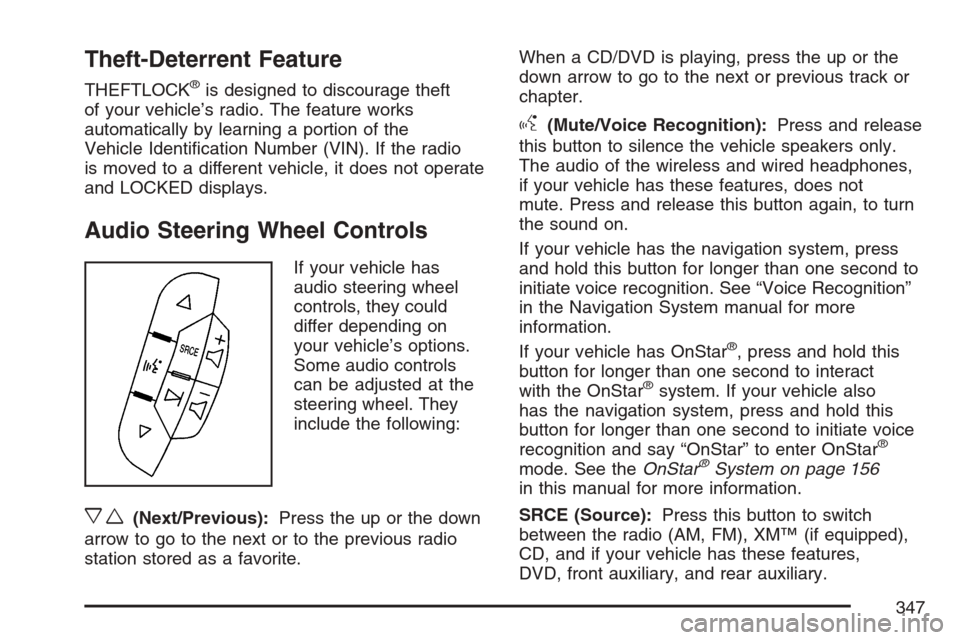
If your vehicle has
audio steering wheel
controls, they could
differ depending on
your vehicle’s options.
Some audio controls
can be adjusted at the
steering wheel. They
include the following:
xw(Next/Previous):Press the up or the down
arrow to go to the next or to the previous radio
station stored as a favorite.When a CD/DVD is playing, press the up or the
down arrow to go to the next or previous track or
chapter.
g(Mute/Voice Recognition):Press and release
this button to silence the vehicle speakers only.
The audio of the wireless and wired headphones,
if your vehicle has these features, does not
mute. Press and release this button again, to turn
the sound on.
If your vehicle has the navigation system, press
and hold this button for longer than one second to
initiate voice recognition. See “Voice Recognition”
in the Navigation System manual for more
information.
If your vehicle has OnStar
®, press and hold this
button for longer than one second to interact
with the OnStar
®system. If your vehicle also
has the navigation system, press and hold this
button for longer than one second to initiate voice
recognition and say “OnStar” to enter OnStar
®
mode. See theOnStar®System on page 156
in this manual for more information.
SRCE (Source):Press this button to switch
between the radio (AM, FM), XM™ (if equipped),
CD, and if your vehicle has these features,
DVD, front auxiliary, and rear auxiliary.
347
Page 351 of 618
Your Driving, the Road, and Your Vehicle.... 352
Defensive Driving...................................... 352
Drunken Driving........................................ 353
Control of a Vehicle.................................. 356
Braking...................................................... 356
Anti-Lock Brake System (ABS).................. 357
Braking in Emergencies............................. 359
Locking Rear Axle..................................... 359
StabiliTrak
®System................................... 359
Steering.................................................... 363
Off-Road Recovery.................................... 365
Passing..................................................... 365
Loss of Control.......................................... 367
Off-Road Driving........................................ 368
Driving at Night......................................... 385
Driving in Rain and on Wet Roads............ 387
City Driving............................................... 390
Freeway Driving........................................ 391Before Leaving on a Long Trip.................. 392
Highway Hypnosis..................................... 393
Hill and Mountain Roads........................... 394
Winter Driving........................................... 396
If Your Vehicle is Stuck in Sand,
Mud, Ice, or Snow ................................. 400
Rocking Your Vehicle to Get It Out........... 400
Recovery Hooks........................................ 401
Loading Your Vehicle................................ 402
Truck-Camper Loading Information............ 407
Towing........................................................ 408
Towing Your Vehicle ................................. 408
Recreational Vehicle Towing...................... 408
Level Control............................................. 413
Towing a Trailer........................................ 414
Trailer Recommendations.......................... 428
Section 4 Driving Your Vehicle
351
Page 357 of 618
Avoid needless heavy braking. Some people drive
in spurts — heavy acceleration followed by heavy
braking — rather than keeping pace with traffic.
This is a mistake. The brakes may not have time to
cool between hard stops. The brakes will wear out
much faster if you do a lot of heavy braking. If you
keep pace with the traffic and allow realistic
following distances, you will eliminate a lot of
unnecessary braking. That means better braking
and longer brake life.
If your vehicle’s engine ever stops while you are
driving, brake normally but do not pump the
brakes. If you do, the pedal may get harder to
push down. If the engine stops, you will still have
some power brake assist. But you will use it
when you brake. Once the power assist is used
up, it may take longer to stop and the brake pedal
will be harder to push.
Adding non-GM accessories can affect your
vehicle’s performance. SeeAccessories and
Modications on page 433.Anti-Lock Brake System (ABS)
Your vehicle has the Anti-Lock Brake System
(ABS), an advanced electronic braking system that
will help prevent a braking skid.
When you start your engine and begin to drive
away, ABS will check itself. You may hear a
momentary motor or clicking noise while this test
is going on. This is normal.
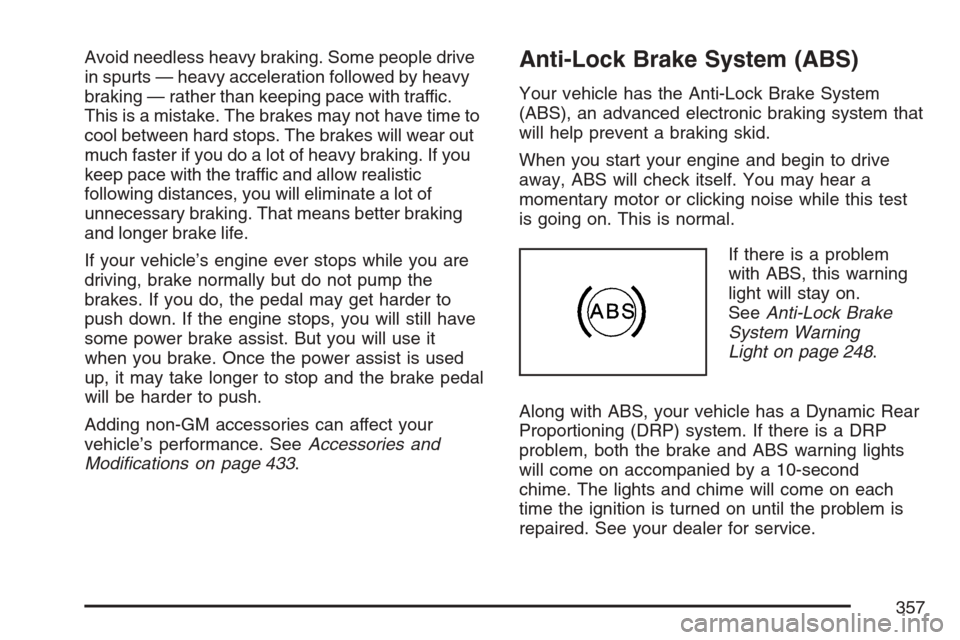
If there is a problem
with ABS, this warning
light will stay on.
SeeAnti-Lock Brake
System Warning
Light on page 248.
Along with ABS, your vehicle has a Dynamic Rear
Proportioning (DRP) system. If there is a DRP
problem, both the brake and ABS warning lights
will come on accompanied by a 10-second
chime. The lights and chime will come on each
time the ignition is turned on until the problem is
repaired. See your dealer for service.
357
Page 359 of 618
Remember: ABS does not change the time you
need to get your foot up to the brake pedal
or always decrease stopping distance. If you get
too close to the vehicle in front of you, you will
not have time to apply your brakes if that vehicle
suddenly slows or stops. Always leave enough
room up ahead to stop, even though you
have ABS.
Using ABS
Do not pump the brakes. Just hold the brake
pedal down rmly and let anti-lock work for you.
You may feel the brakes vibrate, or you may
notice some noise, but this is normal.
Braking in Emergencies
With ABS, you can steer and brake at the same
time. In many emergencies, steering can help
you more than even the very best braking.
Locking Rear Axle
If your vehicle has this feature, it can give you
additional traction on snow, mud, ice, sand
or gravel. It works like a standard axle most of the
time, but when one of the rear wheels has no
traction and the other does, this feature will allow
the wheel with traction to move the vehicle.
StabiliTrak®System
Your vehicle may be equipped with the
StabiliTrak®system which combines antilock
brake, traction and stability control systems and
helps the driver maintain directional control of
the vehicle in most driving conditions.
When you rst start your vehicle and begin to
drive away, the system performs several diagnostic
checks to ensure there are no problems. You
may hear or feel the system working. This
is normal and does not mean there is a problem
with your vehicle. The system should initialize
before the vehicle reaches 20 mph (32 km/h).
In some cases, it may take approximately
two miles of driving before the system initializes.
359
Page 360 of 618
If the system fails to turn on or activate, the
StabiliTrak®light along with one of the following
messages will be displayed on the Driver
Information Center (DIC): TRACTION CONTROL
OFF, SERVICE TRACTION CONTROL,
STABILITRAK OFF, SERVICE STABILITRAK.
If these DIC messages appear, make sure
the StabiliTrak
®system has not been turned off
using the StabiliTrak®on/off button. Then turn the
steering wheel clockwise from the nine o’clock
position to the three o’clock position. If this clears
the message(s), your vehicle does not need
servicing. If this does not clear the message(s),
then turn the vehicle off, wait 15 seconds, and then
turn it back on again to reset the system. If any
of these messages still appear on the Driver
Information Center (DIC), your vehicle should be
taken in for service. For more information on
the DIC messages, seeDriver Information
Center (DIC) on page 257.The StabiliTrak
®light
will ash on the
instrument panel cluster
when the system is
both on and activated.
You may also feel or hear the system working;
this is normal.
The traction control
disable button
is located on
the instrument
panel below the
climate controls.
The traction control part of StabiliTrak
®can
be turned off by pressing and releasing the
StabiliTrak
®button if both systems (traction control
and StabiliTrak®) were previously on. To disable
both traction control and StabiliTrak®, press
and hold the button for ve seconds.
360