ignition CHEVROLET AVALANCHE 2007 2.G Repair Manual
[x] Cancel search | Manufacturer: CHEVROLET, Model Year: 2007, Model line: AVALANCHE, Model: CHEVROLET AVALANCHE 2007 2.GPages: 618, PDF Size: 3.25 MB
Page 287 of 618
While your vehicle is parked, set up your audio
system by presetting your favorite radio stations,
setting the tone and adjusting the speakers. Then,
when driving conditions permit, you can tune to
your favorite stations using the presets and
steering wheel controls if the vehicle has them.
{CAUTION:
This system provides you with a far greater
access to audio stations and song listings.
Giving extended attention to entertainment
tasks while driving can cause a crash and
you or others can be injured or killed.
Always keep your eyes on the road and
your mind on the drive — avoid engaging
in extended searching while driving.
Keeping your mind on the drive is important for
safe driving. Here are some ways in which you can
help avoid distraction while driving.
While your vehicle is parked:
Familiarize yourself with all of its controls.
Familiarize yourself with its operation.
Set up your audio system by presetting your
favorite radio stations, setting the tone, and
adjusting the speakers. Then, when driving
conditions permit, you can tune to your favorite
radio stations using the presets and steering
wheel controls if the vehicle has them.
Notice:Before adding any sound equipment
to your vehicle, such as an audio system, CD
player, CB radio, mobile telephone, or two-way
radio, make sure that it can be added by
checking with your dealer. Also, check federal
rules covering mobile radio and telephone
units. If sound equipment can be added, it is
very important to do it properly. Added sound
equipment can interfere with the operation of
your vehicle’s engine, radio, or other systems,
and even damage them. Your vehicle’s systems
can interfere with the operation of sound
equipment that has been added.
Your vehicle has a feature called Retained
Accessory Power (RAP). With RAP, the audio
system can be played even after the ignition
is turned off. SeeRetained Accessory Power
(RAP) on page 124for more information.
287
Page 297 of 618
Playing a CD(s) (Six-Disc CD Player)
LOAD^:Press this button to load CDs into the
CD player. This CD player holds up to six CDs.
To insert one CD, do the following:
1. Press and release the load button.
2. Wait for the message to insert the disc.
3. Load a CD. Insert the CD partway into the slot,
label side up. The player pulls the CD in.
To insert multiple CDs, do the following:
1. Press and hold the load button for
two seconds. A beep sounds and Load
All Discs displays.
2. Follow the displayed instruction on when
to insert the discs. The CD player takes
up to six CDs.
3. Press the Load button again to cancel
loading more CDs.
If the ignition or radio is turned off, with a CD
in the player, it stays in the player. While
the ignition or radio is turned on, the CD starts
playing where it stopped, if it was the last
selected audio source.When a CD is inserted, the CD symbol appears
on the CD. As each new track starts to play,
the track number displays. When more than one
CD is in the radio, the desired CD to be played can
be changed by pressing the pushbuttons located
under the displayed Disc label.
The CD player can play the smaller 3 inch (8 cm)
single CDs with an adapter ring. Full-size CDs
and the smaller CDs are loaded in the same
manner.
If playing a CD-R, the sound quality can be
reduced due to CD-R quality, the method of
recording, the quality of the music that has
been recorded, and the way the CD-R has been
handled. There can be an increase in skipping,
difficulty in nding tracks, and/or difficulty in loading
and ejecting. If these problems occur, check the
bottom surface of the CD. If the surface of the
CD is damaged, such as cracked, broken,
or scratched, the CD will not play properly. If the
surface of the CD is soiled, seeCare of Your CDs
and DVDs on page 349for more information.
If there is no apparent damage, try a known
good CD.
297
Page 308 of 618
Playing a CD (In Either the DVD
or CD Slot)
Insert a CD partway into the slot, label side up.
The player pulls it in and the CD should begin
playing (loading a disc into the system,
depending on media type and format ranges from
5 to 20 seconds for a CD, and up to 30 seconds
for a DVD to begin playing).
If the ignition or radio is turned off, with a CD in
the player, it stays in the player. When the ignition
or radio is turned on, the CD starts playing
where it stopped, if it was the last selected audio
source. The CD is controlled by the buttons
on the radio faceplate or by the RSA unit. See
Rear Seat Audio (RSA) on page 345for more
information. The DVD/CD decks, (upper slot is the
DVD deck and the lower slot is the CD deck) of
the radio are compatible with most audio CDs,
CD-R, CD-RW, and MP3s.
When a CD is inserted, the text label DVD or
CD symbol appears on the left side of the radio
display. As each new track starts to play, the
track number appears on the display.The CD player can play the smaller 3 inch (8 cm)
single CDs with an adapter ring. Full-size CDs
and the smaller CDs are loaded in the same
manner.
If playing a CD-R, the sound quality can be
reduced due to CD-R quality, the method of
recording, the quality of the music that has been
recorded, and the way the CD-R has been
handled. There can be an increase in skipping,
difficulty in nding tracks, and/or difficulty in loading
and ejecting. If these problems occur, check
the bottom surface of the CD. If the surface of
the CD is damaged, such as cracked, broken,
or scratched, the CD will not play properly.
If the surface of the CD is soiled, seeCare of
Your CDs and DVDs on page 349for more
information.
If there is no apparent damage, try a known
good CD.
308
Page 313 of 618
Playing a DVD
DVD/CD AUX (Auxiliary):Press this button to
cycle through DVD, CD, or Auxiliary when listening
to the radio. The DVD/CD text label and a
message showing track or chapter number
displays when a disc is in either slot. Press this
button again and the system automatically
searches for an auxiliary input device, such as a
portable audio player. If a portable audio player is
not connected, “No Aux Input Device” displays.
If a disc is in both the DVD slot and the CD slot
the DVD/CD AUX button cycles between the
two sources and not indicate “No Aux Input
Device”. If a front auxiliary device is connected,
the DVD/CD AUX button cycles through all
available options, such as: DVD slot, CD slot,
Front Auxiliary, and Rear Auxiliary (if available).
See “Using the Auxiliary Input Jack(s)” later in
this section, or “Audio/Video (A/V) Jacks” under,
Rear Seat Entertainment System on page 334
for more information.
O(Power):Press this knob to turn the radio on or
off. Turn this knob clockwise or counterclockwise to
increase or decrease the volume. Press and hold
the knob for more than two seconds to turn off the
entire radio and Rear Seat Entertainment (RSE)
system and to start the parental control feature.
Parental control prevents the rear seat occupant
from operating the Rear Seat Audio (RSA) system
or remote control.
A lock symbol appears next to the clock display.
The parental control feature remains on until
this button is pressed and held for more than
two seconds again, or until the driver turns the
ignition off and exits the vehicle.
f(Tune):Turn this knob to change tracks on a
CD or DVD, to manually tune a radio station,
or to change clock or date settings, while in the
clock or date setting mode. See the information
given earlier in this section specic to the
radio, CD, and the DVD. Also, see “Setting the
Time” in the index, for setting the clock and date.
313
Page 322 of 618
Playing an MP3
Insert a CD-R partway into the slot (Single CD
Player), or press the load button and wait for
the message to insert disc (Six-Disc CD Player),
label side up. The player pulls it in, and the
CD-R should begin playing.
If the ignition or radio is turned off with a CD-R
in the player, it stays in the player. When the
ignition or radio is turned on, the CD-R starts to
play where it stopped, if it was the last selected
audio source.
As each new track starts to play, the track number
and song title displays.
The CD player can play the smaller 3 inch (8 cm)
single CD-Rs with an adapter ring. Full-size CD-Rs
and the smaller CD-Rs are loaded in the same
manner.
If playing a CD-R, the sound quality can be
reduced due to CD-R quality, the method of
recording, the quality of the music that has been
recorded, and the way the CD-R has been
handled. There can be an increase in skipping,
difficulty in nding tracks, and/or difficulty in
loading and ejecting. If these problems
occur, check the bottom surface of the CD.If the surface of the CD is damaged, such as
cracked, broken, or scratched, the CD will not play
properly. If the surface of the CD is soiled, see
Care of Your CDs and DVDs on page 349for
more information.
If there is no apparent damage, try a known
good CD.
Notice:If a label is added to a CD, or more
than one CD is inserted into the slot at a time,
or an attempt is made to play scratched
or damaged CDs, the CD player could be
damaged. While using the CD player, use only
CDs in good condition without any label,
load one CD at a time, and keep the CD player
and the loading slot free of foreign materials,
liquids, and debris.
Do not add any label to a CD, it could get caught
in the CD player. If a CD is recorded on a
personal computer and a description label is
needed, try labeling the top of the recorded CD
with a marking pen.
If an error displays, see “CD Messages” later
in this section.
322
Page 327 of 618
File System and Naming
The song name that is displayed is the song
name that is contained in the ID3 tag. If the song
name is not present in the ID3 tag, then the
radio displays the le name without the extension
(such as .mp3) as the track name.
Track names longer than 32 characters or
four pages are shortened. Parts of words on
the last page of text and the extension of
the lename displays.
Preprogrammed Playlists
Preprogrammed playlists that were created using
WinAmp™, MusicMatch™, or Real Jukebox™
software can be accessed, however, they cannot
be edited using the radio. These playlists are
treated as special folders containing compressed
audio song les.
Playing an MP3 (In Either the DVD or
CD Slot)
Insert a CD-R partway into either the top or
bottom slot, label side up. The player pulls it
in, and the CD-R should begin playing.
Depending on the format of the disc, a softkey
menu appears and allows navigation of the disc.
The menu reads left to right as RDM (Randomize
song play order), a Folder icon with left and
right arrows (to move up or down through available
folders), a PL tag if the disc has a Playlist
available, and a Music Navigator tag. If a Playlist
tag is shown, toggling this key brings up a
Folder softkey only or the menu as previously
described.
If the ignition or radio is turned off with a CD-R
in the player, it stays in the player. When the
ignition or radio is turned on, the CD-R starts to
play where it stopped, if it was the last selected
audio source.
327
Page 335 of 618
To enable Parental Control, press and hold the
radio power button for more than two seconds.
If on, the radio, video screen, and RSA turns off.
If a DVD and/or CD is playing, it stops. While
Parental Control is on, either a padlock icon or
a text message comes on, depending on the
radio. When the radio is turned back on, the
RSE system remains in Parental Control.
To turn off Parental Control, press and hold the
radio power button for more than two seconds.
The video screen and RSA returns to the
state they were in before Parental Control was
turned on and if the padlock icon is on the
display, it disappears.
Parental Control is also turned off by inserting
or ejecting a disc, by pressing the play icon
on the radio DVD display menu, or when the
ignition is turned off.Headphones
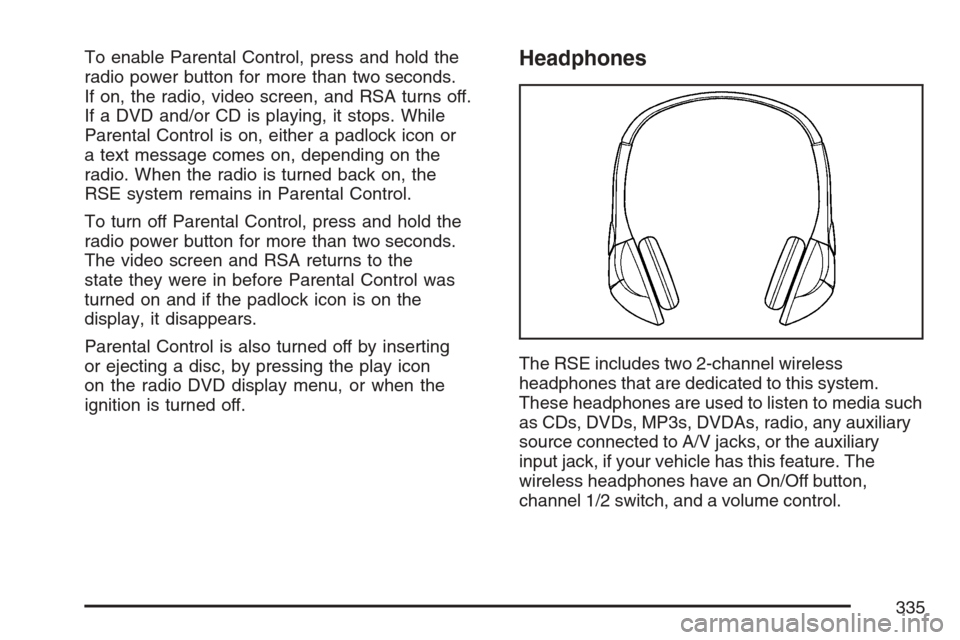
The RSE includes two 2-channel wireless
headphones that are dedicated to this system.
These headphones are used to listen to media such
as CDs, DVDs, MP3s, DVDAs, radio, any auxiliary
source connected to A/V jacks, or the auxiliary
input jack, if your vehicle has this feature. The
wireless headphones have an On/Off button,
channel 1/2 switch, and a volume control.
335
Page 342 of 618
{(Subtitles):Press this button to turn ON/OFF
subtitles and to move through subtitle options
when a DVD is playing. The format and content
of this function varies for each disc.
AUX (Auxiliary):Press this button to switch the
system between the DVD player and an auxiliary
source.
d(Camera):Press this button to change
camera angles on DVDs that have this feature
when a DVD is playing. The format and content
of this function varies for each disc.
1 through 0 (Numeric Keypad):The numeric
keypad provides the capability of direct chapter
or track number selection.
\(Clear):Press this button within three seconds
after entering a numeric selection, to clear all
numerical inputs.
}10 (Double Digit Entries):Press this button
to select chapter or track numbers greater
than nine. Press this button before entering
the number.
Battery Replacement
To change the remote control batteries, do the
following:
1. Remove the battery compartment door
located on the bottom of the remote control.
2. Replace the two batteries in the compartment.
Make sure that they are installed correctly,
using the diagram on the inside of the
battery compartment.
3. Close the battery door securely.
If the remote control is to be stored for a long
period of time, remove the batteries and keep
them in a cool, dry place.
Problem Recommended Action
No power. The ignition might not be
turned on or in accessory.
The picture does not ll
the screen. There are
black borders on the
top and bottom or on
both sides or it looks
stretched out.Check the display mode
settings in the setup
menu by pressing the
display menu button on
the remote control.
342
Page 357 of 618
Avoid needless heavy braking. Some people drive
in spurts — heavy acceleration followed by heavy
braking — rather than keeping pace with traffic.
This is a mistake. The brakes may not have time to
cool between hard stops. The brakes will wear out
much faster if you do a lot of heavy braking. If you
keep pace with the traffic and allow realistic
following distances, you will eliminate a lot of
unnecessary braking. That means better braking
and longer brake life.
If your vehicle’s engine ever stops while you are
driving, brake normally but do not pump the
brakes. If you do, the pedal may get harder to
push down. If the engine stops, you will still have
some power brake assist. But you will use it
when you brake. Once the power assist is used
up, it may take longer to stop and the brake pedal
will be harder to push.
Adding non-GM accessories can affect your
vehicle’s performance. SeeAccessories and
Modications on page 433.Anti-Lock Brake System (ABS)
Your vehicle has the Anti-Lock Brake System
(ABS), an advanced electronic braking system that
will help prevent a braking skid.
When you start your engine and begin to drive
away, ABS will check itself. You may hear a
momentary motor or clicking noise while this test
is going on. This is normal.
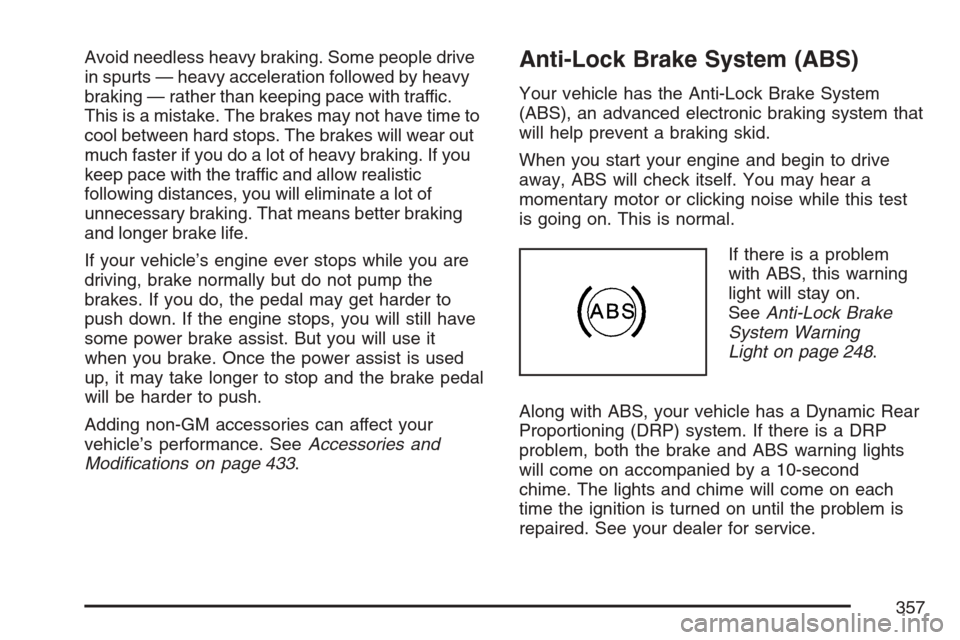
If there is a problem
with ABS, this warning
light will stay on.
SeeAnti-Lock Brake
System Warning
Light on page 248.
Along with ABS, your vehicle has a Dynamic Rear
Proportioning (DRP) system. If there is a DRP
problem, both the brake and ABS warning lights
will come on accompanied by a 10-second
chime. The lights and chime will come on each
time the ignition is turned on until the problem is
repaired. See your dealer for service.
357
Page 384 of 618
Driving in Water
Heavy rain can mean ash ooding, and ood
waters demand extreme caution.
Find out how deep the water is before you drive
through it. If it is deep enough to cover the
wheel hubs, axles, or exhaust pipe, do not
try — you probably will not get through. Also,
water that deep can damage the axle and
other vehicle parts.
If the water is not too deep, drive slowly through it.
At faster speeds, water splashes on the ignition
system and your vehicle can stall. Stalling can
also occur if you get the tailpipe under water.
And, as long as the tailpipe is under water, you
will never be able to start the engine. When you
go through water, remember that when the brakes
get wet, it may take you longer to stop.{CAUTION:
Driving through rushing water can be
dangerous. Deep water can sweep your
vehicle downstream and you and your
passengers could drown. If it is only
shallow water, it can still wash away the
ground from under your tires, and you
could lose traction and roll the vehicle
over. Do not drive through rushing water.
SeeDriving in Rain and on Wet Roads on page 387
for more information on driving through water.
384