audio CHEVROLET AVALANCHE 2011 2.G User Guide
[x] Cancel search | Manufacturer: CHEVROLET, Model Year: 2011, Model line: AVALANCHE, Model: CHEVROLET AVALANCHE 2011 2.GPages: 528, PDF Size: 7.65 MB
Page 217 of 528
Black plate (1,1)Chevrolet Avalanche Owner Manual - 2011
Infotainment System 7-1
Infotainment
System
Introduction
Introduction . . . . . . . . . . . . . . . . . . . 7-2
Theft-Deterrent Feature . . . . . . . 7-2
Operation . . . . . . . . . . . . . . . . . . . . . 7-3
Radio
AM-FM Radio . . . . . . . . . . . . . . . . . 7-8
Satellite Radio . . . . . . . . . . . . . . . . 7-9
Radio Reception . . . . . . . . . . . . . 7-12
Fixed Mast Antenna . . . . . . . . . 7-13
Satellite Radio Antenna . . . . . . 7-13
Audio Players
CD Player . . . . . . . . . . . . . . . . . . . 7-14
CD/DVD Player . . . . . . . . . . . . . . 7-19
Auxiliary Devices . . . . . . . . . . . . 7-30
Rear Seat Infotainment
Rear Seat Entertainment(RSE) System . . . . . . . . . . . . . . 7-34
Rear Seat Audio (RSA) System . . . . . . . . . . . . . . . . . . . . . 7-44
Phone
Bluetooth . . . . . . . . . . . . . . . . . . . . 7-46
Page 218 of 528
Black plate (2,1)Chevrolet Avalanche Owner Manual - 2011
7-2 Infotainment System
Introduction
Determine which radio the vehicle
has and read the following pages to
become familiar with its features.
{WARNING
Taking your eyes off the road for
extended periods could cause a
crash resulting in injury or
death to you or others. Do not
give extended attention to
entertainment tasks while driving.
This system provides access to
many audio and non‐audio listings. To minimize taking your eyes off the
road while driving, do the following
while the vehicle is parked:
.Become familiar with the
operation and controls of the
audio system.
.Set up the tone, speaker
adjustments, and preset
radio stations.
For more information, see Defensive
Driving on page 9‑2.
Notice: Contact your dealer
before adding any equipment.
Adding audio or communication
equipment could interfere with
the operation of the vehicle's
engine, radio, or other systems,
and could damage them. Follow
federal rules covering mobile
radio and telephone equipment. The vehicle has Retained
Accessory Power (RAP). With RAP,
the audio system can be played
even after the ignition is turned off.
See
Retained Accessory Power
(RAP) on page 9‑34 for more
information.Navigation/Radio System
For vehicles with a navigation radio
system, see the separate Navigation
System Manual.
Theft-Deterrent Feature
TheftLock®is designed to
discourage theft of the vehicle's
radio by learning a portion of the
Vehicle Identification Number (VIN).
The radio does not operate if it is
stolen or moved to a different
vehicle.
Page 220 of 528
Black plate (4,1)Chevrolet Avalanche Owner Manual - 2011
7-4 Infotainment System
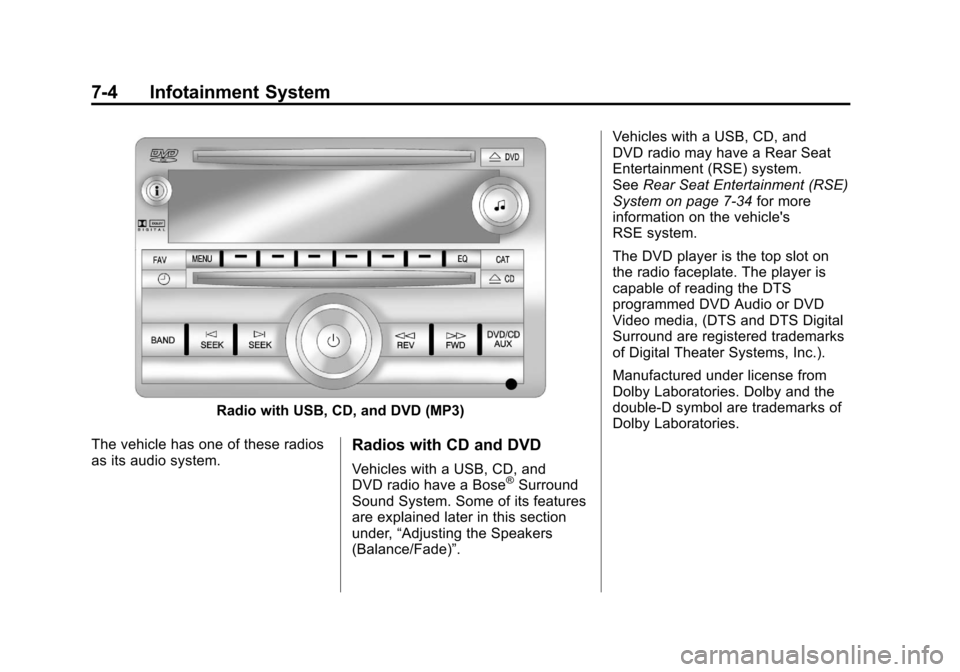
Radio with USB, CD, and DVD (MP3)
The vehicle has one of these radios
as its audio system.
Radios with CD and DVD
Vehicles with a USB, CD, and
DVD radio have a Bose®Surround
Sound System. Some of its features
are explained later in this section
under, “Adjusting the Speakers
(Balance/Fade)”. Vehicles with a USB, CD, and
DVD radio may have a Rear Seat
Entertainment (RSE) system.
See
Rear Seat Entertainment (RSE)
System on page 7‑34 for more
information on the vehicle's
RSE system.
The DVD player is the top slot on
the radio faceplate. The player is
capable of reading the DTS
programmed DVD Audio or DVD
Video media, (DTS and DTS Digital
Surround are registered trademarks
of Digital Theater Systems, Inc.).
Manufactured under license from
Dolby Laboratories. Dolby and the
double-D symbol are trademarks of
Dolby Laboratories.
Page 221 of 528
Black plate (5,1)Chevrolet Avalanche Owner Manual - 2011
Infotainment System 7-5
Using the Radio
O(Power/Volume):Press to turn
the system on and off.
Turn clockwise or counterclockwise
to increase or decrease the volume.
Speed Compensated Volume
(SCV): Radios with Speed
Compensated Volume (SCV)
automatically adjusts the radio
volume to compensate for road and
wind noise as the vehicle's speed
changes while driving, so that the
volume level stays consistent.
To activate SCV:
1. Set the radio volume to the
desired level.
2. Press the MENU button to display the radio setup menu.
3. Press the softkey under the AUTO VOLUM (automatic
volume) tab on the radio display. 4. Press the softkey under the
desired Speed Compensated
Volume setting (OFF, Low, Med,
or High) to select the level of
radio volume compensation.
The display times out after
approximately 10 seconds.
Each higher setting allows
for more radio volume
compensation at faster
vehicle speeds.
Noise Compensation
Technology: Vehicles with the
LTZ package and a Bose Audio
System include the Bose
AudioPilot
®noise compensation
technology. When turned on,
AudioPilot continuously adjusts the
audio system equalization, to
compensate for background noise,
so that music always sounds the
same at the set volume level. This feature is most effective at
lower radio volume settings where
background noise can affect how
well the music is heard. At higher
volume settings, where the music is
much louder than the background
noise, there might be little or no
adjustments by AudioPilot.
To activate:
1. Set the radio volume to the
desired level.
2. Press the MENU button to display the radio setup menu.
3. Press the softkey under the AUTO VOLUM (automatic
volume) tab on the radio display.
4. Press the softkey under the ON tab. The display times out
after approximately 10 seconds.
For additional information on
AudioPilot, please visit
www.bose.com/audiopilot.
Page 222 of 528
Black plate (6,1)Chevrolet Avalanche Owner Manual - 2011
7-6 Infotainment System
Setting the Tone
(Bass/Midrange/Treble)
BASS/MID/TREB (Bass, Midrange,
or Treble):To adjust the bass,
midrange, or treble:
1. Press the
fknob until the
tone control tabs display.
2. Highlight the desired tone control tab by doing one of
the following:
.Pressing thefknob.
.Press the softkey under the
desired tab.
3. Adjust the setting by doing one of the following:
.Turn thefknob clockwise
or counterclockwise.
.Press the¨SEEK, or
©SEEK button.
.Press the\FWD, or
sREV button. If a station's frequency is weak or if
there is static, decrease the treble.
To quickly adjust bass, midrange,
or treble to the middle position,
press the softkey positioned under
the BASS, MID, or TREB tab for
more than 2 seconds. A beep
sounds and the level adjusts to the
middle position.
To quickly adjust all tone and
speaker controls to the middle
position, press the
fknob for more
than 2 seconds until a beep sounds.
EQ (Equalization): Press this
button to choose bass and treble
equalization settings designed for
different types of music. Selecting
MANUAL or changing bass or
treble, returns the EQ to the manual
bass and treble settings.
Unique EQ settings can be saved
for each source.
If the radio has a Bose audio
system, the EQ settings are
either MANUAL or TALK. Digital Signal Processing (DSP):
Press the EQ button to change the
DSP settings (only available on
Bose systems with the LTZ option
package). DSP settings provide a
choice of different listening
experiences.
The following DSP settings are
available:
.Normal
—Select this setting to
adjust the audio for normal
mode. This provides the best
sound quality for all seating
positions.
.Driver —Select this setting to
adjust the audio for the driver to
receive the best possible sound
quality.
.Rear —Select this setting to
adjust the audio for the rear seat
passengers to receive the best
possible sound quality.
Page 223 of 528
Black plate (7,1)Chevrolet Avalanche Owner Manual - 2011
Infotainment System 7-7
.Surround (Centerpoint®)—
Select this setting to enable
Bose Centerpoint. Centerpoint
signal processing produces a
surround sound listening
experience from a CD or XM
stereo digital audio source.
Centerpoint delivers five
independent audio channels
from conventional two channel
stereo recordings. (Not available
for AM or FM.)
Adjusting the Speakers
(Balance/Fade)
BAL/FADE (Balance/Fade): To
adjust the balance or fade:
1. Press the
fknob until the
speaker control tabs display.
2. Highlight the desired speaker control tab by doing one of
the following:
.Pressing thefknob.
.Press the softkey under the
desired tab. 3. Adjust the setting by doing one
of the following:
.Turn thefknob clockwise
or counterclockwise.
.Press the¨SEEK, or
©SEEK button.
.Press the\FWD, or
sREV button.
To quickly adjust all speaker and
tone controls to the middle position,
press the
fknob for more than
2 seconds.
If the Rear Seat Audio (RSA) is
turned on, the radio disables
FADE and mutes the rear speakers.
Radio Messages
Calibration Error: The audio
system has been calibrated for
the vehicle from the factory.
If Calibration Error displays, it
means that the radio has not been
configured properly for the vehicle
and it must be returned to your
dealer for service.
Locked or Loc : One of these
messages will display when the
TheftLock
®system has locked up
the radio. Take the vehicle to your
dealer for service.
If any error occurs repeatedly or if
an error cannot be corrected,
contact your dealer.
Page 227 of 528
Black plate (11,1)Chevrolet Avalanche Owner Manual - 2011
Infotainment System 7-11
Each page of favorites can contain
any combination of AM, FM, or XM,
if equipped, stations.
Storing an XM Channel as a
Favorite
To store a station as a favorite:
1. Tune to an XM channel.
2. Press the FAV button to displaythe page where the station will
be stored.
3. Press and hold one of the six softkeys until a beep sounds.
4. Repeat Steps 1 through 3 to store additional radio stations.
The number of favorites pages can
be set up using the MENU button.
To set up the number of favorites
pages:
1. Press the MENU button.
2. Press the softkey located below the FAV 1-6 tab. 3. Select the number of favorites
pages by pressing the softkey
located below the displayed
page numbers.
4. Press the FAV button, or let the menu time out, to return to the
original main radio screen
showing the radio station
frequency tabs and to begin the
process of programming
favorites.
XM Radio Messages
XL (Explicit Language
Channels): These channels, or
any others, can be blocked at a
customer's request, by calling
1-800-929‐2100.
XM Updating: The encryption code
in the receiver is being updated, and
no action is required. This process
should take no longer than
30 seconds.
No XM Signal: The system is
functioning correctly, but the vehicle
is in a location that is blocking the XM signal. When the vehicle is
moved into an open area, the signal
should return.
Loading XM:
The audio system is
acquiring and processing audio and
text data. No action is needed. This
message should disappear shortly.
Channel Off Air: This channel is
not currently in service. Tune in to
another channel.
Channel Unauth : This channel is
blocked or cannot be received with
your XM subscription package.
Channel Unavail: This previously
assigned channel is no longer
assigned. Tune to another station.
If this station was one of the
presets, choose another station
for that preset button.
No Artist Info: No artist
information is available at this time
on this channel. The system is
working properly.
Page 230 of 528
Black plate (14,1)Chevrolet Avalanche Owner Manual - 2011
7-14 Infotainment System
Audio Players
CD Player
Care of the CD Player
Do not add any label to a CD.
It could get caught in the CD. If a
CD is recorded on a personal
computer and a description label is
needed, try labeling the top of the
recorded CD with a marking pen.
The use of CD lens cleaners for
CDs is not advised, due to the risk
of contaminating the lens of the CD
optics with lubricants internal to the
CD player mechanism.
Notice:If a label is added to a
CD, or more than one CD is
inserted into the slot at a time,
or an attempt is made to play
scratched or damaged CDs, the
CD player could be damaged. While using the CD player, use
only CDs in good condition
without any label, load one CD at
a time, and keep the CD player
and the loading slot free of
foreign materials, liquids,
and debris.
If an error displays,
see
“Messages” later in
this section.
Care of CDs
If playing a CD-R, the sound quality
can be reduced due to CD-R or
CD-RW quality, the method of
recording, the quality of the music
that has been recorded, and the
way the CD-R or CD-RW has been
handled. Handle them carefully.
Store CD-R(s) or CD-RW(s) in their
original cases or other protective
cases and away from direct sunlight
and dust. The CD player scans the
bottom surface of the disc. If the
surface of a CD is damaged, such
as cracked, broken, or scratched, the CD does not play properly or not
at all. Do not touch the bottom side
of a CD while handling it; this could
damage the surface. Pick up CDs
by grasping the outer edges or the
edge of the hole and the outer edge.
If the surface of a CD is soiled,
clean it with a soft, lint free cloth or
dampen a clean, soft cloth in a mild,
neutral detergent solution mixed
with water. Make sure the wiping
process starts from the center to
the edge.
Inserting a CD
Insert a CD partway into the slot,
label side up. The player pulls it in
and the CD should begin playing.
Ejecting a CD
ZEJECT:
Press and release to
eject the disc. Remove the CD
when Remove Disc displays. If the
disc is not removed, after several
seconds, the disc is automatically
pulled back into the player.
Page 231 of 528
Black plate (15,1)Chevrolet Avalanche Owner Manual - 2011
Infotainment System 7-15
Playing a CD
If the ignition or radio is turned off,
with a CD in the player, it stays in
the player. When the ignition or
radio is turned on, the CD starts
playing where it stopped, if it was
the last selected audio source. The
CD is controlled by the buttons on
the radio faceplate or by the RSA
unit. SeeRear Seat Audio (RSA)
System on page 7‑44 for more
information.
When a CD is inserted, the CD
symbol displays on the left side of
the radio display. As each new track
starts to play, the track number
displays.
The CD player can play the smaller
8 cm (3 inch) single CDs with an
adapter ring. Full-size CDs and the
smaller CDs are loaded in the same
manner.
CD/AUX (CD/Auxiliary): Press to
cycle through CD or Auxiliary when
listening to the radio. The CD icon
and a message showing the disc and/or track number displays when
a CD is in the player. Press again
and the system automatically
searches for an auxiliary input
device, see,
Auxiliary Devices on
page 7‑30 for more information.
If a portable audio player is not
connected, “No Input Device Found”
displays.
4(Information): Press to display
additional text information related to
the current song. If information is
available, the song title information
displays on the top line of the
display and artist information
displays on the bottom line.
When information is not available,
“NO INFO” displays.
f(Tune):Turn to select tracks on
the CD that is currently playing.
©SEEK: Press to go to the start of
the current track, if more than ten
seconds on the CD have played.
Press to go to the previous track if
less than ten seconds on the CD
have played. Press and hold, or press multiple
times to continue moving backward
through the tracks on the CD.
¨SEEK:
Press to go to the
next track.
Press and hold, or press multiple
times to continue moving forward
through the tracks on the CD.
sREV (Fast Reverse): Press
and hold to reverse playback quickly
within a track.
\FWD (Fast Forward): Press
and hold to advance playback
quickly within a track.
RDM (Random): Press to listen to
tracks in random, rather than
sequential order. To use random:
1. Press the softkey positioned under the RDM tab until Random
Current Disc displays.
2. Press the softkey again to turn off random play.
Page 232 of 528
Black plate (16,1)Chevrolet Avalanche Owner Manual - 2011
7-16 Infotainment System
MP3 Supported Files
The Radio with CD (MP3) and the
Radio with USB and CD (MP3),
have the capability of playing an
MP3 CD-R or CD-RW disc.
Format
Radios that have the capability of
playing MP3s can play .mp3 or .wma
files that were recorded onto a
CD-R or CD-RW disc. The files can
be recorded with the following fixed
bit rates: 32 kbps, 40 kbps, 56 kbps,
64 kbps, 80 kbps, 96 kbps, 112 kbps,
128 kbps, 160 kbps, 192 kbps,
224 kbps, 256 kbps, and 320 kbps or
a variable bit rate.
Compressed Audio or Mixed Mode
Discs
The radio can play discs that
contain both uncompressed CD
audio and MP3 files. If both formats
are on the disc, the radio reads
all MP3 files first, then the
uncompressed CD audio files.CD‐R or CD‐RW Supported File
and Folder Structure
The radio supports:
.Up to 50 folders.
.Up to 8 folders in depth.
.Up to 50 playlists.
.Up to 255 files.
.Playlists with an .m3u or .wpl
extension.
.Files with an .mp3, .wma, or .cda
file extension.
Root Directory
The root directory is treated as a
folder. Files are stored in the root
directory when the disc or storage
device does not contain folders.
Files accessed from the root
directory of a CD display as
F1 ROOT.
Empty Folder
Folders that do not contain files are
skipped, and the player advances to
the next folder that contains files. Order of Play
Compressed audio files are
accessed in the following order:
.Playlists (Px).
.Files stored in the root directory.
.Files stored in folders in the root
directory.
Tracks are played in the following
order:
.Play begins from the first track in
the first playlist and continues
sequentially through all tracks in
each playlist. When the last
track of the last playlist has
played, play continues from the
first track of the first playlist.
.Play begins from the first track in
the first folder and continues
sequentially through all tracks in
each folder. When the last track
of the last folder has played,
play continues from the first
track of the first folder.