rear entertainment CHEVROLET AVALANCHE 2012 2.G Owners Manual
[x] Cancel search | Manufacturer: CHEVROLET, Model Year: 2012, Model line: AVALANCHE, Model: CHEVROLET AVALANCHE 2012 2.GPages: 508, PDF Size: 7.78 MB
Page 26 of 508
Black plate (20,1)Chevrolet Avalanche Owner Manual - 2012
1-20 In Brief
©SEEK or¨SEEK:Seek or scan
stations.
4: Press to switch the display
between the radio station frequency
and the time. While the ignition is
off, press this button to display the
time. Press to display additional text
information related to the current
FM-RDS or XM station; or CD, MP3,
or WMA song. If information is
available during XM, CD, MP3,
or WMA playback, the song title
information displays on the top line
of the display and artist information
displays on the bottom line. When
information is not available, “NO
INFO” displays.
For more information about these
and other radio features, see
Operation on page 7‑3.
For vehicles with a Rear Seat
Entertainment System (RSE) and
Rear Seat Audio System (RSA), see
Rear Seat Entertainment (RSE)
System on page 7‑35 andRear
Seat Audio (RSA) System on
page 7‑45 for more information.
Storing Radio Stations
A maximum of 36 stations can be
stored as favorites using the six
softkeys located below the radio
station frequency tabs and by using
the radio FAV button. Press FAV to
go through up to six pages of
favorites, each having six favorite
stations available per page. Each
page of favorites can contain any
combination of AM, FM, or XM
stations.
For more information, see “Storing
Radio Stations” inAM-FM Radio on
page 7‑8.
Setting the Clock
To set the time and date:
1. Turn the ignition key to ACC/
ACCESSORY or ON/RUN, then
press
O, to turn the radio on.
2. Press
Hto display HR, MIN,
MM, DD, and YYYY (hour,
minute, month, day, and year). 3. Press the softkey located under
any one of the labels to be
changed.
4. To increase or decrease the time or date, turn
fclockwise or
counter‐clockwise.
For detailed instructions on setting
the clock for the vehicle's specific
audio system, see Clock on
page 5‑8.
Satellite Radio
XM is a satellite radio service based
in the 48 contiguous United States
and 10 Canadian provinces.
XM satellite radio has a wide
variety of programming and
commercial-free music, coast to
coast, and in digital-quality sound.
A fee is required to receive the
XM service.
Page 197 of 508
Black plate (1,1)Chevrolet Avalanche Owner Manual - 2012
Infotainment System 7-1
Infotainment
System
Introduction
Infotainment . . . . . . . . . . . . . . . . . . . 7-1
Theft-Deterrent Feature . . . . . . . 7-2
Operation . . . . . . . . . . . . . . . . . . . . . 7-3
Radio
AM-FM Radio . . . . . . . . . . . . . . . . . 7-8
Satellite Radio . . . . . . . . . . . . . . . . 7-9
Radio Reception . . . . . . . . . . . . . 7-13
Satellite Radio Antenna . . . . . . 7-13
Audio Players
CD Player . . . . . . . . . . . . . . . . . . . 7-14
CD/DVD Player . . . . . . . . . . . . . . 7-19
Auxiliary Devices . . . . . . . . . . . . 7-30
Rear Seat Infotainment
Rear Seat Entertainment(RSE) System . . . . . . . . . . . . . . 7-35
Rear Seat Audio (RSA) System . . . . . . . . . . . . . . . . . . . . . 7-45
Phone
Bluetooth . . . . . . . . . . . . . . . . . . . . 7-47
Trademarks and License
Agreements
Trademarks and LicenseAgreements . . . . . . . . . . . . . . . . 7-54
Introduction
Infotainment
Determine which radio the vehicle
has and read the following pages to
become familiar with its features.
{WARNING
Taking your eyes off the road
for extended periods could cause
a crash resulting in injury or
death to you or others. Do not
give extended attention to
entertainment tasks while driving.
This system provides access to
many audio and non‐audio listings.
Page 200 of 508
Black plate (4,1)Chevrolet Avalanche Owner Manual - 2012
7-4 Infotainment System
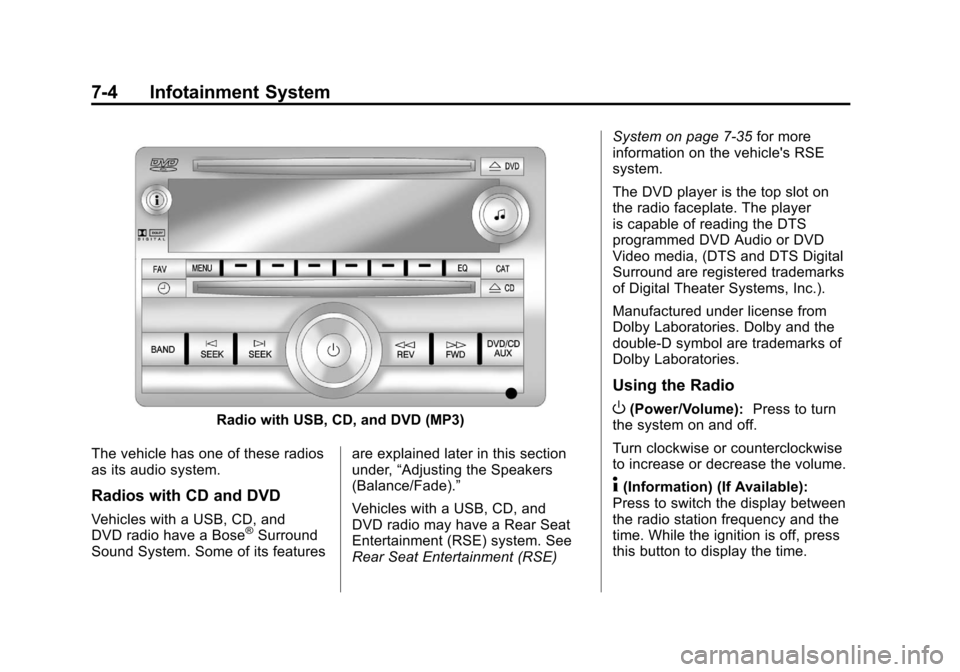
Radio with USB, CD, and DVD (MP3)
The vehicle has one of these radios
as its audio system.
Radios with CD and DVD
Vehicles with a USB, CD, and
DVD radio have a Bose®Surround
Sound System. Some of its features are explained later in this section
under,
“Adjusting the Speakers
(Balance/Fade).”
Vehicles with a USB, CD, and
DVD radio may have a Rear Seat
Entertainment (RSE) system. See
Rear Seat Entertainment (RSE) System on page 7‑35
for more
information on the vehicle's RSE
system.
The DVD player is the top slot on
the radio faceplate. The player
is capable of reading the DTS
programmed DVD Audio or DVD
Video media, (DTS and DTS Digital
Surround are registered trademarks
of Digital Theater Systems, Inc.).
Manufactured under license from
Dolby Laboratories. Dolby and the
double-D symbol are trademarks of
Dolby Laboratories.
Using the Radio
O(Power/Volume): Press to turn
the system on and off.
Turn clockwise or counterclockwise
to increase or decrease the volume.
4(Information) (If Available):
Press to switch the display between
the radio station frequency and the
time. While the ignition is off, press
this button to display the time.
Page 216 of 508
Black plate (20,1)Chevrolet Avalanche Owner Manual - 2012
7-20 Infotainment System
Store CD-Rs or CD-RWs in their
original cases or other protective
cases and away from direct sunlight
and dust. The CD or DVD player
scans the bottom surface of the
disc. If the surface of a disc is
damaged, such as cracked, broken,
or scratched, the disc does not play
properly or not at all. Do not touch
the bottom side of a disc while
handling it; this could damage the
surface. Pick up discs by grasping
the outer edges or the edge of the
hole and the outer edge.
If the surface of a disc is soiled,
clean it with a soft, lint‐free cloth or
dampen a clean, soft cloth in a mild,
neutral detergent solution mixed
with water. Make sure the wiping
process starts from the center to
the edge.Audio Output
Only one audio source can be heard
through the speakers at one time.
An audio source is defined as DVD
slot, CD slot, XM, FM‐AM, front
auxiliary jack, USB port, or rear
auxiliary jack.
Press the
Obutton to turn the radio
on. The radio can be heard through
all of the vehicle speakers.
Front seat passengers can listen to
the radio (AM, FM, or XM if
equipped) by pressing the BAND
button or the DVD/CD AUX button to
select CD slot, DVD slot, front
auxiliary input, USB port, or rear
auxiliary input (if available).
If a playback device is plugged into
the radio’s front auxiliary input jack,
USB port, or the rear auxiliary jack, the front seat passengers are able
to listen to playback from this
source through the vehicle
speakers. See
“Using the Auxiliary
Input Jack” inAuxiliary Devices on
page 7‑30, or “Audio/Video (A/V)
Jacks” underRear Seat
Entertainment (RSE) System on
page 7‑35 for more information.
In some vehicles, depending on
audio options, the rear speakers
can be muted when the RSA power
is turned on. See Rear Seat Audio
(RSA) System on page 7‑45 for
more information.
Inserting a Disc
Insert a disc partway into either slot,
label side up. The player pulls it in
and the disc should begin playing.
(Loading a disc into the system,
depending on media type and
format, ranges from 5 to 20 seconds
for a CD, and up to 30 seconds for a
DVD to begin playing.)
Page 218 of 508
Black plate (22,1)Chevrolet Avalanche Owner Manual - 2012
7-22 Infotainment System
If a front auxiliary device is
connected, the DVD/CD AUX button
cycles through all available options,
such as: DVD slot, CD slot, Front
Auxiliary, and Rear Auxiliary (if
available). See“Using the Auxiliary
Input Jack” inAuxiliary Devices on
page 7‑30 or“Audio/Video (A/V)
Jacks” underRear Seat
Entertainment (RSE) System on
page 7‑35 for more information.
If a disc is inserted into the top DVD
slot, the rear seat operator can turn
on the video screen and use the
remote control to navigate the CD
(tracks only) through the remote
control.
4(Information): Press to display
additional text information related to
the current song. If information is
available, the song title information
displays on the top line of the
display and artist information
displays on the bottom line. When
information is not available, “NO
INFO” displays.
f(Tune): Turn to select tracks on
the disc that is currently playing.
©SEEK: Press to go to the start of
the current track, if more than
five seconds on the CD have
played.
Press to go to the previous track if
less than five seconds on the CD
have played.
Press and hold, or press multiple
times, to continue moving backward
through the tracks on the CD.
¨SEEK: Press to go to the next
track.
Press and hold, or press multiple
times, to continue moving forward
through the tracks on the CD.
sREV (Fast Reverse): Press
and hold to reverse playback quickly
within a track.
\FWD (Fast Forward): Press
and hold to advance playback
quickly within a track. RDM (Random):
Press to listen to
tracks in random, rather than
sequential order. To use random:
1. Press the softkey under the
RDM tab until Random Current
Disc displays.
2. Press the softkey again to turn off random play.
MP3 and WMA Supported Files
Format
The radio can play .mp3 or .wma
files that were recorded onto a
CD-R or CD-RW disc.
Compressed Audio or Mixed Mode
Discs
The radio plays discs that contain
both uncompressed CD audio and
MP3/WMA files depending on which
slot the disc is loaded into.
The DVD player only reads
uncompressed audio and ignores
MP3/WMA files on a mixed
mode disc.
Page 222 of 508
Black plate (26,1)Chevrolet Avalanche Owner Manual - 2012
7-26 Infotainment System
Using the DVD Player
The DVD player can be controlled
by the buttons on the remote
control, the RSA system, or by the
buttons on the radio faceplate. See
“Remote Control”underRear Seat
Entertainment (RSE) System on
page 7‑35 andRear Seat Audio
(RSA) System on page 7‑45 for
more information.
The DVD player is only compatible
with DVDs of the appropriate region
code printed on the jacket of
most DVDs.
The DVD slot of the radio is
compatible with most audio CDs
and CD-R/RW, DVD-Video,
DVD-Audio, DVD-R/RW, and DVD
+R/RW media, along with MP3 and
WMA formats.
If an error message displays on the
video screen or the radio, see “DVD
Display Error Messages” under
Rear Seat Entertainment (RSE)
System on page 7‑35, and “CD/DVD
Player Messages” later in this
section for more information.
Inserting a Disc
Insert a disc partway into the top
slot, label side up. The player pulls
it in and the disc should begin
playing. “Loading Disc” shows on
the radio display. At the same time,
the radio displays a softkey menu of
option(s). Some discs automatically
play the movie while others default
to the softkey menu display,
which requires the Play, Enter,
or Navigation softkeys to be
pressed, either by softkey or by the
rear seat passenger using the
remote control.
Loading a disc into the system,
depending on media type and
format, ranges from 5 to 20 seconds
for a CD, and up to 30 seconds for
a DVD.
Ejecting a Disc
ZDVD (Eject): Press and
release to eject the disc currently
playing in the top slot. A beep
sounds and Ejecting Disc displays. If loading and reading of a disc
cannot be completed, due to
unknown format, etc., and the disc
fails to eject, press and hold for
more than five seconds to force the
disc to eject.
Playing a DVD
DVD/CD AUX (Auxiliary):
Press to
cycle through DVD, CD, or Auxiliary
when listening to the radio. The
DVD/CD text tab and a message
showing the track or chapter
number will display when a disc is in
either slot. Press the DVD/CD AUX
button again and the system
automatically searches for an
auxiliary input device; see Auxiliary
Devices on page 7‑30 for more
information. If a portable audio
player is not connected, “No Aux
Input Device” displays. If a disc is in
both the DVD slot and the CD slot,
the DVD/CD AUX button cycles
between the two sources and does
not indicate “No Aux Input Device.”
Page 223 of 508
Black plate (27,1)Chevrolet Avalanche Owner Manual - 2012
Infotainment System 7-27
If a front auxiliary device is
connected, the DVD/CD AUX
button cycles through all available
options, such as: DVD slot, CD slot,
front auxiliary, and rear auxiliary (if
available). See“Using the Auxiliary
Input Jack” inAuxiliary Devices on
page 7‑30 or“Audio/Video (A/V)
Jacks” underRear Seat
Entertainment (RSE) System on
page 7‑35 for more information.
If a disc is inserted into the top DVD
slot, the rear seat operator can turn
on the video screen and use the
remote control to navigate the CD
(tracks only) through the remote
control.
O(Power): Press to turn the radio
on or off. Turn clockwise or
counterclockwise to increase or
decrease the volume. Press and
hold for more than two seconds to
turn off the entire radio and Rear
Seat Entertainment (RSE) system
and to start the Parental Control
feature. Parental Control prevents the rear seat occupant from
operating the Rear Seat Audio
(RSA) system or remote control.
A lock symbol displays next to the
clock display. The Parental Control
feature remains on until the knob is
pressed and held for more than
two seconds again, or until the
driver turns the ignition off and
exits the vehicle.
f(Tune):
Turn to select tracks on
a CD or DVD.
©SEEK: Press to return to the start
of the current track or chapter.
Press again to go to the previous
track or chapter. This button might
not work when the DVD is playing
the copyright information or the
previews.
¨SEEK: Press to go to the next
track or chapter. This button might
not work when the DVD is playing
the copyright information or the
previews.
sREV (Fast Reverse): Press to
quickly reverse the CD or DVD at
five times the normal speed. To stop
fast reversing, press again. This
button might not work when the
DVD is playing the copyright
information or the previews.
\FWD (Fast Forward): Press
to fast forward the CD or DVD at
five times the normal speed. To stop
fast forwarding, press again. This
button might not work when the
DVD is playing the copyright
information or the previews.
Using Softkeys to Play a DVD-V
(Video)
Once a DVD-V is inserted, the radio
display menu shows several tab
options for playback. Press the
softkey located under any tab option
during DVD-V playback.
r/j(Play/Pause): Press either
the Play or Pause tab displayed on
the radio, to toggle between pausing
or restarting playback of a DVD.
Page 224 of 508
Black plate (28,1)Chevrolet Avalanche Owner Manual - 2012
7-28 Infotainment System
If the forward arrow is showing on
the display, the system is in pause
mode. If the Pause tab is showing
on the display, the system is in
playback mode. If the DVD screen
is off, press the play button to turn
the screen on.
Some DVDs begin playing after the
previews have finished, although
there could be a delay of up to
30 seconds. If the DVD does
not begin playing the movie
automatically, press the softkey
located under the play/pause
symbol tag displayed on the radio.
If the DVD still does not play, refer
to the on-screen instructions,
if available.
c(Stop):Press to stop playing,
rewinding, or fast forwarding a DVD.
r(Enter): Press to select the
choices that are highlighted in
any menu.
y(Menu): Press to access the
DVD menu. The DVD menu is
different on every DVD. Use the
softkeys located under the
navigation arrows to navigate the
cursor through the DVD menu.
After making a selection press this
button. This button only operates
when using a DVD.
Nav (Navigate): Press to display
directional arrows for navigating
through the menus.
q(Return): Press to exit the
current active menu and return to
the previous menu. This button
operates only when a DVD is
playing and a menu is active.
The rear seat passenger can
navigate the DVD-V and DVD-A
menus and controls through the
remote control. See “Remote
Control” underRear Seat
Entertainment (RSE) System on
page 7‑35 for more information. The video screen automatically
turns on when the DVD-V is
inserted into the DVD slot, and does
not automatically power on when
the DVD-A is inserted into the DVD
slot. It must be manually turned on
by the rear seat occupant through
the remote control power button.
Using Softkeys to Play a DVD-A
(Audio)
Once a DVD-A is inserted, the radio
display menu shows several tab
options for playback. Press the
softkey located under any tab option
during DVD-A playback.
r/j(Play/Pause):
Press either
the play or pause icon displayed on
the radio, to toggle between pausing
or restarting playback of a DVD.
If the forward arrow is showing on
the display, the system is in pause
mode. If the pause tab is showing
on the display, the system is in
playback mode.
Page 225 of 508
Black plate (29,1)Chevrolet Avalanche Owner Manual - 2012
Infotainment System 7-29
qGroupr:Press to cycle
through musical groupings on the
DVD-A disc.
Nav (Navigate): Press to display
directional arrows for navigating
through the menus.
e(Audio Stream): Press to cycle
through audio stream formats
located on the DVD-A disc. The
video screen shows the audio
stream changing.
The rear seat passenger can
navigate the DVD-V and DVD-A
menus and controls through the
remote control. See “Remote
Control” underRear Seat
Entertainment (RSE) System on
page 7‑35 for more information.
The video screen automatically
turns on when the DVD-V is
inserted into the DVD slot, and does
not automatically power on when
the DVD-A is inserted into the DVD
slot. It must be manually turned on
by the rear seat occupant through
the remote control power button.
Stopping and Resuming
Playback
To stop playing a DVD without
turning off the system, press the
c
button on the remote control,
or press the softkey located under
the
cor ther/jtabs displayed
on the radio. If the radio is sourced
to something other than DVD-V,
press the DVD/CD AUX button to
make DVD-V the active source.
To resume DVD playback, press the
r/jbutton on the remote control,
or press the softkey located under
the
r/jtab on the radio. The DVD
should resume play from where it
last stopped if the disc has not been
ejected and the stop button has not
been pressed twice on the remote
control. If the disc has been ejected
or the stop button has been pressed
twice on the remote control, the disc
resumes playing at the beginning of
the disc.
CD/DVD Player Messages
Disc Format Error: This message
displays if the disc is inserted with
the disc label wrong side up, or if
the disc is damaged.
Disc Region Error: This message
displays if the disc is not from a
correct region.
No Disc Inserted: This message
displays if no disc is present when
the
Zor DVD/CD AUX button is
pressed on the radio.
Optical Error: This message
displays if the disc was inserted
upside down.
Disk Read Error: This message
displays if a disc was inserted with
an invalid or unknown format.
Page 227 of 508
Black plate (31,1)Chevrolet Avalanche Owner Manual - 2012
Infotainment System 7-31
player. If a portable audio player is
not connected,“No Input Device
Found” displays.
DVD/CD AUX (CD/Auxiliary):
Press to cycle through DVD, CD,
or Auxiliary when listening to the
radio. The DVD/CD text tab and a
message showing track or chapter
number displays when a disc is in
either slot. Press again and the
system automatically searches for
an auxiliary input device, such as a
portable audio player. If a portable
audio player is not connected, “No
Aux Input Device” displays. If a disc
is in both the DVD slot and the CD
slot the DVD/CD AUX button cycles
between the two sources and not
indicate “No Aux Input Device”. If a
front auxiliary device is connected,
the DVD/CD AUX button cycles
through all available options, such
as: DVD slot, CD slot, Front
Auxiliary, and Rear Auxiliary (if
available). See “Using the Auxiliary
Input Jack(s)” in this section,
or “Audio/Video (A/V) Jacks” under,Rear Seat Entertainment (RSE)
System on page 7‑35
for more
information.
Using the USB Port
Radios with a USB port can control
a USB storage device or an iPod
using the radio buttons and knobs.
USB Support
The USB connector is located on
the instrument panel or in the center
console, and uses the USB 2.0
standard.
USB Supported Devices
.USB Flash Drives
.Portable USB Hard Drives
.Fifth generation or later iPod
.iPod nanos
.iPod touch
.iPod classic
Not all iPods and USB Drives are
compatible with the USB port. Make sure the iPod has the latest
firmware from Apple
®for proper
operation. iPod firmware can be
updated using the latest iTunes
®
application. See www.apple.com/
itunes.
For help with identifying your iPod,
go to www.apple.com/support.
Radios that have a USB port can
play .mp3 and .wma files that are
stored on a USB storage device as
well as AAC files that are stored on
an iPod.
USB Supported File and Folder
Structure
The radio supports:
.Up to 700 folders.
.Up to 8 folders in depth.
.Up to 65,535 files.
.Folder and file names up to
64 bytes.
.Files with an .mp3 or .wma file
extension.