buttons CHEVROLET AVALANCHE 2013 2.G Owner's Guide
[x] Cancel search | Manufacturer: CHEVROLET, Model Year: 2013, Model line: AVALANCHE, Model: CHEVROLET AVALANCHE 2013 2.GPages: 494, PDF Size: 7.72 MB
Page 181 of 494
Black plate (55,1)Chevrolet Avalanche Owner Manual - 2013 - CRC - 8/27/12
Instruments and Controls 5-55
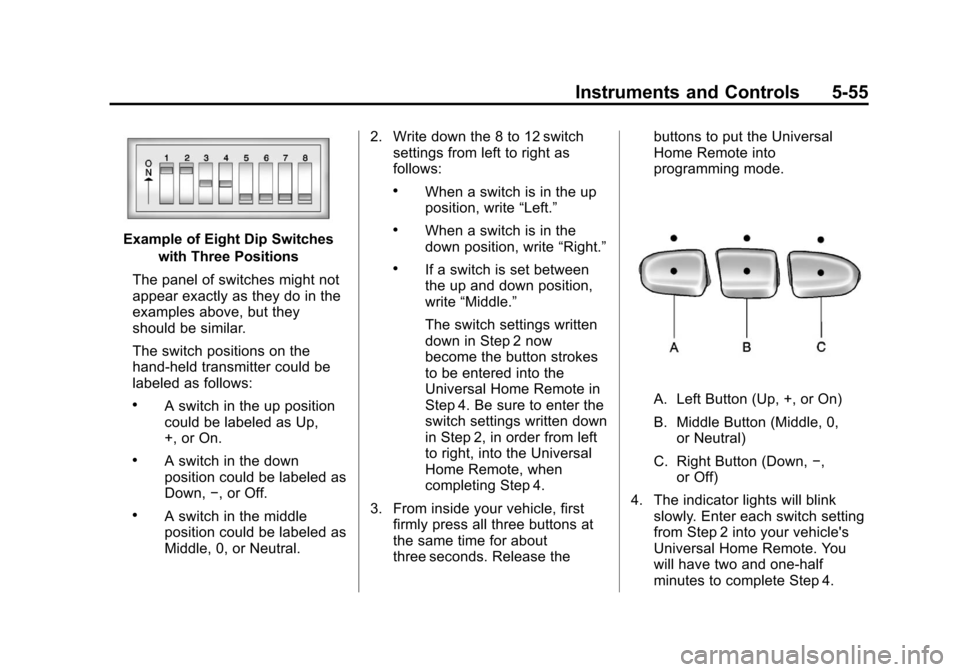
Example of Eight Dip Switcheswith Three Positions
The panel of switches might not
appear exactly as they do in the
examples above, but they
should be similar.
The switch positions on the
hand-held transmitter could be
labeled as follows:
.A switch in the up position
could be labeled as Up,
+, or On.
.A switch in the down
position could be labeled as
Down, −, or Off.
.A switch in the middle
position could be labeled as
Middle, 0, or Neutral. 2. Write down the 8 to 12 switch
settings from left to right as
follows:
.When a switch is in the up
position, write “Left.”
.When a switch is in the
down position, write “Right.”
.If a switch is set between
the up and down position,
write“Middle.”
The switch settings written
down in Step 2 now
become the button strokes
to be entered into the
Universal Home Remote in
Step 4. Be sure to enter the
switch settings written down
in Step 2, in order from left
to right, into the Universal
Home Remote, when
completing Step 4.
3. From inside your vehicle, first firmly press all three buttons at
the same time for about
three seconds. Release the buttons to put the Universal
Home Remote into
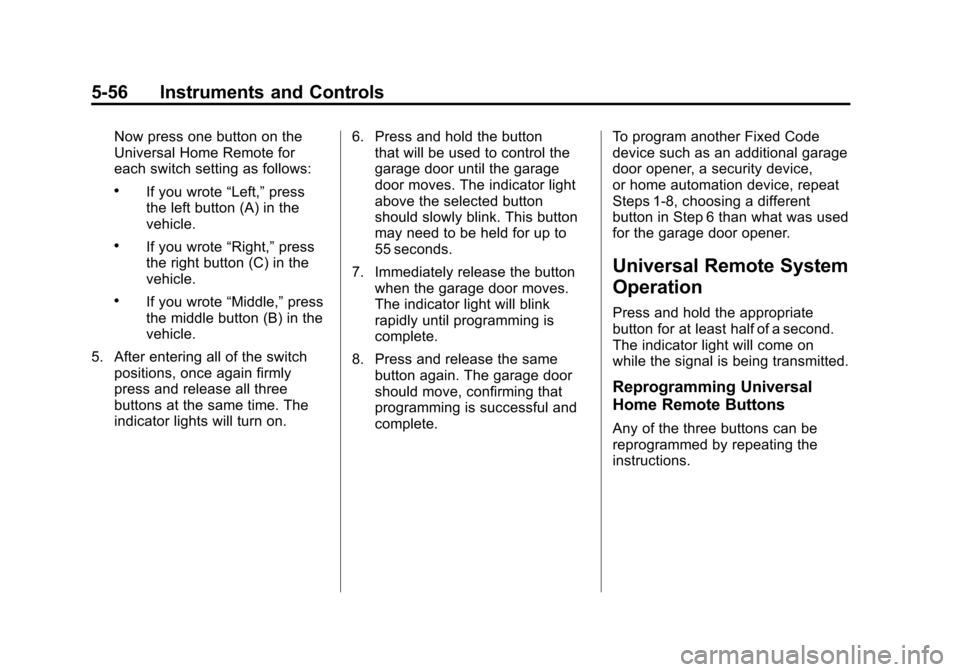
programming mode.
A. Left Button (Up, +, or On)
B. Middle Button (Middle, 0,
or Neutral)
C. Right Button (Down, −,
or Off)
4. The indicator lights will blink slowly. Enter each switch setting
from Step 2 into your vehicle's
Universal Home Remote. You
will have two and one-half
minutes to complete Step 4.
Page 182 of 494
Black plate (56,1)Chevrolet Avalanche Owner Manual - 2013 - CRC - 8/27/12
5-56 Instruments and Controls
Now press one button on the
Universal Home Remote for
each switch setting as follows:
.If you wrote“Left,”press
the left button (A) in the
vehicle.
.If you wrote “Right,”press
the right button (C) in the
vehicle.
.If you wrote “Middle,”press
the middle button (B) in the
vehicle.
5. After entering all of the switch positions, once again firmly
press and release all three
buttons at the same time. The
indicator lights will turn on. 6. Press and hold the button
that will be used to control the
garage door until the garage
door moves. The indicator light
above the selected button
should slowly blink. This button
may need to be held for up to
55 seconds.
7. Immediately release the button when the garage door moves.
The indicator light will blink
rapidly until programming is
complete.
8. Press and release the same button again. The garage door
should move, confirming that
programming is successful and
complete. To program another Fixed Code
device such as an additional garage
door opener, a security device,
or home automation device, repeat
Steps 1-8, choosing a different
button in Step 6 than what was used
for the garage door opener.
Universal Remote System
Operation
Press and hold the appropriate
button for at least half of a second.
The indicator light will come on
while the signal is being transmitted.
Reprogramming Universal
Home Remote Buttons
Any of the three buttons can be
reprogrammed by repeating the
instructions.
Page 183 of 494
Black plate (57,1)Chevrolet Avalanche Owner Manual - 2013 - CRC - 8/27/12
Instruments and Controls 5-57
Erasing Universal Home
Remote Buttons
The programmed buttons should be
erased when the vehicle is sold or
the lease ends.
To erase either Rolling Code
or Fixed Code settings on the
Universal Home Remote device:
1. Press and hold the two outsidebuttons at the same time for
approximately 20 seconds, until
the indicator lights, located
directly above the buttons, begin
to blink rapidly.
2. Once the indicator lights begin to blink, release both buttons. The
codes from all buttons will be
erased. For help or information on the
Universal Home Remote System,
call the customer assistance phone
number under
Customer Assistance
Offices (U.S. and Canada) on
page 13‑5 orCustomer Assistance
Offices (Mexico) on page 13‑5.
Page 187 of 494
Black plate (3,1)Chevrolet Avalanche Owner Manual - 2013 - CRC - 8/27/12
Lighting 6-3
Exterior Lamps Off
Reminder
If a door is open, a reminder chime
sounds when the headlamps or
parking lamps are manually turned
on and the key is out of the ignition.
To turn off the chime, turn the
exterior lamp control to off or AUTO
and then back on, or close and
re-open the door. In the AUTO
mode, the headlamps turn off once
the ignition is in LOCK/OFF or
remains on until the headlamp delay
ends (if enabled in the DIC). See
“Exit Lighting”underVehicle
Personalization (With DIC Buttons)
on page 5‑44.
Headlamp High/
Low-Beam Changer
5 3
(Headlamp High/Low Beam
Changer): To change the
headlamps from low to high beam,
push the turn signal lever toward
the instrument panel. To return to
low-beam headlamps, pull the lever
toward you. Then release it.
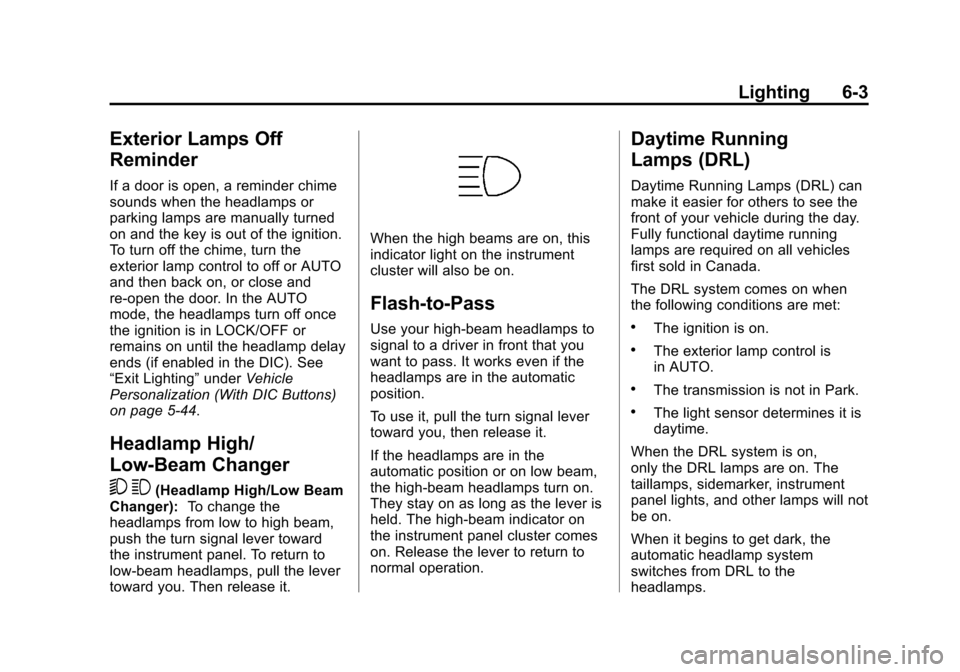
When the high beams are on, this
indicator light on the instrument
cluster will also be on.
Flash-to-Pass
Use your high-beam headlamps to
signal to a driver in front that you
want to pass. It works even if the
headlamps are in the automatic
position.
To use it, pull the turn signal lever
toward you, then release it.
If the headlamps are in the
automatic position or on low beam,
the high-beam headlamps turn on.
They stay on as long as the lever is
held. The high-beam indicator on
the instrument panel cluster comes
on. Release the lever to return to
normal operation.
Daytime Running
Lamps (DRL)
Daytime Running Lamps (DRL) can
make it easier for others to see the
front of your vehicle during the day.
Fully functional daytime running
lamps are required on all vehicles
first sold in Canada.
The DRL system comes on when
the following conditions are met:
.The ignition is on.
.The exterior lamp control is
in AUTO.
.The transmission is not in Park.
.The light sensor determines it is
daytime.
When the DRL system is on,
only the DRL lamps are on. The
taillamps, sidemarker, instrument
panel lights, and other lamps will not
be on.
When it begins to get dark, the
automatic headlamp system
switches from DRL to the
headlamps.
Page 195 of 494
Black plate (3,1)Chevrolet Avalanche Owner Manual - 2013 - CRC - 8/27/12
Infotainment System 7-3
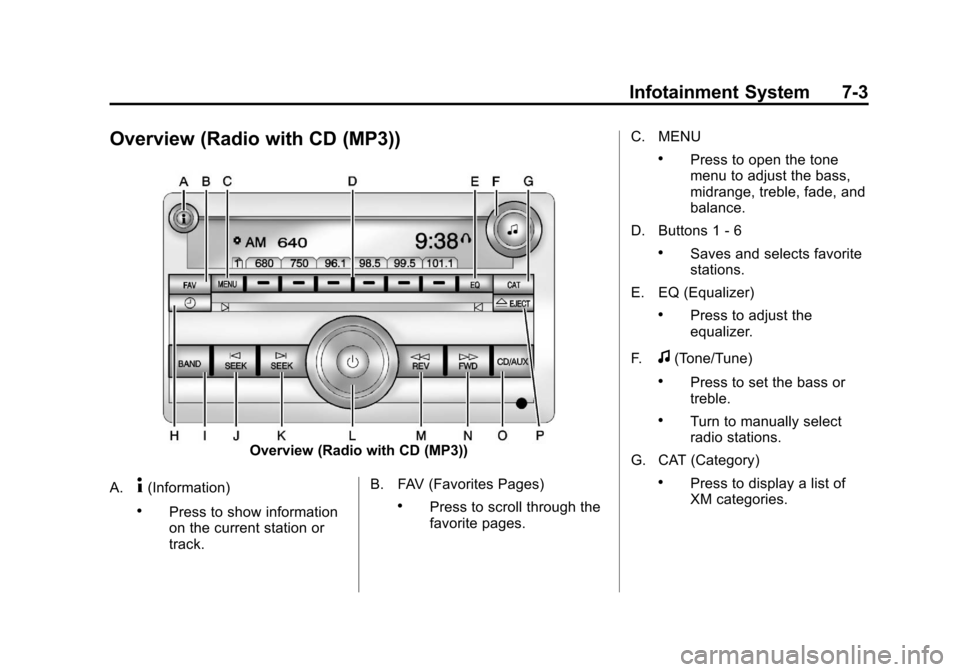
Overview (Radio with CD (MP3))
Overview (Radio with CD (MP3))
A.
4(Information)
.Press to show information
on the current station or
track. B. FAV (Favorites Pages).Press to scroll through the
favorite pages.C. MENU
.Press to open the tone
menu to adjust the bass,
midrange, treble, fade, and
balance.
D. Buttons 1 - 6
.Saves and selects favorite
stations.
E. EQ (Equalizer)
.Press to adjust the
equalizer.
F.
f(Tone/Tune)
.Press to set the bass or
treble.
.Turn to manually select
radio stations.
G. CAT (Category)
.Press to display a list of
XM categories.
Page 197 of 494
Black plate (5,1)Chevrolet Avalanche Owner Manual - 2013 - CRC - 8/27/12
Infotainment System 7-5
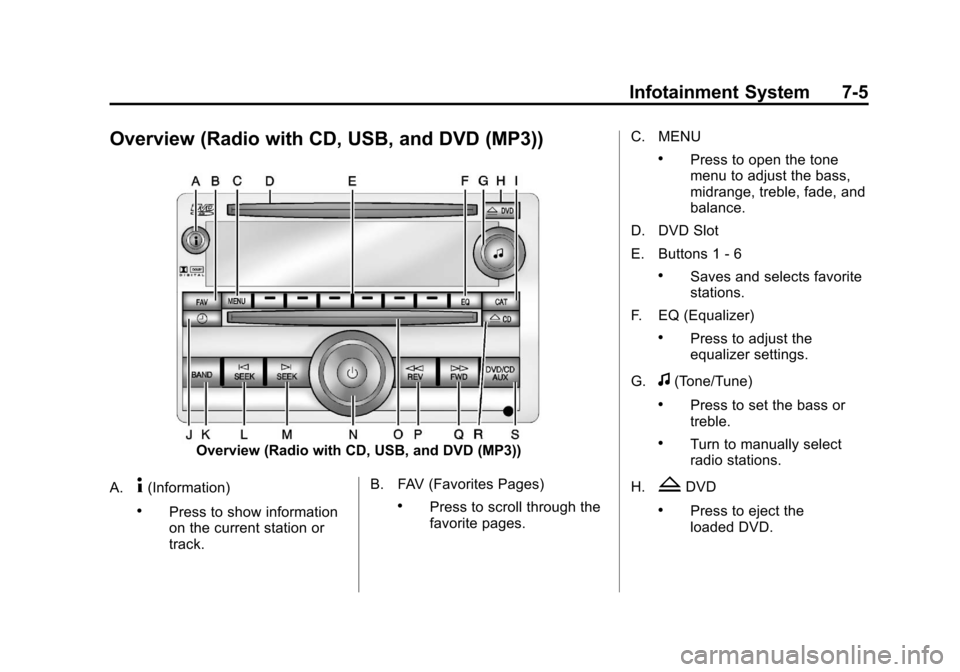
Overview (Radio with CD, USB, and DVD (MP3))
Overview (Radio with CD, USB, and DVD (MP3))
A.
4(Information)
.Press to show information
on the current station or
track. B. FAV (Favorites Pages).Press to scroll through the
favorite pages.C. MENU
.Press to open the tone
menu to adjust the bass,
midrange, treble, fade, and
balance.
D. DVD Slot
E. Buttons 1 - 6
.Saves and selects favorite
stations.
F. EQ (Equalizer)
.Press to adjust the
equalizer settings.
G.
f(Tone/Tune)
.Press to set the bass or
treble.
.Turn to manually select
radio stations.
H.
ZDVD
.Press to eject the
loaded DVD.
Page 204 of 494
Black plate (12,1)Chevrolet Avalanche Owner Manual - 2013 - CRC - 8/27/12
7-12 Infotainment System
sREV:Press to go to the
previous SiriusXM category.
\FWD: Press to go to the next
SiriusXM category.
FAV (Favorites): Press to select
different favorites pages for stored
radio stations.
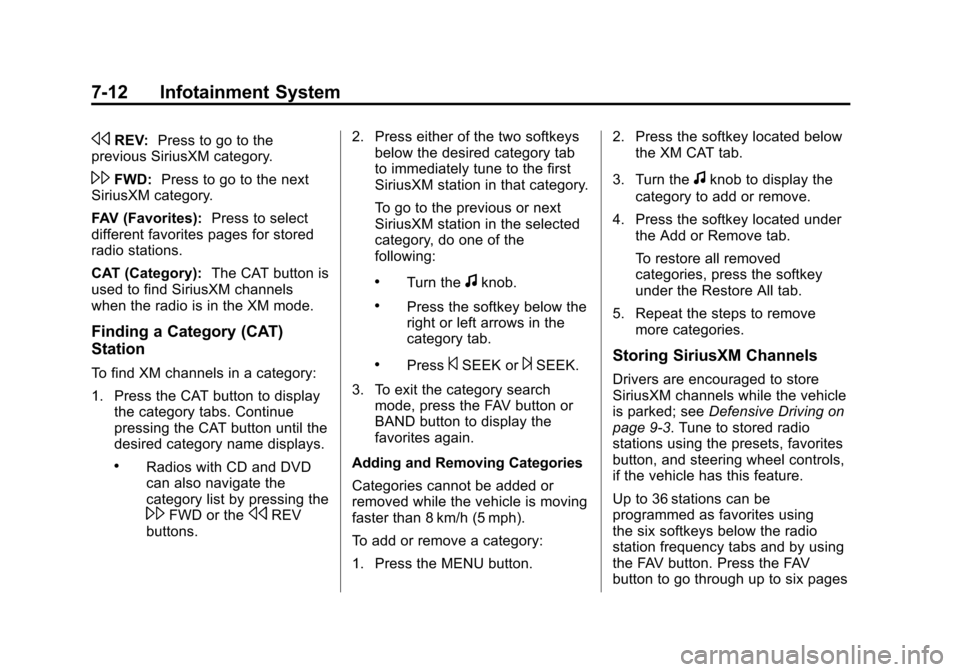
CAT (Category): The CAT button is
used to find SiriusXM channels
when the radio is in the XM mode.
Finding a Category (CAT)
Station
To find XM channels in a category:
1. Press the CAT button to display the category tabs. Continue
pressing the CAT button until the
desired category name displays.
.Radios with CD and DVD
can also navigate the
category list by pressing the
\FWD or thesREV
buttons. 2. Press either of the two softkeys
below the desired category tab
to immediately tune to the first
SiriusXM station in that category.
To go to the previous or next
SiriusXM station in the selected
category, do one of the
following:
.Turn thefknob.
.Press the softkey below the
right or left arrows in the
category tab.
.Press©SEEK or¨SEEK.
3. To exit the category search mode, press the FAV button or
BAND button to display the
favorites again.
Adding and Removing Categories
Categories cannot be added or
removed while the vehicle is moving
faster than 8 km/h (5 mph).
To add or remove a category:
1. Press the MENU button. 2. Press the softkey located below
the XM CAT tab.
3. Turn the
fknob to display the
category to add or remove.
4. Press the softkey located under the Add or Remove tab.
To restore all removed
categories, press the softkey
under the Restore All tab.
5. Repeat the steps to remove more categories.
Storing SiriusXM Channels
Drivers are encouraged to store
SiriusXM channels while the vehicle
is parked; see Defensive Driving on
page 9‑3. Tune to stored radio
stations using the presets, favorites
button, and steering wheel controls,
if the vehicle has this feature.
Up to 36 stations can be
programmed as favorites using
the six softkeys below the radio
station frequency tabs and by using
the FAV button. Press the FAV
button to go through up to six pages
Page 208 of 494
Black plate (16,1)Chevrolet Avalanche Owner Manual - 2013 - CRC - 8/27/12
7-16 Infotainment System
the CD player and the loading slot
free of foreign materials, liquids,
and debris.
If an error displays, see“CD Player
Messages” later in this section.
Care of CDs
If playing a CD-R, the sound quality
can be reduced due to CD-R or
CD-RW quality, the method of
recording, the quality of the music
that has been recorded, and the
way the CD-R or CD-RW has been
handled. Handle them carefully.
Store CD-R(s) or CD-RW(s) in their
original cases or other protective
cases and away from direct sunlight
and dust. The CD player scans the
bottom surface of the disc. If the
surface of a CD is damaged, such
as cracked, broken, or scratched,
the CD does not play properly or not
at all. Do not touch the bottom side
of a CD while handling it; this could
damage the surface. Pick up CDs
by grasping the outer edges or the
edge of the hole and the outer edge. If the surface of a CD is soiled,
clean it with a soft, lint free cloth or
dampen a clean, soft cloth in a mild,
neutral detergent solution mixed
with water. Make sure the wiping
process starts from the center to
the edge.Inserting a CD
Insert a CD partway into the slot,
label side up. The player pulls it in
and the CD should begin playing.
Ejecting a CD
ZEJECT:
Press and release to
eject the disc. Remove the CD
when Remove Disc displays. If the
disc is not removed, after several
seconds, the disc is automatically
pulled back into the player.
Playing a CD
If the ignition or radio is turned off,
with a CD in the player, it stays in
the player. When the ignition or
radio is turned on, the CD starts
playing where it stopped, if it was
the last selected audio source. The CD is controlled by the buttons on
the radio faceplate or by the RSA
unit. See
Rear Seat Audio (RSA)
System on page 7‑46 for more
information.
When a CD is inserted, the CD
symbol displays on the left side of
the radio display. As each new track
starts to play, the track number
displays.
The CD player can play the smaller
8 cm (3 inch) single CDs with an
adapter ring. Full-size CDs and the
smaller CDs are loaded in the same
manner.
CD/AUX (CD/Auxiliary): Press to
cycle through CD or Auxiliary when
listening to the radio. The CD icon
and a message showing the disc
and/or track number displays when
a CD is in the player. Press again
and the system automatically
searches for an auxiliary input
device, see, Auxiliary Devices on
page 7‑31 for more information. If a
Page 214 of 494
Black plate (22,1)Chevrolet Avalanche Owner Manual - 2013 - CRC - 8/27/12
7-22 Infotainment System
Inserting a Disc
Insert a disc partway into either slot,
label side up. The player pulls it in
and the disc should begin playing.
(Loading a disc into the system,
depending on media type and
format, ranges from 5 to 20 seconds
for a CD, and up to 30 seconds for a
DVD to begin playing.)
Ejecting a Disc
ZCD (Eject):Press and release
to eject the disc that is currently
playing. The CD ejects from the
bottom slot. A beep sounds and
Ejecting Disc displays. Once the
disc is ejected, Remove Disc
displays. The disc can be removed.
If the disc is not removed, after
several seconds the disc
automatically pulls back into the
player.
ZDVD (Eject): Press and
release to eject the disc that is
currently playing in the top slot.
A beep sounds and Ejecting Disc
displays. If loading and reading of a disc
cannot be completed, due to
unknown format, etc., and the disc
fails to eject, press and hold for
more than five seconds to force the
disc to eject.
Playing a CD (in Either the
DVD or CD Slot)
If the ignition or radio is turned off
with a CD in the player, it stays in
the player. When the ignition or
radio is turned on, the CD starts
playing where it stopped, if it was
the last selected audio source. The
CD is controlled by the buttons on
the radio faceplate or by the RSA
unit. See
Rear Seat Audio (RSA)
System on page 7‑46 for more
information. The DVD/CD decks
(the upper slot is the DVD deck and
the lower slot is the CD deck) of the
radio are compatible with most
audio CDs, CD-Rs, CD-RWs,
and MP3s. When a CD is inserted, the text tab
DVD or CD symbol displays on the
left side of the radio display. As
each new track starts to play, the
track number displays.
The CD player can play the smaller
8 cm (3 in) single CDs with an
adapter ring. Full-size CDs and the
smaller CDs are loaded in the same
manner.
DVD/CD AUX (Auxiliary):
Press to
cycle through DVD, CD, or Auxiliary
when listening to the radio. The
DVD/CD text tab and a message
showing the track or chapter
number will display when a disc is in
either slot. Press the DVD/CD AUX
button again and the system
automatically searches for an
auxiliary input device; see Auxiliary
Devices on page 7‑31 for more
information. If a portable audio
player is not connected, “No Aux
Input Device” displays. If a disc is in
both the DVD slot and the CD slot,
the DVD/CD AUX button cycles
between the two sources and does
not indicate “No Aux Input Device.”
Page 216 of 494
Black plate (24,1)Chevrolet Avalanche Owner Manual - 2013 - CRC - 8/27/12
7-24 Infotainment System
The CD player reads both
uncompressed audio and MP3/
WMA files on a mixed mode disc.
Uncompressd audio is played
before MP3/WMA files. Press the
CAT (category) button to toggle
between uncompressed audio and
MP3/WMA files.
CD‐R or CD‐RW Supported File
and Folder Structure
The DVD player supports:
.Up to 255 folders.
.Up to eight folders in depth.
.Up to 15 playlists.
.Up to 40 sessions.
.Playlists with an .m3u or .wpl
extension.
.Files with an .mp3, .wma, or .cda
file extension.
The CD player supports:
.Up to 512 files and folders.
.Up to 8 folders in depth.
.Playlists with an .m3u or .wpl
extension.
.Files with an .mp3, .wma, or .cda
file extension.
Root Directory
The root directory of the disc is
treated as a folder. If the root
directory has compressed audio
files, the directory displays as F1
ROOT on the radio.
If a disc contains both
uncompressed CD audio and
MP3/WMA files, a folder under the
root directory called CD accesses
all of the CD audio tracks on
the disc.
Empty Folder
Folders that do not contain files are
skipped, and the player advances to
the next folder that contains files.
No Folder
When the disc contains only
compressed files, the files are
located under the root folder. The
next and previous folder function does not function on a disc that was
recorded without folders or playlists.
When displaying the name of the
folder, the radio displays ROOT.
When the disc contains only
playlists and compressed audio
files, but no folders, all files are
located under the root folder. The
folder down and the folder up
buttons search playlists first and
then go to the root folder. When the
radio displays the name of the
folder, the radio displays ROOT.
Order of Play
Compressed audio files are
accessed in the following order:
.Playlists (Px).
.Files stored in the root directory.
.Files stored in folders in the root
directory.
Tracks are played in the following
order:
.Play begins from the first track in
the first playlist and continues
sequentially through all tracks in