buttons CHEVROLET AVALANCHE 2013 2.G Owner's Manual
[x] Cancel search | Manufacturer: CHEVROLET, Model Year: 2013, Model line: AVALANCHE, Model: CHEVROLET AVALANCHE 2013 2.GPages: 494, PDF Size: 7.72 MB
Page 151 of 494
Black plate (25,1)Chevrolet Avalanche Owner Manual - 2013 - CRC - 8/27/12
Instruments and Controls 5-25
Information Displays
Driver Information
Center (DIC)
Your vehicle has a Driver
Information Center (DIC).
The DIC displays information about
your vehicle. It also displays
warning messages if a system
problem is detected.
All messages will appear in the
DIC display located below the
tachometer in the instrument panel
cluster.
The DIC comes on when the ignition
is on. After a short delay, the DIC
will display the information that was
last displayed before the engine
was turned off.
Operation and Displays
The DIC has different displays
which can be accessed by pressing
the DIC buttons located on the
instrument panel, next to the
steering wheel. If the vehicle does
not have DIC buttons, the trip
odometer reset stem can be used to
access some of the menu items
The DIC displays trip, fuel, and
vehicle system information, and
warning messages if a system
problem is detected.
The DIC also allows some features
to be customized. SeeVehicle
Personalization (With DIC Buttons)
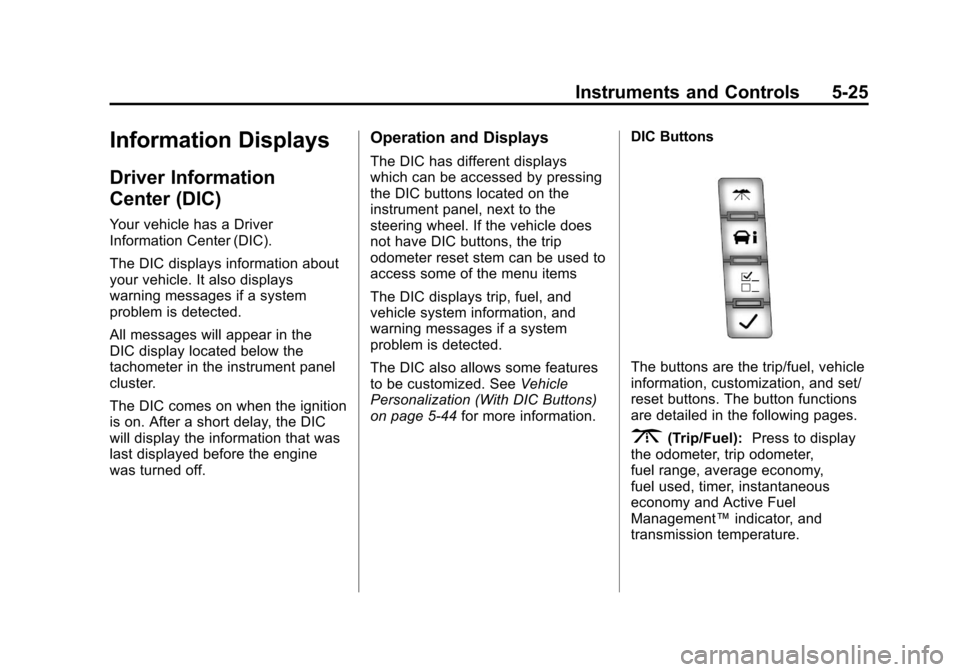
on page 5‑44 for more information. DIC Buttons
The buttons are the trip/fuel, vehicle
information, customization, and set/
reset buttons. The button functions
are detailed in the following pages.
3(Trip/Fuel):
Press to display
the odometer, trip odometer,
fuel range, average economy,
fuel used, timer, instantaneous
economy and Active Fuel
Management™ indicator, and
transmission temperature.
Page 152 of 494
Black plate (26,1)Chevrolet Avalanche Owner Manual - 2013 - CRC - 8/27/12
5-26 Instruments and Controls
The compass and outside air
temperature will also be shown in
the display. The temperature will be
shown in °C or °F depending on the
units selected.
T(Vehicle Information):Press
to display the oil life, units, tire
pressure readings for vehicles
with the Tire Pressure Monitor
System (TPMS), trailer brake gain
and output information for vehicles
with the Integrated Trailer Brake
Control (ITBC) system, engine
hours, compass zone setting, and
compass recalibration.
U(Customization): Press to
customize the feature settings on
your vehicle. See Vehicle
Personalization (With DIC Buttons)
on page 5‑44 for more information.
V(Set/Reset):Press to set or
reset certain functions and to turn
off or acknowledge messages on
the DIC.
Trip/Fuel Menu Items (with DIC
Buttons)
3(Trip/Fuel): Press to scroll
through the following menu items:
Odometer
Press the trip/fuel button until
ODOMETER displays. This display
shows the distance the vehicle has
been driven in either kilometers (km)
or miles (mi). Pressing the trip
odometer reset stem will also
display the odometer.
To switch between English and
metric measurements, see “Units”
later in this section.
Trip Odometer
Press the trip/fuel button until TRIP
displays. This display shows the
current distance traveled in either
kilometers (km) or miles (mi) since
the last reset for the trip odometer.
Pressing the trip odometer reset
stem will also display the trip
odometer. The trip odometer can be reset to
zero by pressing the set/reset
button while the trip odometer is
displayed. You can also reset the
trip odometer while it is displayed by
pressing and holding the trip
odometer reset stem.
The trip odometer has a feature
called the retro-active reset. This
can be used to set the trip odometer
to the number of kilometers (miles)
driven since the ignition was last
turned on. This can be used if the
trip odometer is not reset at the
beginning of the trip.
To use the retro-active reset feature,
press and hold the set/reset button
for at least four seconds. The trip
odometer will display the number of
kilometers (km) or miles (mi) driven
since the ignition was last turned on
and the vehicle was moving. Once
the vehicle begins moving, the trip
odometer will accumulate mileage.
Page 155 of 494
Black plate (29,1)Chevrolet Avalanche Owner Manual - 2013 - CRC - 8/27/12
Instruments and Controls 5-29
Vehicle Information Menu
Items (with DIC Buttons)
T(Vehicle Information):Press
to scroll through the following menu
items:
Oil Life
Press the vehicle information
button until OIL LIFE REMAINING
displays. This display shows an
estimate of the oil's remaining useful
life. If you see 99% OIL LIFE
REMAINING on the display, that
means 99% of the current oil life
remains. The engine oil life system
will alert you to change the oil on a
schedule consistent with your
driving conditions. When the remaining oil life is low,
the CHANGE ENGINE OIL SOON
message will appear on the display.
See
“CHANGE ENGINE OIL SOON”
under Engine Oil Messages on
page 5‑37. You should change the
oil as soon as you can. See Engine
Oil on page 10‑6. In addition to the
engine oil life system monitoring the
oil life, additional maintenance is
recommended in the Maintenance
Schedule in this manual. See
Maintenance Schedule on
page 11‑3 for more information.
Remember, you must reset the OIL
LIFE display yourself after each oil
change. It will not reset itself. Also,
be careful not to reset the OIL LIFE
display accidentally at any time
other than when the oil has just
been changed. It cannot be reset
accurately until the next oil change.
To reset the engine oil life system,
see Engine Oil Life System on
page 10‑9. Units
Press the vehicle information button
until UNITS displays. This display
allows you to select between metric
or English units of measurement.
Once in this display, press the set/
reset button to select between
METRIC or ENGLISH units. All of
the vehicle information will then be
displayed in the unit of
measurement selected.
Tire Pressure
On vehicles with the Tire Pressure
Monitor System (TPMS), the
pressure for each tire can be viewed
in the DIC. The tire pressure will be
shown in either kilopascals (kPa) or
pounds per square inch (psi).
Press the vehicle information button
until the DIC displays FRONT
TIRES kPa (PSI) LEFT ##
RIGHT ##. Press the vehicle
information button again until the
DIC displays REAR TIRES kPa
(PSI) LEFT ## RIGHT ##.
Page 156 of 494
Black plate (30,1)Chevrolet Avalanche Owner Manual - 2013 - CRC - 8/27/12
5-30 Instruments and Controls
If a low tire pressure condition is
detected by the system while
driving, a message advising you to
add pressure in a specific tire will
appear in the display. SeeTire
Pressure on page 10‑51 andTire
Messages on page 5‑41 for more
information.
If the tire pressure display shows
dashes instead of a value, there
may be a problem with your vehicle.
If this consistently occurs, see your
dealer for service.
Trailer Gain and Output
On vehicles with the Integrated
Trailer Brake Control (ITBC) system,
the trailer brake display appears in
the DIC. Press the vehicle
information button until TRAILER
GAIN and OUTPUT display. TRAILER GAIN shows the trailer
gain setting. This setting can be
adjusted from 0.0 to 10.0 with
either a trailer connected or
disconnected. To adjust this setting,
see
“Integrated Trailer Brake Control
System” underTowing Equipment
on page 9‑67 for more information.
OUTPUT shows the power output to
the trailer anytime a trailer with
electric brakes is connected. Output
is displayed in 0 to 10 bars. Dashes
may appear in the OUTPUT display.
See “Integrated Trailer Brake
Control System” underTowing
Equipment on page 9‑67 for more
information.
Engine Hours
Press the vehicle information button
until ENGINE HOURS displays. This
display shows the total number of
hours the engine has run. Compass Zone Setting
This display allows for setting the
compass zone. See
Compass on
page 5‑5.
Compass Recalibration
This display allows for calibrating
the compass. See Compass on
page 5‑5.
Blank Display
This display shows no information.
Trip Odometer Reset Stem
Menu Items (with DIC Buttons)
Use the trip odometer reset stem to
view the odometer and trip
odometer. The Language selection
and Engine Hours display can also
be accessed with the trip odometer
reset stem.
Page 158 of 494
Black plate (32,1)Chevrolet Avalanche Owner Manual - 2013 - CRC - 8/27/12
5-32 Instruments and Controls
Trip Odometer Reset Stem
Menu Items (without DIC
Buttons)
Language
This display allows you to select the
language in which the DIC
messages will appear. To select a
language:
1. Press the trip odometer resetstem until ODOMETER displays.
2. While in the ODOMETER display, press and hold the
trip odometer reset stem for
three seconds until the currently
set language displays.
3. Continue to press and hold the trip odometer reset stem to scroll
through all of the available
languages.
The available languages are
ENGLISH (default), FRANCAIS
(French), ESPANOL (Spanish),
and NO CHANGE. 4. Once the desired language is
displayed, release the trip
odometer reset stem to set your
choice.
Trip Odometer
Press the trip odometer reset
stem until TRIP displays. This
display shows the current distance
traveled in either kilometers (km) or
miles (mi) since the last reset for the
trip odometer.
The trip odometer can be reset to
zero by pressing and holding the trip
odometer reset stem while the trip
odometer is displayed.
The trip odometer has a feature
called the retro-active reset. This
can be used to set the trip odometer
to the number of kilometers (miles)
driven since the ignition was last
turned on. This can be used if the
trip odometer is not reset at the
beginning of the trip. To use the retro-active reset feature,
press and hold the trip odometer
reset stem for at least four seconds.
The trip odometer will display the
number of kilometers (km) or
miles (mi) driven since the ignition
was last turned on and the vehicle
was moving. Once the vehicle
begins moving, the trip odometer
will accumulate mileage. For
example, if the vehicle was driven
8 km (5 miles) before it is started
again, and then the retro-active
reset feature is activated, the
display will show 8 km (5 miles). As
the vehicle begins moving, the
display will then increase to 8.2 km
(5.1 miles), 8.4 km (5.2 miles), etc.
Transmission Temperature
Press the trip odometer reset stem
until TRANS TEMP displays. This
display shows the temperature of
the automatic transmission fluid in
either degrees Celsius (°C) or
degrees Fahrenheit (°F).
Page 170 of 494
Black plate (44,1)Chevrolet Avalanche Owner Manual - 2013 - CRC - 8/27/12
5-44 Instruments and Controls
Vehicle
Personalization
Vehicle Personalization
(With DIC Buttons)
Your vehicle may have
customization capabilities that allow
you to program certain features to
one preferred setting. Customization
features can only be programmed to
one setting on the vehicle and
cannot be programmed to a
preferred setting for two different
drivers.
All of the customization options may
not be available on your vehicle.
Only the options available will be
displayed on the DIC.
The default settings for the
customization features were set
when your vehicle left the factory,
but may have been changed from
their default state since then.
The customization preferences are
automatically recalled.To change customization
preferences, use the following
procedure.
Entering the Feature
Settings Menu
1. Turn the ignition on and place
the vehicle in P (Park).
To avoid excessive drain on the
battery, it is recommended that
the headlamps are turned off.
2. Press the customization button to scroll through the available
customizable options.
Feature Settings Menu Items
The following are customization
features that allow you to program
settings to the vehicle:
DISPLAY IN ENGLISH
This feature will only display if a
language other than English has
been set. This feature allows you to
change the language in which the
DIC messages appear to English. Press the customization button until
the PRESS
VTO DISPLAY IN
ENGLISH screen appears on the
DIC display. Press the set/reset
button once to display all DIC
messages in English.
DISPLAY LANGUAGE
This feature allows you to select
the language in which the DIC
messages will appear.
Press the customization button until
the DISPLAY LANGUAGE screen
appears on the DIC display. Press
the set/reset button once to access
the settings for this feature. Then
press the customization button to
scroll through the following settings:
ENGLISH (default): All messages
will appear in English.
FRANCAIS: All messages will
appear in French.
ESPANOL: All messages will
appear in Spanish.
Page 171 of 494
Black plate (45,1)Chevrolet Avalanche Owner Manual - 2013 - CRC - 8/27/12
Instruments and Controls 5-45
NO CHANGE:No change will be
made to this feature. The current
setting will remain.
To select a setting, press the set/
reset button while the desired
setting is displayed on the DIC.
You can also change the language
by pressing the trip odometer reset
stem. See “Language” under DIC
Operation and Displays (Without
DIC Buttons) earlier in this section
for more information.
AUTO DOOR LOCK
This feature allows you to select
when the vehicle's doors will
automatically lock. See Automatic
Door Locks on page 2‑7 for more
information. Press the customization button until
AUTO DOOR LOCK appears on the
DIC display. Press the set/reset
button once to access the settings
for this feature. Then press the
customization button to scroll
through the following settings:
SHIFT OUT OF PARK (default):
The doors, including the tailgate, will
automatically lock when the vehicle
is shifted out of P (Park).
AT VEHICLE SPEED:
The
doors, including the tailgate, will
automatically lock when the vehicle
speed is above 13 km/h (8 mph) for
3 seconds.
NO CHANGE: No change will be
made to this feature. The current
setting will remain.
To select a setting, press the
set/reset button while the desired
setting is displayed on the DIC. AUTO DOOR UNLOCK
This feature allows you to select
whether or not to turn off the
automatic door unlocking feature.
It also allows you to select which
doors and when the doors will
automatically unlock. See
Automatic
Door Locks on page 2‑7 for more
information.
Press the customization button until
AUTO DOOR UNLOCK appears on
the DIC display. Press the set/reset
button once to access the settings
for this feature. Then press the
customization button to scroll
through the following settings:
OFF: None of the doors will
automatically unlock.
DRIVER AT KEY OUT: Only the
driver door will unlock when the key
is taken out of the ignition.
DRIVER IN PARK: Only the driver
door will unlock when the vehicle is
shifted into P (Park).
Page 177 of 494
Black plate (51,1)Chevrolet Avalanche Owner Manual - 2013 - CRC - 8/27/12
Instruments and Controls 5-51
ON (default):The remote start
feature will be enabled.
NO CHANGE: No change will be
made to this feature. The current
setting will remain.
To select a setting, press the set/
reset button while the desired
setting is displayed on the DIC.
FACTORY SETTINGS
This feature allows you to set all of
the customization features back to
their factory default settings.
Press the customization button until
FACTORY SETTINGS appears on
the DIC display. Press the set/reset
button once to access the settings
for this feature. Then press the
customization button to scroll
through the following settings:
RESTORE ALL (default): The
customization features will be set to
their factory default settings. DO NOT RESTORE:
The
customization features will not be
set to their factory default settings.
To select a setting, press the set/
reset button while the desired
setting is displayed on the DIC.
EXIT FEATURE SETTINGS
This feature allows you to exit the
feature settings menu.
Press the customization button until
PRESS
VTO EXIT FEATURE
SETTINGS appears in the DIC
display. Press the set/reset button
once to exit the menu.
If you do not exit, pressing the
customization button again will
return you to the beginning of the
feature settings menu.
Exiting the Feature
Settings Menu
The feature settings menu will be
exited when any of the following
occurs:
.The vehicle is no longer in
ON/RUN.
.The trip/fuel or vehicle
information DIC buttons are
pressed.
.The end of the feature settings
menu is reached and exited.
.A 40 second time period has
elapsed with no selection made.
Page 178 of 494
Black plate (52,1)Chevrolet Avalanche Owner Manual - 2013 - CRC - 8/27/12
5-52 Instruments and Controls
Universal Remote
System
SeeRadio Frequency Statement on
page 13‑21 for information
regarding Part 15 of the Federal
Communications Commission (FCC)
rules and Industry Canada
Standards RSS-GEN/210/220/310.
Universal Remote System
Programming
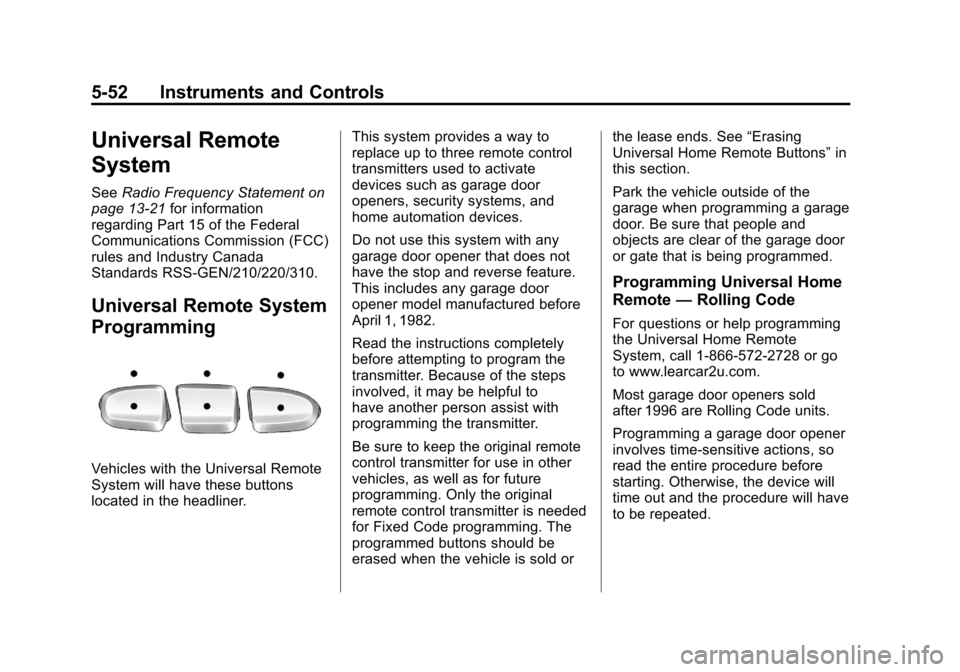
Vehicles with the Universal Remote
System will have these buttons
located in the headliner. This system provides a way to
replace up to three remote control
transmitters used to activate
devices such as garage door
openers, security systems, and
home automation devices.
Do not use this system with any
garage door opener that does not
have the stop and reverse feature.
This includes any garage door
opener model manufactured before
April 1, 1982.
Read the instructions completely
before attempting to program the
transmitter. Because of the steps
involved, it may be helpful to
have another person assist with
programming the transmitter.
Be sure to keep the original remote
control transmitter for use in other
vehicles, as well as for future
programming. Only the original
remote control transmitter is needed
for Fixed Code programming. The
programmed buttons should be
erased when the vehicle is sold orthe lease ends. See
“Erasing
Universal Home Remote Buttons” in
this section.
Park the vehicle outside of the
garage when programming a garage
door. Be sure that people and
objects are clear of the garage door
or gate that is being programmed.
Programming Universal Home
Remote —Rolling Code
For questions or help programming
the Universal Home Remote
System, call 1-866-572-2728 or go
to www.learcar2u.com.
Most garage door openers sold
after 1996 are Rolling Code units.
Programming a garage door opener
involves time-sensitive actions, so
read the entire procedure before
starting. Otherwise, the device will
time out and the procedure will have
to be repeated.
Page 179 of 494
Black plate (53,1)Chevrolet Avalanche Owner Manual - 2013 - CRC - 8/27/12
Instruments and Controls 5-53
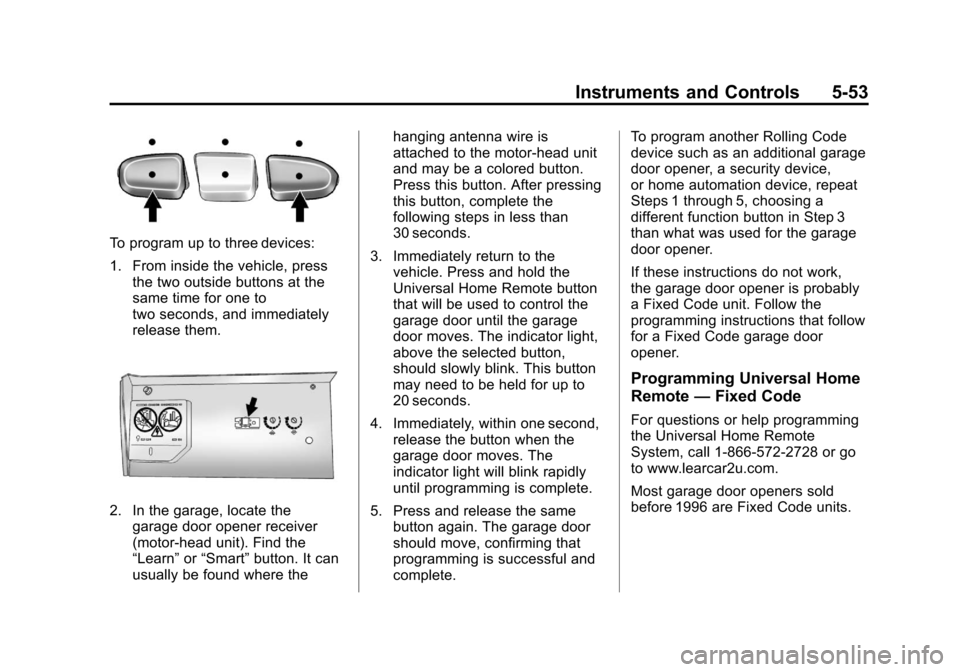
To program up to three devices:
1. From inside the vehicle, pressthe two outside buttons at the
same time for one to
two seconds, and immediately
release them.
2. In the garage, locate the
garage door opener receiver
(motor-head unit). Find the
“Learn” or“Smart” button. It can
usually be found where the hanging antenna wire is
attached to the motor-head unit
and may be a colored button.
Press this button. After pressing
this button, complete the
following steps in less than
30 seconds.
3. Immediately return to the vehicle. Press and hold the
Universal Home Remote button
that will be used to control the
garage door until the garage
door moves. The indicator light,
above the selected button,
should slowly blink. This button
may need to be held for up to
20 seconds.
4. Immediately, within one second, release the button when the
garage door moves. The
indicator light will blink rapidly
until programming is complete.
5. Press and release the same button again. The garage door
should move, confirming that
programming is successful and
complete. To program another Rolling Code
device such as an additional garage
door opener, a security device,
or home automation device, repeat
Steps 1 through 5, choosing a
different function button in Step 3
than what was used for the garage
door opener.
If these instructions do not work,
the garage door opener is probably
a Fixed Code unit. Follow the
programming instructions that follow
for a Fixed Code garage door
opener.
Programming Universal Home
Remote
—Fixed Code
For questions or help programming
the Universal Home Remote
System, call 1-866-572-2728 or go
to www.learcar2u.com.
Most garage door openers sold
before 1996 are Fixed Code units.