buttons CHEVROLET BLAZER 2003 2.G User Guide
[x] Cancel search | Manufacturer: CHEVROLET, Model Year: 2003, Model line: BLAZER, Model: CHEVROLET BLAZER 2003 2.GPages: 420, PDF Size: 2.94 MB
Page 119 of 420

Driver Information Center (DIC)
If your vehicle is equipped with a Driver Information
Center (DIC), this system displays the outside air
temperature, compass direction and trip information in
the overhead console.
US/MET (United States/Metric):The US/MET (United
States/metric) button allows you to switch the display
between the English and metric system.
MODE:The MODE button can be used to toggle
between three modes of operation: OFF, COMP/TEMP
and TRIP.
COMP/TEMP (Compass/Temperature):The display
provides the outside temperature and one of eight
compass readings to indicate the direction the vehicle
is facing.Before you turn on the ignition and move the vehicle,
the temperature indicated will be the last outside
temperature recorded with the ignition on. If the outside
temperature is 37ÉF (3ÉC) or lower, the display will
toggle between the ICE and the current temperature
every eight seconds. This is a warning to the drive that
road conditions may be icy, and that appropriate
precautions should be taken.
The compass is self-calibrating, so it does not need to
be manually set. However, if C (Calibration) is displayed,
the compass will need to be calibrated. You may also
place the compass in a noncalibrated mode by pressing
the holding the MODE and US/MET buttons at the
same time while in the COMP/TEMP mode. After about
10 seconds, the compass will display C and you can
release the buttons. Drive the vehicle in a complete
360É circle three times at a speed of less than 5 mph
(8 km/h), and the compass will function normally.
Once the calibration is complete, the display will return
to a compass reading.
2-53
Page 120 of 420

Variance is the different between magnetic north and
geographic north. In some areas, the difference between
the two can be great enough to cause false compass
readings. If this happens, follow these instructions to set
the variance for your particular location:
1. Find your location on the zone map. Record your
zone number.
2. Press and hold both the MODE and the US/MET
buttons in the COMP/TEMP mode.3. After ®ve seconds, the compass will acknowledge
the variation mode by displaying the current zone
number. When it does, release both buttons.
4. Press US/MET until your zone number appears on
the display.
5. Press MODE to set your zone number. Your
variance is now set and the display will return to the
COMP/TEMP mode.
TRIP:Once in the TRIP mode, press the MODE button
for the following trip functions:
AVG ECON (Average Economy):The average fuel
economy since the last reset is displayed.
INST ECON (Instantaneous Economy):Instantaneous
fuel economy for the last second of driving is displayed.
RANGE:The display indicates the estimated distance
that can be travelled with the remaining fuel in the tank,
based on the fuel economy for the last few hours of
driving.
FUEL USED:The fuel used since the last reset is
displayed.
AVG SPEED (Average Speed):The average speed
since the last reset is displayed.
2-54
Page 121 of 420
To reset the trip computer, press the MODE and
US/MET buttons simultaneously for at least two
seconds. All functions will be displayed brie¯y once the
system is reset. Reset can only be performed in the
AVG ECON, FUEL USED and AVG SPEED modes. All
three modes are reset at the same time.
Front Storage Area
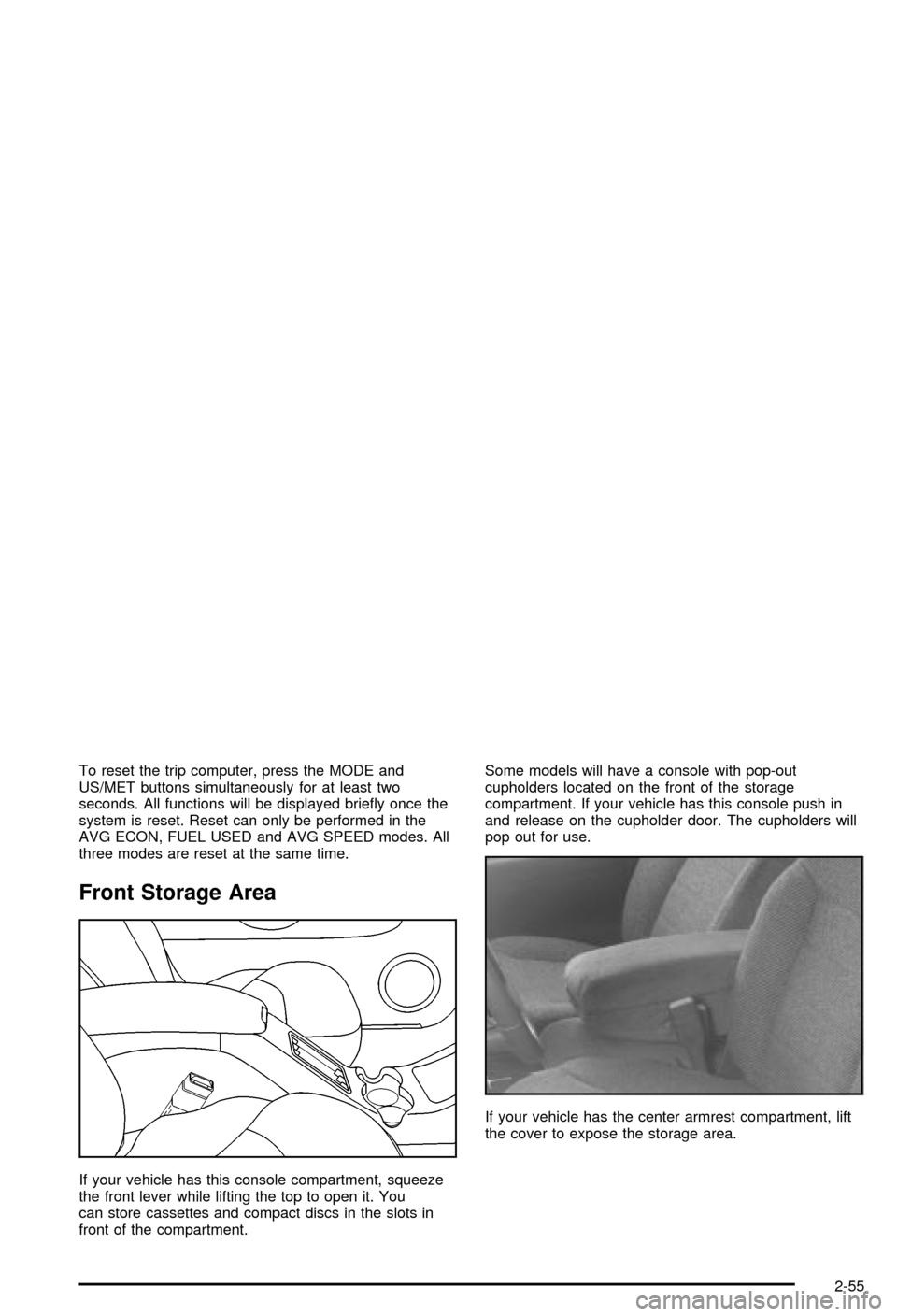
If your vehicle has this console compartment, squeeze
the front lever while lifting the top to open it. You
can store cassettes and compact discs in the slots in
front of the compartment.Some models will have a console with pop-out
cupholders located on the front of the storage
compartment. If your vehicle has this console push in
and release on the cupholder door. The cupholders will
pop out for use.
If your vehicle has the center armrest compartment, lift
the cover to expose the storage area.
2-55
Page 166 of 420
Setting the Time for Radios with
Radio Data Systems (RDS)
Your radio may have a button marked with an H or HR
to represent hours and an M or MIN to represent
minutes.
Press and hold the hour button until the correct hour
appears on the display. AM or PM will also appear
on the display. Press and hold the minute button until
the correct minute appears on the display. The time may
be set with the ignition on or off.
To synchronize the time with an FM station broadcasting
Radio Data System (RDS) information, press and
hold the hour and minute buttons at the same time for
two seconds until UPDATED and the clock symbol
appear on the display. If the time is not available from
the station, NO UPDAT will appear on the display
instead.
RDS time is broadcast once a minute. Once you have
tuned to an RDS broadcast station, it may take a
few minutes for your time to update.
AM-FM Radio
Playing the Radio
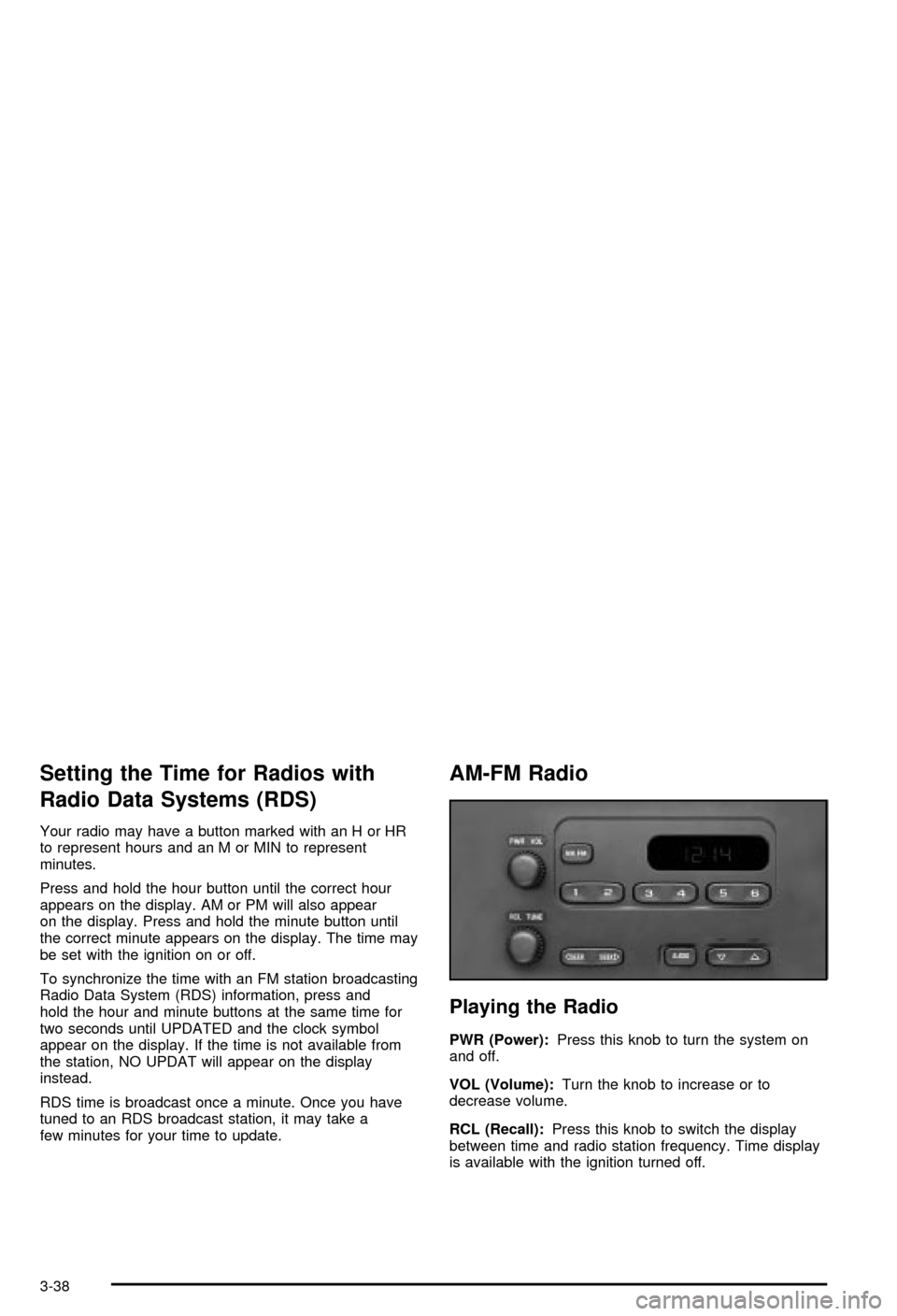
PWR (Power):Press this knob to turn the system on
and off.
VOL (Volume):Turn the knob to increase or to
decrease volume.
RCL (Recall):Press this knob to switch the display
between time and radio station frequency. Time display
is available with the ignition turned off.
3-38
Page 167 of 420

Finding a Station
AM FM:Press this button to switch the display between
time and radio station frequency. Time display is
available with the ignition turned off.
TUNE:Turn this knob to tune in radio stations.
oSEEKp:Press the right or the left arrow to seek
to the next or to the previous station and stay there.
To scan stations, press and hold one of the SEEK
arrows for two seconds until you hear a beep. The radio
will go to a station, play for a few seconds and ¯ash
the station frequency, then go on to the next station.
Press one of the SEEK arrows again to stop scanning.
To scan preset stations, press and hold one of the
SEEK arrows for more than four seconds until you hear
two beeps. The radio will go to the ®rst preset station
stored on the pushbuttons, play for a few seconds
and ¯ash the station frequency, then go on to the next
preset station. Press one of the SEEK arrows again
to stop scanning presets.
This radio will seek and scan only to stations that are in
the selected band and only to those with a strong
signal.
Setting Preset Stations
The six numbered pushbuttons let you return to your
favorite stations. You can set up to 18 stations
(six AM, six FM1 and six FM2) by performing the
following steps:
1. Turn the radio on.
2. Press AM FM to select AM, FM1 or FM2.
3. Tune in the desired station.
4. Press and hold one of the six numbered
pushbuttons until you hear a beep. Whenever you
press that numbered pushbutton, the station
you set will return.
5. Repeat the steps for each pushbutton.
Setting the Tone (Bass/Treble)
AUDIO:To adjust bass and treble, press and release
AUDIO repeatedly until BAS or TRE appears on
the display. Then press and hold the up or the down
arrow to increase or to decrease. If a station is weak or
noisy, you may want to decrease the treble.
3-39
Page 170 of 420

qSEEKr:Press the right or the left arrow to seek
to the next or to the previous station and stay there.
The radio will seek only to stations that are in the
selected band and only to those with a strong signal.
qPSCANr(Preset Scan):Press and hold one of
the arrows for more than two seconds. The radio will
produce one beep. The radio will scan to the ®rst preset
station stored on the pushbuttons, play for a few
seconds, then go on to the next station. SCAN will be
displayed. Press one of the arrows again or one of
the pushbuttons to stop scanning presets.
The radio will scan only to preset stations that are in the
selected band only to those with a strong signal.
Setting Preset Stations
The six numbered pushbuttons let you return to your
favorite stations. You can set up to 18 stations (six AM,
six FM1 and six FM2) by performing the following
steps:
1. Turn the radio on.
2. Press AM FM to select AM, FM1 or FM2.
3. Tune in the desired station.
4. Press AUTO TONE to choose the bass and treble
equalization that best suits the type of station you
are listening to.5. Press and hold one of the six numbered
pushbuttons. The radio will produce one beep.
Whenever you press that numbered pushbutton, the
station you set will return and the bass and treble
equalization that you selected will also be
automatically selected for that pushbutton.
6. Repeat the steps for each pushbutton.
Setting the Tone (Bass/Treble)
AUDIO:Press and release the AUDIO knob until BASS
or TREB appears on the display. Turn the knob to
increase or to decrease. The display will show the bass
or treble level. If a station is weak or noisy, you may
want to decrease the treble.
To adjust the bass and treble to the middle position, push
and hold the AUDIO knob. The radio will produce one
beep and adjust the display level to the middle position.
To adjust all tone and speaker controls to the middle
position, push and hold the AUDIO knob when no tone or
speaker control is displayed. The radio will produce one
beep and display ALL with the level display in the middle
position.
AUTO TONE (Automatic Tone):Press this button to
choose bass and treble equalization settings designed
for country/western, jazz, talk, pop, rock and classical
stations.
To return the bass and treble to the manual mode,
press and release the AUDIO knob.
3-42
Page 177 of 420

Finding a Station
AM FM:Press this button to switch between AM, FM1
and FM2. The display will show your selection.
TUNE:Turn this knob to choose radio stations.
qSEEKr:Press the right or the left arrow to seek
to the next or to the previous station and stay there.
The radio will seek only to stations that are in the
selected band and only to those with a strong signal.
qPSCANr(Preset Scan):Press and hold one
of the arrows for more than two seconds. The radio will
produce one beep. The radio will scan to the ®rst
preset station stored on the pushbuttons, play for a few
seconds, then go on to the next station. SCAN will
be displayed. Press one of the arrows again or one of
the pushbuttons to stop scanning presets.
The radio will scan only to presets that are in the
selected band and only to those with a strong signal.
Setting Preset Stations
The six numbered pushbuttons let you return to your
favorite stations. You can set up to 18 stations (six AM,
six FM1 and six FM2) by performing the following
steps:
1. Turn the radio on.
2. Press AM FM to select AM, FM1 or FM2.
3. Tune in the desired station.
4. Press AUTO TONE to choose the bass and treble
equalization that best suits the type of station you
are listening to.
5. Press and hold one of the six numbered
pushbuttons. The radio will produce one beep.
Whenever you press that numbered pushbutton, the
station you set will return and the bass and treble
equalization that you selected will also be
automatically selected for that pushbutton.
6. Repeat the steps for each pushbutton.
3-49
Page 187 of 420

To scan preset stations, press and hold either SCAN
arrow for more than four seconds. PRESET SCAN will
appear on the display. You will hear a double beep.
The radio will go to a preset station stored on your
pushbuttons, play for a few seconds, then go on to the
next preset station. Press either SCAN arrow again
to stop scanning presets.
The radio will scan only to stations that are in the
selected band and only to those with a strong signal.
Setting Preset Stations
The six numbered pushbuttons let you return to your
favorite stations. You can set up to 18 stations
(six AM, six FM1 and six FM2) by performing the
following steps:
1. Turn the radio on.
2. Press AM FM to select AM, FM1 or FM2.
3. Tune in the desired station.
4. Press AUTO EQ to select the equalization that best
suits the type of station selected.
5. Press and hold one of the six numbered
pushbuttons until you hear a beep. Whenever you
press that numbered pushbutton, the station
you set will return and the equalization that you
selected will also be automatically selected for that
pushbutton.
6. Repeat the steps for each pushbutton.
Setting the Tone (Bass/Treble)
AUDIO:Push the AUDIO knob until BASS, MID or
TREB appears on the display. Turn the knob to increase
or to decrease. If a station is weak or noisy, you may
want to decrease the treble.
To adjust bass, midrange or treble to the middle
position, select BASS, MID or TREB and push and hold
the AUDIO knob. The radio will produce one beep
and adjust the display level to zero.
To adjust all tone and speaker controls to the middle
position, push and hold the AUDIO knob when no tone
or speaker control is displayed. The radio will produce
one beep and CENTERED will appear on the display.
AUTO EQ (Automatic Equalization):Press this button
to choose between bass, midrange and treble
equalization settings designed for country, jazz, talk,
pop, rock and classical program types.
To return to the manual mode (CUSTOM), press the
AUTO EQ button until CUSTOM appears on the display.
Then you will be able to manually adjust the bass,
midrange and treble using the AUDIO knob.
3-59
Page 190 of 420

Setting Preset PTYs
The six numbered pushbuttons let you return to your
favorite PTYs. These buttons have factory PTY presets.
You can set up to 12 PTYs (six FM1 and six FM2) by
performing the following steps:
1. Press BAND to select FM1 or FM2.
2. Press the P-TYPE button to activate program type
select mode.
3. Turn the P-TYPE knob to select a PTY.
4. Press and hold one of the six numbered
pushbuttons until you hear a beep. Whenever you
press that numbered pushbutton, the PTY you
set will return.
5. Repeat the steps for each pushbutton.
RDS Messages
ALERT!:Alert warns of local or national emergencies.
When an alert announcement comes on the current
radio station, ALERT! will appear on the display. You will
hear the announcement, even if the volume is muted
or a compact disc is playing. If the compact disc player
is playing, play will stop during the announcement.
You will not be able to turn off alert announcements.
ALERT! will not be affected by tests of the emergency
broadcast system. This feature is not supported by
all RDS stations.INFO (Information):If the current station has a
message, INFO will appear on the display. Press this
button to see the message. The message may display
the artist and song title, call in phone numbers, etc.
If the whole message is not displayed, parts of it
will appear every three seconds. To scroll through the
message at your own speed, press the INFO button
repeatedly. A new group of words will appear on
the display with each press. Once the complete
message has been displayed, INFO will disappear from
the display until another new message is received.
The old message can be displayed by pressing
the INFO button until a new message is received or a
different station is tuned to.
TRAF (Traffic):If TRAF appears on the display, the
tuned station broadcasts traffic announcements.
To receive the traffic announcement from the tuned
station, press this button. Brackets will be displayed
around TRAF and when a traffic announcement comes
on the tuned radio station you will hear it.
If the current tuned station does not broadcast traffic
announcements, press this button and the radio
will seek to a station that does. When the radio ®nds a
station that broadcasts traffic announcements, it will
stop and brackets will be displayed around TRAF. When
a traffic announcement comes on the tuned radio
station you will hear it. If no station is found, NO
TRAFFIC will appear on the display.
3-62
Page 409 of 420

Driving On Grades..........................................4-62
Driving on Off-Road Hills.................................4-19
Driving on Snow or Ice....................................4-38
Driving Through Deep Standing Water...............4-32
Driving Through Flowing Water.........................4-32
Driving Uphill..................................................4-20
Driving with a Trailer.......................................4-60
Driving..........................................................4-28
At Night.....................................................4-28
City...........................................................4-33
Defensive..................................................... 4-3
Drunken....................................................... 4-4
Environment................................................. 4-3
Freeway.....................................................4-34
Hill and Mountain Roads..............................4-36
In Rain and on Wet Roads...........................4-30
Winter........................................................4-38
E
Electrical System............................................5-84
Add-On Equipment......................................5-84
Fuses and Circuit Breakers...........................5-85
Headlamps.................................................5-84
Power Windows and Other Power Options......5-85
Windshield Wiper Fuses...............................5-85
Electronic Transfer Case..................................2-29
Emergency Release for Opening Tailgate...........2-15Emissions Inspection and Maintenance
Programs...................................................3-32
Engine Compartment Fuse Block......................5-88
Engine Coolant Level Check.............................6-26
Engine Oil Additives........................................5-14
Engine Oil Level Check...................................6-26
Engine..........................................................5-15
Air Cleaner/Filter.........................................5-15
Battery.......................................................5-40
Check and Service Engine Soon Light............3-30
Compartment Overview................................5-10
Coolant Heater............................................2-22
Coolant Temperature Gage...........................3-29
Coolant......................................................5-22
Cooling System Inspection............................6-31
Exhaust.....................................................2-39
Fan Noise..................................................5-34
Oil .............................................................5-11
Overheating................................................5-25
Starting......................................................2-21
Entry Lighting.................................................3-14
Environmental Concerns..................................4-17
Erasing HomeLink
žButtons..............................2-47
Exit Lighting...................................................3-14
Express Down Window....................................2-12
Extender, Safety Belt.......................................1-31
Exterior Lamps...............................................3-11
5