infotainment CHEVROLET BLAZER 2019 User Guide
[x] Cancel search | Manufacturer: CHEVROLET, Model Year: 2019, Model line: BLAZER, Model: CHEVROLET BLAZER 2019Pages: 404, PDF Size: 7.59 MB
Page 154 of 404
Chevrolet Blazer (GMNA-Localizing-U.S./Canada/Mexico-12461541) - 2019 -
CRC - 3/11/19
Instruments and Controls 153
Forward Collision System
This feature will turn on or off
Forward Collision Alert (FCA) and
Forward Automatic Braking (FAB).
The Off setting disables all FCA and
FAB functions. With the Alert and
Brake setting, both FCA and FAB
are available. The Alert setting
disables FAB. SeeForward
Automatic Braking (FAB) 0232.
Touch Off, Alert, or Alert and Brake.
Front Pedestrian Detection
This feature may help avoid or
reduce the harm caused by
front-end crashes with nearby
pedestrians.
See Front Pedestrian Braking (FPB)
System 0233.
Touch Off, Alert, or Alert and Brake.
Adaptive Cruise Go Notifier
This setting determines if an alert
will appear when Adaptive Cruise
Control brings the vehicle to a
complete stop and the vehicle
ahead of you starts moving again.
See Adaptive Cruise Control 0214. Touch Off or On.
Lane Change Alert
The LCA system is a lane-changing
aid that assists drivers with avoiding
lane change crashes. See
Lane
Change Alert (LCA) 0236.
When Lane Change Alert is
disabled, Side Blind Zone Alert is
also disabled.
Touch Off or On.
Rear Camera Park Assist Symbols
This setting enables the Rear
Camera Park Assist Symbols. See
Assistance Systems for Parking or
Backing 0225.
Touch Off or On.
Rear Cross Traffic Alert
This allows the Rear Cross Traffic
Alert feature to be turned on or off.
See Assistance Systems for Parking
or Backing 0225.
Touch Off or On.Comfort and Convenience
Touch and the following may
display:
. Chime Volume
. Reverse Tilt Mirror
. Auto Wipe in Reverse Gear
. Extended Hill Start Assist
. Hands Free Liftgate/Trunk
Control
Chime Volume
This determines the chime volume
level.
Touch the controls on the
infotainment display to adjust the
volume.
Reverse Tilt Mirror
When on, the driver and/or
passenger mirrors will tilt downward
when the vehicle is shifted to
R (Reverse) to improve visibility of
the ground near the rear wheels.
They will return to their previous
driving position when the vehicle is
Page 157 of 404
Chevrolet Blazer (GMNA-Localizing-U.S./Canada/Mexico-12461541) - 2019 -
CRC - 3/11/19
156 Instruments and Controls
Remote Left in Vehicle Alert
This feature sounds an alert when
the RKE transmitter is left in the
vehicle. This menu also enables the
Remote No Longer in Vehicle Alert.
Touch Off or On.
Seating Position
Touch and the following may
display:
.Seat Entry Memory
. Seat Exit Memory
Seat Entry Memory
This feature automatically recalls
the current driver ’s previously stored
1 or 2 button positions when the
ignition is changed from off to on or
ACC/ACCESSORY. See Memory
Seats 064.
Touch Off or On.
Seat Exit Memory
This feature automatically recalls
the previously stored exit button
position when exiting the vehicle.
See Memory Seats 064. Touch Off or On.
Teen Driver
See
“Teen Driver” under“Settings”
in the infotainment manual.
Valet Mode
This will lock the infotainment
system and steering wheel controls.
It may also limit access to vehicle
storage locations, if equipped.
To enable valet mode:
1. Enter a four-digit code on the keypad.
2. Select Enter to go to the confirmation screen.
3. Re-enter the four-digit code.
Touch Lock or Unlock to lock or
unlock the system. Touch Back to
go back to the previous menu.
Universal Remote
System
See Radio Frequency Statement
0 376.
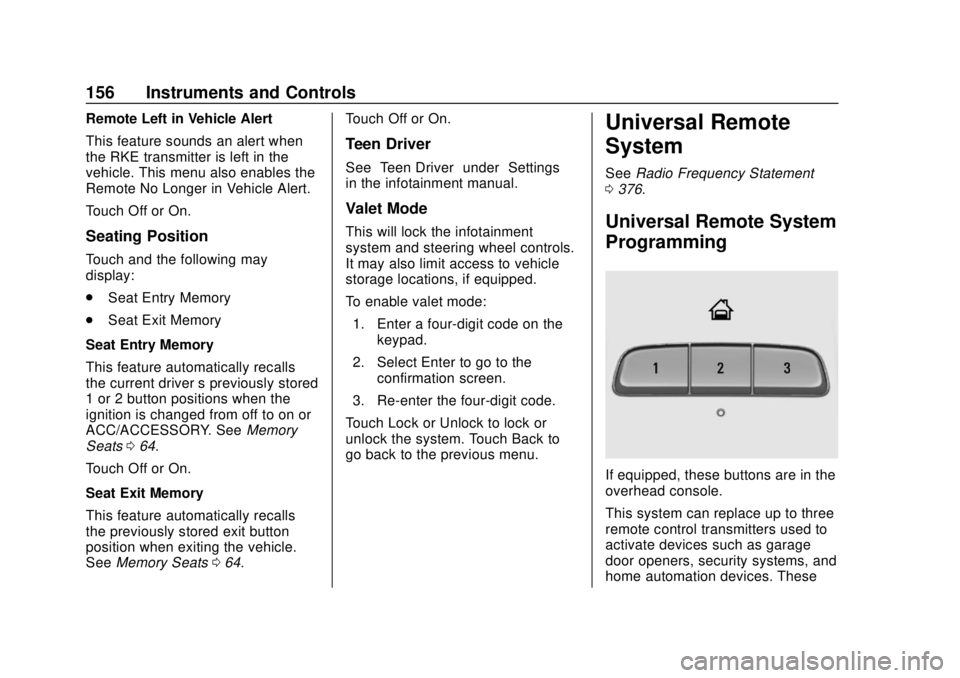
Universal Remote System
Programming
If equipped, these buttons are in the
overhead console.
This system can replace up to three
remote control transmitters used to
activate devices such as garage
door openers, security systems, and
home automation devices. These
Page 166 of 404
Chevrolet Blazer (GMNA-Localizing-U.S./Canada/Mexico-12461541) - 2019 -
CRC - 3/11/19
Lighting 165
Interior Lighting
Instrument Panel
Illumination Control
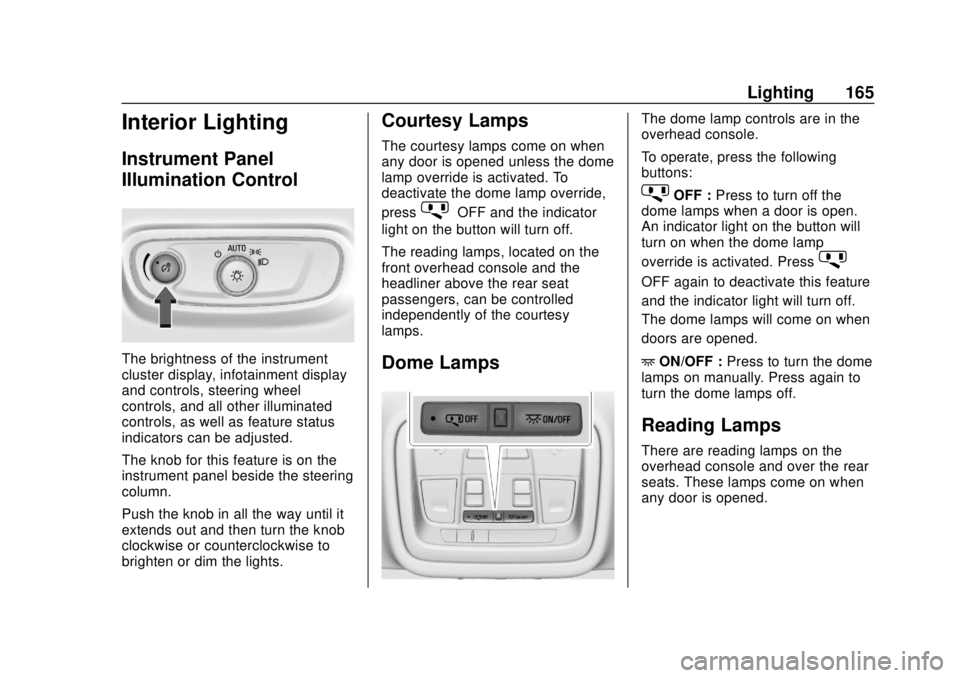
The brightness of the instrument
cluster display, infotainment display
and controls, steering wheel
controls, and all other illuminated
controls, as well as feature status
indicators can be adjusted.
The knob for this feature is on the
instrument panel beside the steering
column.
Push the knob in all the way until it
extends out and then turn the knob
clockwise or counterclockwise to
brighten or dim the lights.
Courtesy Lamps
The courtesy lamps come on when
any door is opened unless the dome
lamp override is activated. To
deactivate the dome lamp override,
press
jOFF and the indicator
light on the button will turn off.
The reading lamps, located on the
front overhead console and the
headliner above the rear seat
passengers, can be controlled
independently of the courtesy
lamps.
Dome Lamps
The dome lamp controls are in the
overhead console.
To operate, press the following
buttons:
jOFF : Press to turn off the
dome lamps when a door is open.
An indicator light on the button will
turn on when the dome lamp
override is activated. Press
j
OFF again to deactivate this feature
and the indicator light will turn off.
The dome lamps will come on when
doors are opened.
+ ON/OFF : Press to turn the dome
lamps on manually. Press again to
turn the dome lamps off.
Reading Lamps
There are reading lamps on the
overhead console and over the rear
seats. These lamps come on when
any door is opened.
Page 170 of 404
Chevrolet Blazer (GMNA-Localizing-U.S./Canada/Mexico-12461541) - 2019 -
CRC - 3/11/19
Infotainment System 169
Infotainment
System
Introduction
Infotainment . . . . . . . . . . . . . . . . . . 169
Introduction
Infotainment
See the infotainment manual for
information on the radio, audio
players, phone, navigation system,
and voice or speech recognition.
It also includes information on
settings.
Active Noise Cancellation (ANC)
If equipped, ANC reduces engine
noise in the vehicle’s interior. ANC
requires the factory-installed audio
system, radio, speakers, amplifier
(if equipped), induction system, and
exhaust system to work properly.
Deactivation is required by your
dealer if related aftermarket
equipment is installed.
Page 172 of 404
Chevrolet Blazer (GMNA-Localizing-U.S./Canada/Mexico-12461541) - 2019 -
CRC - 3/11/19
Climate Controls 171
10. Rear Window Defogger
11. Fan Control
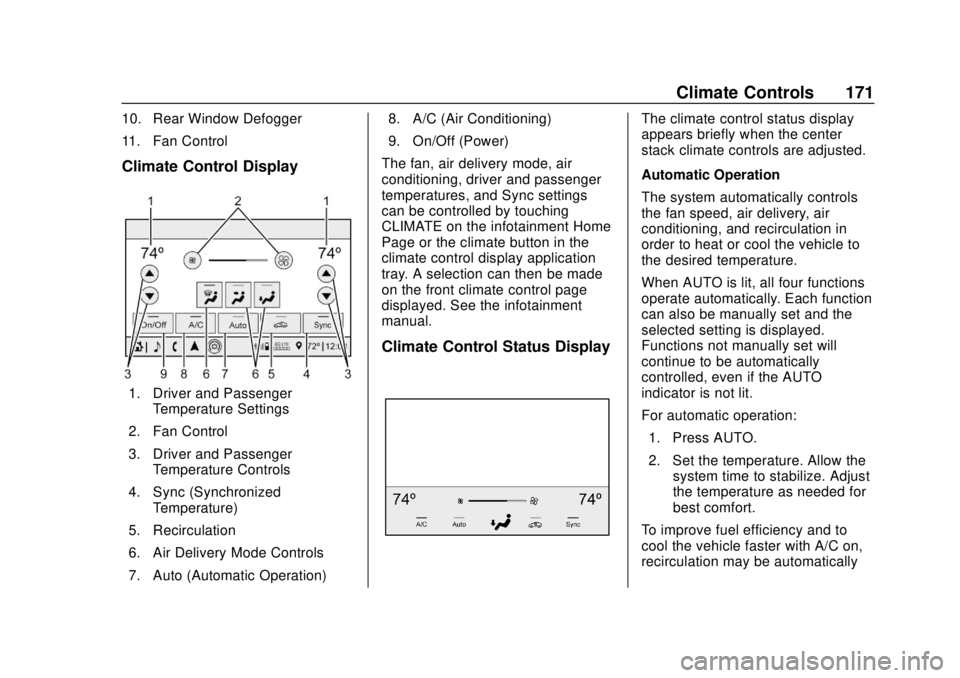
Climate Control Display
1. Driver and PassengerTemperature Settings
2. Fan Control
3. Driver and Passenger Temperature Controls
4. Sync (Synchronized Temperature)
5. Recirculation
6. Air Delivery Mode Controls
7. Auto (Automatic Operation) 8. A/C (Air Conditioning)
9. On/Off (Power)
The fan, air delivery mode, air
conditioning, driver and passenger
temperatures, and Sync settings
can be controlled by touching
CLIMATE on the infotainment Home
Page or the climate button in the
climate control display application
tray. A selection can then be made
on the front climate control page
displayed. See the infotainment
manual.
Climate Control Status Display
The climate control status display
appears briefly when the center
stack climate controls are adjusted.
Automatic Operation
The system automatically controls
the fan speed, air delivery, air
conditioning, and recirculation in
order to heat or cool the vehicle to
the desired temperature.
When AUTO is lit, all four functions
operate automatically. Each function
can also be manually set and the
selected setting is displayed.
Functions not manually set will
continue to be automatically
controlled, even if the AUTO
indicator is not lit.
For automatic operation: 1. Press AUTO.
2. Set the temperature. Allow the system time to stabilize. Adjust
the temperature as needed for
best comfort.
To improve fuel efficiency and to
cool the vehicle faster with A/C on,
recirculation may be automatically
Page 179 of 404
Chevrolet Blazer (GMNA-Localizing-U.S./Canada/Mexico-12461541) - 2019 -
CRC - 3/11/19
178 Driving and Operating
{Warning
Taking your eyes off the road too
long or too often could cause a
crash resulting in injury or death.
Focus your attention on driving.
Refer to the infotainment manual for
more information on using that
system and the navigation system,
if equipped, including pairing and
using a cell phone.
Defensive Driving
Defensive driving means “always
expect the unexpected.” The first
step in driving defensively is to wear
the seat belt. See Seat Belts071.
. Assume that other road users
(pedestrians, bicyclists, and
other drivers) are going to be
careless and make mistakes.
Anticipate what they might do
and be ready.
. Allow enough following distance
between you and the driver in
front of you. .
Focus on the task of driving.
Drunk Driving
Death and injury associated with
drinking and driving is a global
tragedy.
{Warning
Drinking and then driving is very
dangerous. Your reflexes,
perceptions, attentiveness, and
judgment can be affected by even
a small amount of alcohol. You
can have a serious —or even
fatal —collision if you drive after
drinking.
Do not drink and drive or ride with
a driver who has been drinking.
Ride home in a cab; or if you are
with a group, designate a driver
who will not drink.
Control of a Vehicle
Braking, steering, and accelerating
are important factors in helping to
control a vehicle while driving.
Braking
Braking action involves perception
time and reaction time. Deciding to
push the brake pedal is perception
time. Actually doing it is
reaction time.
Average driver reaction time is
about three-quarters of a second. In
that time, a vehicle moving at
100 km/h (60 mph) travels 20 m
(66 ft), which could be a lot of
distance in an emergency.
Helpful braking tips to keep in mind
include:
. Keep enough distance between
you and the vehicle in front
of you.
. Avoid needless heavy braking.
. Keep pace with traffic.
If the engine ever stops while the
vehicle is being driven, brake
normally but do not pump the
brakes. Doing so could make the
pedal harder to push down. If the
engine stops, there will be some
power brake assist but it will be
used when the brake is applied.
Page 198 of 404
Chevrolet Blazer (GMNA-Localizing-U.S./Canada/Mexico-12461541) - 2019 -
CRC - 3/11/19
Driving and Operating 197
{Warning
Improper use of the heater cord
or an extension cord can damage
the cord and may result in
overheating and fire.. Plug the cord into a
three-prong electrical utility
receptacle that is protected
by a ground fault detection
function. An ungrounded
outlet could cause an
electric shock.
. Use a weatherproof,
heavy-duty, 15 amp-rated
extension cord if needed.
Failure to use the
recommended extension
cord in good operating
condition, or using a
damaged heater or
extension cord, could make
(Continued)
Warning (Continued)
it overheat and cause a fire,
property damage, electric
shock, and injury.
. Do not operate the vehicle
with the heater cord
permanently attached to the
vehicle. Possible heater
cord and thermostat
damage could occur.
. While in use, do not let the
heater cord touch vehicle
parts or sharp edges.
. Before starting the vehicle,
unplug the cord. Keep the
cord away from any moving
parts.
5. Before starting the engine, be sure to unplug and store the
cord as it was before to keep it
away from moving engine
parts. If you do not, it could be
damaged. The length of time the heater should
remain plugged in depends on
several factors. Ask a dealer in the
area where you will be parking the
vehicle for the best advice on this.
Retained Accessory
Power (RAP)
Some vehicle accessories may be
used after the ignition is turned off.
The power windows and sunroof,
if equipped, will continue to work for
up to 10 minutes or until any door is
opened.
The infotainment system will
continue to work for 10 minutes,
until the driver door is opened,
or until the ignition is turned on or
placed in ACC/ACCESSORY.
Shifting Into Park
1. Hold the brake pedal down and
set the parking brake. See
Electric Parking Brake 0206.
Page 226 of 404
Chevrolet Blazer (GMNA-Localizing-U.S./Canada/Mexico-12461541) - 2019 -
CRC - 3/11/19
Driving and Operating 225
Assistance Systems for
Parking or Backing
If equipped, the Rear Vision Camera
(RVC), Rear Park Assist (RPA),
Surround Vision, and Rear Cross
Traffic Alert (RCTA) may help the
driver park or avoid objects. Always
check around the vehicle when
parking or backing.
Rear Vision Camera (RVC)
When the vehicle is shifted into
R (Reverse), the RVC displays an
image of the area behind the vehicle
in the infotainment display. The
previous screen displays when the
vehicle is shifted out of R (Reverse)
after a short delay. To return to the
previous screen sooner, press any
button on the infotainment system,
shift into P (Park), or reach a vehicle
speed of approximately 12 km/h
(8 mph). The RVC is above the
license plate.
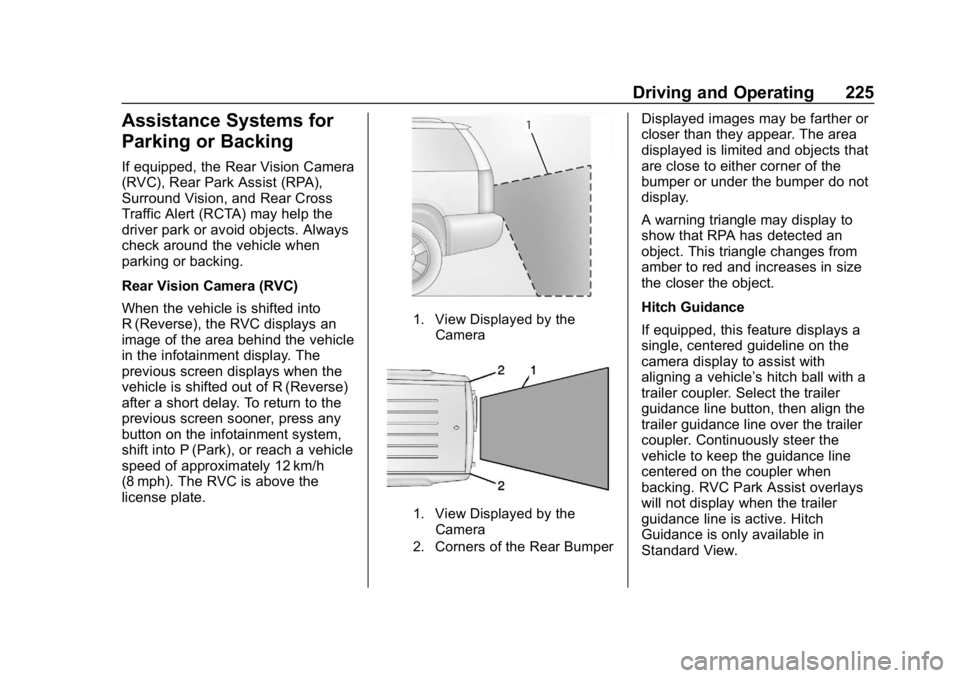
1. View Displayed by theCamera
1. View Displayed by theCamera
2. Corners of the Rear Bumper
Displayed images may be farther or
closer than they appear. The area
displayed is limited and objects that
are close to either corner of the
bumper or under the bumper do not
display.
A warning triangle may display to
show that RPA has detected an
object. This triangle changes from
amber to red and increases in size
the closer the object.
Hitch Guidance
If equipped, this feature displays a
single, centered guideline on the
camera display to assist with
aligning a vehicle’ s hitch ball with a
trailer coupler. Select the trailer
guidance line button, then align the
trailer guidance line over the trailer
coupler. Continuously steer the
vehicle to keep the guidance line
centered on the coupler when
backing. RVC Park Assist overlays
will not display when the trailer
guidance line is active. Hitch
Guidance is only available in
Standard View.
Page 227 of 404
Chevrolet Blazer (GMNA-Localizing-U.S./Canada/Mexico-12461541) - 2019 -
CRC - 3/11/19
226 Driving and Operating
To check the trailer when in a
forward gear above 12 km/h
(8 mph), touch CAMERA on the
infotainment display to view the rear
camera. Touch X to exit the view or
it will be removed automatically after
eight seconds.
{Warning
Use Hitch Guidance only to help
back the vehicle to a trailer hitch
or, when traveling above 12 km/h
(8 mph), to briefly check the
status of your trailer. Do not use
for any other purpose, such as
making lane change decisions.
Before making a lane change,
always check the mirrors and
glance over your shoulder.
Improper use could result in
serious injury to you or others.
Surround Vision
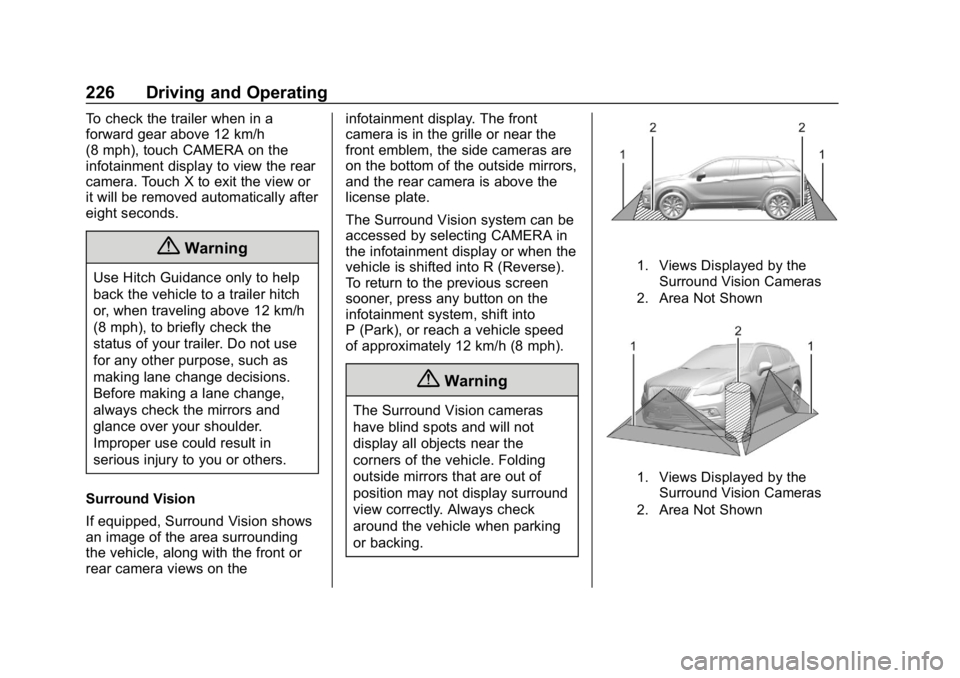
If equipped, Surround Vision shows
an image of the area surrounding
the vehicle, along with the front or
rear camera views on the infotainment display. The front
camera is in the grille or near the
front emblem, the side cameras are
on the bottom of the outside mirrors,
and the rear camera is above the
license plate.
The Surround Vision system can be
accessed by selecting CAMERA in
the infotainment display or when the
vehicle is shifted into R (Reverse).
To return to the previous screen
sooner, press any button on the
infotainment system, shift into
P (Park), or reach a vehicle speed
of approximately 12 km/h (8 mph).
{Warning
The Surround Vision cameras
have blind spots and will not
display all objects near the
corners of the vehicle. Folding
outside mirrors that are out of
position may not display surround
view correctly. Always check
around the vehicle when parking
or backing.
1. Views Displayed by the
Surround Vision Cameras
2. Area Not Shown
1. Views Displayed by the Surround Vision Cameras
2. Area Not Shown
Page 228 of 404
Chevrolet Blazer (GMNA-Localizing-U.S./Canada/Mexico-12461541) - 2019 -
CRC - 3/11/19
Driving and Operating 227
{Warning
The camera(s) do not display
children, pedestrians, bicyclists,
crossing traffic, animals, or any
other object outside of the
cameras’field of view, below the
bumper, or under the vehicle.
Shown distances may be different
from actual distances. Do not
drive or park the vehicle using
only these camera(s). Always
check behind and around the
vehicle before driving. Failure to
use proper care may result in
injury, death, or vehicle damage. Camera Views
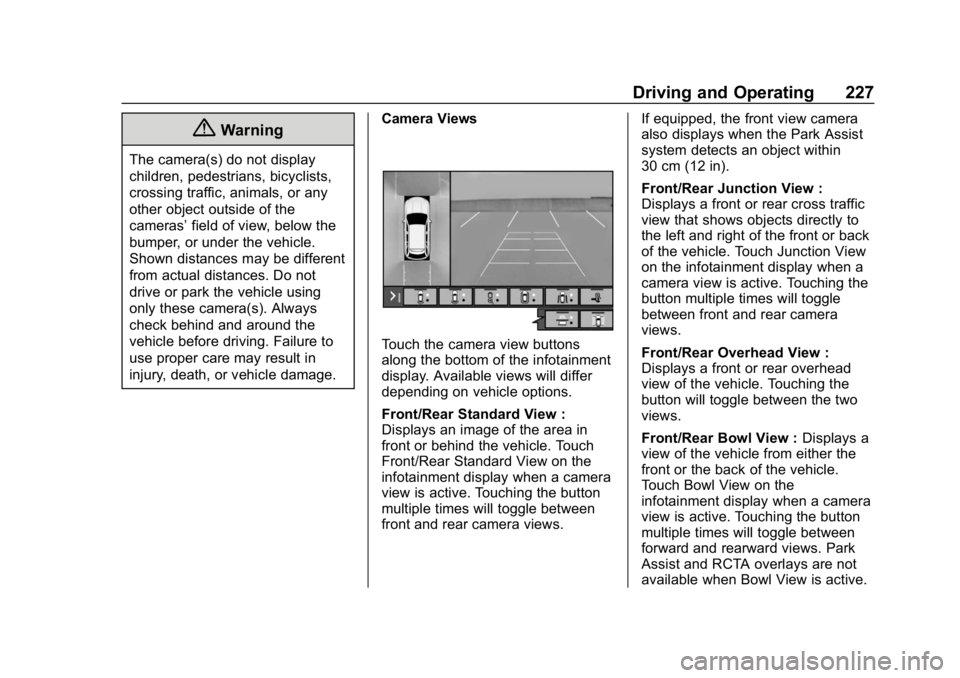
Touch the camera view buttons
along the bottom of the infotainment
display. Available views will differ
depending on vehicle options.
Front/Rear Standard View :
Displays an image of the area in
front or behind the vehicle. Touch
Front/Rear Standard View on the
infotainment display when a camera
view is active. Touching the button
multiple times will toggle between
front and rear camera views. If equipped, the front view camera
also displays when the Park Assist
system detects an object within
30 cm (12 in).
Front/Rear Junction View :
Displays a front or rear cross traffic
view that shows objects directly to
the left and right of the front or back
of the vehicle. Touch Junction View
on the infotainment display when a
camera view is active. Touching the
button multiple times will toggle
between front and rear camera
views.
Front/Rear Overhead View :
Displays a front or rear overhead
view of the vehicle. Touching the
button will toggle between the two
views.
Front/Rear Bowl View :
Displays a
view of the vehicle from either the
front or the back of the vehicle.
Touch Bowl View on the
infotainment display when a camera
view is active. Touching the button
multiple times will toggle between
forward and rearward views. Park
Assist and RCTA overlays are not
available when Bowl View is active.