infotainment CHEVROLET BLAZER 2019 Owner's Manual
[x] Cancel search | Manufacturer: CHEVROLET, Model Year: 2019, Model line: BLAZER, Model: CHEVROLET BLAZER 2019Pages: 404, PDF Size: 7.59 MB
Page 2 of 404

Chevrolet Blazer (GMNA-Localizing-U.S./Canada/Mexico-12461541) - 2019 -
CRC - 3/11/19
ContentsIntroduction . . . . . . . . . . . . . . . . . . . . . . 2
In Brief . . . . . . . . . . . . . . . . . . . . . . . . . . . 5
Keys, Doors, and Windows . . . . . 26
Seats and Restraints . . . . . . . . . . . 58
Storage . . . . . . . . . . . . . . . . . . . . . . . 109
Instruments and Controls . . . . . . 115
Lighting . . . . . . . . . . . . . . . . . . . . . . . 160
Infotainment System . . . . . . . . . . 169
Climate Controls . . . . . . . . . . . . . . 170
Driving and Operating . . . . . . . . . 176
Vehicle Care . . . . . . . . . . . . . . . . . . 257
Service and Maintenance . . . . . 348
Technical Data . . . . . . . . . . . . . . . . 362
Customer Information . . . . . . . . . 366
Reporting Safety Defects . . . . . . 377
OnStar . . . . . . . . . . . . . . . . . . . . . . . . 380
Connected Services . . . . . . . . . . . 388
Index . . . . . . . . . . . . . . . . . . . . 392
Page 6 of 404
Chevrolet Blazer (GMNA-Localizing-U.S./Canada/Mexico-12461541) - 2019 -
CRC - 3/11/19
In Brief 5
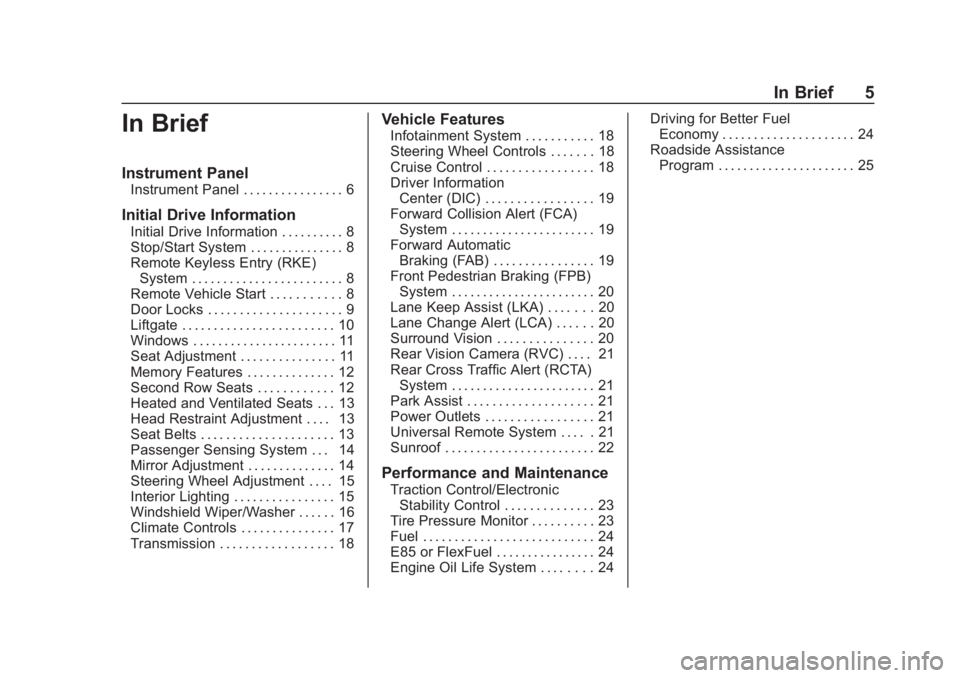
In Brief
Instrument Panel
Instrument Panel . . . . . . . . . . . . . . . . 6
Initial Drive Information
Initial Drive Information . . . . . . . . . . 8
Stop/Start System . . . . . . . . . . . . . . . 8
Remote Keyless Entry (RKE)System . . . . . . . . . . . . . . . . . . . . . . . . 8
Remote Vehicle Start . . . . . . . . . . . 8
Door Locks . . . . . . . . . . . . . . . . . . . . . 9
Liftgate . . . . . . . . . . . . . . . . . . . . . . . . 10
Windows . . . . . . . . . . . . . . . . . . . . . . . 11
Seat Adjustment . . . . . . . . . . . . . . . 11
Memory Features . . . . . . . . . . . . . . 12
Second Row Seats . . . . . . . . . . . . 12
Heated and Ventilated Seats . . . 13
Head Restraint Adjustment . . . . 13
Seat Belts . . . . . . . . . . . . . . . . . . . . . 13
Passenger Sensing System . . . 14
Mirror Adjustment . . . . . . . . . . . . . . 14
Steering Wheel Adjustment . . . . 15
Interior Lighting . . . . . . . . . . . . . . . . 15
Windshield Wiper/Washer . . . . . . 16
Climate Controls . . . . . . . . . . . . . . . 17
Transmission . . . . . . . . . . . . . . . . . . 18
Vehicle Features
Infotainment System . . . . . . . . . . . 18
Steering Wheel Controls . . . . . . . 18
Cruise Control . . . . . . . . . . . . . . . . . 18
Driver Information Center (DIC) . . . . . . . . . . . . . . . . . 19
Forward Collision Alert (FCA) System . . . . . . . . . . . . . . . . . . . . . . . 19
Forward Automatic Braking (FAB) . . . . . . . . . . . . . . . . 19
Front Pedestrian Braking (FPB) System . . . . . . . . . . . . . . . . . . . . . . . 20
Lane Keep Assist (LKA) . . . . . . . 20
Lane Change Alert (LCA) . . . . . . 20
Surround Vision . . . . . . . . . . . . . . . 20
Rear Vision Camera (RVC) . . . . 21
Rear Cross Traffic Alert (RCTA) System . . . . . . . . . . . . . . . . . . . . . . . 21
Park Assist . . . . . . . . . . . . . . . . . . . . 21
Power Outlets . . . . . . . . . . . . . . . . . 21
Universal Remote System . . . . . 21
Sunroof . . . . . . . . . . . . . . . . . . . . . . . . 22
Performance and Maintenance
Traction Control/Electronic Stability Control . . . . . . . . . . . . . . 23
Tire Pressure Monitor . . . . . . . . . . 23
Fuel . . . . . . . . . . . . . . . . . . . . . . . . . . . 24
E85 or FlexFuel . . . . . . . . . . . . . . . . 24
Engine Oil Life System . . . . . . . . 24 Driving for Better Fuel
Economy . . . . . . . . . . . . . . . . . . . . . 24
Roadside Assistance Program . . . . . . . . . . . . . . . . . . . . . . 25
Page 8 of 404
Chevrolet Blazer (GMNA-Localizing-U.S./Canada/Mexico-12461541) - 2019 -
CRC - 3/11/19
In Brief 7
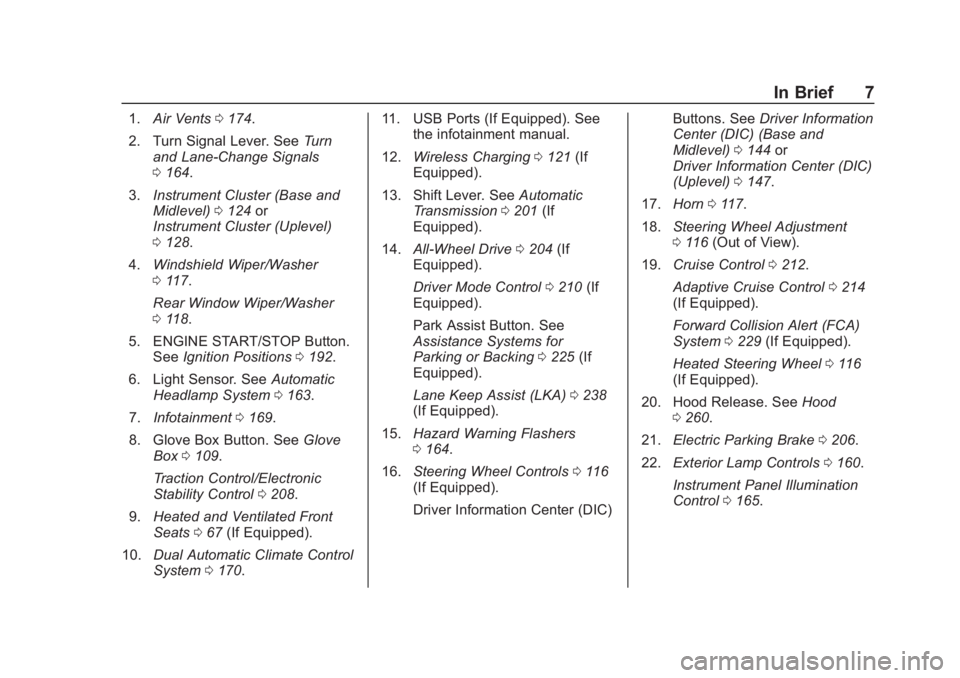
1.Air Vents 0174.
2. Turn Signal Lever. See Turn
and Lane-Change Signals
0 164.
3. Instrument Cluster (Base and
Midlevel) 0124 or
Instrument Cluster (Uplevel)
0 128.
4. Windshield Wiper/Washer
0117.
Rear Window Wiper/Washer
0 118.
5. ENGINE START/STOP Button. See Ignition Positions 0192.
6. Light Sensor. See Automatic
Headlamp System 0163.
7. Infotainment 0169.
8. Glove Box Button. See Glove
Box 0109.
Traction Control/Electronic
Stability Control 0208.
9. Heated and Ventilated Front
Seats 067 (If Equipped).
10. Dual Automatic Climate Control
System 0170. 11. USB Ports (If Equipped). See
the infotainment manual.
12. Wireless Charging 0121 (If
Equipped).
13. Shift Lever. See Automatic
Transmission 0201 (If
Equipped).
14. All-Wheel Drive 0204 (If
Equipped).
Driver Mode Control 0210 (If
Equipped).
Park Assist Button. See
Assistance Systems for
Parking or Backing 0225 (If
Equipped).
Lane Keep Assist (LKA) 0238
(If Equipped).
15. Hazard Warning Flashers
0164.
16. Steering Wheel Controls 0116
(If Equipped).
Driver Information Center (DIC) Buttons. See
Driver Information
Center (DIC) (Base and
Midlevel) 0144 or
Driver Information Center (DIC)
(Uplevel) 0147.
17. Horn 0117.
18. Steering Wheel Adjustment
0116 (Out of View).
19. Cruise Control 0212.
Adaptive Cruise Control 0214
(If Equipped).
Forward Collision Alert (FCA)
System 0229 (If Equipped).
Heated Steering Wheel 0116
(If Equipped).
20. Hood Release. See Hood
0 260.
21. Electric Parking Brake 0206.
22. Exterior Lamp Controls 0160.
Instrument Panel Illumination
Control 0165.
Page 19 of 404
Chevrolet Blazer (GMNA-Localizing-U.S./Canada/Mexico-12461541) - 2019 -
CRC - 3/11/19
18 In Brief
Transmission
Electronic Range Select
(ERS) Mode
ERS mode allows you to choose the
top-gear limit of the transmission
and the vehicle's speed while
driving downhill or towing a trailer.
The vehicle has an electronic shift
position indicator within the
instrument cluster. When using the
ERS mode a number will display
next to the L, indicating the
maximum gear allowed for the
range selected.
To use this feature:1. Move the shift lever to L (Low).
2. Press + (Plus) or −(Minus) on
the shift lever to increase or
decrease the gear range
available.
See Manual Mode 0203.
Vehicle Features
Infotainment System
See the infotainment manual for
information on the radio, audio
players, phone, navigation system,
and voice or speech recognition.
It also includes information on
settings.
Steering Wheel Controls
The infotainment system can be
operated by using the steering
wheel controls. See “Steering Wheel
Controls” in the infotainment
manual.
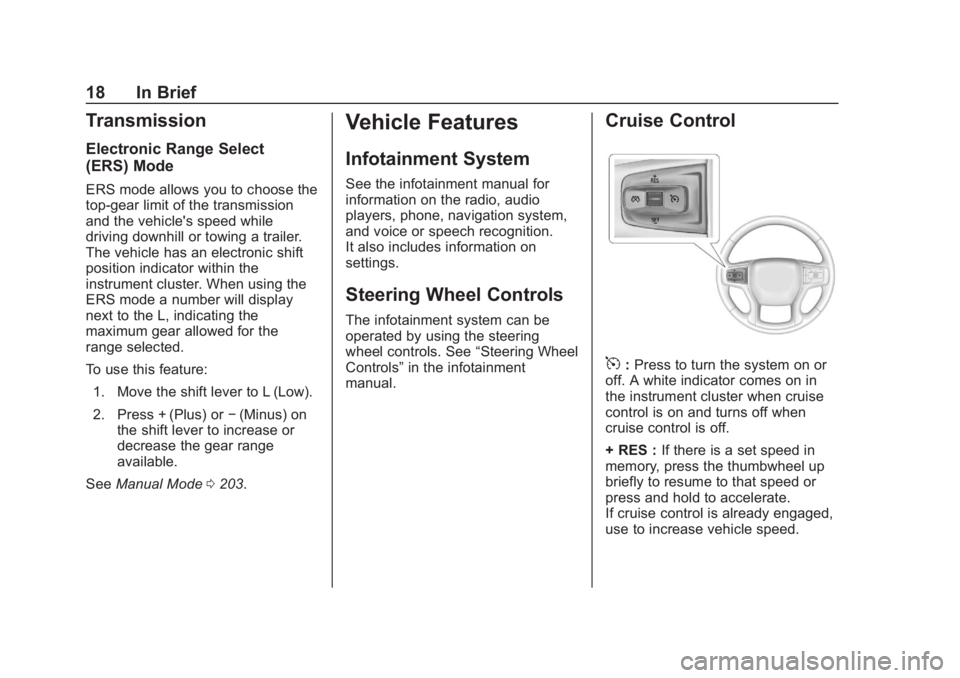
Cruise Control
5: Press to turn the system on or
off. A white indicator comes on in
the instrument cluster when cruise
control is on and turns off when
cruise control is off.
+ RES : If there is a set speed in
memory, press the thumbwheel up
briefly to resume to that speed or
press and hold to accelerate.
If cruise control is already engaged,
use to increase vehicle speed.
Page 21 of 404
Chevrolet Blazer (GMNA-Localizing-U.S./Canada/Mexico-12461541) - 2019 -
CRC - 3/11/19
20 In Brief
vehicle. This can help avoid or
lessen the severity of crashes when
driving in a forward gear.
SeeForward Automatic Braking
(FAB) 0232.
Front Pedestrian Braking
(FPB) System
If equipped, the FPB system may
help avoid or reduce the harm
caused by front-end crashes with
nearby pedestrians when driving in
a forward gear. FPB displays an
amber indicator,
~, when a nearby
pedestrian is detected directly
ahead. When approaching a
detected pedestrian too quickly,
FPB provides a red flashing alert on
the windshield and rapidly beeps or
pulses the driver seat. FPB can
provide a boost to braking or
automatically brake the vehicle.
See Front Pedestrian Braking (FPB)
System 0233.
Lane Keep Assist (LKA)
If equipped, LKA may help avoid
crashes due to unintentional lane
departures. It may assist by gently
turning the steering wheel if the
vehicle approaches a detected lane
marking without using a turn signal
in that direction. It may also provide
a Lane Departure Warning (LDW)
alert as the lane marking is crossed.
The system will not assist or alert if
it detects that you are actively
steering. Override LKA by turning
the steering wheel. LKA uses a
camera to detect lane markings
between 60 km/h (37 mph) and
180 km/h (112 mph).
See Lane Departure Warning (LDW)
0 238 and
Lane Keep Assist (LKA) 0238.
Lane Change Alert (LCA)
If equipped, the LCA system is a
lane-changing aid that assists
drivers with avoiding lane change
crashes that occur with moving
vehicles in the side blind zone (or
spot) areas or with vehicles rapidly
approaching these areas from
behind. The LCA warning display
will light up in the corresponding
outside mirror and will flash if the
turn signal is on. The Side Blind
Zone Alert (SBZA) system is
included as part of the LCA system.
See Side Blind Zone Alert (SBZA)
0 236 and
Lane Change Alert (LCA) 0236.
Surround Vision
If equipped, views around the
vehicle appear in the infotainment
display to aid with parking and
low-speed maneuvers.
See “Surround Vision” under
Assistance Systems for Parking or
Backing 0225.
Page 22 of 404
Chevrolet Blazer (GMNA-Localizing-U.S./Canada/Mexico-12461541) - 2019 -
CRC - 3/11/19
In Brief 21
Rear Vision
Camera (RVC)
If equipped, RVC shows a view of
the area behind the vehicle on the
infotainment display when the
vehicle is shifted into R (Reverse) to
aid with parking and low-speed
backing maneuvers.
SeeAssistance Systems for Parking
or Backing 0225.
Rear Cross Traffic Alert
(RCTA) System
If equipped, the RCTA system
shows a triangle with an arrow on
the infotainment display to warn of
traffic behind your vehicle that may
cross your vehicle's path while in
R (Reverse). In addition, beeps will
sound, or the driver seat will pulse.
See Assistance Systems for Parking
or Backing 0225.
Park Assist
If equipped, Rear Park Assist (RPA)
uses sensors on the rear bumper to
assist with parking and avoiding
objects while in R (Reverse).
It operates at speeds less than
8 km/h (5 mph). RPA may display a
warning triangle on the infotainment
display and a graphic on the
instrument cluster to provide the
object distance. In addition, multiple
beeps or seat pulses may occur if
very close to an object.
See Assistance Systems for Parking
or Backing 0225.
Power Outlets
The vehicle is equipped with 12-volt
accessory power outlets, which can
be used to plug in electrical
equipment such as a cell phone or
MP3 player.
The power outlets are located:
.
Inside the center console
storage compartment.
. In the rear cargo area. To use the outlets, remove the
cover.
See
Power Outlets 0119.
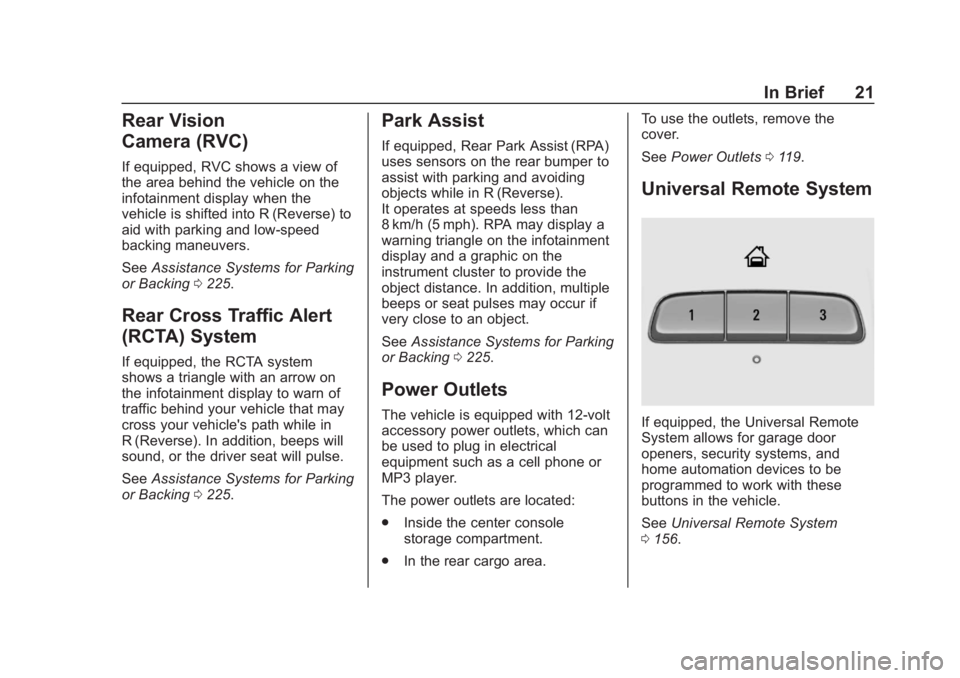
Universal Remote System
If equipped, the Universal Remote
System allows for garage door
openers, security systems, and
home automation devices to be
programmed to work with these
buttons in the vehicle.
See Universal Remote System
0 156.
Page 117 of 404
Chevrolet Blazer (GMNA-Localizing-U.S./Canada/Mexico-12461541) - 2019 -
CRC - 3/11/19
116 Instruments and Controls
Controls
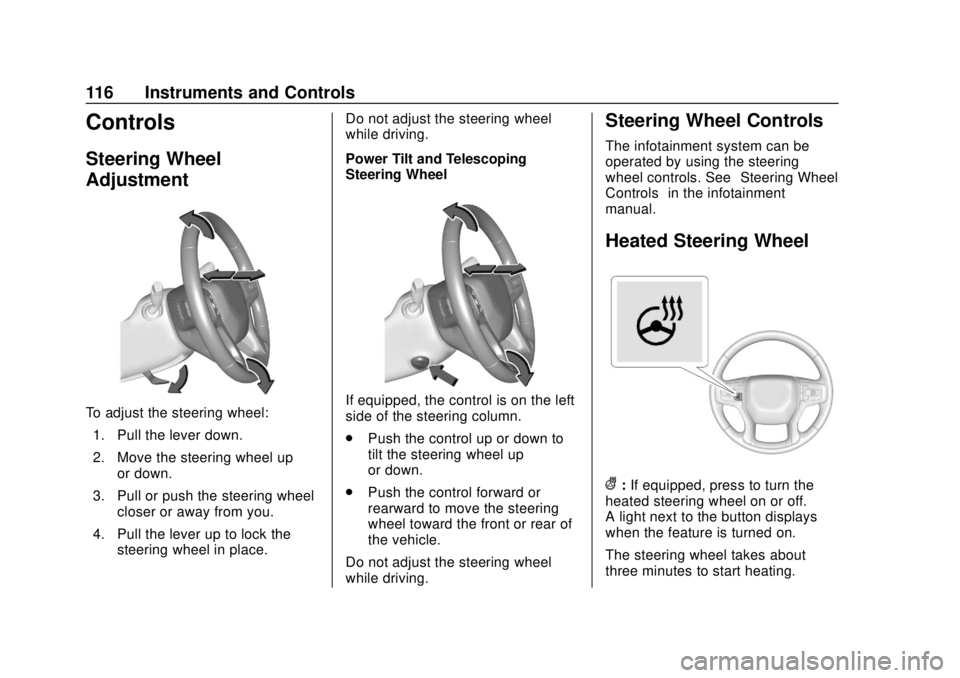
Steering Wheel
Adjustment
To adjust the steering wheel:1. Pull the lever down.
2. Move the steering wheel up or down.
3. Pull or push the steering wheel closer or away from you.
4. Pull the lever up to lock the steering wheel in place. Do not adjust the steering wheel
while driving.
Power Tilt and Telescoping
Steering WheelIf equipped, the control is on the left
side of the steering column.
.
Push the control up or down to
tilt the steering wheel up
or down.
. Push the control forward or
rearward to move the steering
wheel toward the front or rear of
the vehicle.
Do not adjust the steering wheel
while driving.
Steering Wheel Controls
The infotainment system can be
operated by using the steering
wheel controls. See “Steering Wheel
Controls” in the infotainment
manual.
Heated Steering Wheel
(: If equipped, press to turn the
heated steering wheel on or off.
A light next to the button displays
when the feature is turned on.
The steering wheel takes about
three minutes to start heating.
Page 120 of 404
Chevrolet Blazer (GMNA-Localizing-U.S./Canada/Mexico-12461541) - 2019 -
CRC - 3/11/19
Instruments and Controls 119
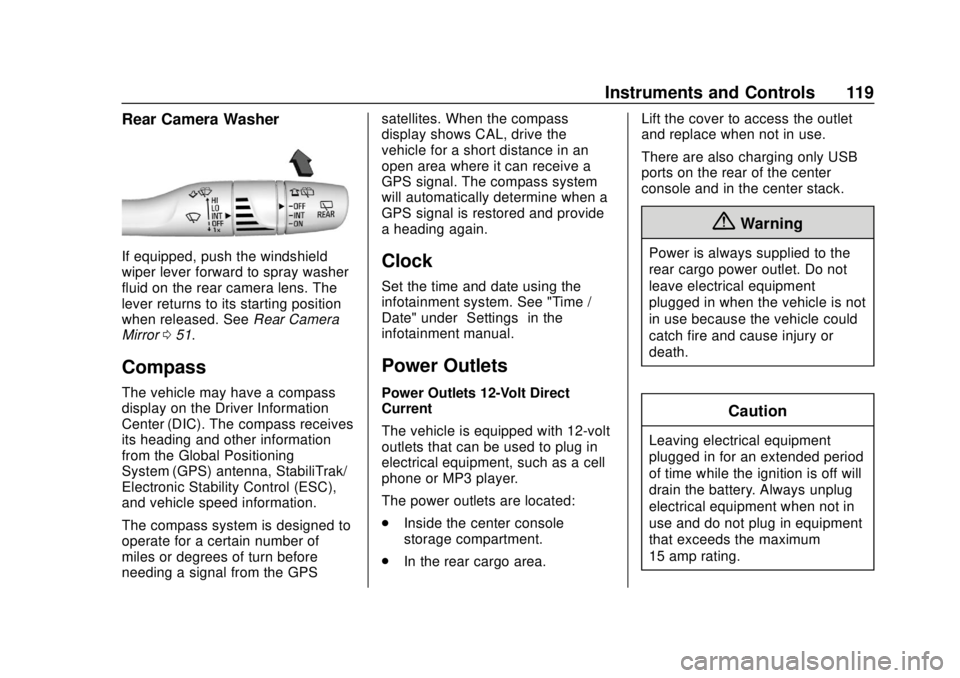
Rear Camera Washer
If equipped, push the windshield
wiper lever forward to spray washer
fluid on the rear camera lens. The
lever returns to its starting position
when released. SeeRear Camera
Mirror 051.
Compass
The vehicle may have a compass
display on the Driver Information
Center (DIC). The compass receives
its heading and other information
from the Global Positioning
System (GPS) antenna, StabiliTrak/
Electronic Stability Control (ESC),
and vehicle speed information.
The compass system is designed to
operate for a certain number of
miles or degrees of turn before
needing a signal from the GPS satellites. When the compass
display shows CAL, drive the
vehicle for a short distance in an
open area where it can receive a
GPS signal. The compass system
will automatically determine when a
GPS signal is restored and provide
a heading again.
Clock
Set the time and date using the
infotainment system. See "Time /
Date" under
“Settings”in the
infotainment manual.
Power Outlets
Power Outlets 12-Volt Direct
Current
The vehicle is equipped with 12-volt
outlets that can be used to plug in
electrical equipment, such as a cell
phone or MP3 player.
The power outlets are located:
. Inside the center console
storage compartment.
. In the rear cargo area. Lift the cover to access the outlet
and replace when not in use.
There are also charging only USB
ports on the rear of the center
console and in the center stack.
{Warning
Power is always supplied to the
rear cargo power outlet. Do not
leave electrical equipment
plugged in when the vehicle is not
in use because the vehicle could
catch fire and cause injury or
death.
Caution
Leaving electrical equipment
plugged in for an extended period
of time while the ignition is off will
drain the battery. Always unplug
electrical equipment when not in
use and do not plug in equipment
that exceeds the maximum
15 amp rating.
Page 123 of 404
Chevrolet Blazer (GMNA-Localizing-U.S./Canada/Mexico-12461541) - 2019 -
CRC - 3/11/19
122 Instruments and Controls
the charging performance. See
your dealer for additional
information.
3. A green
$will appear next toV
on the infotainment display.
This indicates that the phone is
properly positioned and
charging. If
$turns yellow,
ensure that the charging pad is
clear of any objects and that
the smartphone is capable of
wireless charging before
repositioning it. If
$does not
illuminate, the smartphone may
need to be repositioned.
The smartphone may become warm
during charging. This is normal. In
warmer temperatures, the speed of
charging may be reduced.
If
$does not appear on the
infotainment display:
1. Remove the smartphone from the pad and wait
three seconds. 2. Turn the smartphone
180 degrees before placing/
aligning the smartphone on the
pad again.
Software Acknowledgements
Certain Wireless Charging Module
product from LG Electronics, Inc.
("LGE") contains the open source
software detailed below. Refer to
the indicated open source licenses
(as are included following this
notice) for the terms and conditions
of their use.
OSS Notice Information
To obtain the source code that is
contained in this product, please
visit http://opensource.lge.com. In
addition to the source code, all
referred license terms, warranty
disclaimers and copyright notices
are available for download. LG
Electronics will also provide open
source code to you on CD-ROM for
a charge covering the cost of
performing such distribution (such
as the cost of media, shipping, and
handling) upon email request to
[email protected]. This offer is valid for three (3) years from the
date on which you purchased the
product.
Freescale-WCT library
Copyright (c) 2012-2014 Freescale
Semiconductor, Inc.. All rights
reserved.
1. Redistributions of source code must retain the above copyright
notice, this list of conditions
and the following disclaimer.
2. Redistributions in binary form must reproduce the above
copyright notice, this list of
conditions and the following
disclaimer in the
documentation and/or other
materials provided with the
distribution.
3. Neither the name of the copyright holder nor the names
of its contributors may be used
to endorse or promote products
derived from this software
without specific prior written
permission.
Page 152 of 404
Chevrolet Blazer (GMNA-Localizing-U.S./Canada/Mexico-12461541) - 2019 -
CRC - 3/11/19
Instruments and Controls 151
.Vehicle Security
. Brakes
. Steering
. Ride Control Systems
. Driver Assistance Systems
. Cruise Control
. Lighting and Bulb Replacement
. Wiper/Washer Systems
. Doors and Windows
. Seat Belts
. Airbag Systems
. Engine and Transmission
. Tire Pressure
. Battery
Engine Power Messages
ENGINE POWER IS REDUCED
This message displays when the
vehicle's propulsion power is
reduced. A reduction in propulsion
power can affect the vehicle's ability
to accelerate. If this message is on,
but there is no observed reduction in performance, proceed to your
destination. The performance may
be reduced the next time the vehicle
is driven. The vehicle may be driven
while this message is on, but
maximum acceleration and speed
may be reduced. Anytime this
message stays on, or displays
repeatedly, the vehicle should be
taken to your dealer for service as
soon as possible.
Vehicle Speed Messages
SPEED LIMITED TO XXX KM/
H (MPH)
This message shows that the
vehicle speed has been limited to
the speed displayed. The limited
speed is a protection for various
propulsion and vehicle systems,
such as lubrication, thermal,
suspension, Teen Driver if
equipped, or tires.
Vehicle
Personalization
The following are all possible
vehicle personalization features.
Depending on the vehicle, some
may not be available.
For System, Apps, and Personal
features and functions, see
“Settings”
in the infotainment
manual.
To access the vehicle
personalization menu:
1. Touch the Settings icon on the Home Page of the infotainment
display.
2. Touch Vehicle to display a list of available options.
3. Touch to select the desired feature setting.
4. Touch
9orRto turn a feature
off or on.
5. Touch
zto go to the top level
of the Settings menu.