light CHEVROLET BLAZER 2020 Owner's Guide
[x] Cancel search | Manufacturer: CHEVROLET, Model Year: 2020, Model line: BLAZER, Model: CHEVROLET BLAZER 2020Pages: 390, PDF Size: 6.5 MB
Page 72 of 390
Chevrolet Blazer Owner Manual (GMNA-Localizing-U.S./Canada/Mexico-
13557845) - 2020 - CRC - 3/24/20
Seats and Restraints 71
of the seat fabric, could also
interfere with the operation of the
passenger sensing system. This
could either prevent proper
deployment of the passenger
airbag(s) or prevent the passenger
sensing system from properly
turning off the passenger airbag(s).
SeePassenger Sensing System
0 66.
If the vehicle has rollover roof-rail
airbags, see Different Size Tires
and Wheels 0302 for additional
important information.
If the vehicle must be modified
because you have a disability and
have questions about whether the
modifications will affect the vehicle's
airbag system, or if you have
questions about whether the airbag
system will be affected if the vehicle
is modified for any other reason, call
Customer Assistance. See
Customer Assistance Offices 0357.Airbag System Check
The airbag system does not need
regularly scheduled maintenance or
replacement. Make sure the airbag
readiness light is working. See
Airbag Readiness Light 0119.
Caution
If an airbag covering is damaged,
opened, or broken, the airbag
may not work properly. Do not
open or break the airbag
coverings. If there are any
opened or broken airbag
coverings, have the airbag
covering and/or airbag module
replaced. For the location of the
airbags, see Where Are the
Airbags? 061. See your dealer
for service.
Replacing Airbag System
Parts after a Crash
{Warning
A crash can damage the airbag
systems in the vehicle.
A damaged airbag system may
not properly protect you and your
passenger(s) in a crash, resulting
in serious injury or even death. To
help make sure the airbag
systems are working properly
after a crash, have them
inspected and any necessary
replacements made as soon as
possible.
If an airbag inflates, you will need to
replace airbag system parts. See
your dealer for service.
If the airbag readiness light stays on
after the vehicle is started or comes
on when you are driving, the airbag
system may not work properly. Have
the vehicle serviced right away. See
Airbag Readiness Light 0119.
Page 89 of 390
Chevrolet Blazer Owner Manual (GMNA-Localizing-U.S./Canada/Mexico-
13557845) - 2020 - CRC - 3/24/20
88 Seats and Restraints
{Warning
A child in a rear-facing child
restraint can be seriously injured
or killed if the front outboard
passenger frontal airbag inflates.
This is because the back of the
rear-facing child restraint would
be very close to the inflating
airbag. A child in a forward-facing
child restraint can be seriously
injured or killed if the front
outboard passenger frontal airbag
inflates and the passenger seat is
in a forward position.
Even if the passenger sensing
system has turned off the front
outboard passenger frontal
airbag, no system is fail-safe. No
one can guarantee that an airbag
will not deploy under some
unusual circumstance, even
though it is turned off.
Secure rear-facing child restraints
in a rear seat, even if the airbag
is off. If you secure a(Continued)
Warning (Continued)
forward-facing child restraint in
the front outboard passenger
seat, always move the seat as far
back as it will go. It is better to
secure the child restraint in a
rear seat.
SeePassenger Sensing System
0 66 for additional information.
If the child restraint uses a top
tether, see Lower Anchors and
Tethers for Children (LATCH
System) 079 for top tether anchor
locations.
Do not secure a child seat in a
position without a top tether anchor
if a national or local law requires
that the top tether be anchored, or if
the instructions that come with the
child restraint say that the top tether
must be anchored.
In Canada, the law requires that
forward-facing child restraints have
a top tether, and that the tether be
attached. When using the lap-shoulder belt to
secure the child restraint in this
position, follow the instructions that
came with the child restraint and the
following instructions:
1. Move the seat as far back as it will go before securing the
forward-facing child restraint.
Move the seat upward or the
seatback to an upright position,
if needed, to get a tight
installation of the child
restraint.
When the passenger sensing
system has turned off the front
outboard passenger frontal
airbag, the OFF indicator on
the passenger airbag status
indicator should light and stay
lit when you start the vehicle.
See Passenger Airbag Status
Indicator 0119.
2. Put the child restraint on the seat.
3. Pick up the latch plate, and run the lap and shoulder portions
of the vehicle seat belt through
Page 99 of 390
Chevrolet Blazer Owner Manual (GMNA-Localizing-U.S./Canada/Mexico-
13557845) - 2020 - CRC - 3/24/20
98 Instruments and Controls
Instruments and
Controls
Controls
Steering Wheel Adjustment . . . . 99
Steering Wheel Controls . . . . . . . 99
Heated Steering Wheel . . . . . . . . 99
Horn . . . . . . . . . . . . . . . . . . . . . . . . . . 100
Windshield Wiper/Washer . . . . 100
Rear Window Wiper/Washer . . . . . . . . . . . . . . . . . . . . . 101
Compass . . . . . . . . . . . . . . . . . . . . . 102
Clock . . . . . . . . . . . . . . . . . . . . . . . . . 102
Power Outlets . . . . . . . . . . . . . . . . 102
Wireless Charging . . . . . . . . . . . . 104
Warning Lights, Gauges, and
Indicators
Warning Lights, Gauges, and Indicators . . . . . . . . . . . . . . . . . . . 107
Instrument Cluster (Base and
Midlevel) . . . . . . . . . . . . . . . . . . . . 108
Instrument Cluster (Uplevel) . . . . . . . . . . . . . . . . . . . . 112
Speedometer . . . . . . . . . . . . . . . . . 114
Odometer . . . . . . . . . . . . . . . . . . . . . 114
Trip Odometer . . . . . . . . . . . . . . . . 114
Tachometer . . . . . . . . . . . . . . . . . . . 114 Fuel Gauge . . . . . . . . . . . . . . . . . . . 115
Engine Oil Temperature
Gauge . . . . . . . . . . . . . . . . . . . . . . 116
Engine Coolant Temperature Gauge . . . . . . . . . . . . . . . . . . . . . . 116
Voltmeter Gauge . . . . . . . . . . . . . . 117
Seat Belt Reminders . . . . . . . . . . 118
Airbag Readiness Light . . . . . . . 119
Passenger Airbag Status Indicator . . . . . . . . . . . . . . . . . . . . . 119
Charging System Light . . . . . . . 120
Malfunction Indicator Lamp (Check Engine Light) . . . . . . . . 120
Brake System Warning Light . . . . . . . . . . . . . . . . . . . . . . . . 122
Electric Parking Brake Light . . . . . . . . . . . . . . . . . . . . . . . . 123
Service Electric Parking Brake Light . . . . . . . . . . . . . . . . . . . . . . . . 123
Antilock Brake System (ABS) Warning Light . . . . . . . . . . . . . . . 123
Tow/Haul Mode Light . . . . . . . . . 124
Lane Keep Assist (LKA) Light . . . . . . . . . . . . . . . . . . . . . . . . 124
Vehicle Ahead Indicator . . . . . . 124
Pedestrian Ahead Indicator . . . 125
Traction Off Light . . . . . . . . . . . . . 125
StabiliTrak OFF Light . . . . . . . . . 125
Traction Control System (TCS)/ StabiliTrak Light . . . . . . . . . . . . . 126 Engine Coolant Temperature
Warning Light . . . . . . . . . . . . . . . 126
Tire Pressure Light . . . . . . . . . . . 126
Engine Oil Pressure Light . . . . 127
Low Fuel Warning Light . . . . . . 127
Security Light . . . . . . . . . . . . . . . . . 128
High-Beam On Light . . . . . . . . . . 128
Lamps On Reminder . . . . . . . . . 128
Cruise Control Light . . . . . . . . . . 128
Door Ajar Light . . . . . . . . . . . . . . . 129
Information Displays
Driver Information Center (DIC) (Base and Midlevel) . . . . . . . . . 129
Driver Information Center (DIC) (Uplevel) . . . . . . . . . . . . . . . . . . . . 133
Vehicle Messages
Vehicle Messages . . . . . . . . . . . . 136
Engine Power Messages . . . . . 136
Vehicle Speed Messages . . . . . 136
Vehicle Personalization
Vehicle Personalization . . . . . . . 137
Universal Remote System
Universal Remote System . . . . 141
Universal Remote SystemProgramming . . . . . . . . . . . . . . . 141
Universal Remote System Operation . . . . . . . . . . . . . . . . . . . 144
Page 100 of 390
Chevrolet Blazer Owner Manual (GMNA-Localizing-U.S./Canada/Mexico-
13557845) - 2020 - CRC - 3/24/20
Instruments and Controls 99
Controls
Steering Wheel
Adjustment
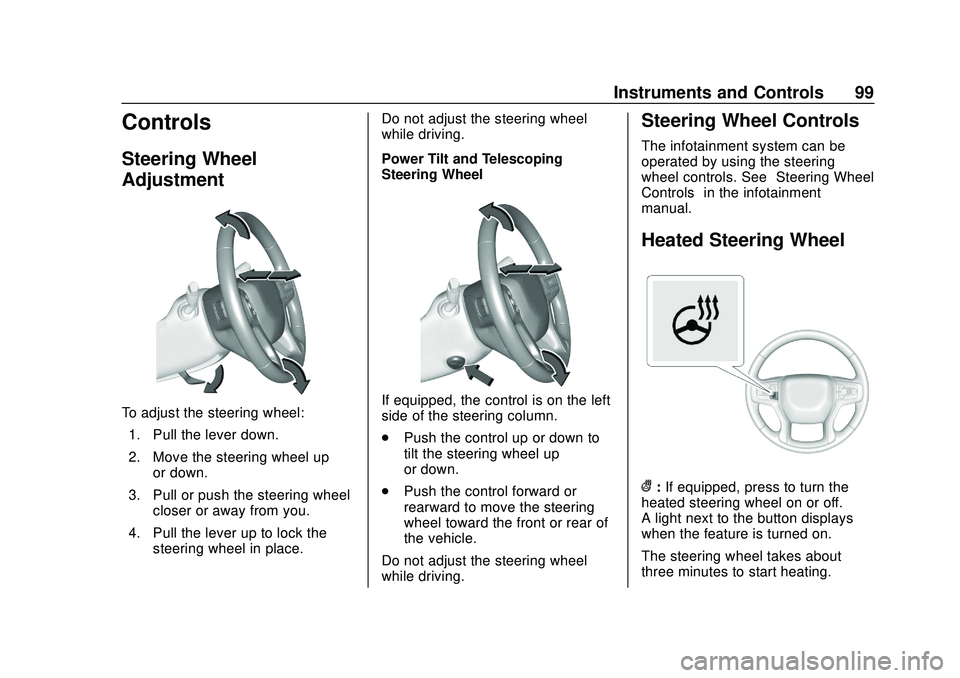
To adjust the steering wheel:1. Pull the lever down.
2. Move the steering wheel up or down.
3. Pull or push the steering wheel closer or away from you.
4. Pull the lever up to lock the steering wheel in place. Do not adjust the steering wheel
while driving.
Power Tilt and Telescoping
Steering WheelIf equipped, the control is on the left
side of the steering column.
.
Push the control up or down to
tilt the steering wheel up
or down.
. Push the control forward or
rearward to move the steering
wheel toward the front or rear of
the vehicle.
Do not adjust the steering wheel
while driving.
Steering Wheel Controls
The infotainment system can be
operated by using the steering
wheel controls. See “Steering Wheel
Controls” in the infotainment
manual.
Heated Steering Wheel
(: If equipped, press to turn the
heated steering wheel on or off.
A light next to the button displays
when the feature is turned on.
The steering wheel takes about
three minutes to start heating.
Page 101 of 390
Chevrolet Blazer Owner Manual (GMNA-Localizing-U.S./Canada/Mexico-
13557845) - 2020 - CRC - 3/24/20
100 Instruments and Controls
If equipped with a remote start
heated steering wheel, the heated
steering wheel may turn on
automatically in remote start along
with the heated seats when it is cold
outside. The heated steering wheel
indicator light may not come on.
SeeHeated and Ventilated Front
Seats 047 and
Vehicle Personalization 0137.
Horn
Pressaon the steering wheel pad
to sound the horn.
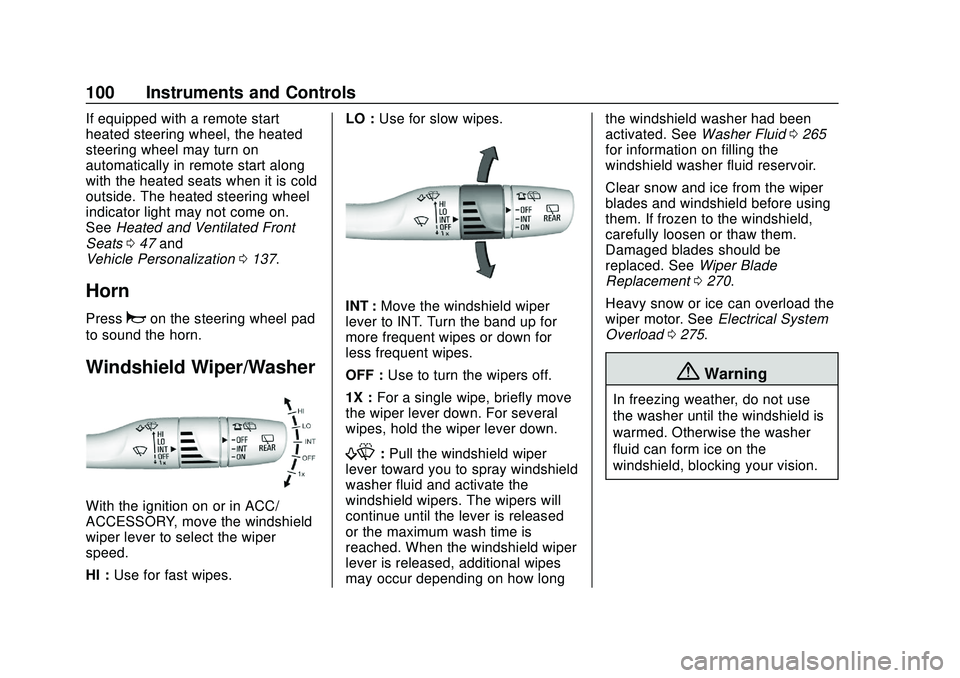
Windshield Wiper/Washer
With the ignition on or in ACC/
ACCESSORY, move the windshield
wiper lever to select the wiper
speed.
HI : Use for fast wipes. LO :
Use for slow wipes.
INT : Move the windshield wiper
lever to INT. Turn the band up for
more frequent wipes or down for
less frequent wipes.
OFF : Use to turn the wipers off.
1X : For a single wipe, briefly move
the wiper lever down. For several
wipes, hold the wiper lever down.
f: Pull the windshield wiper
lever toward you to spray windshield
washer fluid and activate the
windshield wipers. The wipers will
continue until the lever is released
or the maximum wash time is
reached. When the windshield wiper
lever is released, additional wipes
may occur depending on how long the windshield washer had been
activated. See
Washer Fluid0265
for information on filling the
windshield washer fluid reservoir.
Clear snow and ice from the wiper
blades and windshield before using
them. If frozen to the windshield,
carefully loosen or thaw them.
Damaged blades should be
replaced. See Wiper Blade
Replacement 0270.
Heavy snow or ice can overload the
wiper motor. See Electrical System
Overload 0275.
{Warning
In freezing weather, do not use
the washer until the windshield is
warmed. Otherwise the washer
fluid can form ice on the
windshield, blocking your vision.
Page 104 of 390
Chevrolet Blazer Owner Manual (GMNA-Localizing-U.S./Canada/Mexico-
13557845) - 2020 - CRC - 3/24/20
Instruments and Controls 103
Caution
Leaving electrical equipment
plugged in for an extended period
of time while the ignition is off will
drain the battery. Always unplug
electrical equipment when not in
use and do not plug in equipment
that exceeds the maximum
15 amp rating.
Certain accessory plugs may not be
compatible with the accessory
power outlet and could overload
vehicle and adapter fuses. If a
problem is experienced, see your
dealer.
When adding electrical equipment,
be sure to follow the proper
installation instructions included with
the equipment. See Add-On
Electrical Equipment 0242.
Caution
Hanging heavy equipment from
the power outlet can cause
damage not covered by the
vehicle warranty. The power
outlets are designed for
accessory power plugs only, such
as cell phone charge cords.
Power Outlet 110-V/120-V
Alternating Current
If equipped, this power outlet it can
be used to plug in electrical
equipment that uses a maximum
limit of 150 watts.
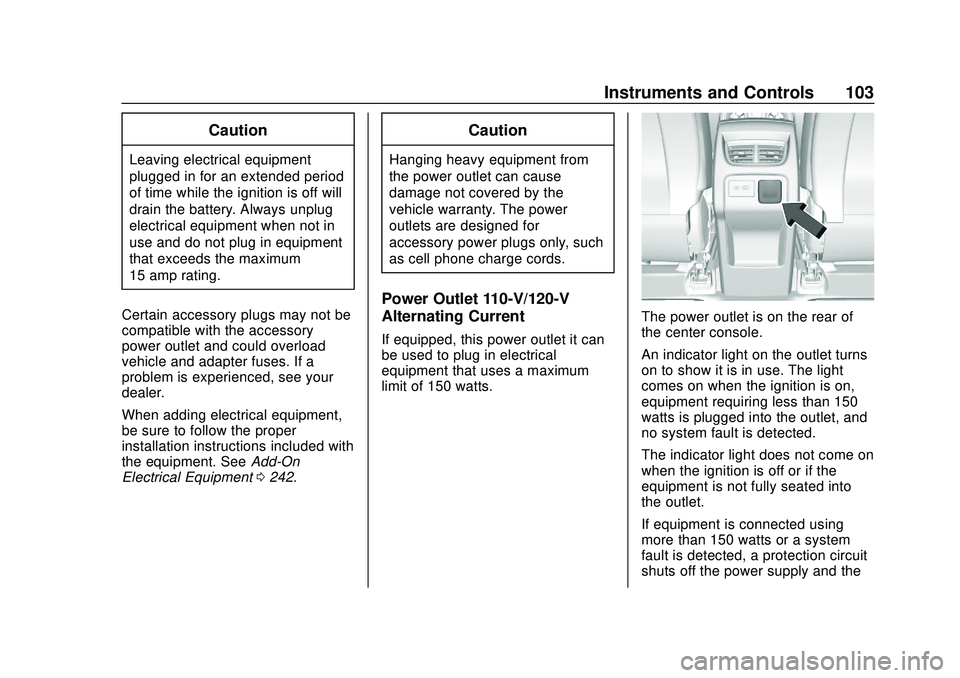
The power outlet is on the rear of
the center console.
An indicator light on the outlet turns
on to show it is in use. The light
comes on when the ignition is on,
equipment requiring less than 150
watts is plugged into the outlet, and
no system fault is detected.
The indicator light does not come on
when the ignition is off or if the
equipment is not fully seated into
the outlet.
If equipment is connected using
more than 150 watts or a system
fault is detected, a protection circuit
shuts off the power supply and the
Page 105 of 390
Chevrolet Blazer Owner Manual (GMNA-Localizing-U.S./Canada/Mexico-
13557845) - 2020 - CRC - 3/24/20
104 Instruments and Controls
indicator light turns off. To reset the
circuit, unplug the item and plug it
back in or turn the Retained
Accessory Power (RAP) off and
then back on. SeeRetained
Accessory Power (RAP) 0184. The
power restarts when equipment
using 150 watts or less is plugged
into the outlet and a system fault is
not detected.
The power outlet is not designed for
the following and may not work
properly if they are plugged in:
. Equipment with high initial peak
wattage, such as
compressor-driven refrigerators
and electric power tools
. Other equipment requiring an
extremely stable power supply,
such as
microcomputer-controlled
electric blankets and touch
sensor lamps
. Medical equipment
See High Voltage Devices and
Wiring 0274.Wireless Charging
If equipped, the vehicle has wireless
charging in the storage bin in front
of the floor console. The system
operates at 145 kHz and wirelessly
charges one Qi compatible
smartphone. The power output of
the system is capable of charging at
a rate up to 3 amp (15W), as
requested by the compatible
smartphone. See Radio Frequency
Statement 0365.
{Warning
Wireless charging can affect the
operation of an implanted
pacemaker or other medical
devices. If you have one, it is
recommended to consult with
your doctor before using the
wireless charging system.
The vehicle must be on, in ACC/
ACCESSORY, or Retained
Accessory Power (RAP) must be
active. The wireless charging
feature may not correctly indicate charging when the vehicle is in RAP.
See
Retained Accessory Power
(RAP) 0184.
The operating temperature is −20 °C
(−4 °F) to 60 °C (140 °F) for the
charging system and 0 °C (32 °F) to
35 °C (95 °F) for the smartphone.
{Warning
Remove all objects from the
charging pad before charging
your compatible smartphone.
Objects, such as coins, keys,
rings, paper clips, or cards,
between the smartphone and
charging pad will become very
hot. On the rare occasion that the
charging system does not detect
an object, and the object gets
wedged between the smartphone
and charger, remove the
smartphone and allow the object
to cool before removing it from
the charging pad, to prevent
burns.
Page 108 of 390
Chevrolet Blazer Owner Manual (GMNA-Localizing-U.S./Canada/Mexico-
13557845) - 2020 - CRC - 3/24/20
Instruments and Controls 107
Warning Lights,
Gauges, and
Indicators
Warning lights and gauges can
signal that something is wrong
before it becomes serious enough
to cause an expensive repair or
replacement. Paying attention to the
warning lights and gauges could
prevent injury.
Some warning lights come on briefly
when the engine is started to
indicate they are working. When
one of the warning lights comes on
and stays on while driving, or when
one of the gauges shows there may
be a problem, check the section that
explains what to do. Waiting to do
repairs can be costly and even
dangerous.
Page 110 of 390
Chevrolet Blazer Owner Manual (GMNA-Localizing-U.S./Canada/Mexico-
13557845) - 2020 - CRC - 3/24/20
Instruments and Controls 109
Base Cluster Menu
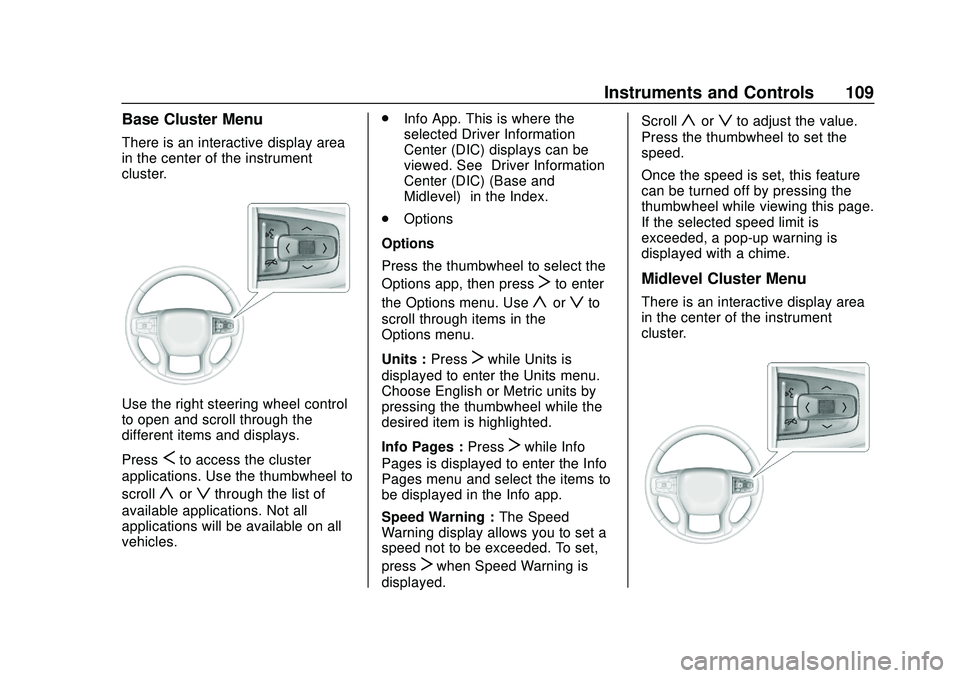
There is an interactive display area
in the center of the instrument
cluster.
Use the right steering wheel control
to open and scroll through the
different items and displays.
Press
Sto access the cluster
applications. Use the thumbwheel to
scroll
yorzthrough the list of
available applications. Not all
applications will be available on all
vehicles. .
Info App. This is where the
selected Driver Information
Center (DIC) displays can be
viewed. See “Driver Information
Center (DIC) (Base and
Midlevel)” in the Index.
. Options
Options
Press the thumbwheel to select the
Options app, then press
Tto enter
the Options menu. Use
yorzto
scroll through items in the
Options menu.
Units : Press
Twhile Units is
displayed to enter the Units menu.
Choose English or Metric units by
pressing the thumbwheel while the
desired item is highlighted.
Info Pages : Press
Twhile Info
Pages is displayed to enter the Info
Pages menu and select the items to
be displayed in the Info app.
Speed Warning : The Speed
Warning display allows you to set a
speed not to be exceeded. To set,
press
Twhen Speed Warning is
displayed. Scroll
yorzto adjust the value.
Press the thumbwheel to set the
speed.
Once the speed is set, this feature
can be turned off by pressing the
thumbwheel while viewing this page.
If the selected speed limit is
exceeded, a pop-up warning is
displayed with a chime.
Midlevel Cluster Menu
There is an interactive display area
in the center of the instrument
cluster.
Page 114 of 390
Chevrolet Blazer Owner Manual (GMNA-Localizing-U.S./Canada/Mexico-
13557845) - 2020 - CRC - 3/24/20
Instruments and Controls 113
Cluster Menu
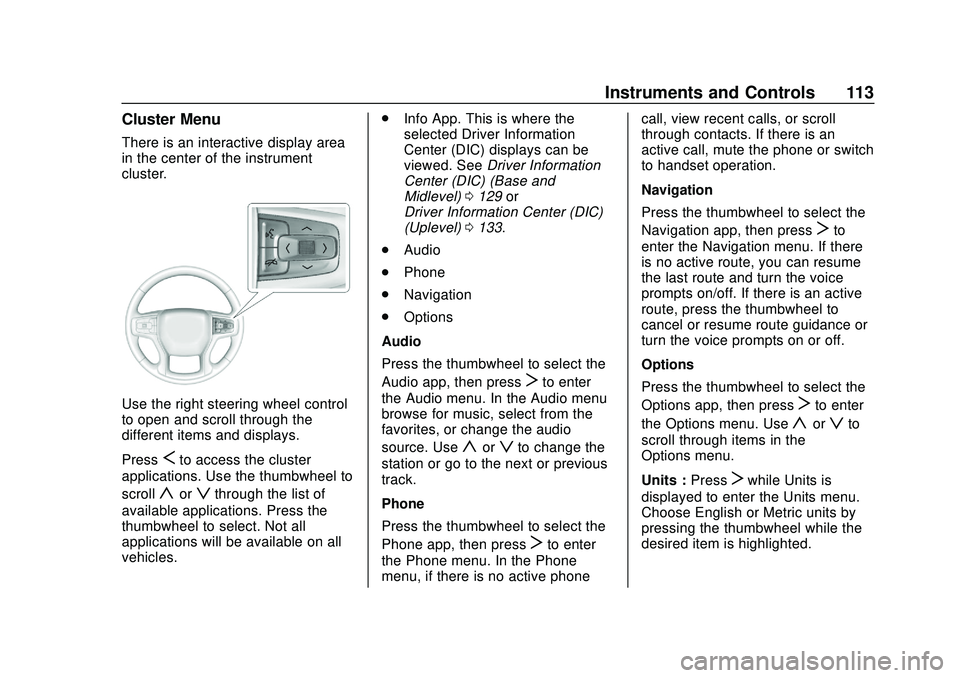
There is an interactive display area
in the center of the instrument
cluster.
Use the right steering wheel control
to open and scroll through the
different items and displays.
Press
Sto access the cluster
applications. Use the thumbwheel to
scroll
yorzthrough the list of
available applications. Press the
thumbwheel to select. Not all
applications will be available on all
vehicles. .
Info App. This is where the
selected Driver Information
Center (DIC) displays can be
viewed. See Driver Information
Center (DIC) (Base and
Midlevel) 0129 or
Driver Information Center (DIC)
(Uplevel) 0133.
. Audio
. Phone
. Navigation
. Options
Audio
Press the thumbwheel to select the
Audio app, then press
Tto enter
the Audio menu. In the Audio menu
browse for music, select from the
favorites, or change the audio
source. Use
yorzto change the
station or go to the next or previous
track.
Phone
Press the thumbwheel to select the
Phone app, then press
Tto enter
the Phone menu. In the Phone
menu, if there is no active phone call, view recent calls, or scroll
through contacts. If there is an
active call, mute the phone or switch
to handset operation.
Navigation
Press the thumbwheel to select the
Navigation app, then press
Tto
enter the Navigation menu. If there
is no active route, you can resume
the last route and turn the voice
prompts on/off. If there is an active
route, press the thumbwheel to
cancel or resume route guidance or
turn the voice prompts on or off.
Options
Press the thumbwheel to select the
Options app, then press
Tto enter
the Options menu. Use
yorzto
scroll through items in the
Options menu.
Units : Press
Twhile Units is
displayed to enter the Units menu.
Choose English or Metric units by
pressing the thumbwheel while the
desired item is highlighted.