phone CHEVROLET BOLT EV 2017 User Guide
[x] Cancel search | Manufacturer: CHEVROLET, Model Year: 2017, Model line: BOLT EV, Model: CHEVROLET BOLT EV 2017Pages: 361, PDF Size: 4.89 MB
Page 146 of 361
Chevrolet Bolt EV Owner Manual (GMNA-Localizing-U.S./Canada/Mexico-
10122739) - 2017 - CRC - 10/3/16
Instruments and Controls 145
.Remote Start Auto Heat Seats
. Passive Door Unlock
. Passive Door Lock
. Remote Left in Vehicle Alert
Remote Unlock Light Feedback
When on, the exterior lamps will
flash when unlocking the vehicle
with the RKE transmitter.
Select Off or Flash Lights
Remote Lock Feedback
This allows selection of what type of
feedback is given when locking the
vehicle with the RKE transmitter.
Select Off, Lights and Horn, Lights
Only, or Horn Only.
Remote Door Unlock
This allows selection of which doors
will unlock when pressing
Kon the
RKE transmitter.
Select All Doors or Driver Door. Remote Start Auto Heat Seats
If equipped and turned on, this
feature will turn the heated seats on
when using remote start on
cold days.
Select Off or On.
Passive Door Unlock
This allows the selection of what
doors will unlock when using the
button on the outside driver door
handle to unlock the vehicle.
Select All Doors or Driver
Door Only.
Passive Door Lock
This allows passive locking to be
turned on or off and selects
feedback.
Select Off, On with Horn
Chirp, or On.
Remote Left in Vehicle Alert
This feature sounds an alert when
the RKE transmitter is left in the
vehicle.
Select Off or On.
Devices
This shows status of the connected
device.
Touch Add Device if a device needs
to be added.
Device Remote Access
This will allow devices to control
system functionality and
access data.
Select Off or On.
Bluetooth Phone
This allows the connected Bluetooth
phone to be configured. See
“Bluetooth Phone”
inSettings 0177.
. My Number
. Privacy
. Sort Contacts
. Resync Device Contacts
My Number
This displays the phone number of
the connected Bluetooth device.
Page 147 of 361
Chevrolet Bolt EV Owner Manual (GMNA-Localizing-U.S./Canada/Mexico-
10122739) - 2017 - CRC - 10/3/16
146 Instruments and Controls
Privacy
This allows call alerts to appear on
the infotainment display.
Select Off or On.
Sort Contacts
Touch to sort by first or last name.
Resync Device Contacts
This resyncs the contacts on the
phone.
Apple CarPlay™
This feature allows Apple devices to
be connected to the infotainment
system through a USB port.
Select Off or On.
Android Auto™
This feature allows Android devices
to be connected to the infotainment
system through a USB port.
Select Off or On.
KeyPass
Select and the following may
display:
.KeyPass .
Manage KeyPass Devices
KeyPass
This feature allows smartphones to
be connected to the vehicle.
Select to turn Off or On.
Manage KeyPass Devices
Select to manage smartphones.
Smartphones must be on for this
feature to be accessed.
USB Auto Launch
This allows Android and Apple
CarPlay devices to automatically
connect when plugged into the
USB port.
Select Off or On.
Wi-Fi
Select and the following may
display:
. Wi-Fi
. Manage Wi-Fi Networks Wi-Fi
This feature allows for a connection
to available protected Wi-Fi
networks in range of the vehicle to
be turned off or on.
Select Off or On.
Manage Wi-Fi Networks
Select to manage a list of available
protected networks. Wi-Fi must be
set to On for this feature to be
accessed.
Display Settings
Select and the following choices will
display:
.
Blue Sky
. Sunset Orange
. Black Eclipse
Choose one of these options to
change the display settings.
Rear Camera
Select and the following may
display:
. Symbols
. Guidelines
Page 156 of 361
Chevrolet Bolt EV Owner Manual (GMNA-Localizing-U.S./Canada/Mexico-
10122739) - 2017 - CRC - 10/3/16
Infotainment System 155
Infotainment
System
Introduction
Introduction . . . . . . . . . . . . . . . . . . . 155
Theft-Deterrent Feature . . . . . . 156
Overview . . . . . . . . . . . . . . . . . . . . . 156
Operation . . . . . . . . . . . . . . . . . . . . . 156
Software Updates . . . . . . . . . . . . 159
Radio
AM-FM Radio . . . . . . . . . . . . . . . . 160
Satellite Radio . . . . . . . . . . . . . . . . 162
Multi-Band Antenna . . . . . . . . . . 163
Audio Players
USB Port . . . . . . . . . . . . . . . . . . . . . 164
Auxiliary Devices . . . . . . . . . . . . . 170
Bluetooth Audio . . . . . . . . . . . . . . 170
OnStar System
OnStar System . . . . . . . . . . . . . . . 173
Phone
Bluetooth . . . . . . . . . . . . . . . . . . . . . 173
Hands-Free Phone . . . . . . . . . . . 175
Settings
Settings . . . . . . . . . . . . . . . . . . . . . . 177
Teen Driver . . . . . . . . . . . . . . . . . . . 178
Downloadable Applications
Downloading Apps . . . . . . . . . . . 181
Trademarks and License
Agreements
Trademarks and LicenseAgreements . . . . . . . . . . . . . . . . . 182
Introduction
Read the following pages to
become familiar with the features.
{Warning
Taking your eyes off the road for
too long or too often while using
any infotainment feature can
cause a crash. You or others
could be injured or killed. Do not
give extended attention to
infotainment tasks while driving.
Limit your glances at the vehicle
displays and focus your attention
on driving. Use voice commands
whenever possible.
The infotainment system has built-in
features intended to help avoid
distraction by disabling some
functions when driving. These
functions may gray out when they
are unavailable. Many infotainment
features are also available through
the instrument cluster and steering
wheel controls.
Page 157 of 361
Chevrolet Bolt EV Owner Manual (GMNA-Localizing-U.S./Canada/Mexico-
10122739) - 2017 - CRC - 10/3/16
156 Infotainment System
Before driving:
.Become familiar with the
operation of the center stack
controls and the infotainment
system.
. Set up the audio by presetting
favorite stations, setting the
tone, and adjusting the
speakers.
. Set up phone numbers in
advance so they can be called
easily by pressing a single
control or by using a single voice
command if equipped with
Bluetooth phone capability.
See Defensive Driving 0192.
To play the infotainment system with
the vehicle off, see Retained
Accessory Power (RAP) 0203.
Theft-Deterrent Feature
The infotainment system has an
electronic security system installed
to prevent theft. The infotainment system only works
in the vehicle in which it was first
installed, and cannot be used in
another vehicle.
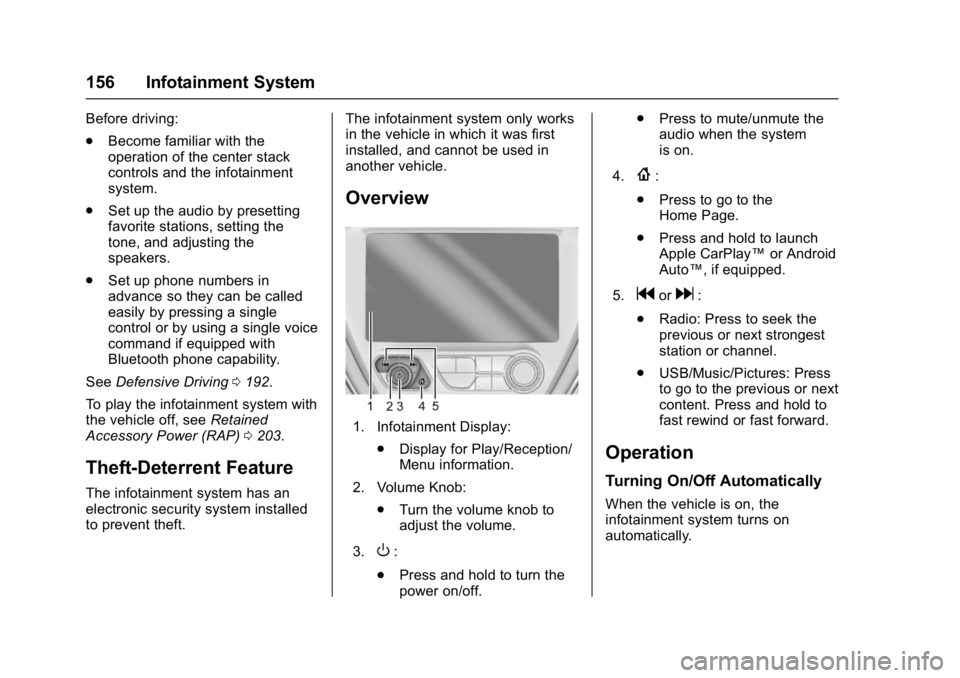
Overview
1. Infotainment Display:
.Display for Play/Reception/
Menu information.
2. Volume Knob: .Turn the volume knob to
adjust the volume.
3.
O:
. Press and hold to turn the
power on/off. .
Press to mute/unmute the
audio when the system
is on.
4.
{:
. Press to go to the
Home Page.
. Press and hold to launch
Apple CarPlay™ or Android
Auto™, if equipped.
5.
gord:
. Radio: Press to seek the
previous or next strongest
station or channel.
. USB/Music/Pictures: Press
to go to the previous or next
content. Press and hold to
fast rewind or fast forward.
Operation
Turning On/Off Automatically
When the vehicle is on, the
infotainment system turns on
automatically.
Page 159 of 361
Chevrolet Bolt EV Owner Manual (GMNA-Localizing-U.S./Canada/Mexico-
10122739) - 2017 - CRC - 10/3/16
158 Infotainment System
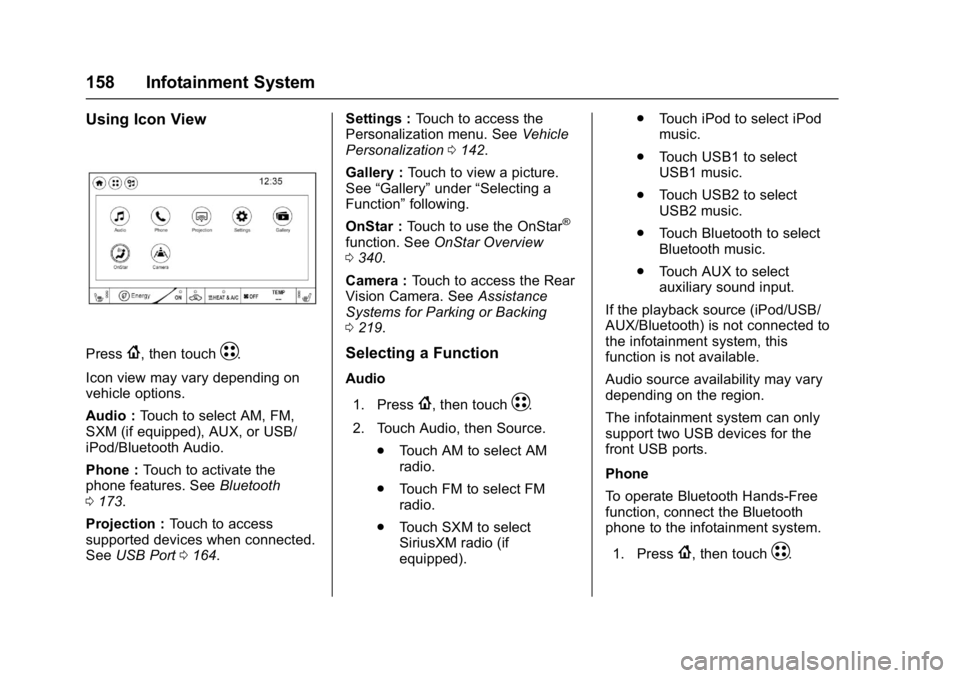
Using Icon View
Press{, then touchT.
Icon view may vary depending on
vehicle options.
Audio : Touch to select AM, FM,
SXM (if equipped), AUX, or USB/
iPod/Bluetooth Audio.
Phone : Touch to activate the
phone features. See Bluetooth
0 173.
Projection : Touch to access
supported devices when connected.
See USB Port 0164. Settings :
Touch to access the
Personalization menu. See Vehicle
Personalization 0142.
Gallery : Touch to view a picture.
See “Gallery” under“Selecting a
Function” following.
OnStar : Touch to use the OnStar
®
function. See OnStar Overview
0 340.
Camera : Touch to access the Rear
Vision Camera. See Assistance
Systems for Parking or Backing
0 219.
Selecting a Function
Audio
1. Press
{, then touchT.
2. Touch Audio, then Source. .Touch AM to select AM
radio.
. Touch FM to select FM
radio.
. Touch SXM to select
SiriusXM radio (if
equipped). .
Touch iPod to select iPod
music.
. Touch USB1 to select
USB1 music.
. Touch USB2 to select
USB2 music.
. Touch Bluetooth to select
Bluetooth music.
. Touch AUX to select
auxiliary sound input.
If the playback source (iPod/USB/
AUX/Bluetooth) is not connected to
the infotainment system, this
function is not available.
Audio source availability may vary
depending on the region.
The infotainment system can only
support two USB devices for the
front USB ports.
Phone
To operate Bluetooth Hands-Free
function, connect the Bluetooth
phone to the infotainment system.
1. Press
{, then touchT.
Page 160 of 361
Chevrolet Bolt EV Owner Manual (GMNA-Localizing-U.S./Canada/Mexico-
10122739) - 2017 - CRC - 10/3/16
Infotainment System 159
2. Touch Phone, then touch5on
the infotainment display,
or press
gon the steering
wheel controls.
Settings
1. Press
{, then touchT.
2. Touch Settings, then select an item from the menu and adjust
the settings by selecting from
the available options. See
Settings 0177.
Gallery
1. Press
{, then touchT.
2. Touch Gallery, then touch
'
menu to view picture files
contained in the USB storage
device.
Software Updates
Over-the-Air Software Updates
If equipped, the infotainment system
can download and install software
updates over a wireless connection.
The system will prompt high priority
updates to be downloaded and installed, while others can be
manually accessed. To manually
check for updates:
1. Press
{, then touchT.
2. Touch Settings, then Software Information.
3. Touch Software Update and follow the on-screen prompts.
Steps for downloading and
installing updates may vary by
vehicle.
Downloading Over-the-Air software
updates requires Internet
connectivity, which can be accessed
through the vehicle’ s OnStar Wi-Fi
hotspot, if equipped. Optionally, a
secured Wi-Fi hotspot such as a
mobile device hotspot, a home
hotspot, or a public hotspot can be
used. To connect the infotainment
system to a secured mobile device
hotspot, home hotspot, or public
hotspot:
1. Press
{, then touchT.
2. Touch Settings, then Wi-Fi. 3. Touch Manage Wi-Fi Networks,
then select the appropriate
Wi-Fi network and follow the
on-screen prompts.
Download speeds may vary.
On most mobile devices,
activation of the Wi-Fi hotspot
is in the Settings menu under
Mobile Network Sharing,
Personal Hotspot, Mobile
Hotspot, or similar.
Availability of Over-the-Air software
updates varies by vehicle and
country. In the U.S., see
my.chevrolet.com/learn. In Canada,
see my.chevrolet.ca. In Mexico see
your dealer.
Page 164 of 361
Chevrolet Bolt EV Owner Manual (GMNA-Localizing-U.S./Canada/Mexico-
10122739) - 2017 - CRC - 10/3/16
Infotainment System 163
3. TouchqNow Playing to return
to the previous screen.
Browse Audio
. Current Channel Information
Touch Current Channel
Information. The channel
information is displayed.
. SXM Channels
Touch SXM Channels. The SXM
List is displayed.
. SXM Categories
SXM categories are defined by
the SiriusXM service provider.
Touch SXM Categories.
Touch the desired category and
channel.
Audio Settings
. Tone Settings
Set up sound features from the
Tone Settings menu. See “Tone
Settings” under“AM-FM Radio”
previously in this section.
. Auto Volume Volume will be automatically
controlled. See
“Auto Volume”
under “AM-FM Radio” previously
in this section.
. Explicit Content Filter
Choose this menu item to turn
On or Off the filtering of explicit
channels from SXM. When
selected, this item will give a
brief description of the feature
and a list item can be set to On
or Off.
From the SXM Menu, touch
Audio Settings.
Set Explicit Content Filter
feature to On or Off to allow for
a filtered list of channels.
Multi-Band Antenna
If equipped, the roof antenna is for
GPS (Global Positioning System).
Keep clear of obstructions for clear
reception.
Mobile Phone Usage
Mobile phone usage can cause
interference with the vehicle's radio.
Unplug the mobile phone or turn it
off if this occurs.
AM
The range for most AM stations is
greater than for FM, especially at
night. The longer range can cause
station frequencies to interfere with
each other. Static can occur when
things like storms and power lines
interfere with radio reception. When
this happens, try reducing the treble
on the radio.
Page 165 of 361
Chevrolet Bolt EV Owner Manual (GMNA-Localizing-U.S./Canada/Mexico-
10122739) - 2017 - CRC - 10/3/16
164 Infotainment System
Audio Players
USB Port
The USB ports are in the center
console and are for data and
charging. If equipped, there are two
USB charge ports in the rear of the
center console. The infotainment
system can play the music files
contained in the USB storage
device or a device that supports
MTP or iPod/iPhone devices.
Before Using the Audio
System
Supported Audio File Formats
.MP3 (MPEG-1 Layer 3,
MPEG-2 Layer 3)
Constant Bit Rate (CBR)
between 8 and 320 kbps
Variable Bit Rate (VBR)
Sampling frequencies of 8,
11.025, 12, 16, 22.05, 24, 32,
44.1, and 48 kHz .
Windows Media Audio
Windows Media Audio 10
CBR between 32 and 768 kbps
VBR (Standard), Professional,
Lossless, or higher according to
Microsoft specifications
Sampling frequencies of 8, 12,
16, 22, 32, 44.1, and 48 kHz
. AAC (MPEG-4 AAC, Low
Complexity Profile) and AAC+
CBR between 8 and 320 kbps
. OGG Vorbis
. Waveform (WAV –PCM
Windows format)
. Audio Interchange File
Format (AIFF)
. 3GPP (Generally used for
mobile devices)
. Audio Books (MP3, WMA,
AAC, AA)
Guidelines for Using a USB
Storage Device and iPod/iPhone
. Operation cannot be guaranteed
if the HDD built-in USB mass
storage device or CF or SD memory card is connected by
using a USB adaptor. Use a
USB or flash memory type
storage device.
. Avoid static electricity discharge
when connecting or
disconnecting the USB.
If connection and disconnection
are repeated many times in a
short time, this may cause a
problem in using the device.
. Operation is not guaranteed if
the connecting terminal of the
USB device is not metal.
. Connection with i-Stick Type
USB storage devices may be
faulty due to vehicle vibration.
. Do not touch the USB
connecting terminal with an
object or any part of your body.
. The USB storage device can
only be recognized when it is
formatted in FAT16/32, NTFS,
HFS+. exFAT and other file
systems cannot be recognized.
Page 166 of 361

Chevrolet Bolt EV Owner Manual (GMNA-Localizing-U.S./Canada/Mexico-
10122739) - 2017 - CRC - 10/3/16
Infotainment System 165
.According to the type and
capacity of the USB storage
device and the type of the stored
file, the time it takes to recognize
the files may differ.
. Files in some USB storage
devices may not be recognized
due to compatibility problems.
. Do not disconnect the USB
storage device while it is being
played. This may cause damage
to the device or may affect the
performance of the USB device.
. The infotainment system can
only support two USB devices
for the front USB ports.
. Disconnect the connected USB
storage device when the vehicle
is off. If the vehicle is turned on
while the USB storage device is
connected, the USB storage
device may be damaged or may
not operate normally.
. USB storage devices can only
be connected to this device for
the purpose of playing music,
viewing photo files,
or upgrading. .
The USB terminal of the device
should not be used to charge
USB accessory equipment since
the heat generation using the
USB terminal may cause
performance issues or damage
to the device.
. When the logical drive is
separated from a mass USB
storage device, only the files
from the top-level logical drive
can be played for USB music
files. For this reason, store
music files to be played in the
top-level drive of the device.
Music files in a particular USB
storage device may not play
normally if an application is
loaded by partitioning a separate
drive inside the USB device.
. Music files to which DRM (Digital
Right Management) is applied
cannot be played.
. The infotainment system can
support USB storage devices
that are in capacity with a limit of
5,000 files (music and photo),
and 15 stages of folder structure. Normal usage cannot
be guaranteed for storage
devices that exceed this limit.
The iPod/iPhone can play all
music files supported. The music
file lists display up to 5,000 files
on the screen in alphabetical
order.
. Some iPod/iPhone devices may
not support the connectivity or
functionality of the infotainment
system.
. Only connect the iPod/iPhone
with connection cables
supported by iPod/iPhone
devices. Other connection
cables cannot be used.
. In rare cases, the iPod/iPhone
device may be damaged if the
power is turned on when it is
connected to the infotainment
system.
When the iPod/iPhone device is
not being used, keep it
disconnected from the USB port
when the vehicle is off.
Page 167 of 361
Chevrolet Bolt EV Owner Manual (GMNA-Localizing-U.S./Canada/Mexico-
10122739) - 2017 - CRC - 10/3/16
166 Infotainment System
.Connect the iPod/iPhone to the
USB port by using the iPod/
iPhone cable to play the music
files on the iPod/iPhone. When
the iPod/iPhone is connected to
the AUX port, the music files are
played, but not controlled by
MyLink.
. iPod/iPhone movie file playback
is not supported.
. The playback functions and the
information display items of the
iPod/iPhone used with this
infotainment system may be
different from the iPod/iPhone in
terms of play order, method, and
information displayed.
. See the manufacturer for
information related to the search
function provided by the iPod/
iPhone device.
USB Player
Playing USB Storage Device
Music Files
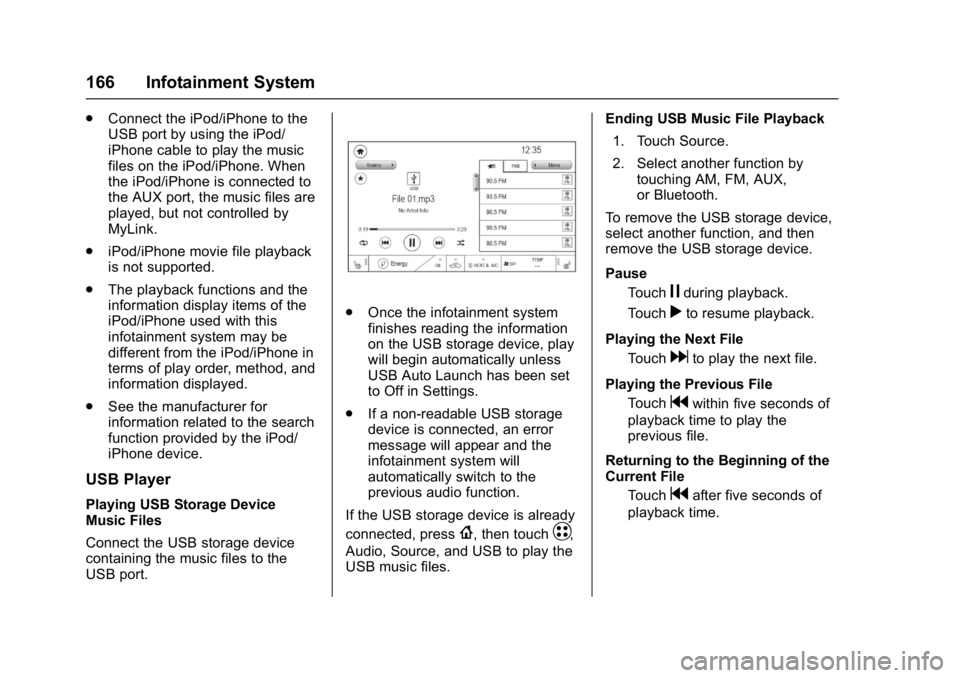
Connect the USB storage device
containing the music files to the
USB port.
.Once the infotainment system
finishes reading the information
on the USB storage device, play
will begin automatically unless
USB Auto Launch has been set
to Off in Settings.
. If a non-readable USB storage
device is connected, an error
message will appear and the
infotainment system will
automatically switch to the
previous audio function.
If the USB storage device is already
connected, press
{, then touchT,
Audio, Source, and USB to play the
USB music files. Ending USB Music File Playback
1. Touch Source.
2. Select another function by touching AM, FM, AUX,
or Bluetooth.
To remove the USB storage device,
select another function, and then
remove the USB storage device.
Pause Touch
jduring playback.
Touch
rto resume playback.
Playing the Next File Touch
dto play the next file.
Playing the Previous File Touch
gwithin five seconds of
playback time to play the
previous file.
Returning to the Beginning of the
Current File Touch
gafter five seconds of
playback time.