audio CHEVROLET BOLT EV 2017 Owner's Guide
[x] Cancel search | Manufacturer: CHEVROLET, Model Year: 2017, Model line: BOLT EV, Model: CHEVROLET BOLT EV 2017Pages: 361, PDF Size: 4.89 MB
Page 173 of 361

Chevrolet Bolt EV Owner Manual (GMNA-Localizing-U.S./Canada/Mexico-
10122739) - 2017 - CRC - 10/3/16
172 Infotainment System
General Operation of the
Bluetooth Music Menu1. Touch Menu on the Bluetooth music screen.
2. Touch the desired menu to select the item or to display the
item’s detailed menu.
3. Touch
qNow Playing to return
to the previous menu.
Browse Music
This function may not be supported
depending on the mobile phone. 1. From the Bluetooth music menu, touch Browse Music.
2. Touch the desired item. The number of relevant songs is
displayed.
3. Touch the desired music to listen.
Tone Settings
From the Bluetooth music menu,
sound features can be set up. See
“Tone Settings” under“AM-FM
Radio” previously in this section. Auto Volume
Volume will be automatically
controlled. See
“Auto Volume”under
“AM-FM Radio” previously in this
section.
Manage Bluetooth Devices
1. From the Bluetooth music menu, touch Audio Settings.
2. Touch Manage Bluetooth Devices.
3. Select the desired device and then connect/disconnect or
delete.
Playing Bluetooth Music
. Do not change the track too
quickly when playing Bluetooth
music.
. It takes some time to transmit
data from the mobile phone or
Bluetooth device to the
infotainment system. The
infotainment system outputs the
audio from the mobile phone or
Bluetooth device as it is
transmitted. .
If the mobile phone or Bluetooth
device is not in the idle screen
mode, it may not automatically
play despite being carried out
from the Bluetooth music
play mode.
. The infotainment system
transmits the order to play from
the mobile phone in the
Bluetooth music play mode.
If this is done in a different
mode, then the device transmits
the order to stop. Depending on
the mobile phone’s options, this
order to play/stop may some
take time to activate.
. If Bluetooth music playback is
not functioning, then check to
see if the mobile phone is in the
idle screen mode.
. Sometimes, sounds may be cut
off during Bluetooth music
playback.
Page 174 of 361
Chevrolet Bolt EV Owner Manual (GMNA-Localizing-U.S./Canada/Mexico-
10122739) - 2017 - CRC - 10/3/16
Infotainment System 173
OnStar System
OnStar®with 4G LTE
If equipped with OnStar 4G LTE, up
to seven devices, such as
smartphones, tablets, and laptops,
can be connected to high-speed
Internet through the vehicle’s built-in
Wi-Fi hotspot.Call 1-888-4-ONSTAR
(1-888-466-7827) to connect to an
OnStar Advisor for assistance. See
www.onstar.com for a detailed
instruction guide, vehicle availability,
details, and system limitations.
Services and apps vary by make,
model, year, carrier, availability, and
conditions. 4G LTE service is
available in select markets. 4G LTE
performance is based on industry
averages and vehicle systems
design. Some services require a
data plan.
Phone
Bluetooth
Bluetooth Wireless Technology
Bluetooth wireless technology
establishes a wireless link between
two devices supported with
Bluetooth. After the initial pairing,
the two devices can connect
automatically when turned on.
Bluetooth allows wireless
transmission of information among
Bluetooth phones, PDAs, or other
devices within close range by using
2.45 GHz frequency short-distance
wireless telecommunication
technologies. Within this vehicle,
users can make hands-free calls,
transmit hands-free data, and play
audio streaming files by connecting
a mobile phone with the system.
.
There may be restrictions on
using Bluetooth wireless
technology in some locations.
Page 178 of 361
Chevrolet Bolt EV Owner Manual (GMNA-Localizing-U.S./Canada/Mexico-
10122739) - 2017 - CRC - 10/3/16
Infotainment System 177
Settings
Operation of the Settings Menu
The infotainment system can be
customized to make it easier to use.1. Press
{, then touchT.
2. Touch Settings.
3. Touch the desired menu to select the item or to display the
item’s detailed menu.
4. Touch
0to return to the
previous menu.
Settings menus and functions may
vary depending on vehicle options.
Radio Settings
1. Press{, then touchT.
2. Touch Settings, then touch Radio Settings.
.Auto Volume: Volume will
be automatically controlled.
See “Auto Volume” under
“AM-FM Radio” previously
in this section. .
Maximum Start-up volume:
Set the Maximum start-up
volume from 13 to 37.
. Audio Cues: Set the Audio
Cues feature to On or Off.
. Audio Cues Volume: Set
the Audio Cues Volume
from 10 to 63.
Audio Cues Volume is only available
when Audio Cues is set to On.
Devices
1. Press{, then touchT.
2. Touch Settings, then touch Devices.
3. Select the desired device and connect/disconnect or delete.
To add a new Bluetooth device,
touch Add Device.
Bluetooth Phone
1. Press{, then touchT. 2. Touch Settings, then Bluetooth
Phone and touch
Yto scroll to
the desired mobile phone. This
is only available when the
device is connected.
. My Number: Displays the
current connected phone
number.
. Privacy: Set whether or not
incoming call alerts are
shown on the infotainment
display.
. Sort Contacts: Set to First
name, surname or
Surname, first name.
. Resync Device Contacts:
Resync the contacts list for
the current connected
mobile phone.
Apple CarPlay
1. Press{, then touchT.
2. Touch Settings and find Apple CarPlay.
3. Select On or Off.
Page 180 of 361
Chevrolet Bolt EV Owner Manual (GMNA-Localizing-U.S./Canada/Mexico-
10122739) - 2017 - CRC - 10/3/16
Infotainment System 179
6. From the Teen Driver Menu,select Key Registration.
.If the transmitter key is in
the transmitter pocket, it will
identify whether the
transmitter key is registered
or unregistered.
. If the transmitter key is not
registered, the option to
register displays. Select
Register and a confirmation
message displays.
. If the transmitter key is
already registered, the
option to unregister
displays. If Unregister is
selected, the transmitter
key is no longer registered
and a confirmation
message displays.
If a Teen Driver transmitter key and
a non-Teen Driver transmitter key
are both present at start up, the
vehicle will recognize the non-Teen
Driver transmitter key to start the
vehicle. The Teen Driver settings
will not be active. Manage Settings
Use the PIN to change the following
settings:
Audio Volume Limit :
Allows a
maximum radio volume to be set.
Turn the audio volume limit On or
Off, and if equipped, choose the
maximum level for the audio
volume.
Teen Driver Speed Warning :
Allows for setting a visual and
audible warning when a certain
speed is exceeded. The speed
warning is selectable from 64 km/h
(40 mph) to 121 km/h (75 mph). The
speed warning does not limit the
speed of the vehicle.
Teen Driver Speed Limiter (If
Equipped) : Allows the maximum
speed of the vehicle to be limited to
137 km/h (85 mph). When the speed
limiter is turned On and the vehicle
is started with a Teen Driver key, the
DIC displays a message that the top
speed is limited to 137 km/h
(85 mph). When Teen Driver is Active:
.
The radio will mute when the
driver safety belt is not fastened,
and in some vehicles, when the
right front passenger safety belt
is not fastened. The audio from
any device paired to the vehicle
will also be muted.
. Certain electronic devices
placed on the front passenger
seat could cause the passenger
sensing system to falsely sense
an unbuckled front passenger
and mute the radio. See
Passenger Sensing System
074.
. Some safety systems, such as
Forward Automatic Braking,
if equipped and supported,
cannot be turned off.
. The gap setting for the Forward
Collision Alert, if equipped,
cannot be changed.
Page 203 of 361
Chevrolet Bolt EV Owner Manual (GMNA-Localizing-U.S./Canada/Mexico-
10122739) - 2017 - CRC - 10/3/16
202 Driving and Operating
instrument cluster, the vehicle is
ready to be driven. This could take
up to 15 seconds at extremely cold
temperatures.
Service Mode
This power mode is available for
service and diagnostics, and to
verify the proper operation of the
malfunction indicator lamp as may
be required for emission inspection
purposes. With the vehicle off, and
the brake pedal not applied,
pressing and holding POWER
Ofor
more than five seconds will place
the vehicle in Service Mode. The
instruments and audio systems will
operate as they do in ON/RUN, but
the vehicle will not be able to be
driven. The propulsion system will
not start in Service Mode. Press
POWER
Oagain to turn the
vehicle off.
Caution
Placing the vehicle in Service
Mode will use the 12-volt battery.
Do not use Service Mode for an
extended period, or the vehicle
may not start.
STOPPING THE VEHICLE/OFF :
To turn the vehicle off, press
POWER
Owith the vehicle in
P (Park). Retained Accessory Power
(RAP) will remain active until the
driver door is opened. When turning
off the vehicle, if the vehicle is not in
P (Park), the gear will go to P (Park)
and then power off automatically.
If the vehicle must be shut off in an
emergency:
1. Brake using a firm and steady pressure. Do not pump the
brakes repeatedly. This may
deplete power assist, requiring
increased brake pedal force.
2. Shift the vehicle to N (Neutral). This can be done while the
vehicle is moving. After shifting to N (Neutral), firmly apply the
brakes and steer the vehicle to
a safe location.
3. Come to a complete stop, shift to P (Park), and turn the vehicle
off by pressing POWER
O.
4. Set the parking brake.
{Warning
Turning off the vehicle while
moving may disable the airbags.
While driving, only shut the
propulsion system off in an
emergency.
If the vehicle cannot be pulled over,
and must be shut off while driving,
press and hold POWER
Ofor
longer than two seconds, or press
twice in five seconds.
Page 204 of 361
Chevrolet Bolt EV Owner Manual (GMNA-Localizing-U.S./Canada/Mexico-
10122739) - 2017 - CRC - 10/3/16
Driving and Operating 203
Starting and Stopping the
Vehicle
Starting Procedure
Press the P (Park) button on the
shifter, or move the shift lever into
N (Neutral). The propulsion system
will not start in any other position.
Caution
Do not try to shift to P (Park) if the
vehicle is moving or the electric
drive unit could be damaged.
Shift to P (Park) only when the
vehicle is stopped.
Caution
If you add electrical parts or
accessories, you could change
the way the vehicle operates. Any
resulting damage would not be
covered by the vehicle warranty.The Remote Keyless Entry (RKE)
transmitter must be in the vehicle.
Press the brake pedal, then press
and release POWER
O.
If the RKE transmitter is not in the
vehicle or something is interfering
with the transmitter, a message
displays in the Driver Information
Center (DIC).
If the vehicle will not start due to a
low RKE transmitter battery, the
vehicle can still be driven. See Key
and Lock Messages 0137 and
Remote Keyless Entry (RKE)
System Operation 033.
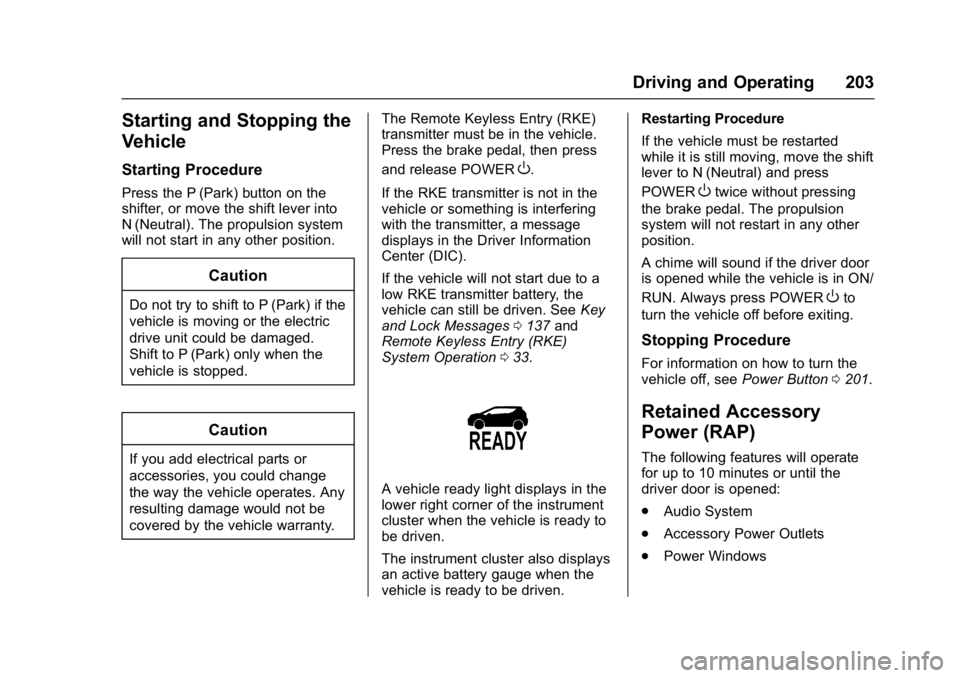
A vehicle ready light displays in the
lower right corner of the instrument
cluster when the vehicle is ready to
be driven.
The instrument cluster also displays
an active battery gauge when the
vehicle is ready to be driven. Restarting Procedure
If the vehicle must be restarted
while it is still moving, move the shift
lever to N (Neutral) and press
POWER
Otwice without pressing
the brake pedal. The propulsion
system will not restart in any other
position.
A chime will sound if the driver door
is opened while the vehicle is in ON/
RUN. Always press POWER
Oto
turn the vehicle off before exiting.
Stopping Procedure
For information on how to turn the
vehicle off, see Power Button0201.
Retained Accessory
Power (RAP)
The following features will operate
for up to 10 minutes or until the
driver door is opened:
.
Audio System
. Accessory Power Outlets
. Power Windows
Page 346 of 361
Chevrolet Bolt EV Owner Manual (GMNA-Localizing-U.S./Canada/Mexico-
10122739) - 2017 - CRC - 10/3/16
OnStar 345
OnStar Additional
Information
In-Vehicle Audio Messages
Audio messages may play important
information at the following times:
.Prior to vehicle purchase.
Press
Qto set up an account.
. With the OnStar Basic Plan,
every 60 days.
. After change in ownership and
at 90 days.
Transferring Service
PressQto request account transfer
eligibility information. The Advisor
can cancel or change account
information.
Selling/Transferring the
Vehicle
Call 1-888-4ONSTAR
(1-888-466-7827) immediately to
terminate your OnStar services if
the vehicle is disposed of, sold,
transferred, or if the lease ends.
Reactivation for Subsequent
Owners
PressQand follow the prompts to
speak to an Advisor as soon as
possible. The Advisor will update
vehicle records and explain OnStar
service options.
How OnStar Service Works
Automatic Crash Response,
Emergency Services, Crisis Assist,
Stolen Vehicle Assistance,
Advanced Vehicle Diagnostics,
Remote Services, Roadside
Assistance, Turn-by-Turn
Navigation, and Hands-Free Calling
are available on most vehicles. Not
all OnStar services are available
everywhere or on all vehicles. For
more information, a full description
of OnStar services, system
limitations, and OnStar User Terms,
Privacy Statement, and Software
Terms:
. Call 1-888-4ONSTAR
(1-888-466-7827).
. See www.onstar.com (U.S.).
. See www.onstar.ca (Canada). .
Call TTY 1-877-248-2080.
. Press
Qto speak with an
Advisor.
OnStar services cannot work unless
the vehicle is in a place where
OnStar has an agreement with a
wireless service provider for service
in that area. The wireless service
provider must also have coverage,
network capacity, reception, and
technology compatible with OnStar
services. Service involving location
information about the vehicle cannot
work unless GPS signals are
available, unobstructed, and
compatible with the OnStar
hardware. OnStar services may not
work if the OnStar equipment is not
properly installed or it has not been
properly maintained. If equipment or
software is added, connected,
or modified, OnStar services may
not work. Other problems beyond
the control of OnStar —such as
hills, tall buildings, tunnels, weather,
electrical system design and
architecture of the vehicle, damage
Page 352 of 361

Chevrolet Bolt EV Owner Manual (GMNA-Localizing-U.S./Canada/Mexico-
10122739) - 2017 - CRC - 10/3/16
Index 351
ArmrestRear Seat . . . . . . . . . . . . . . . . . . . . . . 61
Assistance Program, Roadside . . . . . . . . . . . . . . . . . 327, 329
Assistance Systems for Driving . . . . . . . . . . . . . . . . . . . . . . . . 222
Assistance Systems for
Parking and Backing . . . . . . . . . . 219
Audio Bluetooth . . . . . . . . . . . . . . . . . . . . . 170
Theft-Deterrent Feature . . . . . . . 156
Automatic Climate Control System . . . . . . . 184
Door Locks . . . . . . . . . . . . . . . . . . . . . 42
Forward Braking . . . . . . . . . . . . . . 224
Headlamp System . . . . . . . . . . . . 150
Auxiliary Devices . . . . . . . . . . . . . . . . . . . . . . . 170
B
Battery . . . . . . . . . . . . . . . . . . . . . . . . . 115Power Protection . . . . . . . . . . . . . 154
Battery - North America . . . . 257, 295
Battery and Charging Messages. . . . . . . . . . . . . . . . . . . . . 135
Battery Gauge
High Voltage . . . . . . . . . . . . . . . . . . .115
Blade Replacement, Wiper . . . . . 259 Bluetooth
Overview . . . . . . . . . . . . . . . . . . . . . 173
Bluetooth Audio . . . . . . . . . . . . . . . . 170
Brake Parking, Electric . . . . . . . . . . . . . . 210
System Warning Light . . . . . . . . .118
Brakes . . . . . . . . . . . . . . . . . . . . . . . . . . 256
Antilock . . . . . . . . . . . . . . . . . . . . . . . 210
Assist . . . . . . . . . . . . . . . . . . . . . . . . . 212
Fluid . . . . . . . . . . . . . . . . . . . . . . . . . . 257
Regenerative Braking . . . . . . . . . 212
System Messages . . . . . . . . . . . . 136
Braking . . . . . . . . . . . . . . . . . . . . . . . . . 193 Automatic Forward . . . . . . . . . . . 224
Braking System Front Pedestrian (FPB) . . . . . . . 225
Break-In, New Vehicle . . . . . . . . . . 201
Bulb Replacement . . . . . . . . . . . . . . 263 Halogen Bulbs . . . . . . . . . . . . . . . . 261
Headlamp Aiming . . . . . . . . . . . . . 261
Headlamps . . . . . . . . . . . . . . . . . . . 261
High Intensity Discharge(HID) Lighting . . . . . . . . . . . . . . . 262
License Plate Lamps . . . . . . . . . 262
Taillamps, Turn Signal, Stoplamps, and Back-up
Lamps . . . . . . . . . . . . . . . . . . . . . . 262
Buying New Tires . . . . . . . . . . . . . . . 283
C
Calibration . . . . . . . . . . . . . . . . . . . . . . 108
California Perchlorate MaterialsRequirements . . . . . . . . . . . . . . . 249
California Proposition
65 Warning . . . . . . . . . .249, 257, 295
Canadian Vehicle Owners . . . . . . . . 2
Capacities and Specifications . . . . . . . . . . . . . . . . . 320
Carbon Monoxide Liftgate . . . . . . . . . . . . . . . . . . . . . . . . . 46
Winter Driving . . . . . . . . . . . . . . . . 196
Cargo Cover . . . . . . . . . . . . . . . . . . . . . . . . . 101
Management System . . . . . . . . . 102
Caution, Danger, and Warning . . . . 3
Center Console Storage . . . . . . . . 101
Chains, Tire . . . . . . . . . . . . . . . . . . . . 287
Charge Cord . . . . . . . . . . . . . . . . . . . . 239
Charging Delay Override . . . . . . . . . . . . . . . 235
Electrical Requirements . . . . . . 246
Plug-In . . . . . . . . . . . . . . . . . . . . . . . 231
Programmable . . . . . . . . . . . . . . . . 124
Utility Interruption . . . . . . . . . . . . . 245
Wireless . . . . . . . . . . . . . . . . . . . . . . .110