display CHEVROLET BOLT EV 2017 Repair Manual
[x] Cancel search | Manufacturer: CHEVROLET, Model Year: 2017, Model line: BOLT EV, Model: CHEVROLET BOLT EV 2017Pages: 361, PDF Size: 4.89 MB
Page 162 of 361
Chevrolet Bolt EV Owner Manual (GMNA-Localizing-U.S./Canada/Mexico-
10122739) - 2017 - CRC - 10/3/16
Infotainment System 161
2. Touch AM Stations or FMStations. The AM List or FM
List is displayed.
FM Categories 1. From the FM Menu, touch Browse Audio.
2. Touch FM Categories.
3. Touch the desired category and station.
The FM category list is only
available for RDS (Radio Data
System).
Update AM or FM Stations 1. From the FM or AM Menu, touch Browse Audio.
2. Touch Update AM Stations or Update FM Stations. Tone Settings
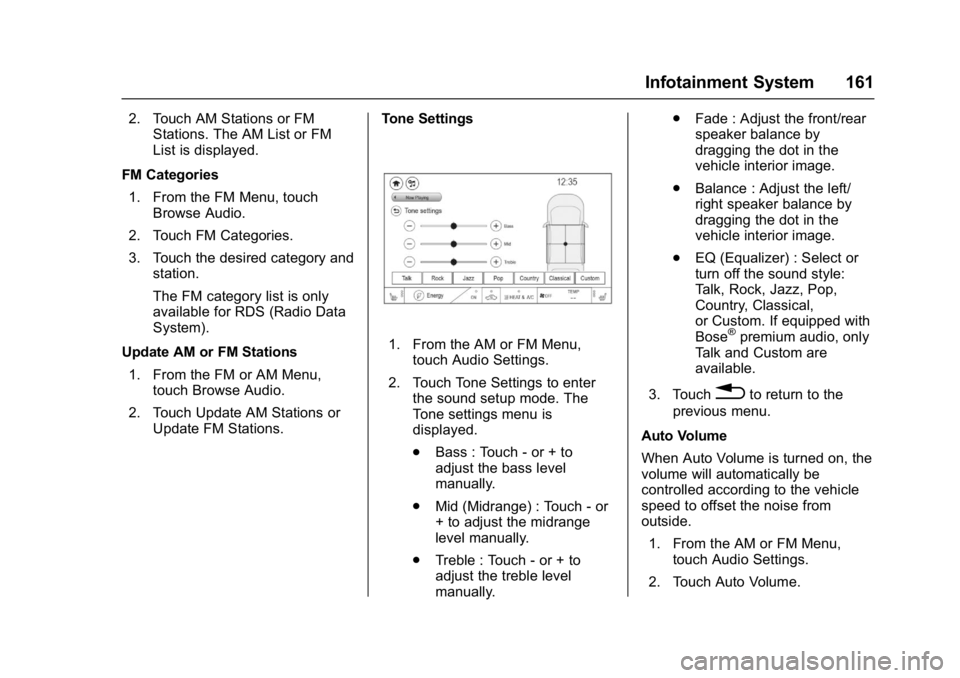
1. From the AM or FM Menu,
touch Audio Settings.
2. Touch Tone Settings to enter the sound setup mode. The
Tone settings menu is
displayed.
.Bass : Touch - or + to
adjust the bass level
manually.
. Mid (Midrange) : Touch - or
+ to adjust the midrange
level manually.
. Treble : Touch - or + to
adjust the treble level
manually. .
Fade : Adjust the front/rear
speaker balance by
dragging the dot in the
vehicle interior image.
. Balance : Adjust the left/
right speaker balance by
dragging the dot in the
vehicle interior image.
. EQ (Equalizer) : Select or
turn off the sound style:
Talk, Rock, Jazz, Pop,
Country, Classical,
or Custom. If equipped with
Bose®premium audio, only
Talk and Custom are
available.
3. Touch
0to return to the
previous menu.
Auto Volume
When Auto Volume is turned on, the
volume will automatically be
controlled according to the vehicle
speed to offset the noise from
outside. 1. From the AM or FM Menu, touch Audio Settings.
2. Touch Auto Volume.
Page 163 of 361
Chevrolet Bolt EV Owner Manual (GMNA-Localizing-U.S./Canada/Mexico-
10122739) - 2017 - CRC - 10/3/16
162 Infotainment System
3. Select the desired option: Off,Low, Medium-Low, Medium,
Medium-High, or High.
RDS
The RDS function can be set
for FM. 1. From the FM Menu, touch Audio Settings.
2. Set RDS to On or Off.
Satellite Radio
Vehicles equipped with a SiriusXM®
satellite radio tuner and a valid
SiriusXM satellite radio subscription
can receive SiriusXM programming.
SiriusXM Satellite Radio
Service
SiriusXM is a satellite radio service
based in the 48 contiguous United
States and 10 Canadian provinces.
SiriusXM satellite radio has a wide
variety of programming and
commercial-free music, coast to
coast, and in digital-quality sound.
A fee is required to receive the
SiriusXM service. Refer to:
.
www.siriusxm.com or call
1-888-601-6296 (U.S.).
. www.siriusxm.ca or call
1-877-438-9677 (Canada).
Listening to SXM Radio
1. Press{, then touchT.
2. Touch Audio, then Source.
3. Touch SXM. The most recently listened to SXM channel is
displayed.
Searching for Channels
Automatically
Pressgordto automatically
search for available channels.
Searching for Channels
Directly
1. Touch Tune.
2. Using the keypad, enter the desired channel.
Searching for Channels Using
Favorites
Saving Favorites
1. Select the desired channel.
2. Touch
qor touch and hold the
favorite in the list to overwrite.
3. To delete a channel from Favorites, touch
q, or swipe
the channel from the list on the
right.
Up to 15 channels can be
saved in the Favorites list.
Listening to Favorites Directly 1. Touch Favorites to see the list of favorites.
2. Touch the desired channel.
Using the SXM Radio Menu
General Operation of the Menu 1. Touch Menu on the SXM radio screen.
2. Touch Browse Audio or Audio Settings to select and display
the item’ s detailed menu.
Page 164 of 361
Chevrolet Bolt EV Owner Manual (GMNA-Localizing-U.S./Canada/Mexico-
10122739) - 2017 - CRC - 10/3/16
Infotainment System 163
3. TouchqNow Playing to return
to the previous screen.
Browse Audio
. Current Channel Information
Touch Current Channel
Information. The channel
information is displayed.
. SXM Channels
Touch SXM Channels. The SXM
List is displayed.
. SXM Categories
SXM categories are defined by
the SiriusXM service provider.
Touch SXM Categories.
Touch the desired category and
channel.
Audio Settings
. Tone Settings
Set up sound features from the
Tone Settings menu. See “Tone
Settings” under“AM-FM Radio”
previously in this section.
. Auto Volume Volume will be automatically
controlled. See
“Auto Volume”
under “AM-FM Radio” previously
in this section.
. Explicit Content Filter
Choose this menu item to turn
On or Off the filtering of explicit
channels from SXM. When
selected, this item will give a
brief description of the feature
and a list item can be set to On
or Off.
From the SXM Menu, touch
Audio Settings.
Set Explicit Content Filter
feature to On or Off to allow for
a filtered list of channels.
Multi-Band Antenna
If equipped, the roof antenna is for
GPS (Global Positioning System).
Keep clear of obstructions for clear
reception.
Mobile Phone Usage
Mobile phone usage can cause
interference with the vehicle's radio.
Unplug the mobile phone or turn it
off if this occurs.
AM
The range for most AM stations is
greater than for FM, especially at
night. The longer range can cause
station frequencies to interfere with
each other. Static can occur when
things like storms and power lines
interfere with radio reception. When
this happens, try reducing the treble
on the radio.
Page 166 of 361

Chevrolet Bolt EV Owner Manual (GMNA-Localizing-U.S./Canada/Mexico-
10122739) - 2017 - CRC - 10/3/16
Infotainment System 165
.According to the type and
capacity of the USB storage
device and the type of the stored
file, the time it takes to recognize
the files may differ.
. Files in some USB storage
devices may not be recognized
due to compatibility problems.
. Do not disconnect the USB
storage device while it is being
played. This may cause damage
to the device or may affect the
performance of the USB device.
. The infotainment system can
only support two USB devices
for the front USB ports.
. Disconnect the connected USB
storage device when the vehicle
is off. If the vehicle is turned on
while the USB storage device is
connected, the USB storage
device may be damaged or may
not operate normally.
. USB storage devices can only
be connected to this device for
the purpose of playing music,
viewing photo files,
or upgrading. .
The USB terminal of the device
should not be used to charge
USB accessory equipment since
the heat generation using the
USB terminal may cause
performance issues or damage
to the device.
. When the logical drive is
separated from a mass USB
storage device, only the files
from the top-level logical drive
can be played for USB music
files. For this reason, store
music files to be played in the
top-level drive of the device.
Music files in a particular USB
storage device may not play
normally if an application is
loaded by partitioning a separate
drive inside the USB device.
. Music files to which DRM (Digital
Right Management) is applied
cannot be played.
. The infotainment system can
support USB storage devices
that are in capacity with a limit of
5,000 files (music and photo),
and 15 stages of folder structure. Normal usage cannot
be guaranteed for storage
devices that exceed this limit.
The iPod/iPhone can play all
music files supported. The music
file lists display up to 5,000 files
on the screen in alphabetical
order.
. Some iPod/iPhone devices may
not support the connectivity or
functionality of the infotainment
system.
. Only connect the iPod/iPhone
with connection cables
supported by iPod/iPhone
devices. Other connection
cables cannot be used.
. In rare cases, the iPod/iPhone
device may be damaged if the
power is turned on when it is
connected to the infotainment
system.
When the iPod/iPhone device is
not being used, keep it
disconnected from the USB port
when the vehicle is off.
Page 167 of 361
Chevrolet Bolt EV Owner Manual (GMNA-Localizing-U.S./Canada/Mexico-
10122739) - 2017 - CRC - 10/3/16
166 Infotainment System
.Connect the iPod/iPhone to the
USB port by using the iPod/
iPhone cable to play the music
files on the iPod/iPhone. When
the iPod/iPhone is connected to
the AUX port, the music files are
played, but not controlled by
MyLink.
. iPod/iPhone movie file playback
is not supported.
. The playback functions and the
information display items of the
iPod/iPhone used with this
infotainment system may be
different from the iPod/iPhone in
terms of play order, method, and
information displayed.
. See the manufacturer for
information related to the search
function provided by the iPod/
iPhone device.
USB Player
Playing USB Storage Device
Music Files
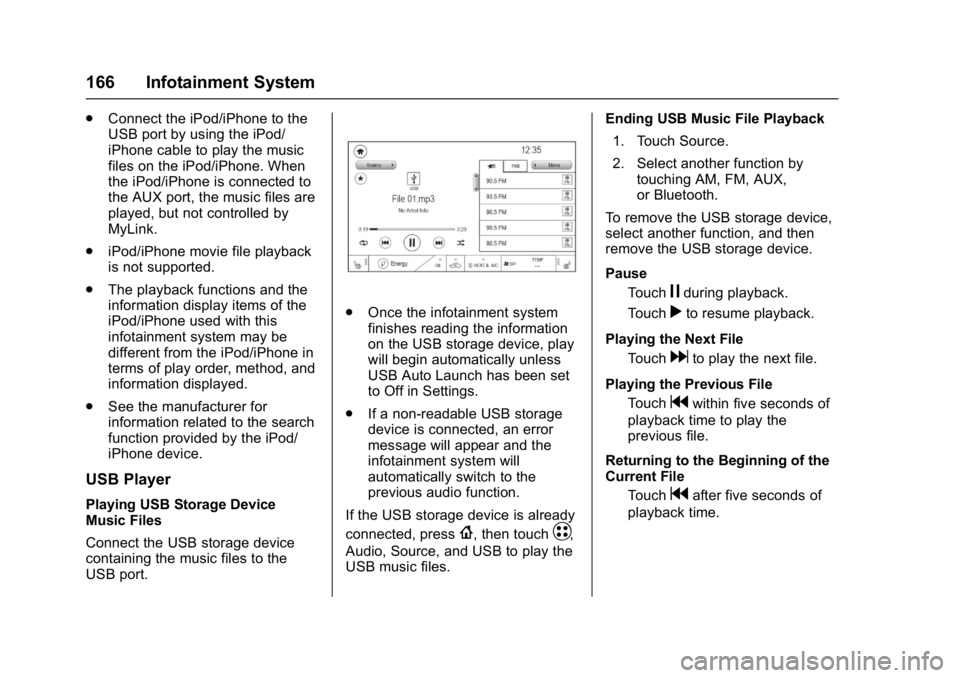
Connect the USB storage device
containing the music files to the
USB port.
.Once the infotainment system
finishes reading the information
on the USB storage device, play
will begin automatically unless
USB Auto Launch has been set
to Off in Settings.
. If a non-readable USB storage
device is connected, an error
message will appear and the
infotainment system will
automatically switch to the
previous audio function.
If the USB storage device is already
connected, press
{, then touchT,
Audio, Source, and USB to play the
USB music files. Ending USB Music File Playback
1. Touch Source.
2. Select another function by touching AM, FM, AUX,
or Bluetooth.
To remove the USB storage device,
select another function, and then
remove the USB storage device.
Pause Touch
jduring playback.
Touch
rto resume playback.
Playing the Next File Touch
dto play the next file.
Playing the Previous File Touch
gwithin five seconds of
playback time to play the
previous file.
Returning to the Beginning of the
Current File Touch
gafter five seconds of
playback time.
Page 168 of 361
Chevrolet Bolt EV Owner Manual (GMNA-Localizing-U.S./Canada/Mexico-
10122739) - 2017 - CRC - 10/3/16
Infotainment System 167
Scanning Forward or BackwardTouch and hold
gordduring
playback to rewind or fast
forward. Release
gordto
resume playback at normal
speed.
Playing Files Randomly Touch
Zduring playback.
Touch
Zagain to return to
normal playback.
Playing Files Repeatedly
1. Touch
"during playback.
2. Touch the desired option. .Repeat All: Plays all files
repeatedly.
. Repeat Song: Plays a
current file repeatedly.
. Repeat Off: Cancels the
repeat function.
Searching for a File by Using the
Favorites
Saving Favorites 1. Select the desired file. 2. Touch
q, or touch and hold the
favorite in the list to overwrite.
3. To delete it from the Favorites list, touch
q, or swipe the file
from the list on the right.
Up to 15 media files can be
saved in the Favorites list.
Listening to Favorites Directly 1. Touch the Favorites menu to see the Favorites list.
2. Touch the desired favorite to listen.
General Operation of the USB
Music Menu 1. Touch Menu on the USB music screen.
2. Touch the desired menu to select the item or to display the
item’s detailed menu.
3. Touch
qNow Playing to return
to the previous screen. Browse Music
1. From the USB music menu, touch Browse Music.
2. Touch the desired item: Playlists, Folders, Artists,
Songs, Albums, Genres, and
Composers.
3. Touch the desired music to listen.
The Infotainment Module will
recognize playlist files by the
extensions .asx, m3u, pls, wpl,
b4s, and .xspf.
Tone Settings
Set up sound features from the
Tone Settings menu. See “Tone
Settings” under“AM-FM Radio”
previously in this section.
Auto Volume
See “Auto Volume” under“AM-FM
Radio” previously in this section.
Page 170 of 361
Chevrolet Bolt EV Owner Manual (GMNA-Localizing-U.S./Canada/Mexico-
10122739) - 2017 - CRC - 10/3/16
Infotainment System 169
Playing the Previous SongTouch
gwithin two seconds of
playback time to play the
previous song.
Returning to the Beginning of the
Current Song Touch
gafter two seconds of
playback time.
Scanning Forward or Backward Hold
gordduring playback
to rewind or fast forward.
Release
gordto resume
playback at normal speed.
Playing Files Randomly Touch
Zduring playback.
Touch
Zagain to return to
normal playback.
General Operation of the iPod
Music Menu 1. Touch Menu on the iPod music screen.
2. Touch the desired menu to select the item or to display the
item’s detailed menu. 3. Touch
qNow Playing to return
to the previous screen.
Browse Music 1. From the iPod music menu, touch Browse Music.
2. Touch the desired music.
Tone Settings
Set up sound features from the
Tone Settings menu. See “Tone
Settings” under“AM-FM Radio”
previously in this section.
Auto Volume
Volume will be automatically
controlled. See “Auto Volume”under
“AM-FM Radio” previously in this
section.
Gallery (Pictures)
The infotainment system can view
picture files contained in the USB
storage device.
Before Using the Picture
System
. Only the following file extensions
are supported: *.jpg, *.bmp,
*.png, *.gif. .
Animated GIF is not supported.
. Some files may not operate due
to a different format or the
condition of the file.
Viewing a Picture
1. Connect the USB storage
device containing the picture
files to the USB port.
2. Press
{, thenT.
3. Touch Gallery, then select the desired picture folder.
4. Select the desired file.
. Touch the screen to hide the
control bar. Touch the screen
again to show the control bar.
. Some features are disabled
while the vehicle is in motion.
Viewing a Slide Show
.Touchzfrom the picture screen
and the slide show will play.
. Touch the screen to cancel the
slide show during slide show
playback.
Page 171 of 361
Chevrolet Bolt EV Owner Manual (GMNA-Localizing-U.S./Canada/Mexico-
10122739) - 2017 - CRC - 10/3/16
170 Infotainment System
Viewing a Previous or Next
Picture
From the picture screen, touchSor
Tto view the previous or next
picture.
Rotating a Picture
From the picture screen, touchwto
rotate the picture.
Enlarging a Picture
From the picture screen, touchTto
enlarge the picture.
Using the USB Picture Menu
1. From the picture screen, touch Menu.
2. Touch the desired menu. .Slide Show Time: Select
the slide show interval.
. Clock/Temp Display: To
display the clock and
temperature on the full
screen, select On or Off.
. Display Settings: Adjust the
brightness and contrast. 3. After the setting is complete,
touch
0.
Auxiliary Devices
The AUX port is in the center
console. The infotainment system
can play auxiliary music connected
by the auxiliary device.
Playing Music from an
Auxiliary Device
Connect the auxiliary device
containing the music source to the
AUX port. Once connected with the
infotainment system, music can be
played from the device.
.If the auxiliary device is already
connected, press
{, then
touch
T, Audio, Source, then
AUX to play music from the
auxiliary device.
. Use an AUX cable with a
3.5 mm (1/8 in) type connector.
Tone Settings
From the AUX screen, touch Tone.
See “Tone Settings” under“AM-FM
Radio” previously in this section.
Bluetooth Audio
Bluetooth Music
If equipped, music may be played
from a paired Bluetooth device.
Refer to the Phone section for help
pairing a device.
Before Playing Bluetooth Music
.
The paired bluetooth device
must support Bluetooth profiles:
A2DP or AVRCP.
. Bluetooth music may not be
supported depending on the
mobile phone or Bluetooth
device.
. From the mobile phone or
Bluetooth device, find the
Bluetooth device type to set/
connect the item.
. A♪will appear on the screen to
indicate a successful Audio
Bluetooth connection.
. The sound played by the
Bluetooth device is delivered
through the infotainment system.
Page 173 of 361

Chevrolet Bolt EV Owner Manual (GMNA-Localizing-U.S./Canada/Mexico-
10122739) - 2017 - CRC - 10/3/16
172 Infotainment System
General Operation of the
Bluetooth Music Menu1. Touch Menu on the Bluetooth music screen.
2. Touch the desired menu to select the item or to display the
item’s detailed menu.
3. Touch
qNow Playing to return
to the previous menu.
Browse Music
This function may not be supported
depending on the mobile phone. 1. From the Bluetooth music menu, touch Browse Music.
2. Touch the desired item. The number of relevant songs is
displayed.
3. Touch the desired music to listen.
Tone Settings
From the Bluetooth music menu,
sound features can be set up. See
“Tone Settings” under“AM-FM
Radio” previously in this section. Auto Volume
Volume will be automatically
controlled. See
“Auto Volume”under
“AM-FM Radio” previously in this
section.
Manage Bluetooth Devices
1. From the Bluetooth music menu, touch Audio Settings.
2. Touch Manage Bluetooth Devices.
3. Select the desired device and then connect/disconnect or
delete.
Playing Bluetooth Music
. Do not change the track too
quickly when playing Bluetooth
music.
. It takes some time to transmit
data from the mobile phone or
Bluetooth device to the
infotainment system. The
infotainment system outputs the
audio from the mobile phone or
Bluetooth device as it is
transmitted. .
If the mobile phone or Bluetooth
device is not in the idle screen
mode, it may not automatically
play despite being carried out
from the Bluetooth music
play mode.
. The infotainment system
transmits the order to play from
the mobile phone in the
Bluetooth music play mode.
If this is done in a different
mode, then the device transmits
the order to stop. Depending on
the mobile phone’s options, this
order to play/stop may some
take time to activate.
. If Bluetooth music playback is
not functioning, then check to
see if the mobile phone is in the
idle screen mode.
. Sometimes, sounds may be cut
off during Bluetooth music
playback.
Page 175 of 361
Chevrolet Bolt EV Owner Manual (GMNA-Localizing-U.S./Canada/Mexico-
10122739) - 2017 - CRC - 10/3/16
174 Infotainment System
.Due to the variety of Bluetooth
devices and their firmware
versions, the device may
respond differently when
performing over Bluetooth.
. See the device’ s user guide for
questions about Bluetooth
functionality.
. Multi-pairing is not supported.
Pairing and Connecting
Bluetooth
To use the Bluetooth feature, make
sure the Bluetooth on the device is
turned on and the device is in
discoverable mode. See the
Bluetooth device’ s user guide.
When There Is no Paired Device
on the Infotainment System
1. Press
{, then touchT.
2. Touch Phone, then Add Device.
3. From the device’s Bluetooth settings list, select Chevrolet
MyLink.
4. Touch Code Matches.
5. Verify phone matches. When the Bluetooth device and
infotainment system are
successfully paired, the Phone
screen appears on the infotainment
display.
When the connection fails, a failure
message appears on the
infotainment display.
When There Is a Paired Device on
the Infotainment System
1. Press
{, then touchT.
2. Touch Settings, then Devices on the display.
3. Touch the device to pair from the list, and then follow Step 5.
To add a device not in the list,
touch Add Device.
4. From the device’s Bluetooth settings list, select Chevrolet
MyLink.
5. When the Bluetooth device and the infotainment system are
successfully paired,
e/5is
displayed.
‐ The connected mobile phone
is highlighted by a
5mark. ‐
The
e/5mark indicates the
hands-free and mobile phone
music function are enabled.
‐ The
5mark indicates only
Hands-Free function is
enabled.
‐ The
emark indicates only
Bluetooth music is enabled.
. When the Bluetooth device and
the infotainment system are
successfully paired, the contact
list downloads automatically,
depending on the type of mobile
phone. If the contact list does
not download automatically,
proceed with the download on
the mobile phone. Always
accept the contact list request
on the initial pairing of the
mobile phone.
. The Infotainment system can
register up to 10 Bluetooth
devices.
. When the connection fails, the
failure message displays on the
infotainment system.