radio controls CHEVROLET BOLT EV 2017 Owner's Manual
[x] Cancel search | Manufacturer: CHEVROLET, Model Year: 2017, Model line: BOLT EV, Model: CHEVROLET BOLT EV 2017Pages: 361, PDF Size: 4.89 MB
Page 6 of 361
Chevrolet Bolt EV Owner Manual (GMNA-Localizing-U.S./Canada/Mexico-
10122739) - 2017 - CRC - 10/3/16
In Brief 5
In Brief
Instrument Panel
Instrument Panel . . . . . . . . . . . . . . . . 6
Initial Drive Information
Initial Drive Information . . . . . . . . . . 8
Remote Keyless Entry (RKE)System . . . . . . . . . . . . . . . . . . . . . . . . 8
Remote Start . . . . . . . . . . . . . . . . . . . . 8
Door Locks . . . . . . . . . . . . . . . . . . . . . 9
Liftgate . . . . . . . . . . . . . . . . . . . . . . . . 10
Windows . . . . . . . . . . . . . . . . . . . . . . . 11
Seat Adjustment . . . . . . . . . . . . . . . 11
Heated Seats . . . . . . . . . . . . . . . . . . 12
Head Restraint Adjustment . . . . 13
Safety Belts . . . . . . . . . . . . . . . . . . . . 13
Passenger Sensing System . . . 13
Mirror Adjustment . . . . . . . . . . . . . . 14
Steering Wheel Adjustment . . . . 14
Interior Lighting . . . . . . . . . . . . . . . . 14
Exterior Lighting . . . . . . . . . . . . . . . 15
Windshield Wiper/Washer . . . . . . 16
Climate Controls . . . . . . . . . . . . . . . 17
Vehicle Features
Radio(s) . . . . . . . . . . . . . . . . . . . . . . . 17
Satellite Radio . . . . . . . . . . . . . . . . . 18
Portable Audio Devices . . . . . . . . 18
Bluetooth
®. . . . . . . . . . . . . . . . . . . . . 18
Steering Wheel Controls . . . . . . . 18
Cruise Control . . . . . . . . . . . . . . . . . 19
Driver Information
Center (DIC) . . . . . . . . . . . . . . . . . 20
Forward Collision Alert (FCA) System . . . . . . . . . . . . . . . . . . . . . . . 20
Forward Automatic Braking (FAB) . . . . . . . . . . . . . . . . 20
Front Pedestrian Braking (FPB) System . . . . . . . . . . . . . . . . . . . . . . . 20
Lane Keep Assist (LKA) . . . . . . . 21
Lane Change Alert (LCA) . . . . . . 21
Rear Vision Camera (RVC) . . . . 21
Rear Cross Traffic Alert (RCTA) System . . . . . . . . . . . . . . . . . . . . . . . 21
Parking Assist . . . . . . . . . . . . . . . . . 21
Power Outlets . . . . . . . . . . . . . . . . . 22
Battery and Efficiency
High Voltage Safety Information . . . . . . . . . . . . . . . . . . . 22
Charging . . . . . . . . . . . . . . . . . . . . . . . 23
Regenerative Braking . . . . . . . . . . 28
Service . . . . . . . . . . . . . . . . . . . . . . . . 28
Performance and Maintenance
Traction Control/Electronic Stability Control . . . . . . . . . . . . . . 29
Tire Pressure Monitor . . . . . . . . . . 29
Driving for Better Energy Efficiency . . . . . . . . . . . . . . . . . . . . . 29
Roadside Assistance Program . . . . . . . . . . . . . . . . . . . . . . 31
Page 8 of 361

Chevrolet Bolt EV Owner Manual (GMNA-Localizing-U.S./Canada/Mexico-
10122739) - 2017 - CRC - 10/3/16
In Brief 7
1.Air Vents 0188.
2. Turn and Lane-Change Signals
0151.
3. Instrument Cluster 0111.
Driver Information Center (DIC)
0 133.
4. Windshield Wiper/Washer
0106.
5. Charging Status Feedback
0236.
Automatic Headlamp System
0 150.
Indicator Light and Solar
Sensor (ILSS). See “Sensors”
under Automatic Climate
Control System 0184.
6. Infotainment System. See AM-FM Radio 0160.
Heated Front Seats 058 (If
Equipped).
7. Automatic Climate Control
System 0184. 8.
Storage Compartments 0100.
9. Shift Lever. See Electric Drive
Unit 0206.
10. Electric Parking Brake 0210.
11. Power Outlets 0109.
12. Hazard Warning Flashers
0151.
Traction Control/Electronic
Stability Control 0213.
Driver Selected Operating
Modes 0205.
13. Power Button 0201.
14. Steering Wheel Controls 0104
(If Equipped).
15. Horn 0105.
16. Steering Wheel Adjustment
0104.
17. Steering Wheel Controls 0104
(If Equipped). 18. Regen on Demand®(Out of
View). See Regenerative
Braking 0212.
19. Cruise Control 0215.
Heated Steering Wheel 0105
(If Equipped).
Forward Collision Alert (FCA)
System 0222 (If Equipped).
Lane Keep Assist (LKA) 0229
(If Equipped).
20. Instrument Panel Fuse Block
0268.
21. Data Link Connector (DLC) (Out of View). See Service
Vehicle Soon Light 0118.
22. Exterior Lamp Controls 0148.
23. Instrument Panel Illumination
Control 0152.
Page 18 of 361
Chevrolet Bolt EV Owner Manual (GMNA-Localizing-U.S./Canada/Mexico-
10122739) - 2017 - CRC - 10/3/16
In Brief 17
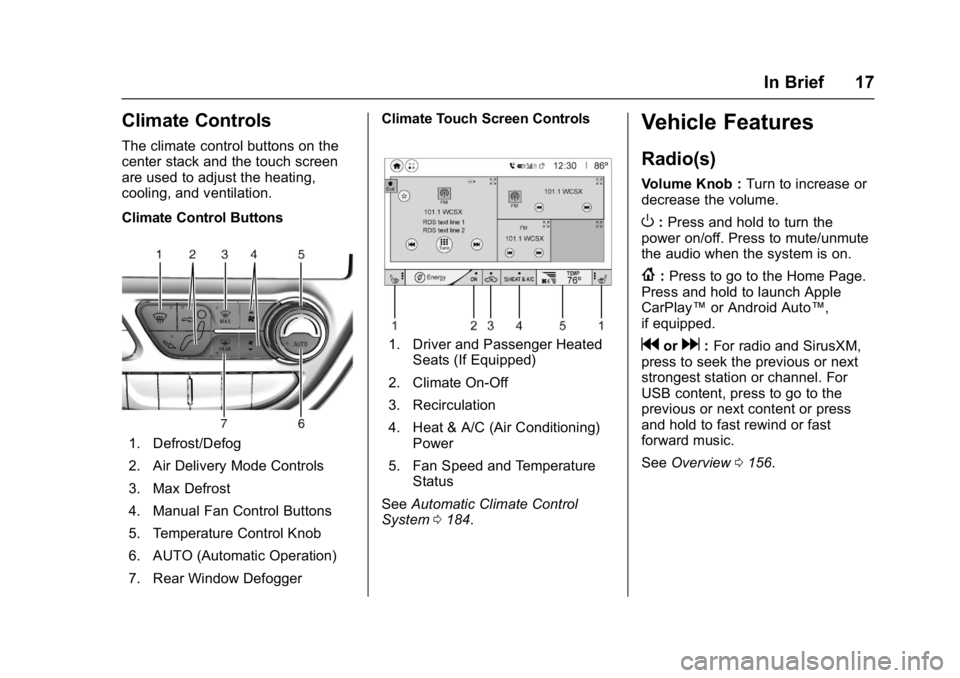
Climate Controls
The climate control buttons on the
center stack and the touch screen
are used to adjust the heating,
cooling, and ventilation.
Climate Control Buttons
1. Defrost/Defog
2. Air Delivery Mode Controls
3. Max Defrost
4. Manual Fan Control Buttons
5. Temperature Control Knob
6. AUTO (Automatic Operation)
7. Rear Window DefoggerClimate Touch Screen Controls
1. Driver and Passenger Heated
Seats (If Equipped)
2. Climate On-Off
3. Recirculation
4. Heat & A/C (Air Conditioning) Power
5. Fan Speed and Temperature Status
See Automatic Climate Control
System 0184.
Vehicle Features
Radio(s)
Volume Knob : Turn to increase or
decrease the volume.
O: Press and hold to turn the
power on/off. Press to mute/unmute
the audio when the system is on.
{: Press to go to the Home Page.
Press and hold to launch Apple
CarPlay™ or Android Auto™,
if equipped.
gord: For radio and SirusXM,
press to seek the previous or next
strongest station or channel. For
USB content, press to go to the
previous or next content or press
and hold to fast rewind or fast
forward music.
See Overview 0156.
Page 19 of 361
Chevrolet Bolt EV Owner Manual (GMNA-Localizing-U.S./Canada/Mexico-
10122739) - 2017 - CRC - 10/3/16
18 In Brief
Satellite Radio
If equipped, a SiriusXM®satellite
radio tuner and a valid SiriusXM
satellite radio subscription can
receive SiriusXM programming.
SiriusXM Satellite Radio
Service
SiriusXM is a satellite radio service
based in the 48 contiguous United
States and 10 Canadian provinces.
SiriusXM satellite radio has a wide
variety of programming and
commercial-free music, coast to
coast, and in digital-quality sound.
A fee is required to receive the
SiriusXM service.
Refer to:
. www.siriusxm.com or call
1-888-601-6296 (U.S.).
. www.siriusxm.ca or call
1-877-438-9677 (Canada).
See Satellite Radio 0162.
Portable Audio Devices
This vehicle has a 3.5 mm (1/8 in)
auxiliary input and two USB ports in
the center console for data and
charging. If equipped, there are two
USB charge ports in the rear of the
center console. External devices
such as iPods
®, MP3 players, and
USB storage devices may be
connected.
See Auxiliary Devices 0170 and
USB Port 0164.
Bluetooth®
The Bluetooth®system allows users
with a Bluetooth-enabled mobile
phone to make and receive
hands-free calls using the vehicle
audio system and controls.
The Bluetooth-enabled mobile
phone must be paired with the
in-vehicle Bluetooth system before it
can be used in the vehicle. Not all
phones will support all functions.
See Bluetooth 0173.
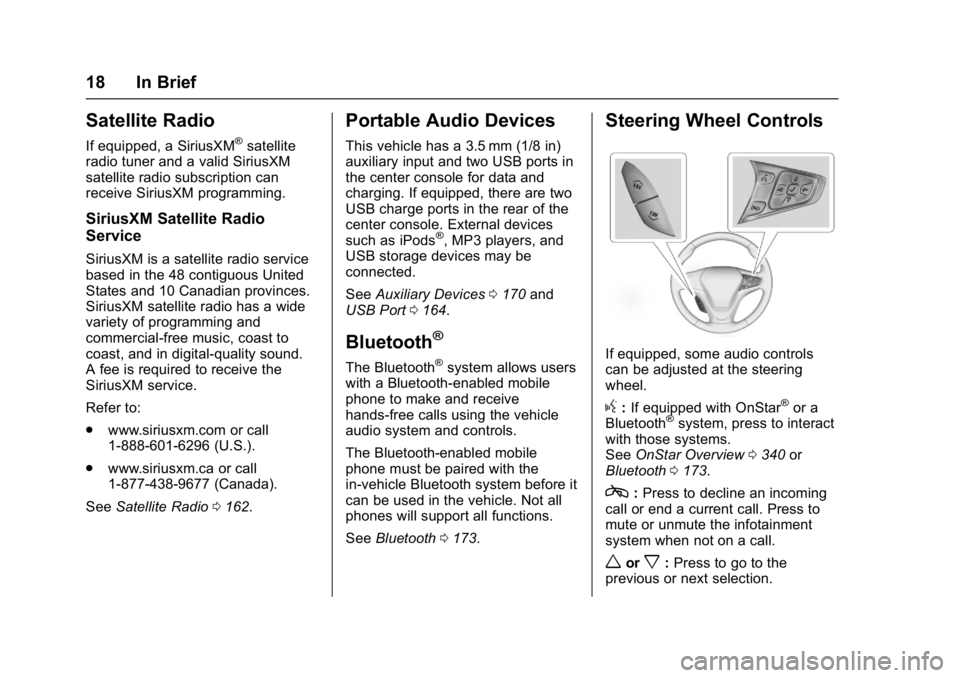
Steering Wheel Controls
If equipped, some audio controls
can be adjusted at the steering
wheel.
g:If equipped with OnStar®or a
Bluetooth®system, press to interact
with those systems.
See OnStar Overview 0340 or
Bluetooth 0173.
c:Press to decline an incoming
call or end a current call. Press to
mute or unmute the infotainment
system when not on a call.
worx: Press to go to the
previous or next selection.
Page 27 of 361
Chevrolet Bolt EV Owner Manual (GMNA-Localizing-U.S./Canada/Mexico-
10122739) - 2017 - CRC - 10/3/16
26 In Brief
5. Follow the steps listed on thecharging station to start
charging. The Electric Parking
Brake will automatically apply
once the charge process has
been started.
6. Once charging, the DC vehicle plug will be locked to the DC
charge port and cannot be
disconnected while charging is
active.
7. Verify that the Charging Status Indicator illuminates on top of
the instrument panel and an
audible chirp occurs. See
Charging Status Feedback
0236.
Caution
Do not attempt to disconnect the
DC vehicle plug while charging is
active. This action may damage
vehicle or charging station
hardware. Stop Charge
Controls on the charging station can
be used to stop the charge process
at any time.
To stop the charge when inside the
vehicle, you may use the stop
charging button on the Charging
screen. See
Programmable
Charging 0124.
There is also an available mobile
app with several charging functions.
See KeyPass 044.
Stop Charge —Automatic
When the vehicle no longer needs
to use power from the charging
station, it will stop charging and the
DC vehicle plug will be unlocked
from the DC charge port.
Energy can still be consumed from
the charging station when the
vehicle’s displays and indicators
show that the battery is fully
charged. This is to ensure the
battery is in optimal temperature
operating range to maximize vehicle
range. See Programmable Charging
0 124. End Charge
1. Wait until the charging process has been fully stopped, the
vehicle plug is unlocked, and
the Charging Status Indicator is
solid green or off.
2. Unplug the DC vehicle plug from the DC charge port on the
vehicle and close the dust
cover.
3. Close the charge port door by pressing firmly in the center
until it latches.
4. The Electric Parking Brake should be manually
disengaged before driving the
vehicle.
5. To start another DC charge, remove the DC vehicle plug
and reconnect.
Charge Cord
See Radio Frequency Statement
0 336.
Page 106 of 361
Chevrolet Bolt EV Owner Manual (GMNA-Localizing-U.S./Canada/Mexico-
10122739) - 2017 - CRC - 10/3/16
Instruments and Controls 105
oorp:Press to move between
the interactive display zones in the
cluster.
@: Press to select a highlighted
menu option.
yFAV or FAVz: Press to display
a list of favorites and select the next
or previous favorite when listening
to the radio.
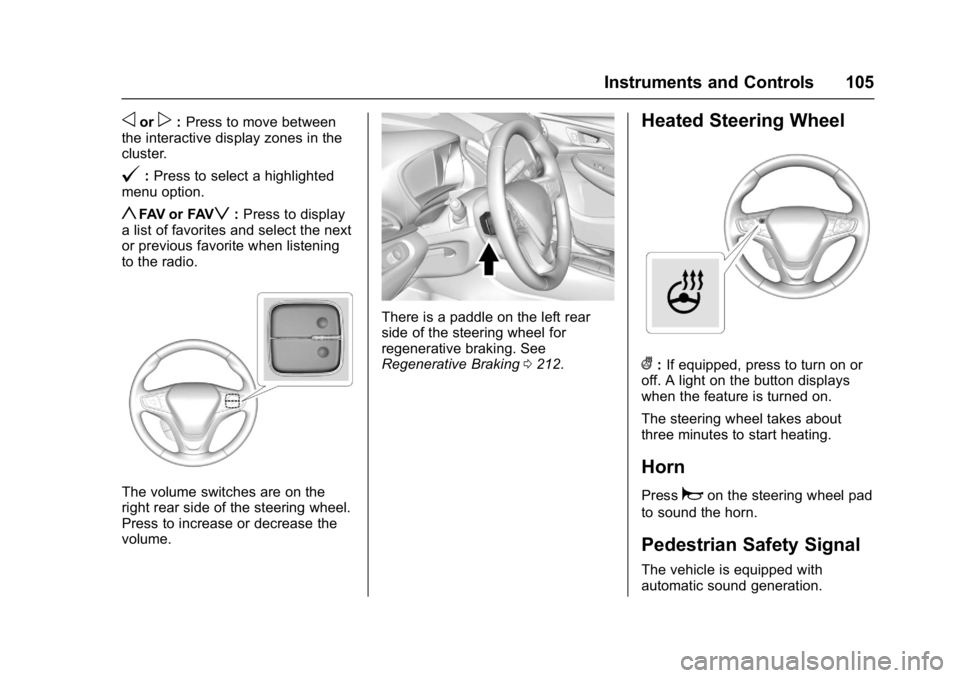
The volume switches are on the
right rear side of the steering wheel.
Press to increase or decrease the
volume.
There is a paddle on the left rear
side of the steering wheel for
regenerative braking. See
Regenerative Braking 0212.
Heated Steering Wheel
(:If equipped, press to turn on or
off. A light on the button displays
when the feature is turned on.
The steering wheel takes about
three minutes to start heating.
Horn
Pressaon the steering wheel pad
to sound the horn.
Pedestrian Safety Signal
The vehicle is equipped with
automatic sound generation.
Page 114 of 361
Chevrolet Bolt EV Owner Manual (GMNA-Localizing-U.S./Canada/Mexico-
10122739) - 2017 - CRC - 10/3/16
Instruments and Controls 113
Reconfigurable Instrument
Cluster
The cluster layout can be changed.
There are three display
configurations to choose from:
Classic, Modern, and Enhanced.
Use the steering wheel control to
move between the different display
zones and scroll through the
different displays. See“Layout”
under “Cluster Menu” following.
. Classic configuration displays
the speedometer with a
simplified battery gauge and
efficiency light.
. Modern configuration displays
the speedometer with a battery
gauge and efficiency gauge.
. Enhanced configuration displays
the speedometer with battery
gauge, efficiency ring, and
power gauge.
Cluster Menu
There is an interactive display area
in the center of the instrument
cluster.
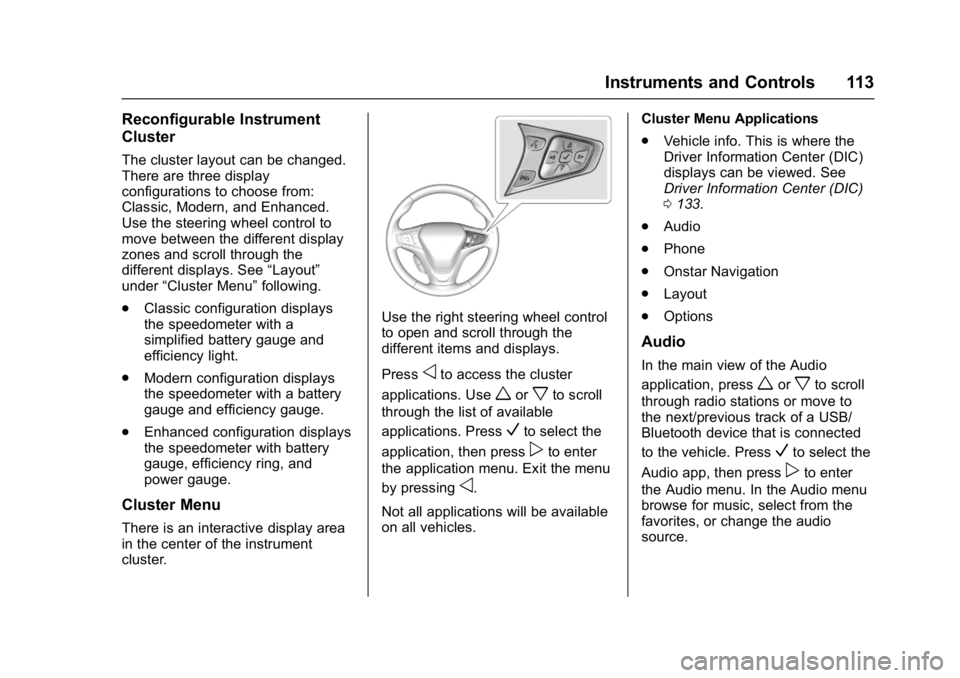
Use the right steering wheel control
to open and scroll through the
different items and displays.
Press
oto access the cluster
applications. Use
worxto scroll
through the list of available
applications. Press
Vto select the
application, then press
pto enter
the application menu. Exit the menu
by pressing
o.
Not all applications will be available
on all vehicles. Cluster Menu Applications
.
Vehicle info. This is where the
Driver Information Center (DIC)
displays can be viewed. See
Driver Information Center (DIC)
0133.
. Audio
. Phone
. Onstar Navigation
. Layout
. Options
Audio
In the main view of the Audio
application, press
worxto scroll
through radio stations or move to
the next/previous track of a USB/
Bluetooth device that is connected
to the vehicle. Press
Vto select the
Audio app, then press
pto enter
the Audio menu. In the Audio menu
browse for music, select from the
favorites, or change the audio
source.
Page 119 of 361
Chevrolet Bolt EV Owner Manual (GMNA-Localizing-U.S./Canada/Mexico-
10122739) - 2017 - CRC - 10/3/16
118 Instruments and Controls
If the word ON or the on symbol is
lit on the passenger airbag status
indicator, it means that the front
outboard passenger frontal airbag
and knee airbag are allowed to
inflate.
If the word OFF or the off symbol is
lit on the passenger airbag status
indicator, it means that the
passenger sensing system has
turned off the front outboard
passenger frontal airbag and knee
airbag.
If, after several seconds, both status
indicator lights remain on, or if there
are no lights at all, there may be a
problem with the lights or the
passenger sensing system. See
your dealer for service.
{Warning
If the airbag readiness light ever
comes on and stays on, it means
that something may be wrong
with the airbag system. To help
avoid injury to yourself or others,
have the vehicle serviced right(Continued)
Warning (Continued)
away. SeeAirbag Readiness
Light 0117 for more information,
including important safety
information.
Charging System Light
(12-Volt Battery)
The charging system light comes on
briefly when the vehicle is started,
as a check to show the light is
working.
If the light stays on, or comes on
while driving, there could be a
problem with the electrical charging
system. Have it checked by your
dealer. Driving while this light is on
could drain the 12-volt battery. If a short distance must be driven
with the light on, be sure to turn off
all accessories, such as the radio.
Service Vehicle Soon
Light
This light comes on if a condition
exists that may require the vehicle
to be taken in for service.
If the light comes on, take the
vehicle to your dealer for service as
soon as possible.
Brake System Warning
Light
The vehicle brake system consists
of two hydraulic circuits. If one
circuit is not working, the remaining
circuit can still work to stop the
Page 134 of 361
Chevrolet Bolt EV Owner Manual (GMNA-Localizing-U.S./Canada/Mexico-
10122739) - 2017 - CRC - 10/3/16
Instruments and Controls 133
.Radio Power Down : This
allows high voltage battery
power to be conserved.
Set the value for the reminder to
be displayed.
To set high voltage battery charge
level for Radio Power Down, touch
Energy, then Energy Settings, then
Radio Power Down. Select Off, 2%,
4%, 6%, 8%, or 10%.
Low Power Mode
This allows high voltage battery
power to be conserved.
1. Press and hold
O.
2. Touch Yes. The screen will turn off, and the audio is paused.
3. Press
Oagain to turn radio on.
Driver Information
Center (DIC)
The DIC is displayed in the
instrument cluster. It shows the
status of many vehicle systems. The
controls for the DIC are on the right
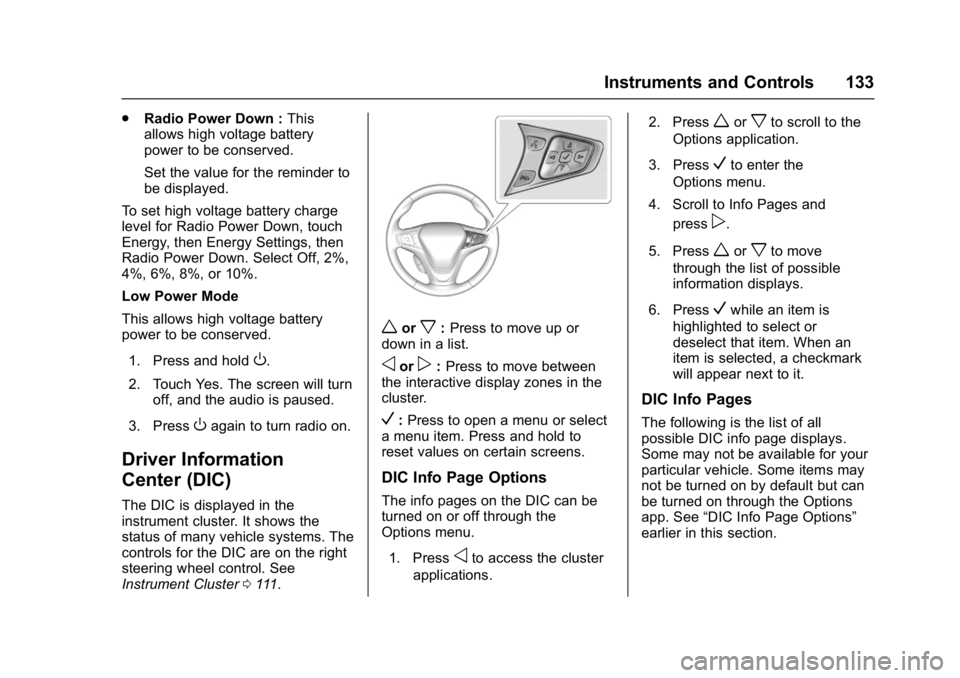
steering wheel control. See
Instrument Cluster 0111.
worx:Press to move up or
down in a list.
oorp: Press to move between
the interactive display zones in the
cluster.
V: Press to open a menu or select
a menu item. Press and hold to
reset values on certain screens.
DIC Info Page Options
The info pages on the DIC can be
turned on or off through the
Options menu.
1. Press
oto access the cluster
applications. 2. Press
worxto scroll to the
Options application.
3. Press
Vto enter the
Options menu.
4. Scroll to Info Pages and press
p.
5. Press
worxto move
through the list of possible
information displays.
6. Press
Vwhile an item is
highlighted to select or
deselect that item. When an
item is selected, a checkmark
will appear next to it.
DIC Info Pages
The following is the list of all
possible DIC info page displays.
Some may not be available for your
particular vehicle. Some items may
not be turned on by default but can
be turned on through the Options
app. See “DIC Info Page Options”
earlier in this section.
Page 143 of 361
Chevrolet Bolt EV Owner Manual (GMNA-Localizing-U.S./Canada/Mexico-
10122739) - 2017 - CRC - 10/3/16
142 Instruments and Controls
Vehicle
Personalization
Use the audio system controls to
access the personalization menus
for customizing vehicle features.
The following are all possible
personalization features. Depending
on the vehicle, some may not be
available.
{:Touch to access the
Home Page.
T: Touch to access the Icon view.
Y: Drag the scroll bar to navigate
the list.
0 :Touch to exit or return to the
previous screen or menu.
To access the menu:
1. Touch
T.
2. Touch Settings.
3. Touch the menu item to select it.
Each of the menus is detailed in the
following information.
Personalization Menu
The following list of menu items may
be available:
. Time and Date
. Rear Seat Reminder
. Language (Language)
. Teen Driver
. Radio Settings
. Vehicle
. Devices
. Device Remote Access
. Bluetooth Phone
. Apple CarPlay
. Android Auto
. KeyPass
. USB Auto Launch
. Wi-Fi
. Display Settings
. Rear Camera
. Return to Factory Settings
. Audible Touch Feedback
. Text Scroll .
Software Information
Each menu is detailed in the
following information.
Time and Date
Manually set the time and date. See
“Time and Date” inClock 0108.
Rear Seat Reminder
This message displays under
certain conditions indicating there
may be an item or passenger in the
rear seat. Check before exiting the
vehicle.
This feature allows for a chime and
a message when the rear door has
been opened before or during
operation of the vehicle.
Select Off or On.
Language (Language)
Select Language, then select from
the available language(s).
Teen Driver
See Teen Driver 0178.