infotainment CHEVROLET BOLT EV 2018 User Guide
[x] Cancel search | Manufacturer: CHEVROLET, Model Year: 2018, Model line: BOLT EV, Model: CHEVROLET BOLT EV 2018Pages: 370, PDF Size: 5.14 MB
Page 110 of 370
Chevrolet BOLT EV Owner Manual (GMNA-Localizing-U.S./Canada/Mexico-
11434431) - 2018 - crc - 2/14/18
Instruments and Controls 109
Controls
Steering Wheel
Adjustment
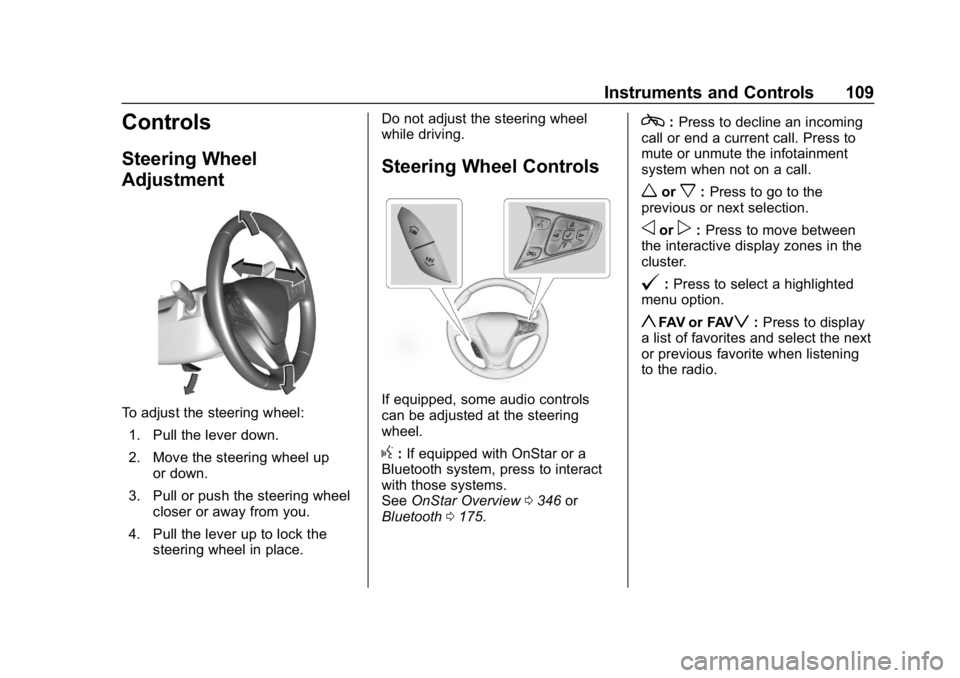
To adjust the steering wheel:1. Pull the lever down.
2. Move the steering wheel up or down.
3. Pull or push the steering wheel closer or away from you.
4. Pull the lever up to lock the steering wheel in place. Do not adjust the steering wheel
while driving.
Steering Wheel Controls
If equipped, some audio controls
can be adjusted at the steering
wheel.
g:
If equipped with OnStar or a
Bluetooth system, press to interact
with those systems.
See OnStar Overview 0346 or
Bluetooth 0175.
c:Press to decline an incoming
call or end a current call. Press to
mute or unmute the infotainment
system when not on a call.
worx: Press to go to the
previous or next selection.
oorp: Press to move between
the interactive display zones in the
cluster.
@: Press to select a highlighted
menu option.
yFAV or FAVz: Press to display
a list of favorites and select the next
or previous favorite when listening
to the radio.
Page 115 of 370
Chevrolet BOLT EV Owner Manual (GMNA-Localizing-U.S./Canada/Mexico-
11434431) - 2018 - crc - 2/14/18
114 Instruments and Controls
Clock
The infotainment system controls
are used to access the time and
date settings through the menu.
This can also be changed by
touching the clock, then touch
8to
go to the Time and Date
Settings menu.
D: Press to access the
Home Page.
T: Touch to access the Icon View.
Y: Drag the scroll bar to navigate
the list.
RorQ: Touch to set up
items.
0: Touch to exit or return to the
previous screen or menu.
Setting the Time
When Auto Set is enabled, the time
cannot be manually set.
1. Press
D, then touchT.
2. Touch Settings.
3. Touch Time and Date, then touch Set Time. 4. Touch + or
−to adjust the
value.
5. Touch
RorQto adjust
AM or PM for 12 hour format.
6. Touch
0.
Setting the Date
1. PressD, then touchT.
2. Touch Settings.
3. Touch Time and Date, then touch Set Date.
4. Touch + or −to adjust the
value.
5. Touch
0.
Auto Set
1. PressD, then touchT.
2. Touch Settings.
3. Touch Time and Date, then touch Auto Set.
4. Select from the available options.
5. Touch
0.
Setting the 12/24 Hour Format
1. PressD, then touchT.
2. Touch Settings.
3. Touch Time and Date, then touch Set Time.
4. Select 12 hr or 24 hr format.
5. Touch
0.
Power Outlets
The accessory power outlet can be
used to plug in electrical equipment,
such as a mobile phone or MP3
player. The accessory power outlet
only works with the vehicle
turned on.
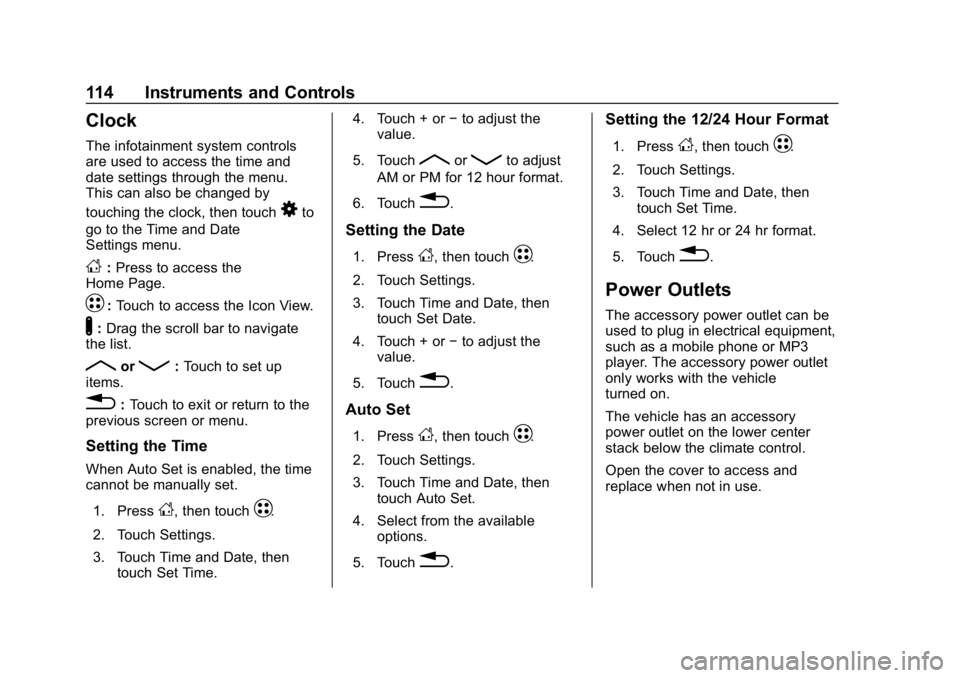
The vehicle has an accessory
power outlet on the lower center
stack below the climate control.
Open the cover to access and
replace when not in use.
Page 117 of 370
Chevrolet BOLT EV Owner Manual (GMNA-Localizing-U.S./Canada/Mexico-
11434431) - 2018 - crc - 2/14/18
116 Instruments and Controls
{Warning
Remove all objects from the
charging pocket before charging
your mobile phone. Objects, such
as coins, keys, rings, paper clips,
or cards, between the mobile
phone and the charger will
become very hot. On the rare
occasion that the charging system
does not detect an object, and the
object gets wedged between the
mobile phone and the charger,
remove the mobile phone and
allow the object to cool before
removing it from the charging
pocket, to prevent burns.
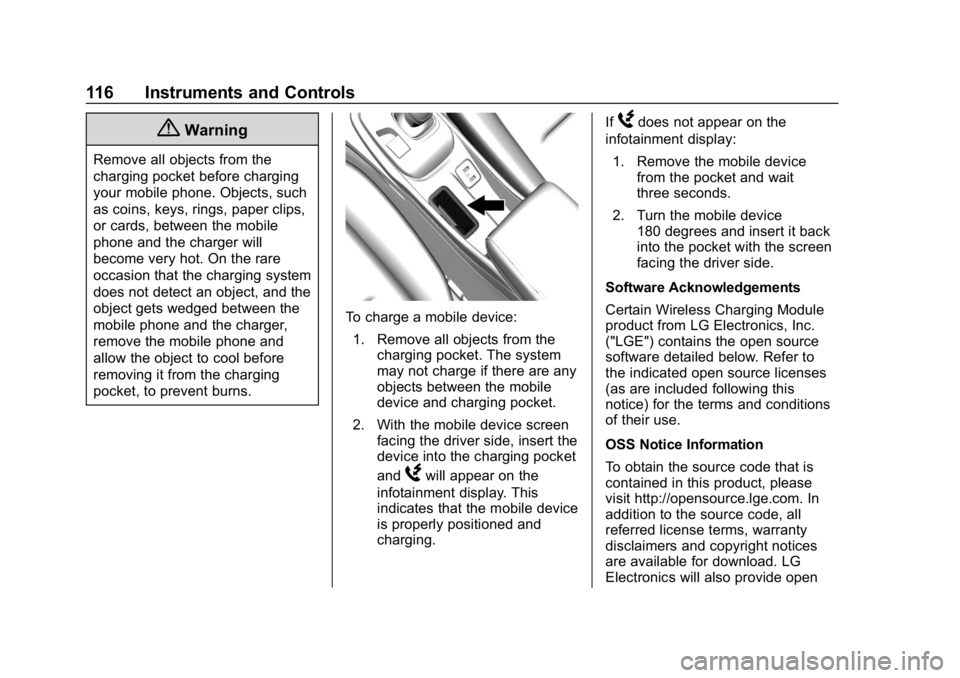
To charge a mobile device:1. Remove all objects from the charging pocket. The system
may not charge if there are any
objects between the mobile
device and charging pocket.
2. With the mobile device screen facing the driver side, insert the
device into the charging pocket
and
Wwill appear on the
infotainment display. This
indicates that the mobile device
is properly positioned and
charging. If
Wdoes not appear on the
infotainment display:
1. Remove the mobile device from the pocket and wait
three seconds.
2. Turn the mobile device 180 degrees and insert it back
into the pocket with the screen
facing the driver side.
Software Acknowledgements
Certain Wireless Charging Module
product from LG Electronics, Inc.
("LGE") contains the open source
software detailed below. Refer to
the indicated open source licenses
(as are included following this
notice) for the terms and conditions
of their use.
OSS Notice Information
To obtain the source code that is
contained in this product, please
visit http://opensource.lge.com. In
addition to the source code, all
referred license terms, warranty
disclaimers and copyright notices
are available for download. LG
Electronics will also provide open
Page 132 of 370
Chevrolet BOLT EV Owner Manual (GMNA-Localizing-U.S./Canada/Mexico-
11434431) - 2018 - crc - 2/14/18
Instruments and Controls 131
Door Ajar Light
This light comes on when a door is
open or not securely latched.
Information Displays
Power Flows
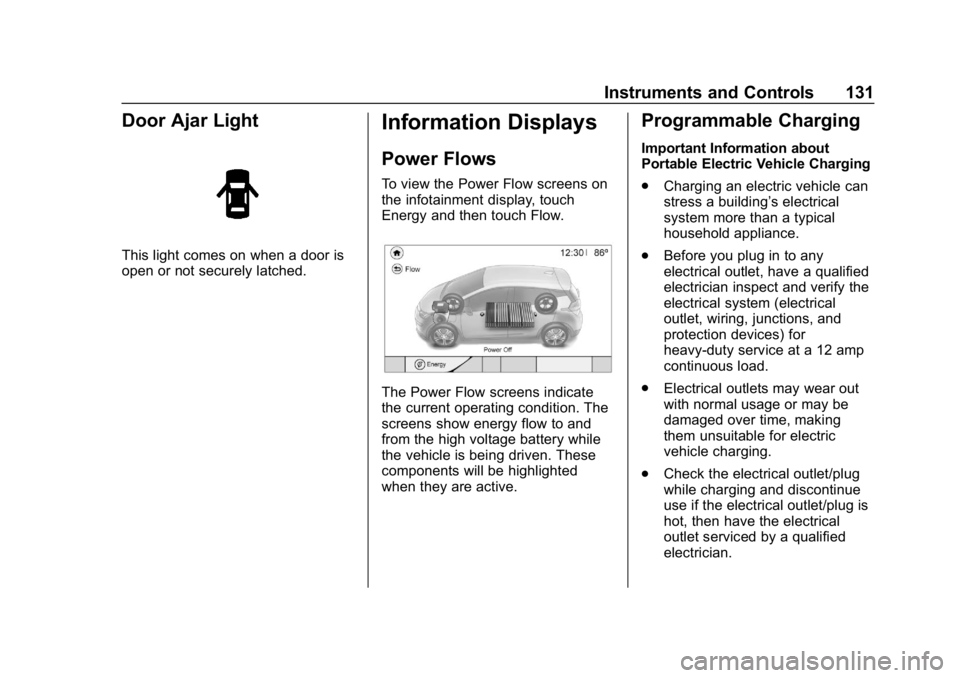
To view the Power Flow screens on
the infotainment display, touch
Energy and then touch Flow.
The Power Flow screens indicate
the current operating condition. The
screens show energy flow to and
from the high voltage battery while
the vehicle is being driven. These
components will be highlighted
when they are active.
Programmable Charging
Important Information about
Portable Electric Vehicle Charging
.Charging an electric vehicle can
stress a building’ s electrical
system more than a typical
household appliance.
. Before you plug in to any
electrical outlet, have a qualified
electrician inspect and verify the
electrical system (electrical
outlet, wiring, junctions, and
protection devices) for
heavy-duty service at a 12 amp
continuous load.
. Electrical outlets may wear out
with normal usage or may be
damaged over time, making
them unsuitable for electric
vehicle charging.
. Check the electrical outlet/plug
while charging and discontinue
use if the electrical outlet/plug is
hot, then have the electrical
outlet serviced by a qualified
electrician.
Page 133 of 370
Chevrolet BOLT EV Owner Manual (GMNA-Localizing-U.S./Canada/Mexico-
11434431) - 2018 - crc - 2/14/18
132 Instruments and Controls
.When outdoors, plug into an
electrical outlet that is
weatherproof while in use.
. Mount the charge cord to reduce
strain on the electrical
outlet/plug.
. Do not place the charge cord in
a position where it is expected to
be submerged in water.
{Danger
Improper use of portable electric
vehicle charge cords may cause
a fire, electrical shock, or burns,
and may result in damage to
property, serious injury, or death.
. Do not use extension cords,
multi-outlet power strips,
splitters, grounding
adaptors, surge protectors,
or similar devices.
. Do not use an electrical
outlet that is worn or
damaged, or will not hold
the plug firmly in place.
(Continued)
Danger (Continued)
.Do not use an electrical
outlet that is not properly
grounded.
. Do not use an electrical
outlet that is on a circuit with
other electrical loads.
See Charge Cord 0243.
Programmable Charging
Modes
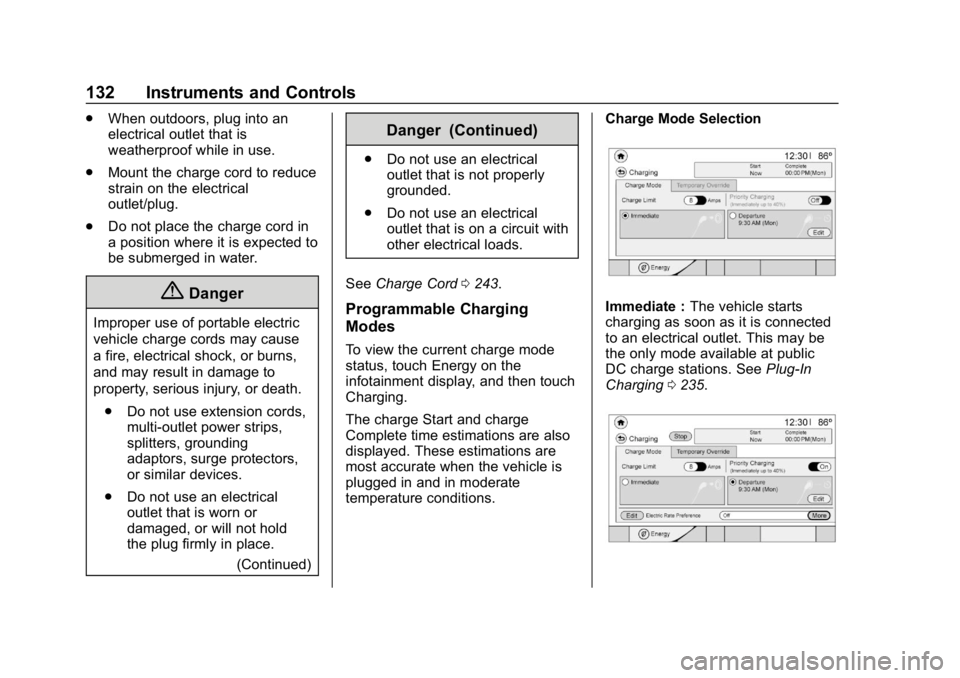
To view the current charge mode
status, touch Energy on the
infotainment display, and then touch
Charging.
The charge Start and charge
Complete time estimations are also
displayed. These estimations are
most accurate when the vehicle is
plugged in and in moderate
temperature conditions. Charge Mode Selection
Immediate :
The vehicle starts
charging as soon as it is connected
to an electrical outlet. This may be
the only mode available at public
DC charge stations. See Plug-In
Charging 0235.
Page 139 of 370
Chevrolet BOLT EV Owner Manual (GMNA-Localizing-U.S./Canada/Mexico-
11434431) - 2018 - crc - 2/14/18
138 Instruments and Controls
3. Touch Set Home Location[.
4. Touch OK.
5. Touch On to enable Location Based Charging.
To change the stored home location:
1. Touch Update Home Location
[on the Location Based
Charging screen.
2. Touch Update, then OK to set the new home location.
.Touch Cancel to make no
changes.
. Touch Remove to clear the
location and turn Location
Based Charging off.
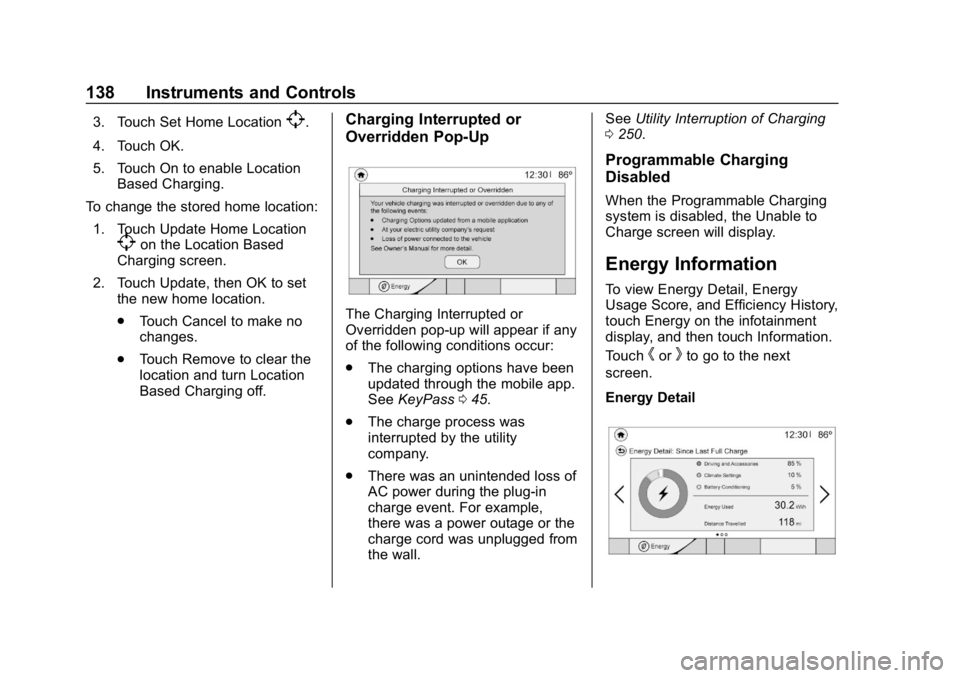
Charging Interrupted or
Overridden Pop-Up
The Charging Interrupted or
Overridden pop-up will appear if any
of the following conditions occur:
.The charging options have been
updated through the mobile app.
See KeyPass 045.
. The charge process was
interrupted by the utility
company.
. There was an unintended loss of
AC power during the plug-in
charge event. For example,
there was a power outage or the
charge cord was unplugged from
the wall. See
Utility Interruption of Charging
0 250.
Programmable Charging
Disabled
When the Programmable Charging
system is disabled, the Unable to
Charge screen will display.
Energy Information
To view Energy Detail, Energy
Usage Score, and Efficiency History,
touch Energy on the infotainment
display, and then touch Information.
Touch
horkto go to the next
screen.
Energy Detail
Page 141 of 370
Chevrolet BOLT EV Owner Manual (GMNA-Localizing-U.S./Canada/Mexico-
11434431) - 2018 - crc - 2/14/18
140 Instruments and Controls
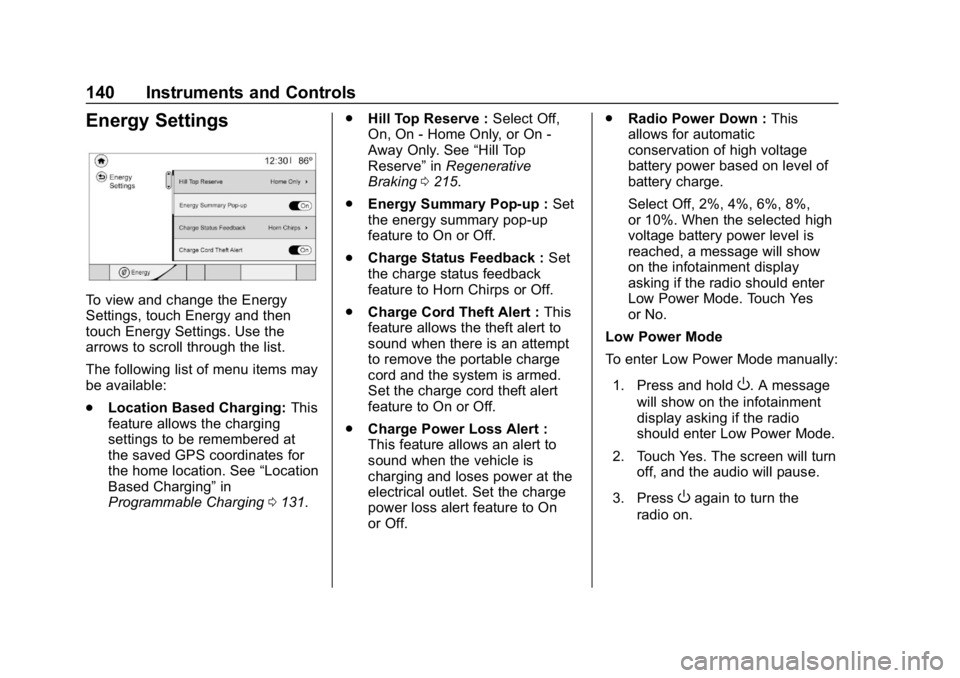
Energy Settings
To view and change the Energy
Settings, touch Energy and then
touch Energy Settings. Use the
arrows to scroll through the list.
The following list of menu items may
be available:
.Location Based Charging: This
feature allows the charging
settings to be remembered at
the saved GPS coordinates for
the home location. See “Location
Based Charging” in
Programmable Charging 0131. .
Hill Top Reserve : Select Off,
On, On - Home Only, or On -
Away Only. See “Hill Top
Reserve” inRegenerative
Braking 0215.
. Energy Summary Pop-up : Set
the energy summary pop-up
feature to On or Off.
. Charge Status Feedback : Set
the charge status feedback
feature to Horn Chirps or Off.
. Charge Cord Theft Alert : This
feature allows the theft alert to
sound when there is an attempt
to remove the portable charge
cord and the system is armed.
Set the charge cord theft alert
feature to On or Off.
. Charge Power Loss Alert :
This feature allows an alert to
sound when the vehicle is
charging and loses power at the
electrical outlet. Set the charge
power loss alert feature to On
or Off. .
Radio Power Down : This
allows for automatic
conservation of high voltage
battery power based on level of
battery charge.
Select Off, 2%, 4%, 6%, 8%,
or 10%. When the selected high
voltage battery power level is
reached, a message will show
on the infotainment display
asking if the radio should enter
Low Power Mode. Touch Yes
or No.
Low Power Mode
To enter Low Power Mode manually:
1. Press and hold
O. A message
will show on the infotainment
display asking if the radio
should enter Low Power Mode.
2. Touch Yes. The screen will turn off, and the audio will pause.
3. Press
Oagain to turn the
radio on.
Page 148 of 370
Chevrolet BOLT EV Owner Manual (GMNA-Localizing-U.S./Canada/Mexico-
11434431) - 2018 - crc - 2/14/18
Instruments and Controls 147
Remote Start Auto Heat Seats
If equipped and turned on, this
feature will turn the heated seats on
when using remote start on
cold days.
Select Off or On.
Passive Door Unlock
This allows the selection of what
doors will unlock when using the
button on the outside driver door
handle to unlock the vehicle.
Select All Doors or Driver
Door Only.
Passive Door Lock
This allows passive locking to be
turned on or off and selects
feedback.
Select Off, On with Horn
Chirp, or On.
Remote Left in Vehicle Alert
This feature sounds an alert when
the RKE transmitter is left in the
vehicle. This menu also enables
Remote No Longer in Vehicle Alert.
Select Off or On.Devices
This shows status of the connected
device.
Touch Add Device if a device needs
to be added.
Device Remote Access
This will allow devices to control
system functionality and
access data.
Select Off or On.
Bluetooth Phone
This allows the connected Bluetooth
phone to be configured. See
“Bluetooth Phone”inSettings 0180.
. My Number
. Privacy
. Sort Contacts
. Resync Device Contacts
My Number
This displays the phone number of
the connected Bluetooth device. Privacy
This allows call alerts to appear on
the infotainment display.
Select Off or On.
Sort Contacts
Touch to sort by first or last name.
Resync Device Contacts
This resyncs the contacts on the
phone.
Apple CarPlay
This feature allows Apple devices to
be connected to the infotainment
system through a USB port.
Select Off or On.
Android Auto
This feature allows Android devices
to be connected to the infotainment
system through a USB port.
Select Off or On.
KeyPass
Select and the following may
display:
.
KeyPass
Page 150 of 370
Chevrolet BOLT EV Owner Manual (GMNA-Localizing-U.S./Canada/Mexico-
11434431) - 2018 - crc - 2/14/18
Instruments and Controls 149
Restore Radio Settings
This allows radio settings
preferences to be restored to the
default.
Select Continue or Cancel.
Audible Touch Feedback
Select to turn Off or On.
Text Scroll
Select to turn Off or On.
Software Information
Select and the following may
display:
.Open Source
. Software Update
. Update Preference
Open Source
Select to view the infotainment
system current software information.
Software Update
This allows the ability to search for
available vehicle software updates
when Internet connectivity is
available through the vehicle’ s builtin OnStar connection, if equipped,
or a secure Wi-Fi hotspot, such as a
mobile hotspot, home or public
network. Applicable data rates may
apply.
Update Preference
Select to download new vehicle
software updates in the background.
Select Off or On. Software
downloads require Internet
connectivity through the vehicle’s
built-in OnStar connection,
if equipped, or a secure Wi-Fi
hotspot, such as a mobile hotspot,
home or public network. Applicable
data rates may apply.
Page 155 of 370
Chevrolet BOLT EV Owner Manual (GMNA-Localizing-U.S./Canada/Mexico-
11434431) - 2018 - crc - 2/14/18
154 Lighting
The hazard warning flasher button
is on the center stack.
|:Press to make the front and
rear turn signal lamps flash on and
off. This warns others that you are
having trouble. Press the button
again to turn the flashers off.
When the hazard warning flashers
are on, the turn signals will
not work.
Turn and Lane-Change
Signals
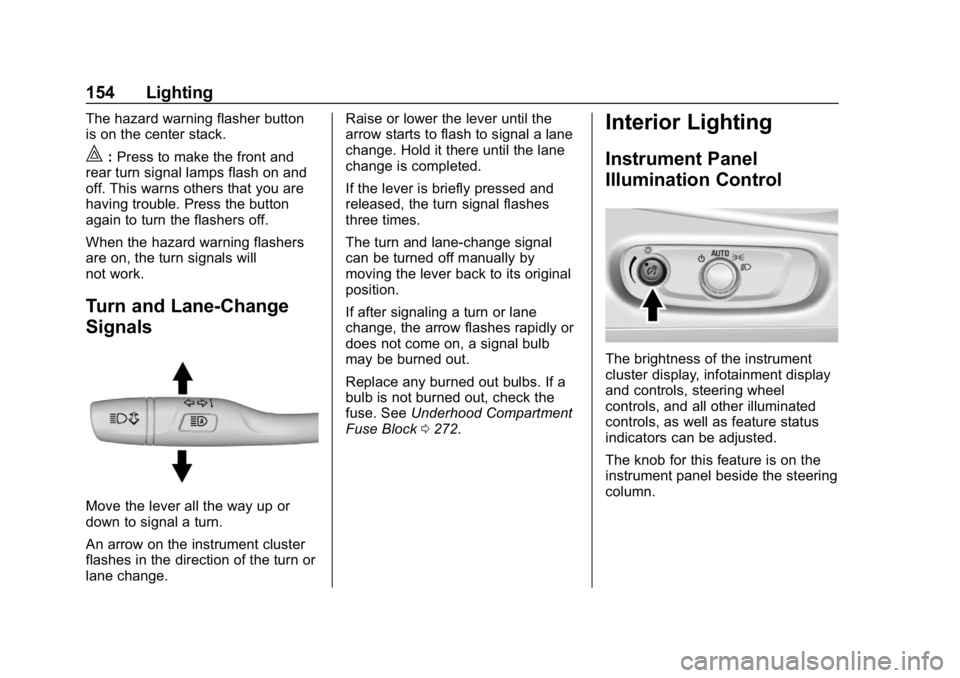
Move the lever all the way up or
down to signal a turn.
An arrow on the instrument cluster
flashes in the direction of the turn or
lane change. Raise or lower the lever until the
arrow starts to flash to signal a lane
change. Hold it there until the lane
change is completed.
If the lever is briefly pressed and
released, the turn signal flashes
three times.
The turn and lane-change signal
can be turned off manually by
moving the lever back to its original
position.
If after signaling a turn or lane
change, the arrow flashes rapidly or
does not come on, a signal bulb
may be burned out.
Replace any burned out bulbs. If a
bulb is not burned out, check the
fuse. See
Underhood Compartment
Fuse Block 0272.
Interior Lighting
Instrument Panel
Illumination Control
The brightness of the instrument
cluster display, infotainment display
and controls, steering wheel
controls, and all other illuminated
controls, as well as feature status
indicators can be adjusted.
The knob for this feature is on the
instrument panel beside the steering
column.