display CHEVROLET BOLT EV 2018 Workshop Manual
[x] Cancel search | Manufacturer: CHEVROLET, Model Year: 2018, Model line: BOLT EV, Model: CHEVROLET BOLT EV 2018Pages: 370, PDF Size: 5.14 MB
Page 150 of 370
Chevrolet BOLT EV Owner Manual (GMNA-Localizing-U.S./Canada/Mexico-
11434431) - 2018 - crc - 2/14/18
Instruments and Controls 149
Restore Radio Settings
This allows radio settings
preferences to be restored to the
default.
Select Continue or Cancel.
Audible Touch Feedback
Select to turn Off or On.
Text Scroll
Select to turn Off or On.
Software Information
Select and the following may
display:
.Open Source
. Software Update
. Update Preference
Open Source
Select to view the infotainment
system current software information.
Software Update
This allows the ability to search for
available vehicle software updates
when Internet connectivity is
available through the vehicle’ s builtin OnStar connection, if equipped,
or a secure Wi-Fi hotspot, such as a
mobile hotspot, home or public
network. Applicable data rates may
apply.
Update Preference
Select to download new vehicle
software updates in the background.
Select Off or On. Software
downloads require Internet
connectivity through the vehicle’s
built-in OnStar connection,
if equipped, or a secure Wi-Fi
hotspot, such as a mobile hotspot,
home or public network. Applicable
data rates may apply.
Page 155 of 370
Chevrolet BOLT EV Owner Manual (GMNA-Localizing-U.S./Canada/Mexico-
11434431) - 2018 - crc - 2/14/18
154 Lighting
The hazard warning flasher button
is on the center stack.
|:Press to make the front and
rear turn signal lamps flash on and
off. This warns others that you are
having trouble. Press the button
again to turn the flashers off.
When the hazard warning flashers
are on, the turn signals will
not work.
Turn and Lane-Change
Signals
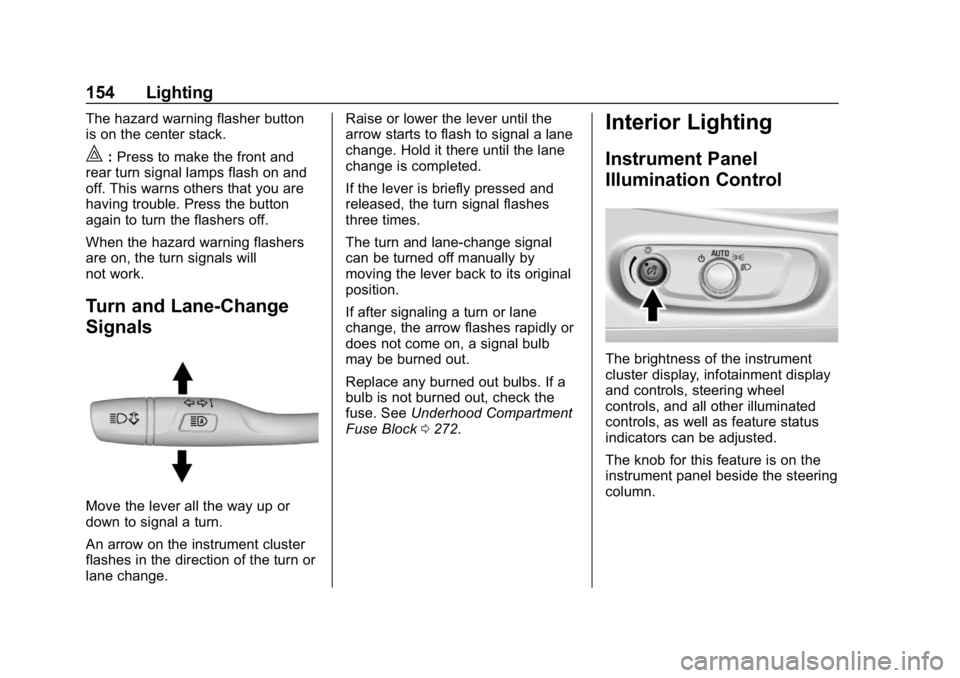
Move the lever all the way up or
down to signal a turn.
An arrow on the instrument cluster
flashes in the direction of the turn or
lane change. Raise or lower the lever until the
arrow starts to flash to signal a lane
change. Hold it there until the lane
change is completed.
If the lever is briefly pressed and
released, the turn signal flashes
three times.
The turn and lane-change signal
can be turned off manually by
moving the lever back to its original
position.
If after signaling a turn or lane
change, the arrow flashes rapidly or
does not come on, a signal bulb
may be burned out.
Replace any burned out bulbs. If a
bulb is not burned out, check the
fuse. See
Underhood Compartment
Fuse Block 0272.
Interior Lighting
Instrument Panel
Illumination Control
The brightness of the instrument
cluster display, infotainment display
and controls, steering wheel
controls, and all other illuminated
controls, as well as feature status
indicators can be adjusted.
The knob for this feature is on the
instrument panel beside the steering
column.
Page 158 of 370
Chevrolet BOLT EV Owner Manual (GMNA-Localizing-U.S./Canada/Mexico-
11434431) - 2018 - crc - 2/14/18
Infotainment System 157
Infotainment
System
Introduction
Introduction . . . . . . . . . . . . . . . . . . . 157
Theft-Deterrent Feature . . . . . . 158
Overview . . . . . . . . . . . . . . . . . . . . . 158
Operation . . . . . . . . . . . . . . . . . . . . . 159
Software Updates . . . . . . . . . . . . 161
Radio
AM-FM Radio . . . . . . . . . . . . . . . . 162
Satellite Radio . . . . . . . . . . . . . . . . 164
Multi-Band Antenna . . . . . . . . . . 165
Audio Players
USB Port . . . . . . . . . . . . . . . . . . . . . 166
Auxiliary Devices . . . . . . . . . . . . . 172
Bluetooth Audio . . . . . . . . . . . . . . 172
OnStar System
OnStar System . . . . . . . . . . . . . . . 175
Phone
Bluetooth . . . . . . . . . . . . . . . . . . . . . 175
Apple CarPlay andAndroid Auto . . . . . . . . . . . . . . . . 177
Hands-Free Phone . . . . . . . . . . . 178
Settings
Settings . . . . . . . . . . . . . . . . . . . . . . 180
Teen Driver . . . . . . . . . . . . . . . . . . . 181
Trademarks and License
Agreements
Trademarks and License Agreements . . . . . . . . . . . . . . . . . 184
Introduction
Read the following pages to
become familiar with the features.
{Warning
Taking your eyes off the road for
too long or too often while using
any infotainment feature can
cause a crash. You or others
could be injured or killed. Do not
give extended attention to
infotainment tasks while driving.
Limit your glances at the vehicle
displays and focus your attention
on driving. Use voice commands
whenever possible.
The infotainment system has built-in
features intended to help avoid
distraction by disabling some
functions when driving. These
functions may gray out when they
are unavailable. Many infotainment
features are also available through
the instrument cluster and steering
wheel controls.
Page 159 of 370
Chevrolet BOLT EV Owner Manual (GMNA-Localizing-U.S./Canada/Mexico-
11434431) - 2018 - crc - 2/14/18
158 Infotainment System
Before driving:
.Become familiar with the
operation of the center stack
controls and the infotainment
system.
. Set up the audio by presetting
favorite stations, setting the
tone, and adjusting the
speakers.
. Set up phone numbers in
advance so they can be called
easily by pressing a single
control or by using a single voice
command if equipped with
Bluetooth phone capability.
See Defensive Driving 0194.
To play the infotainment system with
the vehicle off, see Retained
Accessory Power (RAP) 0206.
Theft-Deterrent Feature
The infotainment system has an
electronic security system installed
to prevent theft. The infotainment system only works
in the vehicle in which it was first
installed, and cannot be used in
another vehicle.
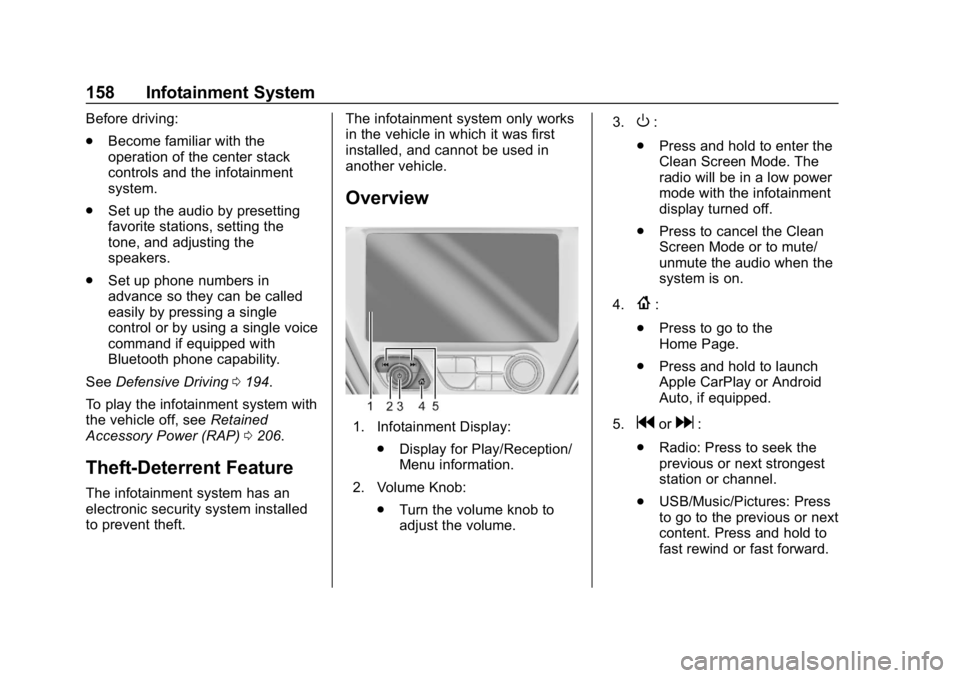
Overview
1. Infotainment Display:
.Display for Play/Reception/
Menu information.
2. Volume Knob: .Turn the volume knob to
adjust the volume. 3.
O:
. Press and hold to enter the
Clean Screen Mode. The
radio will be in a low power
mode with the infotainment
display turned off.
. Press to cancel the Clean
Screen Mode or to mute/
unmute the audio when the
system is on.
4.
{:
. Press to go to the
Home Page.
. Press and hold to launch
Apple CarPlay or Android
Auto, if equipped.
5.
gord:
. Radio: Press to seek the
previous or next strongest
station or channel.
. USB/Music/Pictures: Press
to go to the previous or next
content. Press and hold to
fast rewind or fast forward.
Page 160 of 370
Chevrolet BOLT EV Owner Manual (GMNA-Localizing-U.S./Canada/Mexico-
11434431) - 2018 - crc - 2/14/18
Infotainment System 159
Operation
Turning On/Off Automatically
When the vehicle is on, the
infotainment system turns on
automatically.
When the vehicle is off and the
driver door of the vehicle is opened,
the infotainment system turns off
automatically.
If
Ois pressed and held when the
vehicle is off, the infotainment
system will turn on. The system will
turn off automatically after
approximately 10 minutes.
Full Screen Clock
. Touch the time display on the
screen to display a full screen of
the clock.
. Touch
0to return to the
previous screen.
Volume Control
Turn the volume knob to adjust the
volume. The current volume is
indicated. .
If equipped, use the volume
switches on the back of the
steering wheel to adjust the
volume. See Steering Wheel
Controls 0109.
. Turning on the infotainment
system power will set the
volume level to its previous
selection if it is lower than the
maximum starting volume level.
. If the volume level is louder than
the maximum starting volume
level when the infotainment
system is turned on, the
infotainment system is adjusted
automatically to the maximum
starting volume level.
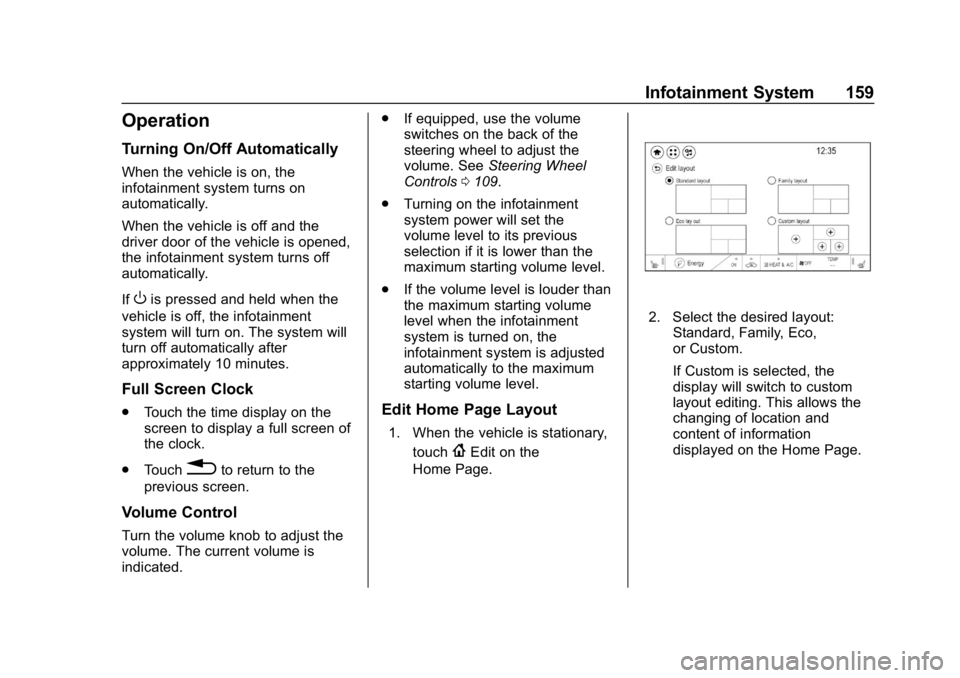
Edit Home Page Layout
1. When the vehicle is stationary,
touch
{Edit on the
Home Page.
2. Select the desired layout: Standard, Family, Eco,
or Custom.
If Custom is selected, the
display will switch to custom
layout editing. This allows the
changing of location and
content of information
displayed on the Home Page.
Page 162 of 370
Chevrolet BOLT EV Owner Manual (GMNA-Localizing-U.S./Canada/Mexico-
11434431) - 2018 - crc - 2/14/18
Infotainment System 161
2. Touch Phone, then touch5on
the infotainment display,
or press
gon the steering
wheel controls.
Settings
1. Touch
T.
2. Touch Settings, then select an item from the menu and adjust
the settings by selecting from
the available options. See
Settings 0180.
Gallery
1. Touch
T.
2. Touch Gallery, then touch
'
menu to view picture files
contained in the USB storage
device.
Software Updates
Over-the-Air Software Updates
If equipped, the infotainment system
can download and install select
software updates over a wireless
connection. The system will prompt for certain updates to be
downloaded and installed. There is
also an option to check for updates
manually.
To manually check for updates,
touch Settings on the Home Page,
followed by Software Information,
and then System Update. Follow the
on-screen prompts. Steps for
downloading and installing updates
may vary by vehicle.
Downloading Over-the-Air vehicle
software updates requires Internet
connectivity, which can be accessed
through the vehicle’
s built-in OnStar
4G LTE connection, if equipped and
active. If required, data plans are
provided by a third party. Optionally,
a secure Wi-Fi hotspot such as a
compatible mobile device hotspot,
home hotspot, or public hotspot can
be used. Applicable data rates may
apply.
To connect the infotainment system
to a secured mobile device hotspot,
home hotspot, or public hotspot,
touch Settings on the Home Page,
followed by Wi-Fi, and then Manage
Wi-Fi Networks. Select the appropriate Wi-Fi network, and
follow the on-screen prompts.
Download speeds may vary.
On most compatible mobile devices,
activation of the Wi-Fi hotspot is in
the Settings menu under Mobile
Network Sharing, Personal Hotspot,
Mobile Hotspot, or similar.
Availability of Over-the-Air vehicle
software updates varies by vehicle
and country. For more information
on this feature, see
www.my.chevrolet.com/learn.
Page 163 of 370
Chevrolet BOLT EV Owner Manual (GMNA-Localizing-U.S./Canada/Mexico-
11434431) - 2018 - crc - 2/14/18
162 Infotainment System
Radio
AM-FM Radio
Listening to AM-FM Radio
1. TouchT.
2. Touch Audio, then Source.
3. Touch FM or AM. The most recently listened to AM or FM
radio station is displayed.
RDS (Radio Data System) function
is only available in countries that
support this function.
Searching for Stations
Automatically
Pressgordto automatically
search for an available station with
good reception.
If RDS is supported, it will tune to
the station and may include
additional information such as time,
station identification, and program
information.
Searching for Stations Directly
1. Touch Tune. 2. Using the keypad, enter the
desired station number.
Touching the period between digits
is not necessary. The radio will add
it automatically at the correct
location.
Favorite Preset Operation
Saving Favorites 1. Select the band.
2. Select the desired station.
3. Touch
qor touch and hold the
favorite in the Favorites list to
overwrite.
4. To delete it from the Favorites list, touch
q, or swipe the
station from the list on the right.
Up to 15 radio stations can be
saved in the Favorites list.
Listening to Favorites Directly 1. Touch Favorites to see the list of favorites.
2. Touch the desired station. The steering wheel controls can
also be used to select favorites. See
Steering Wheel Controls
0109.
Using the AM or FM
Radio Menu
General Operation of the Menu
1. Select the desired band.
2. Touch Menu.
3. Touch the desired menu to select the item or to display the
item’s detailed menu.
4. Touch
qNow Playing to return
to the previous menu.
Current Station Information 1. From the FM Menu, touch Browse Audio.
2. Touch Current Station Information to display the
station information.
AM or FM Stations 1. From the AM or FM Menu, touch Browse Audio.
Page 164 of 370
Chevrolet BOLT EV Owner Manual (GMNA-Localizing-U.S./Canada/Mexico-
11434431) - 2018 - crc - 2/14/18
Infotainment System 163
2. Touch AM Stations or FMStations. The AM List or FM
List is displayed.
FM Categories 1. From the FM Menu, touch Browse Audio.
2. Touch FM Categories.
3. Touch the desired category and station.
The FM category list is only
available for RDS (Radio Data
System).
Update AM or FM Stations 1. From the FM or AM Menu, touch Browse Audio.
2. Touch Update AM Stations or Update FM Stations.
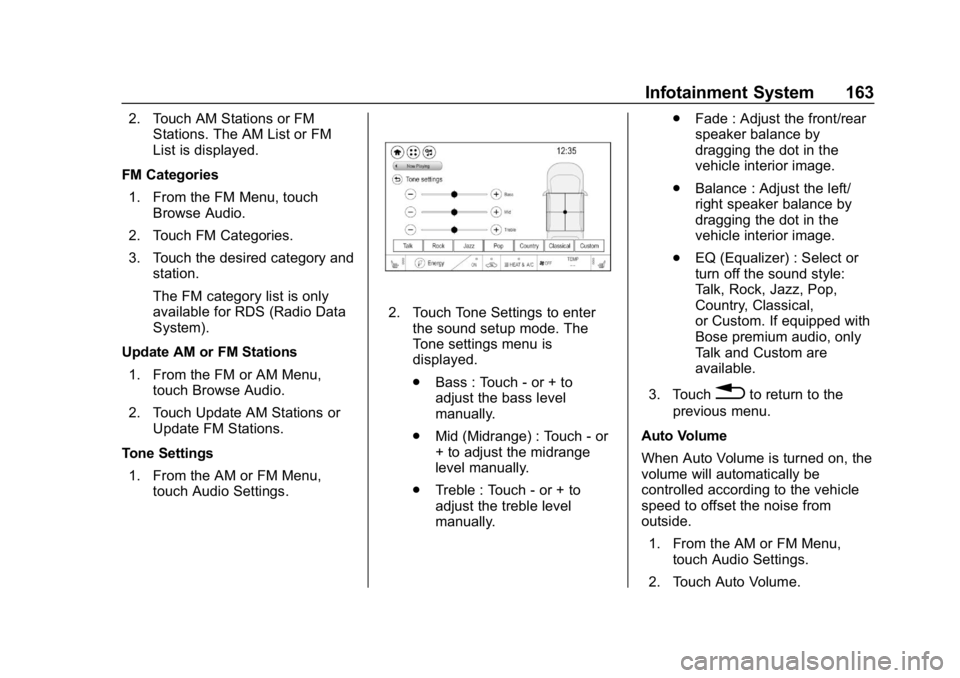
Tone Settings 1. From the AM or FM Menu, touch Audio Settings.
2. Touch Tone Settings to enterthe sound setup mode. The
Tone settings menu is
displayed.
.Bass : Touch - or + to
adjust the bass level
manually.
. Mid (Midrange) : Touch - or
+ to adjust the midrange
level manually.
. Treble : Touch - or + to
adjust the treble level
manually. .
Fade : Adjust the front/rear
speaker balance by
dragging the dot in the
vehicle interior image.
. Balance : Adjust the left/
right speaker balance by
dragging the dot in the
vehicle interior image.
. EQ (Equalizer) : Select or
turn off the sound style:
Talk, Rock, Jazz, Pop,
Country, Classical,
or Custom. If equipped with
Bose premium audio, only
Talk and Custom are
available.
3. Touch
0to return to the
previous menu.
Auto Volume
When Auto Volume is turned on, the
volume will automatically be
controlled according to the vehicle
speed to offset the noise from
outside. 1. From the AM or FM Menu, touch Audio Settings.
2. Touch Auto Volume.
Page 165 of 370
Chevrolet BOLT EV Owner Manual (GMNA-Localizing-U.S./Canada/Mexico-
11434431) - 2018 - crc - 2/14/18
164 Infotainment System
3. Select the desired option: Off,Low, Medium-Low, Medium,
Medium-High, or High.
RDS
The RDS function can be set
for FM. 1. From the FM Menu, touch Audio Settings.
2. Set RDS to On or Off.
Satellite Radio
Vehicles equipped with a SiriusXM®
satellite radio tuner and a valid
SiriusXM satellite radio subscription
can receive SiriusXM programming.
SiriusXM Satellite Radio
Service
SiriusXM is a satellite radio service
based in the 48 contiguous United
States and 10 Canadian provinces.
SiriusXM satellite radio has a wide
variety of programming and
commercial-free music, coast to
coast, and in digital-quality sound.
A fee is required to receive the
SiriusXM service. Refer to:
.
www.siriusxm.com or call
1-888-601-6296 (U.S.).
. www.siriusxm.ca or call
1-877-438-9677 (Canada).
Listening to SXM Radio
1. TouchT.
2. Touch Audio, then Source.
3. Touch SXM. The most recently listened to SXM channel is
displayed.
Searching for Channels
Automatically
Pressgordto automatically
search for available channels.
Searching for Channels
Directly
1. Touch Tune.
2. Using the keypad, enter the desired channel.
Searching for Channels Using
Favorites
Saving Favorites
1. Select the desired channel.
2. Touch
qor touch and hold the
favorite in the list to overwrite.
3. To delete a channel from Favorites, touch
q, or swipe
the channel from the list on the
right.
Up to 15 channels can be
saved in the Favorites list.
Listening to Favorites Directly 1. Touch Favorites to see the list of favorites.
2. Touch the desired channel.
Using the SXM Radio Menu
General Operation of the Menu 1. Touch Menu on the SXM radio screen.
2. Touch Browse Audio or Audio Settings to select and display
the item’ s detailed menu.
Page 166 of 370
Chevrolet BOLT EV Owner Manual (GMNA-Localizing-U.S./Canada/Mexico-
11434431) - 2018 - crc - 2/14/18
Infotainment System 165
3. TouchqNow Playing to return
to the previous screen.
Browse Audio
. Current Channel Information
Touch Current Channel
Information. The channel
information is displayed.
. SXM Channels
Touch SXM Channels. The SXM
List is displayed.
. SXM Categories
SXM categories are defined by
the SiriusXM service provider.
Touch SXM Categories, then
touch the desired category and
channel.
Audio Settings
. Tone Settings
Set up sound features from the
Tone Settings menu. See “Tone
Settings” under“AM-FM Radio”
previously in this section. .
Auto Volume
Volume will be automatically
controlled. See “Auto Volume”
under “AM-FM Radio” previously
in this section.
. Explicit Content Filter
Choose this menu item to turn
On or Off the filtering of explicit
channels from SXM. When
selected, this item will give a
brief description of the feature
and a list item can be set to On
or Off. From the SXM Menu,
touch Audio Settings. Set
Explicit Content Filter feature to
On or Off to allow for a filtered
list of channels.
Multi-Band Antenna
If equipped, the roof antenna is for
GPS (Global Positioning System).
Keep clear of obstructions for clear
reception.
Mobile Phone Usage
Mobile phone usage can cause
interference with the vehicle's radio.
Unplug the mobile phone or turn it
off if this occurs.
AM
The range for most AM stations is
greater than for FM, especially at
night. The longer range can cause
station frequencies to interfere with
each other. Static can occur when
things like storms and power lines
interfere with radio reception. When
this happens, try reducing the treble
on the radio.