display CHEVROLET BOLT EV 2018 Repair Manual
[x] Cancel search | Manufacturer: CHEVROLET, Model Year: 2018, Model line: BOLT EV, Model: CHEVROLET BOLT EV 2018Pages: 370, PDF Size: 5.14 MB
Page 168 of 370

Chevrolet BOLT EV Owner Manual (GMNA-Localizing-U.S./Canada/Mexico-
11434431) - 2018 - crc - 2/14/18
Infotainment System 167
.According to the type and
capacity of the USB storage
device and the type of the stored
file, the time it takes to recognize
the files may differ.
. Files in some USB storage
devices may not be recognized
due to compatibility problems.
. Do not disconnect the USB
storage device while it is being
played. This may cause damage
to the device or may affect the
performance of the USB device.
. The infotainment system can
only support two USB devices
for the front USB ports.
. Disconnect the connected USB
storage device when the vehicle
is off.
. USB storage devices can only
be connected to this device for
the purpose of playing music,
viewing photo files,
or upgrading.
. The USB terminal of the device
should not be used to charge
USB accessory equipment since the heat generation using the
USB terminal may cause
performance issues or damage
to the device.
. When the logical drive is
separated from a mass USB
storage device, only the files
from the top-level logical drive
can be played for USB music
files. For this reason, store
music files to be played in the
top-level drive of the device.
Music files in a particular USB
storage device may not play
normally if an application is
loaded by partitioning a separate
drive inside the USB device.
. Music files to which DRM (Digital
Right Management) is applied
cannot be played.
. The infotainment system can
support USB storage devices
that are in capacity with a limit of
5,000 files (music and photo),
and 15 stages of folder
structure. Normal usage cannot
be guaranteed for storage
devices that exceed this limit. The iPod/iPhone can play all
music files supported. The music
file lists display up to 5,000 files
on the screen in alphabetical
order.
. Some iPod/iPhone devices may
not support the connectivity or
functionality of the infotainment
system.
. Only connect the iPod/iPhone
with connection cables
supported by iPod/iPhone
devices. Other connection
cables cannot be used.
. When the iPod/iPhone device is
not being used, keep it
disconnected from the USB port
when the vehicle is off.
. Connect the iPod/iPhone to the
USB port by using the iPod/
iPhone cable to play the music
files on the iPod/iPhone. When
the iPod/iPhone is connected to
the AUX port, the music files are
played, but not controlled by
MyLink.
. iPod/iPhone movie file playback
is not supported.
Page 169 of 370
Chevrolet BOLT EV Owner Manual (GMNA-Localizing-U.S./Canada/Mexico-
11434431) - 2018 - crc - 2/14/18
168 Infotainment System
.The playback functions and the
information display items of the
iPod/iPhone used with this
infotainment system may be
different from the iPod/iPhone in
terms of play order, method, and
information displayed.
. See the manufacturer for
information related to the search
function provided by the iPod/
iPhone device.
USB Player
Playing USB Storage Device
Music Files
Connect the USB storage device
containing the music files to the
USB port.
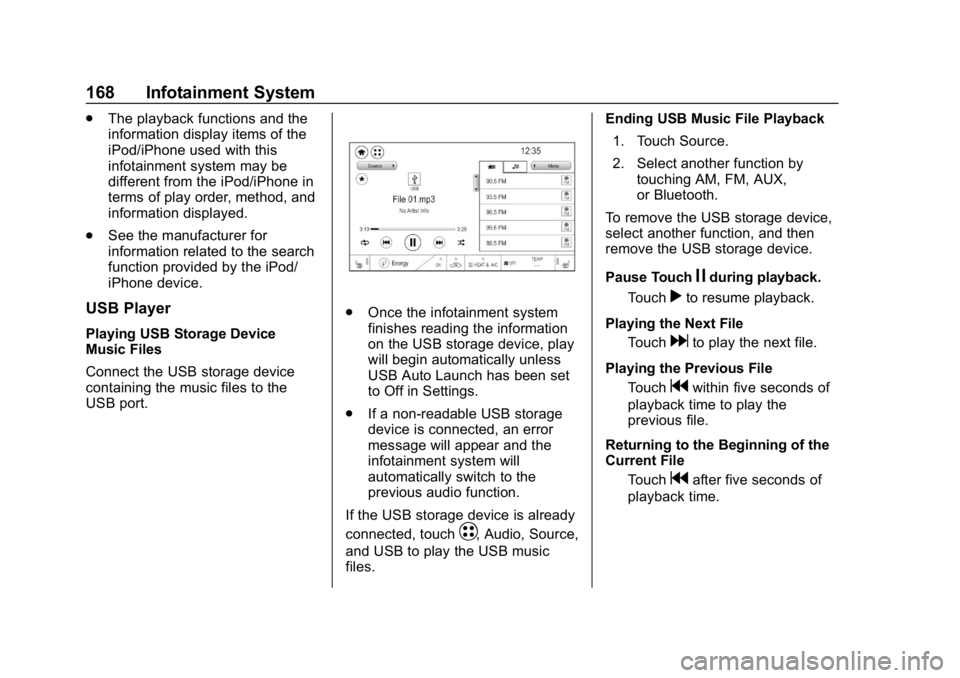
.Once the infotainment system
finishes reading the information
on the USB storage device, play
will begin automatically unless
USB Auto Launch has been set
to Off in Settings.
. If a non-readable USB storage
device is connected, an error
message will appear and the
infotainment system will
automatically switch to the
previous audio function.
If the USB storage device is already
connected, touch
T, Audio, Source,
and USB to play the USB music
files. Ending USB Music File Playback
1. Touch Source.
2. Select another function by touching AM, FM, AUX,
or Bluetooth.
To remove the USB storage device,
select another function, and then
remove the USB storage device.
Pause Touch
jduring playback.
Touch
rto resume playback.
Playing the Next File Touch
dto play the next file.
Playing the Previous File Touch
gwithin five seconds of
playback time to play the
previous file.
Returning to the Beginning of the
Current File Touch
gafter five seconds of
playback time.
Page 170 of 370
Chevrolet BOLT EV Owner Manual (GMNA-Localizing-U.S./Canada/Mexico-
11434431) - 2018 - crc - 2/14/18
Infotainment System 169
Scanning Forward or BackwardTouch and hold
gordduring
playback to rewind or fast
forward. Release
gordto
resume playback at normal
speed.
Playing Files Randomly Touch
Zduring playback.
Touch
Zagain to return to
normal playback.
Playing Files Repeatedly
1. Touch
"during playback.
2. Touch the desired option. .Repeat All: Plays all files
repeatedly.
. Repeat Song: Plays a
current file repeatedly.
. Repeat Off: Cancels the
repeat function.
Searching for a File by Using the
Favorites
Saving Favorites 1. Select the desired file. 2. Touch
q, or touch and hold the
favorite in the list to overwrite.
3. To delete it from the Favorites list, touch
q, or swipe the file
from the list on the right.
Up to 15 media files can be
saved in the Favorites list.
Listening to Favorites Directly 1. Touch the Favorites menu to see the Favorites list.
2. Touch the desired favorite to listen.
General Operation of the USB
Music Menu 1. Touch Menu on the USB music screen.
2. Touch the desired menu to select the item or to display the
item’s detailed menu.
3. Touch
qNow Playing to return
to the previous screen.
Browse Music 1. From the USB music menu, touch Browse Music. 2. Touch the desired item:
Playlists, Folders, Artists,
Songs, Albums, Genres, and
Composers.
3. Touch the desired music to listen.
The Infotainment Module will
recognize playlist files by the
extensions .asx, m3u, pls, wpl,
b4s, and .xspf.
Tone Settings
Set up sound features from the
Tone Settings menu. See “Tone
Settings” under“AM-FM Radio”
previously in this section.
Auto Volume
See “Auto Volume” under“AM-FM
Radio” previously in this section.
MTP (Media Transfer Protocol)
Player
Playing Music from a Supported
MTP Device
Connect the supported MTP device
containing music files to the
USB port.
Page 172 of 370
Chevrolet BOLT EV Owner Manual (GMNA-Localizing-U.S./Canada/Mexico-
11434431) - 2018 - crc - 2/14/18
Infotainment System 171
Returning to the Beginning of the
Current SongTouch
gafter two seconds of
playback time.
Scanning Forward or Backward Hold
gordduring playback
to rewind or fast forward.
Release
gordto resume
playback at normal speed.
Playing Files Randomly Touch
Zduring playback.
Touch
Zagain to return to
normal playback.
General Operation of the iPod
Music Menu 1. Touch Menu on the iPod music screen.
2. Touch the desired menu to select the item or to display the
item’s detailed menu.
3. Touch
qNow Playing to return
to the previous screen. Browse Music
1. From the iPod music menu, touch Browse Music.
2. Touch the desired music.
Tone Settings
Set up sound features from the
Tone Settings menu. See “Tone
Settings” under“AM-FM Radio”
previously in this section.
Auto Volume
Volume will be automatically
controlled. See “Auto Volume”under
“AM-FM Radio” previously in this
section.
Gallery (Pictures)
The infotainment system can view
picture files contained in the USB
storage device.
Before Using the Picture
System
. Only the following file extensions
are supported: *.jpg, *.bmp,
*.png, *.gif.
. Animated GIF is not supported. .
Some files may not operate due
to a different format or the
condition of the file.
Viewing a Picture
1. Connect the USB storage
device containing the picture
files to the USB port.
2. Press
{, thenT.
3. Touch Gallery, then select the desired picture folder.
4. Select the desired file.
. Touch the screen to hide the
control bar. Touch the screen
again to show the control bar.
. Some features are disabled
while the vehicle is in motion.
Viewing a Slide Show
.Touchzfrom the picture screen
and the slide show will play.
. Touch the screen to cancel the
slide show during slide show
playback.
Page 173 of 370
Chevrolet BOLT EV Owner Manual (GMNA-Localizing-U.S./Canada/Mexico-
11434431) - 2018 - crc - 2/14/18
172 Infotainment System
Viewing a Previous or Next
Picture
From the picture screen, touchSor
Tto view the previous or next
picture.
Rotating a Picture
From the picture screen, touchwto
rotate the picture.
Enlarging a Picture
From the picture screen, touchTto
enlarge the picture.
Using the USB Picture Menu
1. From the picture screen, touch Menu.
2. Touch the desired menu. .Slide Show Time: Select
the slide show interval.
. Clock/Temp Display: To
display the clock and
temperature on the full
screen, select On or Off.
. Display Settings: Adjust the
brightness and contrast. 3. After the setting is complete,
touch
0.
Auxiliary Devices
The AUX port is in the center
console. The infotainment system
can play auxiliary music connected
by the auxiliary device.
Playing Music from an
Auxiliary Device
Connect the auxiliary device
containing the music source to the
AUX port. Once connected with the
infotainment system, music can be
played from the device.
.If the auxiliary device is already
connected, touch
T, Audio,
Source, then AUX to play music
from the auxiliary device.
. Use an AUX cable with a
3.5 mm (1/8 in) type connector.
Tone Settings
From the AUX screen, touch Tone.
See “Tone Settings” under“AM-FM
Radio” previously in this section.
Bluetooth Audio
Bluetooth Music
If equipped, music may be played
from a paired Bluetooth device.
Refer to the Phone section for help
pairing a device.
Before Playing Bluetooth Music
.
The paired bluetooth device
must support Bluetooth profiles:
A2DP or AVRCP.
. Bluetooth music may not be
supported depending on the
mobile phone or Bluetooth
device.
. From the mobile phone or
Bluetooth device, find the
Bluetooth device type to set/
connect the item.
. A♪will appear on the screen to
indicate a successful Audio
Bluetooth connection.
. The sound played by the
Bluetooth device is delivered
through the infotainment system.
Page 175 of 370
Chevrolet BOLT EV Owner Manual (GMNA-Localizing-U.S./Canada/Mexico-
11434431) - 2018 - crc - 2/14/18
174 Infotainment System
.Repeat Off: Cancels repeat
function.
General Operation of the
Bluetooth Music Menu 1. Touch Menu on the Bluetooth music screen.
2. Touch the desired menu to select the item or to display the
item’s detailed menu.
3. Touch
qNow Playing to return
to the previous menu.
Browse Music
This function may not be supported
depending on the mobile phone. 1. From the Bluetooth music menu, touch Browse Music.
2. Touch the desired item. The number of relevant songs is
displayed.
3. Touch the desired music to listen. Tone Settings
From the Bluetooth music menu,
sound features can be set up. See
“Tone Settings”
under“AM-FM
Radio” previously in this section.
Auto Volume
Volume will be automatically
controlled. See “Auto Volume”under
“AM-FM Radio” previously in this
section.
Manage Bluetooth Devices
1. From the Bluetooth music menu, touch Audio Settings.
2. Touch Manage Bluetooth Devices.
3. Select the desired device and then connect/disconnect or
delete.
Playing Bluetooth Music
. Do not change the track too
quickly when playing Bluetooth
music.
. It takes some time to transmit
data from the mobile phone or
Bluetooth device to the infotainment system. The
infotainment system outputs the
audio from the mobile phone or
Bluetooth device as it is
transmitted.
. If the mobile phone or Bluetooth
device is not in the idle screen
mode, it may not automatically
play despite being carried out
from the Bluetooth music
play mode.
. The infotainment system
transmits the order to play from
the mobile phone in the
Bluetooth music play mode.
If this is done in a different
mode, then the device transmits
the order to stop. Depending on
the mobile phone’s options, this
order to play/stop may take time
to activate.
. If Bluetooth music playback is
not functioning, then check to
see if the mobile phone is in the
idle screen mode.
. Sometimes, sounds may be cut
off during Bluetooth music
playback.
Page 177 of 370
Chevrolet BOLT EV Owner Manual (GMNA-Localizing-U.S./Canada/Mexico-
11434431) - 2018 - crc - 2/14/18
176 Infotainment System
.Due to the variety of Bluetooth
devices and their firmware
versions, the device may
respond differently when
performing over Bluetooth.
. See the device’ s user guide for
questions about Bluetooth
functionality.
. Multi-pairing is not supported.
Pairing and Connecting
Bluetooth
To use the Bluetooth feature, make
sure the Bluetooth on the device is
turned on and the device is in
discoverable mode. See the
Bluetooth device’ s user guide.
When There Is no Paired Device
on the Infotainment System
1. Touch
T.
2. Touch Phone, then Add Device.
3. From the device’s Bluetooth settings list, select Chevrolet
MyLink.
4. Touch Code Matches. 5. Verify phone matches.
When the Bluetooth device and
infotainment system are
successfully paired, the Phone
screen appears on the infotainment
display.
When the connection fails, a failure
message appears on the
infotainment display.
When There Is a Paired Device on
the Infotainment System
1. Touch
T.
2. Touch Settings, then Devices on the display.
3. Touch the device to pair from the list, and then follow Step 5.
To add a device not in the list,
touch Add Device.
4. From the device’s Bluetooth settings list, select Chevrolet
MyLink.
5. When the Bluetooth device and the infotainment system are
successfully paired,
e/5is
displayed. ‐
The connected mobile phone
is highlighted by a
5mark.
‐ The
e/5mark indicates the
hands-free and mobile phone
music function are enabled.
‐ The
5mark indicates only
Hands-Free function is
enabled.
‐ The
emark indicates only
Bluetooth music is enabled.
. When the Bluetooth device and
the infotainment system are
successfully paired, the contact
list downloads automatically,
depending on the type of mobile
phone. If the contact list does
not download automatically,
proceed with the download on
the mobile phone. Always
accept the contact list request
on the initial pairing of the
mobile phone.
. The infotainment system can
register up to 10 Bluetooth
devices.
Page 178 of 370
Chevrolet BOLT EV Owner Manual (GMNA-Localizing-U.S./Canada/Mexico-
11434431) - 2018 - crc - 2/14/18
Infotainment System 177
.When the connection fails, the
failure message displays on the
infotainment system.
. If the contact list has more than
5,000 contacts, the infotainment
system may not properly list the
remaining entries.
. Depending on the number of
contact entries, pairing time
may vary.
Checking the Connected
Bluetooth Device
1. TouchT.
2. Touch Settings, then Devices.
3. The connected device will be displayed on the top of the list.
Disconnecting the Bluetooth
Device
1. TouchT.
2. Touch Settings, then Devices.
3. Touch the name of the device to disconnect.
4. Touch Disconnect Device.
Connecting the Bluetooth
Device
1. TouchT.
2. Touch Settings, then Devices.
3. Touch the device to connect.
Deleting the Bluetooth Device
1. TouchT.
2. Touch Settings, then Devices.
3. Touch Delete next to the device to delete.
4. Touch Delete.
Apple CarPlay and
Android Auto
If equipped, Android Auto and/or
Apple CarPlay capability may be
available through a compatible
smartphone. If available, Projection
will appear on the Home Page of
the infotainment display. To use Android Auto or Apple
CarPlay:
1. Download the Android Auto app to your phone from the
Google Play store. No app is
required for Apple CarPlay.
2. Connect an Android phone or iPhone by using the compatible
phone USB cable and plugging
into a USB data port. For best
performance, use the device’ s
factory-provided USB cable.
Aftermarket or third-party
cables may not work.
3. When the phone is first connected to activate Apple
CarPlay or Android Auto, the
message “Device Projection
Privacy Consent” will appear.
. Select Continue to launch
Apple CarPlay or
Android Auto.
. Select Disable to remove
Apple CarPlay and Android
Auto capability from the
vehicle Settings menu.
Other functions may
still work.
Page 179 of 370
Chevrolet BOLT EV Owner Manual (GMNA-Localizing-U.S./Canada/Mexico-
11434431) - 2018 - crc - 2/14/18
178 Infotainment System
Projection on the Home Page will
change to Android Auto or Apple
CarPlay depending on the phone.
Android Auto and/or Apple CarPlay
may automatically launch upon USB
connection. If not, touch the Android
Auto and/or Apple CarPlay icon on
the Home Page to launch.
Press
{on the center stack to
return to the Home Page.
For further information on how to set
up Android Auto and Apple CarPlay
in the vehicle, see
www.my.chevrolet.com or see
Customer Assistance Offices 0334.
Android Auto is provided by Google
and is subject to Google’s terms
and privacy policy. Apple CarPlay is
provided by Apple and is subject to
Apple’ s terms and privacy policy.
Data plan rates apply. For Android
Auto support see https://
support.google.com/androidauto.
For Apple CarPlay support see
www.apple.com/ios/carplay/. Apple
or Google may change or suspend
availability at any time. Android
Auto, Android, Google, Google Play, and other marks are trademarks of
Google Inc.; Apple CarPlay is a
trademark of Apple Inc.
Hands-Free Phone
Making a Call by Entering the
Phone Number
1. TouchT.
2. Touch Phone.
3. Enter the phone number using the keypad on the Phone
screen.
4. Touch
5on the display to call
the phone number.
If the wrong number is entered,
touch
zto delete the entered
number one digit at a time. Or touch
and hold
zto delete all entered
numbers.
Switching a Call to the Mobile
Phone (Private Mode)
1. To switch the call to the mobile phone instead of the Bluetooth
hands-free, touch
0. 2. To switch the call back to the
Bluetooth hands-free, touch
0
again.
Switching the Microphone
On/Off
Switch the microphone on/off by
touching
3.
Calling by Re-Dial
Touch5on the display.
Taking Calls
1. When a phone call comesthrough the Bluetooth
connected mobile phone, the
playing track will be cut off and
the phone will ring with the
relevant information displayed.
2. To talk on the phone, press
g
on the steering wheel control or
touch
5on the display.
To reject the call, press
con
the steering wheel control or
touch
Kon the display.
Page 181 of 370
Chevrolet BOLT EV Owner Manual (GMNA-Localizing-U.S./Canada/Mexico-
11434431) - 2018 - crc - 2/14/18
180 Infotainment System
Settings
Operation of the Settings Menu
The infotainment system can be
customized to make it easier to use.1. Touch
T.
2. Touch Settings.
3. Touch the desired menu to select the item or to display the
item’s detailed menu.
4. Touch
0to return to the
previous menu.
Settings menus and functions may
vary depending on vehicle options.
Radio Settings
1. TouchT.
2. Touch Settings, then touch Radio Settings.
.Auto Volume: Volume will
be automatically controlled.
See “Auto Volume” under
“AM-FM Radio” previously
in this section. .
Maximum Start-up volume:
Set the Maximum start-up
volume from 13 to 37.
. Audio Cues: Set the Audio
Cues feature to On or Off.
. Audio Cues Volume: Set
the Audio Cues Volume
from 10 to 63.
Audio Cues Volume is only available
when Audio Cues is set to On.
Devices
1. TouchT.
2. Touch Settings, then touch Devices.
3. Select the desired device and connect/disconnect or delete.
To add a new Bluetooth device,
touch Add Device.
Bluetooth Phone
1. TouchT. 2. Touch Settings, then Bluetooth
Phone and touch
Yto scroll to
the desired mobile phone. This
is only available when the
device is connected.
. My Number: Displays the
current connected phone
number.
. Privacy: Set whether or not
incoming call alerts are
shown on the infotainment
display.
. Sort Contacts: Set to First
name, surname or
Surname, first name.
. Resync Device Contacts:
Resync the contacts list for
the current connected
mobile phone.
Apple CarPlay
1. TouchT.
2. Touch Settings and find Apple CarPlay.
3. Select On or Off.