change time CHEVROLET BOLT EV 2021 User Guide
[x] Cancel search | Manufacturer: CHEVROLET, Model Year: 2021, Model line: BOLT EV, Model: CHEVROLET BOLT EV 2021Pages: 293, PDF Size: 9.21 MB
Page 100 of 293
Chevrolet Bolt EV Owner Manual (GMNA-Localizing-U.S./Canada-
14637856) - 2021 - CRC - 10/2/20
Instruments and Controls 99
3. PressOagain to turn the radio on.
Driver Information Center (DIC)
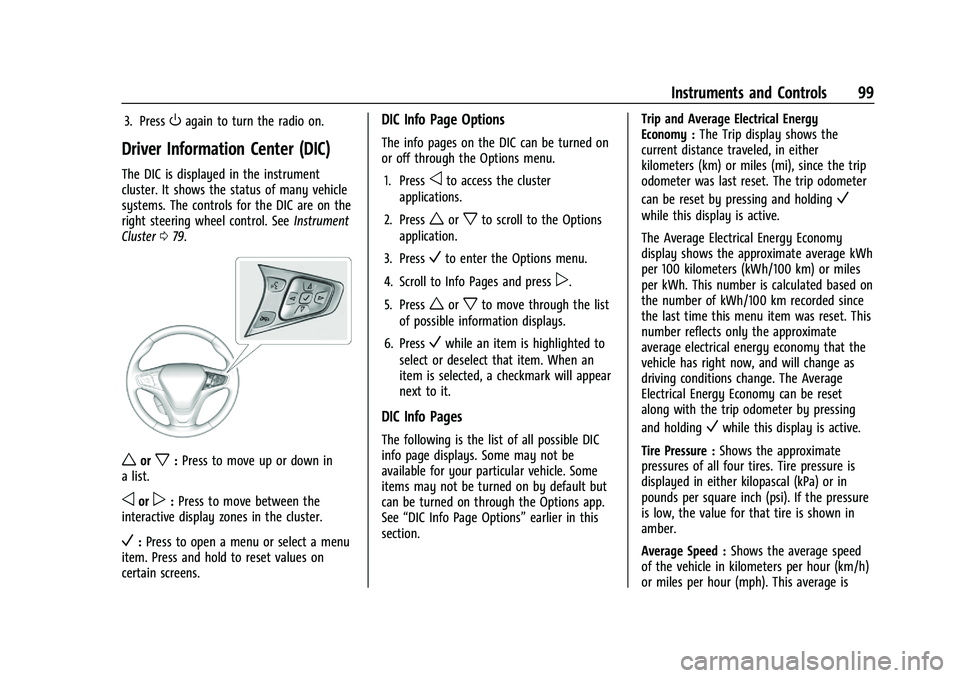
The DIC is displayed in the instrument
cluster. It shows the status of many vehicle
systems. The controls for the DIC are on the
right steering wheel control. SeeInstrument
Cluster 079.
worx:Press to move up or down in
a list.
oorp: Press to move between the
interactive display zones in the cluster.
V: Press to open a menu or select a menu
item. Press and hold to reset values on
certain screens.
DIC Info Page Options
The info pages on the DIC can be turned on
or off through the Options menu.
1. Press
oto access the cluster
applications.
2. Press
worxto scroll to the Options
application.
3. Press
Vto enter the Options menu.
4. Scroll to Info Pages and press
p.
5. Press
worxto move through the list
of possible information displays.
6. Press
Vwhile an item is highlighted to
select or deselect that item. When an
item is selected, a checkmark will appear
next to it.
DIC Info Pages
The following is the list of all possible DIC
info page displays. Some may not be
available for your particular vehicle. Some
items may not be turned on by default but
can be turned on through the Options app.
See “DIC Info Page Options” earlier in this
section. Trip and Average Electrical Energy
Economy :
The Trip display shows the
current distance traveled, in either
kilometers (km) or miles (mi), since the trip
odometer was last reset. The trip odometer
can be reset by pressing and holding
V
while this display is active.
The Average Electrical Energy Economy
display shows the approximate average kWh
per 100 kilometers (kWh/100 km) or miles
per kWh. This number is calculated based on
the number of kWh/100 km recorded since
the last time this menu item was reset. This
number reflects only the approximate
average electrical energy economy that the
vehicle has right now, and will change as
driving conditions change. The Average
Electrical Energy Economy can be reset
along with the trip odometer by pressing
and holding
Vwhile this display is active.
Tire Pressure : Shows the approximate
pressures of all four tires. Tire pressure is
displayed in either kilopascal (kPa) or in
pounds per square inch (psi). If the pressure
is low, the value for that tire is shown in
amber.
Average Speed : Shows the average speed
of the vehicle in kilometers per hour (km/h)
or miles per hour (mph). This average is
Page 108 of 293
Chevrolet Bolt EV Owner Manual (GMNA-Localizing-U.S./Canada-
14637856) - 2021 - CRC - 10/2/20
Lighting 107
Lighting
Exterior Lighting
Exterior Lamp Controls . . . . . . . . . . . . . . . . 107
Exterior Lamps Off Reminder . . . . . . . . . . 108
Headlamp High/Low-Beam Changer . . . 108
Flash-to-Pass . . . . . . . . . . . . . . . . . . . . . . . . . . . 109
Daytime Running Lamps (DRL) . . . . . . . . 109
Automatic Headlamp System . . . . . . . . . . 109
Hazard Warning Flashers . . . . . . . . . . . . . . 110
Turn and Lane-Change Signals . . . . . . . . . 110
Interior Lighting
Instrument Panel IlluminationControl . . . . . . . . . . . . . . . . . . . . . . . . . . . . . . . 110
Courtesy Lamps . . . . . . . . . . . . . . . . . . . . . . . . 111
Dome Lamps . . . . . . . . . . . . . . . . . . . . . . . . . . . 111
Reading Lamps . . . . . . . . . . . . . . . . . . . . . . . . . 111
Lighting Features
Entry Lighting . . . . . . . . . . . . . . . . . . . . . . . . . . 111
Exit Lighting . . . . . . . . . . . . . . . . . . . . . . . . . . . 112
Battery Power Protection . . . . . . . . . . . . . . 112
Exterior Lighting Battery Saver . . . . . . . . . 112
Exterior Lighting
Exterior Lamp Controls
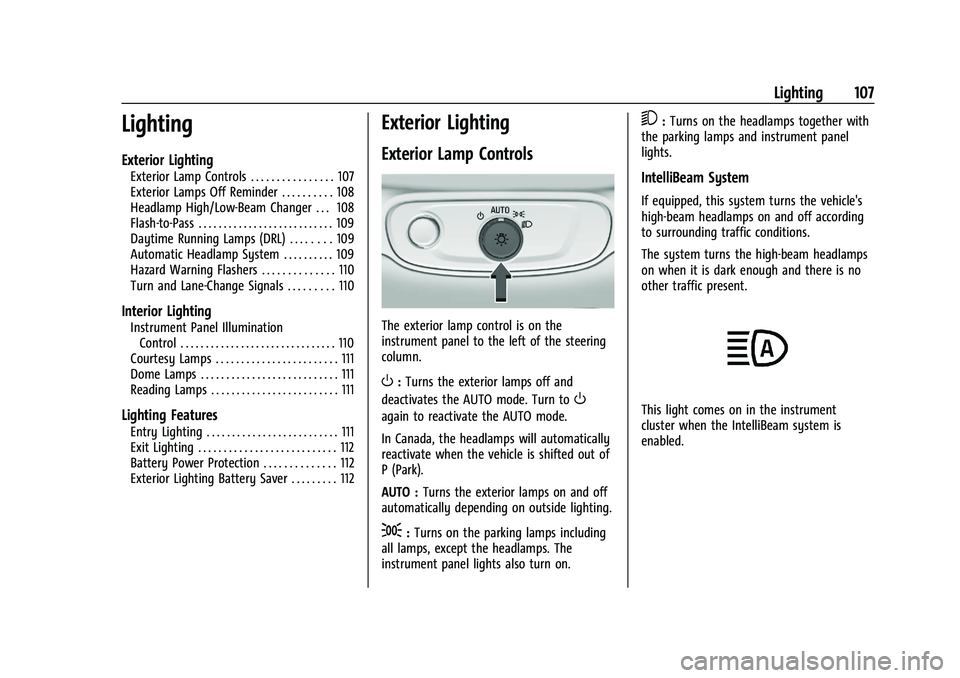
The exterior lamp control is on the
instrument panel to the left of the steering
column.
O: Turns the exterior lamps off and
deactivates the AUTO mode. Turn to
O
again to reactivate the AUTO mode.
In Canada, the headlamps will automatically
reactivate when the vehicle is shifted out of
P (Park).
AUTO : Turns the exterior lamps on and off
automatically depending on outside lighting.
;: Turns on the parking lamps including
all lamps, except the headlamps. The
instrument panel lights also turn on.
5: Turns on the headlamps together with
the parking lamps and instrument panel
lights.
IntelliBeam System
If equipped, this system turns the vehicle's
high-beam headlamps on and off according
to surrounding traffic conditions.
The system turns the high-beam headlamps
on when it is dark enough and there is no
other traffic present.
This light comes on in the instrument
cluster when the IntelliBeam system is
enabled.
Page 110 of 293
Chevrolet Bolt EV Owner Manual (GMNA-Localizing-U.S./Canada-
14637856) - 2021 - CRC - 10/2/20
Lighting 109
This indicator light turns on in the
instrument cluster when the high-beam
headlamps are on.
Flash-to-Pass
To flash the high beams, pull the turn signal
lever toward you, and release.
Daytime Running Lamps (DRL)
DRL can make it easier for others to see the
front of your vehicle during the day. Fully
functional DRL are required on all vehicles
first sold in Canada.
The DRL system comes on in daylight when
the following conditions are met:
.The power button is on.
.The exterior lamp control is in AUTO.
.The light sensor determines it is daytime.
.The vehicle is not in P (Park).
When the DRL are on, the taillamps,
sidemarker lamps, instrument panel lights,
and other lamps will not be on. The DRL turn off when the headlamps are
turned to
Por the vehicle is off.
For vehicles first sold in Canada, the DRL can
only be turned off when the vehicle is
parked.
Automatic Headlamp System
The headlamps come on automatically when
the exterior lamp control is set to AUTO and
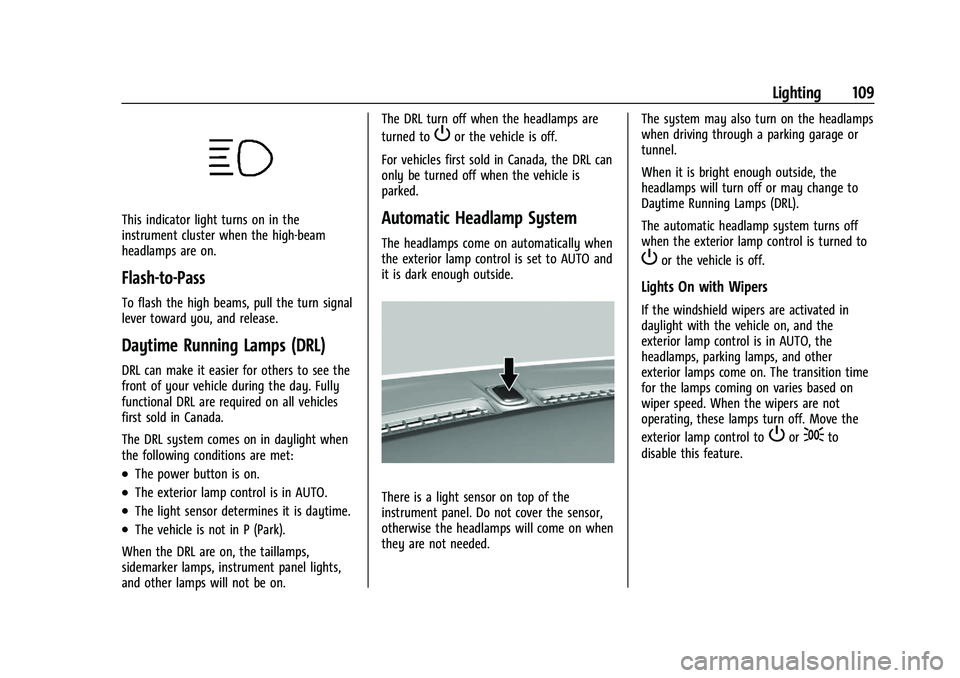
it is dark enough outside.
There is a light sensor on top of the
instrument panel. Do not cover the sensor,
otherwise the headlamps will come on when
they are not needed. The system may also turn on the headlamps
when driving through a parking garage or
tunnel.
When it is bright enough outside, the
headlamps will turn off or may change to
Daytime Running Lamps (DRL).
The automatic headlamp system turns off
when the exterior lamp control is turned to
Por the vehicle is off.
Lights On with Wipers
If the windshield wipers are activated in
daylight with the vehicle on, and the
exterior lamp control is in AUTO, the
headlamps, parking lamps, and other
exterior lamps come on. The transition time
for the lamps coming on varies based on
wiper speed. When the wipers are not
operating, these lamps turn off. Move the
exterior lamp control to
Por;to
disable this feature.
Page 111 of 293
Chevrolet Bolt EV Owner Manual (GMNA-Localizing-U.S./Canada-
14637856) - 2021 - CRC - 10/2/20
110 Lighting
Hazard Warning Flashers
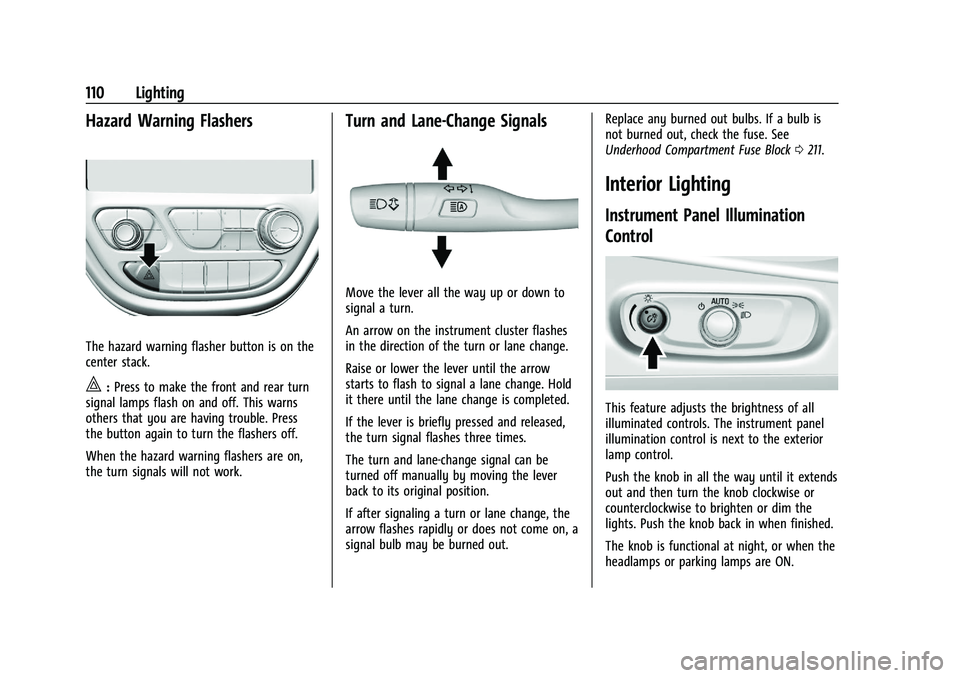
The hazard warning flasher button is on the
center stack.
|:Press to make the front and rear turn
signal lamps flash on and off. This warns
others that you are having trouble. Press
the button again to turn the flashers off.
When the hazard warning flashers are on,
the turn signals will not work.
Turn and Lane-Change Signals
Move the lever all the way up or down to
signal a turn.
An arrow on the instrument cluster flashes
in the direction of the turn or lane change.
Raise or lower the lever until the arrow
starts to flash to signal a lane change. Hold
it there until the lane change is completed.
If the lever is briefly pressed and released,
the turn signal flashes three times.
The turn and lane-change signal can be
turned off manually by moving the lever
back to its original position.
If after signaling a turn or lane change, the
arrow flashes rapidly or does not come on, a
signal bulb may be burned out. Replace any burned out bulbs. If a bulb is
not burned out, check the fuse. See
Underhood Compartment Fuse Block
0211.
Interior Lighting
Instrument Panel Illumination
Control
This feature adjusts the brightness of all
illuminated controls. The instrument panel
illumination control is next to the exterior
lamp control.
Push the knob in all the way until it extends
out and then turn the knob clockwise or
counterclockwise to brighten or dim the
lights. Push the knob back in when finished.
The knob is functional at night, or when the
headlamps or parking lamps are ON.
Page 113 of 293
Chevrolet Bolt EV Owner Manual (GMNA-Localizing-U.S./Canada-
14637856) - 2021 - CRC - 10/2/20
112 Lighting
This feature can be changed. See“Vehicle
Locator Lights” underVehicle Personalization
0 101.
Exit Lighting
Some exterior lamps and interior lamps
come on at night, or in areas with limited
lighting, when the driver door is opened
after the ignition is turned off. The exterior
lamps and interior lamps remain on for a
set amount of time, then automatically
turn off.
The exterior lamps turn off immediately
by turning the exterior lamp control off.
This feature can be changed. See Vehicle
Personalization 0101.
Battery Power Protection
The battery saver feature is designed to
protect the vehicle's 12-volt battery.
If some interior lamps and/or the headlamps
are left on and the vehicle is turned off, the
battery rundown protection system
automatically turns the lamp off after
some time.
Exterior Lighting Battery Saver
The exterior lamps turn off about 10 minutes
after the ignition is turned off, if the parking
lamps or headlamps have been manually
left on. This protects against draining the
battery. To restart the 10-minute timer, turn
the exterior lamp control to the off position
and then back to the parking lamp or
headlamp position.
To keep the lamps on for more than
10 minutes, the ignition must be on.
Page 121 of 293
Chevrolet Bolt EV Owner Manual (GMNA-Localizing-U.S./Canada-
14637856) - 2021 - CRC - 10/2/20
120 Infotainment System
interfere with each other. Static can also
occur when things like storms and power
lines interfere with radio reception. When
this happens, try reducing the treble on the
radio.
SiriusXM Satellite Radio Service
If equipped, SiriusXM Satellite Radio Service
provides digital radio reception. Tall
buildings or hills can interfere with satellite
radio signals, causing the sound to fade in
and out. In addition, traveling or standing
under heavy foliage, bridges, garages,
or tunnels may cause loss of the SiriusXM
signal for a period of time. Some cellular
services may interfere with SXM reception
causing loss of signal.
Mobile Device Usage
Mobile device usage, such as making or
receiving calls, charging, or just having the
mobile device on may cause static
interference in the radio. Unplug the mobile
device or turn it off if this happens.
Multi-Band Antenna
The roof antenna may be used for radio,
navigation, and OnStar, depending on the
equipped options. Keep clear of obstructionsfor clear reception. If the vehicle has a
sunroof, and it is open, reception can also
be affected.
Audio Players
USB Port
The USB ports are in the center console and
are for data and charging. If equipped, there
are two USB charge ports in the rear of the
center console. The infotainment system can
play the music files contained in the USB
storage device or a device that supports
MTP or iPod/iPhone devices.
Caution
To avoid vehicle damage, unplug all
accessories and disconnect all accessory
cables from the vehicle when not in use.
Accessory cables left plugged into the
vehicle, unconnected to a device, could be
damaged or cause an electrical short if
the unconnected end comes in contact
with liquids or another power source such
as the accessory power outlet.
Before Using the Audio System
Supported Audio File Formats
.MP3 (MPEG-1 Layer 3, MPEG-2 Layer 3)
Constant Bit Rate (CBR) between 8 and
320 kbps
Variable Bit Rate (VBR)
Sampling frequencies of 8, 11.025, 12, 16,
22.05, 24, 32, 44.1, and 48 kHz
.Windows Media Audio
Windows Media Audio 10
CBR between 32 and 768 kbps
VBR (Standard), Professional, Lossless,
or higher according to Microsoft
specifications
Sampling frequencies of 8, 12, 16, 22, 32,
44.1, and 48 kHz
.AAC (MPEG-4 AAC, Low Complexity
Profile) and AAC+
CBR between 8 and 320 kbps
.OGG Vorbis
.Waveform (WAV
–PCM Windows format)
.Audio Interchange File Format (AIFF)
.3GPP (Generally used for mobile devices)
.Audio Books (MP3, AAC, AA)
Page 125 of 293
Chevrolet Bolt EV Owner Manual (GMNA-Localizing-U.S./Canada-
14637856) - 2021 - CRC - 10/2/20
124 Infotainment System
.Other operations are the same as the USB
player. See“USB Player” under“USB Port”
previously in this section.
.The USB connection setting on the device
may need to be changed to MTP.
iPod/iPhone Player
This is limited to devices supporting the
iPod/iPhone connection.
Playing iPod/iPhone Music Files
Use an Apple certified cord to connect the
iPod/iPhone containing the music files to
the USB port.
.Once the infotainment system finishes
reading the information on the iPod/
iPhone, it will be automatically played
from the previously played point. If Auto
Launch in Settings is set to Off, it will not
be automatically played.
If the iPod/iPhone is already connected,
touch
T, Audio, Source, then iPod to play
the iPod/iPhone.
Ending iPod/iPhone Playback
1. Touch Source.
2. Select another function by touching AM, FM, AUX, or Bluetooth, or unplug the
iPod/iPhone. To remove the iPod/iPhone, select another
function, and then remove the iPod/iPhone.
Pause
ITouch
jduring playback.
ITouch
rto resume playback.
Playing the Next Song
ITouch
dto play the next song.
Playing the Previous Song
ITouch
gwithin two seconds of
playback time to play the
previous song.
Returning to the Beginning of the
Current Song
ITouch
gafter two seconds of
playback time.
Scanning Forward or Backward
IHold
gordduring playback to
rewind or fast forward. Release
gor
dto resume playback at normal
speed. Playing Files Randomly
ITouch
Zduring playback.
ITouch
Zagain to return to normal
playback.
Browse Music 1. Touch Browse Music.
2. Touch the desired music.
Tone Settings
Set up sound features from the Tone
Settings menu. See “Tone Settings”under
“AM-FM Radio” previously in this section.
Auto Volume
Volume will be automatically controlled. See
“Auto Volume” under“AM-FM Radio”
previously in this section.
Gallery (Pictures)
The infotainment system can view picture
files contained in the USB storage device.
Before Using the Picture System
.Only the following file extensions are
supported: *.jpg, *.bmp, *.png, *.gif.
.Animated GIF is not supported.
Page 128 of 293
Chevrolet Bolt EV Owner Manual (GMNA-Localizing-U.S./Canada-
14637856) - 2021 - CRC - 10/2/20
Infotainment System 127
Browse Music
This function may not be supported
depending on the mobile phone.1. Touch Browse Music.
2. Touch the desired item. The number of relevant songs is displayed.
3. Touch the desired music to listen.
Tone Settings
From the Bluetooth music menu, sound
features can be set up. See “Tone Settings”
under “AM-FM Radio” previously in this
section.
Auto Volume
Volume will be automatically controlled. See
“Auto Volume” under“AM-FM Radio”
previously in this section.
Manage Bluetooth Devices
1. Touch Audio Settings.
2. Touch Manage Bluetooth Devices.
3. Select the desired device and then connect/disconnect or delete.
Playing Bluetooth Music
.Do not change the track too quickly when
playing Bluetooth music.
.It takes some time to transmit data from
the mobile phone or Bluetooth device to
the infotainment system. The
infotainment system outputs the audio
from the mobile phone or Bluetooth
device as it is transmitted.
.If the mobile phone or Bluetooth device is
not in the idle screen mode, it may not
automatically play despite being carried
out from the Bluetooth music play mode.
.The infotainment system transmits the
order to play from the mobile phone in
the Bluetooth music play mode. If this is
done in a different mode, then the device
transmits the order to stop. Depending on
the mobile phone’s options, this order to
play/stop may take time to activate.
.If Bluetooth music playback is not
functioning, then check to see if the
mobile phone is in the idle screen mode.
.Sometimes, sounds may be cut off during
Bluetooth music playback.
OnStar System
OnStar with 4G LTE
If equipped with OnStar 4G LTE, up to seven
devices, such as smartphones, tablets, and
laptops, can be connected to high-speed
Internet through the vehicle’s built-in Wi-Fi
hotspot.
Call 1-888-4-ONSTAR (1-888-466-7827) to
connect to an OnStar Advisor for assistance.
See www.onstar.com for a detailed
instruction guide, vehicle availability, details,
and system limitations. Services and apps
vary by make, model, year, carrier,
availability, and conditions. 4G LTE service is
available in select markets. 4G LTE
performance is based on industry averages
and vehicle systems design. Some services
require a data plan.
Phone
Bluetooth
Bluetooth Wireless Technology
Bluetooth wireless technology establishes a
wireless link between two devices supported
with Bluetooth. After the initial pairing, the
two devices can connect automatically when
Page 130 of 293
Chevrolet Bolt EV Owner Manual (GMNA-Localizing-U.S./Canada-
14637856) - 2021 - CRC - 10/2/20
Infotainment System 129
.If the contact list has more than 5,000
contacts, the infotainment system may
not properly list the remaining entries.
.Depending on the number of contact
entries, pairing time may vary.
Checking the Connected Bluetooth
Device
1. TouchT.
2. Touch Settings, then Devices.
3. The connected device will be displayed on the top of the list.
Disconnecting the Bluetooth Device
1. TouchT.
2. Touch Settings, then Devices.
3. Touch the name of the device to disconnect.
4. Touch Disconnect Device.
Connecting the Bluetooth Device
1. TouchT.
2. Touch Settings, then Devices.
3. Touch the device to connect.
Deleting the Bluetooth Device
1. TouchT. 2. Touch Settings, then Devices.
3. Touch Delete next to the device to
delete.
4. Touch Delete.
Apple CarPlay and Android Auto
If equipped, Android Auto and/or Apple
CarPlay capability may be available through
a compatible smartphone. If available,
Projection will appear on the Home Page of
the infotainment display.
To use Android Auto or Apple CarPlay: 1. Download the Android Auto app to your phone from the Google Play store. No
app is required for Apple CarPlay.
2. Connect an Android phone or iPhone by using the compatible phone USB cable
and plugging into a USB data port. For
best performance, use the device’s
factory-provided USB cable. Aftermarket
or third-party cables may not work.
3. When the phone is first connected to activate Apple CarPlay or Android Auto,
the message “Device Projection Privacy
Consent” will appear.
.Select Continue to launch Apple
CarPlay or Android Auto.
.Select Disable to remove Apple
CarPlay and Android Auto capability
from the vehicle Settings menu.
Other functions may still work.
Projection on the Home Page will change to
Android Auto or Apple CarPlay depending on
the phone. Android Auto and/or Apple
CarPlay may automatically launch upon USB
connection. If not, touch the Android Auto
and/or Apple CarPlay icon on the Home
Page to launch.
Press
{on the center stack to return to the
Home Page.
For further information on how to set up
Android Auto and Apple CarPlay in the
vehicle, see www.my.chevrolet.com or see
Customer Assistance Offices 0264.
Android Auto is provided by Google and is
subject to Google’s terms and privacy policy.
Apple CarPlay is provided by Apple and is
subject to Apple’s terms and privacy policy.
Data plan rates apply. For Android Auto
support see https://support.google.com/
androidauto. For Apple CarPlay support see
www.apple.com/ios/carplay/. Apple or
Google may change or suspend availability
at any time. Android Auto, Android, Google,
Page 134 of 293
Chevrolet Bolt EV Owner Manual (GMNA-Localizing-U.S./Canada-
14637856) - 2021 - CRC - 10/2/20
Infotainment System 133
transmitter key is no longer
registered and a confirmation
message displays.
If a Teen Driver transmitter key and a
non-Teen Driver transmitter key are both
present at start up, the vehicle will
recognize the non-Teen Driver transmitter
key to start the vehicle. The Teen Driver
settings will not be active.
Manage Settings
Use the PIN to change the following
settings:
Audio Volume Limit : Allows a maximum
radio volume to be set. Turn the audio
volume limit On or Off, and if equipped,
choose the maximum level for the audio
volume.
Teen Driver Speed Warning : Allows for
setting a visual and audible warning when a
certain speed is exceeded. The speed
warning is selectable from 64 km/h
(40 mph) to 120 km/h (75 mph). The speed
warning does not limit the speed of the
vehicle.
Teen Driver Speed Limiter (If Equipped) :
Allows the maximum speed of the vehicle to
be limited to 137 km/h (85 mph). When the
speed limiter is turned On and the vehicle is started with a Teen Driver key, the DIC
displays a message that the top speed is
limited to 137 km/h (85 mph).
When Teen Driver is Active:
.The radio will mute when the driver seat
belt is not fastened, and in some vehicles,
when the right front passenger seat belt
is not fastened. The audio from any
device paired to the vehicle will also be
muted.
.Certain electronic devices placed on the
front passenger seat could cause the
passenger sensing system to falsely sense
an unbuckled front passenger and mute
the radio. See
Passenger Sensing System
0 44.
.Some safety systems, such as Automatic
Emergency Braking, if equipped and
supported, cannot be turned off.
.The gap setting for the Forward Collision
Alert, if equipped, cannot be changed.
Report Card
The vehicle owner must secure the driver’s
consent to record certain vehicle data when
the vehicle is driven with a registered Teen
Driver key. There is one Report Card per
vehicle. Data is not recorded when Teen
Driver is not active. The Report Card data is collected from the
time Teen Driver is activated or the last
time the Report Card was reset. The
following items may be recorded:
.Distance Driven
–the total distance
driven.
.Maximum Speed –the maximum vehicle
speed recorded.
.Overspeed Warnings –the number of
times the speed warning setting was
exceeded.
.Forward Collision Alerts –the number of
times the driver was notified when
approaching a vehicle ahead too quickly
and at potential risk for a crash.
.Forward Collision Avoidance Braking –the
number of times the vehicle detected that
a forward collision was imminent and
applied the brakes. Also referred to as
Automatic Emergency Braking.
.Stability Control –the number of events
which required the use of electronic
stability control.
.ABS Active –the number of Antilock
Brake System activations.
.Tailgating Alerts –the number of times
the driver was alerted for following the
vehicle ahead too closely.