steering CHEVROLET BOLT EV 2021 User Guide
[x] Cancel search | Manufacturer: CHEVROLET, Model Year: 2021, Model line: BOLT EV, Model: CHEVROLET BOLT EV 2021Pages: 293, PDF Size: 9.21 MB
Page 74 of 293
Chevrolet Bolt EV Owner Manual (GMNA-Localizing-U.S./Canada-
14637856) - 2021 - CRC - 10/2/20
Instruments and Controls 73
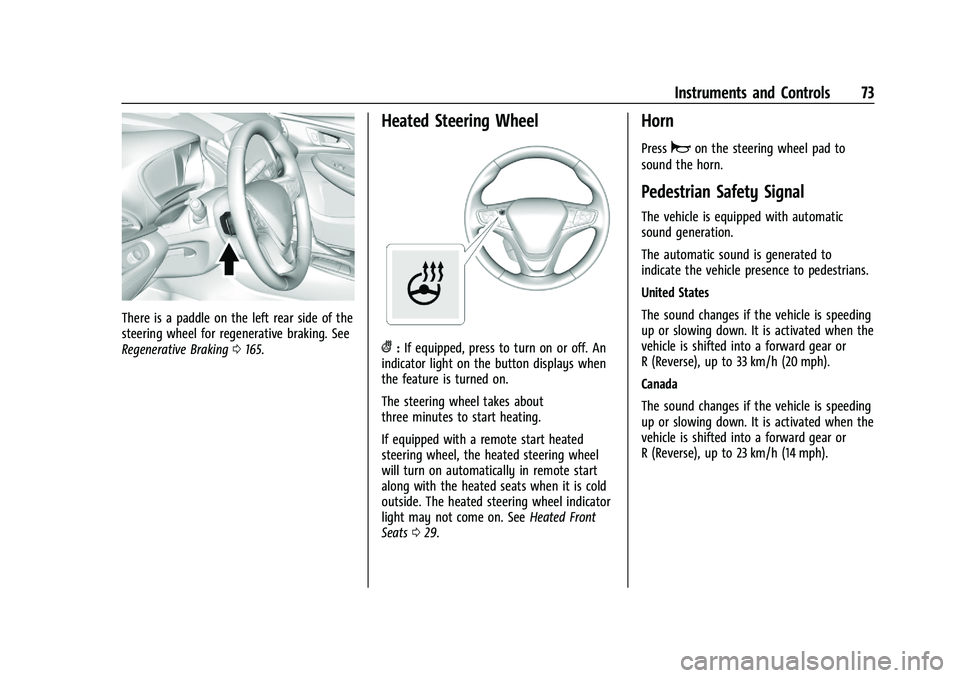
There is a paddle on the left rear side of the
steering wheel for regenerative braking. See
Regenerative Braking0165.
Heated Steering Wheel
(:If equipped, press to turn on or off. An
indicator light on the button displays when
the feature is turned on.
The steering wheel takes about
three minutes to start heating.
If equipped with a remote start heated
steering wheel, the heated steering wheel
will turn on automatically in remote start
along with the heated seats when it is cold
outside. The heated steering wheel indicator
light may not come on. See Heated Front
Seats 029.
Horn
Pressaon the steering wheel pad to
sound the horn.
Pedestrian Safety Signal
The vehicle is equipped with automatic
sound generation.
The automatic sound is generated to
indicate the vehicle presence to pedestrians.
United States
The sound changes if the vehicle is speeding
up or slowing down. It is activated when the
vehicle is shifted into a forward gear or
R (Reverse), up to 33 km/h (20 mph).
Canada
The sound changes if the vehicle is speeding
up or slowing down. It is activated when the
vehicle is shifted into a forward gear or
R (Reverse), up to 23 km/h (14 mph).
Page 75 of 293
Chevrolet Bolt EV Owner Manual (GMNA-Localizing-U.S./Canada-
14637856) - 2021 - CRC - 10/2/20
74 Instruments and Controls
Windshield Wiper/Washer
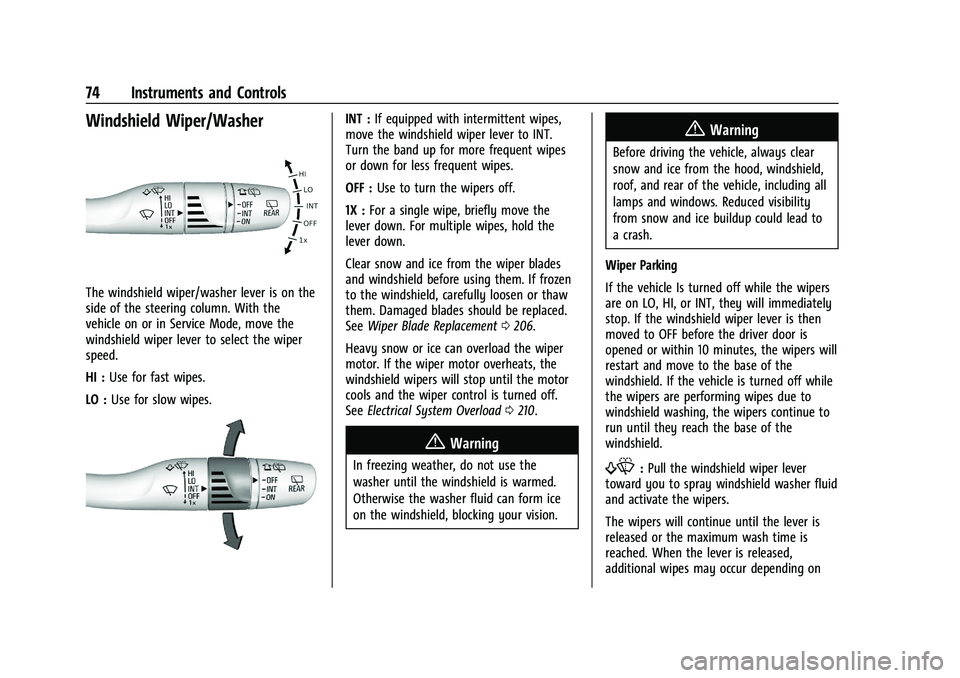
The windshield wiper/washer lever is on the
side of the steering column. With the
vehicle on or in Service Mode, move the
windshield wiper lever to select the wiper
speed.
HI :Use for fast wipes.
LO : Use for slow wipes.
INT : If equipped with intermittent wipes,
move the windshield wiper lever to INT.
Turn the band up for more frequent wipes
or down for less frequent wipes.
OFF : Use to turn the wipers off.
1X : For a single wipe, briefly move the
lever down. For multiple wipes, hold the
lever down.
Clear snow and ice from the wiper blades
and windshield before using them. If frozen
to the windshield, carefully loosen or thaw
them. Damaged blades should be replaced.
See Wiper Blade Replacement 0206.
Heavy snow or ice can overload the wiper
motor. If the wiper motor overheats, the
windshield wipers will stop until the motor
cools and the wiper control is turned off.
See Electrical System Overload 0210.
{Warning
In freezing weather, do not use the
washer until the windshield is warmed.
Otherwise the washer fluid can form ice
on the windshield, blocking your vision.
{Warning
Before driving the vehicle, always clear
snow and ice from the hood, windshield,
roof, and rear of the vehicle, including all
lamps and windows. Reduced visibility
from snow and ice buildup could lead to
a crash.
Wiper Parking
If the vehicle Is turned off while the wipers
are on LO, HI, or INT, they will immediately
stop. If the windshield wiper lever is then
moved to OFF before the driver door is
opened or within 10 minutes, the wipers will
restart and move to the base of the
windshield. If the vehicle is turned off while
the wipers are performing wipes due to
windshield washing, the wipers continue to
run until they reach the base of the
windshield.
f: Pull the windshield wiper lever
toward you to spray windshield washer fluid
and activate the wipers.
The wipers will continue until the lever is
released or the maximum wash time is
reached. When the lever is released,
additional wipes may occur depending on
Page 81 of 293
Chevrolet Bolt EV Owner Manual (GMNA-Localizing-U.S./Canada-
14637856) - 2021 - CRC - 10/2/20
80 Instruments and Controls
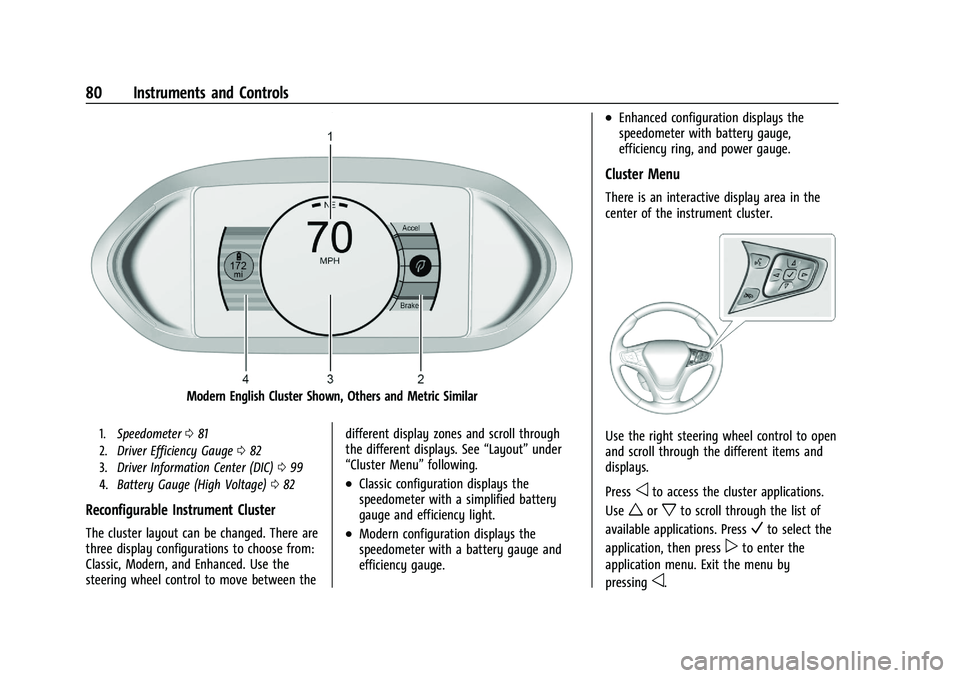
Modern English Cluster Shown, Others and Metric Similar
1.Speedometer 081
2. Driver Efficiency Gauge 082
3. Driver Information Center (DIC) 099
4. Battery Gauge (High Voltage) 082
Reconfigurable Instrument Cluster
The cluster layout can be changed. There are
three display configurations to choose from:
Classic, Modern, and Enhanced. Use the
steering wheel control to move between the different display zones and scroll through
the different displays. See
“Layout”under
“Cluster Menu” following.
.Classic configuration displays the
speedometer with a simplified battery
gauge and efficiency light.
.Modern configuration displays the
speedometer with a battery gauge and
efficiency gauge.
.Enhanced configuration displays the
speedometer with battery gauge,
efficiency ring, and power gauge.
Cluster Menu
There is an interactive display area in the
center of the instrument cluster.
Use the right steering wheel control to open
and scroll through the different items and
displays.
Press
oto access the cluster applications.
Use
worxto scroll through the list of
available applications. Press
Vto select the
application, then press
pto enter the
application menu. Exit the menu by
pressing
o.
Page 88 of 293
Chevrolet Bolt EV Owner Manual (GMNA-Localizing-U.S./Canada-
14637856) - 2021 - CRC - 10/2/20
Instruments and Controls 87
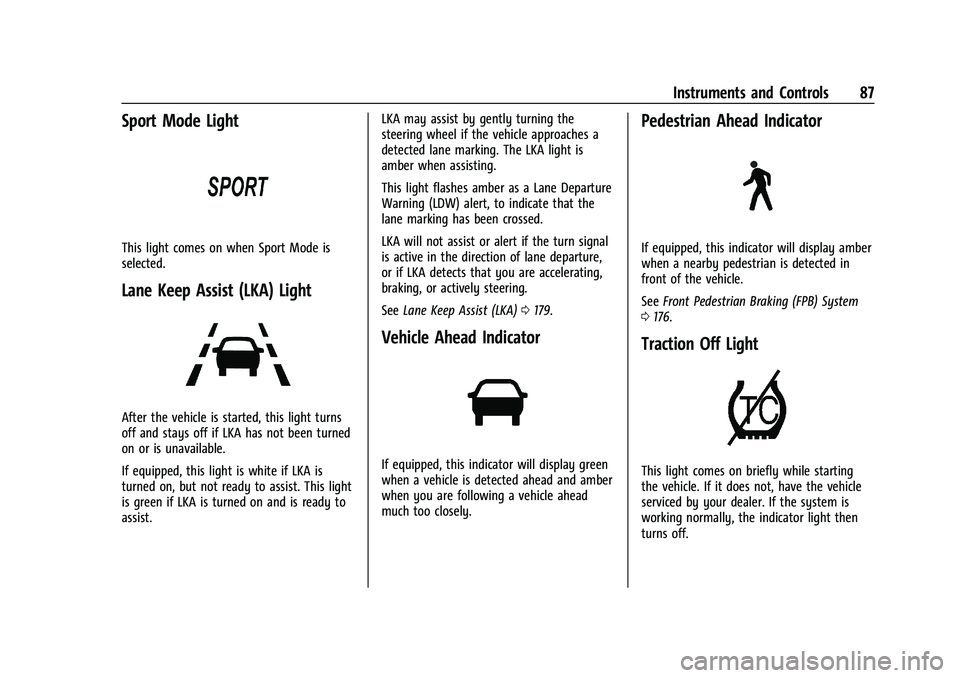
Sport Mode Light
This light comes on when Sport Mode is
selected.
Lane Keep Assist (LKA) Light
After the vehicle is started, this light turns
off and stays off if LKA has not been turned
on or is unavailable.
If equipped, this light is white if LKA is
turned on, but not ready to assist. This light
is green if LKA is turned on and is ready to
assist.LKA may assist by gently turning the
steering wheel if the vehicle approaches a
detected lane marking. The LKA light is
amber when assisting.
This light flashes amber as a Lane Departure
Warning (LDW) alert, to indicate that the
lane marking has been crossed.
LKA will not assist or alert if the turn signal
is active in the direction of lane departure,
or if LKA detects that you are accelerating,
braking, or actively steering.
See
Lane Keep Assist (LKA) 0179.
Vehicle Ahead Indicator
If equipped, this indicator will display green
when a vehicle is detected ahead and amber
when you are following a vehicle ahead
much too closely.
Pedestrian Ahead Indicator
If equipped, this indicator will display amber
when a nearby pedestrian is detected in
front of the vehicle.
See Front Pedestrian Braking (FPB) System
0 176.
Traction Off Light
This light comes on briefly while starting
the vehicle. If it does not, have the vehicle
serviced by your dealer. If the system is
working normally, the indicator light then
turns off.
Page 100 of 293
Chevrolet Bolt EV Owner Manual (GMNA-Localizing-U.S./Canada-
14637856) - 2021 - CRC - 10/2/20
Instruments and Controls 99
3. PressOagain to turn the radio on.
Driver Information Center (DIC)
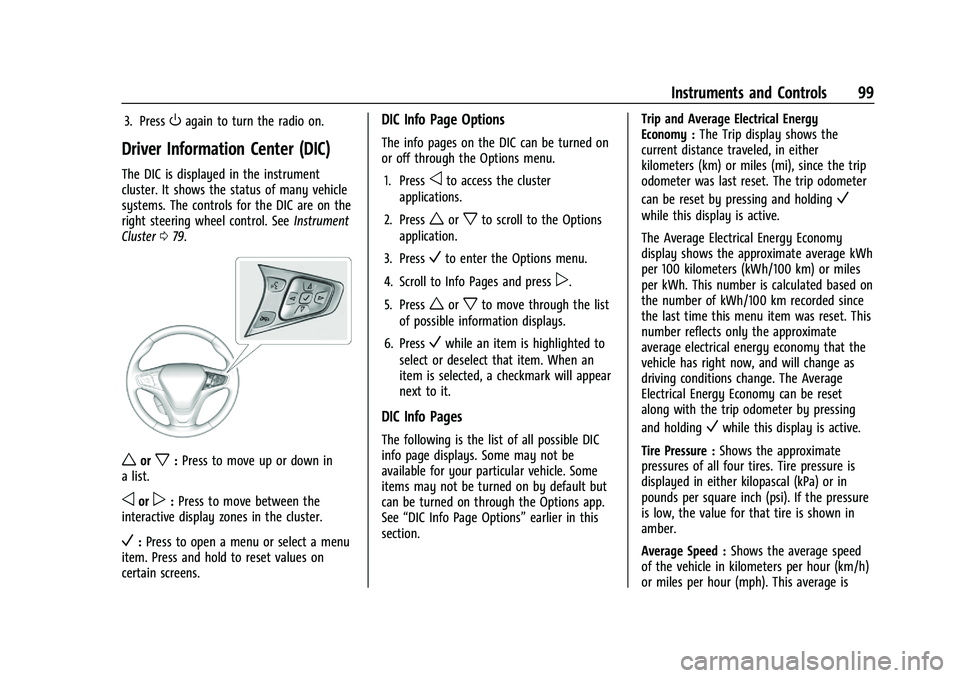
The DIC is displayed in the instrument
cluster. It shows the status of many vehicle
systems. The controls for the DIC are on the
right steering wheel control. SeeInstrument
Cluster 079.
worx:Press to move up or down in
a list.
oorp: Press to move between the
interactive display zones in the cluster.
V: Press to open a menu or select a menu
item. Press and hold to reset values on
certain screens.
DIC Info Page Options
The info pages on the DIC can be turned on
or off through the Options menu.
1. Press
oto access the cluster
applications.
2. Press
worxto scroll to the Options
application.
3. Press
Vto enter the Options menu.
4. Scroll to Info Pages and press
p.
5. Press
worxto move through the list
of possible information displays.
6. Press
Vwhile an item is highlighted to
select or deselect that item. When an
item is selected, a checkmark will appear
next to it.
DIC Info Pages
The following is the list of all possible DIC
info page displays. Some may not be
available for your particular vehicle. Some
items may not be turned on by default but
can be turned on through the Options app.
See “DIC Info Page Options” earlier in this
section. Trip and Average Electrical Energy
Economy :
The Trip display shows the
current distance traveled, in either
kilometers (km) or miles (mi), since the trip
odometer was last reset. The trip odometer
can be reset by pressing and holding
V
while this display is active.
The Average Electrical Energy Economy
display shows the approximate average kWh
per 100 kilometers (kWh/100 km) or miles
per kWh. This number is calculated based on
the number of kWh/100 km recorded since
the last time this menu item was reset. This
number reflects only the approximate
average electrical energy economy that the
vehicle has right now, and will change as
driving conditions change. The Average
Electrical Energy Economy can be reset
along with the trip odometer by pressing
and holding
Vwhile this display is active.
Tire Pressure : Shows the approximate
pressures of all four tires. Tire pressure is
displayed in either kilopascal (kPa) or in
pounds per square inch (psi). If the pressure
is low, the value for that tire is shown in
amber.
Average Speed : Shows the average speed
of the vehicle in kilometers per hour (km/h)
or miles per hour (mph). This average is
Page 103 of 293
Chevrolet Bolt EV Owner Manual (GMNA-Localizing-U.S./Canada-
14637856) - 2021 - CRC - 10/2/20
102 Instruments and Controls
Teen Driver
SeeTeen Driver 0132.
Radio Settings
To manage the radio features, see “Radio
Settings” underSettings 0131.
Vehicle
Select and the following may display:
.Climate and Air Quality
.Comfort and Convenience
.Collision / Detection Systems
.Lighting
.Power Door Locks
.Remote Lock / Unlock / Start
Climate and Air Quality
Select and the following may display:
.Auto Fan Speed
.Auto Heated Seats
.Auto Defog
Auto Fan Speed
This feature will set the maximum auto fan
speed.
Select Low, Medium, or High. Auto Heated Seats
When set to On and it is cold outside, both
the heated seats and the heated steering
wheel will automatically turn on when the
vehicle is started. See
Automatic Climate
Control System 0140.
Select Off or On.
Auto Defog
When set to On, the front defog will
automatically come on when the vehicle is
started. See Automatic Climate Control
System 0140.
Select Off or On.
Comfort and Convenience
Select and the following may display:
.Chime Volume
.Auto Wipe in Reverse Gear
Chime Volume
This allows the selection of the chime
volume level.
Select + or −to adjust the volume.
Auto Wipe in Reverse Gear
This allows the feature to be turned on or
off. See Rear Window Wiper/Washer 075. Select Off or On.
Collision / Detection Systems
Select and the following may display:
.Forward Collision System
.Front Pedestrian Detection
.Park Assist
.Rear Cross Traffic Alert
.Lane Change Alert
Forward Collision System
This setting controls the vehicle response
when detecting a vehicle ahead of you. The
Off setting disables all Forward Collision
Alert (FCA) and Automatic Emergency
Braking (AEB) functions. With the Alert and
Brake setting, both FCA and AEB are
available. The Alert setting disables AEB. See
Automatic Emergency Braking (AEB) 0175.
Select Off, Alert, or Alert and Brake.
Front Pedestrian Detection
This allows the feature’s notification to be
customized.
Select Off, Alert, or Alert and Brake.
Park Assist
This allows the feature to be turned on
or off.
Page 105 of 293
Chevrolet Bolt EV Owner Manual (GMNA-Localizing-U.S./Canada-
14637856) - 2021 - CRC - 10/2/20
104 Instruments and Controls
Remote Door Unlock
This allows selection of which doors will
unlock when pressing
Kon the RKE
transmitter.
Select All Doors or Driver Door.
Remote Start Auto Heat Seats
If equipped and turned on, this feature will
turn the heated seats on when using remote
start on cold days.
If equipped with auto heated steering
wheel, this feature will turn on when the
remote start auto heated seats turn on.
Select Off or On.
Passive Door Unlock
This allows the selection of what doors will
unlock when using the button on the
outside driver door handle to unlock the
vehicle.
Select All Doors or Driver Door Only.
Passive Door Lock
This allows passive locking to be turned on
or off and selects feedback.
Select Off, On with Horn Chirp, or On. Remote Left in Vehicle Alert
This feature sounds an alert when the RKE
transmitter is left in the vehicle. This menu
also enables Remote No Longer in Vehicle
Alert.
Select Off or On.
Devices
This shows status of the connected device.
Touch Add Device if a device needs to be
added.
Device Remote Access
This will allow devices to control system
functionality and access data.
Select Off or On.
Bluetooth Phone
This allows the connected Bluetooth phone
to be configured. See
“Bluetooth Phone”
under Settings 0131.
.My Number
.Privacy
.Sort Contacts
.Resync Device Contacts My Number
This displays the phone number of the
connected Bluetooth device.
Privacy
This allows call alerts to appear on the
infotainment display.
Select Off or On.
Sort Contacts
Touch to sort by first or last name.
Resync Device Contacts
This resyncs the contacts on the phone.
Apple CarPlay
This feature allows Apple devices to be
connected to the infotainment system
through a USB port.
Select Off or On.
Android Auto
This feature allows Android devices to be
connected to the infotainment system
through a USB port.
Select Off or On.
Page 108 of 293
Chevrolet Bolt EV Owner Manual (GMNA-Localizing-U.S./Canada-
14637856) - 2021 - CRC - 10/2/20
Lighting 107
Lighting
Exterior Lighting
Exterior Lamp Controls . . . . . . . . . . . . . . . . 107
Exterior Lamps Off Reminder . . . . . . . . . . 108
Headlamp High/Low-Beam Changer . . . 108
Flash-to-Pass . . . . . . . . . . . . . . . . . . . . . . . . . . . 109
Daytime Running Lamps (DRL) . . . . . . . . 109
Automatic Headlamp System . . . . . . . . . . 109
Hazard Warning Flashers . . . . . . . . . . . . . . 110
Turn and Lane-Change Signals . . . . . . . . . 110
Interior Lighting
Instrument Panel IlluminationControl . . . . . . . . . . . . . . . . . . . . . . . . . . . . . . . 110
Courtesy Lamps . . . . . . . . . . . . . . . . . . . . . . . . 111
Dome Lamps . . . . . . . . . . . . . . . . . . . . . . . . . . . 111
Reading Lamps . . . . . . . . . . . . . . . . . . . . . . . . . 111
Lighting Features
Entry Lighting . . . . . . . . . . . . . . . . . . . . . . . . . . 111
Exit Lighting . . . . . . . . . . . . . . . . . . . . . . . . . . . 112
Battery Power Protection . . . . . . . . . . . . . . 112
Exterior Lighting Battery Saver . . . . . . . . . 112
Exterior Lighting
Exterior Lamp Controls
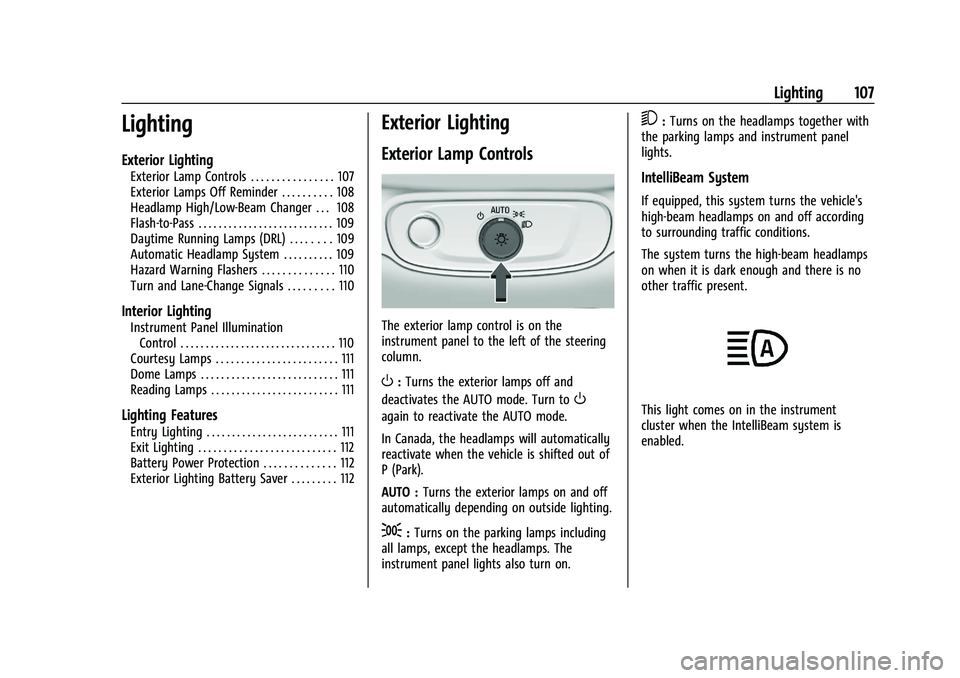
The exterior lamp control is on the
instrument panel to the left of the steering
column.
O: Turns the exterior lamps off and
deactivates the AUTO mode. Turn to
O
again to reactivate the AUTO mode.
In Canada, the headlamps will automatically
reactivate when the vehicle is shifted out of
P (Park).
AUTO : Turns the exterior lamps on and off
automatically depending on outside lighting.
;: Turns on the parking lamps including
all lamps, except the headlamps. The
instrument panel lights also turn on.
5: Turns on the headlamps together with
the parking lamps and instrument panel
lights.
IntelliBeam System
If equipped, this system turns the vehicle's
high-beam headlamps on and off according
to surrounding traffic conditions.
The system turns the high-beam headlamps
on when it is dark enough and there is no
other traffic present.
This light comes on in the instrument
cluster when the IntelliBeam system is
enabled.
Page 114 of 293
Chevrolet Bolt EV Owner Manual (GMNA-Localizing-U.S./Canada-
14637856) - 2021 - CRC - 10/2/20
Infotainment System 113
Infotainment System
Introduction
Introduction . . . . . . . . . . . . . . . . . . . . . . . . . . . . 113
Theft-Deterrent Feature . . . . . . . . . . . . . . . . 114
Overview . . . . . . . . . . . . . . . . . . . . . . . . . . . . . . 114
Operation . . . . . . . . . . . . . . . . . . . . . . . . . . . . . . 114
Software Updates . . . . . . . . . . . . . . . . . . . . . . 116
Radio
AM-FM Radio . . . . . . . . . . . . . . . . . . . . . . . . . . . 117
Satellite Radio . . . . . . . . . . . . . . . . . . . . . . . . . 118
Radio Reception . . . . . . . . . . . . . . . . . . . . . . . . 119
Multi-Band Antenna . . . . . . . . . . . . . . . . . . . 120
Audio Players
USB Port . . . . . . . . . . . . . . . . . . . . . . . . . . . . . . 120
Auxiliary Devices . . . . . . . . . . . . . . . . . . . . . . . 125
Bluetooth Audio . . . . . . . . . . . . . . . . . . . . . . . 125
OnStar System
OnStar System . . . . . . . . . . . . . . . . . . . . . . . . . 127
Phone
Bluetooth . . . . . . . . . . . . . . . . . . . . . . . . . . . . . . 127
Apple CarPlay and Android Auto . . . . . . . 129
Hands-Free Phone . . . . . . . . . . . . . . . . . . . . . 130
Settings
Settings . . . . . . . . . . . . . . . . . . . . . . . . . . . . . . . . 131
Teen Driver . . . . . . . . . . . . . . . . . . . . . . . . . . . . 132
Trademarks and License Agreements
Trademarks and LicenseAgreements . . . . . . . . . . . . . . . . . . . . . . . . . . 134
Introduction
Read the following pages to become familiar
with the features.
{Warning
Taking your eyes off the road for too
long or too often while using any
infotainment feature can cause a crash.
You or others could be injured or killed.
Do not give extended attention to
infotainment tasks while driving. Limit
your glances at the vehicle displays and
focus your attention on driving. Use voice
commands whenever possible.
The infotainment system has built-in
features intended to help avoid distraction
by disabling some functions when driving.
These functions may gray out when they
are unavailable. Many infotainment features
are also available through the instrument
cluster and steering wheel controls.
Before driving:
.Become familiar with the operation,
center stack controls, and infotainment
display controls.
Page 116 of 293
Chevrolet Bolt EV Owner Manual (GMNA-Localizing-U.S./Canada-
14637856) - 2021 - CRC - 10/2/20
Infotainment System 115
.Touch0to return to the previous
screen.
Volume Control
Turn the volume knob to adjust the volume.
The current volume is indicated.
.If equipped, use the volume switches on
the back of the steering wheel to adjust
the volume. See Steering Wheel Controls
0 72.
.Turning on the infotainment system
power will set the volume level to its
previous selection if it is lower than the
maximum starting volume level.
.If the volume level is louder than the
maximum starting volume level when the
infotainment system is turned on, the
infotainment system is adjusted
automatically to the maximum starting
volume level.
Edit Home Page Layout
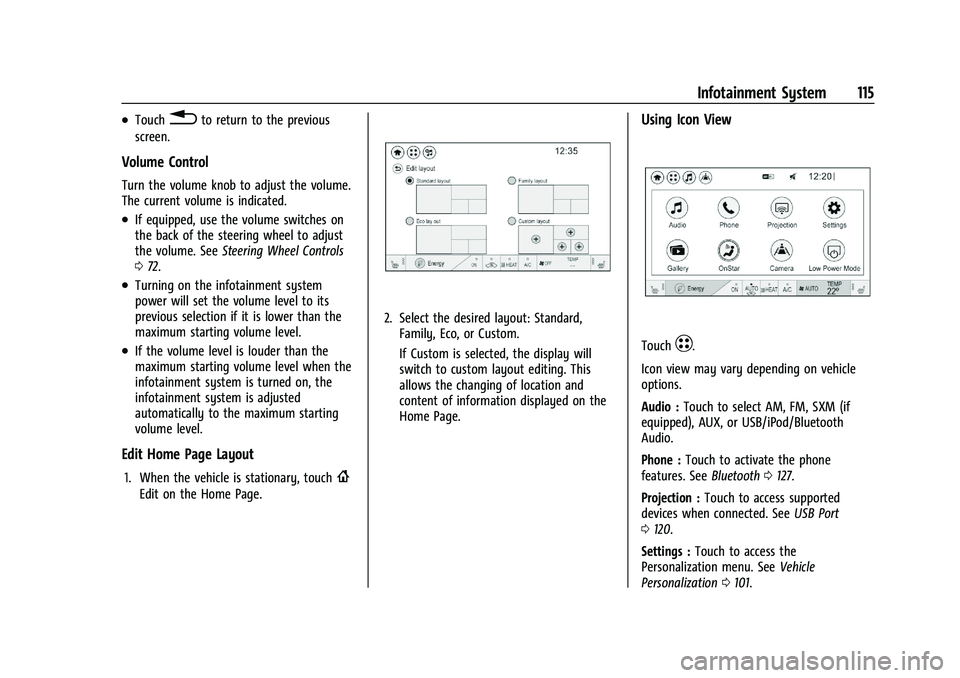
1. When the vehicle is stationary, touch{
Edit on the Home Page.
2. Select the desired layout: Standard,
Family, Eco, or Custom.
If Custom is selected, the display will
switch to custom layout editing. This
allows the changing of location and
content of information displayed on the
Home Page.
Using Icon View
TouchT.
Icon view may vary depending on vehicle
options.
Audio : Touch to select AM, FM, SXM (if
equipped), AUX, or USB/iPod/Bluetooth
Audio.
Phone : Touch to activate the phone
features. See Bluetooth0127.
Projection : Touch to access supported
devices when connected. See USB Port
0 120.
Settings : Touch to access the
Personalization menu. See Vehicle
Personalization 0101.