change time CHEVROLET BOLT EV 2022 User Guide
[x] Cancel search | Manufacturer: CHEVROLET, Model Year: 2022, Model line: BOLT EV, Model: CHEVROLET BOLT EV 2022Pages: 316, PDF Size: 11.45 MB
Page 98 of 316
Chevrolet BOLT EV Owner Manual (GMNA-Localizing-U.S./Canada-
15082216) - 2022 - CRC - 6/25/21
Instruments and Controls 97
changed. See“Weekday or Weekend
Schedule Editing” section below for
additional steps to set the Summer/
Winter schedule.
Weekday or Weekend Schedule Editing
To edit the weekday or weekend schedule: 1. From the Utility Rate Charging screen, touch Weekday Schedule or Weekend
Schedule.
2. Touch Add A Rate Period or Subtract A Rate Period.
.Weekdays are Monday through
Friday and use the same rate
schedule.
.Weekends are Saturday and Sunday
and use the same rate schedule.
Both weekday and weekend schedules must
be set. The rate schedule only applies for a
24-hour period, starting at 12:00 am and
ending at 12:00 am. There can be five rate
changes for each day; not all must be used.
The finish times must be consecutive. If a
finish time does not follow a start time, this
error message displays: “An invalid entry
was found in the data entered. Please
re-enter data.”
Energy Summary Pop-Up
When this function is turned on, the Energy
Summary Pop-Up will provide a summary of
energy usage when the vehicle is turned off.
Select On or Off.
Charge Status Feedback
When this function is turned on, the vehicle
will provide audible feedback of the charge
status.
1 beep : Immediate charging
2 beeps : Delayed charging
3 beeps : Charge port door is open
4 beeps : Desired time cannot be met
Select On or Off.
Charge Cord Theft Alert
When this function is turned on and the
vehicle is off and locked, the horn will sound
if the charge cord is removed.
Select On or Off.
Charge Power Loss Alert
When this function is turned on and the
vehicle is charging, the horn will sound if
power is lost. Select On or Off.
Charging Interrupted or Overridden
Pop-Up
The Charging Interrupted or Overridden
message will appear if there was an
unintended loss of AC power during the plug
in charge event. For example, there was a
power outage or the charge cord was
unplugged from the wall.
See
Instrument Cluster 079.
Programmable Charging Disabled
When the Programmable Charging system is
disabled, the main charging screen will
display “- -:- -”for the Charge Complete
Time. The Programmable Charging system
will be disabled if the Charge Complete Time
cannot be confidently estimated. If the
Programmable Charging system is
consistently disabled, see your dealer.
A message displays if the vehicle is not able
to charge.
Energy Information
To view Energy Detail, Range Impacts, and
Efficiency History, touch Energy on the
infotainment display, and then the desired
screen button on the left side of the screen.
Page 100 of 316
Chevrolet BOLT EV Owner Manual (GMNA-Localizing-U.S./Canada-
15082216) - 2022 - CRC - 6/25/21
Instruments and Controls 99
Charging Options
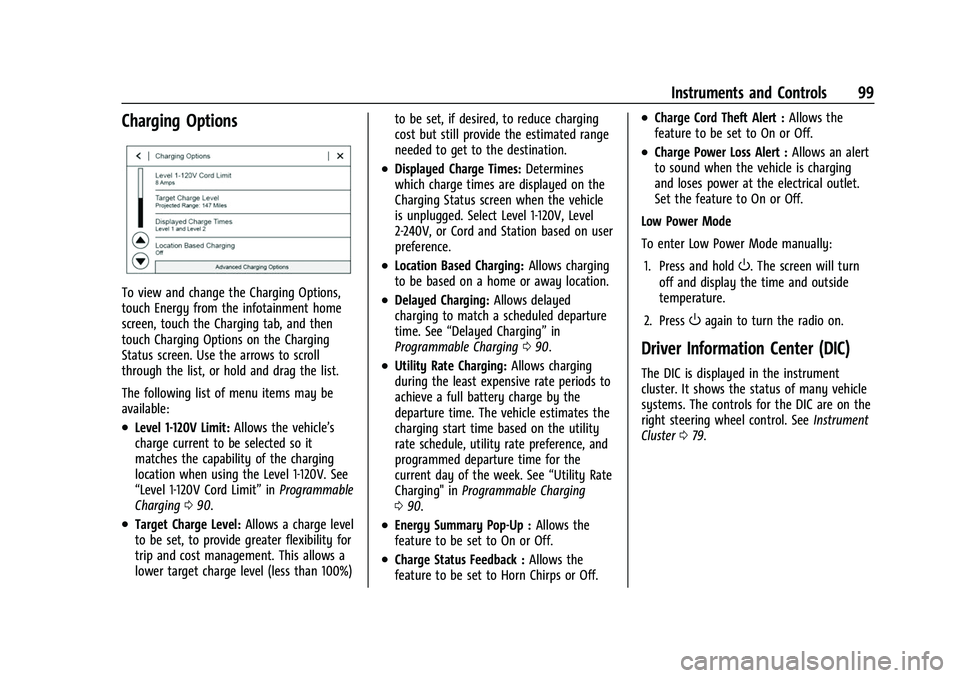
To view and change the Charging Options,
touch Energy from the infotainment home
screen, touch the Charging tab, and then
touch Charging Options on the Charging
Status screen. Use the arrows to scroll
through the list, or hold and drag the list.
The following list of menu items may be
available:
.Level 1-120V Limit:Allows the vehicle’s
charge current to be selected so it
matches the capability of the charging
location when using the Level 1-120V. See
“Level 1-120V Cord Limit” inProgrammable
Charging 090.
.Target Charge Level: Allows a charge level
to be set, to provide greater flexibility for
trip and cost management. This allows a
lower target charge level (less than 100%) to be set, if desired, to reduce charging
cost but still provide the estimated range
needed to get to the destination.
.Displayed Charge Times:
Determines
which charge times are displayed on the
Charging Status screen when the vehicle
is unplugged. Select Level 1-120V, Level
2-240V, or Cord and Station based on user
preference.
.Location Based Charging: Allows charging
to be based on a home or away location.
.Delayed Charging: Allows delayed
charging to match a scheduled departure
time. See “Delayed Charging” in
Programmable Charging 090.
.Utility Rate Charging: Allows charging
during the least expensive rate periods to
achieve a full battery charge by the
departure time. The vehicle estimates the
charging start time based on the utility
rate schedule, utility rate preference, and
programmed departure time for the
current day of the week. See “Utility Rate
Charging" in Programmable Charging
0 90.
.Energy Summary Pop-Up : Allows the
feature to be set to On or Off.
.Charge Status Feedback : Allows the
feature to be set to Horn Chirps or Off.
.Charge Cord Theft Alert : Allows the
feature to be set to On or Off.
.Charge Power Loss Alert : Allows an alert
to sound when the vehicle is charging
and loses power at the electrical outlet.
Set the feature to On or Off.
Low Power Mode
To enter Low Power Mode manually:
1. Press and hold
O. The screen will turn
off and display the time and outside
temperature.
2. Press
Oagain to turn the radio on.
Driver Information Center (DIC)
The DIC is displayed in the instrument
cluster. It shows the status of many vehicle
systems. The controls for the DIC are on the
right steering wheel control. See Instrument
Cluster 079.
Page 101 of 316
Chevrolet BOLT EV Owner Manual (GMNA-Localizing-U.S./Canada-
15082216) - 2022 - CRC - 6/25/21
100 Instruments and Controls
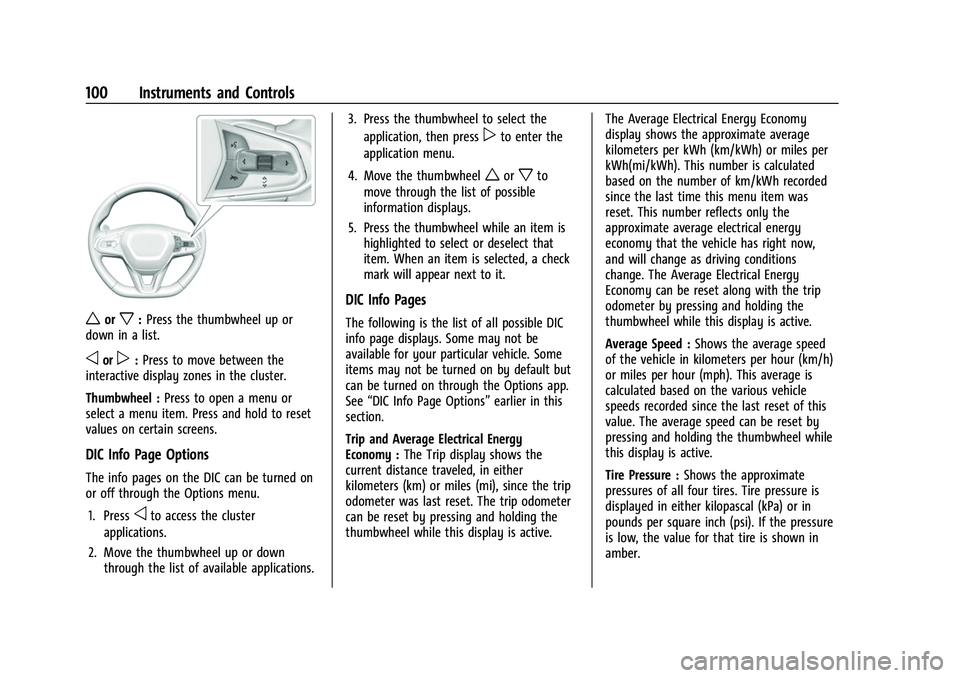
worx:Press the thumbwheel up or
down in a list.
oorp: Press to move between the
interactive display zones in the cluster.
Thumbwheel : Press to open a menu or
select a menu item. Press and hold to reset
values on certain screens.
DIC Info Page Options
The info pages on the DIC can be turned on
or off through the Options menu.
1. Press
oto access the cluster
applications.
2. Move the thumbwheel up or down through the list of available applications. 3. Press the thumbwheel to select the
application, then press
pto enter the
application menu.
4. Move the thumbwheel
worxto
move through the list of possible
information displays.
5. Press the thumbwheel while an item is highlighted to select or deselect that
item. When an item is selected, a check
mark will appear next to it.
DIC Info Pages
The following is the list of all possible DIC
info page displays. Some may not be
available for your particular vehicle. Some
items may not be turned on by default but
can be turned on through the Options app.
See “DIC Info Page Options” earlier in this
section.
Trip and Average Electrical Energy
Economy : The Trip display shows the
current distance traveled, in either
kilometers (km) or miles (mi), since the trip
odometer was last reset. The trip odometer
can be reset by pressing and holding the
thumbwheel while this display is active. The Average Electrical Energy Economy
display shows the approximate average
kilometers per kWh (km/kWh) or miles per
kWh(mi/kWh). This number is calculated
based on the number of km/kWh recorded
since the last time this menu item was
reset. This number reflects only the
approximate average electrical energy
economy that the vehicle has right now,
and will change as driving conditions
change. The Average Electrical Energy
Economy can be reset along with the trip
odometer by pressing and holding the
thumbwheel while this display is active.
Average Speed :
Shows the average speed
of the vehicle in kilometers per hour (km/h)
or miles per hour (mph). This average is
calculated based on the various vehicle
speeds recorded since the last reset of this
value. The average speed can be reset by
pressing and holding the thumbwheel while
this display is active.
Tire Pressure : Shows the approximate
pressures of all four tires. Tire pressure is
displayed in either kilopascal (kPa) or in
pounds per square inch (psi). If the pressure
is low, the value for that tire is shown in
amber.
Page 107 of 316
Chevrolet BOLT EV Owner Manual (GMNA-Localizing-U.S./Canada-
15082216) - 2022 - CRC - 6/25/21
106 Lighting
Lighting
Exterior Lighting
Exterior Lamp Controls . . . . . . . . . . . . . . . . 106
Exterior Lamps Off Reminder . . . . . . . . . . 107
Headlamp High/Low-Beam Changer . . . 107
Flash-to-Pass . . . . . . . . . . . . . . . . . . . . . . . . . . . 108
Daytime Running Lamps (DRL) . . . . . . . . 108
Automatic Headlamp System . . . . . . . . . . 108
Hazard Warning Flashers . . . . . . . . . . . . . . 109
Turn and Lane-Change Signals . . . . . . . . . 109
Interior Lighting
Instrument Panel IlluminationControl . . . . . . . . . . . . . . . . . . . . . . . . . . . . . . 109
Courtesy Lamps . . . . . . . . . . . . . . . . . . . . . . . . 110
Dome Lamps . . . . . . . . . . . . . . . . . . . . . . . . . . . 110
Reading Lamps . . . . . . . . . . . . . . . . . . . . . . . . . 110
Lighting Features
Entry Lighting . . . . . . . . . . . . . . . . . . . . . . . . . 110
Exit Lighting . . . . . . . . . . . . . . . . . . . . . . . . . . . . 111
Battery Power Protection . . . . . . . . . . . . . . . 111
Exterior Lighting Battery Saver . . . . . . . . . 111
Exterior Lighting
Exterior Lamp Controls
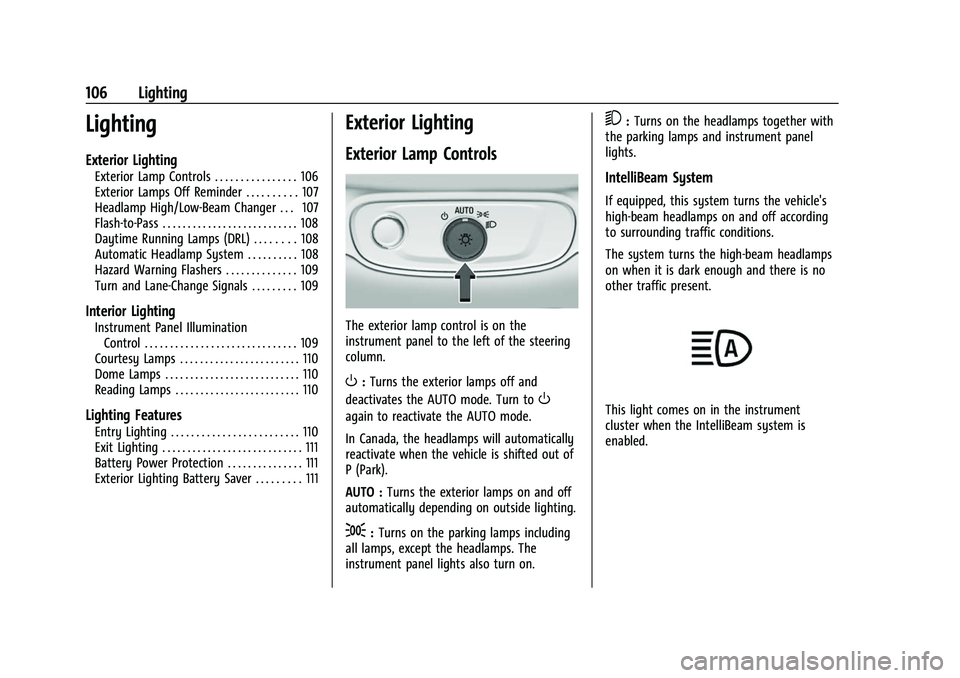
The exterior lamp control is on the
instrument panel to the left of the steering
column.
O: Turns the exterior lamps off and
deactivates the AUTO mode. Turn to
O
again to reactivate the AUTO mode.
In Canada, the headlamps will automatically
reactivate when the vehicle is shifted out of
P (Park).
AUTO : Turns the exterior lamps on and off
automatically depending on outside lighting.
;: Turns on the parking lamps including
all lamps, except the headlamps. The
instrument panel lights also turn on.
5: Turns on the headlamps together with
the parking lamps and instrument panel
lights.
IntelliBeam System
If equipped, this system turns the vehicle's
high-beam headlamps on and off according
to surrounding traffic conditions.
The system turns the high-beam headlamps
on when it is dark enough and there is no
other traffic present.
This light comes on in the instrument
cluster when the IntelliBeam system is
enabled.
Page 109 of 316
Chevrolet BOLT EV Owner Manual (GMNA-Localizing-U.S./Canada-
15082216) - 2022 - CRC - 6/25/21
108 Lighting
This indicator light turns on in the
instrument cluster when the high-beam
headlamps are on.
Flash-to-Pass
To flash the high beams, pull the turn signal
lever toward you, and release.
Daytime Running Lamps (DRL)
DRL can make it easier for others to see the
front of your vehicle during the day. Fully
functional DRL are required on all vehicles
first sold in Canada.
The DRL system comes on in daylight when
the following conditions are met:
.The power button is on.
.The exterior lamp control is in AUTO.
.The light sensor determines it is daytime.
.The vehicle is not in P (Park).
When the DRL are on, the taillamps,
sidemarker lamps, instrument panel lights,
and other lamps will not be on. The DRL turn off when the headlamps are
turned to
Por the vehicle is off.
For vehicles first sold in Canada, the DRL can
only be turned off when the vehicle is
parked.
Automatic Headlamp System
The headlamps come on automatically when
the exterior lamp control is set to AUTO and
it is dark enough outside.
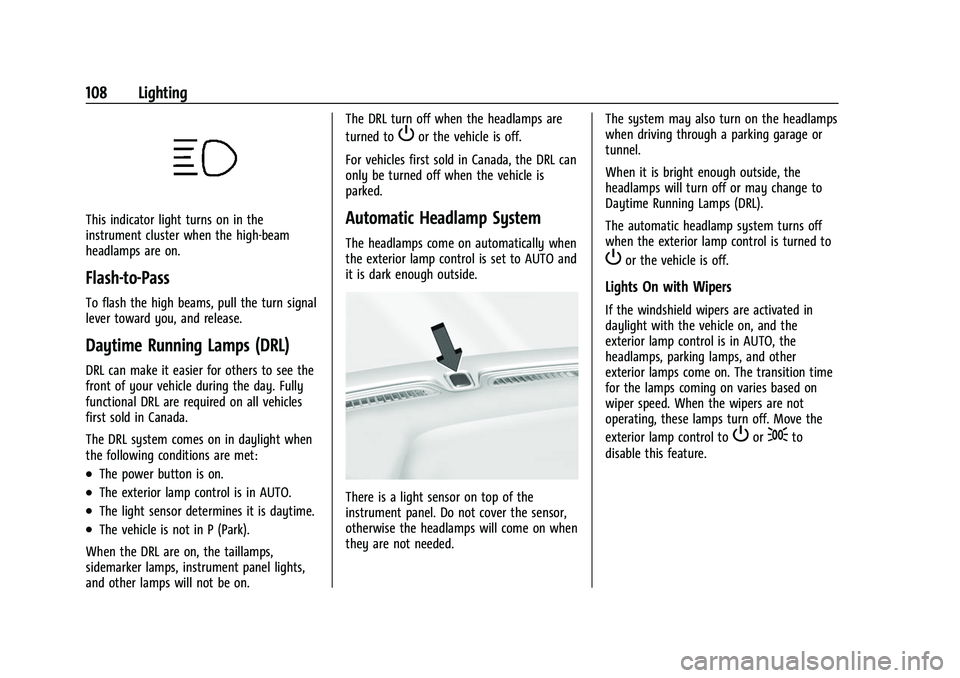
There is a light sensor on top of the
instrument panel. Do not cover the sensor,
otherwise the headlamps will come on when
they are not needed. The system may also turn on the headlamps
when driving through a parking garage or
tunnel.
When it is bright enough outside, the
headlamps will turn off or may change to
Daytime Running Lamps (DRL).
The automatic headlamp system turns off
when the exterior lamp control is turned to
Por the vehicle is off.
Lights On with Wipers
If the windshield wipers are activated in
daylight with the vehicle on, and the
exterior lamp control is in AUTO, the
headlamps, parking lamps, and other
exterior lamps come on. The transition time
for the lamps coming on varies based on
wiper speed. When the wipers are not
operating, these lamps turn off. Move the
exterior lamp control to
Por;to
disable this feature.
Page 110 of 316
Chevrolet BOLT EV Owner Manual (GMNA-Localizing-U.S./Canada-
15082216) - 2022 - CRC - 6/25/21
Lighting 109
Hazard Warning Flashers
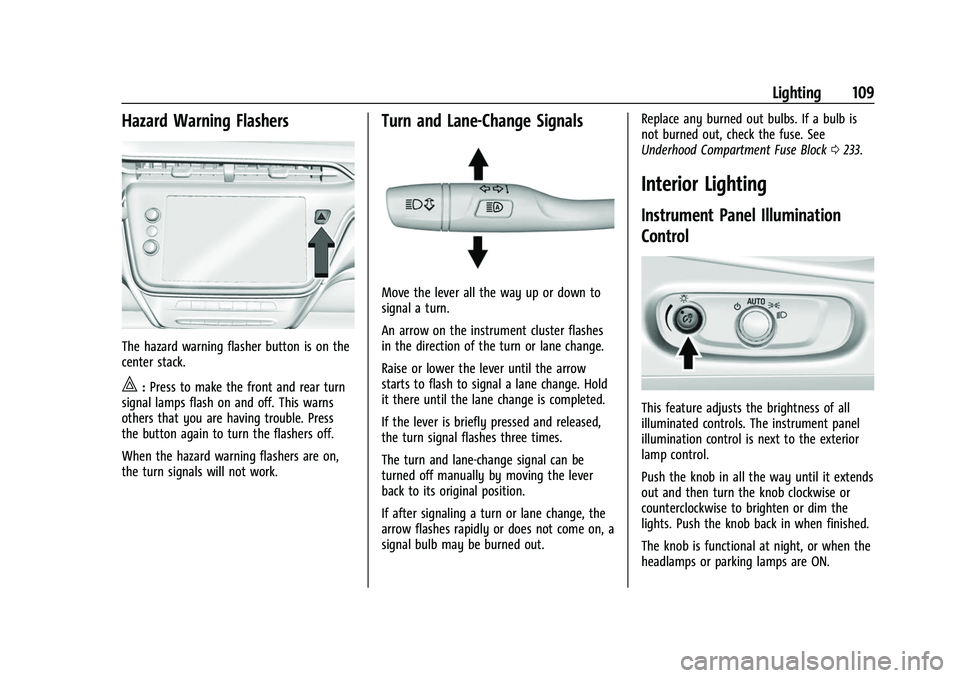
The hazard warning flasher button is on the
center stack.
|:Press to make the front and rear turn
signal lamps flash on and off. This warns
others that you are having trouble. Press
the button again to turn the flashers off.
When the hazard warning flashers are on,
the turn signals will not work.
Turn and Lane-Change Signals
Move the lever all the way up or down to
signal a turn.
An arrow on the instrument cluster flashes
in the direction of the turn or lane change.
Raise or lower the lever until the arrow
starts to flash to signal a lane change. Hold
it there until the lane change is completed.
If the lever is briefly pressed and released,
the turn signal flashes three times.
The turn and lane-change signal can be
turned off manually by moving the lever
back to its original position.
If after signaling a turn or lane change, the
arrow flashes rapidly or does not come on, a
signal bulb may be burned out. Replace any burned out bulbs. If a bulb is
not burned out, check the fuse. See
Underhood Compartment Fuse Block
0233.
Interior Lighting
Instrument Panel Illumination
Control
This feature adjusts the brightness of all
illuminated controls. The instrument panel
illumination control is next to the exterior
lamp control.
Push the knob in all the way until it extends
out and then turn the knob clockwise or
counterclockwise to brighten or dim the
lights. Push the knob back in when finished.
The knob is functional at night, or when the
headlamps or parking lamps are ON.
Page 112 of 316
Chevrolet BOLT EV Owner Manual (GMNA-Localizing-U.S./Canada-
15082216) - 2022 - CRC - 6/25/21
Lighting 111
This feature can be changed. See“Vehicle
Locator Lights” underVehicle Personalization
0 102.
Exit Lighting
Some exterior lamps and interior lamps turn
on when the vehicle is powered off.
The exterior and interior lamps remain on
for a set amount of time, then automatically
turn off. If equipped with Keyless Access,
the exterior lamps automatically turn on
when the driver door is opened after the
vehicle is powered off.
The interior lights turn on when the vehicle
is powered off.
The exterior lamps turn off immediately by
turning the exterior lamp control off.
This feature can be changed. See Vehicle
Personalization 0102.
Battery Power Protection
This feature helps prevent the battery from
being drained if the interior courtesy lamps
or reading lamps are accidentally left on.
If any of these lamps are left on, they
automatically turn off after 10 minutes if the
ignition is off. The lamps will not come back
on again until one of the following occurs:
.The vehicle is powered on.
.The doors are closed and then re-opened.
Battery Saver
The vehicle is equipped with electrical power
management (EPM). EPM monitors and
controls the charging system. The message
BATTERY SAVER ACTIVE displays on the
Driver Information Center (DIC) when the
EPM detects the battery may be draining
too quickly, the charge state needs to be
reset, or the Auxiliary Power Module failed.
If safe to do so, when BATTERY SAVER
ACTIVE displays, manually shut off
windshield wipers, communications
equipment, climate controls, etc. to slow the
battery from draining. See Automatic
Climate Control System 0148.
If the message still displays, fully charge the
vehicle. Once fully charged, unplug the
vehicle and let the vehicle sit an additional
8.5 hours or greater without being
interrupted to allow the Body Control
Module (BCM) to reset the battery to the
required state of charge.
The following may interrupt the vehicle:
.Charging the vehicle
.Battery Maintenance Mode
.Approach Detection is activated
.The Key Fob is left in the car or left in
close proximity of the vehicle
.Pressing buttons on the Remote Keyless
Entry (RKE) transmitter
.Opening the doors or tailgate
To reduce the occurrence of this alert, GM
recommends letting the vehicle sit
uninterrupted for 8.5 hours or greater on a
weekly basis.
If after completing this process the BATTERY
SAVER ACTIVE message remains, see your
dealer for service.
Exterior Lighting Battery Saver
The exterior lamps turn off about 10 minutes
after the vehicle is turned off, if the parking
lamps or headlamps have been manually
left on. This protects against draining the
battery. To restart the 10-minute timer, turn
the exterior lamp control to the
Oposition
and then back to the
;or2position.
To keep the lamps on for more than
10 minutes, the vehicle must be powered on.
Page 130 of 316
Chevrolet BOLT EV Owner Manual (GMNA-Localizing-U.S./Canada-
15082216) - 2022 - CRC - 6/25/21
Infotainment System 129
Another way to connect is to touch the
Phones tab at the top right of the display
and then touch Add Phone.
.A Bluetooth smartphone with music
capability can be paired to the vehicle as
a smartphone and a music player at the
same time.
.Up to 10 devices can be paired to the
Bluetooth system.
.The pairing process is disabled when the
vehicle is moving.
.Pairing only needs to be completed once,
unless the pairing information on the cell
phone changes or the cell phone is
deleted from the system.
.If multiple paired cell phones are within
range of the system, the system connects
to the paired cell phone that is set to
First to Connect. If there is no cell phone
set to First to Connect, it will link to the
cell phone which was used last. To link to
a different paired cell phone, see“Linking
to a Different Phone” later in this section.
Pairing a Phone 1. Make sure Bluetooth has been enabled on the cell phone before the pairing
process is started. 2. Touch the Phone icon on the Home Page
or the phone icon on the shortcut tray
near the bottom of the display.
3. Touch Phones at the top of the infotainment display. There is also a
Connect Phones option in the middle of
the Phone display which will shortcut to
the Phone List menu.
4. Touch Add Phone.
5. Select the vehicle name shown on the infotainment display from your cell
phone’s Bluetooth Settings list.
6. Follow the instructions on the cell phone to confirm the six-digit code showing on
the infotainment display and touch Pair.
The code on the cell phone and
infotainment display will need to be
acknowledged for a successful pair.
7. Start the pairing process on the cell phone to be paired to the vehicle. See
the cell phone manufacturer's user guide
for information on this process. Once the
cell phone is paired, it will show under
Connected. 8. If the vehicle name does not appear on
your cell phone, there are a few ways to
start the pairing process over:
.Turn the cell phone off and then
back on.
.Go back to the beginning of the
Phone menus on the infotainment
display and restart the pairing
process.
.Reset the cell phone, but this step
should be done as a last effort.
9. If the cell phone prompts to accept connection or allow phone book
download, touch Always Accept and
Allow. The phone book may not be
available if not accepted.
10. Repeat Steps 1−8 to pair additional cell phones.
First to Connect Paired Phones
If multiple paired cell phones are within
range of the system, the system connects to
the paired cell phone that is set as First to
Connect. To enable a paired cell phone as
the First to Connect phone: 1. Make sure the cell phone is turned on.
2. Touch Settings, then touch System.
Page 133 of 316
Chevrolet BOLT EV Owner Manual (GMNA-Localizing-U.S./Canada-
15082216) - 2022 - CRC - 6/25/21
132 Infotainment System
Switching Between Calls (Call Waiting
Calls Only)
To switch between calls, touch Phone on the
Home Page to display Call View. While in
Call View, touch the call information of the
call on hold to change calls.
Three-Way Calling
Three-way calling must be supported on the
Bluetooth cell phone and enabled by the
wireless service carrier to work.
To start a three-way call while in a
current call:1. In the Call View, touch Add Call to add another call.
2. Initiate the second call by selecting from Recents, Contacts, or Keypad.
3. When the second call is active, touch the merge icon to conference the three-way
call together.
Ending a Call
.Pression the steering wheel controls.
.Touch#on the infotainment display,
next to a call, to end only that call.
Dual Tone Multi-Frequency (DTMF) Tones
The in-vehicle Bluetooth system can send
numbers during a call. This is used when
calling a menu-driven phone system. Use the
Keypad to enter the number.
Apple CarPlay and Android Auto
If equipped, Android Auto and/or Apple
CarPlay capability may be available through
a compatible smartphone. If available, the
Android Auto and Apple CarPlay icons will
change from gray to color on the Home
Page of the infotainment display.
To use Android Auto and/or Apple CarPlay:
For Wired Phone Projection
1. Download the Android Auto app to your smartphone from the Google Play store.
There is no app required for Apple
CarPlay.
2. Connect your Android phone or Apple iPhone by using the factory-provided
phone USB cable and plugging into a
USB data port. For best performance, it is
highly recommended to use the device’s
factory-provided USB cable, which should
be replaced after significant wear to
maintain connection quality. Aftermarket
or third-party cables may not work. 3. When the phone is first connected to
activate Apple CarPlay or Android Auto,
accept the terms and conditions on both
the infotainment system and the phone.
4. Follow the instructions on the phone.
The Android Auto and Apple CarPlay icons
on the Home Page will illuminate depending
on the smartphone. Android Auto and/or
Apple CarPlay may automatically launch
upon USB connection. If not, touch the
Android Auto or Apple CarPlay icon on the
Home Page to launch.
Press
{on the center stack to return to the
Home Page.
For Wireless Phone Projection
Verify your phone is wireless compatible by
visiting the Google Android Auto or Apple
CarPlay support page.
1. Download the Android Auto app to your smartphone from the Google Play store.
There is no app required for Apple
CarPlay.
2. For first time connection, there are two ways to set up wireless projection:
.Connect your Android phone or Apple
iPhone by using the factory-provided
phone USB cable and plugging into a
Page 134 of 316
Chevrolet BOLT EV Owner Manual (GMNA-Localizing-U.S./Canada-
15082216) - 2022 - CRC - 6/25/21
Infotainment System 133
USB data port. For best performance,
it is highly recommended to use the
device’s factory-provided USB cable,
which should be replaced after
significant wear to maintain
connection quality. Aftermarket or
third-party cables may not work.
.Connecting the phone over Bluetooth.
SeeBluetooth (Pairing and Using a
Phone) 0128 or
Bluetooth (Overview) 0128.
3. Make sure wireless is turned on the phone for wireless projection to work.
4. When the phone is first connected to activate Apple CarPlay or Android Auto,
agree to the terms and conditions on
both the infotainment system and the
phone.
5. Follow the instructions on the phone.
The Android Auto and Apple CarPlay icons
on the Home Page will illuminate depending
on the smartphone. Android Auto and/or
Apple CarPlay may automatically launch
upon wireless connection. If not, touch the
Android Auto or Apple CarPlay icon on the
Home Page to launch. Wireless Carplay and/or Wireless Android
Auto may experience occasional service
disruption due to outside Wi-Fi interference.
To disconnect the phones wireless
projection:
1. Select Settings from the Home Page.
2. Select Phones
3. Touch
4next to the phone to be
disconnected.
4. Turn off Apple CarPlay or Android Auto.
Press
{on the center stack to return to the
Home Page.
Features are subject to change. For further
information on how to set up Android Auto
and Apple CarPlay in the vehicle, see
my.chevrolet.com.
Android Auto is provided by Google and is
subject to Google’s terms and privacy policy.
Apple CarPlay is provided by Apple and is
subject to Apple’s terms and privacy policy.
Data plan rates apply. For Android Auto
support and to see if your phone is
compatible, see https://support.google.com/
androidauto. For Apple CarPlay support and
to see if your phone is compatible, see
www.apple.com/ios/carplay/. Apple or
Google may change or suspend availability at any time. Android Auto, Android, Google,
Google Play, and other marks are
trademarks of Google Inc.; Apple CarPlay is a
trademark of Apple Inc.
Press
{on the center stack to exit Android
Auto or Apple CarPlay. To enter back into
Android Auto or Apple CarPlay, press and
hold
{on the center stack.
Apple CarPlay and Android Auto can be
disabled from the infotainment system. To
do this, touch Home, Settings, and then
touch the Apps tab along the top of the
display. Use the On/Off toggled to turn off
Apple CarPlay or Android Auto.
Settings
Certain settings can be managed in the
Owner Center sites when an account is
established, and may be modified if other
users have accessed the vehicle or created
accounts. This may result in changes to the
security or functionality of the infotainment
system. Some settings may also be
transferred to a new vehicle, if equipped. For
instructions, in the U.S. see
my.chevrolet.com or in Canada see
mychevrolet.ca or monchevrolet.ca.