change time CHEVROLET BOLT EV 2022 Owner's Manual
[x] Cancel search | Manufacturer: CHEVROLET, Model Year: 2022, Model line: BOLT EV, Model: CHEVROLET BOLT EV 2022Pages: 316, PDF Size: 11.45 MB
Page 135 of 316
Chevrolet BOLT EV Owner Manual (GMNA-Localizing-U.S./Canada-
15082216) - 2022 - CRC - 6/25/21
134 Infotainment System
Refer to the User Terms and Privacy
Statement for important details. To view,
touch the Settings icon on the Home Page
of the infotainment display.
The settings menu may be organized into
four categories. Select the desired category
by touching System, Apps, Vehicle,
or Personal.
To access the personalization menus:1. Touch Settings on the Home Page on the infotainment display.
2. Touch the desired category to display a list of available options.
3. Touch to select the desired feature setting.
4. Touch the options on the infotainment display to disable or enable a feature.
5. Touch
zto go to the top level of the
Settings menu.
System
The menu may contain the following:
Time / Date
Use the following features to set the clock:
.Automatic Time and Date: Touch Off or
On to enable or disable automatic update
of the time and date. When this feature
is on, the time and date cannot be
manually set.
.Set Time: Touch to manually set the time
using the controls on the infotainment
display.
.Set Date: Touch to manually set the date
using the controls on the infotainment
display.
.Automatic Time Zone (If Equipped): Touch
Off or On to disable or enable automatic
update of the time zone based on vehicle
location. When this feature is on, the
time zone cannot be manually set.
.Select Time Zone: Touch to manually set
the time zone. Touch a time zone from
the list.
.Use 24-hour Format: Touch to specify the
clock format shown.
Touch Off or On to disable or enable.
Language
This will set the display language used on
the infotainment display. It may also use
the selected language for voice recognition
and audio feedback. Touch Language and
touch the appropriate language. Phones
Touch to connect to a different cell phone or
mobile device source, disconnect a cell
phone or media device, or delete a cell
phone or media device.
Wi-Fi Networks
This will show connected and available Wi-Fi
networks.
If a 4G LTE data package is not active on the
vehicle, the infotainment system can be
connected to an external protected Wi-Fi
network, such as a mobile device or home
hotspot, to utilize connected services.
Wi-Fi Hotspot
Touch and the following may display:
.Wi-Fi Services: This allows devices to use
the vehicle hotspot.
Touch the controls on the infotainment
display to disable or enable.
.Wi-Fi Name: Touch to change the vehicle
Wi-Fi name.
.Wi-Fi Password: Touch to change the
vehicle Wi-Fi password.
.Connected Devices: Touch to show
connected devices.
Page 144 of 316
Chevrolet BOLT EV Owner Manual (GMNA-Localizing-U.S./Canada-
15082216) - 2022 - CRC - 6/25/21
Infotainment System 143
If you decide to continue service after your
trial, your selected subscription plan will
automatically renew thereafter. You will be
charged at then-current rates. Fees and taxes
apply. Please see the SiriusXM Customer
Agreement at siriusxm.com for complete
terms and how to cancel, which includes
calling SiriusXM at 1-866-635-2349. All fees
and programming are subject to change.
Fees and Taxes: Subscription fee, taxes, one
time activation fee, and other fees may
apply. Subscription fee is consumer only. All
fees and programming subject to change.
Subscriptions subject to Customer
Agreement available at www.siriusxm.com.
SiriusXM service is only available in the
48 contiguous United States and Canada.
In Canada: Some deterioration of service
may occur in extreme northern latitudes.
This is beyond the control of SiriusXM
Satellite Radio.Explicit Language Notice: Channels with
frequent explicit language are indicated with
an
“XL” preceding the channel name.
Channel blocking is available for SiriusXM
Satellite Radio receivers by notifying
SiriusXM:.USA Customers —See www.siriusxm.com
or call 1-888-601–6296.
.Canada Customers —See
www.siriusxm.ca or call 1-877-438-9677.
It is prohibited to copy, decompile,
disassemble, reverse engineer, hack,
manipulate, or otherwise make available any
technology or software incorporated in
receivers compatible with the SiriusXM
Satellite Radio System or that support the
SiriusXM website, the Online Service or any
of its content. Furthermore, the AMBER voice
compression software included in this
product is protected by intellectual property
rights including patent rights, copyrights,
and trade secrets of Digital Voice
Systems, Inc.
General Requirements: 1. A License Agreement from SiriusXM is required for any product that
incorporates SiriusXM Technology and/or
for use of any of the SiriusXM marks to be manufactured, distributed,
or marketed in the SiriusXM
Service Area.
2. For products to be distributed, marketed, and/or sold in Canada, a separate
agreement is required with Canadian
Satellite Radio Inc. (operating as SiriusXM
Canada).
TouchSense Technology and TouchSense
System 1000 Series Licensed from
Immersion Corporation. TouchSense System
1000 protected under one or more of the
U.S. Patents at the following address
www.immersion.com/patent-marking.html
and other patents pending.
Bose
Bose AudioPilot and Bose Centerpoint
surround are registered trademarks of Bose
Corporation in the U.S. and other countries.
Page 146 of 316
Chevrolet BOLT EV Owner Manual (GMNA-Localizing-U.S./Canada-
15082216) - 2022 - CRC - 6/25/21
Infotainment System 145
The Gracenote service uses a unique
identifier to track queries for statistical
purposes. The purpose of a randomly
assigned numeric identifier is to allow the
Gracenote service to count queries without
knowing anything about who you are. For
more information, see the web page for the
Gracenote Privacy Policy for the Gracenote
service.
The Gracenote Software and each item of
Gracenote Data are licensed to you "AS IS."
Gracenote makes no representations or
warranties, express or implied, regarding the
accuracy of any Gracenote Data. Gracenote
reserves the right to delete data from the
Gracenote Servers or to change data
categories for any cause that Gracenote
deems sufficient. No warranty is made that
the Gracenote Software or Gracenote Servers
are error-free or that functioning of
Gracenote Software or Gracenote Servers
will be uninterrupted. Gracenote is not
obligated to provide you with new enhanced
or additional data types or categories that
Gracenote may provide in the future and is
free to discontinue its services at any time.
GRACENOTE DISCLAIMS ALL WARRANTIES
EXPRESS OR IMPLIED, INCLUDING, BUT NOT
LIMITED TO, IMPLIED WARRANTIES OFMERCHANTABILITY, FITNESS FOR A
PARTICULAR PURPOSE, TITLE, AND
NON-INFRINGEMENT. GRACENOTE DOES NOT
WARRANT THE RESULTS THAT WILL BE
OBTAINED BY YOUR USE OF THE GRACENOTE
SOFTWARE OR ANY GRACENOTE SERVER. IN
NO CASE WILL GRACENOTE BE LIABLE FOR
ANY CONSEQUENTIAL OR INCIDENTAL
DAMAGES OR FOR ANY LOST PROFITS OR
LOST REVENUES.
© 2014. Gracenote, Inc. All Rights Reserved.
MPEG4–AVC (H.264)
THIS PRODUCT IS LICENSED UNDER THE AVC
PATENT PORTFOLIO LICENSE FOR THE
PERSONAL AND NON-COMMERCIAL USE OF A
CONSUMER TO (i) ENCODE VIDEO IN
COMPLIANCE WITH THE AVC STANDARD
(“AVC VIDEO”) AND/OR (ii) DECODE AVC
VIDEO THAT WAS ENCODED BY A
CONSUMER ENGAGED IN A PERSONAL AND
NON-COMMERCIAL ACTIVITY AND/OR WAS
OBTAINED FROM A VIDEO PROVIDER
LICENSED TO PROVIDE AVC VIDEO. NO
LICENSE IS GRANTED OR SHALL BE IMPLIED
FOR ANY OTHER USE. ADDITIONAL
INFORMATION MAY BE OBTAINED FROM
MPEG LA, LLC. SEE HTTPS://
WWW.MPEGLA.COM.
VC-1
THIS PRODUCT IS LICENSED UNDER THE VC-1
PATENT PORTFOLIO LICENSE FOR THE
PERSONAL AND NON-COMMERCIAL USE OF A
CONSUMER TO (i) ENCODE VIDEO IN
COMPLIANCE WITH THE VC-1 STANDARD
(“VC-1 VIDEO”) AND/OR (ii) DECODE VC-1
VIDEO THAT WAS ENCODED BY A
CONSUMER ENGAGED IN A PERSONAL AND
NON-COMMERCIAL ACTIVITY AND/OR WAS
OBTAINED FROM A VIDEO PROVIDER
LICENSED TO PROVIDE VC-1 VIDEO. NO
LICENSE IS GRANTED OR SHALL BE IMPLIED
FOR ANY OTHER USE. ADDITIONAL
INFORMATION MAY BE OBTAINED FROM
MPEG LA, LLC. SEE HTTPS://
WWW.MPEGLA.COM.
MPEG4–Visual
USE OF THIS PRODUCT IN ANY MANNER
THAT COMPLIES WITH THE MPEG-4 VISUAL
STANDARD IS PROHIBITED, EXCEPT FOR USE
BY A CONSUMER ENGAGING IN PERSONAL
AND NON-COMMERCIAL ACTIVITIES.
MP3
MPEG Layer-3 audio coding technology
licensed from Fraunhofer IIS and Thomson.
Page 151 of 316
Chevrolet BOLT EV Owner Manual (GMNA-Localizing-U.S./Canada-
15082216) - 2022 - CRC - 6/25/21
150 Climate Controls
return to automatic operation. PressON/OFF
to turn off the fan and the climate control
system.
Q/R: Press to increase or decrease the
temperature.Press and hold to rapidly
increase or decrease the temperature.
The temperatures can also be adjusted by
touching the buttons on the climate control
display.
Air Delivery Mode Control : When the
climate information is displayed, touch the
desired air delivery mode on the climate
control display to change the direction of
the airflow. The selected air delivery mode
button is lit. Touching any of the air
delivery buttons cancels automatic air
delivery control and the direction of the
airflow can be controlled manually. Press
AUTO to return to automatic operation.
To change the current mode, select one of
the following:
Y: Air is directed to the instrument panel
outlets.
\: Air is divided between the instrument
panel outlets and the floor outlets.
[: Air is directed to the floor outlets.
-:Clears the windows of fog or moisture.
Air is directed to the windshield and floor
outlets.
1MAX : Air is directed to the windshield
and the fan runs at a higher speed. Fog or
frost is cleared from the windshield more
quickly. When the button is pressed again,
the system returns to the previous mode
setting. For best results, clear all snow and
ice from the windshield before defrosting.
A/C : Press A/C Mode on the climate control
display to turn the automatic air
conditioning on or off. If the fan is turned
off or the outside temperature falls below
freezing, the air conditioner will not run.
Press AUTO to return to automatic operation
and the air conditioner runs as needed.
Automatic Air Recirculation : When the
AUTO indicator light is on, the air is
automatically recirculated as needed to help
quickly cool the inside of the vehicle.
L: Press to turn on recirculation. Using
air conditioning and recirculation together
for long periods of time may cause the air
inside the vehicle to become too dry. To
prevent this from happening, after the air in
the vehicle has cooled, turn the recirculation
mode off. Pressing this button cancels automatic
recirculation. Press AUTO to return to
automatic operation; recirculation runs
automatically as needed. Manual
recirculation mode is not recommended
when in Defrost or Defog modes.
HEAT :
Press to turn the heater on when the
fan is on.
A/C : Press to turn the air conditioning on
when the fan is on.
Auto Defog : The system will monitor high
humidity inside the vehicle. When high
humidity is detected, the climate control
system may adjust to outside air supply and
turn on the air conditioner or the heater.
The fan speed may slightly increase to help
prevent fogging. When high humidity is no
longer detected, the system will return to
its prior operation. To turn Auto Defog off
or on, see “Climate and Air Quality” under
Vehicle Personalization 0102.Rear Window Defogger
K:Press to turn the rear window defogger
on or off. An indicator light on the button
comes on to show that the rear window
defogger is on.
Page 153 of 316
Chevrolet BOLT EV Owner Manual (GMNA-Localizing-U.S./Canada-
15082216) - 2022 - CRC - 6/25/21
152 Climate Controls
outside air temperature. The climate control
system uses the information to adjust the
climate system operation.
Afterblow Feature
If equipped, under certain conditions, the
fan may stay on or may turn on and off
several times after you turn off and lock the
vehicle. This is normal.
Air Vents
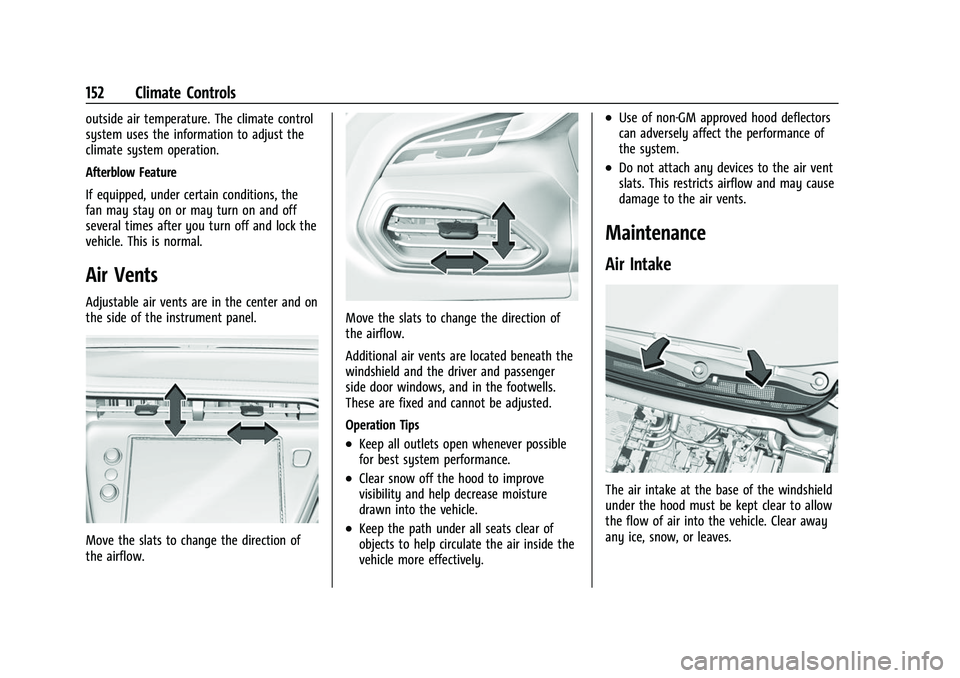
Adjustable air vents are in the center and on
the side of the instrument panel.
Move the slats to change the direction of
the airflow.
Move the slats to change the direction of
the airflow.
Additional air vents are located beneath the
windshield and the driver and passenger
side door windows, and in the footwells.
These are fixed and cannot be adjusted.
Operation Tips
.Keep all outlets open whenever possible
for best system performance.
.Clear snow off the hood to improve
visibility and help decrease moisture
drawn into the vehicle.
.Keep the path under all seats clear of
objects to help circulate the air inside the
vehicle more effectively.
.Use of non-GM approved hood deflectors
can adversely affect the performance of
the system.
.Do not attach any devices to the air vent
slats. This restricts airflow and may cause
damage to the air vents.
Maintenance
Air Intake
The air intake at the base of the windshield
under the hood must be kept clear to allow
the flow of air into the vehicle. Clear away
any ice, snow, or leaves.
Page 173 of 316
Chevrolet BOLT EV Owner Manual (GMNA-Localizing-U.S./Canada-
15082216) - 2022 - CRC - 6/25/21
172 Driving and Operating
.There is a problem with the propulsion
system.
To drive, press the accelerator pedal again
and the electric parking brake will
automatically disengage.
One-Pedal Driving may shift the car into
P (Park) if the vehicle is pushed once it has
been stopped or if a problem with the
propulsion system develops.
Brakes
Antilock Brake System (ABS)
The Antilock Brake System (ABS) helps
prevent a braking skid and maintain steering
while braking hard.
ABS performs a system check when the
vehicle is first driven. A momentary motor
or clicking noise may be heard while this
test is going on, and the brake pedal may
move slightly. This is normal.
If there is a problem with ABS, this warning
light stays on. See Antilock Brake System
(ABS) Warning Light 086.
ABS does not change the time needed to
get a foot on the brake pedal and does not
always decrease stopping distance. If you
get too close to the vehicle ahead, there will
not be enough time to apply the brakes if
that vehicle suddenly slows or stops. Always
leave enough room ahead to stop, even
with ABS.
Using ABS
Do not pump the brakes. Just hold the brake
pedal down firmly. Hearing or feeling ABS
operate is normal.
Braking in Emergencies
ABS allows steering and braking at the same
time. In many emergencies, steering can
help even more than braking.
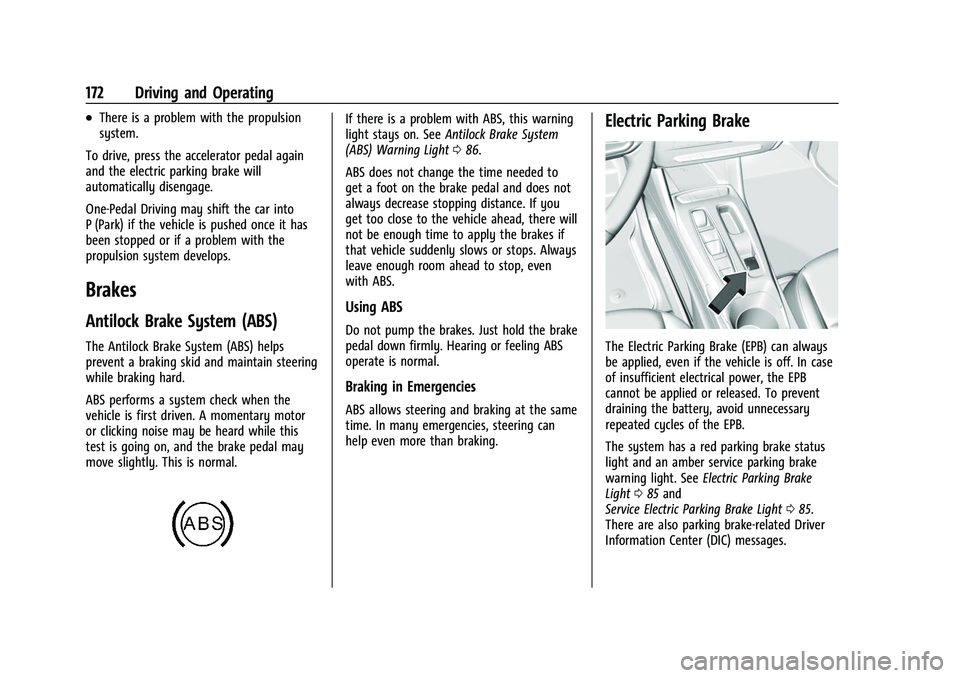
Electric Parking Brake
The Electric Parking Brake (EPB) can always
be applied, even if the vehicle is off. In case
of insufficient electrical power, the EPB
cannot be applied or released. To prevent
draining the battery, avoid unnecessary
repeated cycles of the EPB.
The system has a red parking brake status
light and an amber service parking brake
warning light. See Electric Parking Brake
Light 085 and
Service Electric Parking Brake Light 085.
There are also parking brake-related Driver
Information Center (DIC) messages.
Page 180 of 316
Chevrolet BOLT EV Owner Manual (GMNA-Localizing-U.S./Canada-
15082216) - 2022 - CRC - 6/25/21
Driving and Operating 179
{Warning
ACC has limited braking ability and may
not have time to slow the vehicle down
enough to avoid a collision with another
vehicle you are following. This can occur
when vehicles suddenly slow or stop
ahead, or enter your lane. Also see
“Alerting the Driver”later in this section.
Complete attention is always required
while driving and you should be ready to
take action and apply the brakes. See
Defensive Driving 0157.
{Warning
ACC will not detect or brake for children,
pedestrians, animals, or other objects.
Do not use ACC when:
.On winding and hilly roads or when
the camera sensor is blocked by snow,
ice, or dirt. The system may not
detect a vehicle ahead. Keep the
windshield and headlamps clean.
.When visibility is poor due to rain,
snow, fog, dirt, insect residue, or dust;
when other foreign objects obscure
(Continued)
Warning (Continued)
the camera’s view; or when the
vehicle in front or oncoming traffic
causes additional environmental
obstructions, such as road spray. ACC
performance is limited under these
conditions.
.On slippery roads where fast changes
in tire traction can cause excessive
wheel slip
.With extremely heavy cargo loaded in
the cargo area or rear seat
.When towing a trailer
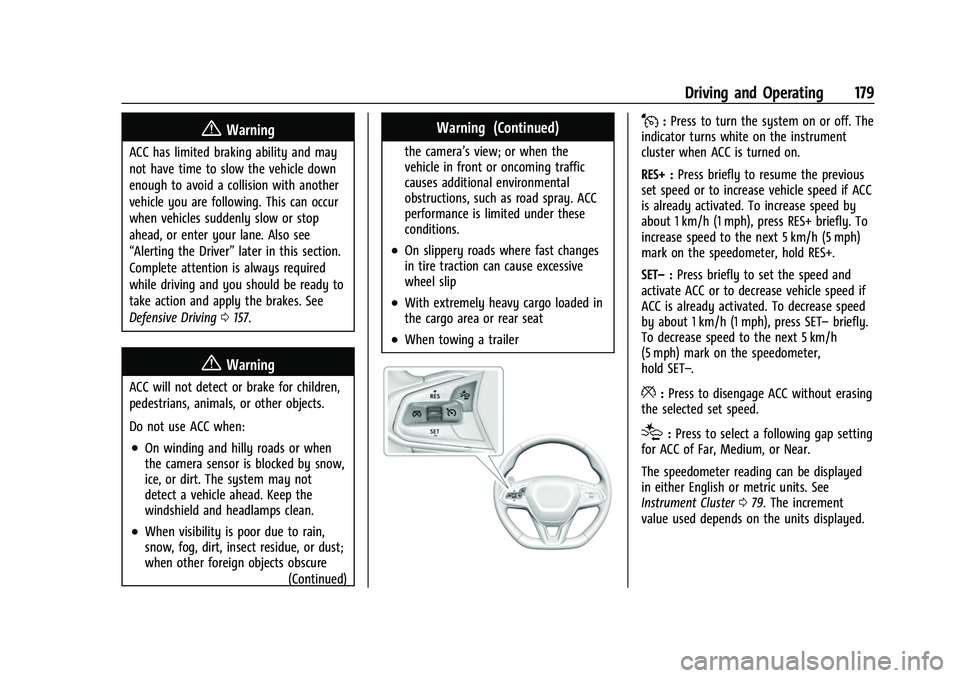
J:Press to turn the system on or off. The
indicator turns white on the instrument
cluster when ACC is turned on.
RES+ : Press briefly to resume the previous
set speed or to increase vehicle speed if ACC
is already activated. To increase speed by
about 1 km/h (1 mph), press RES+ briefly. To
increase speed to the next 5 km/h (5 mph)
mark on the speedometer, hold RES+.
SET– :Press briefly to set the speed and
activate ACC or to decrease vehicle speed if
ACC is already activated. To decrease speed
by about 1 km/h (1 mph), press SET– briefly.
To decrease speed to the next 5 km/h
(5 mph) mark on the speedometer,
hold SET–.
*: Press to disengage ACC without erasing
the selected set speed.
[: Press to select a following gap setting
for ACC of Far, Medium, or Near.
The speedometer reading can be displayed
in either English or metric units. See
Instrument Cluster 079. The increment
value used depends on the units displayed.
Page 183 of 316
Chevrolet BOLT EV Owner Manual (GMNA-Localizing-U.S./Canada-
15082216) - 2022 - CRC - 6/25/21
182 Driving and Operating
Selecting the Follow Distance Gap
When a slower moving vehicle is detected
ahead within the selected following gap,
ACC will adjust the vehicle's speed and
attempt to maintain the follow distance gap
selected.
Press
[on the steering wheel to adjust
the following gap. Each press cycles the gap
button through three settings: Far, Medium,
or Near.
When pressed, the current gap setting
displays briefly on the instrument cluster.
The gap setting will be maintained until it is
changed.
Since each gap setting corresponds to a
following time (Far, Medium, or Near), the
following distance will vary based on vehicle
speed. The faster the vehicle speed, the
further back your vehicle will follow a
vehicle detected ahead. Consider traffic and
weather conditions when selecting the
following gap. The range of selectable gaps
may not be appropriate for all drivers and
driving conditions.
The gap setting used by ACC is independent
to the alert timing sensitivity (Far, Medium,
or Near) used by the Forward Collision Alert
(FCA) feature. Pressing
[while ACC is active will only modify the gap setting used
by ACC without changing the alert timing
sensitivity used by FCA. Pressing
[while
ACC is not active will only modify the alert
timing sensitivity used by FCA without
modifying the gap setting used by ACC. See
Forward Collision Alert (FCA) System 0192.
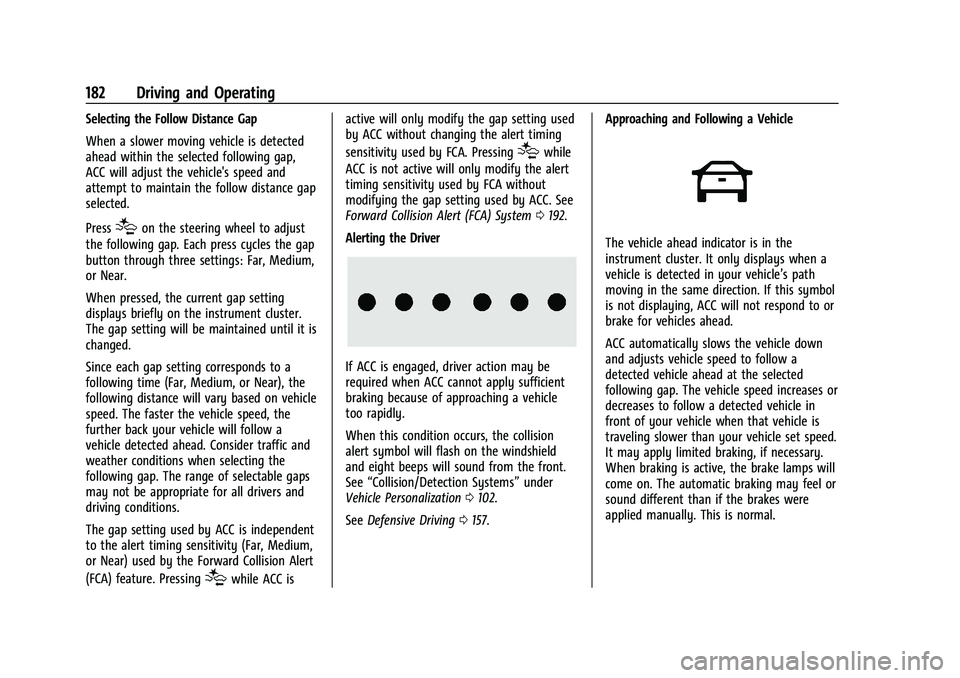
Alerting the Driver
If ACC is engaged, driver action may be
required when ACC cannot apply sufficient
braking because of approaching a vehicle
too rapidly.
When this condition occurs, the collision
alert symbol will flash on the windshield
and eight beeps will sound from the front.
See “Collision/Detection Systems” under
Vehicle Personalization 0102.
See Defensive Driving 0157. Approaching and Following a Vehicle
The vehicle ahead indicator is in the
instrument cluster. It only displays when a
vehicle is detected in your vehicle’s path
moving in the same direction. If this symbol
is not displaying, ACC will not respond to or
brake for vehicles ahead.
ACC automatically slows the vehicle down
and adjusts vehicle speed to follow a
detected vehicle ahead at the selected
following gap. The vehicle speed increases or
decreases to follow a detected vehicle in
front of your vehicle when that vehicle is
traveling slower than your vehicle set speed.
It may apply limited braking, if necessary.
When braking is active, the brake lamps will
come on. The automatic braking may feel or
sound different than if the brakes were
applied manually. This is normal.
Page 188 of 316
Chevrolet BOLT EV Owner Manual (GMNA-Localizing-U.S./Canada-
15082216) - 2022 - CRC - 6/25/21
Driving and Operating 187
The vehicle headlamps may need to be
cleaned due to dirt, snow, or ice. Objects
that are not illuminated correctly may be
difficult to detect.
If ACC will not operate, regular cruise control
may be available. See“Switching Between
ACC and Regular Cruise Control” in this
section. Always consider driving conditions
before using either cruise control system.
For cleaning instructions, see “Washing the
Vehicle” underExterior Care 0266.
Driver Assistance Systems
This vehicle may have features that work
together to help avoid crashes or reduce
crash damage while driving, backing, and
parking. Read this entire section before
using these systems.
{Warning
Do not rely on the Driver Assistance
Systems. These systems do not replace
the need for paying attention and driving
safely. You may not hear or see alerts or
warnings provided by these systems.
(Continued)
Warning (Continued)
Failure to use proper care when driving
may result in injury, death, or vehicle
damage. SeeDefensive Driving 0157.
Under many conditions, these systems
will not:
.Detect children, pedestrians, bicyclists,
or animals.
.Detect vehicles or objects outside the
area monitored by the system.
.Work at all driving speeds.
.Warn you or provide you with enough
time to avoid a crash.
.Work under poor visibility or bad
weather conditions.
.Work if the detection sensor is not
cleaned or is covered by ice, snow,
mud, or dirt.
.Work if the detection sensor is
covered up, such as with a sticker,
magnet, or metal plate.
.Work if the area surrounding the
detection sensor is damaged or not
properly repaired. (Continued)
Warning (Continued)
Complete attention is always required
while driving, and you should be ready to
take action and apply the brakes and/or
steer the vehicle to avoid crashes.
Audible Alert
Some driver assistance features alert the
driver of obstacles by beeping. To change
the volume of the warning chime, see
“Comfort and Convenience” underVehicle
Personalization 0102.
Cleaning
Depending on vehicle options, keep these
areas of the vehicle clean to ensure the best
driver assistance feature performance. Driver
Information Center (DIC) messages may
display when the systems are unavailable or
blocked.
Page 192 of 316
Chevrolet BOLT EV Owner Manual (GMNA-Localizing-U.S./Canada-
15082216) - 2022 - CRC - 6/25/21
Driving and Operating 191
display. The rear camera view will be
replaced by the front camera view after
shifting from R (Reverse) to a forward gear,
or when the vehicle is moving forward
slower than approximately 12 km/h (8 mph).
Park Assist
The vehicle may be equipped with Rear Park
Assist (RPA). Under certain conditions, the
Park Assist system can assist the driver
during backing and reverse parking
maneuvers when the vehicle is driven at no
more than 9 km/h (6 mph).
Sensors located in the bumpers measure the
distance between the vehicle and objects
using sonar technology. These sensors are
designed to detect certain objects up to
2.5 m (8 ft) behind your vehicle that are
taller than 25 cm (10 in).
Different environmental conditions may
affect whether and how far the Park Assist
system can detect objects. Keep the sensors
clean of mud, dirt, snow, ice, and slush; and
clean sensors after a car wash in freezing
temperatures. Sensors that are not clean
may not detect objects or may cause the
system to alert when not required.
{Warning
The Park Assist System is no substitute
for careful and attentive driving. The Park
Assist system does not detect children,
pedestrians, bicyclists, animals, or objects
located below the bumper or that are too
close or too far from the vehicle. It is not
available at speeds greater than 9 km/h
(6 mph). To prevent injury, death,
or vehicle damage, even with Park Assist,
always check the area around the vehicle
and check all mirrors before moving
forward or backing.
How the System Works
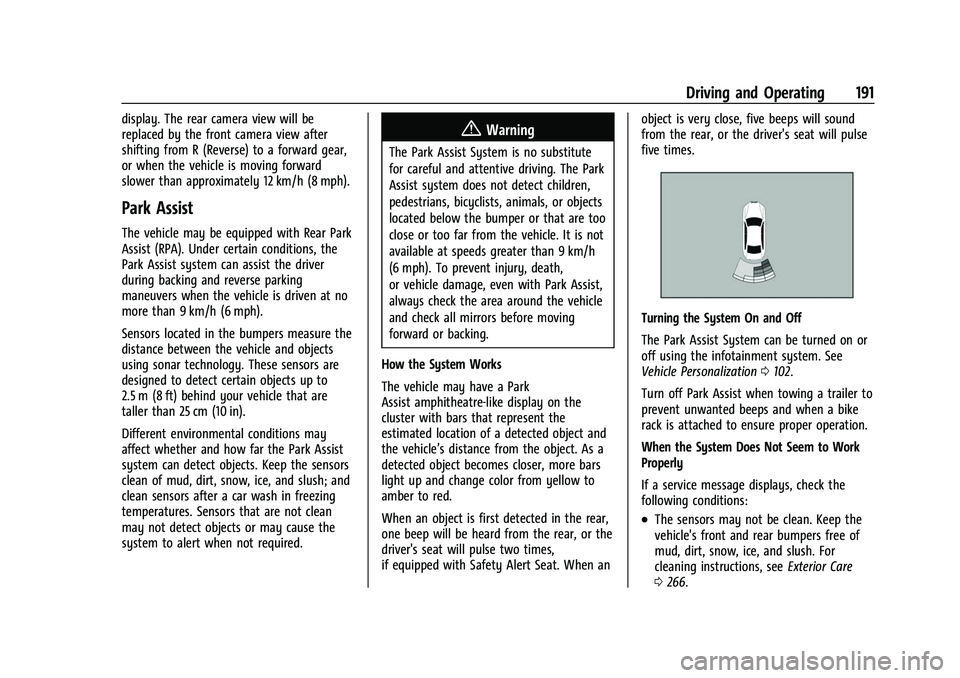
The vehicle may have a Park
Assist amphitheatre-like display on the
cluster with bars that represent the
estimated location of a detected object and
the vehicle’s distance from the object. As a
detected object becomes closer, more bars
light up and change color from yellow to
amber to red.
When an object is first detected in the rear,
one beep will be heard from the rear, or the
driver's seat will pulse two times,
if equipped with Safety Alert Seat. When an object is very close, five beeps will sound
from the rear, or the driver's seat will pulse
five times.
Turning the System On and Off
The Park Assist System can be turned on or
off using the infotainment system. See
Vehicle Personalization
0102.
Turn off Park Assist when towing a trailer to
prevent unwanted beeps and when a bike
rack is attached to ensure proper operation.
When the System Does Not Seem to Work
Properly
If a service message displays, check the
following conditions:
.The sensors may not be clean. Keep the
vehicle's front and rear bumpers free of
mud, dirt, snow, ice, and slush. For
cleaning instructions, see Exterior Care
0 266.