wheel CHEVROLET BOLT EV 2022 User Guide
[x] Cancel search | Manufacturer: CHEVROLET, Model Year: 2022, Model line: BOLT EV, Model: CHEVROLET BOLT EV 2022Pages: 316, PDF Size: 11.45 MB
Page 82 of 316
Chevrolet BOLT EV Owner Manual (GMNA-Localizing-U.S./Canada-
15082216) - 2022 - CRC - 6/25/21
Instruments and Controls 81
pressing thumbwheelwhile the desired item
is highlighted. A checkmark will be displayed
next to the selected item.
Speed Warning :The speed warning display
allows the driver to set a speed that they
do not want to exceed. To set the speed
warning, press the thumbwheel when Speed
Warning is displayed. Move the thumbwheel
up or down to adjust the value. Press the
thumbwheel to set the speed. Once set, this
feature can be turned off by pressing the
thumbwheel while viewing this page. If the
selected speed limit is exceeded, a pop-up
warning is displayed and a chime may
sound.
Tutorial : Press the thumbwheel to view
tutorials for the Modern and Enhanced
layout.
Open Source Software : Press the
thumbwheel while Open Source Software is
highlighted to display open source software
information.
Speedometer
The speedometer shows the vehicle's speed
in either kilometers per hour (km/h) or
miles per hour (mph).
Odometer
The odometer shows how far the vehicle has
been driven, in either kilometers or miles.
Trip Odometer
The trip odometer shows how far the
vehicle has been driven since the trip
odometer was last reset.
The trip odometer is accessed and reset
through the Driver Information Center (DIC).
See Driver Information Center (DIC) 099.
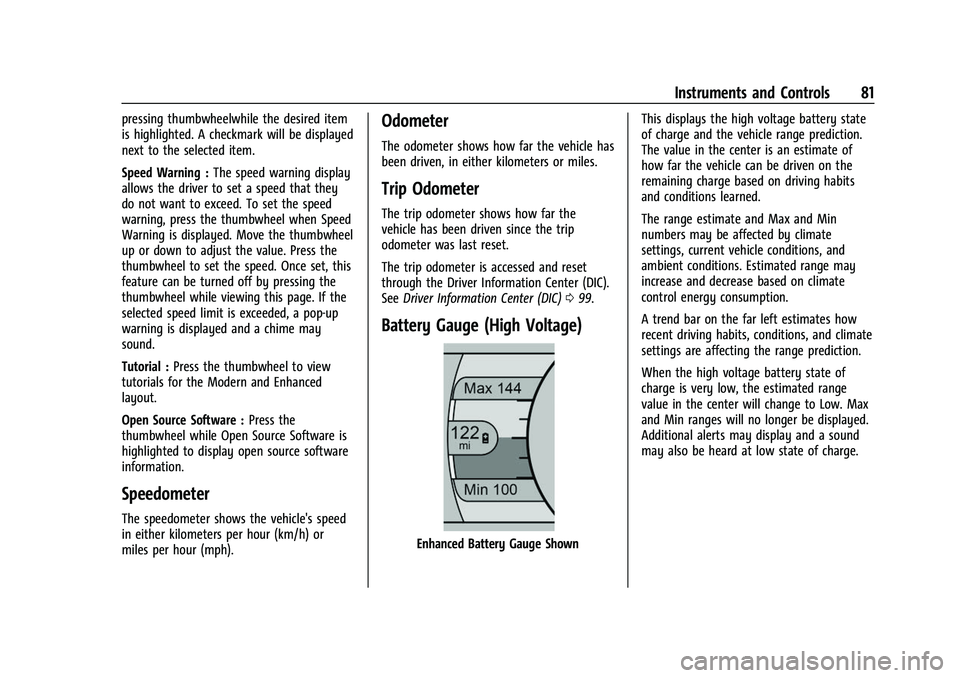
Battery Gauge (High Voltage)
Enhanced Battery Gauge Shown This displays the high voltage battery state
of charge and the vehicle range prediction.
The value in the center is an estimate of
how far the vehicle can be driven on the
remaining charge based on driving habits
and conditions learned.
The range estimate and Max and Min
numbers may be affected by climate
settings, current vehicle conditions, and
ambient conditions. Estimated range may
increase and decrease based on climate
control energy consumption.
A trend bar on the far left estimates how
recent driving habits, conditions, and climate
settings are affecting the range prediction.
When the high voltage battery state of
charge is very low, the estimated range
value in the center will change to Low. Max
and Min ranges will no longer be displayed.
Additional alerts may display and a sound
may also be heard at low state of charge.
Page 87 of 316
Chevrolet BOLT EV Owner Manual (GMNA-Localizing-U.S./Canada-
15082216) - 2022 - CRC - 6/25/21
86 Instruments and Controls
This light should come on briefly when the
vehicle is turned on. If it does not come on,
have it fixed so it will be ready to warn if
there is a problem.
If this light stays on or comes on while
driving, there is a problem with the Electric
Parking Brake (EPB). Take the vehicle to a
dealer as soon as possible. In addition to the
parking brake, other safety functions that
utilize the EPB may also be degraded.
A message may also display in the Driver
Information Center (DIC). SeeElectric Parking
Brake 0172.
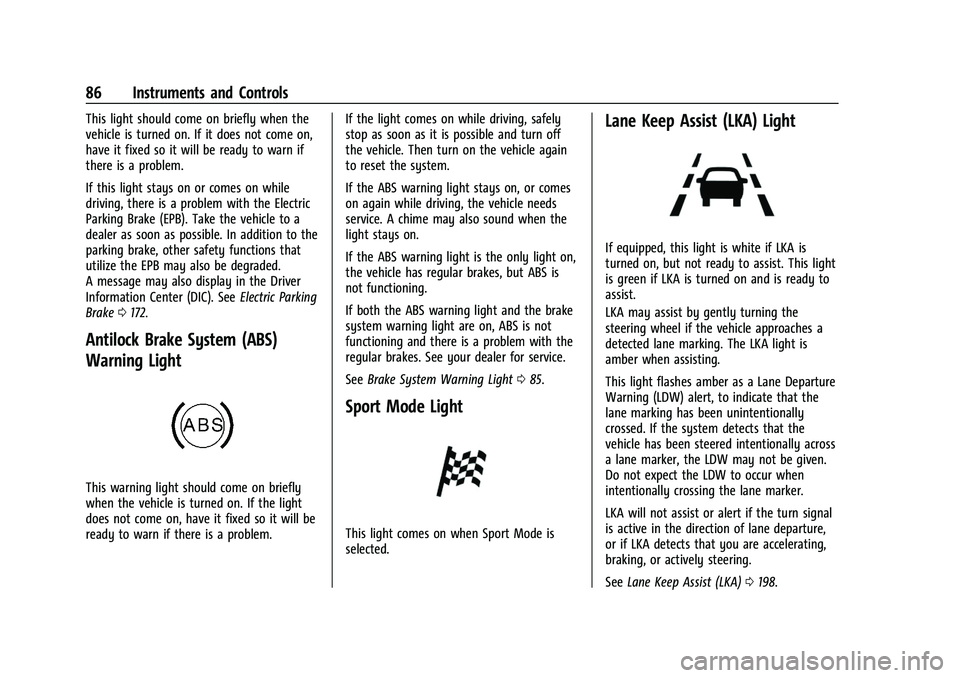
Antilock Brake System (ABS)
Warning Light
This warning light should come on briefly
when the vehicle is turned on. If the light
does not come on, have it fixed so it will be
ready to warn if there is a problem. If the light comes on while driving, safely
stop as soon as it is possible and turn off
the vehicle. Then turn on the vehicle again
to reset the system.
If the ABS warning light stays on, or comes
on again while driving, the vehicle needs
service. A chime may also sound when the
light stays on.
If the ABS warning light is the only light on,
the vehicle has regular brakes, but ABS is
not functioning.
If both the ABS warning light and the brake
system warning light are on, ABS is not
functioning and there is a problem with the
regular brakes. See your dealer for service.
See
Brake System Warning Light 085.
Sport Mode Light
This light comes on when Sport Mode is
selected.
Lane Keep Assist (LKA) Light
If equipped, this light is white if LKA is
turned on, but not ready to assist. This light
is green if LKA is turned on and is ready to
assist.
LKA may assist by gently turning the
steering wheel if the vehicle approaches a
detected lane marking. The LKA light is
amber when assisting.
This light flashes amber as a Lane Departure
Warning (LDW) alert, to indicate that the
lane marking has been unintentionally
crossed. If the system detects that the
vehicle has been steered intentionally across
a lane marker, the LDW may not be given.
Do not expect the LDW to occur when
intentionally crossing the lane marker.
LKA will not assist or alert if the turn signal
is active in the direction of lane departure,
or if LKA detects that you are accelerating,
braking, or actively steering.
See Lane Keep Assist (LKA) 0198.
Page 88 of 316
Chevrolet BOLT EV Owner Manual (GMNA-Localizing-U.S./Canada-
15082216) - 2022 - CRC - 6/25/21
Instruments and Controls 87
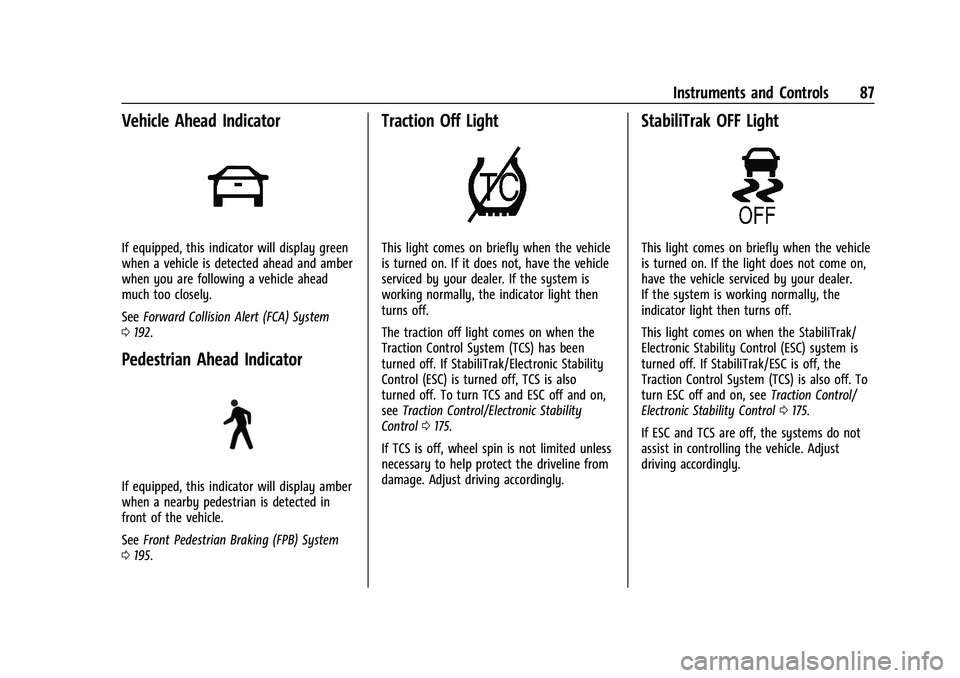
Vehicle Ahead Indicator
If equipped, this indicator will display green
when a vehicle is detected ahead and amber
when you are following a vehicle ahead
much too closely.
SeeForward Collision Alert (FCA) System
0 192.
Pedestrian Ahead Indicator
If equipped, this indicator will display amber
when a nearby pedestrian is detected in
front of the vehicle.
See Front Pedestrian Braking (FPB) System
0 195.
Traction Off Light
This light comes on briefly when the vehicle
is turned on. If it does not, have the vehicle
serviced by your dealer. If the system is
working normally, the indicator light then
turns off.
The traction off light comes on when the
Traction Control System (TCS) has been
turned off. If StabiliTrak/Electronic Stability
Control (ESC) is turned off, TCS is also
turned off. To turn TCS and ESC off and on,
see Traction Control/Electronic Stability
Control 0175.
If TCS is off, wheel spin is not limited unless
necessary to help protect the driveline from
damage. Adjust driving accordingly.
StabiliTrak OFF Light
This light comes on briefly when the vehicle
is turned on. If the light does not come on,
have the vehicle serviced by your dealer.
If the system is working normally, the
indicator light then turns off.
This light comes on when the StabiliTrak/
Electronic Stability Control (ESC) system is
turned off. If StabiliTrak/ESC is off, the
Traction Control System (TCS) is also off. To
turn ESC off and on, see Traction Control/
Electronic Stability Control 0175.
If ESC and TCS are off, the systems do not
assist in controlling the vehicle. Adjust
driving accordingly.
Page 100 of 316
Chevrolet BOLT EV Owner Manual (GMNA-Localizing-U.S./Canada-
15082216) - 2022 - CRC - 6/25/21
Instruments and Controls 99
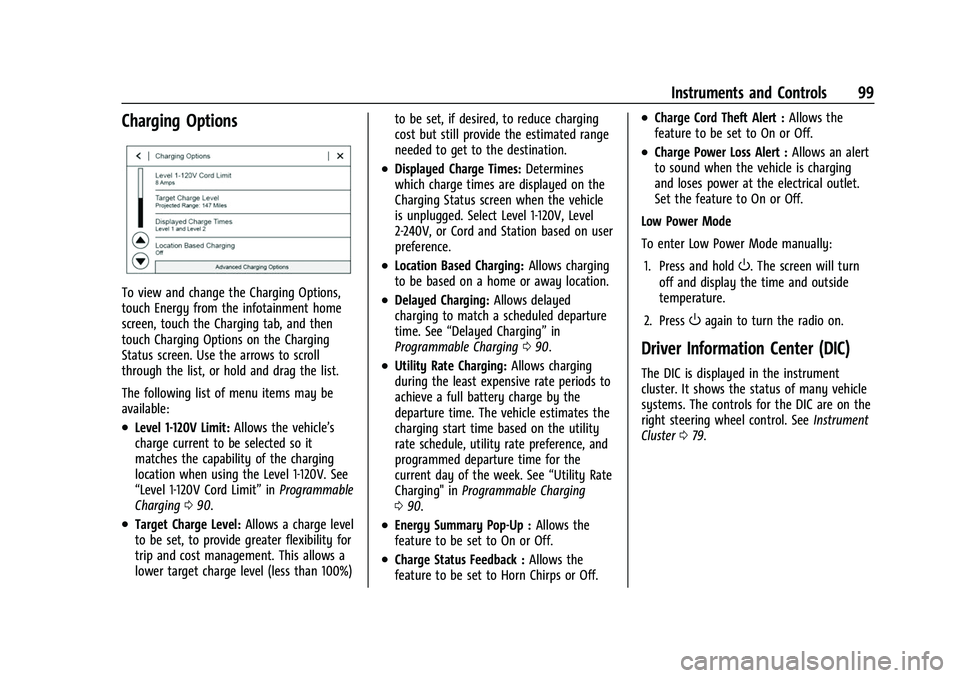
Charging Options
To view and change the Charging Options,
touch Energy from the infotainment home
screen, touch the Charging tab, and then
touch Charging Options on the Charging
Status screen. Use the arrows to scroll
through the list, or hold and drag the list.
The following list of menu items may be
available:
.Level 1-120V Limit:Allows the vehicle’s
charge current to be selected so it
matches the capability of the charging
location when using the Level 1-120V. See
“Level 1-120V Cord Limit” inProgrammable
Charging 090.
.Target Charge Level: Allows a charge level
to be set, to provide greater flexibility for
trip and cost management. This allows a
lower target charge level (less than 100%) to be set, if desired, to reduce charging
cost but still provide the estimated range
needed to get to the destination.
.Displayed Charge Times:
Determines
which charge times are displayed on the
Charging Status screen when the vehicle
is unplugged. Select Level 1-120V, Level
2-240V, or Cord and Station based on user
preference.
.Location Based Charging: Allows charging
to be based on a home or away location.
.Delayed Charging: Allows delayed
charging to match a scheduled departure
time. See “Delayed Charging” in
Programmable Charging 090.
.Utility Rate Charging: Allows charging
during the least expensive rate periods to
achieve a full battery charge by the
departure time. The vehicle estimates the
charging start time based on the utility
rate schedule, utility rate preference, and
programmed departure time for the
current day of the week. See “Utility Rate
Charging" in Programmable Charging
0 90.
.Energy Summary Pop-Up : Allows the
feature to be set to On or Off.
.Charge Status Feedback : Allows the
feature to be set to Horn Chirps or Off.
.Charge Cord Theft Alert : Allows the
feature to be set to On or Off.
.Charge Power Loss Alert : Allows an alert
to sound when the vehicle is charging
and loses power at the electrical outlet.
Set the feature to On or Off.
Low Power Mode
To enter Low Power Mode manually:
1. Press and hold
O. The screen will turn
off and display the time and outside
temperature.
2. Press
Oagain to turn the radio on.
Driver Information Center (DIC)
The DIC is displayed in the instrument
cluster. It shows the status of many vehicle
systems. The controls for the DIC are on the
right steering wheel control. See Instrument
Cluster 079.
Page 101 of 316
Chevrolet BOLT EV Owner Manual (GMNA-Localizing-U.S./Canada-
15082216) - 2022 - CRC - 6/25/21
100 Instruments and Controls
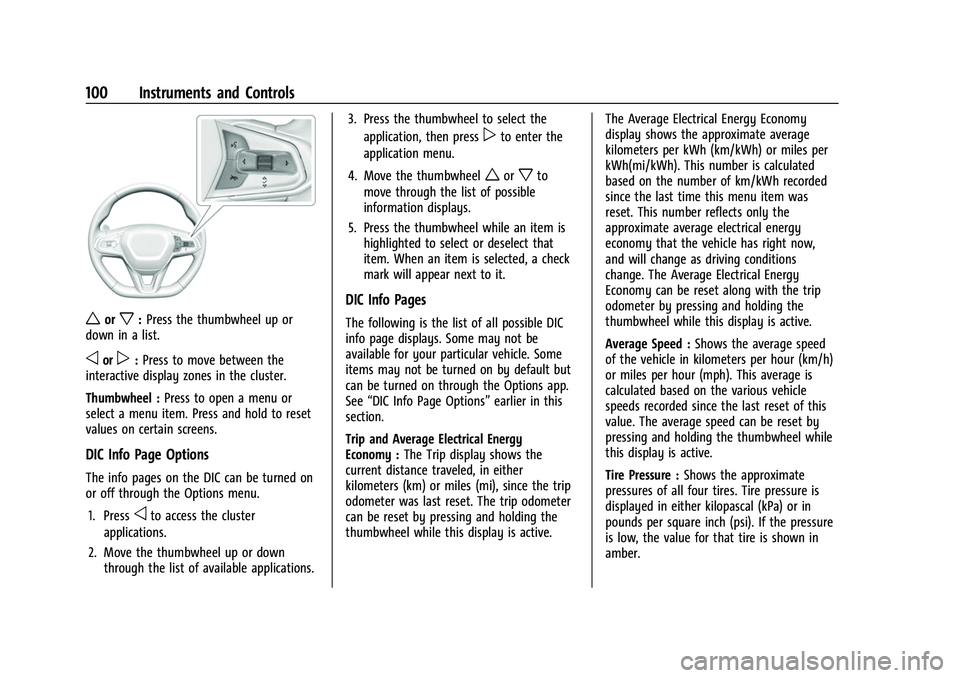
worx:Press the thumbwheel up or
down in a list.
oorp: Press to move between the
interactive display zones in the cluster.
Thumbwheel : Press to open a menu or
select a menu item. Press and hold to reset
values on certain screens.
DIC Info Page Options
The info pages on the DIC can be turned on
or off through the Options menu.
1. Press
oto access the cluster
applications.
2. Move the thumbwheel up or down through the list of available applications. 3. Press the thumbwheel to select the
application, then press
pto enter the
application menu.
4. Move the thumbwheel
worxto
move through the list of possible
information displays.
5. Press the thumbwheel while an item is highlighted to select or deselect that
item. When an item is selected, a check
mark will appear next to it.
DIC Info Pages
The following is the list of all possible DIC
info page displays. Some may not be
available for your particular vehicle. Some
items may not be turned on by default but
can be turned on through the Options app.
See “DIC Info Page Options” earlier in this
section.
Trip and Average Electrical Energy
Economy : The Trip display shows the
current distance traveled, in either
kilometers (km) or miles (mi), since the trip
odometer was last reset. The trip odometer
can be reset by pressing and holding the
thumbwheel while this display is active. The Average Electrical Energy Economy
display shows the approximate average
kilometers per kWh (km/kWh) or miles per
kWh(mi/kWh). This number is calculated
based on the number of km/kWh recorded
since the last time this menu item was
reset. This number reflects only the
approximate average electrical energy
economy that the vehicle has right now,
and will change as driving conditions
change. The Average Electrical Energy
Economy can be reset along with the trip
odometer by pressing and holding the
thumbwheel while this display is active.
Average Speed :
Shows the average speed
of the vehicle in kilometers per hour (km/h)
or miles per hour (mph). This average is
calculated based on the various vehicle
speeds recorded since the last reset of this
value. The average speed can be reset by
pressing and holding the thumbwheel while
this display is active.
Tire Pressure : Shows the approximate
pressures of all four tires. Tire pressure is
displayed in either kilopascal (kPa) or in
pounds per square inch (psi). If the pressure
is low, the value for that tire is shown in
amber.
Page 102 of 316
Chevrolet BOLT EV Owner Manual (GMNA-Localizing-U.S./Canada-
15082216) - 2022 - CRC - 6/25/21
Instruments and Controls 101
Timer :This display can be used as a timer.
To start the timer, press the thumbwheel
while this display is active. The display will
show the amount of time that has passed
since the timer was last reset. To stop the
timer, press the thumbwheel briefly while
this display is active and the timer is
running. To reset the timer to zero, press
and hold the thumbwheel while this display
is active.
Driver Assistance : If equipped, shows
information for ACC, Follow Distance, Lane
Keep Assist (LKA) and Forward Collision
Alert (FCA).
Blank Page : The Blank Page display allows
for no information to be displayed in the
cluster info display areas.
Vehicle Messages
Messages displayed on the DIC indicate the
status of the vehicle or some action that
may be needed to correct a condition.
Multiple messages may appear one after
another.
The messages that do not require
immediate action can be acknowledged and
cleared by pressing the thumbwheel. The messages that require immediate action
cannot be cleared until that action is
performed.
All messages should be taken seriously;
clearing the message does not correct the
problem.
If a SERVICE message appears, see your
dealer.
Follow the instructions given in the
messages. The system displays messages
regarding the following topics:
.Service Messages
.Fluid Levels
.Vehicle Security
.Brakes
.Ride Control Systems
.Driver Assistance Systems
.Cruise Control
.Lighting and Bulb Replacement
.Wiper/Washer Systems
.Doors and Windows
.Seat Belts
.Airbag Systems
.Propulsion and Transmission
.Tire Pressure
.Battery
Propulsion Power Messages
PROPULSION POWER IS REDUCED
This message displays when the vehicle's
propulsion power is reduced. A reduction in
propulsion power can affect the vehicle's
ability to accelerate. If this message is on,
but there is no observed reduction in
performance, proceed to your destination.
Under certain conditions the performance
may be reduced the next time the vehicle is
driven. The vehicle may be driven while this
message is on, but maximum acceleration
and speed may be reduced. Anytime this
message stays on, or displays repeatedly,
the vehicle should be taken to your dealer
for service as soon as possible.
Under certain operating conditions
propulsion will be disabled. Try restarting
after the ignition has been off for
30 seconds.
PROPULSION POWER REDUCED DUE TO
TEMPERATURE
This message is most commonly displayed
when the high voltage battery charge level
is low. The vehicle is limiting power to
maximize range. This message can display
when the vehicle is parked during extreme
Page 106 of 316
Chevrolet BOLT EV Owner Manual (GMNA-Localizing-U.S./Canada-
15082216) - 2022 - CRC - 6/25/21
Instruments and Controls 105
Valet Mode
This will lock the infotainment system and
steering wheel controls. It may also limit
access to vehicle storage locations,
if equipped.
To enable valet mode:1. Enter a four-digit code on the keypad.
2. Select Enter to go to the confirmation screen.
3. Re-enter the four-digit code.
Touch Lock or Unlock to lock or unlock the
system. Touch Back to go back to the
previous menu.
Page 113 of 316
Chevrolet BOLT EV Owner Manual (GMNA-Localizing-U.S./Canada-
15082216) - 2022 - CRC - 6/25/21
112 Infotainment System
Infotainment System
Introduction
Introduction . . . . . . . . . . . . . . . . . . . . . . . . . . . . 112
Overview . . . . . . . . . . . . . . . . . . . . . . . . . . . . . . . 113
Steering Wheel Controls . . . . . . . . . . . . . . . 114
Using the System . . . . . . . . . . . . . . . . . . . . . . 114
Software Updates . . . . . . . . . . . . . . . . . . . . . . 117
Radio
AM-FM Radio . . . . . . . . . . . . . . . . . . . . . . . . . . . 117
Radio Data System (RDS) . . . . . . . . . . . . . . 119
Satellite Radio . . . . . . . . . . . . . . . . . . . . . . . . . 119
Radio Reception . . . . . . . . . . . . . . . . . . . . . . . . 119
Multi-Band Antenna . . . . . . . . . . . . . . . . . . . 120
Audio Players
Avoiding Untrusted Media Devices . . . . 120
USB Port . . . . . . . . . . . . . . . . . . . . . . . . . . . . . . 120
Bluetooth Audio . . . . . . . . . . . . . . . . . . . . . . . 123
Voice Recognition
Voice Recognition . . . . . . . . . . . . . . . . . . . . . . 123
Phone
Bluetooth (Overview) . . . . . . . . . . . . . . . . . . 128
Bluetooth (Pairing and Using aPhone) . . . . . . . . . . . . . . . . . . . . . . . . . . . . . . . 128
Apple CarPlay and Android Auto . . . . . . . 132
Settings
Settings . . . . . . . . . . . . . . . . . . . . . . . . . . . . . . . . 133
Teen Driver . . . . . . . . . . . . . . . . . . . . . . . . . . . . 140
Trademarks and License Agreements
Trademarks and License Agreements . . . . . . . . . . . . . . . . . . . . . . . . . . 142
Introduction
Read the following pages to become familiar
with the features.
{Warning
Taking your eyes off the road for too
long or too often while using any
infotainment feature can cause a crash.
You or others could be injured or killed.
Do not give extended attention to
infotainment tasks while driving. Limit
your glances at the vehicle displays and
focus your attention on driving. Use voice
commands whenever possible.
The infotainment system has built-in
features intended to help avoid distraction
by disabling some features when driving.
These features may gray out when they are
unavailable. Many infotainment features are
also available through the instrument cluster
and steering wheel controls.
Before driving:
.Become familiar with the operation,
center stack controls, steering wheel
controls, and infotainment display.
Page 114 of 316
Chevrolet BOLT EV Owner Manual (GMNA-Localizing-U.S./Canada-
15082216) - 2022 - CRC - 6/25/21
Infotainment System 113
.Set up the audio by presetting favorite
stations, setting the tone, and adjusting
the speakers.
.Set up phone numbers in advance so they
can be called easily by pressing a single
control or by using a single voice
command.
See Distracted Driving 0157.
Overview
Infotainment System
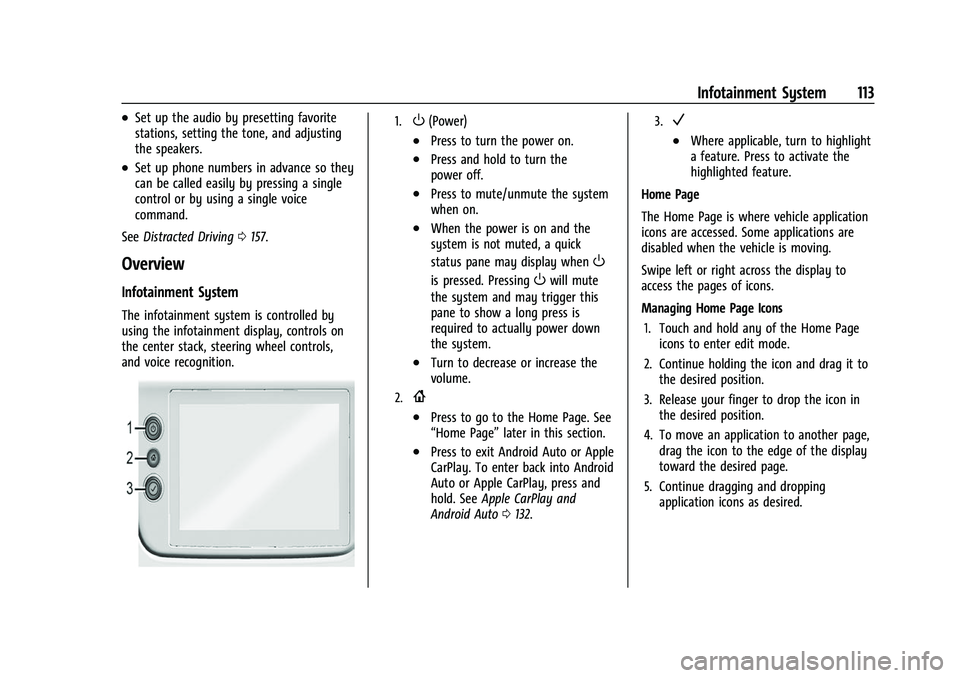
The infotainment system is controlled by
using the infotainment display, controls on
the center stack, steering wheel controls,
and voice recognition.
1.O(Power)
.Press to turn the power on.
.Press and hold to turn the
power off.
.Press to mute/unmute the system
when on.
.When the power is on and the
system is not muted, a quick
status pane may display when
O
is pressed. PressingOwill mute
the system and may trigger this
pane to show a long press is
required to actually power down
the system.
.Turn to decrease or increase the
volume.
2.{
.Press to go to the Home Page. See
“Home Page” later in this section.
.Press to exit Android Auto or Apple
CarPlay. To enter back into Android
Auto or Apple CarPlay, press and
hold. SeeApple CarPlay and
Android Auto 0132.
3.V
.Where applicable, turn to highlight
a feature. Press to activate the
highlighted feature.
Home Page
The Home Page is where vehicle application
icons are accessed. Some applications are
disabled when the vehicle is moving.
Swipe left or right across the display to
access the pages of icons.
Managing Home Page Icons 1. Touch and hold any of the Home Page icons to enter edit mode.
2. Continue holding the icon and drag it to the desired position.
3. Release your finger to drop the icon in the desired position.
4. To move an application to another page, drag the icon to the edge of the display
toward the desired page.
5. Continue dragging and dropping application icons as desired.
Page 115 of 316
Chevrolet BOLT EV Owner Manual (GMNA-Localizing-U.S./Canada-
15082216) - 2022 - CRC - 6/25/21
114 Infotainment System
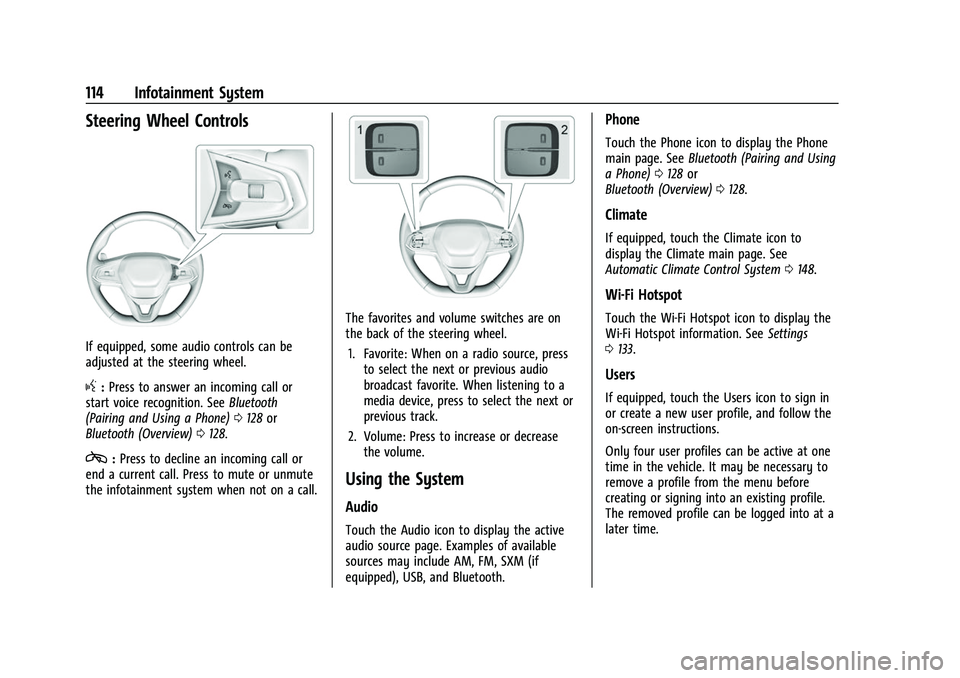
Steering Wheel Controls
If equipped, some audio controls can be
adjusted at the steering wheel.
g:Press to answer an incoming call or
start voice recognition. See Bluetooth
(Pairing and Using a Phone) 0128 or
Bluetooth (Overview) 0128.
c:Press to decline an incoming call or
end a current call. Press to mute or unmute
the infotainment system when not on a call.
The favorites and volume switches are on
the back of the steering wheel.
1. Favorite: When on a radio source, press to select the next or previous audio
broadcast favorite. When listening to a
media device, press to select the next or
previous track.
2. Volume: Press to increase or decrease the volume.
Using the System
Audio
Touch the Audio icon to display the active
audio source page. Examples of available
sources may include AM, FM, SXM (if
equipped), USB, and Bluetooth.
Phone
Touch the Phone icon to display the Phone
main page. See Bluetooth (Pairing and Using
a Phone) 0128 or
Bluetooth (Overview) 0128.
Climate
If equipped, touch the Climate icon to
display the Climate main page. See
Automatic Climate Control System 0148.
Wi-Fi Hotspot
Touch the Wi-Fi Hotspot icon to display the
Wi-Fi Hotspot information. See Settings
0 133.
Users
If equipped, touch the Users icon to sign in
or create a new user profile, and follow the
on-screen instructions.
Only four user profiles can be active at one
time in the vehicle. It may be necessary to
remove a profile from the menu before
creating or signing into an existing profile.
The removed profile can be logged into at a
later time.