ECO mode CHEVROLET BOLT EV 2022 Owner's Manual
[x] Cancel search | Manufacturer: CHEVROLET, Model Year: 2022, Model line: BOLT EV, Model: CHEVROLET BOLT EV 2022Pages: 316, PDF Size: 11.45 MB
Page 136 of 316
Chevrolet BOLT EV Owner Manual (GMNA-Localizing-U.S./Canada-
15082216) - 2022 - CRC - 6/25/21
Infotainment System 135
.Share Hotspot Data: Touch On to allow
devices to use the vehicle hotspot and its
data, or touch Off to allow devices to
only use the vehicle hotspot but not
its data.
Privacy
Touch and the following may display:
.Location Services: This setting enables or
disables sharing of vehicle location
outside the vehicle. Emergency services
will not be affected when Off is selected.
.Data Services: If equipped, this setting
determines if data sharing can be used by
features including Wi-Fi, Hotspot, and
applications. Touch Off to disable data
services. Emergency services and phone
calls, such as calls with OnStar Advisors or
others, will not be affected when Off is
selected.
.Voice Recognition Sharing: This setting
determines if voice commands can be
shared with a cloud-based voice
recognition system. Touch Off to prevent
the sharing and possible recording of your
voice commands with this system. This
may limit the system’s ability to
understand your voice commands and
may disable some features.
.Types: This setting lists all
Android-defined as dangerous permissions
currently used by the infotainment
system, the number of applications that
have requested this permission, and the
number of applications that are allowed
to use this permission.
.Used By Applications: This setting lists all
applications that are requested or are
using Android-defined as dangerous
permissions. Only requested and active
permissions are shown.
Display
Touch and the following may display:
.Mode: This adjusts the appearance of the
navigation map view and any
downloaded apps optimized for day or
night time conditions. Set to Auto for the
display to automatically adjust based on
bright/dark conditions.
Touch Auto, Day, or Night to adjust the
display.
.Turn Display Off: Touch to turn the
display off. Touch anywhere on the
infotainment display or press any
infotainment control on the center stack
again to turn the display on. Sounds
Touch and the following may display:
.Maximum Startup Volume: This feature
adjusts the maximum volume of the
infotainment system when you start your
vehicle. To set the maximum startup
volume, touch the controls on the
infotainment display to increase or
decrease.
.Startup/Shutdown Sounds: This feature
determines if sounds play when the
infotainment system starts up and shuts
down. This feature can be turned off
or on.
.Startup/Shutdown Audio Volume: This
setting controls the volume of the
infotainment system played on startup
and shut down. Touch the controls on the
infotainment display to increase or
decrease.
.Audible Touch Feedback: This setting
determines if a sound plays when
touching the infotainment display or
radio controls. This feature can be turned
off or on.
Page 137 of 316
Chevrolet BOLT EV Owner Manual (GMNA-Localizing-U.S./Canada-
15082216) - 2022 - CRC - 6/25/21
136 Infotainment System
Voice
Touch and the following may display:
.Confirm More/Less: This setting specifies
how often the voice recognition system
confirms commands. Touch Confirm More
to have the system check with you more
often before acting on your commands.
.Prompt Length: This setting specifies the
amount of detail the voice recognition
system provides when giving you
feedback. Touch Auto to have the system
automatically adjust to your speech
habits. Touch Informative, Short, or Auto.
.Audio Feedback Speed: Touch Slow,
Medium, or Fast to adjust how quickly
the voice recognition system speaks.
.Allow Prompt Interruptions: This setting
controls whether voice commands can be
spoken before voice prompts finish. Turn
this on to speak commands without
hearing the full prompt. Speaking while
the prompt is still playing will
immediately stop playing the current
prompt and recognize your command.
Background noise may cause accidental
interruptions. Touch Off or On.
.Friendly Prompts: This setting adjusts the
formality of voice prompts. Touch Off for
shorter prompts. Touch On to hearprompts with more personality. Touch
Auto to have the prompt match your
command style.
.Tutorial Mode: Touch Off or On to
provide tutorial feedback on the display.
Favorites
Touch and the following may display:
.Manage Favorites: Touch to display a list
of Audio, Phone, and Navigation favorites.
Favorites can be moved, renamed,
or deleted.
To move, touch and hold the favorite, and
then drag up or down to rearrange the
position.
.Set Number of Audio Favorites: Touch to
select how many favorites pages can be
viewed from the audio application. The
Auto setting will automatically adjust this
number based on the number of favorites
you have saved. Touch Auto, 5, 10, 15, 20,
25, 30, 35, or 40.
Updates
If equipped, the vehicle can download and
install select software updates over a
wireless connection. The system will prompt for certain updates to be downloaded and
installed. There is also an option to check
for updates manually.
To manually check for updates, touch
Settings on the Home Page and select the
System tab. Go to the Vehicle Software
section and touch Updates. Follow the
on-screen prompts. The steps to check for,
download, and install updates may vary by
vehicle.
The vehicle can be used normally or can be
charging during the software download.
Once the download is complete, there may
be a prompt to accept the installation of the
update upon the next ignition cycle or the
next time the vehicle is shifted into P (Park).
For most updates, the vehicle will be
disabled and cannot be driven during the
installation. The system will deliver
messages indicating success or error during
and after the download and installation
processes.
Downloading Over-the-Air vehicle software
updates requires Internet connectivity, which
can be accessed through the vehicle’s
built-in 4G LTE connection, if equipped and
active. If required, data plans are provided
by a third party. Optionally, a secure Wi-Fi
hotspot such as a compatible mobile device
Page 140 of 316
Chevrolet BOLT EV Owner Manual (GMNA-Localizing-U.S./Canada-
15082216) - 2022 - CRC - 6/25/21
Infotainment System 139
Touch the controls on the infotainment
display to disable or enable.
.Privacy: Only show call alerts in the
instrument cluster.
Touch Off or On.
.Sort Contacts: Touch to sort by first or
last name.
.Re-sync Device Contacts:
This allows the device contacts to re-sync
if you are having difficulty accessing all of
the contacts on your cell phone.
.Delete All Vehicle Contacts: Touch to
delete all vehicle stored contacts.
.OnStar Phone TTY Mode: This enables
OnStar cell phone TTY mode.
Touch Disable or Enable.
SiriusXM
Touch and the following may display:
.Account Information: Displays the account
information and subscription information.
.Listener Options: Based on the current
vehicle profile selected. Touch and the
following may display:
.SiriusXM Favorites: Favorites shown
can be moved or deleted.
.Listener Settings: Selections include
hide explicit language, channels and
content, reset listening history, and
start songs at the beginning when
tuning to a music channel.
.System Settings: Enable or disable
SiriusXM location services. Also shows
radio ID.
.Contact SiriusXM: Displays radio ID and
phone number to call SiriusXM
Customer Care.
.SiriusXM Policies: Shows information on
the Customer Agreement and Privacy
Policy.
Vehicle
This menu allows adjustment of different
vehicle features. See Vehicle Personalization
0 102.
Personal
If equipped, this menu allows adjustment of
different user profile settings. See “Users”in
Using the System 0114 for information on
setting up user profiles. The menu may contain the following:
Name
Touch to edit your user name that will be
displayed in the vehicle.
Vehicle Account Information
Touch to view the vehicle account
information and to change the account
password.
An
“unverified user account” pop-up will
display until the account information
verification process has been completed on
the Internet. Check your registered e-mail
account for an activation e-mail to complete
the verification process.
Profile Picture
Touch to choose or change your profile
picture.
Profile Identifiers
Touch to have the vehicle recognize the
identifier you choose.
Touch Vehicle Key 1 and/or Vehicle Key 2.
If the Remote Keyless Entry (RKE)
transmitter is lost or stolen, see your dealer.
Page 150 of 316
Chevrolet BOLT EV Owner Manual (GMNA-Localizing-U.S./Canada-
15082216) - 2022 - CRC - 6/25/21
Climate Controls 149
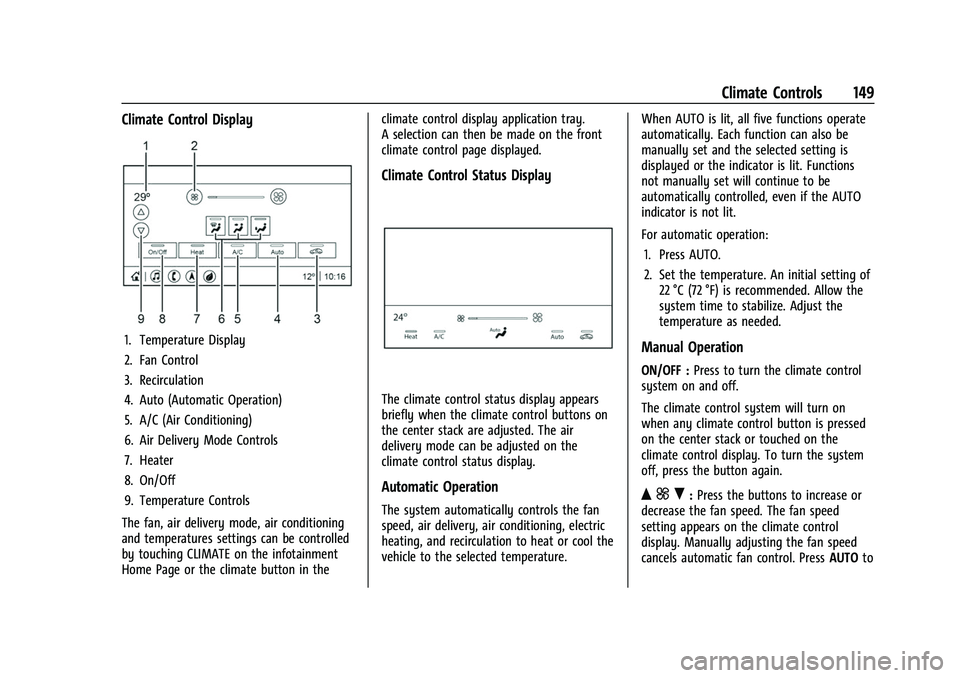
Climate Control Display
1. Temperature Display
2. Fan Control
3. Recirculation
4. Auto (Automatic Operation)
5. A/C (Air Conditioning)
6. Air Delivery Mode Controls
7. Heater
8. On/Off
9. Temperature Controls
The fan, air delivery mode, air conditioning
and temperatures settings can be controlled
by touching CLIMATE on the infotainment
Home Page or the climate button in the climate control display application tray.
A selection can then be made on the front
climate control page displayed.
Climate Control Status Display
The climate control status display appears
briefly when the climate control buttons on
the center stack are adjusted. The air
delivery mode can be adjusted on the
climate control status display.
Automatic Operation
The system automatically controls the fan
speed, air delivery, air conditioning, electric
heating, and recirculation to heat or cool the
vehicle to the selected temperature.
When AUTO is lit, all five functions operate
automatically. Each function can also be
manually set and the selected setting is
displayed or the indicator is lit. Functions
not manually set will continue to be
automatically controlled, even if the AUTO
indicator is not lit.
For automatic operation:
1. Press AUTO.
2. Set the temperature. An initial setting of 22 °C (72 °F) is recommended. Allow the
system time to stabilize. Adjust the
temperature as needed.
Manual Operation
ON/OFF : Press to turn the climate control
system on and off.
The climate control system will turn on
when any climate control button is pressed
on the center stack or touched on the
climate control display. To turn the system
off, press the button again.
Q ] R:Press the buttons to increase or
decrease the fan speed. The fan speed
setting appears on the climate control
display. Manually adjusting the fan speed
cancels automatic fan control. Press AUTOto
Page 151 of 316
Chevrolet BOLT EV Owner Manual (GMNA-Localizing-U.S./Canada-
15082216) - 2022 - CRC - 6/25/21
150 Climate Controls
return to automatic operation. PressON/OFF
to turn off the fan and the climate control
system.
Q/R: Press to increase or decrease the
temperature.Press and hold to rapidly
increase or decrease the temperature.
The temperatures can also be adjusted by
touching the buttons on the climate control
display.
Air Delivery Mode Control : When the
climate information is displayed, touch the
desired air delivery mode on the climate
control display to change the direction of
the airflow. The selected air delivery mode
button is lit. Touching any of the air
delivery buttons cancels automatic air
delivery control and the direction of the
airflow can be controlled manually. Press
AUTO to return to automatic operation.
To change the current mode, select one of
the following:
Y: Air is directed to the instrument panel
outlets.
\: Air is divided between the instrument
panel outlets and the floor outlets.
[: Air is directed to the floor outlets.
-:Clears the windows of fog or moisture.
Air is directed to the windshield and floor
outlets.
1MAX : Air is directed to the windshield
and the fan runs at a higher speed. Fog or
frost is cleared from the windshield more
quickly. When the button is pressed again,
the system returns to the previous mode
setting. For best results, clear all snow and
ice from the windshield before defrosting.
A/C : Press A/C Mode on the climate control
display to turn the automatic air
conditioning on or off. If the fan is turned
off or the outside temperature falls below
freezing, the air conditioner will not run.
Press AUTO to return to automatic operation
and the air conditioner runs as needed.
Automatic Air Recirculation : When the
AUTO indicator light is on, the air is
automatically recirculated as needed to help
quickly cool the inside of the vehicle.
L: Press to turn on recirculation. Using
air conditioning and recirculation together
for long periods of time may cause the air
inside the vehicle to become too dry. To
prevent this from happening, after the air in
the vehicle has cooled, turn the recirculation
mode off. Pressing this button cancels automatic
recirculation. Press AUTO to return to
automatic operation; recirculation runs
automatically as needed. Manual
recirculation mode is not recommended
when in Defrost or Defog modes.
HEAT :
Press to turn the heater on when the
fan is on.
A/C : Press to turn the air conditioning on
when the fan is on.
Auto Defog : The system will monitor high
humidity inside the vehicle. When high
humidity is detected, the climate control
system may adjust to outside air supply and
turn on the air conditioner or the heater.
The fan speed may slightly increase to help
prevent fogging. When high humidity is no
longer detected, the system will return to
its prior operation. To turn Auto Defog off
or on, see “Climate and Air Quality” under
Vehicle Personalization 0102.Rear Window Defogger
K:Press to turn the rear window defogger
on or off. An indicator light on the button
comes on to show that the rear window
defogger is on.
Page 156 of 316
Chevrolet BOLT EV Owner Manual (GMNA-Localizing-U.S./Canada-
15082216) - 2022 - CRC - 6/25/21
Driving and Operating 155
Driving and Operating
Driving Information
Driving for Better Energy Efficiency . . . . 156
Distracted Driving . . . . . . . . . . . . . . . . . . . . . . 157
Defensive Driving . . . . . . . . . . . . . . . . . . . . . . 157
Impaired Driving . . . . . . . . . . . . . . . . . . . . . . . 158
Control of a Vehicle . . . . . . . . . . . . . . . . . . . 158
Braking . . . . . . . . . . . . . . . . . . . . . . . . . . . . . . . . 158
Steering . . . . . . . . . . . . . . . . . . . . . . . . . . . . . . . 158
Off-Road Recovery . . . . . . . . . . . . . . . . . . . . . 159
Loss of Control . . . . . . . . . . . . . . . . . . . . . . . . 159
Driving on Wet Roads . . . . . . . . . . . . . . . . . 160
Hill and Mountain Roads . . . . . . . . . . . . . . 160
Winter Driving . . . . . . . . . . . . . . . . . . . . . . . . . 161
If the Vehicle Is Stuck . . . . . . . . . . . . . . . . . 162
Vehicle Load Limits . . . . . . . . . . . . . . . . . . . . 162
Starting and Operating
New Vehicle Break-In . . . . . . . . . . . . . . . . . . 165
Power Button . . . . . . . . . . . . . . . . . . . . . . . . . . 165
Starting and Stopping the Vehicle . . . . . 166
Retained Accessory Power (RAP) . . . . . . . 167
Shifting Into Park . . . . . . . . . . . . . . . . . . . . . . 167
Shifting out of Park . . . . . . . . . . . . . . . . . . . 168
Extended Parking . . . . . . . . . . . . . . . . . . . . . . 168
Electric Vehicle Operating Modes
Driver Selected Operating Modes . . . . . . 168
Electric Drive Unit
Electric Drive Unit . . . . . . . . . . . . . . . . . . . . . 169
One-Pedal Driving . . . . . . . . . . . . . . . . . . . . . . 171
Brakes
Antilock Brake System (ABS) . . . . . . . . . . . 172
Electric Parking Brake . . . . . . . . . . . . . . . . . . 172
Brake Assist . . . . . . . . . . . . . . . . . . . . . . . . . . . . 173
Hill Start Assist (HSA) . . . . . . . . . . . . . . . . . . 174
Regenerative Braking . . . . . . . . . . . . . . . . . . 174
Ride Control Systems
Traction Control/Electronic StabilityControl . . . . . . . . . . . . . . . . . . . . . . . . . . . . . . . 175
Cruise Control
Cruise Control . . . . . . . . . . . . . . . . . . . . . . . . . 176
Adaptive Cruise Control (Camera) . . . . . . 178
Driver Assistance Systems
Driver Assistance Systems . . . . . . . . . . . . . 187
Assistance Systems for Parking orBacking . . . . . . . . . . . . . . . . . . . . . . . . . . . . . . 188
Rear Vision Camera (RVC) . . . . . . . . . . . . . 188
Surround Vision System . . . . . . . . . . . . . . . 189
Park Assist . . . . . . . . . . . . . . . . . . . . . . . . . . . . . 191
Rear Cross Traffic Alert (RCTA) System . . . . . . . . . . . . . . . . . . . . . . . . . . . . . . 192
Assistance Systems for Driving . . . . . . . . 192
Forward Collision Alert (FCA) System . . . . . . . . . . . . . . . . . . . . . . . . . . . . . . 192 Automatic Emergency Braking (AEB) . . . 194
Front Pedestrian Braking (FPB)
System . . . . . . . . . . . . . . . . . . . . . . . . . . . . . . 195
Side Blind Zone Alert (SBZA) . . . . . . . . . . . 197
Lane Change Alert (LCA) . . . . . . . . . . . . . . . 197
Lane Keep Assist (LKA) . . . . . . . . . . . . . . . . 198
Charging
When to Charge . . . . . . . . . . . . . . . . . . . . . . 200
Plug-In Charging . . . . . . . . . . . . . . . . . . . . . . 200
Delayed Charging Override . . . . . . . . . . . . 204
Charging Status Feedback . . . . . . . . . . . . . 204
Charge Cord . . . . . . . . . . . . . . . . . . . . . . . . . . . 208
Utility Interruption of Charging . . . . . . . . 214
Electrical Requirements for Battery Charging . . . . . . . . . . . . . . . . . . . . . . . . . . . . . 214
Trailer Towing
General Towing Information . . . . . . . . . . . 215
Conversions and Add-Ons
Add-On Electrical Equipment . . . . . . . . . . . 215
Page 157 of 316
Chevrolet BOLT EV Owner Manual (GMNA-Localizing-U.S./Canada-
15082216) - 2022 - CRC - 6/25/21
156 Driving and Operating
Driving Information
Driving for Better Energy
Efficiency
Use the following tips to help maximize
energy efficiency and driving range.
In colder temperatures, while these
efficiency tips will help, the electric vehicle
driving range will be lower due to higher
energy usage including energy spent
heating the cabin.
The Range Impacts screen estimates the
influence of the main factors impacting
vehicle range. After charging is complete,
this information is reset. See“Range
Impacts” under. See Energy Information
0 97.
Acceleration/Braking/Coasting
Avoid rapid accelerations and decelerations.
Driving range is maximized at 89 km/h
(55 mph) and less.
Use cruise control when appropriate.
Plan ahead for decelerations and coast
whenever possible. Do not rush to traffic
signals. Do not shift to N (Neutral) to coast. The vehicle recovers more energy while
coasting and braking with One-Pedal mode
turned on. See
One-Pedal Driving 0171.
Using the Regen on Demand paddle during
deceleration recovers more energy. See
Regenerative Braking 0174.
Terrain and Vehicle Speed
Higher speeds and grade changes use more
energy and can significantly reduce driving
range.
Climate Setting
Using the heat and air conditioning systems
decreases the energy available for electric
driving.
Optimal energy efficiency is achieved when
the heat, air conditioning, and fan are
turned off.
Use the heated seat features instead of
climate control system. Heating the seat
uses less energy than heating and cooling
the interior.
Use remote start to heat or cool the interior
when the vehicle is plugged in to maximize
the driving range by utilizing electricity from
the electrical outlet. In hot weather, avoid parking in direct
sunlight or use sunshades inside the vehicle.
Keep the inside of the windows clean to
reduce fogging. Turn off the front defroster
and rear defogger when they are not
needed.
Avoid driving with the windows open at
highway speeds.
Use the Enhanced Battery Gauge on the
Instrument Cluster to view the effect of
climate control settings on your estimated
driving range. See
Battery Gauge (High
Voltage) 081.
Outside Temperature
On colder days, it is best to plug in the
vehicle overnight, then remote start the
vehicle.
Allow the vehicle to warm up for
20 minutes before driving.
If possible, use a level 2 (240 volt) high
power charge station for best results. This
allows the interior of the vehicle and high
voltage battery to warm to the optimal
temperature.
Page 167 of 316
Chevrolet BOLT EV Owner Manual (GMNA-Localizing-U.S./Canada-
15082216) - 2022 - CRC - 6/25/21
166 Driving and Operating
Retained Accessory Power (RAP) will remain
active until the driver door is opened.
If the vehicle must be shut off in an
emergency:1. Brake using a firm and steady pressure. Do not pump the brakes repeatedly. This
may deplete power assist, requiring
increased brake pedal force.
2. Shift the vehicle to N (Neutral). This can be done while the vehicle is moving.
After shifting to N (Neutral), firmly apply
the brakes and steer the vehicle to a
safe location.
3. Come to a complete stop, shift to P (Park), and turn the vehicle off by
pressing POWER
O.
4. Set the parking brake.
{Warning
Turning off the vehicle while moving may
disable the airbags. While driving, only
shut the propulsion system off in an
emergency.
If the vehicle cannot be pulled over, and
must be shut off while driving, press and
hold POWER
Ofor longer than two seconds,
or press twice in five seconds. ON/RUN :
This position is for starting and
driving. With the vehicle off, and the brake
pedal applied, pressing POWER
Oonce will
place the vehicle in ON/RUN. When the
vehicle ready light is on in the instrument
cluster, the vehicle is ready to be driven.
This could take up to 15 seconds at
extremely cold temperatures.
Service Mode
This power mode is available for service and
diagnostics, and to verify the proper
operation of the service vehicle soon light as
may be required for emission inspection
purposes. With the vehicle off, and the
brake pedal not applied, pressing and
holding POWER
Ofor more than
five seconds will place the vehicle in Service
Mode. The instruments and audio systems
will operate as they do in ON/RUN, but the
vehicle will not be able to be driven. The
propulsion system will not start in Service
Mode. Press POWER
Oagain to turn the
vehicle off.
Caution
Placing the vehicle in Service Mode will
use the 12-volt battery. Do not use
Service Mode for an extended period,
or the vehicle may not start.
Starting and Stopping the Vehicle
Starting Procedure
Shift the vehicle to P (Park) or N (Neutral).
The propulsion system will not start in any
other position.
Caution
Do not try to shift to P (Park) if the
vehicle is moving or the electric drive unit
could be damaged. Shift to P (Park) only
when the vehicle is stopped.
Caution
If you add electrical parts or accessories,
you could change the way the vehicle
operates. Any resulting damage would
not be covered by the vehicle warranty.
Page 181 of 316
Chevrolet BOLT EV Owner Manual (GMNA-Localizing-U.S./Canada-
15082216) - 2022 - CRC - 6/25/21
180 Driving and Operating
Switching Between ACC and Regular Cruise
Control
To switch between ACC and regular cruise
control, press and hold
*. A Driver
Information Display (DIC) message displays.
See Vehicle Messages 0101.
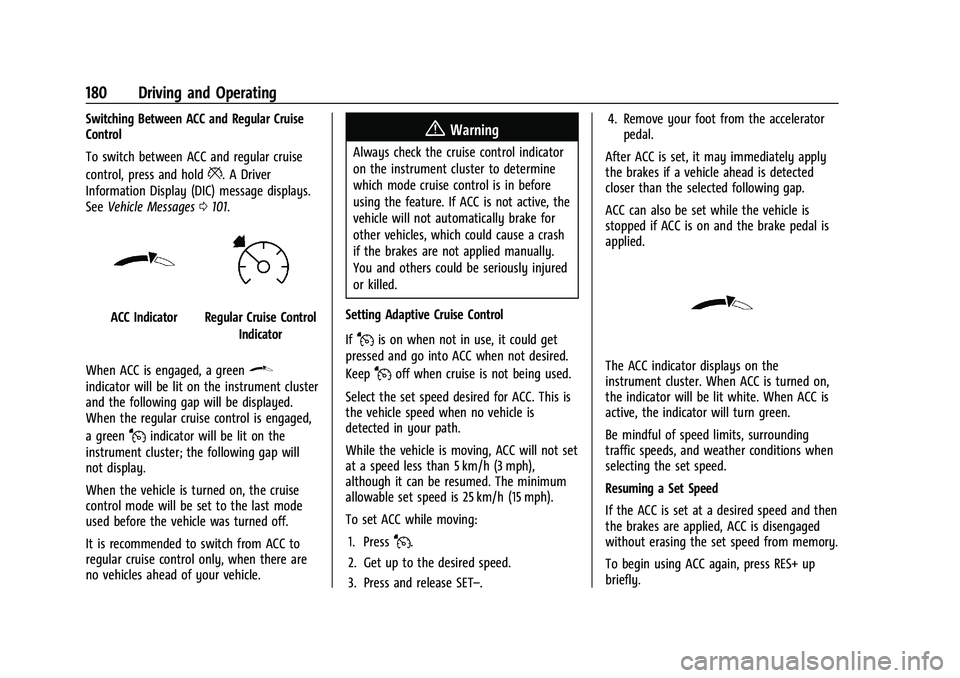
ACC IndicatorRegular Cruise Control
Indicator
When ACC is engaged, a green
\
indicator will be lit on the instrument cluster
and the following gap will be displayed.
When the regular cruise control is engaged,
a green
Jindicator will be lit on the
instrument cluster; the following gap will
not display.
When the vehicle is turned on, the cruise
control mode will be set to the last mode
used before the vehicle was turned off.
It is recommended to switch from ACC to
regular cruise control only, when there are
no vehicles ahead of your vehicle.
{Warning
Always check the cruise control indicator
on the instrument cluster to determine
which mode cruise control is in before
using the feature. If ACC is not active, the
vehicle will not automatically brake for
other vehicles, which could cause a crash
if the brakes are not applied manually.
You and others could be seriously injured
or killed.
Setting Adaptive Cruise Control
If
Jis on when not in use, it could get
pressed and go into ACC when not desired.
Keep
Joff when cruise is not being used.
Select the set speed desired for ACC. This is
the vehicle speed when no vehicle is
detected in your path.
While the vehicle is moving, ACC will not set
at a speed less than 5 km/h (3 mph),
although it can be resumed. The minimum
allowable set speed is 25 km/h (15 mph).
To set ACC while moving: 1. Press
J.
2. Get up to the desired speed.
3. Press and release SET–. 4. Remove your foot from the accelerator
pedal.
After ACC is set, it may immediately apply
the brakes if a vehicle ahead is detected
closer than the selected following gap.
ACC can also be set while the vehicle is
stopped if ACC is on and the brake pedal is
applied.
The ACC indicator displays on the
instrument cluster. When ACC is turned on,
the indicator will be lit white. When ACC is
active, the indicator will turn green.
Be mindful of speed limits, surrounding
traffic speeds, and weather conditions when
selecting the set speed.
Resuming a Set Speed
If the ACC is set at a desired speed and then
the brakes are applied, ACC is disengaged
without erasing the set speed from memory.
To begin using ACC again, press RES+ up
briefly.
Page 195 of 316
Chevrolet BOLT EV Owner Manual (GMNA-Localizing-U.S./Canada-
15082216) - 2022 - CRC - 6/25/21
194 Driving and Operating
occur. Consider traffic and weather
conditions when selecting the alert timing.
The range of selectable alert timing may not
be appropriate for all drivers and driving
conditions.
Following Distance Indication
The following distance to a moving vehicle
you are following is indicated in following
time in seconds on the Driver Information
Center (DIC).
The minimum following time is 0.5 seconds
away. If there is no vehicle detected ahead,
or the vehicle ahead is out of sensor range,
dashes will be displayed.
Unnecessary Alerts
FCA may provide unnecessary alerts to
turning vehicles, vehicles in other lanes,
objects that are not vehicles, or shadows.
These alerts are normal operation and the
vehicle does not need service.
Cleaning the System
If the FCA system does not seem to operate
properly, this may correct the issue:
.Clean the outside of the windshield in
front of the rearview mirror.
.Clean the entire front of the vehicle.
.Clean the headlamps.
Automatic Emergency
Braking (AEB)
If the vehicle has Forward Collision Alert
(FCA), it also has AEB, which includes
Intelligent Brake Assist (IBA). When the
system detects a vehicle ahead in your path
that is traveling in the same direction that
you may be about to crash into, it can
provide a boost to braking or automatically
brake the vehicle. This can help avoid or
lessen the severity of crashes when driving
in a forward gear. Depending on the
situation, the vehicle may automatically
brake moderately or hard. This automatic
emergency braking can only occur if a
vehicle is detected. This is shown by the FCA
vehicle ahead indicator being lit. See
Forward Collision Alert (FCA) System0192.
The system works when driving in a forward
gear between 8 km/h (5 mph) and 80 km/h
(50 mph). It can detect vehicles up to
approximately 60 m (197 ft).
{Warning
AEB is an emergency crash preparation
feature and is not designed to avoid
crashes. Do not rely on AEB to brake the
vehicle. AEB will not brake outside of its
operating speed range and only responds
to detected vehicles.
AEB may not:
.Detect a vehicle ahead on winding or
hilly roads.
.Detect all vehicles, especially vehicles
with a trailer, tractors, muddy
vehicles, etc.
.Detect a vehicle when weather limits
visibility, such as in fog, rain, or snow.
.Detect a vehicle ahead if it is partially
blocked by pedestrians or other
objects.
Complete attention is always required
while driving, and you should be ready to
take action and apply the brakes and/or
steer the vehicle to avoid crashes.
AEB may slow the vehicle to a complete
stop to try to avoid a potential crash. If this
happens, AEB may engage the Electric