radio controls CHEVROLET BOLT EV 2022 Owners Manual
[x] Cancel search | Manufacturer: CHEVROLET, Model Year: 2022, Model line: BOLT EV, Model: CHEVROLET BOLT EV 2022Pages: 316, PDF Size: 11.45 MB
Page 6 of 316
Chevrolet BOLT EV Owner Manual (GMNA-Localizing-U.S./Canada-
15082216) - 2022 - CRC - 6/25/21
Introduction 5
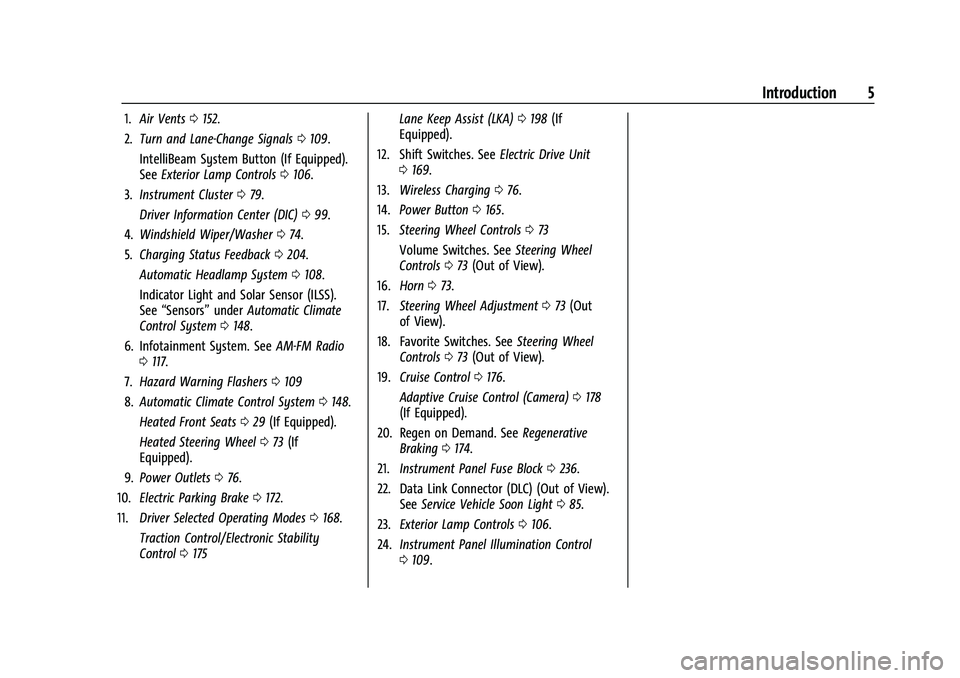
1.Air Vents 0152.
2. Turn and Lane-Change Signals 0109.
IntelliBeam System Button (If Equipped).
See Exterior Lamp Controls 0106.
3. Instrument Cluster 079.
Driver Information Center (DIC) 099.
4. Windshield Wiper/Washer 074.
5. Charging Status Feedback 0204.
Automatic Headlamp System 0108.
Indicator Light and Solar Sensor (ILSS).
See “Sensors” underAutomatic Climate
Control System 0148.
6. Infotainment System. See AM-FM Radio
0 117.
7. Hazard Warning Flashers 0109
8. Automatic Climate Control System 0148.
Heated Front Seats 029 (If Equipped).
Heated Steering Wheel 073 (If
Equipped).
9. Power Outlets 076.
10. Electric Parking Brake 0172.
11. Driver Selected Operating Modes 0168.
Traction Control/Electronic Stability
Control 0175 Lane Keep Assist (LKA)
0198 (If
Equipped).
12. Shift Switches. See Electric Drive Unit
0 169.
13. Wireless Charging 076.
14. Power Button 0165.
15. Steering Wheel Controls 073
Volume Switches. See Steering Wheel
Controls 073 (Out of View).
16. Horn 073.
17. Steering Wheel Adjustment 073 (Out
of View).
18. Favorite Switches. See Steering Wheel
Controls 073 (Out of View).
19. Cruise Control 0176.
Adaptive Cruise Control (Camera) 0178
(If Equipped).
20. Regen on Demand. See Regenerative
Braking 0174.
21. Instrument Panel Fuse Block 0236.
22. Data Link Connector (DLC) (Out of View). SeeService Vehicle Soon Light 085.
23. Exterior Lamp Controls 0106.
24. Instrument Panel Illumination Control
0109.
Page 77 of 316
Chevrolet BOLT EV Owner Manual (GMNA-Localizing-U.S./Canada-
15082216) - 2022 - CRC - 6/25/21
76 Instruments and Controls
information from the Global Positioning
System (GPS) antenna and vehicle speed
information.
The compass system has automatic
calibration and zone adjustment features.
Avoid covering the GPS antenna for long
periods of time with objects that may
interfere with the antenna's ability to
receive a satellite signal. The compass
system is designed to operate for a certain
number of miles or degrees of turn before
needing a signal from the GPS satellites. The
compass system will automatically
determine when a GPS signal is restored and
provide a heading.
Clock
Set the time and date using the
infotainment system. See "Time / Date"
underSettings 0133.
Power Outlets
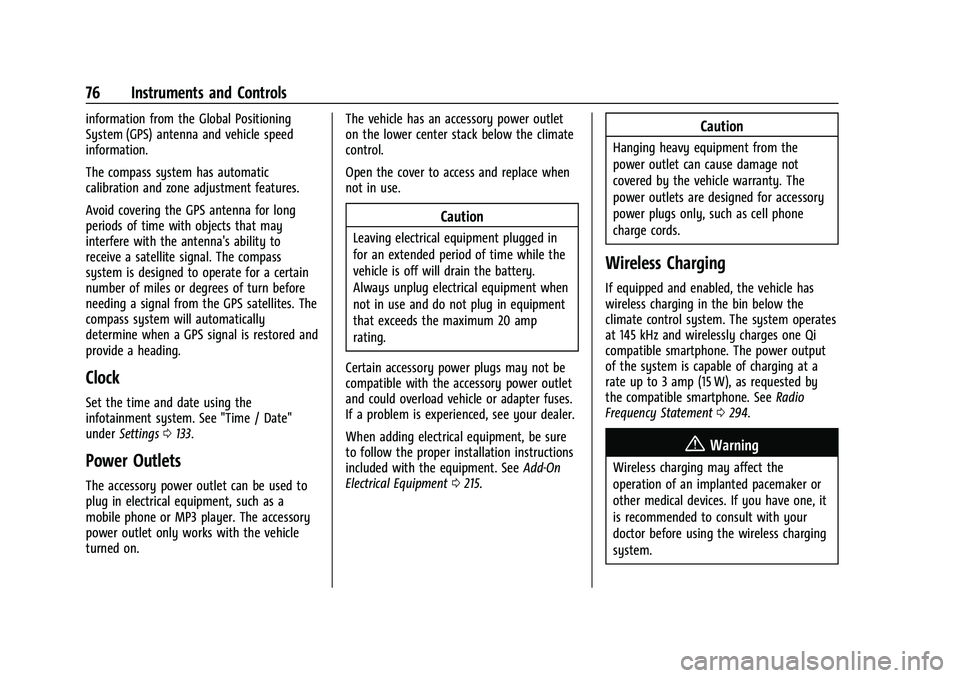
The accessory power outlet can be used to
plug in electrical equipment, such as a
mobile phone or MP3 player. The accessory
power outlet only works with the vehicle
turned on. The vehicle has an accessory power outlet
on the lower center stack below the climate
control.
Open the cover to access and replace when
not in use.
Caution
Leaving electrical equipment plugged in
for an extended period of time while the
vehicle is off will drain the battery.
Always unplug electrical equipment when
not in use and do not plug in equipment
that exceeds the maximum 20 amp
rating.
Certain accessory power plugs may not be
compatible with the accessory power outlet
and could overload vehicle or adapter fuses.
If a problem is experienced, see your dealer.
When adding electrical equipment, be sure
to follow the proper installation instructions
included with the equipment. See Add-On
Electrical Equipment 0215.
Caution
Hanging heavy equipment from the
power outlet can cause damage not
covered by the vehicle warranty. The
power outlets are designed for accessory
power plugs only, such as cell phone
charge cords.
Wireless Charging
If equipped and enabled, the vehicle has
wireless charging in the bin below the
climate control system. The system operates
at 145 kHz and wirelessly charges one Qi
compatible smartphone. The power output
of the system is capable of charging at a
rate up to 3 amp (15 W), as requested by
the compatible smartphone. See Radio
Frequency Statement 0294.
{Warning
Wireless charging may affect the
operation of an implanted pacemaker or
other medical devices. If you have one, it
is recommended to consult with your
doctor before using the wireless charging
system.
Page 81 of 316
Chevrolet BOLT EV Owner Manual (GMNA-Localizing-U.S./Canada-
15082216) - 2022 - CRC - 6/25/21
80 Instruments and Controls
.Modern configuration displays the
speedometer with a battery gauge and
efficiency gauge.
.Enhanced configuration displays the
speedometer with battery gauge,
efficiency ring, and power gauge.
Cluster Menu
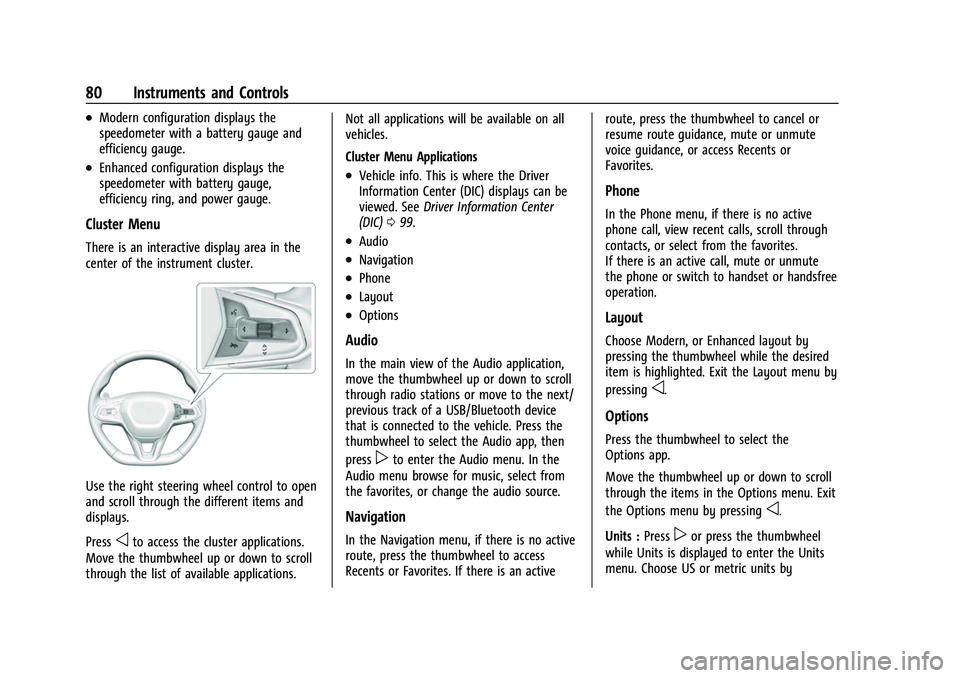
There is an interactive display area in the
center of the instrument cluster.
Use the right steering wheel control to open
and scroll through the different items and
displays.
Press
oto access the cluster applications.
Move the thumbwheel up or down to scroll
through the list of available applications. Not all applications will be available on all
vehicles.
Cluster Menu Applications
.Vehicle info. This is where the Driver
Information Center (DIC) displays can be
viewed. See
Driver Information Center
(DIC) 099.
.Audio
.Navigation
.Phone
.Layout
.Options
Audio
In the main view of the Audio application,
move the thumbwheel up or down to scroll
through radio stations or move to the next/
previous track of a USB/Bluetooth device
that is connected to the vehicle. Press the
thumbwheel to select the Audio app, then
press
pto enter the Audio menu. In the
Audio menu browse for music, select from
the favorites, or change the audio source.
Navigation
In the Navigation menu, if there is no active
route, press the thumbwheel to access
Recents or Favorites. If there is an active route, press the thumbwheel to cancel or
resume route guidance, mute or unmute
voice guidance, or access Recents or
Favorites.
Phone
In the Phone menu, if there is no active
phone call, view recent calls, scroll through
contacts, or select from the favorites.
If there is an active call, mute or unmute
the phone or switch to handset or handsfree
operation.
Layout
Choose Modern, or Enhanced layout by
pressing the thumbwheel while the desired
item is highlighted. Exit the Layout menu by
pressing
o.
Options
Press the thumbwheel to select the
Options app.
Move the thumbwheel up or down to scroll
through the items in the Options menu. Exit
the Options menu by pressing
o.
Units : Press
por press the thumbwheel
while Units is displayed to enter the Units
menu. Choose US or metric units by
Page 85 of 316
Chevrolet BOLT EV Owner Manual (GMNA-Localizing-U.S./Canada-
15082216) - 2022 - CRC - 6/25/21
84 Instruments and Controls
Passenger Airbag Status Indicator
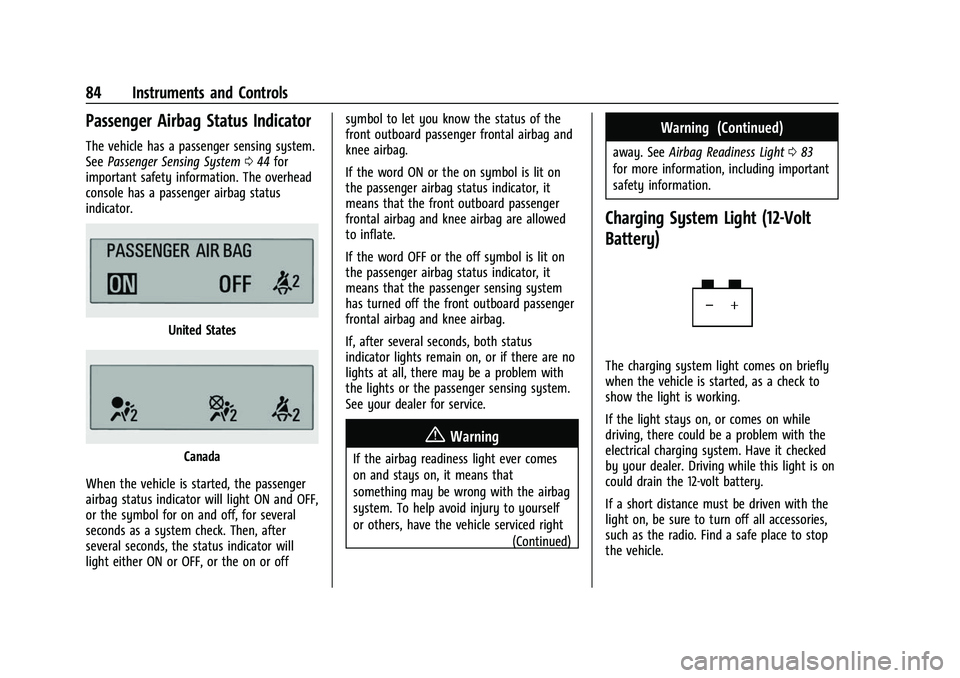
The vehicle has a passenger sensing system.
SeePassenger Sensing System 044 for
important safety information. The overhead
console has a passenger airbag status
indicator.
United States
Canada
When the vehicle is started, the passenger
airbag status indicator will light ON and OFF,
or the symbol for on and off, for several
seconds as a system check. Then, after
several seconds, the status indicator will
light either ON or OFF, or the on or off symbol to let you know the status of the
front outboard passenger frontal airbag and
knee airbag.
If the word ON or the on symbol is lit on
the passenger airbag status indicator, it
means that the front outboard passenger
frontal airbag and knee airbag are allowed
to inflate.
If the word OFF or the off symbol is lit on
the passenger airbag status indicator, it
means that the passenger sensing system
has turned off the front outboard passenger
frontal airbag and knee airbag.
If, after several seconds, both status
indicator lights remain on, or if there are no
lights at all, there may be a problem with
the lights or the passenger sensing system.
See your dealer for service.
{Warning
If the airbag readiness light ever comes
on and stays on, it means that
something may be wrong with the airbag
system. To help avoid injury to yourself
or others, have the vehicle serviced right
(Continued)
Warning (Continued)
away. SeeAirbag Readiness Light 083
for more information, including important
safety information.
Charging System Light (12-Volt
Battery)
The charging system light comes on briefly
when the vehicle is started, as a check to
show the light is working.
If the light stays on, or comes on while
driving, there could be a problem with the
electrical charging system. Have it checked
by your dealer. Driving while this light is on
could drain the 12-volt battery.
If a short distance must be driven with the
light on, be sure to turn off all accessories,
such as the radio. Find a safe place to stop
the vehicle.
Page 100 of 316
Chevrolet BOLT EV Owner Manual (GMNA-Localizing-U.S./Canada-
15082216) - 2022 - CRC - 6/25/21
Instruments and Controls 99
Charging Options
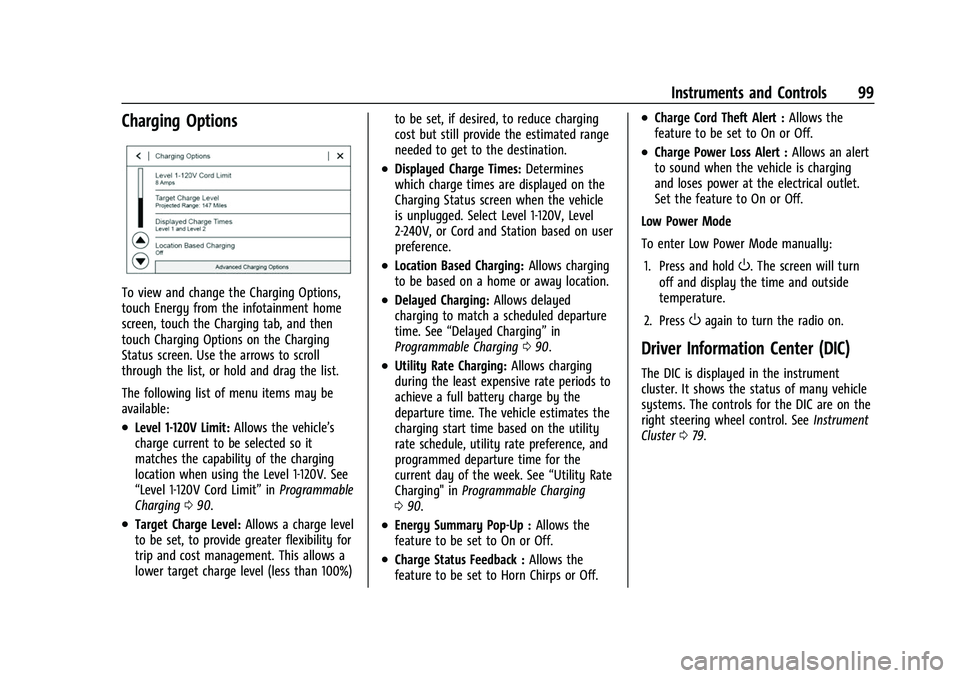
To view and change the Charging Options,
touch Energy from the infotainment home
screen, touch the Charging tab, and then
touch Charging Options on the Charging
Status screen. Use the arrows to scroll
through the list, or hold and drag the list.
The following list of menu items may be
available:
.Level 1-120V Limit:Allows the vehicle’s
charge current to be selected so it
matches the capability of the charging
location when using the Level 1-120V. See
“Level 1-120V Cord Limit” inProgrammable
Charging 090.
.Target Charge Level: Allows a charge level
to be set, to provide greater flexibility for
trip and cost management. This allows a
lower target charge level (less than 100%) to be set, if desired, to reduce charging
cost but still provide the estimated range
needed to get to the destination.
.Displayed Charge Times:
Determines
which charge times are displayed on the
Charging Status screen when the vehicle
is unplugged. Select Level 1-120V, Level
2-240V, or Cord and Station based on user
preference.
.Location Based Charging: Allows charging
to be based on a home or away location.
.Delayed Charging: Allows delayed
charging to match a scheduled departure
time. See “Delayed Charging” in
Programmable Charging 090.
.Utility Rate Charging: Allows charging
during the least expensive rate periods to
achieve a full battery charge by the
departure time. The vehicle estimates the
charging start time based on the utility
rate schedule, utility rate preference, and
programmed departure time for the
current day of the week. See “Utility Rate
Charging" in Programmable Charging
0 90.
.Energy Summary Pop-Up : Allows the
feature to be set to On or Off.
.Charge Status Feedback : Allows the
feature to be set to Horn Chirps or Off.
.Charge Cord Theft Alert : Allows the
feature to be set to On or Off.
.Charge Power Loss Alert : Allows an alert
to sound when the vehicle is charging
and loses power at the electrical outlet.
Set the feature to On or Off.
Low Power Mode
To enter Low Power Mode manually:
1. Press and hold
O. The screen will turn
off and display the time and outside
temperature.
2. Press
Oagain to turn the radio on.
Driver Information Center (DIC)
The DIC is displayed in the instrument
cluster. It shows the status of many vehicle
systems. The controls for the DIC are on the
right steering wheel control. See Instrument
Cluster 079.
Page 113 of 316
Chevrolet BOLT EV Owner Manual (GMNA-Localizing-U.S./Canada-
15082216) - 2022 - CRC - 6/25/21
112 Infotainment System
Infotainment System
Introduction
Introduction . . . . . . . . . . . . . . . . . . . . . . . . . . . . 112
Overview . . . . . . . . . . . . . . . . . . . . . . . . . . . . . . . 113
Steering Wheel Controls . . . . . . . . . . . . . . . 114
Using the System . . . . . . . . . . . . . . . . . . . . . . 114
Software Updates . . . . . . . . . . . . . . . . . . . . . . 117
Radio
AM-FM Radio . . . . . . . . . . . . . . . . . . . . . . . . . . . 117
Radio Data System (RDS) . . . . . . . . . . . . . . 119
Satellite Radio . . . . . . . . . . . . . . . . . . . . . . . . . 119
Radio Reception . . . . . . . . . . . . . . . . . . . . . . . . 119
Multi-Band Antenna . . . . . . . . . . . . . . . . . . . 120
Audio Players
Avoiding Untrusted Media Devices . . . . 120
USB Port . . . . . . . . . . . . . . . . . . . . . . . . . . . . . . 120
Bluetooth Audio . . . . . . . . . . . . . . . . . . . . . . . 123
Voice Recognition
Voice Recognition . . . . . . . . . . . . . . . . . . . . . . 123
Phone
Bluetooth (Overview) . . . . . . . . . . . . . . . . . . 128
Bluetooth (Pairing and Using aPhone) . . . . . . . . . . . . . . . . . . . . . . . . . . . . . . . 128
Apple CarPlay and Android Auto . . . . . . . 132
Settings
Settings . . . . . . . . . . . . . . . . . . . . . . . . . . . . . . . . 133
Teen Driver . . . . . . . . . . . . . . . . . . . . . . . . . . . . 140
Trademarks and License Agreements
Trademarks and License Agreements . . . . . . . . . . . . . . . . . . . . . . . . . . 142
Introduction
Read the following pages to become familiar
with the features.
{Warning
Taking your eyes off the road for too
long or too often while using any
infotainment feature can cause a crash.
You or others could be injured or killed.
Do not give extended attention to
infotainment tasks while driving. Limit
your glances at the vehicle displays and
focus your attention on driving. Use voice
commands whenever possible.
The infotainment system has built-in
features intended to help avoid distraction
by disabling some features when driving.
These features may gray out when they are
unavailable. Many infotainment features are
also available through the instrument cluster
and steering wheel controls.
Before driving:
.Become familiar with the operation,
center stack controls, steering wheel
controls, and infotainment display.
Page 115 of 316
Chevrolet BOLT EV Owner Manual (GMNA-Localizing-U.S./Canada-
15082216) - 2022 - CRC - 6/25/21
114 Infotainment System
Steering Wheel Controls
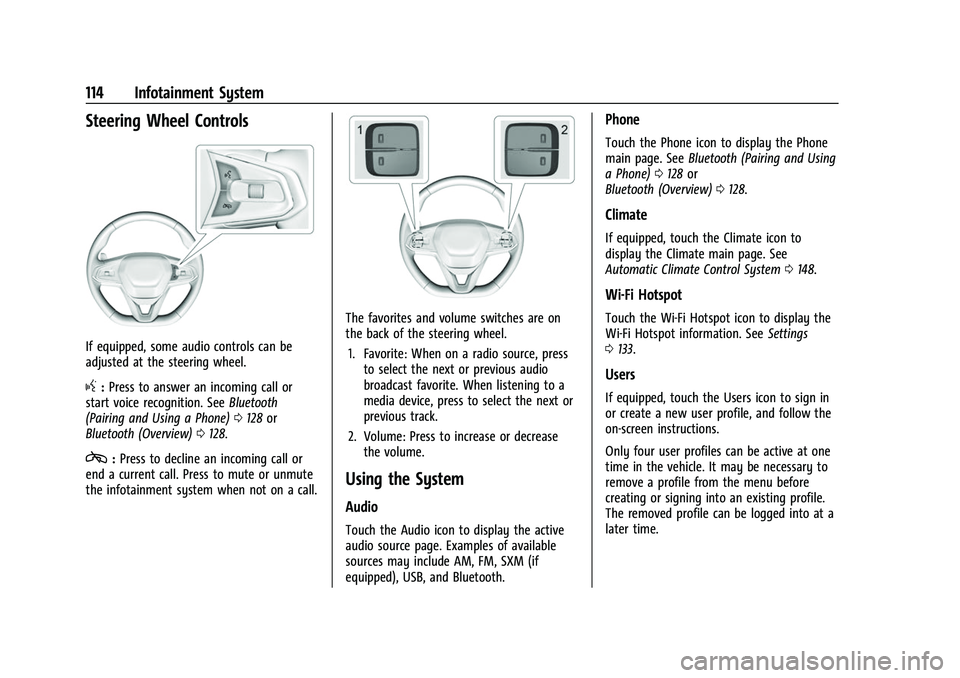
If equipped, some audio controls can be
adjusted at the steering wheel.
g:Press to answer an incoming call or
start voice recognition. See Bluetooth
(Pairing and Using a Phone) 0128 or
Bluetooth (Overview) 0128.
c:Press to decline an incoming call or
end a current call. Press to mute or unmute
the infotainment system when not on a call.
The favorites and volume switches are on
the back of the steering wheel.
1. Favorite: When on a radio source, press to select the next or previous audio
broadcast favorite. When listening to a
media device, press to select the next or
previous track.
2. Volume: Press to increase or decrease the volume.
Using the System
Audio
Touch the Audio icon to display the active
audio source page. Examples of available
sources may include AM, FM, SXM (if
equipped), USB, and Bluetooth.
Phone
Touch the Phone icon to display the Phone
main page. See Bluetooth (Pairing and Using
a Phone) 0128 or
Bluetooth (Overview) 0128.
Climate
If equipped, touch the Climate icon to
display the Climate main page. See
Automatic Climate Control System 0148.
Wi-Fi Hotspot
Touch the Wi-Fi Hotspot icon to display the
Wi-Fi Hotspot information. See Settings
0 133.
Users
If equipped, touch the Users icon to sign in
or create a new user profile, and follow the
on-screen instructions.
Only four user profiles can be active at one
time in the vehicle. It may be necessary to
remove a profile from the menu before
creating or signing into an existing profile.
The removed profile can be logged into at a
later time.
Page 118 of 316
Chevrolet BOLT EV Owner Manual (GMNA-Localizing-U.S./Canada-
15082216) - 2022 - CRC - 6/25/21
Infotainment System 117
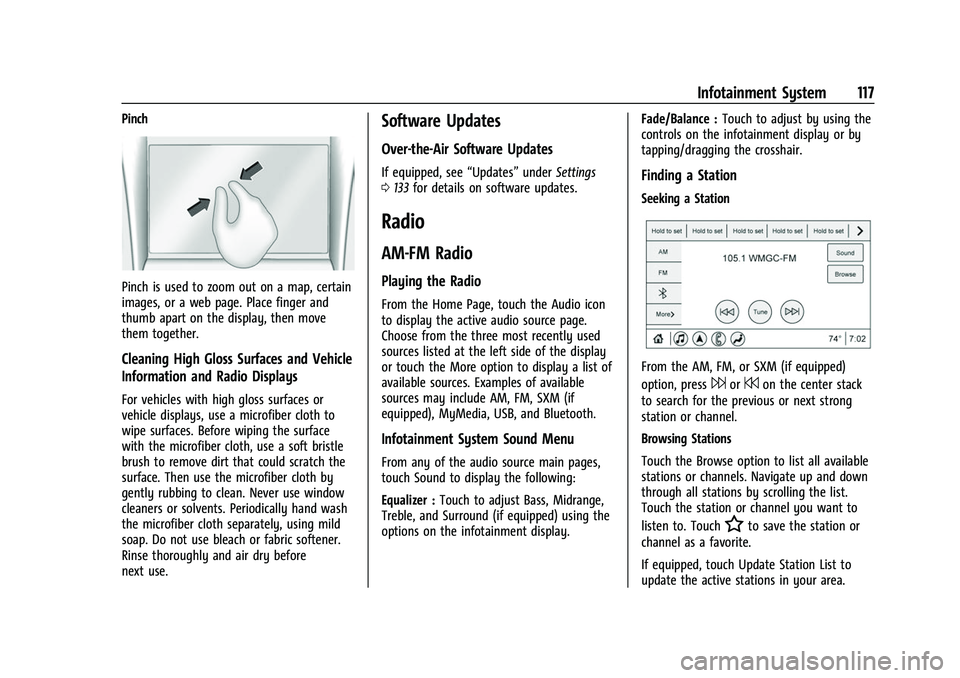
Pinch
Pinch is used to zoom out on a map, certain
images, or a web page. Place finger and
thumb apart on the display, then move
them together.
Cleaning High Gloss Surfaces and Vehicle
Information and Radio Displays
For vehicles with high gloss surfaces or
vehicle displays, use a microfiber cloth to
wipe surfaces. Before wiping the surface
with the microfiber cloth, use a soft bristle
brush to remove dirt that could scratch the
surface. Then use the microfiber cloth by
gently rubbing to clean. Never use window
cleaners or solvents. Periodically hand wash
the microfiber cloth separately, using mild
soap. Do not use bleach or fabric softener.
Rinse thoroughly and air dry before
next use.
Software Updates
Over-the-Air Software Updates
If equipped, see“Updates”underSettings
0 133 for details on software updates.
Radio
AM-FM Radio
Playing the Radio
From the Home Page, touch the Audio icon
to display the active audio source page.
Choose from the three most recently used
sources listed at the left side of the display
or touch the More option to display a list of
available sources. Examples of available
sources may include AM, FM, SXM (if
equipped), MyMedia, USB, and Bluetooth.
Infotainment System Sound Menu
From any of the audio source main pages,
touch Sound to display the following:
Equalizer : Touch to adjust Bass, Midrange,
Treble, and Surround (if equipped) using the
options on the infotainment display. Fade/Balance :
Touch to adjust by using the
controls on the infotainment display or by
tapping/dragging the crosshair.
Finding a Station
Seeking a Station
From the AM, FM, or SXM (if equipped)
option, press
6or7on the center stack
to search for the previous or next strong
station or channel.
Browsing Stations
Touch the Browse option to list all available
stations or channels. Navigate up and down
through all stations by scrolling the list.
Touch the station or channel you want to
listen to. Touch
Hto save the station or
channel as a favorite.
If equipped, touch Update Station List to
update the active stations in your area.
Page 124 of 316
Chevrolet BOLT EV Owner Manual (GMNA-Localizing-U.S./Canada-
15082216) - 2022 - CRC - 6/25/21
Infotainment System 123
Media Playback and Mute
USB playback will be paused if the system is
muted. If the steering wheel mute control is
pressed again, playback will resume.
If the source is changed while in mute,
playback resumes and audio will unmute.
Bluetooth Audio
Music may be played from a paired
Bluetooth device. SeeBluetooth (Pairing and
Using a Phone) 0128 or
Bluetooth (Overview) 0128 for help pairing
a device.
Volume and song selection may be
controlled by using the infotainment
controls or the mobile device. If Bluetooth is
selected and no volume is present, check the
volume setting on the infotainment system.
Music can be launched by touching
Bluetooth from the recent sources list on
the left of the display or by touching the
More option and then touching the
Bluetooth device.
To play music via Bluetooth:
1. Power on the device, and pair to connect the device. 2. Once paired, touch Audio from the Home
Page, then touch Bluetooth from the
recent sources list on the left of the
display.
Bluetooth Sound Menu
See “Infotainment System Sound Menu”
under AM-FM Radio 0117.
Manage Bluetooth Devices
From the Home Page: 1. Touch Audio.
2. Touch More.
3. Touch Bluetooth.
4. Touch Devices to add or delete devices.
When touching Bluetooth, the radio may
not be able to launch the audio player on
the connected device to start playing. When
the vehicle is not moving, use the mobile
device to begin playback.
All devices launch audio differently. When
selecting Bluetooth as a source, the radio
may show as paused on the display. Press
play on the device or touch
pon the
display to begin playback. Browse functionality will be provided where
supported by the Bluetooth device. This
media content will not be part of the
MyMedia source mode.
Some smartphones support sending
Bluetooth music information to display on
the radio. When the radio receives this
information, it will check to see if any is
available and display it. For more
information about supported Bluetooth
features, see my.chevrolet.com/learn.
Voice Recognition
If equipped, voice recognition allows for
hands-free operation within the audio,
phone, and weather applications. This
feature can be started by pressing
gon the
steering wheel or touching
gon the
infotainment display.
However, not all features within these areas
are supported by voice commands.
Generally, only complex tasks that require
multiple manual interactions to complete
are supported by voice commands.
For example, tasks that take more than one
or two touches, such as a song or artist to
play from a media device, would be
supported by voice commands. Other tasks,
Page 128 of 316
Chevrolet BOLT EV Owner Manual (GMNA-Localizing-U.S./Canada-
15082216) - 2022 - CRC - 6/25/21
Infotainment System 127
.Album type folders including types such
as albums and audiobooks.
There are no restrictions if the number of
files and albums is fewer than 12,000. When
the number of files connected to the system
is between 12,000 and 24,000, the content
cannot be accessed directly with one
command like “Play
The restriction is that the command “Play
Song” must be spoken first; the system will
then ask for the song name. The reply
command would be to say the name of the
song to play.
Similar limits exist for album content.
If there are more than 12,000 albums, but
fewer than 24,000, the content cannot be
accessed directly with one command like,
“Play
Album” must first be spoken; the system
will then ask for the album name. The reply
would be to say the name of the album
to play.
Once the number of files has exceeded
approximately 24,000, there is no support
for accessing the songs directly through
voice commands. There will still be access to
the media content by using commands for
playlists, artists, and genres. The access commands for playlists, artists,
and genres are prohibited after the number
of this type of media exceeds 12,000.
The system will provide feedback the first
time voice recognition is initiated if it has
become apparent that any of these limits
are reached during a device initializing
process.
Voice recognition performance will degrade
to some extent based on many factors when
adding large amounts of data to recognize.
If this is the case, perhaps accessing songs
through playlists or artist name would work
better.
Voice Recognition for the Phone
“Call
:Initiate a call to a
stored contact. The command may include
location if the contact has location numbers
stored.
“Call
Mobile,” or“On Other” :Initiate a call to a
stored contact and location at home, at
work, on mobile device, or on another
phone.
“Call
to a cell phone number of seven digits, 10
digits, or three digit emergency numbers. “Pair Phone”
:Begin the Bluetooth pairing
process. Follow the instructions on the
infotainment display.
“Redial” :Initiate a call to the last dialed
number.
“Switch Phone” :Select a different
connected cell phone for outgoing calls.
“Voice Keypad” :Begin a dialog to enter
special numbers like international numbers.
The numbers can be entered in groups of
digits with each group of digits being
repeated back by the system. If the group
of digits is not correct, the command
“Delete” will remove the last group of digits
and allow them to be re-entered. Once the
entire number has been entered, the
command “Call”will start dialing the
number.
Phone Assistant Voice Recognition
Press and holdgon the steering wheel
controls to pass through and launch Google
phone assistant or Siri.
For the low radio, whether connected by
Bluetooth or phone projection, the only
available voice recognition is either Siri
(iPhone) or the Google Assistant (Android).