ECU CHEVROLET BOLT EV 2023 Owner's Guide
[x] Cancel search | Manufacturer: CHEVROLET, Model Year: 2023, Model line: BOLT EV, Model: CHEVROLET BOLT EV 2023Pages: 308, PDF Size: 5.18 MB
Page 69 of 308
Chevrolet BOLT EV Owner Manual (GMNA-Localizing-U.S./Canada-
16404388) - 2023 - CRC - 3/7/22
68 Seats and Restraints
Try to pull the belt out of the retractor
to make sure the retractor is locked.
If the retractor is not locked, repeat
Steps 5 and 6.
7. If the vehicle does not have a rear seat and the child restraint manufacturer
recommends using a top tether anchor,
attach the top tether to the top tether
anchor. Refer to the instructions that
came with the child restraint and to
Lower Anchors and Tethers for Children
(LATCH System) 055.
8. Before placing a child in the child restraint, make sure it is securely held in
place. To check, grasp the child restraint
at the seat belt path and attempt to
move it side to side and back and forth.
When the child restraint is properly
installed, there should be no more than
2.5 cm (1 in) of movement.
If the airbags are off, the OFF indicator in
the passenger airbag status indicator will
come on and stay on when the vehicle is
started.
If a child restraint has been installed and
the ON indicator is lit, see “If the On
Indicator Is Lit for a Child Restraint” under
Passenger Sensing System 044. To remove the child restraint, unbuckle the
vehicle seat belt and let it return to the
stowed position. If the top tether is attached
to a top tether anchor, disconnect it.
Page 71 of 308
Chevrolet BOLT EV Owner Manual (GMNA-Localizing-U.S./Canada-
16404388) - 2023 - CRC - 3/7/22
70 Storage
Additional Storage Areas
There is a storage area under the center
console.
There is a storage area in the center console
under the climate controls.
Additional Storage Features
Cargo Cover
{Warning
An unsecured cargo cover could strike
people in a sudden stop or turn, or in a
crash. Store the cargo cover securely or
remove it from the vehicle.
If equipped, the cargo cover can be used to
cover items in the rear of the vehicle.
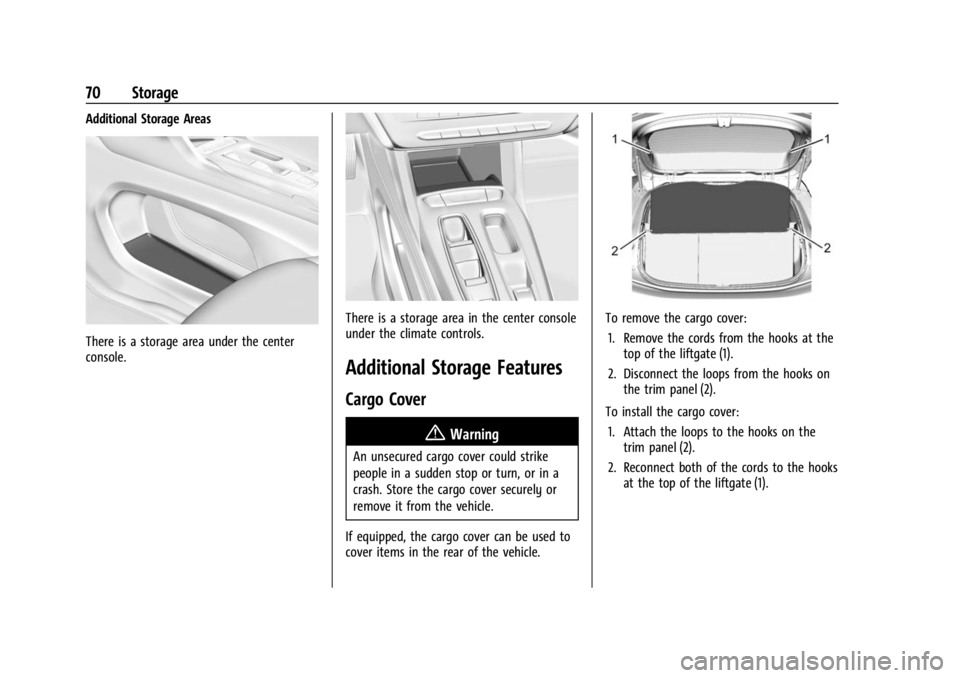
To remove the cargo cover: 1. Remove the cords from the hooks at the top of the liftgate (1).
2. Disconnect the loops from the hooks on the trim panel (2).
To install the cargo cover: 1. Attach the loops to the hooks on the trim panel (2).
2. Reconnect both of the cords to the hooks at the top of the liftgate (1).
Page 72 of 308
Chevrolet BOLT EV Owner Manual (GMNA-Localizing-U.S./Canada-
16404388) - 2023 - CRC - 3/7/22
Storage 71
Cargo Management System
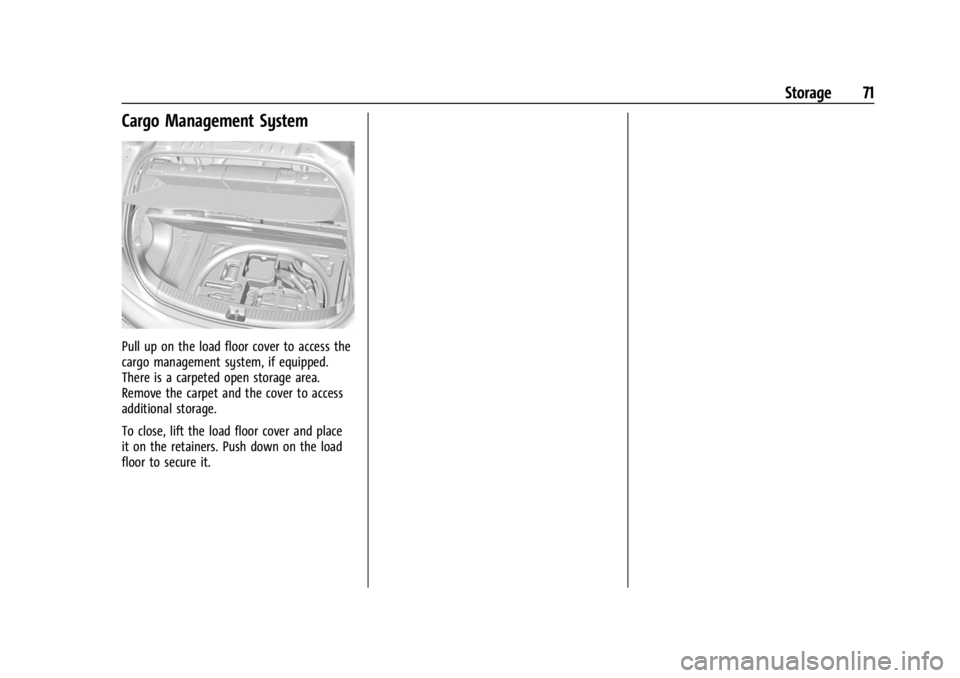
Pull up on the load floor cover to access the
cargo management system, if equipped.
There is a carpeted open storage area.
Remove the carpet and the cover to access
additional storage.
To close, lift the load floor cover and place
it on the retainers. Push down on the load
floor to secure it.
Page 73 of 308
Chevrolet BOLT EV Owner Manual (GMNA-Localizing-U.S./Canada-
16404388) - 2023 - CRC - 3/7/22
72 Instruments and Controls
Instruments and Controls
Controls
Steering Wheel Adjustment . . . . . . . . . . . . . 73
Heated Steering Wheel . . . . . . . . . . . . . . . . . 73
Horn . . . . . . . . . . . . . . . . . . . . . . . . . . . . . . . . . . . . 73
Pedestrian Safety Signal . . . . . . . . . . . . . . . . 73
Windshield Wiper/Washer . . . . . . . . . . . . . . 74
Rear Window Wiper/Washer . . . . . . . . . . . 75
Compass . . . . . . . . . . . . . . . . . . . . . . . . . . . . . . . 76
Clock . . . . . . . . . . . . . . . . . . . . . . . . . . . . . . . . . . . 76
Power Outlets . . . . . . . . . . . . . . . . . . . . . . . . . . 76
Wireless Charging . . . . . . . . . . . . . . . . . . . . . . 76
Warning Lights, Gauges, and Indicators
Warning Lights, Gauges, andIndicators . . . . . . . . . . . . . . . . . . . . . . . . . . . . . 79
Instrument Cluster . . . . . . . . . . . . . . . . . . . . . 79
Speedometer . . . . . . . . . . . . . . . . . . . . . . . . . . . 81
Odometer . . . . . . . . . . . . . . . . . . . . . . . . . . . . . . 81
Trip Odometer . . . . . . . . . . . . . . . . . . . . . . . . . . 81
Battery Gauge (High Voltage) . . . . . . . . . . 81
Driver Efficiency Gauge . . . . . . . . . . . . . . . . . 82
Power Indicator Gauge . . . . . . . . . . . . . . . . . 82
Seat Belt Reminders . . . . . . . . . . . . . . . . . . . . 82
Airbag Readiness Light . . . . . . . . . . . . . . . . . 83
Passenger Airbag Status Indicator . . . . . . 84
Charging System Light (12-Volt Battery) . . . . . . . . . . . . . . . . . . . . . . . . . . . . . . 84
Service Vehicle Soon Light . . . . . . . . . . . . . . 85 Brake System Warning Light . . . . . . . . . . . 85
Electric Parking Brake Light . . . . . . . . . . . . . 85
Service Electric Parking Brake Light . . . . . 85
Antilock Brake System (ABS) Warning
Light . . . . . . . . . . . . . . . . . . . . . . . . . . . . . . . . . 86
Sport Mode Light . . . . . . . . . . . . . . . . . . . . . . 86
Lane Keep Assist (LKA) Light . . . . . . . . . . . 86
Vehicle Ahead Indicator . . . . . . . . . . . . . . . . 87
Pedestrian Ahead Indicator . . . . . . . . . . . . . 87
Traction Off Light . . . . . . . . . . . . . . . . . . . . . . . 87
StabiliTrak OFF Light . . . . . . . . . . . . . . . . . . . . 87
Traction Control System (TCS)/StabiliTrak Light . . . . . . . . . . . . . . . . . . . . . . . . . . . . . . . . . 88
Tire Pressure Light . . . . . . . . . . . . . . . . . . . . . 88
Security Light . . . . . . . . . . . . . . . . . . . . . . . . . . 88
Vehicle Ready Light . . . . . . . . . . . . . . . . . . . . 88
One-Pedal Driving Light . . . . . . . . . . . . . . . . 89
High-Beam On Light . . . . . . . . . . . . . . . . . . . . 89
Lamps On Reminder . . . . . . . . . . . . . . . . . . . . 89
Cruise Control Light . . . . . . . . . . . . . . . . . . . . 89
Door Ajar Light . . . . . . . . . . . . . . . . . . . . . . . . . 90
Information Displays
Power Flows . . . . . . . . . . . . . . . . . . . . . . . . . . . 90
Programmable Charging . . . . . . . . . . . . . . . . 90
Energy Information . . . . . . . . . . . . . . . . . . . . . 97
Charging Options . . . . . . . . . . . . . . . . . . . . . . 99
Driver Information Center (DIC) . . . . . . . . 99
Vehicle Messages
Vehicle Messages . . . . . . . . . . . . . . . . . . . . . . 101
Propulsion Power Messages . . . . . . . . . . . . 101
Vehicle Speed Messages . . . . . . . . . . . . . . . 102
Page 89 of 308
Chevrolet BOLT EV Owner Manual (GMNA-Localizing-U.S./Canada-
16404388) - 2023 - CRC - 3/7/22
88 Instruments and Controls
Traction Control System (TCS)/
StabiliTrak Light
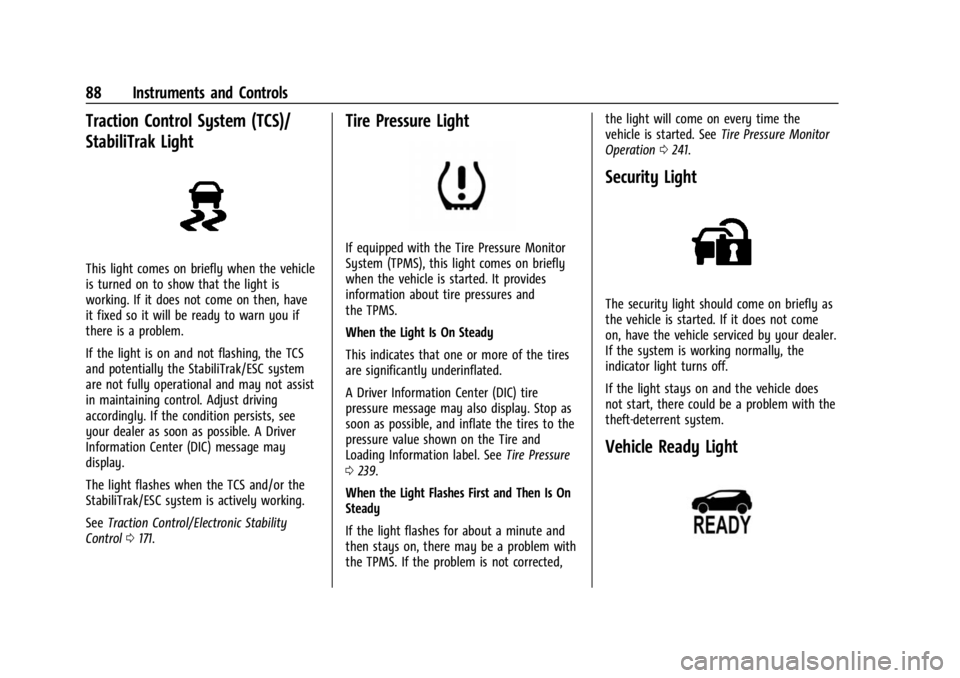
This light comes on briefly when the vehicle
is turned on to show that the light is
working. If it does not come on then, have
it fixed so it will be ready to warn you if
there is a problem.
If the light is on and not flashing, the TCS
and potentially the StabiliTrak/ESC system
are not fully operational and may not assist
in maintaining control. Adjust driving
accordingly. If the condition persists, see
your dealer as soon as possible. A Driver
Information Center (DIC) message may
display.
The light flashes when the TCS and/or the
StabiliTrak/ESC system is actively working.
SeeTraction Control/Electronic Stability
Control 0171.
Tire Pressure Light
If equipped with the Tire Pressure Monitor
System (TPMS), this light comes on briefly
when the vehicle is started. It provides
information about tire pressures and
the TPMS.
When the Light Is On Steady
This indicates that one or more of the tires
are significantly underinflated.
A Driver Information Center (DIC) tire
pressure message may also display. Stop as
soon as possible, and inflate the tires to the
pressure value shown on the Tire and
Loading Information label. See Tire Pressure
0 239.
When the Light Flashes First and Then Is On
Steady
If the light flashes for about a minute and
then stays on, there may be a problem with
the TPMS. If the problem is not corrected, the light will come on every time the
vehicle is started. See
Tire Pressure Monitor
Operation 0241.
Security Light
The security light should come on briefly as
the vehicle is started. If it does not come
on, have the vehicle serviced by your dealer.
If the system is working normally, the
indicator light turns off.
If the light stays on and the vehicle does
not start, there could be a problem with the
theft-deterrent system.
Vehicle Ready Light
Page 91 of 308
Chevrolet BOLT EV Owner Manual (GMNA-Localizing-U.S./Canada-
16404388) - 2023 - CRC - 3/7/22
90 Instruments and Controls
Door Ajar Light
This light comes on when a door is open or
not securely latched. Before driving, check
that all doors are properly closed.
Information Displays
Power Flows
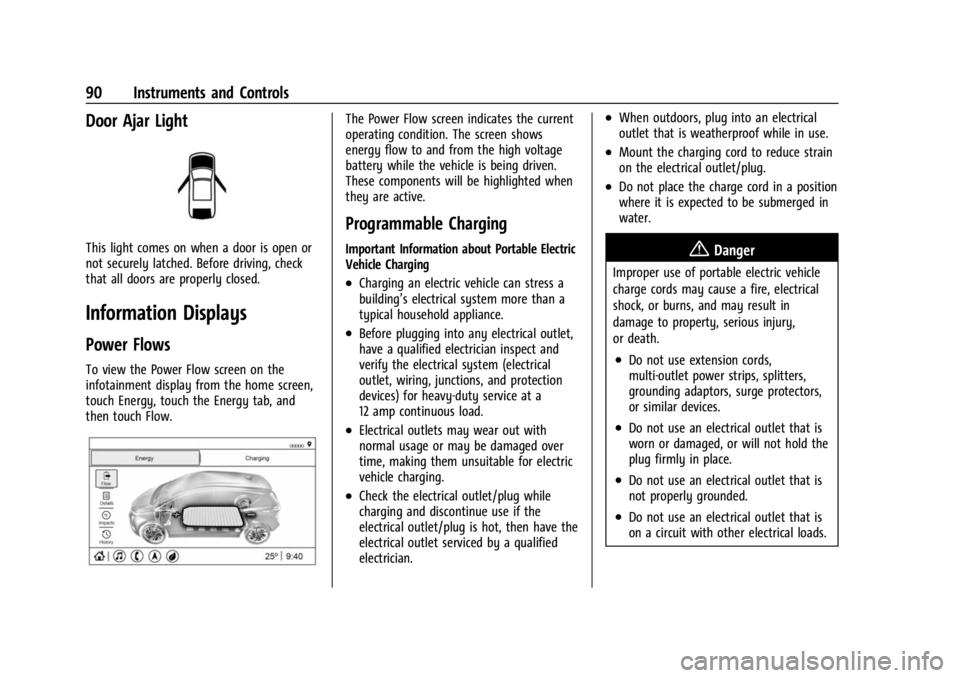
To view the Power Flow screen on the
infotainment display from the home screen,
touch Energy, touch the Energy tab, and
then touch Flow.
The Power Flow screen indicates the current
operating condition. The screen shows
energy flow to and from the high voltage
battery while the vehicle is being driven.
These components will be highlighted when
they are active.
Programmable Charging
Important Information about Portable Electric
Vehicle Charging
.Charging an electric vehicle can stress a
building’s electrical system more than a
typical household appliance.
.Before plugging into any electrical outlet,
have a qualified electrician inspect and
verify the electrical system (electrical
outlet, wiring, junctions, and protection
devices) for heavy-duty service at a
12 amp continuous load.
.Electrical outlets may wear out with
normal usage or may be damaged over
time, making them unsuitable for electric
vehicle charging.
.Check the electrical outlet/plug while
charging and discontinue use if the
electrical outlet/plug is hot, then have the
electrical outlet serviced by a qualified
electrician.
.When outdoors, plug into an electrical
outlet that is weatherproof while in use.
.Mount the charging cord to reduce strain
on the electrical outlet/plug.
.Do not place the charge cord in a position
where it is expected to be submerged in
water.
{Danger
Improper use of portable electric vehicle
charge cords may cause a fire, electrical
shock, or burns, and may result in
damage to property, serious injury,
or death.
.Do not use extension cords,
multi-outlet power strips, splitters,
grounding adaptors, surge protectors,
or similar devices.
.Do not use an electrical outlet that is
worn or damaged, or will not hold the
plug firmly in place.
.Do not use an electrical outlet that is
not properly grounded.
.Do not use an electrical outlet that is
on a circuit with other electrical loads.
Page 98 of 308
Chevrolet BOLT EV Owner Manual (GMNA-Localizing-U.S./Canada-
16404388) - 2023 - CRC - 3/7/22
Instruments and Controls 97
changed. See“Weekday or Weekend
Schedule Editing” section below for
additional steps to set the Summer/
Winter schedule.
Weekday or Weekend Schedule Editing
To edit the weekday or weekend schedule: 1. From the Utility Rate Charging screen, touch Weekday Schedule or Weekend
Schedule.
2. Touch Add A Rate Period or Subtract A Rate Period.
.Weekdays are Monday through
Friday and use the same rate
schedule.
.Weekends are Saturday and Sunday
and use the same rate schedule.
Both weekday and weekend schedules must
be set. The rate schedule only applies for a
24-hour period, starting at 12:00 am and
ending at 12:00 am. There can be five rate
changes for each day; not all must be used.
The finish times must be consecutive. If a
finish time does not follow a start time, this
error message displays: “An invalid entry
was found in the data entered. Please
re-enter data.”
Energy Summary Pop-Up
When this function is turned on, the Energy
Summary Pop-Up will provide a summary of
energy usage when the vehicle is turned off.
Select On or Off.
Charge Status Feedback
When this function is turned on, the vehicle
will provide audible feedback of the charge
status.
1 beep : Immediate charging
2 beeps : Delayed charging
3 beeps : Charge port door is open
4 beeps : Desired time cannot be met
Select On or Off.
Charge Cord Theft Alert
When this function is turned on and the
vehicle is off and locked, the horn will sound
if the charge cord is removed.
Select On or Off.
Charge Power Loss Alert
When this function is turned on and the
vehicle is charging, the horn will sound if
power is lost. Select On or Off.
Charging Interrupted or Overridden
Pop-Up
The Charging Interrupted or Overridden
message will appear if there was an
unintended loss of AC power during the plug
in charge event. For example, there was a
power outage or the charge cord was
unplugged from the wall.
See
Instrument Cluster 079.
Programmable Charging Disabled
When the Programmable Charging system is
disabled, the main charging screen will
display “- -:- -”for the Charge Complete
Time. The Programmable Charging system
will be disabled if the Charge Complete Time
cannot be confidently estimated. If the
Programmable Charging system is
consistently disabled, see your dealer.
A message displays if the vehicle is not able
to charge.
Energy Information
To view Energy Detail, Range Impacts, and
Efficiency History, touch Energy on the
infotainment display, and then the desired
screen button on the left side of the screen.
Page 102 of 308
Chevrolet BOLT EV Owner Manual (GMNA-Localizing-U.S./Canada-
16404388) - 2023 - CRC - 3/7/22
Instruments and Controls 101
Timer :This display can be used as a timer.
To start the timer, press the thumbwheel
while this display is active. The display will
show the amount of time that has passed
since the timer was last reset. To stop the
timer, press the thumbwheel briefly while
this display is active and the timer is
running. To reset the timer to zero, press
and hold the thumbwheel while this display
is active.
Driver Assistance : If equipped, shows
information for ACC, Follow Distance, Lane
Keep Assist (LKA) and Forward Collision
Alert (FCA).
Blank Page : The Blank Page display allows
for no information to be displayed in the
cluster info display areas.
Vehicle Messages
Messages displayed on the DIC indicate the
status of the vehicle or some action that
may be needed to correct a condition.
Multiple messages may appear one after
another.
The messages that do not require
immediate action can be acknowledged and
cleared by pressing the thumbwheel. The messages that require immediate action
cannot be cleared until that action is
performed.
All messages should be taken seriously;
clearing the message does not correct the
problem.
If a SERVICE message appears, see your
dealer.
Follow the instructions given in the
messages. The system displays messages
regarding the following topics:
.Service Messages
.Fluid Levels
.Vehicle Security
.Brakes
.Ride Control Systems
.Driver Assistance Systems
.Cruise Control
.Lighting and Bulb Replacement
.Wiper/Washer Systems
.Doors and Windows
.Seat Belts
.Airbag Systems
.Propulsion and Transmission
.Tire Pressure
.Battery
Propulsion Power Messages
PROPULSION POWER IS REDUCED
This message displays when the vehicle's
propulsion power is reduced. A reduction in
propulsion power can affect the vehicle's
ability to accelerate. If this message is on,
but there is no observed reduction in
performance, proceed to your destination.
Under certain conditions the performance
may be reduced the next time the vehicle is
driven. The vehicle may be driven while this
message is on, but maximum acceleration
and speed may be reduced. Anytime this
message stays on, or displays repeatedly,
the vehicle should be taken to your dealer
for service as soon as possible.
Under certain operating conditions
propulsion will be disabled. Try restarting
after the vehicle has been off for
30 seconds.
PROPULSION POWER REDUCED DUE TO
TEMPERATURE
This message displays when the vehicle is
on, the battery temperature is low, and
when the vehicle’s performance is limited.
The duration of the limited vehicle
performance depends, in part, on the high
Page 133 of 308
Chevrolet BOLT EV Owner Manual (GMNA-Localizing-U.S./Canada-
16404388) - 2023 - CRC - 3/7/22
132 Infotainment System
Google may change or suspend availability
at any time. Android Auto, Android, Google,
Google Play, and other marks are
trademarks of Google Inc.; Apple CarPlay is a
trademark of Apple Inc.
Press
{on the center stack to exit Android
Auto or Apple CarPlay. To enter back into
Android Auto or Apple CarPlay, press and
hold
{on the center stack.
Apple CarPlay and Android Auto can be
disabled from the infotainment system. To
do this, touch Home, Settings, and then
touch the Apps tab along the top of the
display. Use the On/Off toggled to turn off
Apple CarPlay or Android Auto.
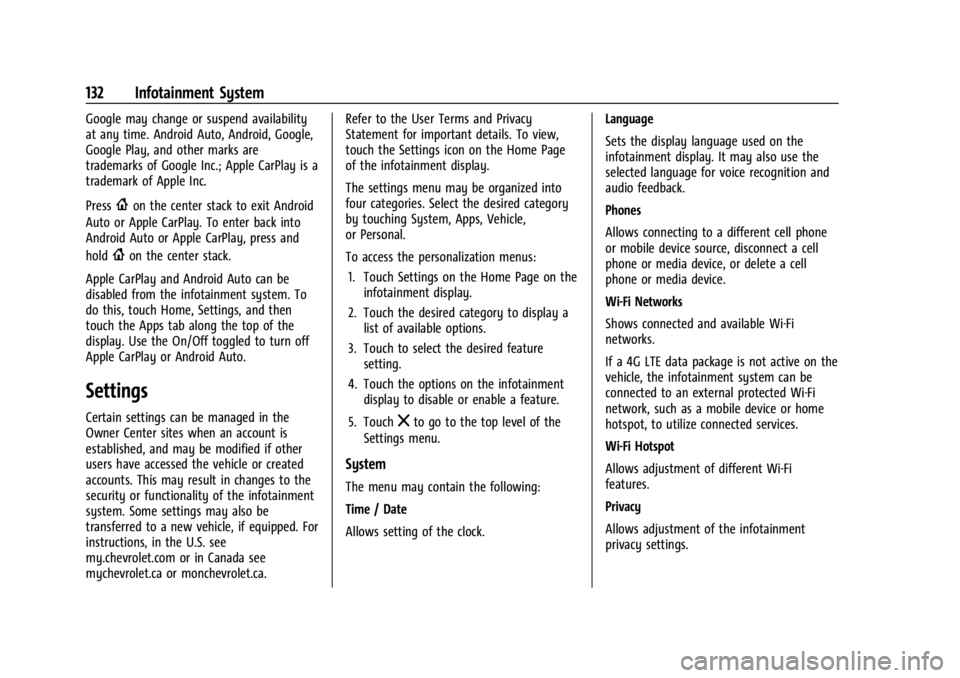
Settings
Certain settings can be managed in the
Owner Center sites when an account is
established, and may be modified if other
users have accessed the vehicle or created
accounts. This may result in changes to the
security or functionality of the infotainment
system. Some settings may also be
transferred to a new vehicle, if equipped. For
instructions, in the U.S. see
my.chevrolet.com or in Canada see
mychevrolet.ca or monchevrolet.ca. Refer to the User Terms and Privacy
Statement for important details. To view,
touch the Settings icon on the Home Page
of the infotainment display.
The settings menu may be organized into
four categories. Select the desired category
by touching System, Apps, Vehicle,
or Personal.
To access the personalization menus:
1. Touch Settings on the Home Page on the infotainment display.
2. Touch the desired category to display a list of available options.
3. Touch to select the desired feature setting.
4. Touch the options on the infotainment display to disable or enable a feature.
5. Touchzto go to the top level of the
Settings menu.
System
The menu may contain the following:
Time / Date
Allows setting of the clock. Language
Sets the display language used on the
infotainment display. It may also use the
selected language for voice recognition and
audio feedback.
Phones
Allows connecting to a different cell phone
or mobile device source, disconnect a cell
phone or media device, or delete a cell
phone or media device.
Wi-Fi Networks
Shows connected and available Wi-Fi
networks.
If a 4G LTE data package is not active on the
vehicle, the infotainment system can be
connected to an external protected Wi-Fi
network, such as a mobile device or home
hotspot, to utilize connected services.
Wi-Fi Hotspot
Allows adjustment of different Wi-Fi
features.
Privacy
Allows adjustment of the infotainment
privacy settings.
Page 134 of 308
Chevrolet BOLT EV Owner Manual (GMNA-Localizing-U.S./Canada-
16404388) - 2023 - CRC - 3/7/22
Infotainment System 133
Display
Allows adjustment of the infotainment
display.
Sounds
Allows adjustment of the infotainment
system sounds.
Voice
Allows adjustment of the infotainment voice
recognition features.
Favorites
Allows adjustment of the infotainment
favorite settings.
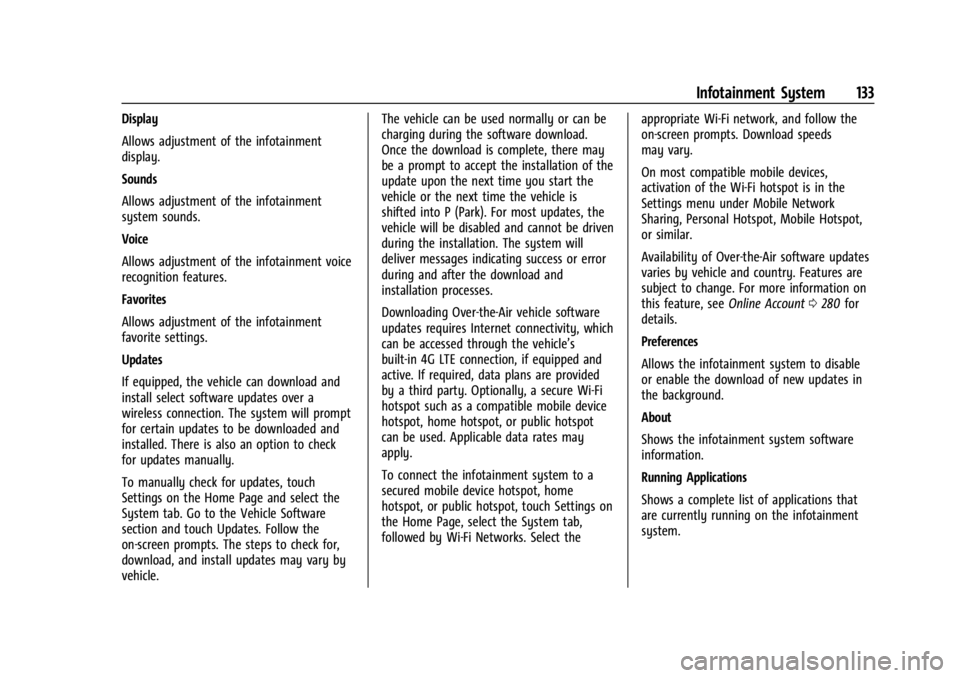
Updates
If equipped, the vehicle can download and
install select software updates over a
wireless connection. The system will prompt
for certain updates to be downloaded and
installed. There is also an option to check
for updates manually.
To manually check for updates, touch
Settings on the Home Page and select the
System tab. Go to the Vehicle Software
section and touch Updates. Follow the
on-screen prompts. The steps to check for,
download, and install updates may vary by
vehicle.The vehicle can be used normally or can be
charging during the software download.
Once the download is complete, there may
be a prompt to accept the installation of the
update upon the next time you start the
vehicle or the next time the vehicle is
shifted into P (Park). For most updates, the
vehicle will be disabled and cannot be driven
during the installation. The system will
deliver messages indicating success or error
during and after the download and
installation processes.
Downloading Over-the-Air vehicle software
updates requires Internet connectivity, which
can be accessed through the vehicle’s
built-in 4G LTE connection, if equipped and
active. If required, data plans are provided
by a third party. Optionally, a secure Wi-Fi
hotspot such as a compatible mobile device
hotspot, home hotspot, or public hotspot
can be used. Applicable data rates may
apply.
To connect the infotainment system to a
secured mobile device hotspot, home
hotspot, or public hotspot, touch Settings on
the Home Page, select the System tab,
followed by Wi-Fi Networks. Select the
appropriate Wi-Fi network, and follow the
on-screen prompts. Download speeds
may vary.
On most compatible mobile devices,
activation of the Wi-Fi hotspot is in the
Settings menu under Mobile Network
Sharing, Personal Hotspot, Mobile Hotspot,
or similar.
Availability of Over-the-Air software updates
varies by vehicle and country. Features are
subject to change. For more information on
this feature, see
Online Account0280 for
details.
Preferences
Allows the infotainment system to disable
or enable the download of new updates in
the background.
About
Shows the infotainment system software
information.
Running Applications
Shows a complete list of applications that
are currently running on the infotainment
system.