audio CHEVROLET CAMARO 2011 5.G User Guide
[x] Cancel search | Manufacturer: CHEVROLET, Model Year: 2011, Model line: CAMARO, Model: CHEVROLET CAMARO 2011 5.GPages: 414, PDF Size: 6.24 MB
Page 165 of 414
Black plate (1,1)Chevrolet Camaro Owner Manual - 2011
Infotainment System 7-1
Infotainment
System
Introduction
Infotainment . . . . . . . . . . . . . . . . . . . 7-1
Theft-Deterrent Feature . . . . . . . 7-2
Overview . . . . . . . . . . . . . . . . . . . . . . 7-2
Operation . . . . . . . . . . . . . . . . . . . . . 7-4
Radio
AM-FM Radio . . . . . . . . . . . . . . . . . 7-8
Satellite Radio . . . . . . . . . . . . . . . 7-10
Radio Reception . . . . . . . . . . . . . 7-13
Backglass Antenna . . . . . . . . . . 7-13
Diversity Antenna System . . . 7-14
Satellite Radio Antenna . . . . . . 7-14
Audio Players
CD Player . . . . . . . . . . . . . . . . . . . 7-14
Auxiliary Devices . . . . . . . . . . . . 7-17
Phone
Bluetooth (Overview) . . . . . . . . 7-23
Bluetooth (InfotainmentControls) . . . . . . . . . . . . . . . . . . . 7-24
Bluetooth (Voice Recognition) . . . . . . . . . . . . . . . 7-28
Introduction
Infotainment
Read the following pages to
become familiar with the
infotainment system features.
{WARNING
Taking your eyes off the road
for extended periods could
cause a crash resulting in
injury or death to you or others.
Do not give extended attention to
entertainment tasks while driving.
This system provides access to
many audio and non‐audio listings. To minimize taking your eyes off the
road while driving, do the following
while the vehicle is parked:
.Become familiar with the
operation and controls of the
audio system.
.Set up the tone, speaker
adjustments, and preset
radio stations.
For more information, see Defensive
Driving on page 9‑2.
Notice: Contact your dealer
before adding any equipment.
Adding audio or communication
equipment could interfere with
the operation of the engine, radio,
or other systems, and could
damage them. Follow federal
rules covering mobile radio
and telephone equipment.
Page 167 of 414

Black plate (3,1)Chevrolet Camaro Owner Manual - 2011
Infotainment System 7-3
C. Buttons 1‐6
.Radio: Saves and selects
favorite stations.
D. FAV
.Radio: Opens the
favorites list.
E. MENU/SELECT
.Press: Opens the menus
and selects menu items.
.Turn: Highlights menu
items or sets values while
in a menu. Manually
selects radio stations while
listening to the radio.
F. RADIO/BAND
.Changes the band while
listening to the radio.
.Selects the radio when
listening to a different
audio source. G.
ZCD Eject
.Removes' the CD the
from slot.
H. CD/AUX
.Selects between the CD
player or a connected
external audio source.
I. PHONE
.Opens the phone
main menu.
.Mutes the audio system.
J.
7SEEK
.Radio: Seeks the previous
station.
.CD: Selects the previous
track or rewinds within a
track. K. CD Slot
.Insert a CD.
L.
6SEEK
.Radio: Seeks the next
station.
.CD: Selects the next track
or fast forwards within a
track.
M. CONFIG
.Opens the settings menu.
N. TONE
.Opens the tone menu.
O.
0BACK
.Menu: Moves one
level back.
.Character Input: Deletes
the last character.
Page 170 of 414
Black plate (6,1)Chevrolet Camaro Owner Manual - 2011
7-6 Infotainment System
Press the0BACK button to delete
the last character or press and
hold
0BACK to delete the entire
character sequence.
Audio Settings
The audio settings can be set for
each radio band and each audio
player source.
To adjust the audio setting, press
the TONE button and select the
audio setting. Press the
0BACK
button to go back to the Tone
Settings menu.
To quickly reset an audio setting
value to 0:
1. Highlight the option.
2. Press and hold the MENU/ SELECT knob until the value
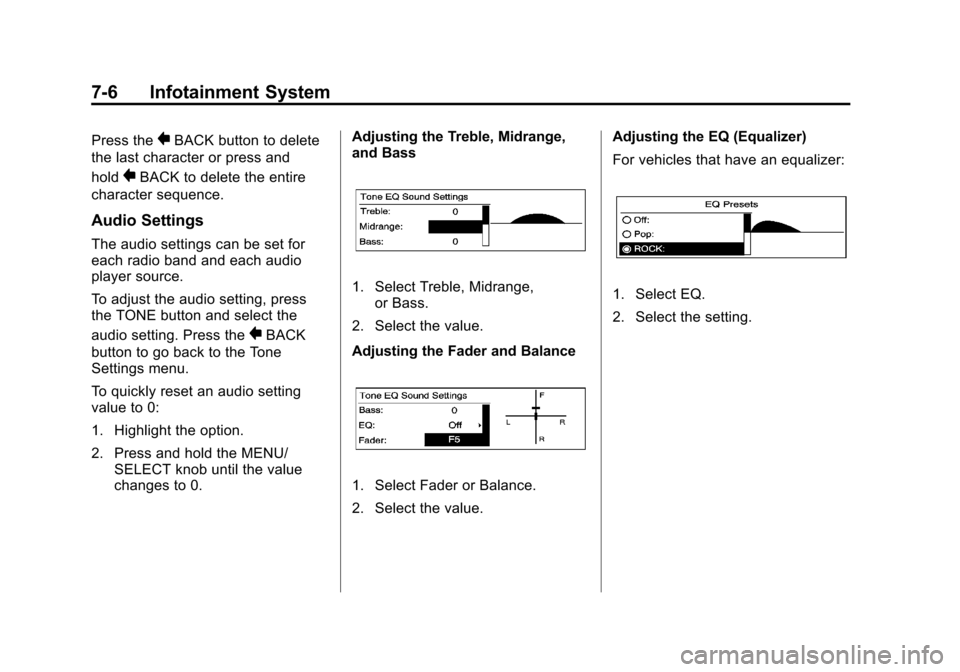
changes to 0. Adjusting the Treble, Midrange,
and Bass
1. Select Treble, Midrange,
or Bass.
2. Select the value.
Adjusting the Fader and Balance
1. Select Fader or Balance.
2. Select the value. Adjusting the EQ (Equalizer)
For vehicles that have an equalizer:
1. Select EQ.
2. Select the setting.
Page 176 of 414

Black plate (12,1)Chevrolet Camaro Owner Manual - 2011
7-12 Infotainment System
XM Messages
XL (Explicit Language
Channels):These channels, or any
others, can be blocked by request,
by calling 1-800-929-2100 in the
U.S and 1-877-438-9677 in Canada.
XM Updating: The encryption
code is being updated; no action is
required.
Loading XM: The audio system is
acquiring and processing audio and
text data; no action is needed.
Channel Off Air: This channel is
not currently in service.
Channel Unauth: This channel is
blocked or cannot be received with
the XM Subscription package.
Channel Unavail: This previously
assigned channel is no longer
assigned.
No Artist Info: No artist
information is available. No Title Info:
No song title
information is available.
No CAT Info: No category
information is available.
No Information: No text or
informational messages are
available.
No Subscription Please Renew:
XM subscription needs to be
reactivated. Contact XM at
www.xmradio.com or call
1-800-929-2100 in the U.S.
and www.xmradio.ca or call
1-877-438-9677 in Canada.
No XM Signal: The vehicle may
be in a location that where the XM
signal is being blocked. When the
vehicle is moved, the signal should
return.
CAT Not Found: There are no
channels available for the selected
category. XM Theftlocked:
The XM
receiver in the vehicle may
have been in another vehicle.
XM receivers cannot be swapped
between vehicles. If this message
is received after having the vehicle
serviced, check with your dealer.
XM Radio ID: If tuned to channel 0,
this message alternates with the
XM Radio 8 digit radio ID label.
This label is needed to activate
the service.
Unknown: If this message is
received when tuned to channel 0,
there could be a receiver fault.
Consult with your dealer.
Check XM Receivr: If this
message does not clear within a
short period of time, the receiver
could have a fault. Consult with
your dealer.
XM Not Available: If this message
does not clear within a short period
of time, the receiver could have a
fault. Consult with your dealer.
Page 178 of 414
Black plate (14,1)Chevrolet Camaro Owner Manual - 2011
7-14 Infotainment System
If a cellular telephone antenna
needs to be attached to the glass,
make sure that the grid lines for the
AM-FM antenna are not damaged.
There is enough space between
the grid lines to attach a cellular
telephone antenna without
interfering with radio reception.
Notice:Using a razor blade or
sharp object to clear the inside
rear window can damage the rear
window antenna and/or the rear
window defogger. Repairs would
not be covered by the vehicle
warranty. Do not clear the inside
rear window with sharp objects.
Notice: Do not apply aftermarket
glass tinting with metallic film.
The metallic film in some tinting
materials will interfere with
or distort the incoming radio
reception. Any damage caused
to your backglass antenna due
to metallic tinting materials will
not be covered by the vehicle
warranty.Diversity Antenna System
For vehicles with convertible tops,
the AM-FM antenna is a hidden self
tuning system and is located in the
rear spoiler. It optimizes the AM and
FM signals relative to the vehicle's
position and radio station source.
No maintenance or adjustments are
needed. Do not place loads on the
spolier. If the spolier is replaced, be
sure it is replaced with the correct
GM parts for the best AM and FM
reception.
Satellite Radio Antenna
For vehicles with XM™ Satellite
Radio Service, the antenna is
located on the decklid of the
vehicle. Keep the antenna clear
of obstructions for clear radio
reception.
Audio Players
CD Player
The CD player can play audio CDs
and MP3 CDs.
The CD player will not play 8 cm
(3 in) CDs.
Care of CDs
Sound quality can be reduced due
to disc quality, recording method,
quality of the music recorded, and
how the disc has been handled.
Handle discs carefully and store
them in their original cases or other
protective cases away from direct
sunlight and dust. If the bottom
surface of a disc is damaged, the
disc may not play properly or at all.
Do not touch the bottom surface of
a disc while handling it; this could
damage the surface. Pick up discs
by grasping the outer edges or the
edge of the hole and the outer edge.
Page 181 of 414
Black plate (17,1)Chevrolet Camaro Owner Manual - 2011
Infotainment System 7-17
Auxiliary Devices
The AUX Input allows portable
devices to connect to the vehicle
using the 3.5 mm (1/8 in) input
jack, the USB port, if equipped,
or Bluetooth
®wireless technology,
if equipped.
Portable devices are controlled by
using the menu system described in
Operation on page 7‑4.
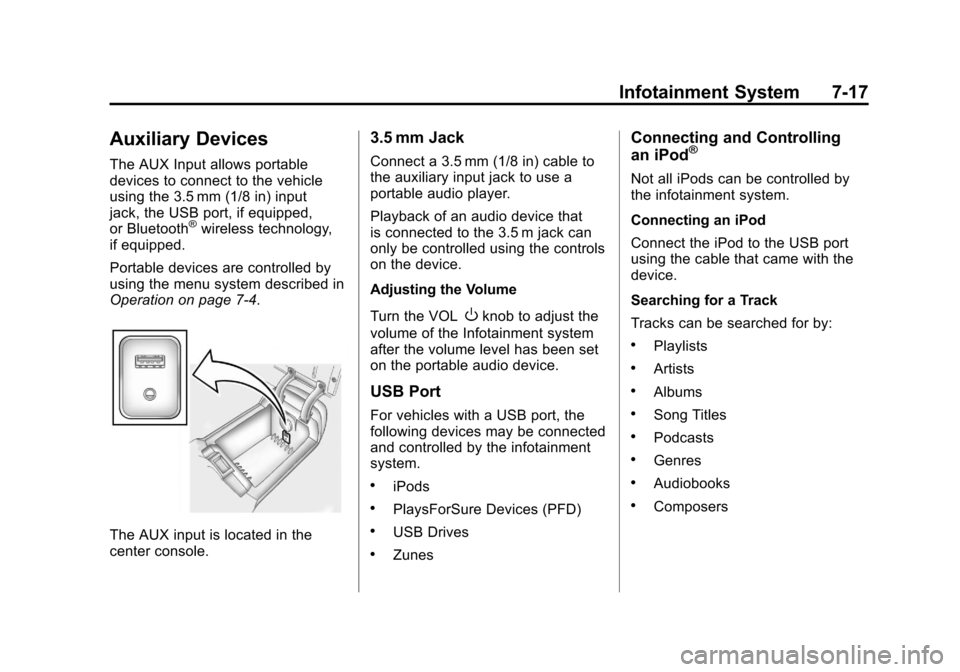
The AUX input is located in the
center console.
3.5 mm Jack
Connect a 3.5 mm (1/8 in) cable to
the auxiliary input jack to use a
portable audio player.
Playback of an audio device that
is connected to the 3.5 m jack can
only be controlled using the controls
on the device.
Adjusting the Volume
Turn the VOL
Oknob to adjust the
volume of the Infotainment system
after the volume level has been set
on the portable audio device.
USB Port
For vehicles with a USB port, the
following devices may be connected
and controlled by the infotainment
system.
.iPods
.PlaysForSure Devices (PFD)
.USB Drives
.Zunes
Connecting and Controlling
an iPod®
Not all iPods can be controlled by
the infotainment system.
Connecting an iPod
Connect the iPod to the USB port
using the cable that came with the
device.
Searching for a Track
Tracks can be searched for by:
.Playlists
.Artists
.Albums
.Song Titles
.Podcasts
.Genres
.Audiobooks
.Composers
Page 182 of 414
Black plate (18,1)Chevrolet Camaro Owner Manual - 2011
7-18 Infotainment System
To search for tracks:
1. Press the MENU/SELECT knob.
2. Select Search.
3. Select: Playlists, Artists, Albums,Song Titles, Podcasts, Genres,
Audiobooks, or Composers.
4. Select the track.
Shuffle
Press the MENU/SELECT knob
and set Shuffle Songs (Random) to
On or Off, then press the
0BACK
button to return to the main screen.
On: Plays tracks in the current
folder in random order.
Off: Plays tracks in the current
folder in sequential order. Repeat
Press the MENU/SELECT knob and
set Repeat to On or Off, then press
the
0BACK button to return to the
main screen.
On: Repeats the current track.
Off: Starts playback from the
beginning of the current track after
the last track finishes.
Connecting and Controlling a
PlaysForSure Device (PFD)
or Zune™
Connecting a PFD or Zune
Connect the PFD or Zune to the
USB port using the cable that came
with the device. Searching for a Track
Tracks can be searched for by:
.Playlists
.Artists
.Albums
.Song Titles
.Podcasts
.Genres
To search for tracks:
1. Press the MENU/SELECT knob.
2. Select Search.
3. Select: Playlists, Artists, Albums, Song Titles, Podcasts,
or Genres
4. Select the track.
Page 184 of 414
Black plate (20,1)Chevrolet Camaro Owner Manual - 2011
7-20 Infotainment System
Shuffle Functionality
Press the MENU/SELECT knob and
set Shuffle Songs (Random) to On
or Off.
On:Plays current tracks in random
order.
Off: Plays current tracks in
sequential order.
Repeat Functionality
Press the MENU/SELECT knob and
set Repeat to On or Off.
Repeat On: Repeats the current
track.
Repeat Off: Starts playback from
the beginning of the current track
after the last track finishes.Connecting a Bluetooth®
Device
Before a Bluetooth device can
be connected to the infotainment
system, it must first be paired to the
system. Not all Bluetooth devices
can be paired to the infotainment
system. Before pairing the Bluetooth
device, become familiar with its
user guide for Bluetooth functions.
The system only connects to
Bluetooth devices that support
A2DP (Advanced Audio Distribution
Profile) version 1.2. Pairing Information:
.Up to five devices can be paired
to the system.
.The pairing process is disabled
when the vehicle is moving.
.The infotainment system
automatically links with the first
available paired device in the
order the device was paired.
.Only one paired device can be
connected to the infotainment
system at a time.
.Pairing should only need to be
completed once, unless changes
to the pairing information have
been made or the device is
deleted.
Page 186 of 414
Black plate (22,1)Chevrolet Camaro Owner Manual - 2011
7-22 Infotainment System
Removing a Device
1. Select Remove Device from theBluetooth Music Setup menu.
2. Select the device.
3. The device is removed from the system.
Before connecting to the removed
device again, it will need to paired
to the infotainment system.
Changing the Default PIN
To change the default PIN:
1. Select Change Default PIN from the Bluetooth Music
Setup menu.
2. Select a pre‐defined PIN, or select Other to create a PIN.
To create a PIN:
1. Select the length of the PIN.
2. Enter the character sequence. Messages
The following messages may
appear on the infotainment screen.
Poor Bluetooth Signal Quality:
This message displays when the
Bluetooth signal strength is low.
This Feature is Unavailable While
Vehicle is Moving:
This message
displays when an action is not
allowed while the vehicle is moving.
Controlling a Bluetooth®
Device
Bluetooth devices that support
AVRCP (Audio/Video Remote
Control Profile) version 1.4 may
be able to be controlled by the
infotainment system.
Press and release
7SEEK /
6SEEK to skip tracks. Press and
hold
7SEEK /6SEEK to fast
forward or fast reverse within a
track.
Other Information
The Bluetooth®word mark and
logos are owned by the Bluetooth®
SIG, Inc. and any use of such marks
by General Motors is under license.
Other trademarks and trade names
are those of their respective owners.
See Radio Frequency
Statement on page 13‑19
for Federal Communications
Commission and Industry
Canada information.
Page 188 of 414
Black plate (24,1)Chevrolet Camaro Owner Manual - 2011
7-24 Infotainment System
Audio System
When using the Bluetooth system,
sound comes through the vehicle's
front audio system speakers and
overrides the audio system. Use
the audio system volume knob
during a call to change the volume
level. The adjusted volume level
remains in memory for later calls.
The system maintains a minimum
volume level.
Other Information
The Bluetooth®word mark and
logos are owned by the Bluetooth®
SIG, Inc. and any use of such marks
by General Motors is under license.
Other trademarks and trade names
are those of their respective owners.
See Radio Frequency
Statement on page 13‑19
for Federal Communications
Commission and Industry
Canada information.
Bluetooth
(Infotainment Controls)
For information about how to
navigate the menu system using the
infotainment controls, see Operation
on page 7‑4.
Pairing
A Bluetooth enabled cell phone
must be paired to the Bluetooth
system first and then connected to
the vehicle before it can be used.
See the cell phone manufacturer
user guide for Bluetooth functions
before pairing the cell phone. If a
Bluetooth phone is not connected,
calls will be made using OnStar
®
Hands‐Free Calling, if available.
Refer to the OnStar Owner's Guide
for more information.
The pairing process can be started
by using the voice recognition
system or the controls on the
infotainment system. Pairing Information:
.Up to five cell phones can be
paired to the Bluetooth system.
.The pairing process is disabled
when the vehicle is moving.
.The Bluetooth system links with
the first available paired cell
phone in the order the phone
was paired.
.Only one paired cell phone can
be connected to the Bluetooth
system at a time.
.Pairing should only need to be
completed once, unless changes
to the pairing information have
been made or the phone is
deleted.
To link to a different paired phone,
see “Linking to a Different Phone”
later in this section.