light CHEVROLET CAMARO 2011 5.G Repair Manual
[x] Cancel search | Manufacturer: CHEVROLET, Model Year: 2011, Model line: CAMARO, Model: CHEVROLET CAMARO 2011 5.GPages: 414, PDF Size: 6.24 MB
Page 162 of 414
Black plate (6,1)Chevrolet Camaro Owner Manual - 2011
6-6 Lighting
Interior Lighting
Instrument Panel
Illumination Control
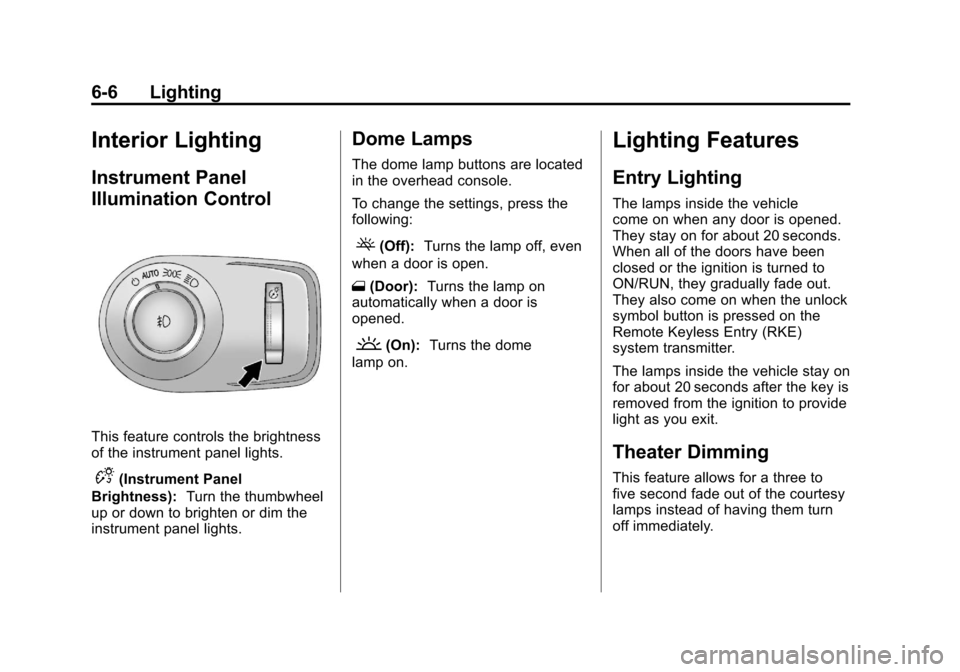
This feature controls the brightness
of the instrument panel lights.
D(Instrument Panel
Brightness): Turn the thumbwheel
up or down to brighten or dim the
instrument panel lights.
Dome Lamps
The dome lamp buttons are located
in the overhead console.
To change the settings, press the
following:
((Off): Turns the lamp off, even
when a door is open.
1 (Door): Turns the lamp on
automatically when a door is
opened.
'(On): Turns the dome
lamp on.
Lighting Features
Entry Lighting
The lamps inside the vehicle
come on when any door is opened.
They stay on for about 20 seconds.
When all of the doors have been
closed or the ignition is turned to
ON/RUN, they gradually fade out.
They also come on when the unlock
symbol button is pressed on the
Remote Keyless Entry (RKE)
system transmitter.
The lamps inside the vehicle stay on
for about 20 seconds after the key is
removed from the ignition to provide
light as you exit.
Theater Dimming
This feature allows for a three to
five second fade out of the courtesy
lamps instead of having them turn
off immediately.
Page 163 of 414
Black plate (7,1)Chevrolet Camaro Owner Manual - 2011
Lighting 6-7
Battery Load
Management
The vehicle has Electric Power
Management (EPM) that estimates
the battery's temperature and state
of charge. It then adjusts the voltage
for best performance and extended
life of the battery.
When the battery's state of charge
is low, the voltage is raised slightly
to quickly bring the charge back up.
When the state of charge is high,
the voltage is lowered slightly
to prevent overcharging. If the
vehicle has a voltmeter gauge
or a voltage display on the Driver
Information Center (DIC), you may
see the voltage move up or down.
This is normal. If there is a problem,
an alert will be displayed.The battery can be discharged at
idle if the electrical loads are very
high. This is true for all vehicles.
This is because the generator
(alternator) may not be spinning
fast enough at idle to produce all
the power that is needed for very
high electrical loads.
A high electrical load occurs when
several of the following are on,
such as: headlamps, high beams,
fog lamps, rear window defogger,
climate control fan at high speed,
heated seats, engine cooling fans,
trailer loads, and loads plugged
into accessory power outlets.
EPM works to prevent excessive
discharge of the battery. It does this
by balancing the generator's output
and the vehicle's electrical needs.
It can increase engine idle speed
to generate more power, whenever
needed. It can temporarily reduce
the power demands of some
accessories.Normally, these actions occur
in steps or levels, without being
noticeable. In rare cases at the
highest levels of corrective action,
this action may be noticeable to the
driver. If so, a Driver Information
Center (DIC) message might be
displayed, such as BATTERY
SAVER ACTIVE, BATTERY
VOLTAGE LOW, or LOW BATTERY.
If one of these messages displays,
it is recommended that the driver
reduce the electrical loads as much
as possible. See
Driver Information
Center (DIC) on page 5‑25.
Battery Power Protection
This feature shuts off the dome
lamps if they are left on for more
than 10 minutes when the ignition is
in LOCK/OFF. This helps to prevent
the battery from running down.
Page 164 of 414

Black plate (8,1)Chevrolet Camaro Owner Manual - 2011
6-8 Lighting
2NOTES
Page 167 of 414

Black plate (3,1)Chevrolet Camaro Owner Manual - 2011
Infotainment System 7-3
C. Buttons 1‐6
.Radio: Saves and selects
favorite stations.
D. FAV
.Radio: Opens the
favorites list.
E. MENU/SELECT
.Press: Opens the menus
and selects menu items.
.Turn: Highlights menu
items or sets values while
in a menu. Manually
selects radio stations while
listening to the radio.
F. RADIO/BAND
.Changes the band while
listening to the radio.
.Selects the radio when
listening to a different
audio source. G.
ZCD Eject
.Removes' the CD the
from slot.
H. CD/AUX
.Selects between the CD
player or a connected
external audio source.
I. PHONE
.Opens the phone
main menu.
.Mutes the audio system.
J.
7SEEK
.Radio: Seeks the previous
station.
.CD: Selects the previous
track or rewinds within a
track. K. CD Slot
.Insert a CD.
L.
6SEEK
.Radio: Seeks the next
station.
.CD: Selects the next track
or fast forwards within a
track.
M. CONFIG
.Opens the settings menu.
N. TONE
.Opens the tone menu.
O.
0BACK
.Menu: Moves one
level back.
.Character Input: Deletes
the last character.
Page 168 of 414
Black plate (4,1)Chevrolet Camaro Owner Manual - 2011
7-4 Infotainment System
Operation
Controls
The infotainment system is
operated by using the pushbuttons,
multifunction knobs, and menus
that are shown on the display, and
steering wheel controls, if equipped.
Turning the System On or Off
OVOL (Power/Volume):Press to
turn the system on and off.
Automatic Off
If the infotainment system has
been turned on after the ignition
is turned off, the system turns off
automatically after 10 minutes.
Volume Control
OVOL (Power/Volume): Turn to
adjust the volume.
PHONE: For vehicles with
OnStar
®, press and hold PHONE
to mute the infotainment system.
Press and hold PHONE again,
or turn
OVOL to cancel mute.
For vehicles without OnStar
®, press
PHONE to mute the infotainment
system. Press PHONE again,
or turn
OVOL to cancel mute.
Menu System
Controls
The MENU/SELECT knob and
the
0BACK button are used to
navigate the menu system. MENU/SELECT:
Press to:
.Enter the menu system.
.Select or activate the highlighted
menu option.
.Confirm a set value.
.Switch a system setting on
or off.
Turn to:
.Highlight a menu option.
.Select a value.
0BACK: Press to:
.Exit a menu.
.Return from a submenu screen
to the previous menu screen.
.Delete the last character in a
sequence.
Page 169 of 414
Black plate (5,1)Chevrolet Camaro Owner Manual - 2011
Infotainment System 7-5
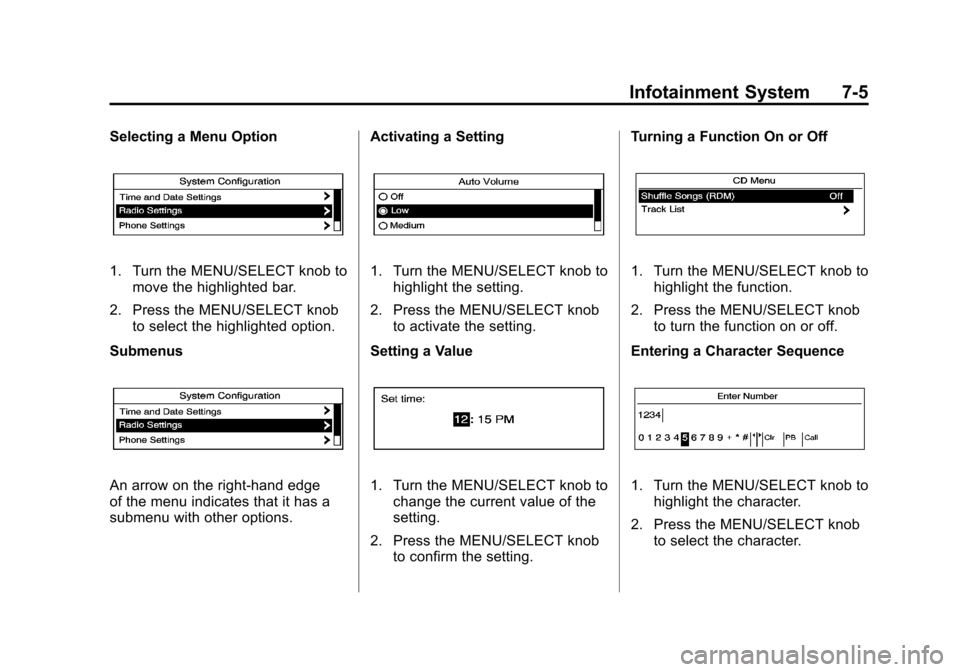
Selecting a Menu Option
1. Turn the MENU/SELECT knob tomove the highlighted bar.
2. Press the MENU/SELECT knob to select the highlighted option.
Submenus
An arrow on the right‐hand edge
of the menu indicates that it has a
submenu with other options. Activating a Setting
1. Turn the MENU/SELECT knob to
highlight the setting.
2. Press the MENU/SELECT knob to activate the setting.
Setting a Value
1. Turn the MENU/SELECT knob to change the current value of the
setting.
2. Press the MENU/SELECT knob to confirm the setting. Turning a Function On or Off
1. Turn the MENU/SELECT knob to
highlight the function.
2. Press the MENU/SELECT knob to turn the function on or off.
Entering a Character Sequence
1. Turn the MENU/SELECT knob to highlight the character.
2. Press the MENU/SELECT knob to select the character.
Page 170 of 414
Black plate (6,1)Chevrolet Camaro Owner Manual - 2011
7-6 Infotainment System
Press the0BACK button to delete
the last character or press and
hold
0BACK to delete the entire
character sequence.
Audio Settings
The audio settings can be set for
each radio band and each audio
player source.
To adjust the audio setting, press
the TONE button and select the
audio setting. Press the
0BACK
button to go back to the Tone
Settings menu.
To quickly reset an audio setting
value to 0:
1. Highlight the option.
2. Press and hold the MENU/ SELECT knob until the value
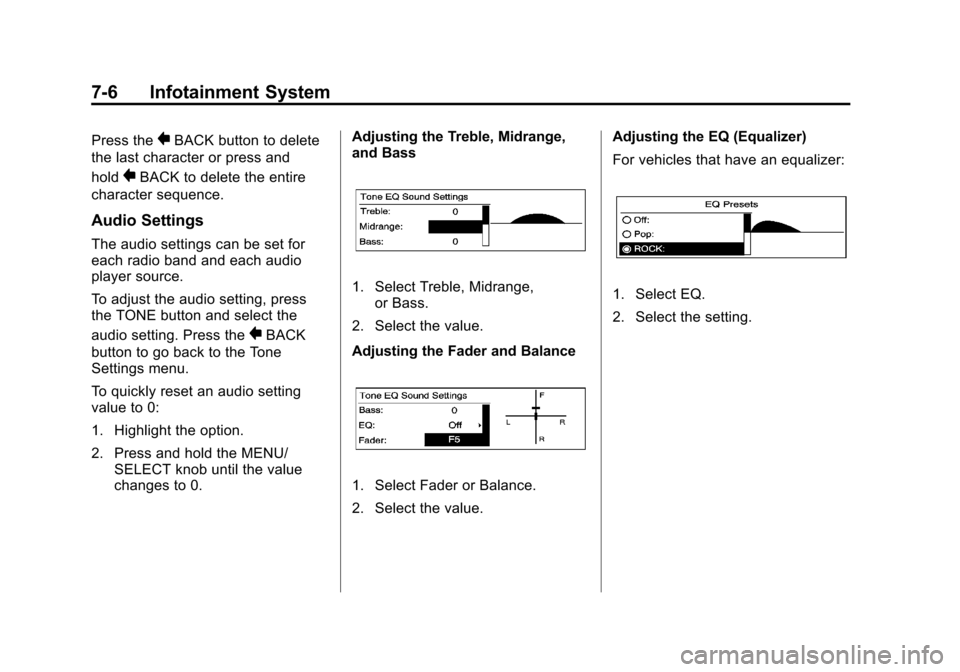
changes to 0. Adjusting the Treble, Midrange,
and Bass
1. Select Treble, Midrange,
or Bass.
2. Select the value.
Adjusting the Fader and Balance
1. Select Fader or Balance.
2. Select the value. Adjusting the EQ (Equalizer)
For vehicles that have an equalizer:
1. Select EQ.
2. Select the setting.
Page 175 of 414
Black plate (11,1)Chevrolet Camaro Owner Manual - 2011
Infotainment System 7-11
Removing or Adding Categories
1. Press the CONFIG button.
2. Select XM Categories.
3. Turn the MENU/SELECT knob tohighlight the category.
4. Press the MENU/SELECT knob to remove or add the category.
Selecting an XM Station
XM stations can be selected
by using
7SEEK,6SEEK,
the MENU/SELECT knob, or the
menu system.
To select an XM station using
7SEEK or6SEEK, do one
of the following:
.Press and release7SEEK or
6SEEK to go to the previous
or next station.
.Press and hold7SEEK or
6SEEK to scroll through the
previous or next stations until
the station is reached. To select an XM station using the
MENU/SELECT knob:
1. Turn the MENU/SELECT knob to
highlight an XM station.
2. Press the MENU/SELECT knob to select the station, or leave the
station highlighted.
To select a station using the menu:
1. Press the MENU/SELECT knob.
2. Select XM Stations List.
3. Select the station.
Selecting a Station by Category
1. Press the MENU/SELECT knob.
2. Select XM Category List. A list of all programming types available
displays.
3. Select the programming type.
4. Select the station.
Storing and Retrieving
Favorites
Stations from all bands can be
stored in any order in the favorite
pages.
Up to six stations can be stored in
each favorite page and the number
of available favorite pages can
be set.
Storing a Station as a Favorite
To store the station to a position
in the list, press and hold the
corresponding 1‐6 button until
the station can be heard again.
Retrieving Stations
Press the FAV button to open a
favorite page or to switch to another
favorite page. Briefly press one of
the 1‐6 buttons to retrieve the
station.
Page 178 of 414
Black plate (14,1)Chevrolet Camaro Owner Manual - 2011
7-14 Infotainment System
If a cellular telephone antenna
needs to be attached to the glass,
make sure that the grid lines for the
AM-FM antenna are not damaged.
There is enough space between
the grid lines to attach a cellular
telephone antenna without
interfering with radio reception.
Notice:Using a razor blade or
sharp object to clear the inside
rear window can damage the rear
window antenna and/or the rear
window defogger. Repairs would
not be covered by the vehicle
warranty. Do not clear the inside
rear window with sharp objects.
Notice: Do not apply aftermarket
glass tinting with metallic film.
The metallic film in some tinting
materials will interfere with
or distort the incoming radio
reception. Any damage caused
to your backglass antenna due
to metallic tinting materials will
not be covered by the vehicle
warranty.Diversity Antenna System
For vehicles with convertible tops,
the AM-FM antenna is a hidden self
tuning system and is located in the
rear spoiler. It optimizes the AM and
FM signals relative to the vehicle's
position and radio station source.
No maintenance or adjustments are
needed. Do not place loads on the
spolier. If the spolier is replaced, be
sure it is replaced with the correct
GM parts for the best AM and FM
reception.
Satellite Radio Antenna
For vehicles with XM™ Satellite
Radio Service, the antenna is
located on the decklid of the
vehicle. Keep the antenna clear
of obstructions for clear radio
reception.
Audio Players
CD Player
The CD player can play audio CDs
and MP3 CDs.
The CD player will not play 8 cm
(3 in) CDs.
Care of CDs
Sound quality can be reduced due
to disc quality, recording method,
quality of the music recorded, and
how the disc has been handled.
Handle discs carefully and store
them in their original cases or other
protective cases away from direct
sunlight and dust. If the bottom
surface of a disc is damaged, the
disc may not play properly or at all.
Do not touch the bottom surface of
a disc while handling it; this could
damage the surface. Pick up discs
by grasping the outer edges or the
edge of the hole and the outer edge.
Page 190 of 414
Black plate (26,1)Chevrolet Camaro Owner Manual - 2011
7-26 Infotainment System
Linking to a Different Phone
To link to a different phone, the new
phone must be in the vehicle and
available to be connected to the
Bluetooth system before the
process is started.
1. Press the CONFIG button.
2. Select Phone Settings.
3. Select Bluetooth.
4. Select Device List.
5. Select the new phone to linkto and follow the on screen
prompts.
If delete is selected, the
highlighted phone will be
deleted.Making a Call Using
Phone Book
For cell phones that support the
phone book feature, the Bluetooth
system can use the contacts stored
on your cell phone to make calls.
See your cell phone manufacturer's
user guide or contact your wireless
provider to find out if this feature is
supported by your phone.
When a cell phone supports the
phone book feature, the Phone
Book and Call Lists menus are
automatically available.
The Phone Book menu allows you
to access the phone book stored in
the cell phone to make a call.
The Call Lists menu allows you to
access the phone numbers from the
Incoming Calls, Outgoing Calls, and
Missed Calls menus on your cell
phone to make a call. To make a call using the Phone
Book menu:
1. Press the PHONE button twice.
2. Select Phone Book.
3. You can search through the list
by selecting the letter group the
phone book entry begins with,
or press the SELECT button
to scroll through the entire
list of names/numbers in the
phone book.
4. Select the name or number you want to call.
To make a call using the Call
Lists menu:
1. Press the PHONE button twice.
2. Select Call Lists.
3. Select the Incoming Calls, Outgoing Calls, or Missed
Calls list.
4. Select the name or number you want to call.